Tag Archives: Ordafide

The 15-Minute Weekly WooCommerce Order Health Check (Free Checklist)

Most WooCommerce maintenance advice is about the site: update plugins, back up the database, optimize images, check uptime. That’s all sensible. But it misses the thing that actually pays the bills: are the orders right?

A store can be fast, secure, fully updated and perfectly backed up while quietly:

  • leaving paid orders on Pending payment,
  • charging some customers twice,
  • shipping orders that were already refunded,
  • never emailing receipts,
  • and recording totals that don’t match the money.

None of these produce error messages. They show up as customer complaints, chargebacks and reconciliation gaps weeks later.

This article gives you a 15-minute weekly routine for checking order health, explains what each step catches and why, and shows how to automate most of it so it keeps happening on the busy weeks too.

Why weekly?

  • Daily is ideal for high-volume stores, but it’s rarely sustained by hand.
  • Monthly is too slow. Customers who paid and received nothing won’t wait a month.
  • Weekly catches most problems while customers are still patient, and it’s frequent enough to become a habit.

Pick a fixed slot (Monday at 10:00 works well, after the weekend’s orders) and put it in the calendar.

The 15-minute routine
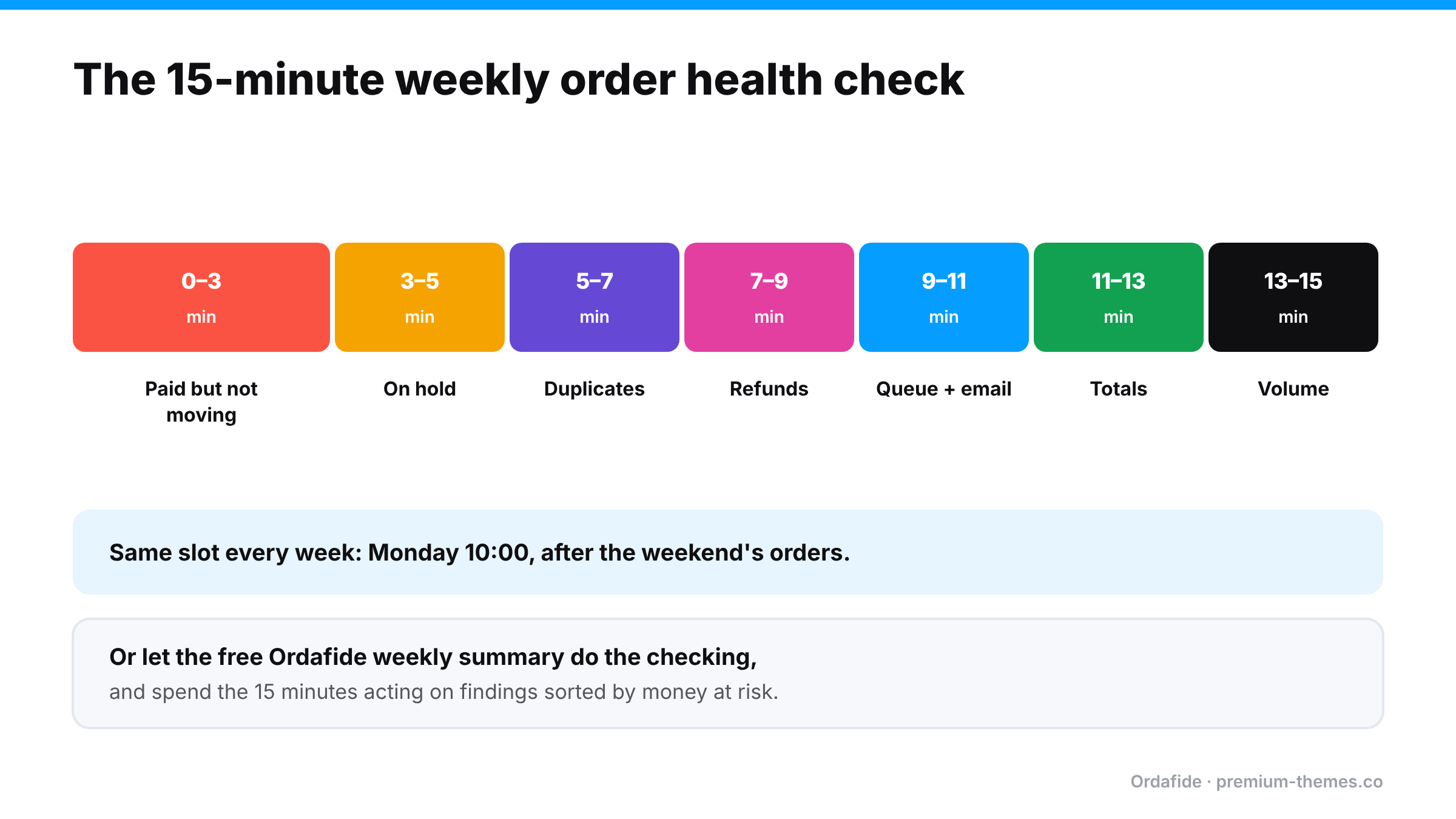
Timeline of a 15-minute weekly routine: paid but not moving (3 minutes), On hold, duplicates, refunds, background queue and email, totals, and order volume (2 minutes each). Do it at the same time every week, or let the Ordafide weekly summary do the checking.

Minute 0–3: Orders that are paid but not moving

Check: filter WooCommerce → Orders by Pending payment, Failed and Cancelled for the last 7–10 days. Open any that look like real customers (real names, sensible addresses, not card-testing junk).

Look for: a gateway transaction ID, a payment note, or a paid date on an order that isn’t Processing or Completed.

Why: these are customers who paid and won’t receive anything. Webhook failures and the Hold stock auto-cancel timer are the usual causes. (Full guide)

Action: verify in the gateway, move to Processing, resend the confirmation email, apologize.

Minute 3–5: The On hold queue

Check: filter by On hold.

Look for: bank transfers you haven’t matched, card authorizations that need capturing before they expire, payments that are actually settled at the gateway.

Why: On hold orders fall outside the Processing queue your team works from. (Full guide)

Minute 5–7: Duplicates

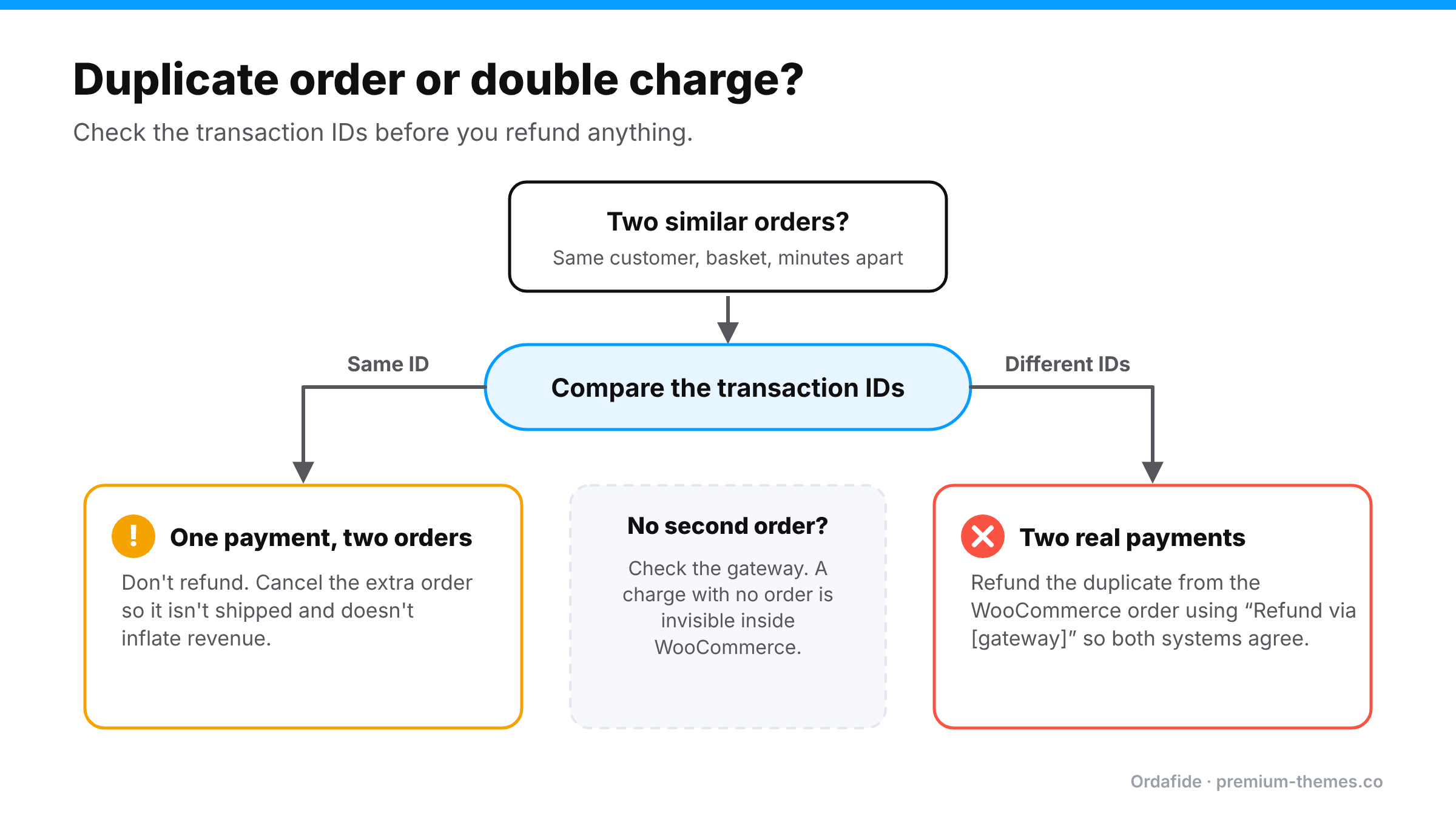
Check: sort recent orders by customer or email and scan for the same customer, same total, minutes apart.

Look for: two orders with the same transaction ID (one payment, two orders) or two different transaction IDs (charged twice).

Why: duplicate charges are a leading cause of “duplicate processing” disputes. (Full guide)

Minute 7–9: Refunds that don’t add up

Check: filter by Refunded and spot-check a few for refund records. Then look at Processing orders older than your normal fulfilment time for red refund lines.

Look for: “Refunded” orders with no refund, fully refunded orders still in Processing, refunds larger than the order.

Why: refunded orders get shipped; promised refunds never arrive. (Full guide)

Minute 9–11: The background queue and email

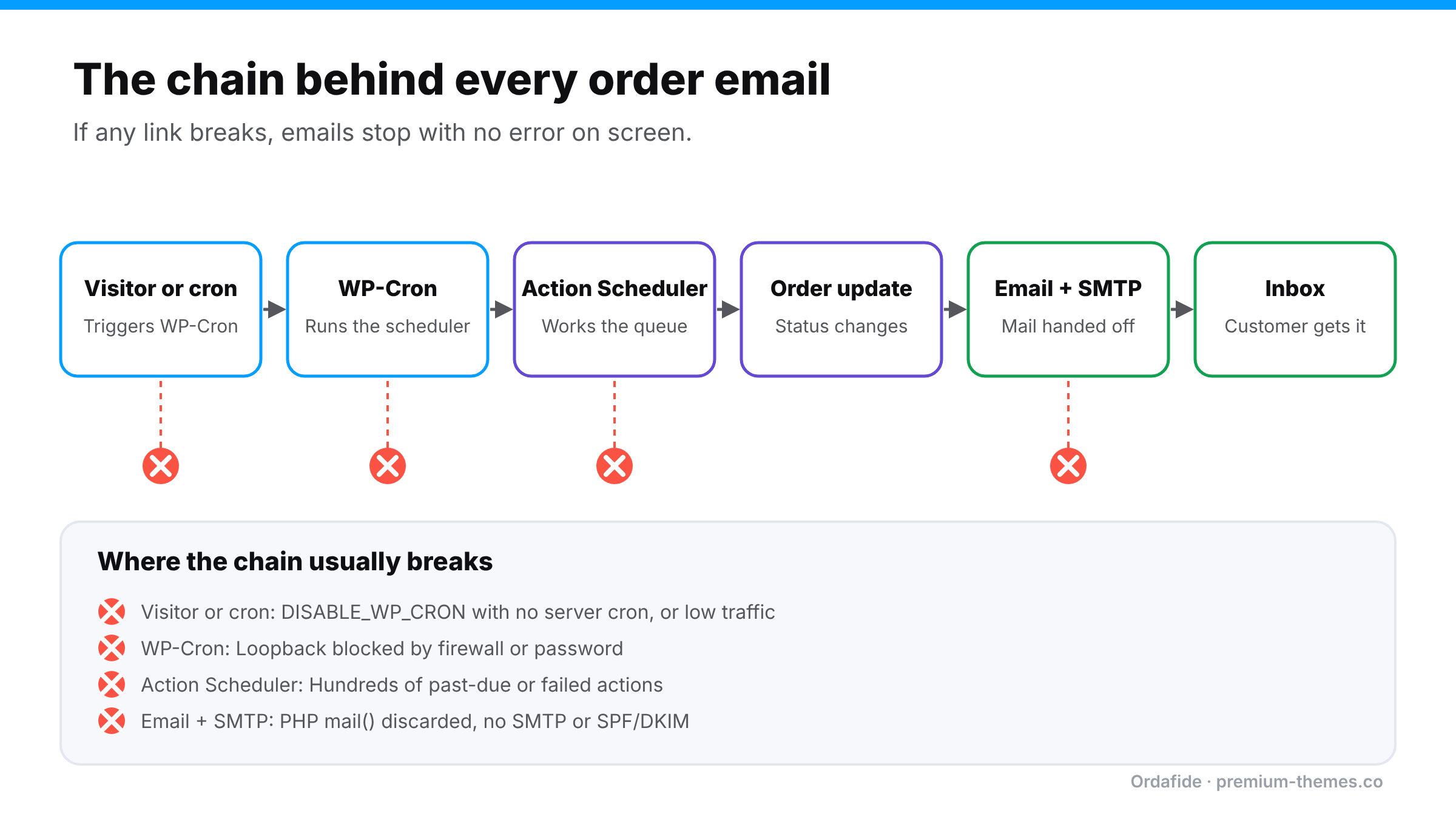
Check: WooCommerce → Status → Scheduled Actions → Pending. Are there many past-due actions? Check the Failed tab too. Then send yourself a test email from your SMTP plugin.

Why: when the queue stalls, emails, stock updates and some payment processing stop, silently. (Full guide)

Minute 11–13: Totals

Check: open three or four recent orders that used a coupon, a different currency, or an unusual shipping method. Do items − discounts + shipping + fees + tax equal the total?

Why: pricing, tax and currency plugins can leave orders that don’t add up. ([Full guide](/blog/woocommerce-order-total-wrong/))

Minute 13–15: Volume sanity check

Check: compare this week’s order count and revenue with the same week last month or last year in WooCommerce → Analytics. Look at day-by-day: is there a day with suspiciously few orders?

Why: a day with almost no orders is often a broken checkout nobody noticed. A day with hundreds of failed orders is often card testing. (Checkout guide · Card testing guide)

What you’ll typically find (and what to do)

Here are the kinds of findings a first audit usually turns up on an established store, and how to handle each one.

“Order #5520, Cancelled, $142. Order notes show a Stripe payment ID.”
The webhook didn’t arrive within the Hold stock window, so WooCommerce cancelled a paid order. Check Stripe: payment succeeded. Restore to Processing, check stock, resend the confirmation, ship, and email an apology. Then find out why the webhook failed. One stuck order usually means others.

“Orders #5531 and #5532, same customer, $38 each, 40 seconds apart, different transaction IDs.”
A genuine double charge. Confirm with the customer that they wanted one, refund #5532 from the order screen, and look at checkout speed.

“Order #5490, Processing, $95. Refunded in full four days ago.”
Stop! Make sure it isn’t in today’s picking list. Change the status to Refunded (carefully, so you don’t trigger a second refund) and find out who refunded it and where.

“Scheduled Actions: 1,240 past-due.”
The queue isn’t running. Check `DISABLE_WP_CRON`, set up a real server cron, and let the backlog drain. Then check whether any customers missed confirmation emails during the stall.

“Order #5544: items + shipping + tax = $72.40; stored total = $67.40.”
A discount was applied without a matching line. Check which pricing plugin did it, and whether other orders are affected.

The first audit is usually the biggest. After that, weekly findings tend to be small and quick, and anything unusual stands out clearly.

Adapting the routine to your store size

  • Under ~20 orders a week: you can open every order. The routine takes 10 minutes. Focus on paid-but-not-moving and refunds.
  • Hundreds of orders a week: sampling stops working. Use filters, sort by customer, and lean on automated checks for full coverage.
  • Thousands of orders a week: a weekly manual check is too slow. Problems need finding in hours, not days. Automate the checks, set alerts, and keep the weekly slot for reviewing trends and fixing root causes.
  • Multiple stores: script it. Running the same check by hand across stores doesn’t last more than a few weeks.

Keep a simple log

Write down what you found each week: date, issue, number of orders, money involved, cause, fix. After a month or two, patterns emerge. Maybe the same gateway keeps leaving orders stuck, or duplicates cluster on mobile. The log turns firefighting into fixing.

Week Issue Orders Value Cause Fixed?
3 Nov Paid but cancelled 2 $118 Webhook blocked by WAF Yes: WAF rule
10 Nov Duplicate charge 1 $45 Double click, slow checkout Refunded; investigating speed
17 Nov None found

Why manual audits fail (and what to do about it)
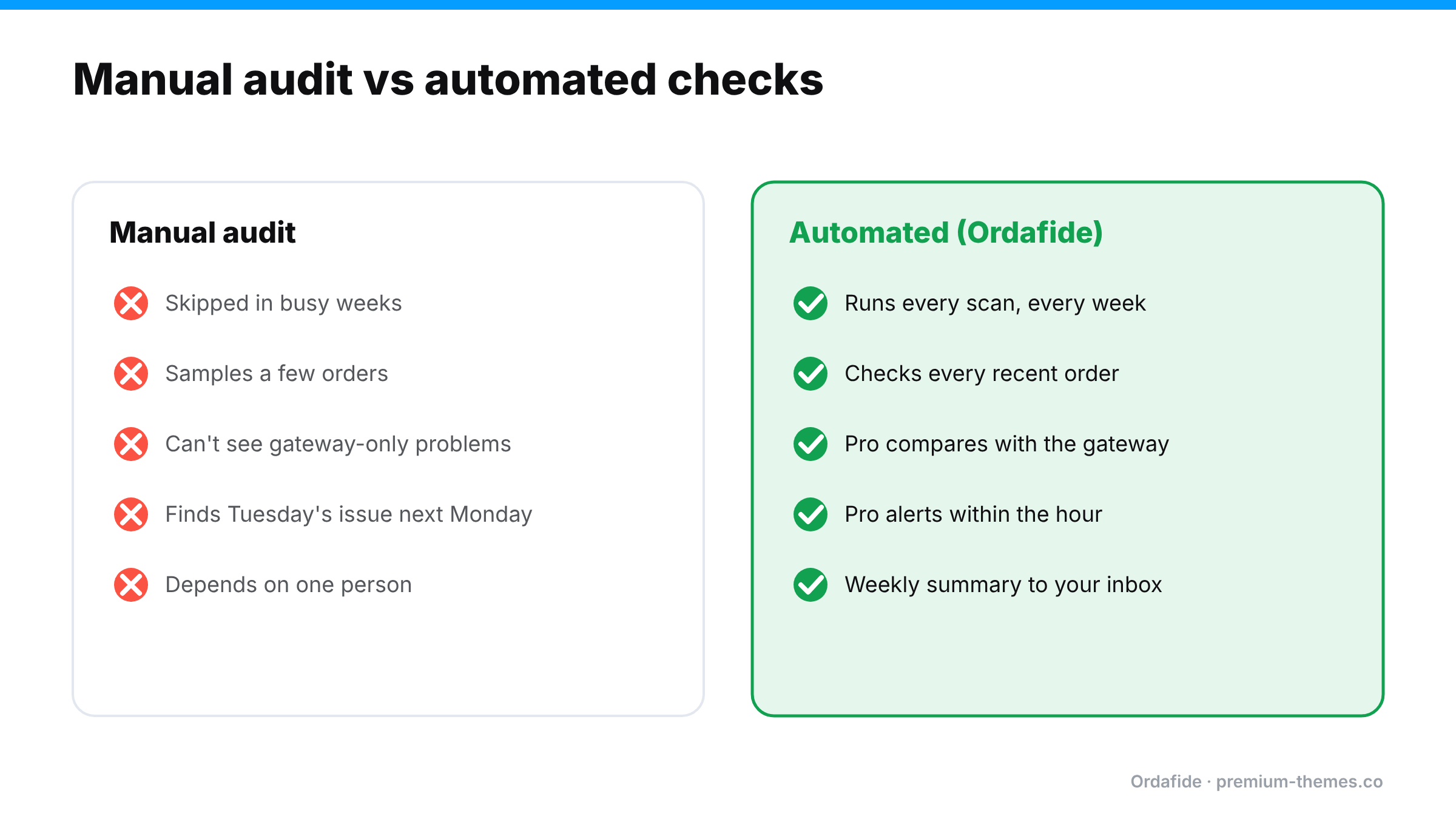
Comparison. Manual audits get skipped in busy weeks, sample a few orders, can't see gateway-only problems, find issues days late and depend on one person. Automated checks run every time, cover every recent order, compare with the gateway in Pro, alert within the hour in Pro and send a weekly summary.

Be honest: will this routine still happen in the week before Christmas? During a product launch? When you’re ill?

Manual audits have predictable weaknesses:

  • They’re skipped when you’re busy, which is exactly when problems are most likely and most expensive.
  • They’re sampled. You can’t open every order, so you check a few and hope.
  • They miss the invisible. Payments with no order, refunds only at the gateway, and charges that differ from the order can’t be seen from WooCommerce screens at all.
  • They’re slow to react. A weekly check means a problem that starts on Tuesday is found next Monday.

The fix is to automate the checks and keep the human part for deciding and acting.

Automating the routine with Ordafide

[Ordafide Order Integrity for WooCommerce](https://wordpress.org/plugins/ordafide-order-integrity-for-woocommerce/) is a free plugin that does most of the routine above automatically, across every recent order, not a sample:

Routine step Ordafide (free)
Paid but not moving Stuck payment and Paid but cancelled checks
Duplicates Duplicate charge check
Refunds Refund mismatch check
Queue and email Store health: Action Scheduler backlog and failures, WP-Cron status, loopback test, and an order email delivery log with one-click resend
Totals Order total does not add up check with a rounding tolerance

Findings appear in one inbox, sorted by money at risk, each with the evidence and what to check before touching anything. There’s an optional weekly summary email, sent only when there’s something to report, so the routine comes to you. For developers and agencies, WP-CLI commands (`wp ordafide scan`, `wp ordafide findings`, `wp ordafide health`, `wp ordafide digest`) let you script it.

Your 15 minutes becomes: open the weekly summary, work through the findings, done.

Ordafide Pro covers the remaining steps that the free plugin structurally can’t:

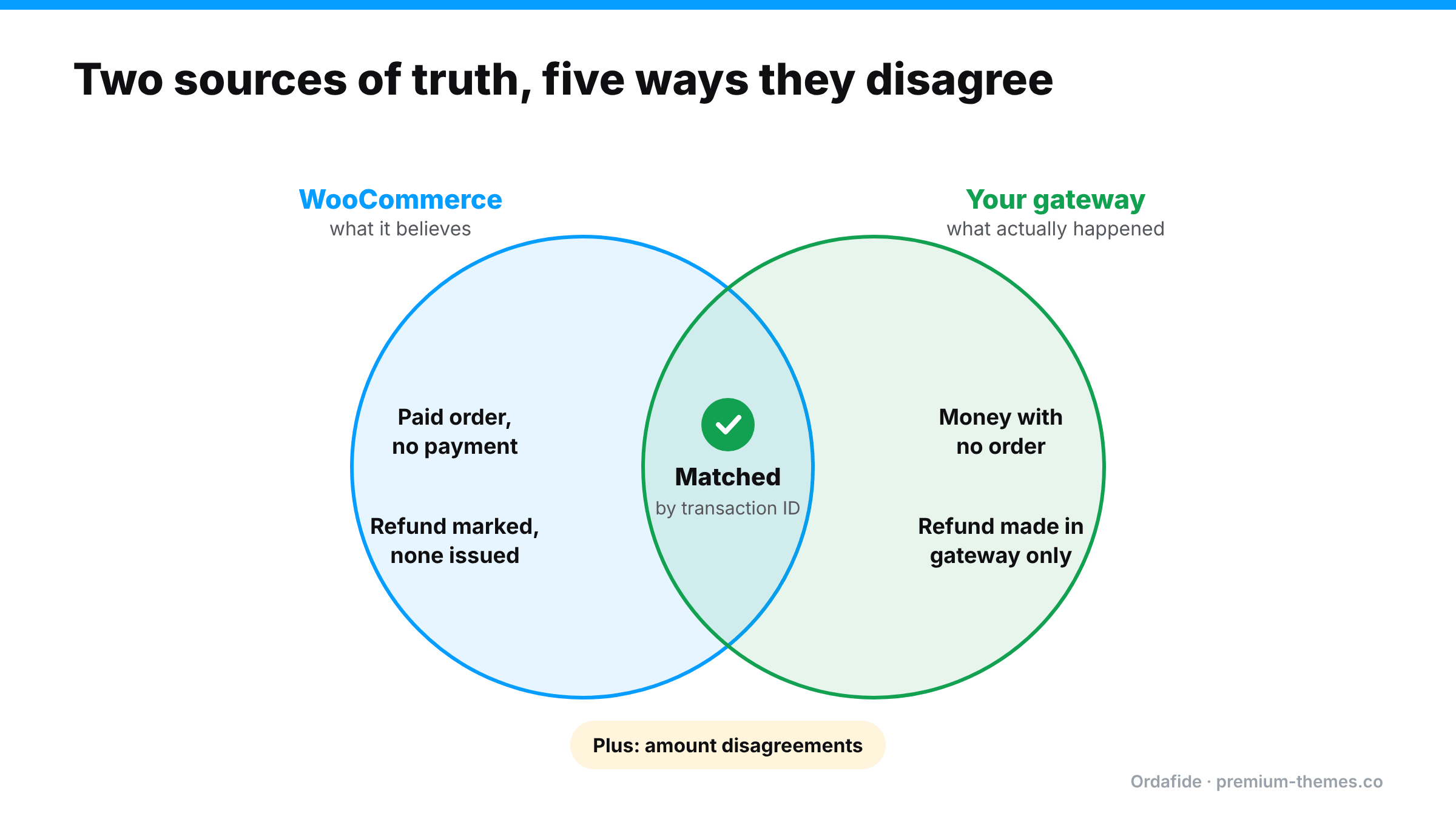
  • Gateway reconciliation (Stripe, PayPal, Square, Mollie, Razorpay) for the invisible cases: money with no order, paid orders with no payment, amount disagreements, refunds missing in WooCommerce.
  • Order volume anomaly detection for the “suspiciously quiet day” and “overnight spike” checks, hourly rather than weekly.
  • Synthetic checkout monitoring every 15 minutes, so a broken checkout is found in minutes.
  • Real-time alerts to Slack, SMS, email or webhook, so urgent problems don’t wait for Monday.

Making it stick

A routine only works if it survives busy weeks. A few things help:

  • Give it an owner. One named person, with a named backup for holidays.
  • Put it in the calendar as a recurring meeting with yourself. A fixed slot is far more likely to happen than “sometime on Monday”.
  • Start with the weekly summary email. If Ordafide’s weekly summary arrives and lists nothing, the routine takes two minutes. If it lists findings, you know exactly where to start.
  • Track time saved. Note how long each issue took to fix when found early, versus the customer complaints and disputes you used to handle. It keeps the habit motivated.
  • Review the log monthly. Repeated causes deserve a permanent fix, not another weekly repair.

The aim isn’t to spend 15 minutes a week forever. It’s to fix the causes so the weekly check becomes boring. A boring audit means a healthy store.

The printable checklist

Weekly order health check: 15 minutes

  • [ ] Pending / Failed / Cancelled: any with payment evidence?
  • [ ] On hold: every order has a reason and a next step?
  • [ ] Duplicates: same customer, same basket, minutes apart?
  • [ ] Refunded: every one has a refund record?
  • [ ] Processing: any with refund lines?
  • [ ] Scheduled Actions: past-due backlog or failures?
  • [ ] SMTP test email delivered?
  • [ ] Sample totals add up (coupon, currency, unusual shipping)?
  • [ ] Order volume normal day by day?
  • [ ] Log updated with anything found
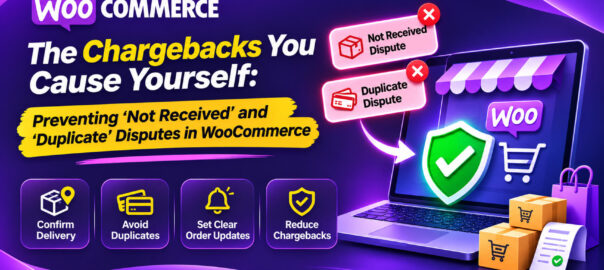
The Chargebacks You Cause Yourself: Preventing ‘Not Received’ and ‘Duplicate’ Disputes in WooCommerce

When store owners think about chargebacks, they usually think about fraud: stolen cards, professional scammers, “friendly fraud” from customers who received their order and claim they didn’t.

Those are real. But a large share of disputes have a much less dramatic cause: the store got something wrong, and the customer didn’t hear about it in time.

  • They paid, but the order never moved forward, so nothing shipped.
  • They were charged twice.
  • They were promised a refund that was never issued.
  • They never received a confirmation email, panicked, and called their bank.

From the customer’s point of view, each of these is a legitimate reason to dispute. From yours, each is a dispute you could have prevented. You might even have won the customer’s loyalty instead, if you’d caught the problem first.

This guide maps the order failures that turn into chargebacks, shows how to catch each one before the customer acts, and explains what to do when a dispute arrives anyway.

What a chargeback actually costs

A chargeback isn’t just a refund. When a customer disputes a payment:

  • The disputed amount is pulled from your balance immediately, pending the outcome.
  • You pay a dispute fee. Stripe charges $15 per dispute in the US, win or lose. Other gateways charge similar or higher amounts.
  • You spend time gathering evidence and responding.
  • Your dispute rate rises. Stripe treats dispute activity above 0.75% as excessive, and card networks run their own monitoring programmes with their own thresholds. High rates can lead to reviews, reserves, higher fees or account closure.
  • You often lose the customer, even if you win.

For a small store, a handful of avoidable disputes a month is a meaningful cost, and a meaningful risk to the payment account the whole business depends on.

The four self-inflicted dispute types

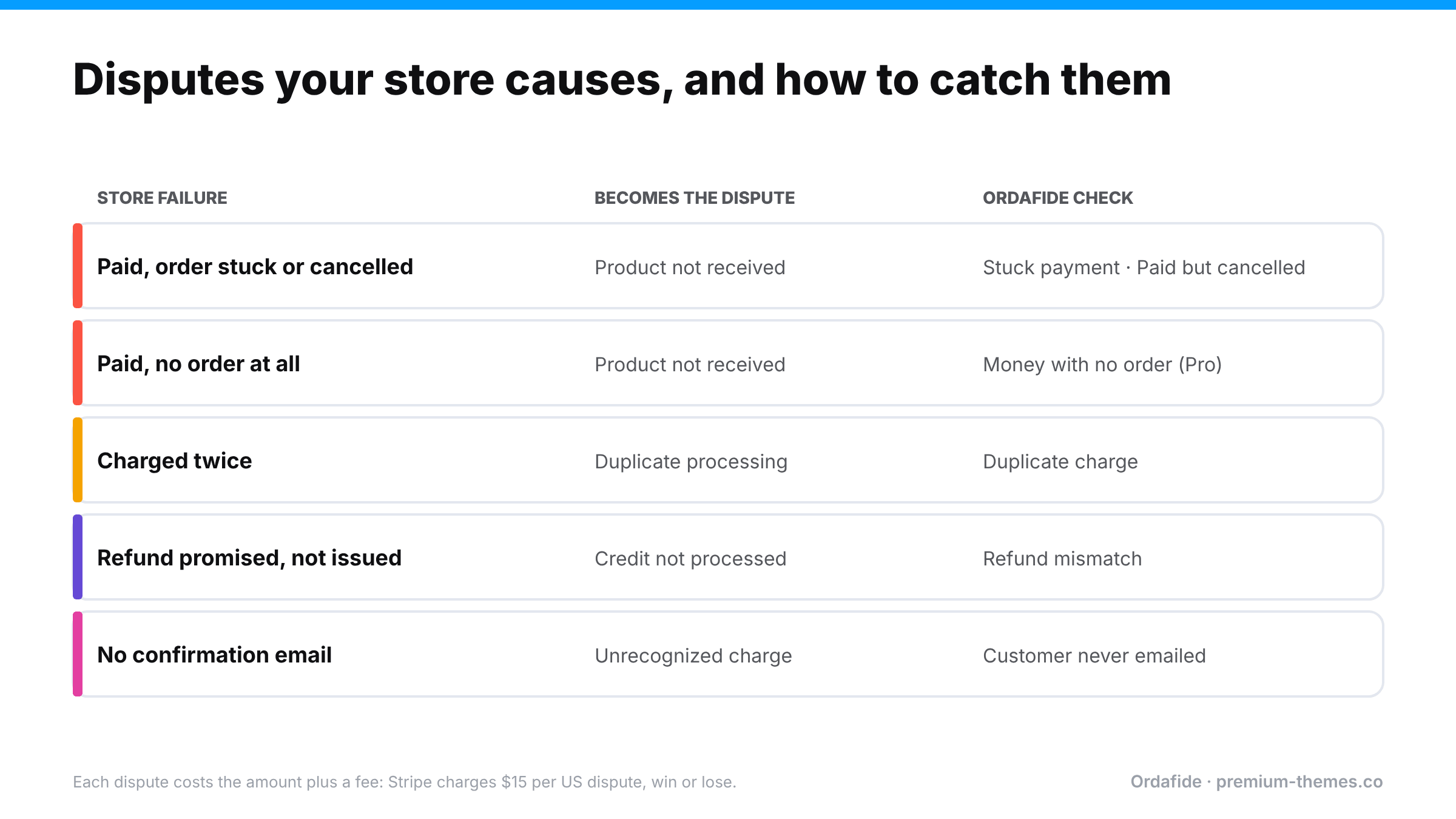
Table mapping store failures to disputes and Ordafide checks: paid orders stuck or cancelled become product-not-received disputes; paid with no order also becomes not received; charged twice becomes duplicate processing; refund promised but not issued becomes credit not processed; no confirmation email becomes an unrecognized charge.

Card networks use different codes, but customer-driven disputes usually fall into a few groups. Four of them are frequently caused by store-side order failures.

1. “Product not received” when the order was never processed

The failure: the customer paid, but the order is stuck on Pending payment, was auto-cancelled by the Hold stock timer, or never created at all. Nothing ships. The customer waits a week, then two, then disputes.

The irony: you’d happily have shipped it. You just didn’t know.

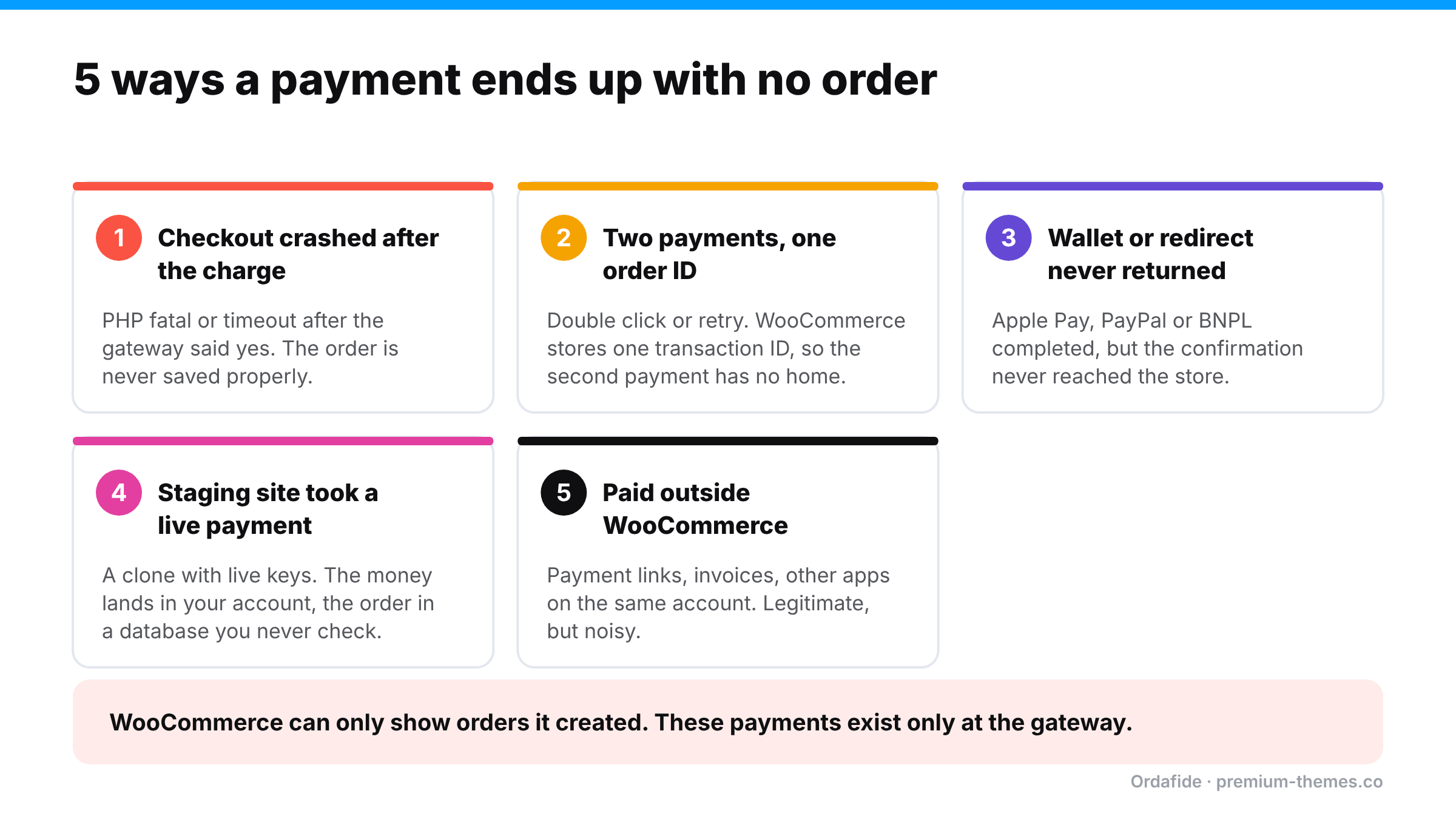
Root causes: blocked or failed webhooks; a checkout crash after payment; a wallet payment that never confirmed; a staging site with live keys. (See orders stuck on pending payment) and payment received but no order.)

2. “Duplicate processing” when the customer was charged twice

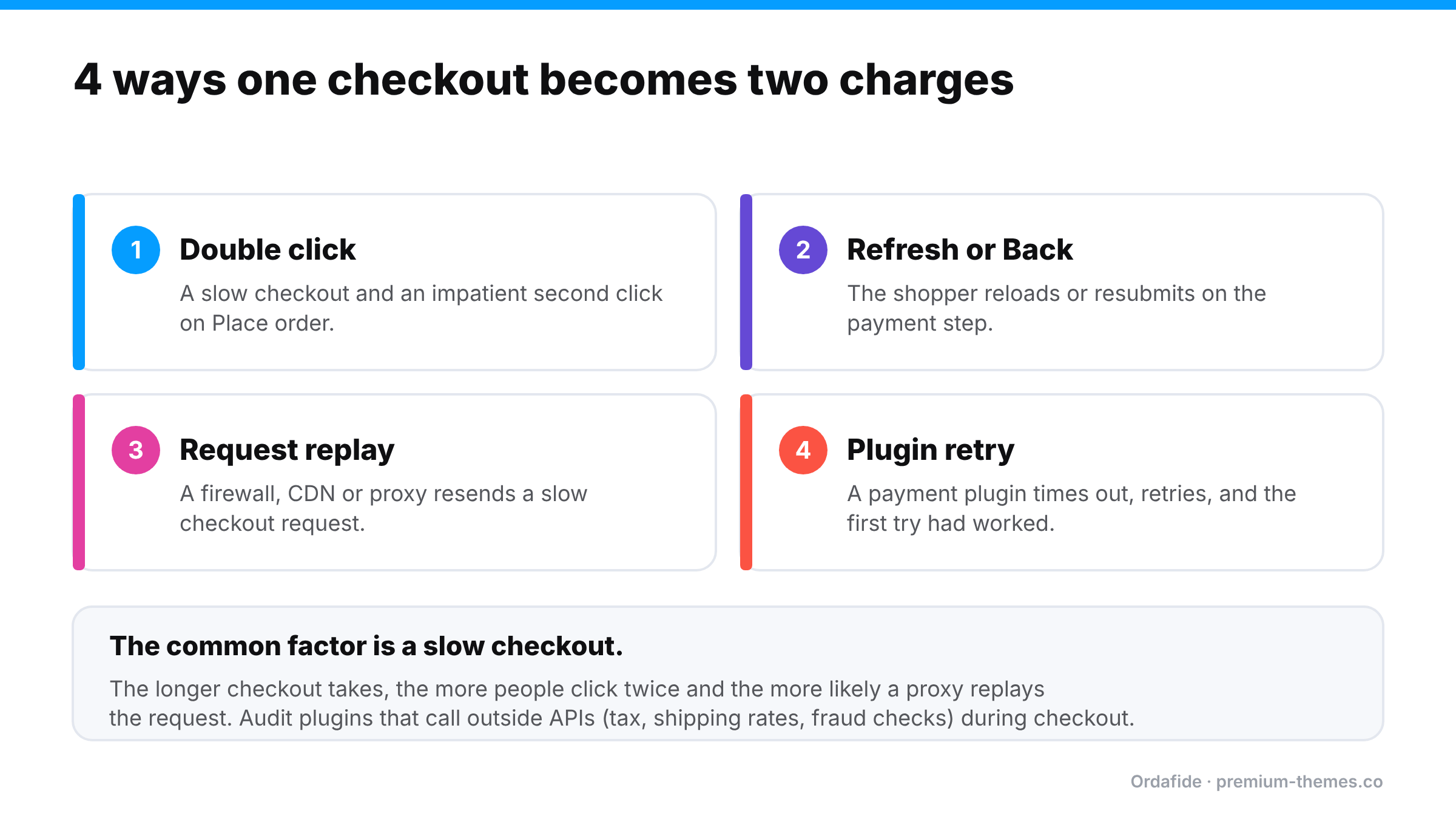
The failure: a double click, a page refresh, a request replay or a plugin retry produced two charges. The customer notices two lines on their statement and disputes one.

Why it becomes a dispute: many customers go straight to their bank instead of emailing you, especially if the second charge appears days later.

Root causes: slow checkout, firewall replays, gateway plugin retries. (See customer charged twice.)

3. “Credit not processed” when a refund was promised but not issued

The failure: someone changed the order status to Refunded without creating a refund, or a refund failed silently, or a return was approved but never refunded. The customer was told the money was coming. It isn’t.

Why it becomes a dispute: “credit not processed” is one of the easiest disputes for a customer to win when you have no record of a refund.

Root causes: refund status mismatches. (See refund status mismatches.)

4. “Unrecognized” or “did not authorize” when the customer never got a receipt

The failure: the payment worked, but the confirmation email never arrived because the background queue stalled, SMTP failed, or the email was switched off. Days later the customer sees an unfamiliar descriptor on their statement and assumes fraud.

Why it becomes a dispute: no email, plus a statement descriptor that doesn’t obviously match your store name, equals “I don’t recognize this charge”.

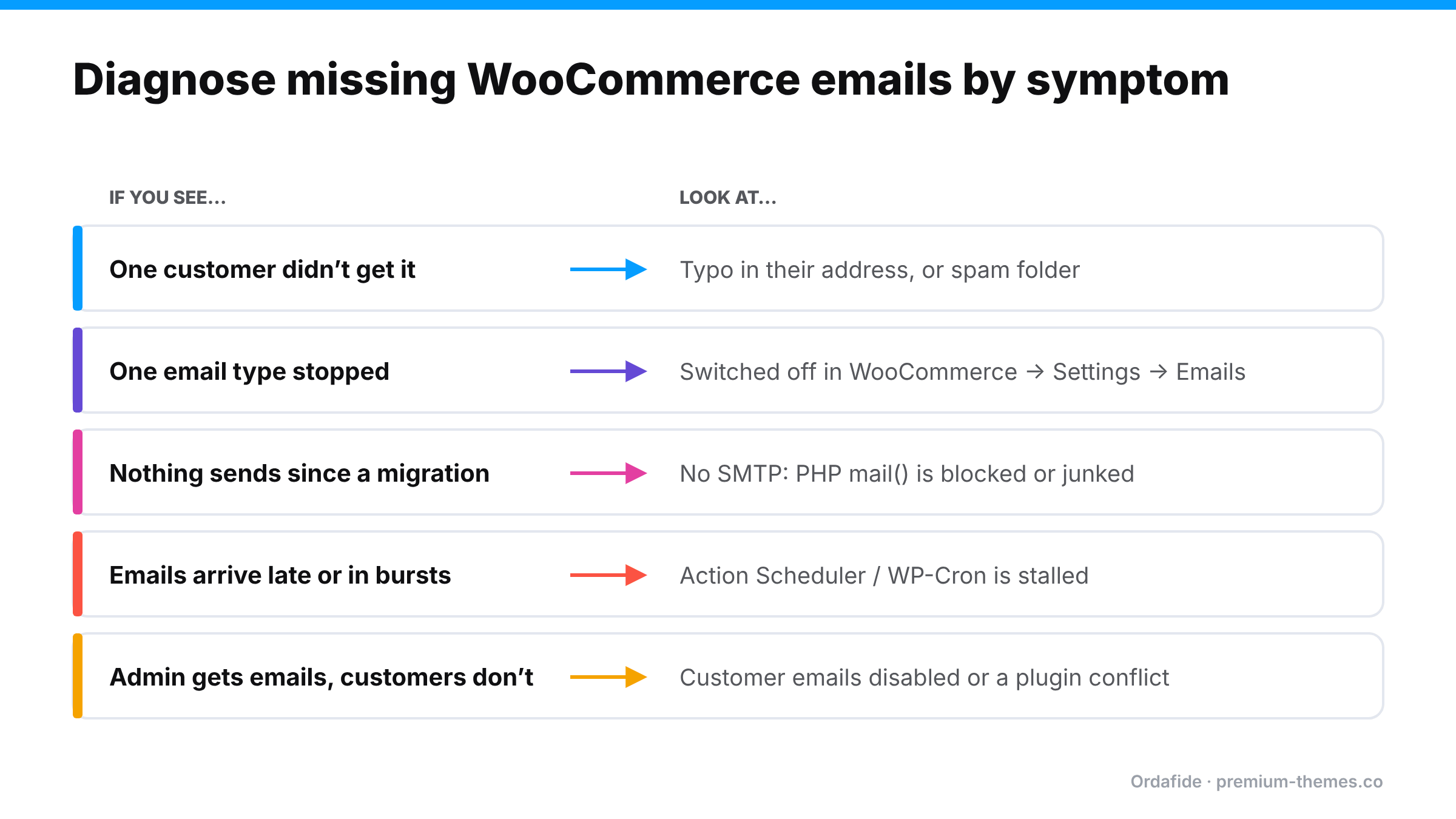
Root causes: stalled Action Scheduler or WP-Cron, broken mail delivery. (See order emails not sending.)

Three disputes, three different endings

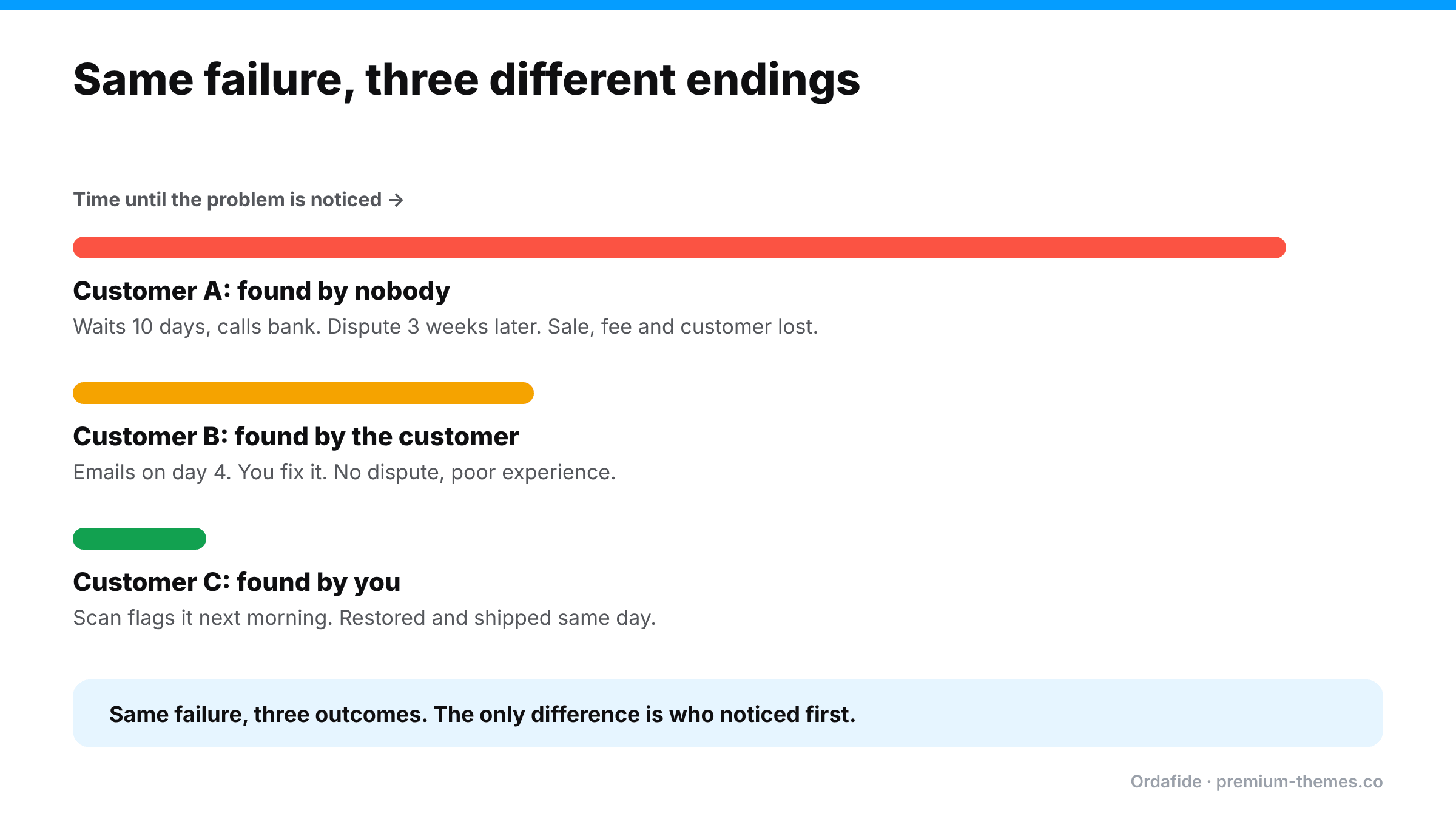
Three customers with the same failed order: found by nobody leads to a dispute three weeks later; found by the customer on day four leads to a fix with a poor experience; found by the store the next morning leads to a same-day fix. Who notices first decides the outcome.

To see how much timing matters, follow three customers whose orders failed in the same way: a webhook was blocked, so each paid order sat on Pending payment and was auto-cancelled an hour later.

Customer A: found by nobody. They wait for delivery. After ten days with no parcel and no email, they search their inbox, find nothing, and call their bank. You learn about it from a dispute notification three weeks later. You lose the sale, pay the dispute fee, and the customer never returns.

Customer B: found by the customer. After four days they email you: “Where’s my order?” You investigate, find the payment in Stripe, restore the order and ship it. No dispute, but they’ve had a poor experience and you spent 30 minutes on it.

Customer C: found by you. The morning after, your integrity scan flags a paid but cancelled order. You restore it to Processing, ship it that day, and send a two-line apology. The customer probably never knew anything was wrong. Cost: five minutes.

Same failure, same customer type, wildly different outcomes. The only variable was who noticed first, and when.

The prevention principle: get there before the bank does

Every one of these disputes has a window: the time between the failure and the customer losing patience. In that window, a short email from you (“We noticed a problem with your order, here’s what we’ve done”) almost always prevents the dispute.

The window is usually days, not hours. Customers typically wait for an expected delivery date, or for their statement, before acting. That’s plenty of time if you know about the problem. Without detection, the dispute notice is the first you hear of it.

So prevention comes down to three things:

  1. Detect the order failure quickly
  2. Fix the order (ship it, refund the duplicate, issue the promised refund, resend the receipt)
  3. Tell the customer before they look at their statement

Detecting the four failures

Failure What to look for Where
Paid but not processed Orders with a payment reference or paid date sitting in Pending, Failed or Cancelled WooCommerce orders + gateway
Paid with no order Successful gateway payments with no matching order Gateway only
Charged twice Same customer, same basket, minutes apart; one transaction ID on two orders WooCommerce orders + gateway
Refund not processed Orders marked Refunded with no refund record; approved returns without refunds WooCommerce orders + returns system
No receipt Paid orders with no customer email sent or accepted Email log

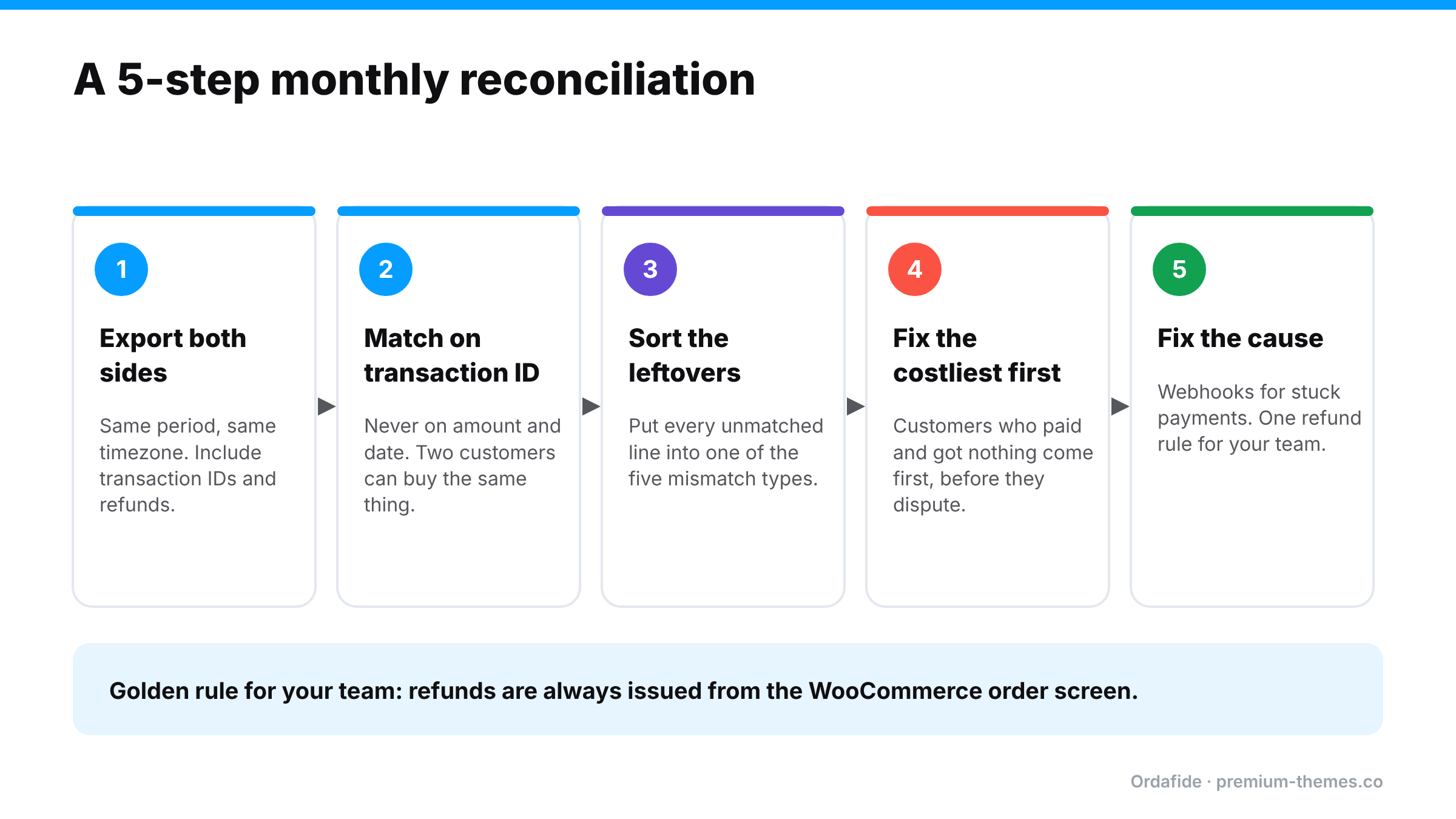
You can work through this manually with exports and spreadsheets, as described in our [reconciliation guide](/blog/reconcile-woocommerce-orders-stripe-paypal/). Or you can automate it.

Automating detection with Ordafide

Ordafide Order Integrity for WooCommerce (free) runs six checks against your recent orders that line up closely with the dispute types above:

Ordafide check Prevents
Stuck payment: pending/failed orders carrying a gateway payment reference “Not received”
Paid but cancelled: confirmed payment date, but Cancelled or Failed, nothing refunded “Not received”
Duplicate charge: one payment reference on two orders, or the same basket charged twice within minutes “Duplicate processing”
Refund mismatch: marked Refunded with no refund record; over-refunds; fully refunded but still Processing “Credit not processed” (and shipping refunded orders)
Customer never emailed: paid orders where no customer email reached your mail server “Unrecognized”
Order total does not add up “Incorrect amount” disputes

Findings are sorted by money at risk, each explains what to check in your gateway, and Ordafide can resend the customer email or restore an order to Processing when WooCommerce already recorded a confirmed payment date. Both actions are logged, and the status change can be undone. The free plugin sends nothing to any third party.

Ordafide Pro adds the gateway’s side of the story with read-only reconciliation against Stripe, PayPal, Square, Mollie and Razorpay. That’s what catches money with no order, the cleanest possible “not received” dispute, plus amount disagreements and refunds missing in WooCommerce. Pro’s alerts (Slack, SMS, email, webhook) shrink detection time from “whenever someone checks” to minutes, and its CSV/JSON audit export gives you an evidence trail if a dispute arrives anyway.

To be clear about the limits: Ordafide doesn’t see or manage disputes themselves (those live in your gateway), and it can’t prevent true fraud. It prevents the disputes caused by your store’s own order failures, which are the ones you have the most power over.

Reducing “unrecognized charge” disputes further

Two cheap fixes worth doing today:

  • Check your statement descriptor. In your gateway settings, make sure the descriptor customers see on their statement clearly matches your store or brand name. “WWW.SHOPNAME.COM” beats a legal entity name nobody recognizes.
  • Make the confirmation email unmistakable. Include the amount, the descriptor they’ll see, and how to contact you. A customer who can match the statement line to an email doesn’t dispute it.

The customer email that prevents a dispute

When you find a failure, speed and clarity matter more than polish. A template that works:

Subject: About your order #5520

Hi Sam, while checking orders today we found that your payment on 3 November went through, but a technical problem on our side stopped your order from being processed. That’s our mistake, and we’re sorry.

We’ve fixed it: your order is now being packed and will ship today. You’ll get tracking by email this afternoon. You won’t be charged again.

If you have any questions, just reply to this email.

Three things make it work: it names the order and payment the customer will see on their statement, it says what you’ve done (not what went wrong technically), and it states clearly that they won’t be charged twice. For duplicate charges, replace the middle paragraph with the refund amount and expected timing.

When a dispute arrives anyway

  1. Check the order immediately. Is this one of the four self-inflicted types? If the customer is right (they never got the goods, or were charged twice), it’s usually better to accept the dispute or refund than to fight. Contesting a valid dispute costs time and often a second fee.
  2. If you shipped and have proof, respond with tracking, delivery confirmation, order and email records, and any customer communication.
  3. Reply to the customer too. Some customers will withdraw a dispute once they see you’ve responded.
  4. Fix the root cause. Every self-inflicted dispute points at a failure that will happen again.

A monthly dispute review

Once a month, list every dispute and tag it:

  • Fraud: card stolen, true unauthorized use
  • Friendly fraud: customer received goods and disputed anyway
  • Self-inflicted: order failure on your side (stuck, duplicate, refund, no receipt)
  • Service: quality, description or delivery problems

Track the self-inflicted share over time. It should fall steadily as detection improves. If it doesn’t, the table above tells you which failure to fix next.

WooCommerce Order Total Doesn’t Add Up? Fixing Coupon, Tax, Shipping and Currency Mismatches

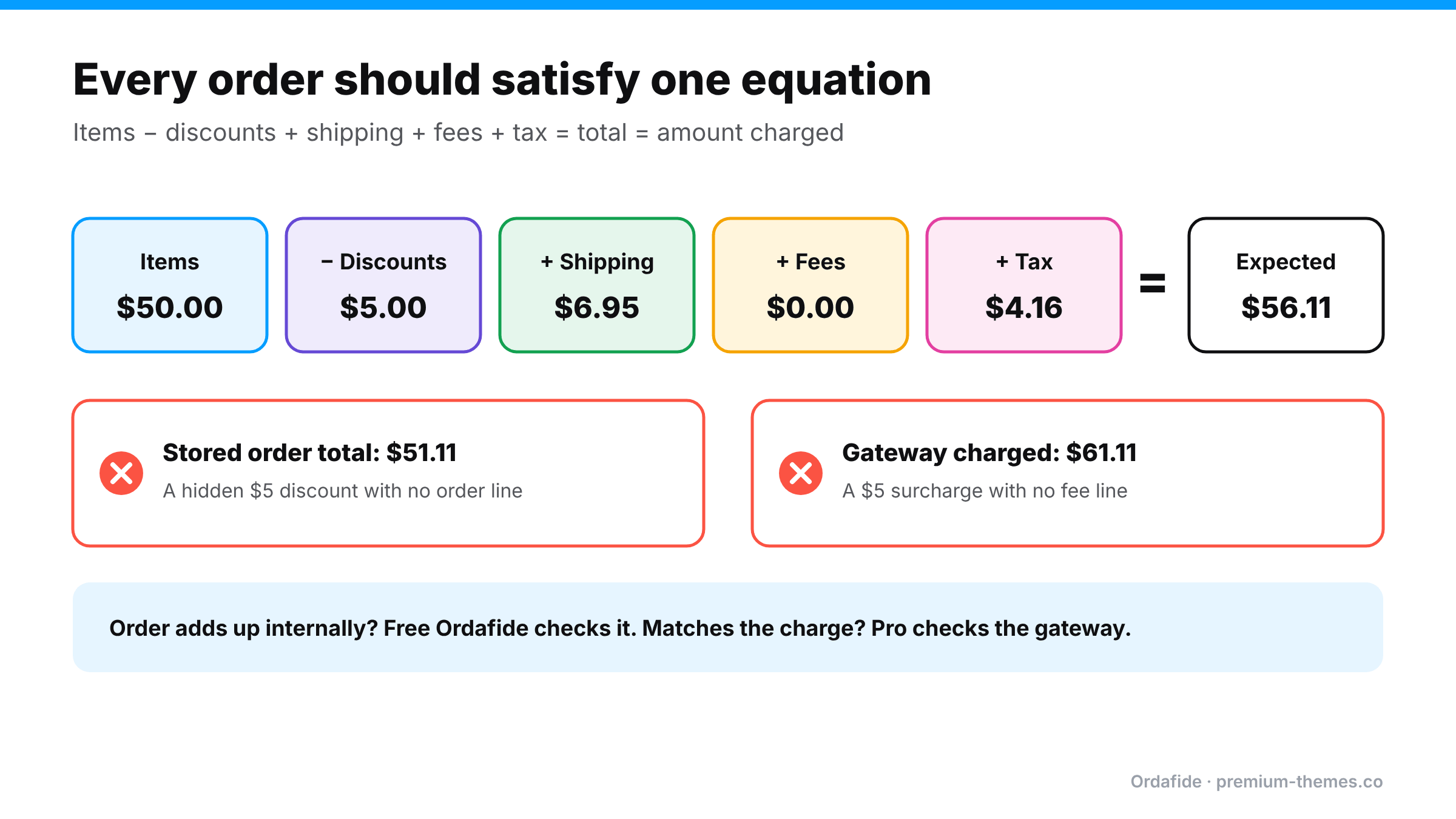
Every WooCommerce order should satisfy a simple equation:

Items − discounts + shipping + fees + tax = order total = amount charged

Most of the time it does. But WooCommerce lets dozens of plugins change those numbers: coupons, dynamic pricing, tax services, shipping calculators, payment fees, currency switchers, gift cards. Any one of them can leave an order where the parts don’t add up to the whole, or where the whole doesn’t match what the customer was actually charged.

Nothing alerts you when this happens. The order looks normal. You only find out when an accountant can’t reconcile a month, a tax report is off, or a customer points out they were overcharged.

This guide covers the six common causes, how to find affected orders, and how to keep totals honest.

Two different problems

It helps to separate:

  1. The order doesn’t add up internally. Line items, shipping, fees and tax don’t sum to the stored order total.
  2. The order adds up, but the charge was different. The order is internally consistent, but the gateway took a different amount.

The first can be found by inspecting your own database. The second can only be found by comparing with the gateway.

The six common causes

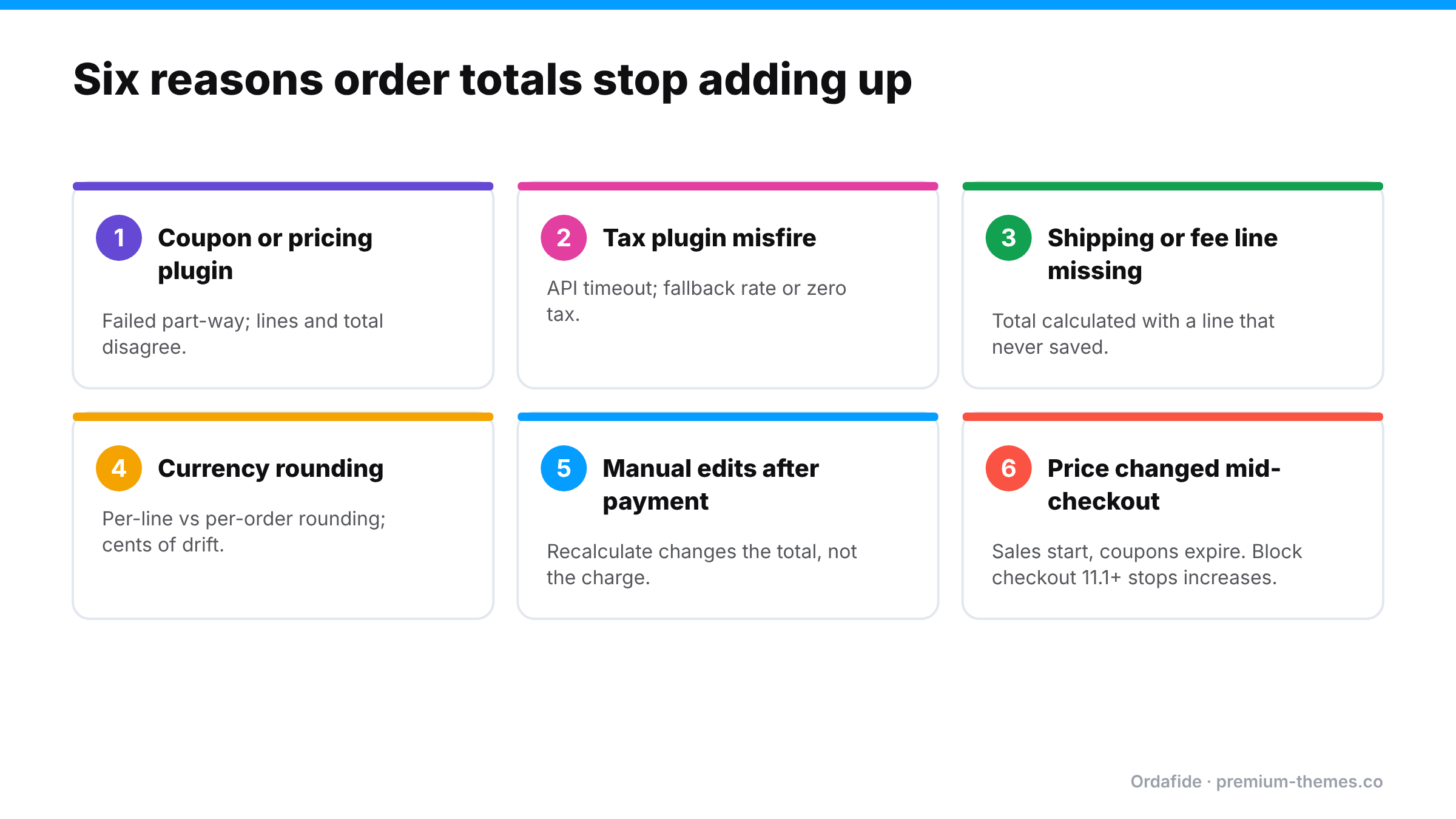
Six causes of WooCommerce total mismatches: coupon or pricing plugin failures, tax plugin misfires, missing shipping or fee lines, currency rounding, manual edits after payment, and prices changing mid-checkout.

1. A coupon or discount plugin failed part-way

Advanced coupon, BOGO and dynamic pricing plugins modify cart items and totals during checkout. If one fails mid-calculation (an error, a timeout, a conflict with another pricing plugin), the stored line items and the stored total can disagree. Sometimes the customer is charged the discounted price but the items show full price, or vice versa.

2. A tax plugin misfired

External tax services calculate tax by calling an API at checkout. If the call times out or fails, some plugins fall back to WooCommerce’s built-in rates, to zero, or to a cached value. The order may then show tax that doesn’t match the address, or a total that doesn’t include the tax lines shown.

3. Shipping or fee lines didn’t apply

Shipping and payment fee plugins add lines to the order. If a line fails to save while the total was calculated with it (or the reverse), the order is out of balance. Often this means you undercharged for shipping.

4. Currency switcher rounding

Multi-currency plugins convert prices and round them. Rounding each line separately versus rounding the total can produce small, persistent differences, often a cent or two per order. Individually trivial; across thousands of orders, it’s a reconciliation headache. Worse, if the plugin and the gateway disagree about the currency or amount, the charge can differ from the order.

5. Manual order edits

Editing an order after payment (adding an item, changing a quantity, adjusting shipping) and clicking Recalculate can change the total, while the payment stays the same. Editing without recalculating can leave the total stale. Either way, the order no longer matches the charge.

6. Prices changed between page load and payment

Scheduled sales starting, coupons expiring or dynamic pricing rules changing while the shopper is on the checkout page can create mismatches. WooCommerce’s documentation notes that from WooCommerce 11.1, block-based checkout stops an order if the total increases between page load and Place order, asking the customer to refresh. Decreases still go through. That’s a welcome safeguard, but it doesn’t cover classic checkout, plugins that modify totals after the order is created, or the other causes above.

A worked example

Worked example: items $50, discount $5, shipping $6.95, fees $0, tax $4.16, so the expected total is $56.11. Two mismatches: a stored total of $51.11 caused by a hidden discount, and a gateway charge of $61.11 caused by a surcharge with no fee line.

Here’s a real-looking order that doesn’t add up, to show how small the signals can be.

Line Amount
T-shirt × 2 @ $25.00 $50.00
Coupon SPRING10 (10%) −$5.00
Shipping: Standard $6.95
Tax (8% on items after discount + shipping) $4.16
Expected total $56.11
Stored order total $51.11

The difference is exactly $5. On investigation, a second discount plugin also applied a $5 “first order” discount to the total, but didn’t add a visible line for it. The customer was charged $51.11, which is fine for them, but your sales report shows $50 of items, a $5 coupon, $6.95 of shipping and $4.16 of tax, which adds up to $56.11, so $5 of revenue that never existed. Multiply by every first-time customer for a quarter, and your books are noticeably wrong.

Now the opposite case: the order lines add up to $56.11, the stored total is $56.11, but the gateway shows $61.11. A payment fee plugin added a $5 surcharge at the gateway step without recording a fee line. The customer was overcharged by your records’ standards, and won’t be pleased if they notice.

Neither order would look strange in the orders list.

Multi-currency: why cents go missing

Currency switchers convert each price from your base currency and round it. The problem is where the rounding happens:

  • Convert and round each line, then add: €22.73 + €22.73 + €6.32 = €51.78
  • Add in base currency, then convert and round once: €51.77

Both are defensible. But if the plugin calculates one way and your tax report, the gateway, or a later recalculation uses the other, every order carries a cent or two of drift. Tax is particularly sensitive, because tax rounding rules (per line or per order) are set in WooCommerce → Settings → Tax and interact with the currency plugin’s own rounding.

A tolerance-based check is the practical answer: ignore differences of a cent or two, and investigate anything bigger. That’s why Ordafide’s total check has a configurable rounding tolerance rather than demanding exact matches.

Questions to ask before installing a pricing or tax plugin

  • What happens to an order if your plugin errors mid-checkout? Does checkout stop, or continue with partial data?
  • Do you add visible order lines for every discount or fee you apply?
  • Is your plugin compatible with both block and classic checkout, and with HPOS?
  • How do you handle rounding in other currencies?
  • What does your plugin do when its external API is unreachable?

A vendor who answers these clearly is much less likely to leave you with mismatched totals.

Symptoms you might be seeing

  • Accountant reports WooCommerce revenue ≠ gateway deposits by more than fees
  • Tax reports that don’t match what was collected
  • Customers saying their coupon wasn’t applied, or they were charged more than the order email shows
  • Orders where shipping shows $0 but the customer chose a paid method
  • A steady trickle of one-cent differences in multi-currency stores

How to find affected orders

Manual spot check

Open a sample of recent orders and add up items, minus discounts, plus shipping, fees and tax. Compare with the total. Then compare the total with the amount shown in the gateway for that transaction ID.

It works for a handful of orders. It isn’t practical for hundreds, and it’s the kind of job that never gets done in a busy month.

Automatic check with Ordafide (free)

Ordafide Order Integrity for WooCommerce includes an “Order total does not add up” check. For each recent order it compares items + shipping + fees + tax with the stored total and flags any order that’s out by more than a rounding tolerance you configure. That tolerance matters for multi-currency stores, so a cent of rounding doesn’t flood you with findings while real errors still show up.

Findings come with the numbers side by side and are sorted by money at risk, so a $40 missing shipping line ranks above a 2-cent rounding difference. The check reads only your own database, sends nothing anywhere, and never changes your orders.

Comparing with what was actually charged (Pro)

If an order adds up internally but the gateway took a different amount, only the gateway knows. Ordafide Pro reconciles orders against Stripe, PayPal, Square, Mollie and Razorpay with read-only API keys and flags amount disagreements between the order and the charge, alongside money with no order, paid orders with no payment, and refunds missing in WooCommerce. For accountants, Pro’s CSV/JSON audit export covers any date range.

Fixing affected orders

  1. Decide which number is right. Usually the gateway charge is the truth about money; the line items are the truth about what was sold.
  2. If the customer was undercharged: decide whether it’s worth recovering. For small amounts, often not. Add a note and fix the cause.
  3. If the customer was overcharged: issue a partial refund through the order screen (Refund via [gateway]) for the difference and apologize.
  4. If it’s a records-only problem (the charge was right, the order lines are wrong): correct the lines carefully and add a note explaining why. Avoid hitting Recalculate unless you understand what it will do with taxes and coupons.
  5. Tell your accountant about any systematic issue and when it started.

Explaining it to your accountant

When mismatches turn up, your accountant needs three things: how many orders, how much money, and since when. A clear note might read:

“Between 3 March and 18 April, a discount plugin applied an extra $5 first-order discount without recording a line. 214 orders are affected. Customers were charged correctly; our reports overstate revenue by $1,070. The plugin was removed on 18 April. Order IDs attached.”

That turns a confusing reconciliation gap into a known, bounded adjustment. It’s only possible if you can list affected orders quickly, which is exactly what an automated total check gives you. Without one, the investigation itself becomes the expensive part.

Keep a short log of pricing, tax and currency plugin changes (what changed, when, and why). When a mismatch appears, the first question is always “what changed around then?”, and the log answers it.

Preventing mismatches

  • Minimize overlapping pricing plugins. Two plugins that both change prices or discounts are the most common source of trouble.
  • Test checkout with every coupon type after updating coupon, pricing or tax plugins.
  • Check tax plugin failure behaviour. Know what your tax plugin does when its API is unreachable, and prefer plugins that block checkout over ones that silently charge the wrong tax.
  • Configure multi-currency rounding deliberately and check the gateway receives the same currency and amount as the order.
  • Lock down post-payment edits. Agree a process for editing paid orders, including whether and when to recalculate, and always add a note.
  • Use block checkout where it fits, to benefit from the total-increase protection in recent WooCommerce versions.
  • Scan regularly. A weekly Ordafide scan or its weekly summary email shows new mismatches while they’re still easy to explain.

A note for agencies

Total mismatches often start right after a client installs “just one more” discount or upsell plugin. Ordafide’s WP-CLI commands (`wp ordafide scan`, `wp ordafide findings`) let you include an order-total check in your maintenance scripts across client sites, and Ordafide Pro’s multi-store dashboard puts every store’s findings on one screen.

Refunded Orders Still Getting Shipped: Fixing WooCommerce Refund Status Mismatches

Refunds feel like the simple part of running a store. A customer asks for their money back, you click a button, done.

Except WooCommerce stores a refund in three places that are supposed to agree: the refund record on the order, the order status, and the payment gateway. When they disagree, odd and expensive things happen:

  • An order is fully refunded but still sits in Processing, so your warehouse picks and ships it. The customer gets the goods and their money.
  • An order is marked Refunded but no refund was ever issued. The customer never gets their money, and they file a dispute.
  • A refund is made in PayPal or Stripe, but WooCommerce still shows the order as paid. Revenue, stock and reports are all wrong.

These cases come up again and again on the WordPress.org support forums. This guide explains each mismatch, why it happens, how to find the ones already in your store, and how to make refunds reliable.

How WooCommerce refunds are supposed to work

When you refund from the order screen, WooCommerce:

  1. Creates a refund record attached to the order (amount, items, reason, who did it).
  2. If you chose Refund via [gateway], it asks the gateway to send the money back. If you chose Refund manually, it only records the refund. You’re saying the money went back some other way.
  3. If the order is now fully refunded, it changes the status to Refunded and sends the customer a refund email.
  4. If you ticked Restock refunded items, it increases stock.

For a partial refund, step 3 doesn’t happen. The order keeps its existing status. That’s by design, and it confuses a lot of people.

The four mismatches

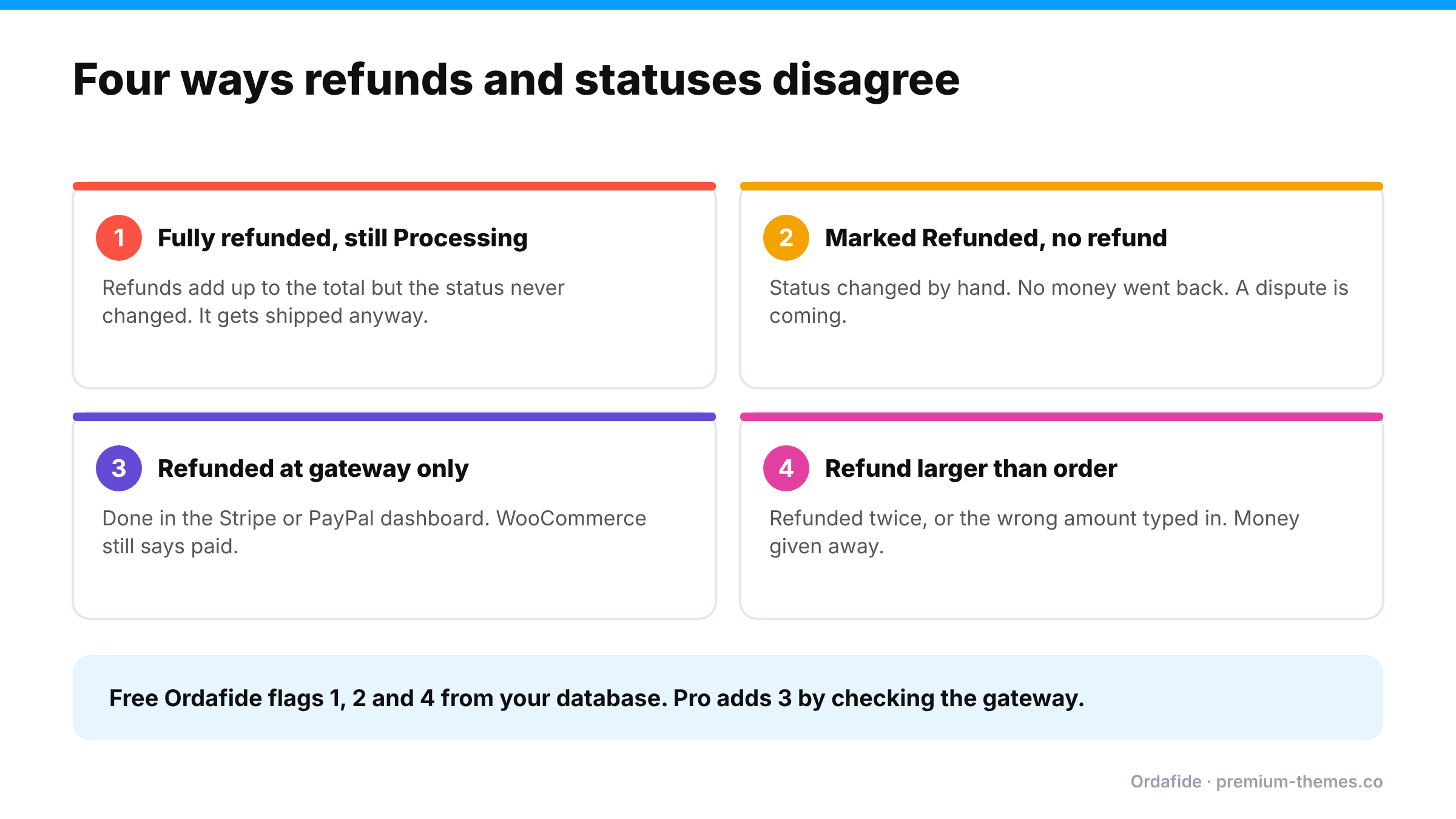
Four refund mismatches: fully refunded but still Processing, so it gets shipped; marked Refunded with no refund issued; refunded at the gateway only, so WooCommerce still shows paid; refund larger than the order. Free Ordafide flags the first, second and fourth; Pro adds gateway-only refunds.

Mismatch 1: Fully refunded, still Processing

What happens: the refund records add up to the full order total, but the status never changed. Because your team works from the Processing list, the order gets shipped.

Why:

  • The refund was recorded in several partial steps, and the final step didn’t trigger the status change.
  • A plugin conflict or customization interfered with the status update.
  • The refund was made at the gateway, the gateway plugin recorded it via webhook, but the status update failed.

One WordPress.org thread describes exactly this with the WooCommerce PayPal gateway: refunding sent the customer refund emails and reversed the charge, but the order stayed in Processing. Changing the status manually then sent a second refund email. The issue disappeared after later updates, but the owner had no way of knowing which past orders were affected.

Cost: the full value of the goods, plus shipping, plus the refund.

Mismatch 2: Marked Refunded, but no refund exists

What happens: someone changed the status to Refunded from the status dropdown, intending to refund, but never actually created a refund. Or they did it manually expecting the gateway to act.

Why: status and refund are separate actions. Changing the dropdown on its own doesn’t tell your gateway to send money (behaviour can vary by gateway plugin, so never rely on it).

Cost: a customer who believes they were refunded, or was promised one, and wasn’t. That’s a near-guaranteed chargeback and a lost customer.

Mismatch 3: Refunded at the gateway, not in WooCommerce

What happens: a team member refunds in the Stripe or PayPal dashboard because it’s quicker. WooCommerce never hears about it, or hears but fails to record it.

Why: some gateway plugins import dashboard refunds via webhooks, some don’t, and webhooks fail (see orders stuck on pending payment for why).

Cost: revenue overstated; stock that came back never restocked; reports and tax figures wrong; possibly the order still in Processing (back to mismatch 1).

Mismatch 4: Refund larger than the order

What happens: refunds on one order exceed what was paid. This can come from refunding twice (once at the gateway, once in WooCommerce), or from a manual refund entered with the wrong amount.

Cost: money you didn’t need to give away, and a messy reconciliation.

The partial refund trap

Partial refunds deserve their own warning. WooCommerce support confirmed in a WordPress.org thread that:

  • a partial refund doesn’t change the order status. A partially refunded On hold order stays On hold;
  • for manual refunds, setting the status to Refunded refunds the entire order, which can trigger a second refund email or a larger refund than intended.

The thread’s suggested workaround was a custom “Partially refunded” status via an order-status plugin. Whatever you choose, make sure your team knows that status alone doesn’t tell you whether an order has been refunded. Read the refund lines on the order.

Why it matters beyond the single order

It’s tempting to treat each mismatch as a one-off customer-service problem. But refund records feed several other parts of the business:

  • Revenue reports. WooCommerce Analytics subtracts recorded refunds. Missing ones overstate revenue; duplicated ones understate it.
  • Tax. Tax collected and tax refunded are reported from order and refund records. If a refund isn’t recorded, you may report and remit tax on a sale you reversed.
  • Stock. Restocking happens when refunds are recorded with Restock refunded items. A refund made only at the gateway never restocks, so products show out of stock when they’re on your shelf.
  • Customer history. Support teams look at an order and see “paid” or “refunded”. If that’s wrong, they give the customer wrong answers.
  • Disputes. If a customer disputes a charge, your evidence comes from the order record. A missing or wrong refund record weakens your case.

So a mismatch costs more than the one order. It quietly distorts the numbers you run the business on.

Finding mismatches already in your store

Manually

  1. Filter WooCommerce → Orders by Processing and open orders older than your usual fulfilment time. Look for refund lines (shown in red under the order items).
  2. Filter by Refunded and spot-check that each one actually has refund records totalling the order amount.
  3. Export refunds from your gateway for the last 30–90 days and check each one appears on the matching WooCommerce order.
  4. Look for orders where the refunded total exceeds the order total.

This is slow, but doable once. The trouble is it needs repeating, because mismatches keep happening as long as people, plugins and webhooks are involved.

Automatically with Ordafide

Ordafide Order Integrity for WooCommerce is free and runs a Refund mismatch check on your recent orders that flags:

– orders marked Refunded with no refund record (mismatch 2)
– refunds larger than the order (mismatch 4)
– fully refunded orders still marked Processing (mismatch 1), the ones about to be shipped

Each finding explains why it matters, shows the evidence, and tells you what to check before changing anything. Findings are sorted by money at risk, and you can ignore ones you’ve reviewed. Everything runs on your own server, and the plugin never refunds, captures or voids anything.

Mismatch 3, refunds that only exist at the gateway, can’t be seen from inside WooCommerce. Ordafide Pro reconciles with Stripe, PayPal, Square, Mollie and Razorpay using read-only keys and flags refunds missing in WooCommerce, along with money with no order, paid orders with no payment and amount disagreements.

Fixing each mismatch

Fully refunded, still Processing: stop fulfilment immediately. Confirm the refund at the gateway, then change the status to Refunded. If the refund was already completed, choose the status change carefully so you don’t trigger a second refund. Add a note.

Marked Refunded, no refund: check the gateway. If no money went back, issue the refund now from the order screen (Refund via [gateway]) and apologize to the customer. If the money did go back outside WooCommerce, record it with Refund manually so the books agree.

Refunded at gateway only: record it in WooCommerce using Refund manually (not via gateway, or you’ll refund twice), tick Restock refunded items if goods came back, and note the gateway refund ID.

Over-refund: check the gateway for what was actually returned. If the excess was real money, decide whether to recover it from the customer. If it was a recording error, adjust and note it.

A worked example: one week, three mismatches

To make this concrete, here’s how mismatches tend to appear on a real store over a single week.

Monday. A customer cancels a $78 order before it ships. A team member, in a hurry, opens Stripe and refunds it there. The Stripe plugin’s webhook is being blocked by a recently installed security plugin, so WooCommerce never records the refund. The order stays in Processing.

Wednesday. The warehouse picks the Processing list, including that $78 order, and ships it. The customer now has their money and the goods. (Mismatch 1 and 3 at once.)

Thursday. A different customer emails asking for a refund on a damaged item. A new team member changes the order status to Refunded from the dropdown, assuming that sends the money. It doesn’t with this gateway. The customer waits. (Mismatch 2.)

The following week. The second customer, hearing nothing, files a dispute with their bank. Meanwhile the first team member notices the Monday order in the Stripe dashboard, realizes it wasn’t recorded, and, to “fix it”, clicks Refund via Stripe on the WooCommerce order. Stripe rejects it because the charge is already refunded. Had the first refund been partial, the second could have gone through and pushed the total refunded past what the customer paid. (A near-miss for mismatch 4.)

Three people, three reasonable shortcuts, a shipped order, a dispute and a reconciliation mess. None of it was visible on the orders screen. All of it was findable by comparing refund records, statuses and the gateway.

A refund policy for your team

Paste this into your team handbook and adapt it:

How we refund

  1. All refunds are issued from the WooCommerce order screen using Refund via [gateway]. Never from the Stripe or PayPal dashboard.
  2. Never change an order’s status to Refunded to “do” a refund. Create the refund; the status follows.
  3. For partial refunds, select the items and quantities being refunded, and tick Restock refunded items only if the goods are back and sellable.
  4. If money was returned outside WooCommerce (bank transfer, gateway dashboard), record it with Refund manually and note the reference.
  5. Before shipping anything that’s been in Processing more than two days, check it has no refund lines.
  6. Return-related refunds go through our returns system, not ad hoc.

Making refunds reliable

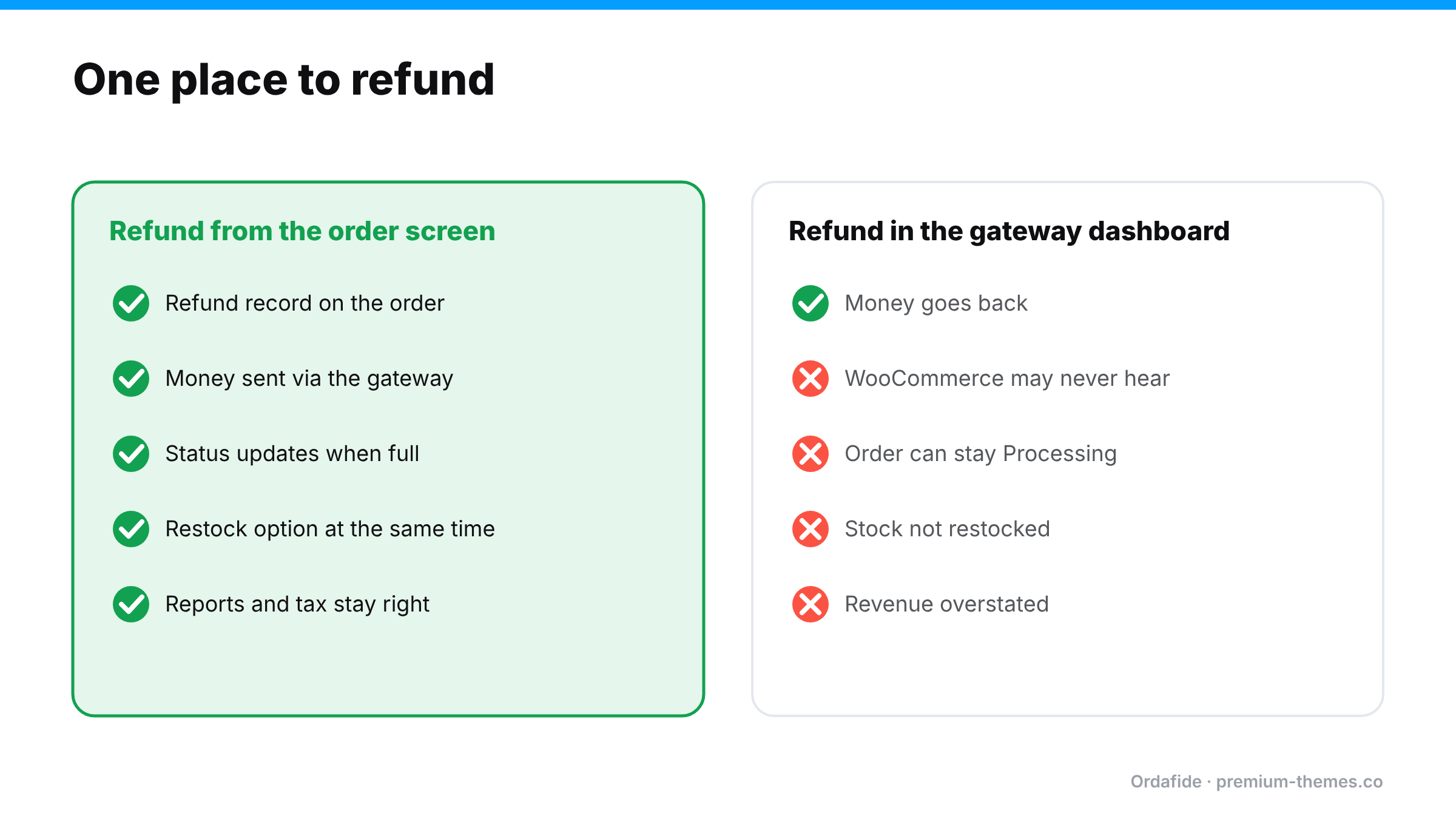
Comparison. Refunding from the WooCommerce order screen creates the refund record, sends money via the gateway, updates the status, offers restocking and keeps reports right. Refunding in the gateway dashboard returns the money, but WooCommerce may never hear, the order can stay Processing, stock isn't restocked and revenue is overstated.

  1. One place to refund. Make it a rule: refunds are issued from the WooCommerce order screen, never the gateway dashboard. The order screen talks to the gateway; the dashboard often doesn’t talk back.
  2. Never use the status dropdown to refund. Status follows refunds, not the other way round.
  3. Check refund lines before shipping. Add “no refund lines” to your packing checklist for orders that have been in Processing a while.
  4. Use a returns workflow for return-related refunds. If refunds come from product returns, a structured returns tool that creates the refund from the return record prevents double refunds. Our sister plugin Recirco does this.
  5. Scan regularly. A weekly Ordafide scan (or its weekly summary email) catches the mismatches that slip through anyway.

A Plugin Update Broke Your WooCommerce Checkout? The Safe Update Playbook

It’s Monday morning. Weekend sales look oddly quiet. You try a test purchase and the checkout spins forever, or shows a blank error, or the Place order button does nothing at all.

You check the plugin list. Three plugins auto-updated on Friday night.

This is one of the most common and most expensive things that happens to WooCommerce stores, and it’s rarely discussed honestly. The update itself usually takes a few minutes to fix. The real cost is the hours or days between the break and someone noticing. During that time your ads keep running, your emails keep sending people to a dead checkout, and every visitor who tries to buy leaves.

This guide covers two things: how to recover quickly when an update has already broken checkout, and how to update in a way that makes it almost impossible to lose a weekend again.

Why updates break checkout in particular

Checkout is the most fragile page on a WooCommerce store because it’s where everything meets:

  • your theme (templates, scripts, styles)
  • WooCommerce itself (classic shortcode or block-based checkout)
  • the payment gateway plugin and its JavaScript
  • shipping, tax, coupon and fee plugins that change totals
  • checkout field editors, address validators and upsell plugins
  • caching and optimization plugins that combine, defer or delay scripts
  • security plugins and CAPTCHAs that intercept requests

An update to any one of them can break the interaction with another. A few patterns cause most incidents:

  1. JavaScript errors. One plugin’s updated script throws an error, and everything after it stops running, including the payment form.
  2. Optimization plugins delaying or combining a gateway’s script so the card field never loads.
  3. Template overrides. Your theme overrides a WooCommerce template that changed, leaving the checkout using an outdated version.
  4. Block vs classic mismatches. An extension supports one checkout type but not the other.
  5. PHP fatal errors on the checkout or the Store API endpoint after a PHP or plugin version jump.
  6. Payment gateway changes that require new settings, new webhooks or reconnection.

What merchants report

Browse r/woocommerce or the WordPress.org support forums and the same stories repeat:

  • “Checkout spinner never stops after update.” Usually a JavaScript error in one plugin stopping the payment script.
  • “Card field disappeared.” Frequently an optimization plugin delaying or combining the gateway’s script.
  • “Customers can pay but no order is created.” A fatal error after payment, or a webhook endpoint broken by a security plugin update.
  • “Block checkout broke but the classic shortcode works.” An extension that doesn’t yet support the Store API that block checkout relies on.
  • “It only fails for logged-in customers” (or only on mobile, or only for one payment method). That’s the hardest kind to spot, because the owner’s own quick test passes.

The common thread is that the store owner discovered the problem from customers or from falling sales, not from any tool. That’s the gap worth closing.

The silent part

Here’s why these incidents last so long. When checkout breaks, almost nothing looks broken:

  • The home page loads, so your uptime monitor stays green.
  • Product pages load, so casual checks look fine.
  • Traffic continues, so analytics looks normal at a glance.
  • No orders means no failed orders, so WooCommerce shows nothing unusual. It just shows… less.

The only signal is an absence: fewer orders than usual. Absences are hard for humans to notice, especially at weekends.

Already broken? Recover in this order

1. Confirm and capture the error (5 minutes)

  • Try checkout in a private window as a guest and as a logged-in customer.
  • Open your browser’s developer tools Console tab and note any red errors, especially ones naming a plugin.
  • Check WooCommerce → Status → Logs for fatal errors since the update.
  • Note which plugins, theme or WooCommerce version changed, and when (your host’s logs or the plugin list will show recent updates).

2. Restore sales first, diagnose second

Your priority is taking money again, not finding the perfect fix.

  • If you know which update caused it, roll that plugin back to the previous version (many hosts keep backups; some plugins offer rollback; you can also reinstall a previous version from the plugin’s WordPress.org page under Advanced View).
  • If you don’t know, restore the most recent pre-update backup of files and database if no orders have arrived since, or roll back the updated plugins one at a time.
  • If an optimization plugin is involved, exclude checkout and cart pages from script delay/combine features, or temporarily disable it.

3. Confirm with a real purchase

Place a real order with a real card (then refund it), or use a 100% coupon if your gateway supports zero-value orders. Confirm the order arrives as Processing, the confirmation email arrives, and the gateway shows the payment.

4. Measure the damage

Compare orders per day with the same days in previous weeks to estimate lost sales. Check for orders that did come through during the outage but are incomplete: stuck on Pending payment, missing emails, or duplicated by frustrated customers who tried several times. (See WooCommerce order stuck on pending payment.)

5. Tell affected customers

If abandoned-cart emails captured anyone, a short “sorry, our checkout had a problem, it’s fixed now” with a small discount often recovers a surprising number of sales.

What a silent outage really costs

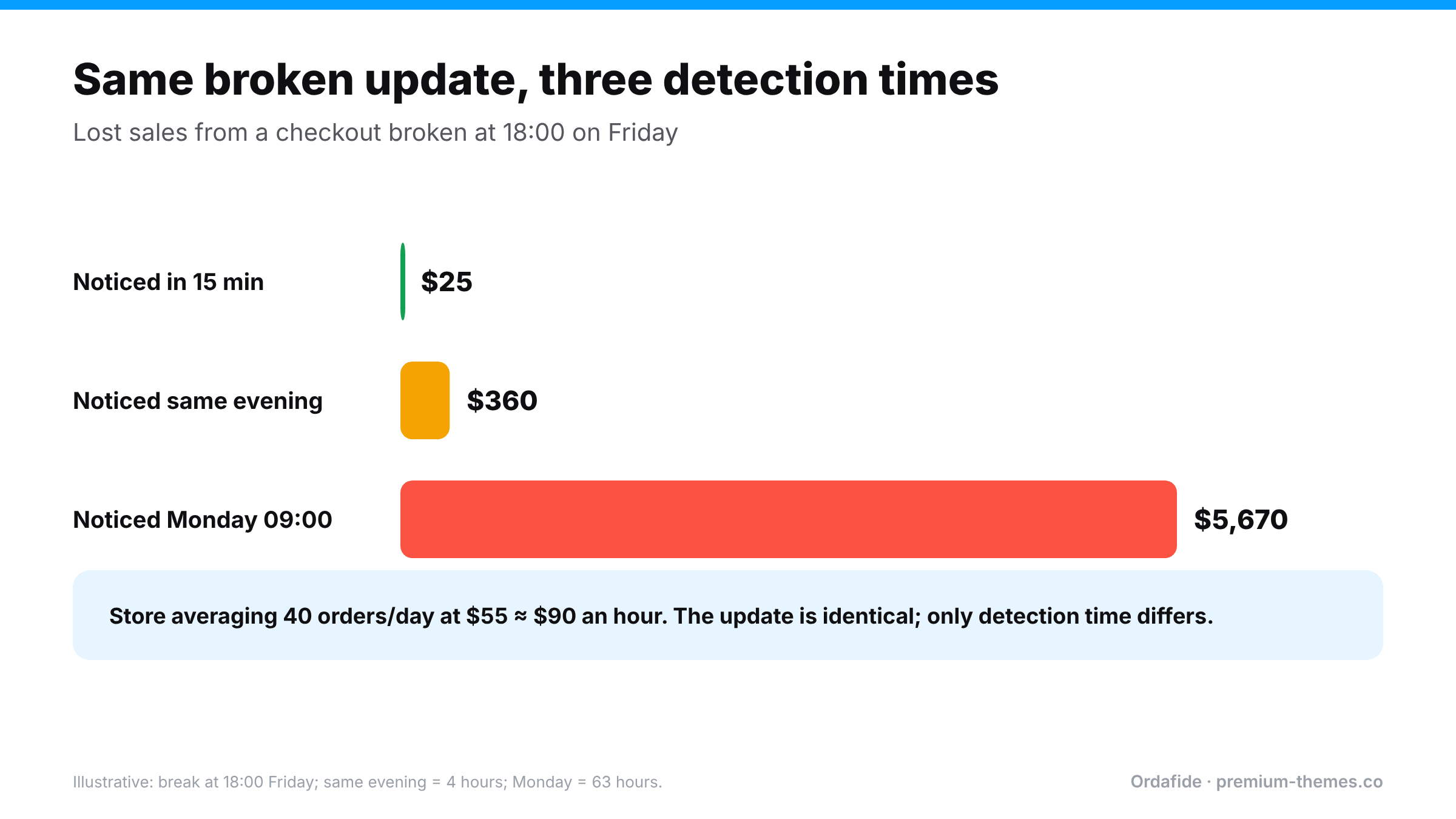
Bar chart of lost sales for the same broken checkout: about $25 if noticed in 15 minutes, $360 if noticed the same evening, and about $5,670 if noticed Monday morning after 63 hours, for a store making about $90 an hour.

It’s worth putting a number on this, because it changes how seriously teams treat updates.

Suppose your store averages 40 orders a day at $55 each: about $2,200 a day, or roughly $90 an hour. A plugin auto-updates at 18:00 on Friday and breaks the payment form. Nobody checks until 09:00 Monday. That’s 63 hours. At normal weekend volume you’ve lost something like $5,000–$6,000 in sales, plus the ad spend that sent people to a dead checkout, plus the customers who tried, failed, and won’t come back.

The same break noticed in 15 minutes costs about $25.

The update was identical in both cases. The only difference was detection time. That’s why the playbook below spends as much effort on noticing as on preventing.

A five-step test purchase script

Write this down and keep it where whoever updates the store can find it. Adapt the products and methods to your store.

  1. Product page: open your best-selling product in a private window. Choose a variation if it has one. Click Add to cart. Confirm the cart count changes.
  2. Cart: open the cart. Apply a coupon you keep for testing. Confirm the total updates and shipping options load for a typical address.
  3. Checkout: go to checkout. Confirm the payment form (card field, PayPal button, wallets) appears without console errors.
  4. Pay: complete payment with your normal method (refund afterwards), or with your test coupon set to 100% if your gateway supports zero-value orders.
  5. After: confirm the order is Processing, the customer email arrives, the admin email arrives, and the gateway shows the payment.

If you sell to logged-in customers or use several payment methods, repeat steps 3–5 for the most-used variations. The whole thing takes five minutes, and it’s the cheapest insurance a store can buy.

The safe update playbook

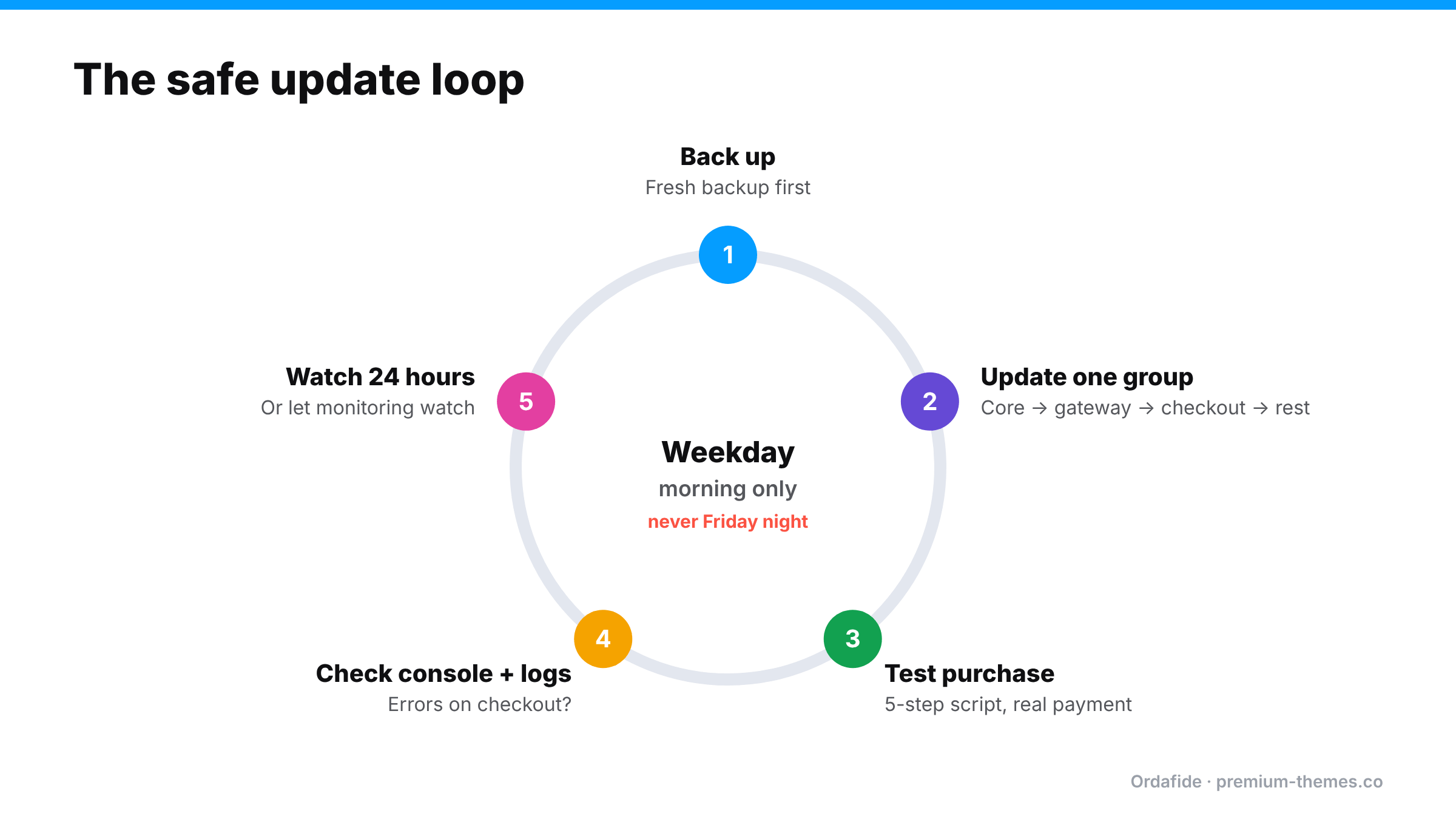
Cycle of five steps repeated for each group of updates: back up, update one group (core, gateway, checkout plugins, the rest), run a test purchase, check the browser console and logs, and watch for 24 hours. Weekday mornings only, never Friday night.

The goal isn’t to stop updating. Outdated plugins are a security risk and accumulate bugs. The goal is to find breakage in minutes, on your schedule, not days later by accident.

Rule 1: Don’t let checkout-critical plugins auto-update unattended

Auto-updates are great for low-risk plugins. For WooCommerce itself, your theme, payment gateways, and anything that touches cart or checkout, update manually, on a weekday morning, when someone can test immediately. Never on Friday afternoon.

Rule 2: Stage first when you can

If your host offers one-click staging, update there first and run through the purchase flow. Use test payment keys on staging, never live ones.

Rule 3: Update one group at a time

Update WooCommerce core, then test. Then the gateway, then test. Then everything else. If something breaks, you know exactly which change caused it.

Rule 4: Back up immediately before updating

A fresh backup turns a disaster into a five-minute restore.

Rule 5: Run the same test purchase after every update

Write down a five-step test: add product → cart → checkout → pay → confirm order and email. Run it every time. Takes three minutes.

Rule 6: Watch the next 24 hours

Some breaks only affect certain browsers, payment methods, products or customer types. Keep an eye on orders and errors for a day after significant updates.

Rule 7: Have monitoring that notices for you

Rules 1–6 depend on people remembering. The last line of defence should be automatic: something that checks checkout on a schedule and notices when orders stop.

Automating the “notice” part with Ordafide Pro

Ordafide Pro is built for exactly the failure in this article: the store is up, but it has stopped taking money.

  • Synthetic checkout monitoring runs every 15 minutes, checking your shop, product, cart and checkout pages and the Store API used by block checkout, with response-time tracking. An optional deep mode adds a test product to a cart. It never places an order, so your data stays clean. A finding is raised only after two consecutive failures, so a single blip doesn’t wake anyone.
  • Order volume anomaly detection compares each hour’s orders with comparable past hours using median-based statistics and flags drops. That’s the absence-of-orders signal humans miss, and it catches breaks that a page check can’t see, such as a payment method failing silently for some customers.
  • Alerts go to Slack, SMS, email or a signed webhook (Discord, Teams, PagerDuty and others), with severity routing and throttling.
  • A signed heartbeat endpoint lets an external monitor confirm Ordafide’s own checks are still running, so you’d know if a broken update took the monitoring down too.

The free Ordafide plugin covers the aftermath. After any update, a scan finds the orders that slipped through badly: stuck payments, paid-but-cancelled orders, duplicate charges from frustrated customers retrying, order totals that no longer add up (common when a coupon, tax or fee plugin misbehaves), and paid customers who never got a confirmation email. It also reports the health of the background job queue, which some updates quietly break.

Your update-day checklist

Before

  • [ ] It’s a weekday morning, and someone is available for a few hours
  • [ ] Fresh backup taken
  • [ ] Changelogs skimmed for WooCommerce, gateway and checkout plugins
  • [ ] Staging updated and tested first (if available)

During

  • [ ] Update in groups: core → gateway → checkout-related → the rest
  • [ ] Test purchase after each group
  • [ ] Browser console checked for errors on checkout

After

  • [ ] Real or zero-value order placed, email received, gateway checked
  • [ ] Ordafide scan run for stuck, duplicate or mis-totalled orders
  • [ ] Orders watched for 24 hours (or monitoring/alerts confirmed active)

WooCommerce Card Testing Attack: How to Spot It, Stop It and Clean Up Afterwards

You open WooCommerce in the morning and the orders list is unrecognizable. Hundreds of new orders arrived overnight, almost all of them Failed. They’re for the cheapest product you sell. The names look random, the email addresses are nonsense, and the billing addresses don’t match anything.

Then your payment gateway emails you about unusual activity.

This is a card testing attack, and it’s one of the most common complaints in WooCommerce communities. Threads with titles like “Spam orders, at my wits’ end” turn up regularly on r/woocommerce and the WordPress.org forums. It’s unsettling, but it’s well understood, and there’s a clear playbook for stopping it.

What card testing is (and why your store was chosen)

Criminals buy stolen card numbers in bulk. Many of those cards are already cancelled or blocked. Before they use or resell them, they need to know which ones still work. The cheapest way to find out is to attempt small purchases on real stores and see which payments go through.

Your store wasn’t chosen because of anything you sell. It was chosen because it:

  • has a cheap product (a low-value charge attracts less attention),
  • has a checkout that can be scripted (no CAPTCHA, no rate limiting),
  • uses a major gateway whose responses are easy to interpret.

WooCommerce’s developer blog has noted that attackers have targeted the WooCommerce Store API directly: the REST endpoints behind the block-based cart and checkout. This works even on stores that don’t use the Checkout block, because the endpoints exist on every modern WooCommerce install. Bots skip your checkout page entirely and talk straight to the API.

Why it matters even though the orders “failed”

It’s tempting to think failed orders are harmless. They aren’t:

  • Gateway fees. Some gateways charge per authorization attempt or for fraud screening, even when the payment fails.
  • Account risk. A flood of declines looks bad to your gateway. Stripe and others may restrict or review your account, and in serious cases pause payouts.
  • Disputes later. Some test charges succeed. When real cardholders spot them, they dispute them, and you pay a dispute fee (Stripe charges $15 per dispute in the US, win or lose) on top of refunding.
  • Polluted data. Hundreds of junk orders distort your reports, analytics and stock reservations.
  • Emails. Depending on your settings, failed-order emails can flood your admin inbox.
  • Server load. Thousands of checkout requests can slow the site for real customers.

Recognizing the signature

Illustrative bar chart of orders per hour over a day: normal low volume, then a huge overnight spike between 1 and 7 a.m., mostly failed orders with a few successful. Signature: sudden spike, mostly failed, cheapest product, random names and guest checkouts.

Card testing has a very recognizable pattern:

Signal What you’ll see
Volume A sudden spike, often overnight, far above your normal hourly order count
Status Mostly Failed, with a few Processing (the cards that worked)
Products The cheapest item, or a single low-priced product over and over
Customer details Random or mismatched names, emails and addresses; often guest checkouts
Payment notes Declines with reasons like card declined, incorrect CVC, insufficient funds
Origin Many different IPs, or bursts from data-centre ranges
Timing Requests seconds apart, at hours your real customers don’t shop

If you see most of the first four, assume it’s card testing and act now. You can confirm the details later.

What an attack looks like hour by hour

Attacks vary, but a typical overnight incident on a small store runs something like this:

  • 01:40: The first few orders arrive for a $3 product. Two fail with card declined, one succeeds. Nobody notices: it’s the middle of the night, and three orders is unremarkable.
  • 02:00–03:00: The bot speeds up once it’s confirmed the checkout can be scripted. Dozens of attempts an hour, mostly failures, from rotating IP addresses.
  • 03:00–07:00: Hundreds of attempts. The admin email inbox fills with failed-order notifications. Your gateway’s risk systems start to notice.
  • 07:30: You wake up to the inbox, the orders list, and perhaps an email from your gateway.

Every hour between 01:40 and 07:30 was another batch of stolen cards validated on your store, another set of potential disputes, and another notch against your account’s risk profile. Shortening that window is the single biggest thing you can do to reduce the damage.

Common mistakes when responding

  • Deleting the orders before refunding the successful ones. You lose the easiest list of charges to refund. Export first, refund, then clean up.
  • Refunding in the gateway dashboard only. It works for the money, but WooCommerce still shows paid orders, which distorts reports and can leave orders in Processing to be shipped. Refund from the WooCommerce order where you can.
  • Blocking by country or IP only. Attackers rotate IPs and use proxies in your own country. Use it as a supplement, not a fix.
  • Turning off the gateway entirely. It stops the attack, but it also stops real customers. CAPTCHA and rate limiting usually let you stay open.
  • Assuming it’s over because it stopped. Attackers often pause and return. Keep defences on.

Stop it: the immediate response (first hour)

Five defence layers: detect fast with order volume spike alerts; gateway fraud rules; Store API rate limiting (off by default); a CAPTCHA that covers the Store API and block checkout; and a web application firewall at the edge. No single layer is enough.

1. Put friction in front of checkout

Turn on a CAPTCHA that protects the checkout and the Store API. This matters. WooCommerce’s developer team found that some CAPTCHA plugins didn’t protect the Checkout block or Store API, so bots skipped them entirely, and worked with several plugin authors to patch them. Make sure your CAPTCHA plugin is up to date and explicitly supports block checkout and the Store API.

2. Enable Store API rate limiting

WooCommerce includes rate limiting for the Store API, but it’s off by default. Developers can enable and configure it with the `woocommerce_store_api_rate_limit_options` filter. WooCommerce 9.6 added stricter rules for the place-order endpoint that can be configured from the admin, and 9.8 added a filter for using a custom fingerprint rather than IP address. If your store sits behind a proxy or CDN, enable proxy mode so you don’t rate-limit all your real customers as one IP.

3. Tighten your gateway’s fraud rules

In Stripe, review Radar rules: block payments where the CVC or postcode check fails, and consider blocking or reviewing high-risk payments. Other gateways have equivalent risk settings. Tell your gateway’s support team you’re under attack. They see this daily.

4. Block obvious sources at the edge

If your host or CDN offers a WAF, add rules or challenges for the checkout and Store API paths, and block data-centre ranges if the attack comes from them.

5. Temporarily hide the target

If the attack hammers one cheap product, temporarily raise its price, set it to private, or require login for checkout until defences are in place.

Clean up afterwards

  1. Refund any successful test charges. Find the few Processing orders that match the attack pattern, verify them against the gateway, and refund them through the WooCommerce order (so both systems record it). Proactively refunding is cheaper than fighting the disputes that will otherwise arrive.
  2. Restore stock. Check that cancelled or failed junk orders aren’t still holding stock.
  3. Delete or trash the junk orders once refunded, so they stop polluting reports. Export a list first for your records.
  4. Check customer accounts. If the attack created accounts, remove them.
  5. Tell your gateway what you’ve done. It helps your account standing.
  6. Review your email settings so a future attack doesn’t flood your inbox.

What to tell your payment gateway

Gateways deal with card testing constantly, and a clear, early message from you helps both your account standing and their response. Include:

  • When it started and whether it’s still going
  • Roughly how many attempts and how many succeeded
  • Which product was targeted and its price
  • What you’ve done: CAPTCHA enabled, rate limiting on, fraud rules tightened, successful charges refunded
  • A request for any account-level protections they can add while things settle

Keep a copy. If your account is later reviewed because of the spike in declines, a record showing you acted quickly and responsibly is useful.

It’s also worth asking whether your gateway offers built-in card-testing protection you haven’t switched on. Several gateways and payment plugins now include specific protections against bursts of low-value attempts, and they’re often off by default or tucked away in advanced settings.

Prevent the next one

  • Keep CAPTCHA and rate limiting on permanently. Attackers return to stores that worked once.
  • Keep WooCommerce updated. Store API protections have improved release by release.
  • Watch your order volume. The earlier you notice an attack, the fewer cards get tested on your store and the smaller the clean-up.
  • Set up alerts. An attack that starts at 2 a.m. shouldn’t run until 9 a.m.

That last point is the one most stores miss. Every defence above is something you turn on after you notice. The size of the damage depends almost entirely on how long the attack runs before someone sees it.

Seeing an attack within the hour, not the morning after

Ordafide Pro includes order volume anomaly detection. Every hour, it compares the current hour’s order count with comparable past hours, using median-based statistics so that genuinely busy periods like a sale don’t distort the baseline. It flags both spikes, the typical shape of a card testing burst, and drops, which usually mean checkout is broken. Findings resolve themselves when volume returns to normal.

Combined with Pro’s alerts (Slack, SMS via Twilio, email, or a signed webhook into Discord, Microsoft Teams or PagerDuty), with severity routing and throttling, an overnight spike becomes a message on your phone while the attack is still small.

Pro’s read-only gateway reconciliation with Stripe, PayPal, Square, Mollie and Razorpay also helps afterwards. It shows any money with no order and any amount disagreements, so you can be sure you’ve found every successful test charge, including ones that never produced a clean WooCommerce order.

The free Ordafide plugin won’t detect an attack in progress (that needs volume monitoring), but its duplicate charge and refund mismatch checks help verify the clean-up: that refunds were recorded correctly, and that no refunded order is still sitting in Processing waiting to be shipped.

Ordafide is not a fraud-prevention firewall and doesn’t block requests. It’s the alarm that tells you to put the firewall up. Use it alongside CAPTCHA, rate limiting and your gateway’s fraud rules.

Card testing response checklist

Right now

  • [ ] CAPTCHA on checkout, confirmed to protect block checkout and the Store API
  • [ ] Store API rate limiting enabled (proxy mode on if behind a CDN)
  • [ ] Gateway fraud rules tightened; gateway support informed
  • [ ] WAF challenge on checkout/Store API paths

Within 24 hours

  • [ ] Successful test charges identified and refunded through WooCommerce
  • [ ] Stock checked and restored
  • [ ] Junk orders exported, then removed
  • [ ] Junk customer accounts removed

Permanently

  • [ ] WooCommerce, gateway and CAPTCHA plugins kept updated
  • [ ] Order volume monitored with alerts for spikes

WooCommerce Orders Stuck On Hold: Authorized vs Captured Payments Explained

On hold is the most misunderstood order status in WooCommerce.

Some store owners see it and assume the payment failed. Others assume the money is safely in the bank and ship the order. Both can be wrong. And because On hold orders don’t show up in the Processing queue that most teams work from, they’re easy to forget entirely, until a customer asks where their parcel is or an accountant asks where the money went.

At the centre of most On hold confusion is one concept that WooCommerce merchants rarely get explained properly: the difference between a payment being authorized and a payment being captured.

This guide explains what On hold actually means, the five reasons orders end up there, how to tell which one you’re dealing with, and how to stop orders (and money) falling through the gap.

What “On hold” really means

WooCommerce’s own documentation describes On hold as an order awaiting payment confirmation: stock has been reduced, but you need to confirm payment before fulfilling. It’s a waiting room, not a verdict.

Compare it with the neighbouring statuses:

Status What it means Should you ship?
Pending payment Order created, no payment received yet No
On hold Awaiting payment confirmation; stock reduced Not until you’ve confirmed payment
Processing Payment received; ready to fulfil Yes
Completed Fulfilled Already done
Failed Payment failed or was declined No

The danger is in that middle row. An On hold order looks like a real sale, because stock has gone down and the order has items, an address and a total, but the money may not be yours yet. Or ever.

Authorized vs captured: the five-minute explanation

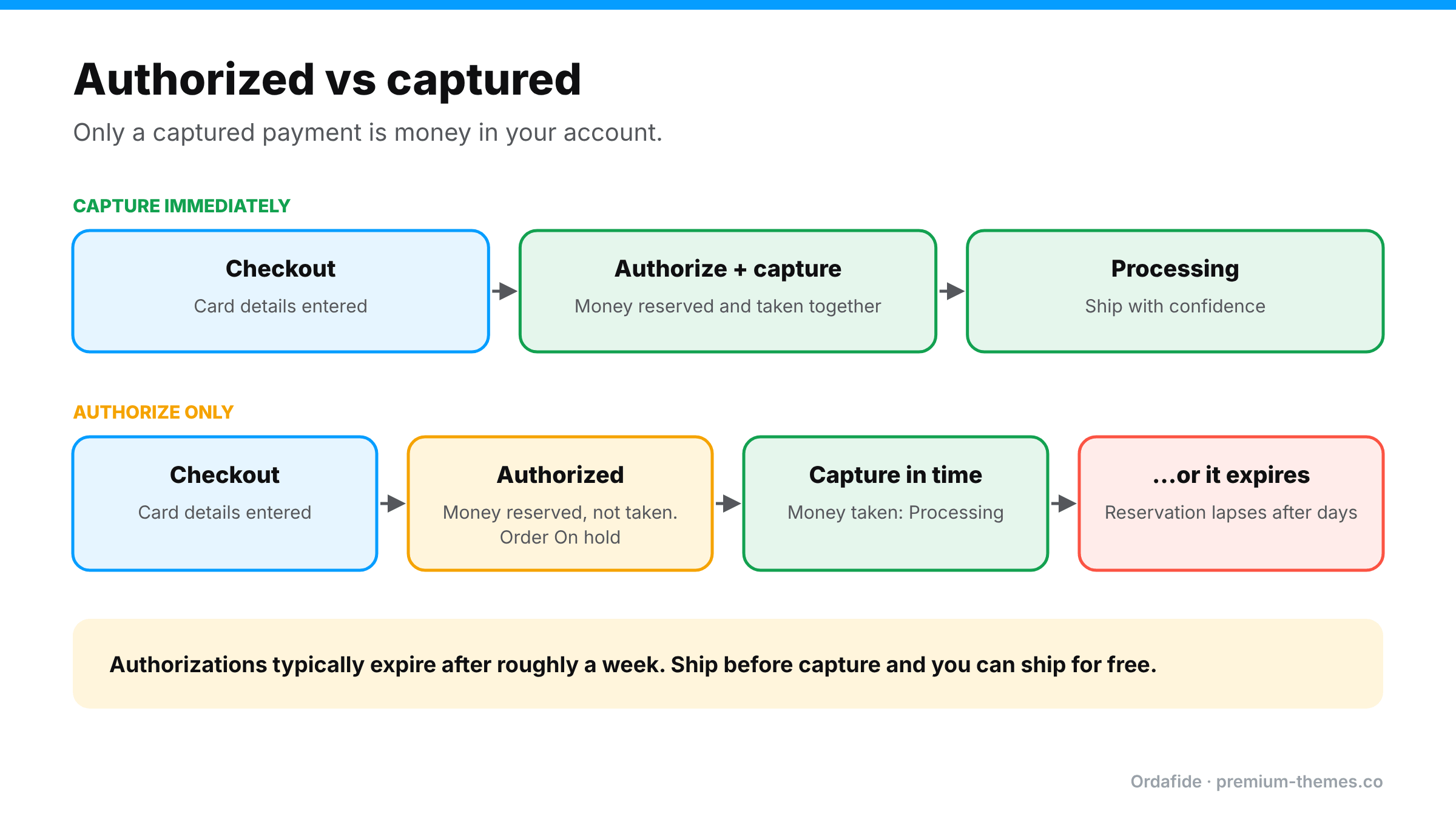
Two flows. Capture immediately: checkout, authorize and capture together, order goes to Processing. Authorize only: checkout, money reserved and order On hold, then either captured in time and moved to Processing, or the authorization expires after days. Shipping before capture risks shipping for free.

Card payments happen in two steps:

  1. Authorization. The customer’s bank confirms the card is valid and has enough funds, and reserves the amount. Nothing has moved. The customer sees a pending charge.
  2. Capture. You tell the gateway to actually take the reserved money. Now it moves toward your account.

Most stores capture immediately: both steps happen at checkout, and nobody thinks about it. But many gateways let you authorize only and capture later. That’s useful for made-to-order goods, pre-orders or stores that check stock before charging.

The catch: authorizations expire. Card networks typically hold an authorization for roughly a week (it varies by card type, network and gateway). If you don’t capture in time, the reservation lapses and the money is released back to the customer. You may already have shipped.

WooCommerce’s troubleshooting documentation calls this out directly: if your gateway only authorizes, funds aren’t transferred, and you need to either enable authorize-and-capture in the gateway settings or capture the charge manually.

The five reasons orders get stuck On hold

1. You chose authorize-only (and forgot to capture)

Many gateway plugins, including the WooCommerce Stripe and PayPal Payments plugins, offer a setting to capture charges immediately or only authorize them. With authorize-only, the order typically sits On hold until you capture, often by changing the order to Processing or Completed or using a capture action, depending on the plugin.

Symptom: order notes mention the charge was authorized rather than completed or captured.

2. An offline payment method

Direct bank transfer (BACS), cheque and cash on delivery orders go On hold by design. WooCommerce can’t know when the money arrives, so it waits for you.

Symptom: payment method is BACS or cheque. This is normal. The risk is only that nobody checks the bank.

3. A delayed-notification payment method

Some methods, such as SEPA Direct Debit and certain bank-based methods, take days to confirm. WooCommerce’s documentation notes these may sit On hold temporarily until the gateway confirms.

Symptom: payment method is SEPA or similar; order notes show the payment as initiated or processing.

4. The gateway’s confirmation didn’t match what the plugin expected

A WordPress.org support thread describes a store using PayPal Powered by Braintree where card payments were authorized and settled at Braintree but orders stayed On hold. The plugin checked for one specific settlement status, while Braintree sometimes reported a different, still-valid one for up to 24 hours. The money was fine. The store’s records weren’t.

Symptom: gateway dashboard shows the payment as settled or captured, but the order never moved.

5. A risk or review hold

Gateways and fraud tools can hold payments for review (PayPal “pending” reasons, fraud screening, unverified accounts). The order waits until the review finishes.

Symptom: order notes or the gateway show a review, pending reason or risk flag.

How to diagnose an On hold order in two minutes

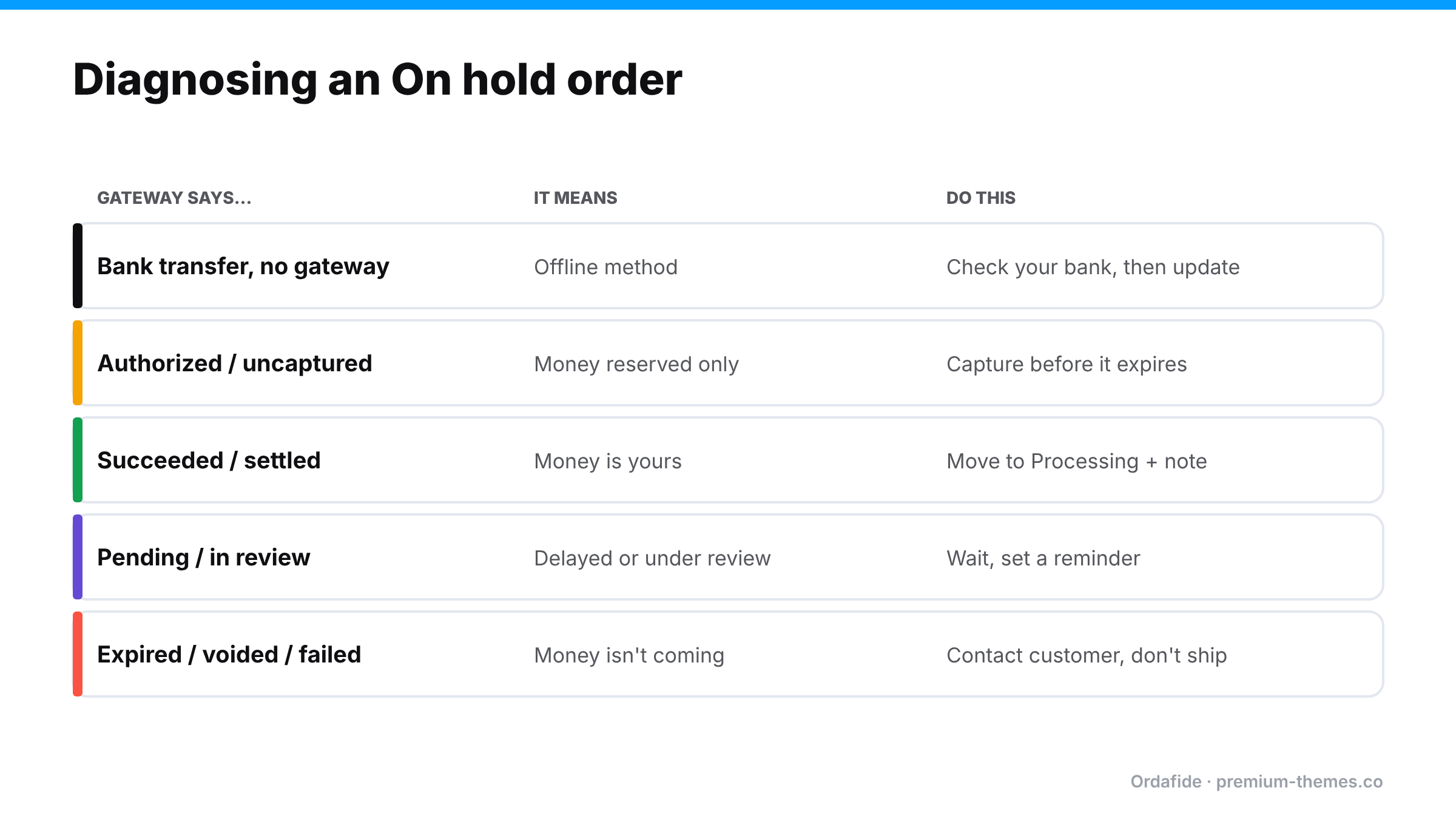
Table: bank transfer means check your bank then update; authorized or uncaptured means capture before it expires; succeeded or settled means move to Processing with a note; pending or in review means wait; expired, voided or failed means contact the customer and don't ship.

Open the order and work through this:

  1. 1. Check the payment method. BACS, cheque or COD? It’s case 2: check your bank and update manually.
  2. 2. Read the order notes. Look for the words authorized, captured, pending, review or a gateway status.
  3. 3. Find the transaction ID and open it in the gateway dashboard. What does the gateway say?
    • Authorized / uncaptured: case 1. Capture it (if you intend to fulfil) before the authorization expires.
    • Succeeded / captured / settled: case 4. Money’s in. Move the order to Processing and add a note.
    • Pending / in review: case 3 or 5. Wait, but set a reminder.
    • Expired / voided / failed: the money isn’t coming. Contact the customer before shipping anything.
  4. Check the order date. An authorization more than a few days old is at risk. Prioritize it.

The costly scenario: “paid” orders with no captured money

Here’s where it really hurts. Imagine your team moves On hold orders to Processing in bulk every morning to get them into the picking queue, perhaps because “On hold” orders always turn out fine.

If even one of those was an authorization that later expired or was never captured, you’ve shipped goods for free, and nothing in WooCommerce will ever tell you. The order says Processing, then Completed. It has a transaction ID. It looks perfect. Only the gateway knows no money was collected.

This is one of the cases where WooCommerce’s records and reality disagree silently. It’s also why “just check the order status” isn’t a reliable control.

A worked example: Monday morning’s On hold list

Here’s what a typical On hold list might look like on a small store after a weekend, and how to handle each one.

Order #4102: Direct bank transfer, $89, placed Saturday.
The customer chose bank transfer. You check the bank account: no payment yet. This is normal. Leave it On hold, and if nothing arrives within your stated payment window (say five days), send a reminder and then cancel to release the stock.

Order #4108: Card via Stripe, $240, placed Friday night, note says “authorized”.
Your Stripe plugin is set to authorize only, because you make items to order. Open the transaction in Stripe: it shows Uncaptured. If you’re starting production today, capture it now. Waiting until you ship next week risks the authorization expiring. If the item is out of stock and you won’t fulfil, cancel the authorization rather than letting it lapse, so the customer’s funds are released promptly.

Order #4111: PayPal, $56, placed Sunday, note says “pending: payment review”.
PayPal is reviewing the payment. Don’t ship. Check again later in the day. If PayPal completes it, the order should move forward on its own; if it doesn’t, compare the PayPal status and update by hand.

Order #4115: Card via another gateway, $132, placed Sunday, no useful note.
You open the gateway dashboard: the payment shows as settled. The money is yours. The plugin simply didn’t recognize the status it received. Move the order to Processing, add a note with the transaction ID, and check for a gateway plugin update.

Four orders, four different correct answers, and only one of them needed no action. That’s why On hold can’t be handled with a single rule like “promote everything each morning”.

Getting your capture settings right

Wherever your payment plugin’s settings live (usually WooCommerce → Settings → Payments → [gateway] → Manage), look for a setting along the lines of capture charge immediately, payment action: capture / authorize, or intent. Then:

– If you ship from stock: choose immediate capture. You don’t need authorize-only.
– If you make to order or sell pre-orders: authorize-only can make sense, but write down who captures, when, and what happens to authorizations older than a few days.
– If you’re not sure what’s configured: place a small real order and check the gateway. An uncaptured payment means you’re on authorize-only.

Changing this setting affects new orders only. Existing authorized orders still need capturing or cancelling individually.

Fixing On hold for good

Decide deliberately between immediate capture and authorize-only

Unless you have a real business reason to delay capture (made-to-order, stock verification, pre-orders), capture immediately. It removes an entire class of problems. If you do authorize-only, make capture part of a daily routine and make sure everyone knows authorizations expire.

Give On hold orders an owner

Add a daily check of the On hold filter in WooCommerce → Orders. Every order there should have an obvious reason (bank transfer awaiting payment, SEPA pending, authorized awaiting capture) and a next step.

Never bulk-promote On hold orders without checking the gateway

If you bulk-move orders to Processing, do it only after checking that each one’s payment is captured or confirmed. It’s tedious, which is exactly why it should be automated.

Keep gateway plugins current

Status-mapping issues like the Braintree example are typically fixed in plugin updates. Running old gateway plugins means running old bugs.

Reconcile against the gateway

The only way to catch “order says paid, gateway says no” is to compare the two. See how to reconcile WooCommerce orders with Stripe and PayPal.

How Ordafide helps

Ordafide Order Integrity for WooCommerce (free) scans your recent orders and raises plain-English findings sorted by money at risk. For the problems in this article it gives partial cover from your own database:

  • Its stuck payment and paid but cancelled checks flag orders where the gateway wrote a payment reference or WooCommerce recorded a confirmed payment date, but the status says otherwise, which helps when a valid payment never moved the order forward.
  • Its refund mismatch and order total checks catch other cases where an order’s status and its numbers disagree.

But an order that’s been promoted to Processing without the money ever being captured looks internally consistent. Only the gateway knows. That’s what Ordafide Pro adds: read-only reconciliation with Stripe, PayPal, Square, Mollie and Razorpay, which flags:

  • Paid orders with no payment: orders WooCommerce treats as paid where the gateway has no matching captured payment
  • Money with no order
  • Amount disagreements
  • Refunds missing in WooCommerce

With Pro’s alerts (Slack, SMS, email or signed webhook), a “shipped but never captured” order becomes a same-day notification rather than a hole your accountant finds next quarter. Ordafide never captures, refunds or voids anything itself; capturing stays a deliberate decision you make in the gateway or your payment plugin.

Daily On hold routine (5 minutes)

  1. Filter WooCommerce → Orders by On hold.
  2. For each BACS/cheque order: check the bank, then move to Processing or chase the customer.
  3. For each authorized order: capture if you’re ready to fulfil; flag anything older than a few days.
  4. For each delayed method order: leave it, but note how long it’s been waiting.
  5. For anything settled at the gateway but still On hold: move to Processing with a note, and look for a plugin update.
  6. Never mass-promote without checking.

Payment Received but No Order in WooCommerce? How to Find and Fix Orphaned Payments


Most WooCommerce payment problems at least leave a trace. An order sits on Pending payment, or shows up twice, or is cancelled when it shouldn’t be. You can see it, even if you don’t yet understand it.

This one leaves nothing.

A customer emails you a bank statement showing they paid. You search WooCommerce for their name, their email, the amount. Nothing. No order, no draft, no failed attempt. But when you open Stripe or PayPal, the payment is right there, marked Succeeded.

We call these orphaned payments: money that reached your gateway with no WooCommerce order attached. They’re rarer than stuck orders, but they’re among the most damaging failures a store can have. The customer has paid, nobody is going to ship anything, and nothing inside your store will ever tell you.

This guide explains how orphaned payments happen, how to find every one of them, how to resolve each case, and how to make sure you hear about the next one in hours instead of weeks.

The problem in one sentence

WooCommerce can only show you orders it created. An orphaned payment is, by definition, one it never created or never connected.

That’s why ordinary troubleshooting fails here. Every report, filter and search in WooCommerce looks at the orders table. If there’s no row, there’s nothing to find. The evidence only exists on the gateway’s side.

What merchants actually report

Searching the WordPress.org support forums and WooCommerce communities turns up the same story again and again:

  • – “Customer sent proof of payment, money is in my account, but there’s no order.” In one WordPress.org thread, a store using the Mercado Pago gateway found that two payments from the same customer had reached the gateway carrying the same WooCommerce order ID, so only one order was saved and the other payment was left without one.
  • – “Apple Pay approved but nothing happened.” An open issue in the official WooCommerce Stripe gateway’s GitHub repository describes Express Checkout (Apple Pay) sheets being approved while the order is left pending until it auto-cancels. Wallet flows add another handoff, and another place for it to break.
  • – “Orders are appearing as drafts with no customer details.” Block-based checkout creates a draft order while the shopper is on the checkout page. If something fails between the draft and the payment confirmation, you can end up with a payment and an incomplete or abandoned draft that never became a real order.

The common thread: the money moved, but the order record didn’t follow it.

The five ways an orphaned payment happens

Five causes of orphaned payments in WooCommerce: checkout crashed after the charge, two payments on one order ID, wallet or redirect flow never returned, a staging site took a live payment, and payments taken outside WooCommerce. These exist only at the gateway.

1. The checkout crashed after the charge

The sequence inside checkout is: create or update the order, call the gateway, get a success response, then mark the order paid and redirect. If PHP hits a fatal error or `max_execution_time` after the gateway charged the card, the order may never be saved in a usable state. Slow checkouts (heavy plugins, external tax or shipping API calls, an overloaded server) make this more likely.

2. Two payments, one order ID

If a shopper pays twice (double click, a retry, a second tab), both payments can reference the same WooCommerce order. WooCommerce stores one transaction ID per order. The second payment is real money, but it has nowhere to live in your store.

3. A wallet or redirect flow that never came back

Apple Pay, Google Pay, PayPal, buy-now-pay-later and bank-redirect methods all involve the shopper leaving your page or a payment sheet appearing on top of it. If the return trip or the confirming webhook fails, the order can be left as a draft or auto-cancelled while the payment itself completes.

4. A staging or cloned site took the payment

This one surprises people. A staging copy of your store that still has live payment keys can take real payments from real customers (for example, if a search engine indexed it, or someone shared the wrong link). The payment lands in your live Stripe account. The order lands in the staging database, which you never look at.

The reverse also happens: a staging site registers its own webhook endpoint with your live gateway account, and events start going to the wrong place.

5. Payments taken outside WooCommerce

Payment links, invoices, manual charges in the gateway dashboard, or another app connected to the same Stripe or PayPal account all create gateway payments that WooCommerce never sees. These are usually legitimate, but they make reconciliation noisy. Unless you can tell them apart, a genuine orphan can hide among them.

How to find every orphaned payment (manual method)

Process: export gateway payments, export WooCommerce orders, match on transaction ID, match leftovers on metadata, classify. Then resolve: create the order if the customer wants goods, refund duplicates in the gateway, treat staging payments as real orders and fix the clone, mark outside payments as expected.

You can’t search for something that doesn’t exist in WooCommerce, so you work from the gateway side.

Step 1: Export successful gateway payments for a period

From Stripe’s Payments list or PayPal’s activity reports, export successful payments for the last 30 days. Include the payment ID, amount, currency, customer email, created date and any metadata or description. The WooCommerce Stripe gateway normally writes the order ID and order number into the payment’s metadata or description, which is gold for matching.

Step 2: Export WooCommerce orders with transaction IDs

Export orders for the same period, including the transaction ID field, status, total and billing email. Make sure both exports use the same timezone.

Step 3: Match on transaction ID first

Every gateway payment whose ID appears on a WooCommerce order is accounted for. Remove those.

Step 4: Match the leftovers on metadata

For the remaining gateway payments, look at the order ID in the metadata. If it points to an existing order that has a different transaction ID, you’ve likely found two payments on one order (cause #2). If it points to an order ID that doesn’t exist in your live database, suspect a staging site (cause #4) or a crash before the order was saved (cause #1).

Step 5: Classify what’s left

Anything still unmatched is either a genuine orphan or a payment taken outside WooCommerce (cause #5). The description, payment link ID or invoice ID usually tells you which.

For a store doing a few hundred orders a month, this is an hour or two of spreadsheet work. It’s worth doing once even if you automate it later, because it shows you which causes affect your store.

Resolving each orphaned payment

Work from the most urgent: customers who paid and are waiting for something.

If the customer should receive goods:

  1. Contact them, confirm what they ordered (the gateway shows the amount, and sometimes line items in the description or metadata).
  2. Create the order manually in WooCommerce → Orders → Add order, add the items, set the customer, and set the status to Processing.
  3. Paste the gateway payment ID into the transaction ID field and add a private note explaining how you verified it. Don’t charge again.
  4. Check stock afterwards. A manually created order may need stock reduced by hand depending on how you add items.


If it’s a duplicate payment (the customer only wanted one order):

Refund it in the gateway. Since there’s no WooCommerce order to refund through, this is one of the few cases where refunding in the gateway dashboard is correct. Note it in the original order so your team knows.

If it came from a staging site:

Treat each one as a real order (as above), then fix the staging site immediately. Switch it to test keys, block it from search engines, put it behind a password, and remove any webhook endpoints it registered in your live gateway account.

If it was taken outside WooCommerce on purpose:

Mark it as expected in your reconciliation sheet so it stops showing up.

Fixing the cause

Cause Fix
Checkout crash after charge Check WooCommerce → Status → Logs for fatal errors at the payment time. Speed up checkout and remove slow external calls where possible. Raise PHP limits with your host if timeouts are frequent.
Two payments, one order See WooCommerce customer charged twice: slow checkouts, request replays and plugin retries.
Wallet / redirect flow failed Keep your gateway plugin updated, check its webhook delivery log, and test each wallet on real devices after updates.
Staging site with live keys Test keys on every non-production copy, always. Add it to your launch and clone checklist.
Payments outside WooCommerce Use a separate account, or consistent descriptions/metadata, so they’re easy to exclude.

Why this needs automation, not vigilance

Orphaned payments have three properties that make manual detection unreliable:

  1. They’re rare, so nobody builds a habit of checking for them.
  2. They’re invisible from WooCommerce, so the screens you look at every day can’t show them.
  3. They’re expensive when missed: a customer who paid and received nothing is the textbook case for a “product not received” chargeback, which costs you the sale, the goods if you ship late, and a dispute fee.

The only reliable approach is something that regularly asks the gateway “what did you collect?” and compares the answer with what WooCommerce recorded.

How Ordafide handles orphaned payments

Ordafide Order Integrity for WooCommerce comes in two parts, and this problem is a good illustration of why.

The free plugin audits what’s in your database. It catches the close relatives of orphaned payments, the ones where an order does exist:

  • Stuck payment: an order left on Pending payment or Failed even though the gateway wrote a payment reference on it.
  • Paid but cancelled: an order with a confirmed payment date sitting in Cancelled or Failed with nothing refunded.
  • Duplicate charge: one gateway payment reference attached to two orders, or the same customer charged twice for an identical basket within minutes.

What the free plugin can’t do, and doesn’t pretend to, is find an order that was never created. There’s no query for a row that doesn’t exist.

Ordafide Pro closes that gap with gateway reconciliation. It connects to Stripe, PayPal, Square, Mollie and Razorpay using read-only API keys, pulls the gateway’s own record of what was collected, and compares it with your orders. Its findings include:

  • Money with no order: exactly the orphaned payments described in this article
  • Paid orders with no payment
  • Amount disagreements between the order and the charge
  • Refunds missing in WooCommerce

Findings are sorted by money at risk and can trigger Slack, SMS, email or webhook alerts, so an orphaned payment surfaces the same day rather than when the customer’s patience runs out. Because the keys are read-only, Ordafide can’t capture, refund or void anything. It tells you what’s wrong and leaves the decision with you.

A quick prevention checklist

  • [ ] Every staging or local copy of the store uses test payment keys
  • [ ] Your live gateway account has only your production webhook endpoint registered
  • [ ] Checkout completes in a few seconds, even with all plugins active
  • [ ] Fatal errors around payment time are reviewed in WooCommerce logs
  • [ ] Wallet payments (Apple Pay, Google Pay) are tested after gateway plugin updates
  • [ ] Gateway payments are reconciled against orders, automatically or at least monthly
Is Your WooCommerce Checkout Broken Right Now? How to Monitor It Before Customers Notice

Is Your WooCommerce Checkout Broken Right Now? How to Monitor It Before Customers Notice

Here’s a scenario that plays out on WooCommerce stores every day.

A plugin auto-updates overnight. The home page loads. Product pages load. Your uptime monitor shows a green tick. But the checkout throws a JavaScript error, or the payment step silently fails, or the cart empties itself on the way to checkout.

You find out two days later, when someone finally emails to say they couldn’t pay. Or you don’t find out at all, and just wonder why sales were slow that week.

Uptime is not the same as “customers can buy.” This guide explains what actually needs monitoring on a WooCommerce store, the free and paid ways to do it, and a practical setup for both single stores and agencies.

Why uptime monitoring isn’t enough

A typical uptime monitor requests your home page every few minutes and checks it returns a 200. That catches a crashed server. It misses almost everything that loses money in WooCommerce:

  • A broken cart or checkout page (PHP or JavaScript error on one page only)
  • A payment gateway that’s misconfigured, expired, or rejecting every payment
  • Webhooks being blocked, so paid orders never advance
  • The WooCommerce Store API failing, which block-based cart and checkout rely on
  • Background jobs stalling, so emails and stock updates stop
  • Caching serving a stale or broken checkout page
  • A sudden drop in orders because something upstream broke (ads, DNS for a payment script, a geo-blocking rule)

What to monitor on a WooCommerce store

Four monitoring layers: 1, buying pages load (shop, product, cart, checkout, Store API); 2, shoppers can reach payment; 3, incoming orders are correct; 4, order volume is normal. A basic uptime monitor only checks the home page and misses layers 2 to 4.

Think about it in four layers.

Layer 1: Can people reach the buying pages?

Not just the home page, but shop, a product page, cart, and checkout, plus the Store API endpoints the block checkout uses. Each should load quickly and without errors.

Layer 2: Can they get to the payment step?

The real test is adding a product to the cart and reaching checkout. That’s where most plugin conflicts show up. This is called synthetic monitoring: a script behaves like a shopper on a schedule.

A word of caution: synthetic tests should not place real orders. Test orders pollute your reports, trigger fulfilment, and can create real charges. Good synthetic checks stop before payment.

Layer 3: Are orders that come in actually correct?

Orders can be created and still be wrong: stuck on Pending payment, charged twice, cancelled despite payment, missing a confirmation email. That needs integrity checks on the orders themselves. (See stuck pending orders) and (double charges.)

Layer 4: Is order volume normal?

Sometimes nothing is technically “broken” by any test, but orders stop anyway. Comparing the current hour’s orders against comparable past hours (same day of week, same time of day) catches drops and spikes that point to a problem. The trick is avoiding false alarms on naturally quiet hours, which is why median-based comparisons work better than simple averages.

Alerts: the part people get wrong

Alert routing table: critical events like checkout down or payments stopped go to SMS and Slack; high events like a stuck paid order or order volume drop go to Slack and webhook; normal events like an email backlog go to email; everything else goes into a weekly summary. Confirm before alerting, throttle repeats, keep a delivery log.

Monitoring is useless if the alert goes to an inbox nobody reads, and equally useless if it fires so often everyone mutes it. Good alerting means:

  • The right channel: Slack or SMS for “checkout is down,” email for “weekly summary.”
  • Severity routing: urgent things wake someone, minor things wait.
  • Confirmation before alerting: one failed check could be a blip. Two in a row is a problem.
  • Throttling: one alert per issue, not one every five minutes.
  • A delivery log: so you can prove an alert was sent.

A free starting setup

You can get decent coverage for free:

  1. An uptime monitor on your home page and your checkout URL.
  2. WooCommerce → Status → Scheduled Actions checked weekly for past-due actions.
  3. ‘Tools → Site Health’ checked for loopback and REST API problems.
  4. Ordafide Order Integrity for WooCommerce (free) to scan orders for stuck payments, paid-but-cancelled orders, duplicate charges, refund mismatches, total mismatches, and customers who were never emailed. It also shows background queue and email delivery health, and sends an optional weekly summary when there’s something to report.
  5. A manual test purchase after every significant update, using a coupon to make it zero-cost or refunding immediately.

That covers layers 1 and 3 reasonably well. It leaves gaps in layers 2 and 4, and it relies on someone remembering to look.

A complete setup

Ordafide Pro fills those gaps:

  • Synthetic checkout monitoring every 15 minutes across shop, product, cart, checkout and the Store API, with response-time tracking. An optional deep mode adds a test product to a cart. It never creates orders, and a finding is raised only after two consecutive failures.
  • A signed heartbeat endpoint so an external monitor can confirm the store’s own checks are still running.
  • Order volume anomaly detection that compares the current hour with comparable past hours using median-based statistics, flags drops and spikes, and resolves itself when things return to normal.
  • Alerts via Slack, SMS (Twilio), signed webhooks (for Discord, Microsoft Teams, PagerDuty and similar) and email, with severity routing, per-check throttling, retries and a delivery log.
  • Read-only gateway reconciliation with Stripe, PayPal, Square, Mollie and Razorpay to catch payments with no order (see how to reconcile WooCommerce with Stripe and PayPal).

For agencies: monitoring client stores

If you maintain WooCommerce stores for clients, a broken checkout is an emergency you want to hear about before the client does, not from them.

What matters at agency scale:

  • One dashboard for all stores, not 20 logins.
  • Per-store alert routing, so the right person or client channel gets the right alert.
  • Silence detection, so a store that stops reporting entirely gets flagged rather than quietly looking “fine.”
  • Privacy. Clients’ order data shouldn’t be copied into a third-party service.
  • CLI access for scripted checks across many sites.

Ordafide’s free plugin includes WP-CLI commands (`wp ordafide scan`, `wp ordafide findings`, `wp ordafide health`, `wp ordafide digest`). Ordafide Pro adds a multi-store agency dashboard built on signed hourly snapshots that contain only counts and totals, not customer data. It flags any store that’s been silent for two hours, and the Agency licence adds per-store alert routing.

A monitoring checklist

  • [ ] Uptime checks on home and checkout
  • [ ] Synthetic check that reaches checkout without placing an order
  • [ ] Order integrity scan (stuck, duplicate, refund and total mismatches)
  • [ ] Background queue and email delivery monitored
  • [ ] Order volume compared against normal for the hour
  • [ ] Alerts routed to Slack/SMS for urgent issues, with throttling
  • [ ] Manual test purchase after major updates
  • [ ] For agencies: one dashboard and per-store routing
How to Reconcile WooCommerce Orders with Stripe and PayPal (and Find Money With No Order)

How to Reconcile WooCommerce Orders with Stripe and PayPal (and Find Money With No Order)

Your WooCommerce sales report says one number. Your Stripe balance says another. Your PayPal activity says a third. Your accountant wants to know which one is true.

Here’s the uncomfortable fact behind that gap: WooCommerce records what it believes happened. Your payment gateway records what actually happened. They’re two separate sources of truth, and nothing in WooCommerce continuously checks that they agree.

Most of the time they do. When they don’t, the difference is usually real money: customers who paid and never got their order, refunds your reports don’t know about, or stock that’s wrong because a refund never reached WooCommerce.

This guide gives you a practical reconciliation process you can run monthly (or weekly on busier stores), the five mismatches to look for, and how to fix each one.

Why WooCommerce and your gateway drift apart

  • Webhooks fail. The gateway tells WooCommerce about payments and refunds via webhooks. A firewall, a wrong secret, or a crash means WooCommerce never hears about it.
  • People work in two places. Staff issue refunds in the Stripe or PayPal dashboard because it’s faster. WooCommerce never finds out.
  • Checkouts break halfway. A payment succeeds but the order is never created or never updated.
  • Plugins modify totals. Coupons, fees, currency switchers and tax plugins can leave the stored order total different from the amount actually charged.
  • Disputes happen at the gateway. Chargebacks are raised with your gateway, not your store.

The 5 mismatches to look for

Venn diagram of WooCommerce versus the payment gateway. Orders matched by transaction ID sit in the overlap. Only in WooCommerce: paid orders with no payment and refunds marked but never issued. Only in the gateway: money with no order and refunds made in the gateway only. Plus amount disagreements between the two.

1. Money with no order

The gateway shows a successful payment, but there’s no corresponding WooCommerce order. This is the hardest to find, because WooCommerce has nothing to show you. It’s invisible by definition from inside the store. Causes include a checkout that crashed after the charge, or a duplicate charge whose order was never created.

Fix: contact the customer, then either create the order manually (so you fulfil it) or refund the payment.

2. Paid orders with no payment

WooCommerce shows an order as Processing or Completed, but there’s no matching successful payment in the gateway. Causes include an order manually set to Processing by mistake, a payment that was authorized but never captured, or one transaction attached to two orders.

Fix: stop fulfilment until you’ve confirmed payment, then contact the customer or cancel.

3. Amount disagreements

The order total in WooCommerce doesn’t match what the gateway collected. Small persistent differences often come from currency rounding. Bigger ones usually come from a coupon, fee or shipping plugin misfiring, or a manual order edit after payment.

Fix: decide which figure is right, then correct the order (or issue a partial refund) and add a note explaining why.

4. Refunds made in the gateway, missing in WooCommerce

Someone refunded in Stripe or PayPal directly, and WooCommerce still shows the order as fully paid. Your revenue is overstated, stock that came back was never restocked, and the order could even be shipped again.

Fix: record the refund in WooCommerce. Use Refund manually on the order (so WooCommerce doesn’t try to send the money a second time), tick Restock refunded items if the stock came back, and add a note referencing the gateway refund ID.

5. Refund status mismatches inside WooCommerce

These you can catch without the gateway at all: an order set to Refunded by hand with no refund actually issued (the customer never got their money), refunds larger than the order total, and fully refunded orders still sitting in Processing.

A manual reconciliation process

Five steps to reconcile WooCommerce with Stripe and PayPal: export both sides for the same period and timezone; match on transaction ID; sort unmatched lines into the five mismatch types; fix the most expensive first; then fix the cause. Rule: always refund from the WooCommerce order screen.

You can do this with exports and a spreadsheet. It takes time, but it works.

Step 1: Pick a period and export both sides

  • WooCommerce: export orders for the period with order number, date, status, total, payment method and transaction ID. Include refunds.
  • Stripe: export payments (and refunds) for the same period from the Payments section. Use the Payment Intent or charge ID.
  • PayPal: download an activity report for the period from your business account’s reports.

Use the same timezone on both sides, or orders near midnight will appear to be missing.

Step 2: Match on transaction ID, not amount

Match each gateway payment to a WooCommerce order using the transaction ID WooCommerce stores on the order. Matching by amount and date produces false matches whenever two customers buy the same thing.

Step 3: Sort the leftovers into the five buckets

Anything that doesn’t match cleanly belongs in one of the five categories above. Note the amount at stake for each.

Step 4: Fix the most expensive first

Customers who paid and received nothing come first. They’re the ones about to raise a dispute.

Step 5: Fix the cause

A mismatch is a symptom. If you find several stuck payments, check your webhooks (see WooCommerce order stuck on pending payment). If you find gateway-only refunds, agree a rule with your team: refunds are always issued from the WooCommerce order screen.

Where manual reconciliation falls down

  • It’s slow. Exports, lookups and matching easily take hours per month.
  • It’s late. A monthly check means a customer may have waited weeks.
  • It’s fragile. Partial refunds, multiple currencies, and multiple gateways make spreadsheets messy fast.
  • It doesn’t scale to agencies. Doing this across 10 or 20 client stores isn’t realistic.

Automating it

Start free. Ordafide Order Integrity for WooCommerce runs the store-side checks automatically: stuck payments, paid-but-cancelled orders, duplicate charges, refund mismatches and order totals that don’t add up. Findings are sorted by money at risk, each with evidence and next steps, and the plugin sends nothing off your server.

Then reconcile against the gateway. Ordafide Pro connects to Stripe, PayPal, Square, Mollie and Razorpay with read-only API keys and continuously compares what the gateway collected against what WooCommerce recorded. It detects:

  • money with no order
  • paid orders with no payment
  • amount disagreements
  • refunds missing in WooCommerce

Pro also keeps a full event log with CSV/JSON audit export over any date range (with secrets removed), which is useful to hand to an accountant. Because credentials are read-only, Ordafide can’t capture, refund or void anything at the gateway. It tells you what’s wrong and links you to the order.

A sensible reconciliation rhythm

Store size Store-side checks Gateway reconciliation
Under ~100 orders/month Weekly Monthly, manually
Hundreds of orders/month Continuous (automated) Weekly or continuous
Thousands/month, or multiple gateways Continuous Continuous, with alerts
Agencies managing client stores Continuous on every store Continuous, with per-store alerts
WooCommerce Order Emails Not Sending? Check Action Scheduler, WP-Cron and SMTP

WooCommerce Order Emails Not Sending? Check Action Scheduler, WP-Cron and SMTP

When WooCommerce order emails stop arriving, the store looks perfectly healthy. Orders come in. The dashboard loads. There’s no error message anywhere.

The only symptom is your inbox filling up with “Did my order go through?” messages, and sometimes chargebacks from customers who assumed they’d been scammed.

This guide walks through the causes in the order you should check them, from the quick settings mistakes to the silent background-queue failures that catch out even experienced developers.

First: is it one email, one customer, or everything?

Symptom to cause guide: one customer missing an email points to a typo or spam; one email type stopped points to it being disabled in settings; nothing sending since a migration points to missing SMTP; late or burst emails point to a stalled Action Scheduler or WP-Cron; admin emails arriving but not customer emails points to disabled customer emails or a plugin conflict.

The pattern tells you where to look:

Symptom Most likely cause
One customer didn’t get their email Typo in their address, or it went to spam
One email type stopped (e.g. Completed order) That email was disabled in settings
No emails at all, from the moment you migrated Mail sending is broken (no SMTP)
Emails arrive hours late, or in bursts Background queue (Action Scheduler / WP-Cron) is stalled
Admin emails arrive but customer emails don’t Customer emails disabled, or a recipient/plugin issue

Step 1: Check the email settings

Go to WooCommerce → Settings → Emails. Every email (Processing order, Completed order, Customer invoice, New order and so on) has its own enable toggle. Plugins, staging tools and well-meaning colleagues sometimes switch these off.

While you’re there, check the “From” address. If it uses a domain your mail service isn’t authorized to send for, receiving servers may reject or junk the message.

Step 2: Check that WordPress can send email at all

By default, WordPress sends mail with PHP’s `mail()` function. Many hosts restrict it, and messages sent this way often fail SPF/DKIM checks and land in spam, or are silently discarded with no error.

The fix is to send through a proper mail provider over SMTP or an API using an SMTP plugin, and to set up SPF, DKIM and DMARC records for your sending domain. Then send a test email from the SMTP plugin.

If test emails work but order emails still don’t, keep going. The problem is upstream of the mail server.

Step 3: Check the background queue (the silent killer)

Diagram of the chain behind a WooCommerce order email: a visitor or server cron triggers WP-Cron, which runs Action Scheduler, which processes order updates, which send email through SMTP to the customer's inbox. Common break points: DISABLE_WP_CRON without a server cron, blocked loopback requests, a backlog of past-due actions, and PHP mail without SMTP.

WooCommerce relies on Action Scheduler, a background job queue, for a lot of order-related work, and some payment gateways hand parts of their payment confirmation to it. Action Scheduler is triggered by WP-Cron. And WP-Cron, by default, only runs when someone visits your site.

When this chain breaks, work queues up and doesn’t run. Order status changes that depend on queued work don’t happen, so the emails tied to those status changes don’t send either. There is no error and nothing on screen changes.

How to check

Go to WooCommerce → Status → Scheduled Actions and open the Pending tab.

  • A handful of actions scheduled in the future is normal.
  • Dozens or hundreds of actions that are past due means nothing is running the queue.
  • A large number in the Failed tab means jobs are running but crashing. Open one to see the error.

Common reasons the queue stops

  • DISABLE_WP_CRON’ is set to ‘true’ in ‘wp-config.php’, usually by a host or performance plugin, but no real server cron job was set up to replace it.
  • Loopback requests are blocked. WP-Cron works by your site making an HTTP request to itself. A firewall, basic-auth password, or DNS issue that blocks this kills the scheduler. `Tools → Site Health` reports loopback failures.
  • Low traffic. On a quiet store, if no one visits, WP-Cron doesn’t run.
  • A huge backlog. On busy stores the Action Scheduler tables can grow to hundreds of thousands of rows, and the queue can’t keep up.
  • A fatal error in one job that keeps failing and retrying.

How to fix it

1. Set up a real cron job on your server (most hosts offer this in the control panel) to run WP-Cron every few minutes, for example:
‘*/5 * * * * wget -q -O – “https://yourstore.com/wp-cron.php?doing_wp_cron” >/dev/null 2>&1’
or, with WP-CLI: ‘wp cron event run –due-now’
2. Then disable visitor-triggered cron with ‘define( ‘DISABLE_WP_CRON’, true );’ so the two don’t compete.
3. Clear the backlog by running it, not deleting it. Pending actions may include real customer emails and order updates. With WP-CLI you can run ‘wp action-scheduler run’. On very large backlogs, ask your host for help.
4. Fix loopback if Site Health reports it failing: whitelist your own server IP in the firewall, or remove basic-auth from production.
5. Investigate failed actions and fix the plugin causing them.

Step 4: Resend the emails customers missed

Once the cause is fixed, the emails that never went out won’t magically send themselves. For each affected order, open it, choose Order actions → Email invoice / order details to customer (or Resend new order notification for the admin copy), and update.

The hard part is working out which orders were affected. WooCommerce doesn’t give you an easy per-order record of whether each customer email was actually handed to your mail server.

Watching this automatically

Ordafide Order Integrity for WooCommerce is a free plugin that watches the two things that make everything else fail at once:

  • Background job queue health: how far behind Action Scheduler is, how many jobs failed, and the most likely cause in plain language, plus the WordPress scheduler’s status.
  • Order email delivery: every WooCommerce email recorded against its order, with the result the mail server returned, and a one-click resend.

Its Customer never emailed check flags paid orders where no customer email reached your mail server, or where every attempt was rejected. A loopback test checks whether your site can call itself (it only calls your own site, and only when you press the button), and an optional weekly summary email tells you when there’s something to look at.

Resending is one of only two repairs the plugin can make, and every resend is written to an activity log. Ordafide sends no data to third parties and has no account or licence key.

If you’d rather be alerted the moment the queue stalls instead of finding out in a weekly summary, Ordafide Pro adds Slack, SMS, email and webhook alerts, plus synthetic checkout monitoring every 15 minutes.

Quick checklist

  • Every needed email is enabled in WooCommerce → Settings → Emails
  • Mail goes through SMTP or an email API, with SPF/DKIM/DMARC set up
  • No pile of past-due actions in Scheduled Actions
  • A real server cron runs WP-Cron if `DISABLE_WP_CRON` is set
  • Site Health shows loopback requests working
  • Affected customers have had their emails resent
WooCommerce Customer Charged Twice? How to Find and Prevent Duplicate Orders and Double Charges

WooCommerce Customer Charged Twice? How to Find and Prevent Duplicate Orders and Double Charges

Few emails damage trust faster than “You charged my card twice.”

Double charges are rarely caused by one dramatic bug. They come from ordinary things: a slow checkout, an impatient click, a firewall that retries a request, a payment plugin that times out and tries again. Each one is rare. Across hundreds of orders a month, they add up, and each one that goes unnoticed becomes a refund request, a chargeback, or a one-star review.

This guide covers what causes duplicate orders in WooCommerce, how to find every one in your store, how to refund them without breaking your records, and how to prevent them.

Two different problems that look the same

It helps to separate two situations:

  1. Duplicate orders: two WooCommerce orders for the same basket. The customer may have been charged once or twice.
  2. Duplicate charges: the customer’s card was charged twice. There may be one order or two.

The worst case is a second charge with no matching order at all. WooCommerce has nothing to show you, so you only find it in your gateway dashboard, or when the customer’s bank statement arrives.

What causes double charges in WooCommerce

Four causes of WooCommerce double charges: a double click on Place order, a page refresh or Back on the payment step, a firewall or proxy replaying the request, and a payment plugin retrying after a timeout. All are made worse by a slow checkout.

Multiple clicks on “Place order”

On a slow checkout, shoppers click again. WooCommerce’s classic checkout blocks the form while it processes, but slow pages, custom themes, page builders and some checkout plugins can weaken that protection. A second click can create a second order and, depending on the gateway, a second payment.

The page was refreshed or the back button was used

A shopper who refreshes on the payment step, or goes back and resubmits, can create a second order with an identical basket.

Request replays by a firewall, proxy or host

Some firewalls, CDNs and reverse proxies resend a POST request when the first one is slow to respond, assuming it failed. If your checkout takes several seconds (often because of third-party API calls for tax, shipping rates or fraud checks), the replayed request can process as a brand-new checkout. Sucuri, in particular, has published guidance on configuring it for WooCommerce for this reason.

Payment plugin retries after a timeout

If the gateway responds slowly, a payment plugin may treat the request as failed and retry. If the first attempt actually succeeded, the customer is charged twice.

Subscription renewal retries

Renewal logic that retries a “failed” payment which actually went through can create two renewal orders and two charges.

One transaction ID attached to two orders

Occasionally a plugin conflict attaches the same gateway transaction to two different orders. You see two “paid” orders but only one payment. This inflates your revenue reports and can lead to shipping two parcels for one payment.

How to find every duplicate charge

Step 1: Look for near-identical orders

In WooCommerce → Orders, sort by date and look for the same customer email, same total and same items within a few minutes of each other. On a small store this is tedious. On a busy store, it isn’t realistic to do by hand every week.

Step 2: Check transaction IDs

Open each suspected pair and compare the gateway transaction IDs. Two orders with the same transaction ID usually means one payment, two orders. Two orders with different transaction IDs means two real payments.

Step 3: Compare against the gateway

Search your Stripe or PayPal dashboard for the customer’s email. Count the successful payments for that basket and compare against the orders in WooCommerce. This is the only way to catch a second charge that never produced an order.

Step 4: Check your logs

‘WooCommerce → Status → Logs’ and your server access logs can show whether two checkout requests arrived close together. That tells you whether it was the shopper, a replay, or a plugin retry, and that decides the fix.

How to refund a double charge without breaking your records

Decision tree: if two similar orders share a transaction ID, it's one payment and two orders, so cancel the extra order. If they have different IDs, it's two real payments, so refund the duplicate from the WooCommerce order via the gateway. If there's no second order, check the gateway for a charge with no order.

The cleanest fix keeps WooCommerce and your gateway in agreement:

  1. Decide which order to keep. Usually the first one.
  2. Refund the duplicate from inside WooCommerce, using the Refund button on the duplicate order and choosing Refund via gateway. This sends the refund to the gateway and records it in WooCommerce, so stock, revenue and reports stay correct.
  3. Avoid refunding only in the gateway dashboard. A refund made directly in Stripe or PayPal may never be recorded in WooCommerce. The order still looks paid, your revenue is overstated, and stock may be wrong. (See how to reconcile WooCommerce with Stripe and PayPal.)
  4. Make sure the duplicate isn’t shipped. Once fully refunded, the order should move to Refunded. A fully refunded order still sitting in Processing is a classic way to ship an order you didn’t get paid for.
  5. Tell the customer. Let them know it was spotted, refunded, and how long their bank usually takes to show it.

How to prevent duplicate orders

  • Speed up checkout. The slower the checkout, the more people click twice and the more likely a proxy replays the request. Audit plugins that call external APIs during checkout.
  • Don’t break the built-in submit protection. If you’ve customized the checkout or use a page builder, test what happens when you double-click Place order on a slow connection (browser DevTools can throttle the network).
  • Review your firewall and CDN. Make sure nothing retries POST requests to checkout or payment endpoints.
  • Keep your gateway plugin updated. Retry and idempotency handling improves over time.
  • Test with block checkout and classic checkout separately if you’ve switched between them.
  • Monitor continuously. Prevention reduces duplicates. It doesn’t eliminate them.

Catch duplicates automatically

Ordafide Order Integrity for WooCommerce is a free plugin that scans your recent orders and flags problems in plain sentences, sorted by money at risk. Its Duplicate charge check looks for:

  • one gateway payment reference attached to two orders, and
  • the same customer charged twice for an identical basket within minutes.

It also runs a Refund mismatch check that catches orders marked Refunded with no refund record, refunds larger than the order total, and fully refunded orders still marked Processing, so a refunded duplicate doesn’t get shipped anyway.

The duplicate window and other thresholds are configurable, findings you’ve reviewed can be ignored, and the plugin never captures, refunds or voids a payment. Everything runs on your own server.

The one case a store-side scan can’t see is a charge with no order. Ordafide Pro covers it with read-only reconciliation against Stripe, PayPal, Square, Mollie and Razorpay, flagging money with no order, paid orders with no payment, and amount disagreements.