Most WooCommerce payment problems at least leave a trace. An order sits on Pending payment, or shows up twice, or is cancelled when it shouldn’t be. You can see it, even if you don’t yet understand it.
This one leaves nothing.
A customer emails you a bank statement showing they paid. You search WooCommerce for their name, their email, the amount. Nothing. No order, no draft, no failed attempt. But when you open Stripe or PayPal, the payment is right there, marked Succeeded.
We call these orphaned payments: money that reached your gateway with no WooCommerce order attached. They’re rarer than stuck orders, but they’re among the most damaging failures a store can have. The customer has paid, nobody is going to ship anything, and nothing inside your store will ever tell you.
This guide explains how orphaned payments happen, how to find every one of them, how to resolve each case, and how to make sure you hear about the next one in hours instead of weeks.
The problem in one sentence
WooCommerce can only show you orders it created. An orphaned payment is, by definition, one it never created or never connected.
That’s why ordinary troubleshooting fails here. Every report, filter and search in WooCommerce looks at the orders table. If there’s no row, there’s nothing to find. The evidence only exists on the gateway’s side.
What merchants actually report
Searching the WordPress.org support forums and WooCommerce communities turns up the same story again and again:
- – “Customer sent proof of payment, money is in my account, but there’s no order.” In one WordPress.org thread, a store using the Mercado Pago gateway found that two payments from the same customer had reached the gateway carrying the same WooCommerce order ID, so only one order was saved and the other payment was left without one.
- – “Apple Pay approved but nothing happened.” An open issue in the official WooCommerce Stripe gateway’s GitHub repository describes Express Checkout (Apple Pay) sheets being approved while the order is left pending until it auto-cancels. Wallet flows add another handoff, and another place for it to break.
- – “Orders are appearing as drafts with no customer details.” Block-based checkout creates a draft order while the shopper is on the checkout page. If something fails between the draft and the payment confirmation, you can end up with a payment and an incomplete or abandoned draft that never became a real order.
The common thread: the money moved, but the order record didn’t follow it.
The five ways an orphaned payment happens
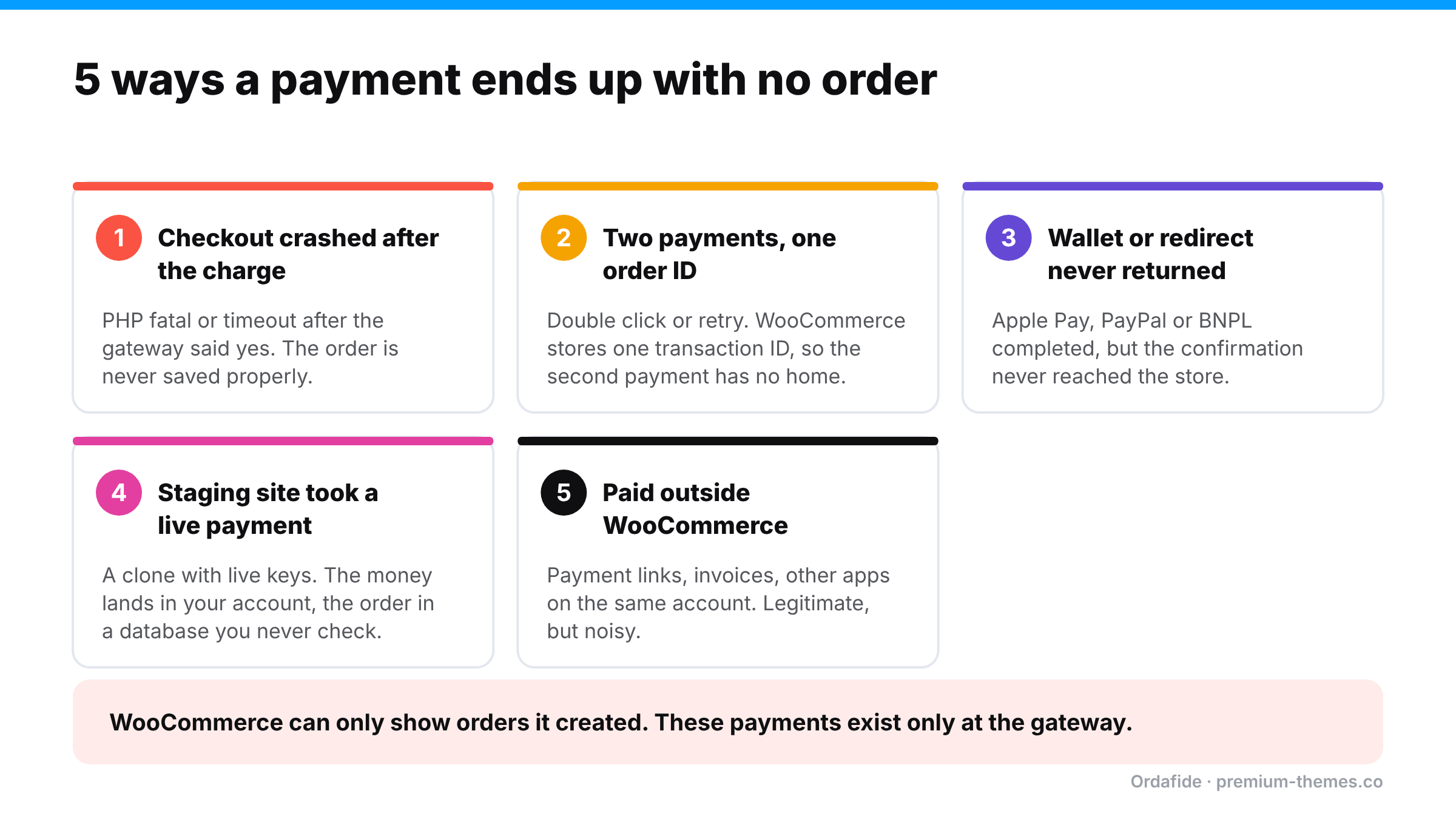
1. The checkout crashed after the charge
The sequence inside checkout is: create or update the order, call the gateway, get a success response, then mark the order paid and redirect. If PHP hits a fatal error or `max_execution_time` after the gateway charged the card, the order may never be saved in a usable state. Slow checkouts (heavy plugins, external tax or shipping API calls, an overloaded server) make this more likely.
2. Two payments, one order ID
If a shopper pays twice (double click, a retry, a second tab), both payments can reference the same WooCommerce order. WooCommerce stores one transaction ID per order. The second payment is real money, but it has nowhere to live in your store.
3. A wallet or redirect flow that never came back
Apple Pay, Google Pay, PayPal, buy-now-pay-later and bank-redirect methods all involve the shopper leaving your page or a payment sheet appearing on top of it. If the return trip or the confirming webhook fails, the order can be left as a draft or auto-cancelled while the payment itself completes.
4. A staging or cloned site took the payment
This one surprises people. A staging copy of your store that still has live payment keys can take real payments from real customers (for example, if a search engine indexed it, or someone shared the wrong link). The payment lands in your live Stripe account. The order lands in the staging database, which you never look at.
The reverse also happens: a staging site registers its own webhook endpoint with your live gateway account, and events start going to the wrong place.
5. Payments taken outside WooCommerce
Payment links, invoices, manual charges in the gateway dashboard, or another app connected to the same Stripe or PayPal account all create gateway payments that WooCommerce never sees. These are usually legitimate, but they make reconciliation noisy. Unless you can tell them apart, a genuine orphan can hide among them.
How to find every orphaned payment (manual method)
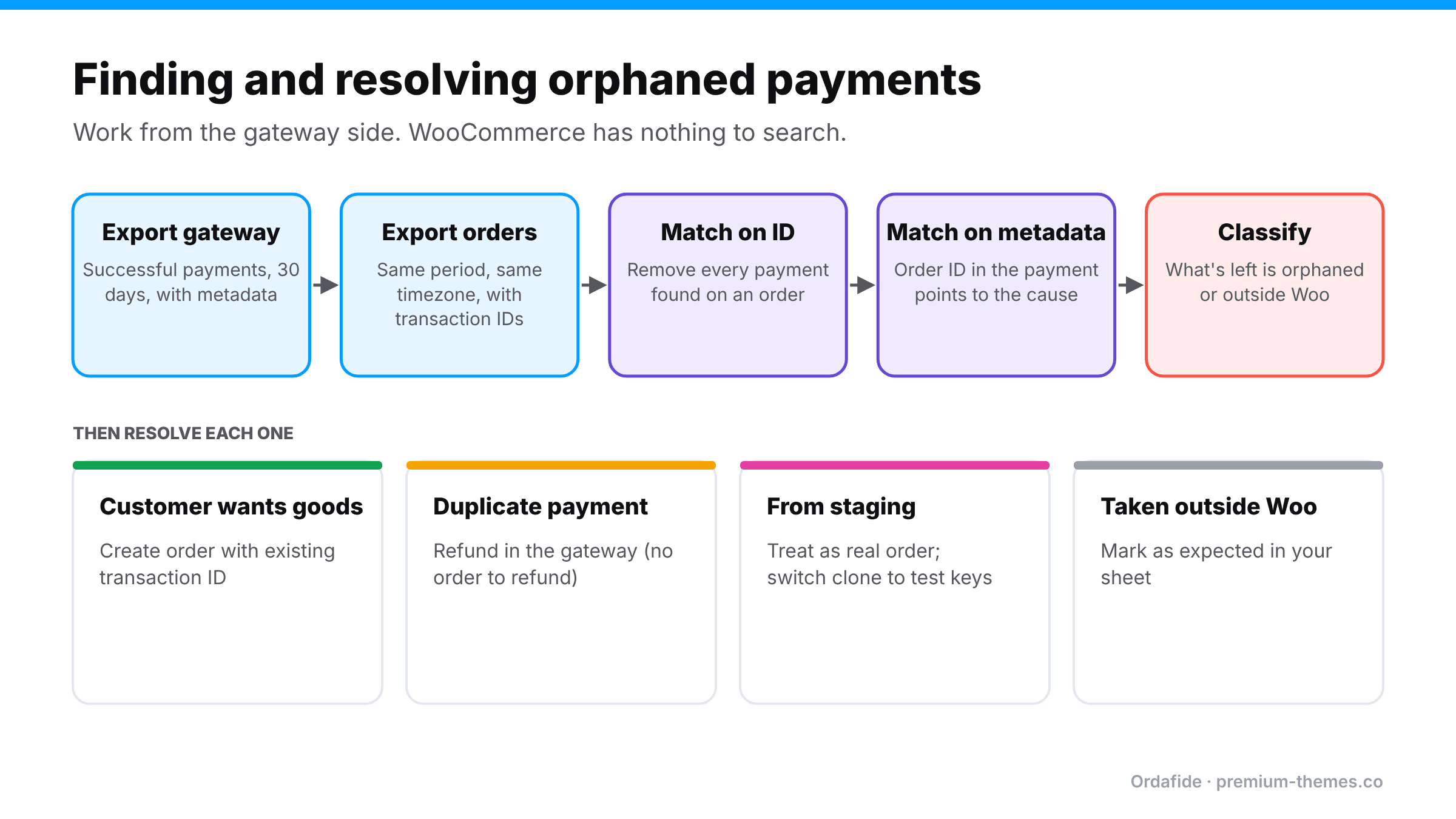
You can’t search for something that doesn’t exist in WooCommerce, so you work from the gateway side.
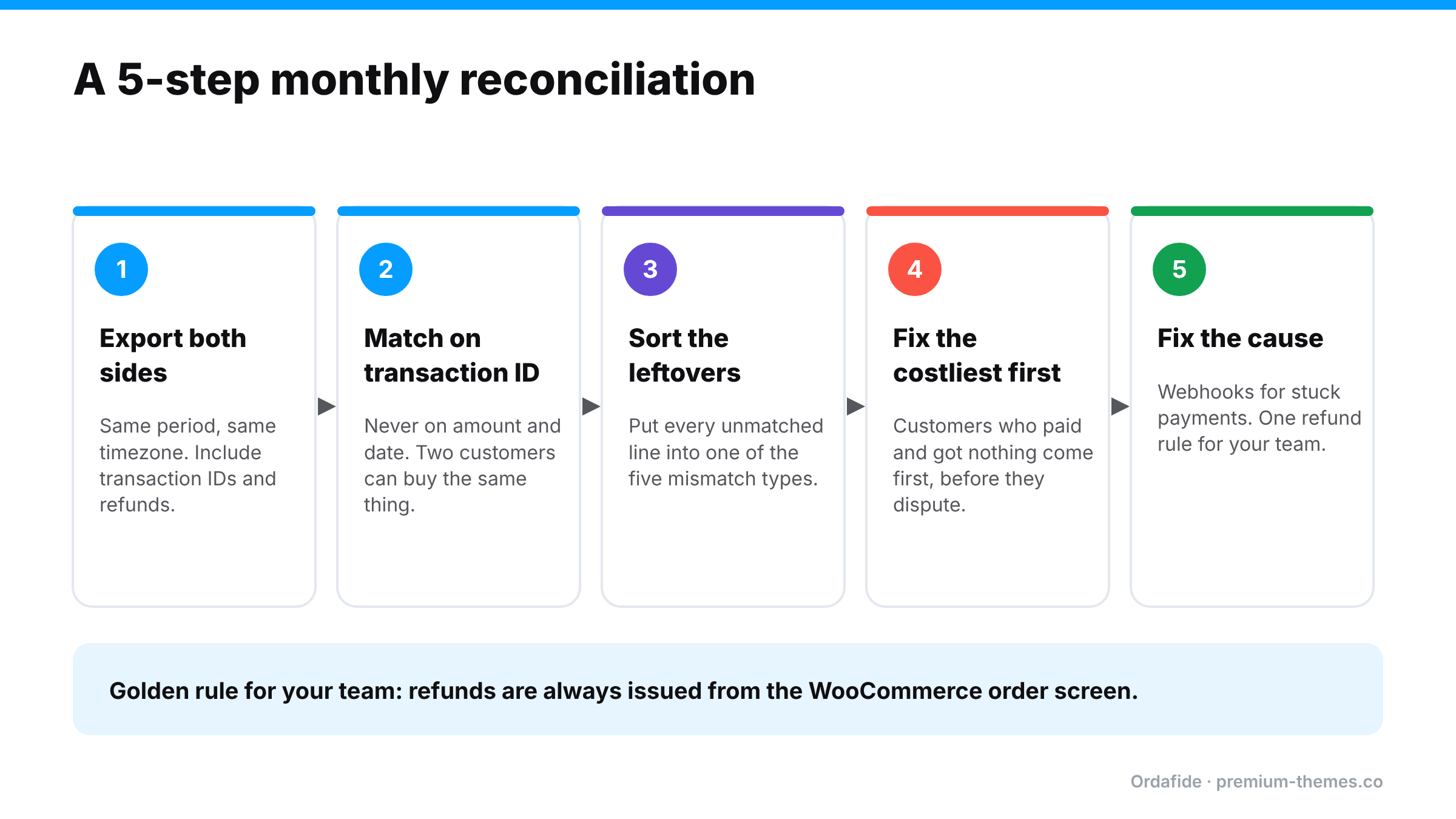
Step 1: Export successful gateway payments for a period
From Stripe’s Payments list or PayPal’s activity reports, export successful payments for the last 30 days. Include the payment ID, amount, currency, customer email, created date and any metadata or description. The WooCommerce Stripe gateway normally writes the order ID and order number into the payment’s metadata or description, which is gold for matching.
Step 2: Export WooCommerce orders with transaction IDs
Export orders for the same period, including the transaction ID field, status, total and billing email. Make sure both exports use the same timezone.
Step 3: Match on transaction ID first
Every gateway payment whose ID appears on a WooCommerce order is accounted for. Remove those.
Step 4: Match the leftovers on metadata
For the remaining gateway payments, look at the order ID in the metadata. If it points to an existing order that has a different transaction ID, you’ve likely found two payments on one order (cause #2). If it points to an order ID that doesn’t exist in your live database, suspect a staging site (cause #4) or a crash before the order was saved (cause #1).
Step 5: Classify what’s left
Anything still unmatched is either a genuine orphan or a payment taken outside WooCommerce (cause #5). The description, payment link ID or invoice ID usually tells you which.
For a store doing a few hundred orders a month, this is an hour or two of spreadsheet work. It’s worth doing once even if you automate it later, because it shows you which causes affect your store.
Resolving each orphaned payment
Work from the most urgent: customers who paid and are waiting for something.
If the customer should receive goods:
- Contact them, confirm what they ordered (the gateway shows the amount, and sometimes line items in the description or metadata).
- Create the order manually in WooCommerce → Orders → Add order, add the items, set the customer, and set the status to Processing.
- Paste the gateway payment ID into the transaction ID field and add a private note explaining how you verified it. Don’t charge again.
- Check stock afterwards. A manually created order may need stock reduced by hand depending on how you add items.
If it’s a duplicate payment (the customer only wanted one order):
Refund it in the gateway. Since there’s no WooCommerce order to refund through, this is one of the few cases where refunding in the gateway dashboard is correct. Note it in the original order so your team knows.
If it came from a staging site:
Treat each one as a real order (as above), then fix the staging site immediately. Switch it to test keys, block it from search engines, put it behind a password, and remove any webhook endpoints it registered in your live gateway account.
If it was taken outside WooCommerce on purpose:
Mark it as expected in your reconciliation sheet so it stops showing up.
Fixing the cause
| Cause | Fix |
|---|---|
| Checkout crash after charge | Check WooCommerce → Status → Logs for fatal errors at the payment time. Speed up checkout and remove slow external calls where possible. Raise PHP limits with your host if timeouts are frequent. |
| Two payments, one order | See WooCommerce customer charged twice: slow checkouts, request replays and plugin retries. |
| Wallet / redirect flow failed | Keep your gateway plugin updated, check its webhook delivery log, and test each wallet on real devices after updates. |
| Staging site with live keys | Test keys on every non-production copy, always. Add it to your launch and clone checklist. |
| Payments outside WooCommerce | Use a separate account, or consistent descriptions/metadata, so they’re easy to exclude. |
Why this needs automation, not vigilance
Orphaned payments have three properties that make manual detection unreliable:
- They’re rare, so nobody builds a habit of checking for them.
- They’re invisible from WooCommerce, so the screens you look at every day can’t show them.
- They’re expensive when missed: a customer who paid and received nothing is the textbook case for a “product not received” chargeback, which costs you the sale, the goods if you ship late, and a dispute fee.
The only reliable approach is something that regularly asks the gateway “what did you collect?” and compares the answer with what WooCommerce recorded.
How Ordafide handles orphaned payments
Ordafide Order Integrity for WooCommerce comes in two parts, and this problem is a good illustration of why.
The free plugin audits what’s in your database. It catches the close relatives of orphaned payments, the ones where an order does exist:
- Stuck payment: an order left on Pending payment or Failed even though the gateway wrote a payment reference on it.
- Paid but cancelled: an order with a confirmed payment date sitting in Cancelled or Failed with nothing refunded.
- Duplicate charge: one gateway payment reference attached to two orders, or the same customer charged twice for an identical basket within minutes.
What the free plugin can’t do, and doesn’t pretend to, is find an order that was never created. There’s no query for a row that doesn’t exist.
Ordafide Pro closes that gap with gateway reconciliation. It connects to Stripe, PayPal, Square, Mollie and Razorpay using read-only API keys, pulls the gateway’s own record of what was collected, and compares it with your orders. Its findings include:
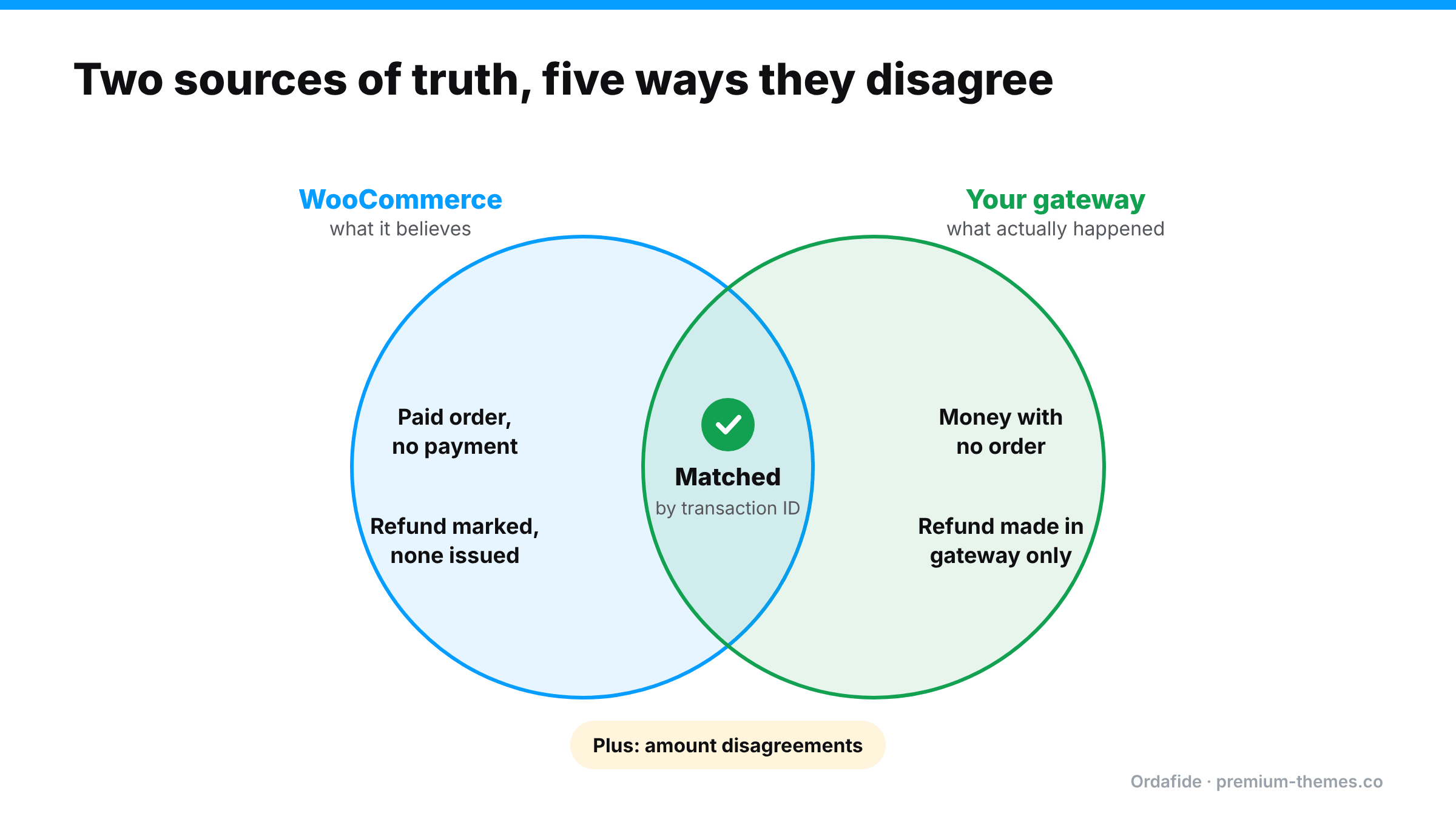
- Money with no order: exactly the orphaned payments described in this article
- Paid orders with no payment
- Amount disagreements between the order and the charge
- Refunds missing in WooCommerce
Findings are sorted by money at risk and can trigger Slack, SMS, email or webhook alerts, so an orphaned payment surfaces the same day rather than when the customer’s patience runs out. Because the keys are read-only, Ordafide can’t capture, refund or void anything. It tells you what’s wrong and leaves the decision with you.
A quick prevention checklist
- [ ] Every staging or local copy of the store uses test payment keys
- [ ] Your live gateway account has only your production webhook endpoint registered
- [ ] Checkout completes in a few seconds, even with all plugins active
- [ ] Fatal errors around payment time are reviewed in WooCommerce logs
- [ ] Wallet payments (Apple Pay, Google Pay) are tested after gateway plugin updates
- [ ] Gateway payments are reconciled against orders, automatically or at least monthly