Tag Archives: Action Scheduler

WooCommerce Subscription Renewals Going Wrong? Failed, Missing and Duplicate Renewals Explained

Subscriptions are the best revenue a store can have: predictable, recurring, and earned once. They’re also unforgiving when something goes wrong, because a renewal happens without the customer at the keyboard. Nobody sees an error message. Nobody clicks “try again”. If the renewal fails silently, you lose a month’s revenue. If it runs twice, a loyal customer finds two charges on their statement.

The forums show both sides. Threads on WordPress.org and elsewhere describe duplicate payments for subscription renewals, double charging on renewal, multiple payment intents on renewal even after payment succeeded, and renewals that simply never happened after an update or a change of payment plugin. WooCommerce maintains a whole troubleshooting page for common renewal issues.

This guide explains how renewals actually work, the three ways they go wrong, how to diagnose each, and how to catch them before your subscribers do.

This guide is about renewals in the official WooCommerce Subscriptions extension and similar plugins. Details vary by plugin and gateway, so check your plugin’s documentation for specifics.

How a renewal actually happens
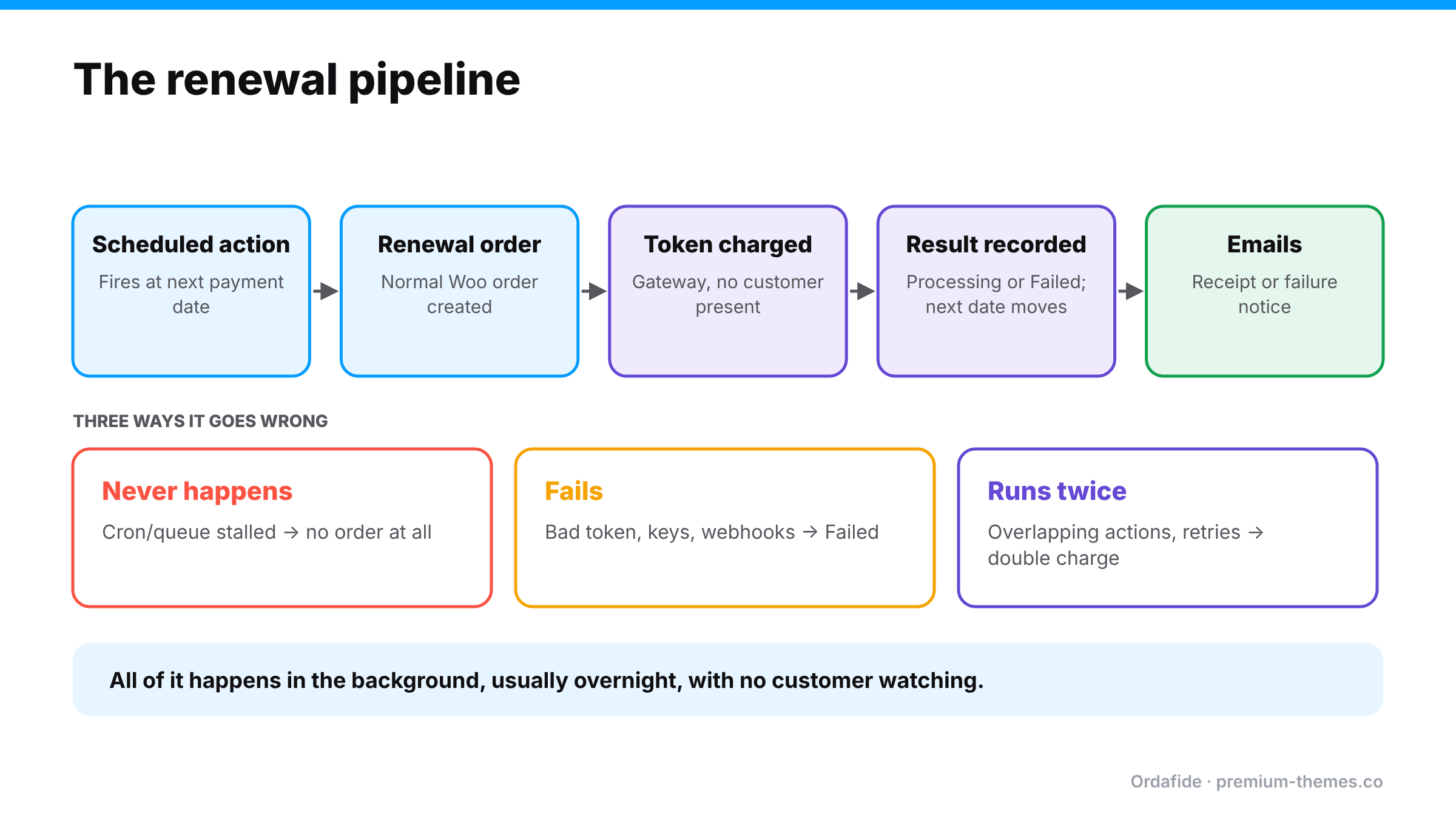
Subscription renewal pipeline: a scheduled action fires, a renewal order is created, the saved token is charged, the result is recorded and emails are sent. Three ways it fails: it never happens because cron or the queue stalled, it fails because of tokens, keys or webhooks, or it runs twice because of overlapping actions or retries.

A renewal is a chain of background events:

  1. A scheduled action fires at the next payment date. WooCommerce Subscriptions uses Action Scheduler for this (look for actions like woocommerce_scheduled_subscription_payment in WooCommerce → Status → Scheduled Actions).
  2. A renewal order is created, a normal WooCommerce order linked to the subscription.
  3. The gateway charges the saved payment method (a stored token) without the customer present.
  4. The result is recorded. The renewal order moves to Processing or Completed on success, or Failed on failure, and the subscription’s next payment date moves forward.
  5. Emails go out, and on failure, any retry rules are scheduled.

Every link in that chain can break, and because it all happens in the background, nothing alerts you by default.

Problem 1: Renewals that don’t happen at all

Symptoms: subscriptions show a next payment date in the past; no renewal order was created; revenue quietly drops; subscribers don’t notice (until they do).

Why: WooCommerce’s documentation is direct about it: renewals depend on scheduled actions, and if cron jobs aren’t running or the Action Scheduler queue fails, renewals aren’t created when expected. Common culprits:

  • WP-Cron disabled without a server cron, or loopback requests failing (guide)
  • A huge past-due backlog in Action Scheduler
  • PHP memory or time limits killing the renewal action
  • A site running in a staging / duplicate site mode, where renewal payments are deliberately not processed automatically

Diagnose: in Scheduled Actions, search for the subscription ID. Is the payment action pending and past due? Failed? Open it and read the log.

Fix: fix the scheduler, then let past-due renewals run. For individual subscriptions, WooCommerce documents creating a pending renewal order manually and processing it as a stopgap.

Problem 2: Renewals that fail

Symptoms: renewal orders in Failed status; subscriptions moved to On hold.

Why: most are ordinary: expired or declined cards, insufficient funds. But some are store-side:

  • Missing or invalid payment tokens, for example after switching payment plugins, migrating gateways, or when a staging site processed renewals against the same customer records
  • Gateway authentication errors: expired API keys, a disconnected account (guide)
  • Webhook problems leaving a successful charge recorded as failed (Failed orders guide)

Diagnose: read the renewal order’s notes and the gateway logs. Does the subscription have a saved payment token? Did the gateway actually decline, or did the store fail to ask?

Fix: genuine declines → customer updates their payment method, and a retry system recovers many. Store-side failures → fix the token, keys or webhook, then process the renewal again. Before retrying, check the gateway to make sure the “failed” renewal didn’t actually succeed. Otherwise you create the next problem.

Problem 3: Duplicate renewals (charged twice)

Symptoms: two renewal orders for the same subscription and period; two charges on the customer’s card; angry email or a “duplicate processing” chargeback.

Why: WooCommerce’s troubleshooting guide lists the usual causes:

  • Overlapping scheduled actions: more than one payment action for the same subscription and timestamp
  • Manual actions (clicking Process renewal or Create pending renewal order) on a renewal that was already in progress
  • Conflicting plugins or custom code triggering renewals
  • Retrying a “failed” renewal that had actually succeeded at the gateway
  • Gateway retries after timeouts where the first attempt went through

Diagnose: in Scheduled Actions, look for multiple payment actions with the same subscription ID and timestamp. In the gateway, count the charges for that customer and period.

Fix: refund the duplicate from the duplicate renewal order (so WooCommerce and the gateway agree), cancel duplicate actions, check the subscription’s next payment date, and remove the cause.

A worked example: the overnight double renewal

A store with 600 monthly subscribers moves to a new host. During the migration, the old and new servers both run for a few hours, and both have WP-Cron active, pointing at the same database.

  • At 02:00, the old server’s scheduler picks up 40 due renewals and starts charging them.
  • At 02:01, the new server’s scheduler picks up the same actions before they’re marked complete.
  • 31 subscribers are charged twice. The second set of renewal orders sit next to the first, with different transaction IDs and identical totals, a minute apart.
  • The first complaint arrives at 08:30. By 10:00 there are nine, and one chargeback.

The fix: refund every duplicate from the duplicate renewal order, check each subscription’s next payment date, and switch off the scheduler on the old server. The lesson is never run two copies of a store against the same database with background processing switched on, and for subscription stores, put staging and migration copies into a mode that doesn’t process renewals.

Preparing before a change that could affect renewals

Before you migrate hosts, change payment plugins, update the subscriptions extension or edit renewal-related code:

  1. Note when renewals usually run and how many are due in the next few days.
  2. Pause or schedule the change away from big renewal batches.
  3. Make sure only one environment can process renewals.
  4. Afterwards, check Scheduled Actions for past-due and duplicate payment actions.
  5. Compare the next day’s renewal orders and gateway charges.

Why renewal problems hide so well

  • They happen in the background, often overnight.
  • They’re spread out: a few subscriptions a day, not a dramatic outage.
  • Failed renewals look normal, because cards do expire.
  • Missing renewals leave no order at all. There’s nothing to look at.
  • Duplicates are noticed by customers first, on their statement.

So the realistic goal is: notice within a day that the renewal machinery has stalled, that a renewal was charged twice, or that a “failed” renewal was actually paid.

How Ordafide helps with renewals
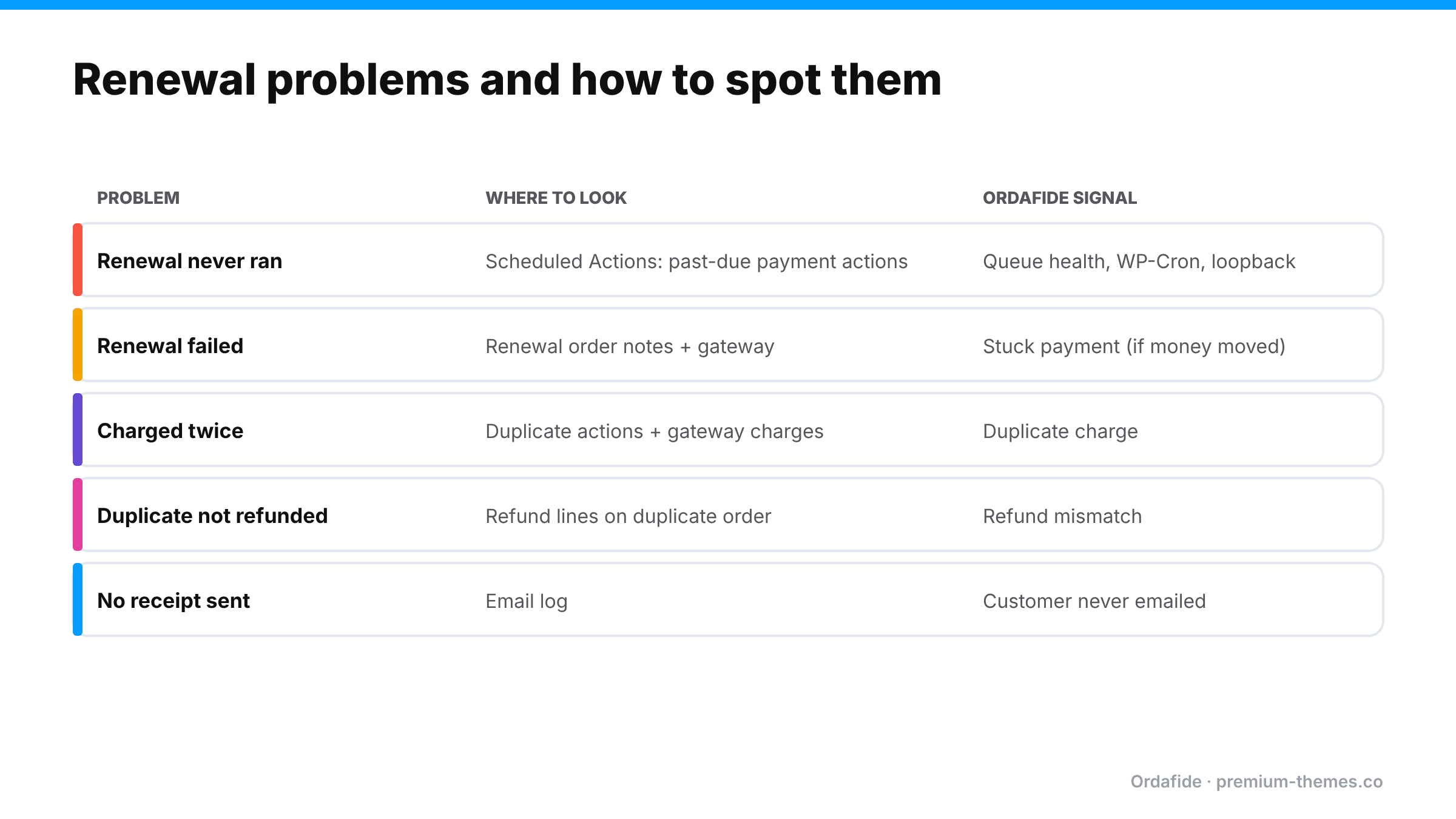
Table of renewal problems: renewal never ran (check past-due actions; Ordafide queue health), renewal failed (order notes and gateway; stuck payment check), charged twice (duplicate actions; duplicate charge check), duplicate not refunded (refund mismatch check), no receipt (email log; customer never emailed check).

Renewal orders are ordinary WooCommerce orders, so Ordafide’s checks apply to them like any other order, and its store health checks watch the scheduler that renewals depend on.

Ordafide Order Integrity for WooCommerce (free):

  • Background job queue health: how far behind Action Scheduler is, how many jobs have failed, and the most likely cause in plain language, plus WP-Cron status and a loopback test. When this goes red, renewals are at risk.
  • Duplicate charge: one gateway payment reference on two orders, or the same customer charged twice for an identical basket within minutes. That covers the classic double renewal from overlapping actions, which usually fire close together. The duplicate window is configurable if your duplicates arrive further apart.
  • Stuck payment and paid but cancelled: renewal orders left Pending or Failed even though a payment reference or confirmed payment date shows money moved.
  • Refund mismatch: for the clean-up afterwards, to make sure duplicate renewals were actually refunded and recorded.
  • Customer never emailed: paid renewals where the receipt never went out.

Ordafide Pro adds:

  • Gateway reconciliation (Stripe, PayPal, Square, Mollie, Razorpay; read-only): catches renewal charges with no matching order, orders marked paid with no payment, and amount disagreements.
  • Order volume anomaly detection: a sudden drop in orders at the hour renewals usually run is a signal that the scheduler has stalled.
  • Alerts to Slack, SMS, email or webhook, so a queue backlog or a run of duplicates reaches you the same day.

Ordafide doesn’t manage subscriptions, retry payments or change renewal dates. Those stay with your subscriptions plugin. It tells you when the orders and the money stop agreeing, and when the machinery behind renewals has stopped.

Renewal health checklist

  • Real server cron running WP-Cron; loopback test passing
  • No large past-due backlog in Scheduled Actions
  • No duplicate payment actions for the same subscription and date
  • Staging sites never process live renewals (test keys, staging mode)
  • Gateway API keys valid; webhooks delivering
  • Failed renewals checked against the gateway before retrying
  • Duplicate renewals refunded from the duplicate order
  • Monitoring and alerts on queue health and duplicate charges

Communicating with affected subscribers

Subscribers are your most loyal customers, so renewal problems deserve a personal touch:

  • Charged twice: refund immediately, email before they notice if you can, and say clearly that it was your error and the duplicate has been refunded.
  • Renewal missed: decide whether to charge now (and tell them first) or skip the period. Surprising someone with a late charge invites disputes.
  • Renewal failed because of your setup (not their card): don’t send them a “please update your card” email. Fix your side, retry, and only contact them if needed.

A weekly renewal check (10 minutes)

  1. Scheduled Actions: search for pending subscription payment actions that are past due. Any?
  2. Failed tab: any failed renewal actions this week? Read the error.
  3. Renewal orders: filter recent orders to renewals. Any Failed? Any duplicates for the same subscription and date?
  4. Gateway: do renewal charges in the gateway match renewal orders?
  5. Subscriptions: any active subscriptions with a next payment date in the past?
  6. Integrity scan: check Ordafide’s findings for duplicate charges and stuck payments.

Most weeks it’s empty. The week it isn’t, you’ll catch the problem days before subscribers do.
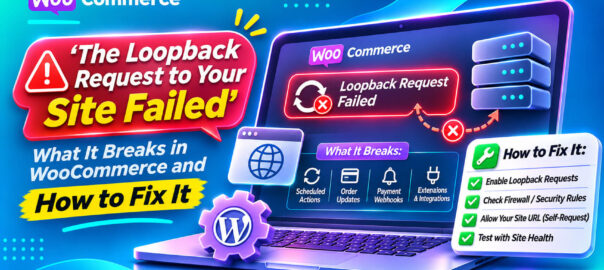
‘The Loopback Request to Your Site Failed’: What It Breaks in WooCommerce and How to Fix It

Open Tools → Site Health on many WordPress sites and you’ll find one of these:

  • “The loopback request to your site failed, this means features relying on them are not currently working as expected.”
  • “A scheduled event has failed” or “A scheduled event is late”
  • “The REST API encountered an error”

Most site owners shrug and move on, because the site looks fine.

On a WooCommerce store, that’s a mistake. Loopback requests and scheduled events are how WordPress and WooCommerce run background work: order emails, subscription renewals, stock updates, analytics imports, webhook deliveries, cleanup jobs. When loopbacks fail, that work can silently stop. Your storefront keeps working while the machinery behind it stalls.

This guide explains what a loopback request is, what fails in WooCommerce when it doesn’t work, the common causes, and how to fix it properly.

What a “loopback request” is

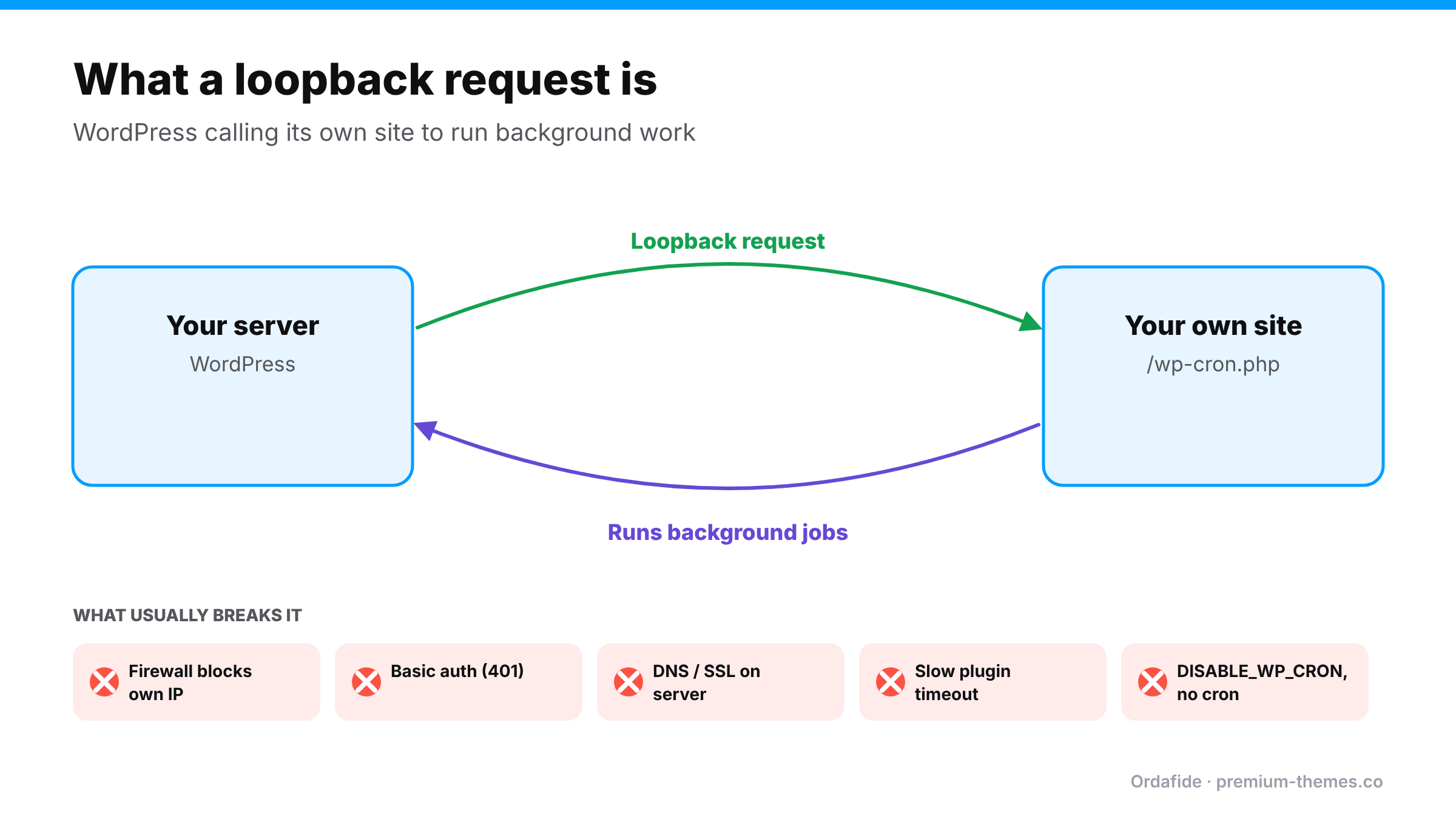
Diagram: the server running WordPress sends a loopback request to its own site's wp-cron.php, which runs background jobs. Common blockers: a firewall blocking the server's own IP, basic auth, DNS or SSL problems on the server, a slow plugin causing timeouts, and DISABLE_WP_CRON without a server cron.

A loopback request is your website making an HTTP request to itself: WordPress on your server calling https://yourstore.com/wp-cron.php (or another URL on your own site) over the network.

WordPress uses this to run tasks in the background, without making a visitor wait. When a page loads, WordPress checks whether any scheduled tasks are due. If they are, it fires a quick loopback request to wp-cron.php, which runs those tasks in a separate process.

WooCommerce builds on this with Action Scheduler, a queue for background jobs. Action Scheduler is triggered by WP-Cron and also uses asynchronous requests to keep the queue moving.

So if your site can’t reach itself, or WP-Cron is switched off without a replacement, background work doesn’t run.

What breaks in WooCommerce when loopbacks fail

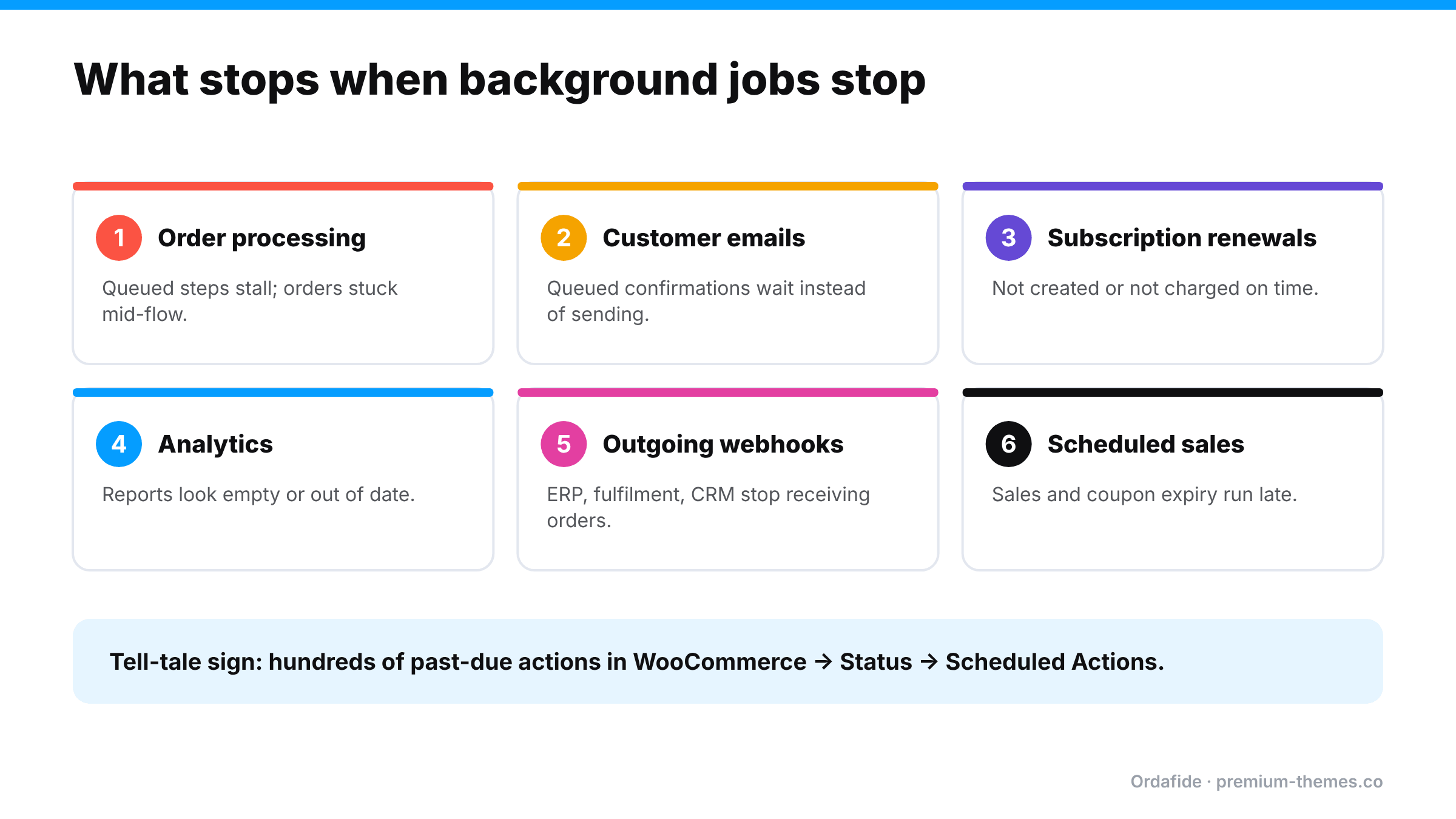
Six WooCommerce features that rely on background jobs: order processing, customer emails, subscription renewals, analytics, outgoing webhooks to other systems, and scheduled sales. The tell-tale sign of a problem is hundreds of past-due scheduled actions.

Background job What you notice
Deferred or queued order processing Orders stuck mid-flow; some payment confirmations processed late
Transactional emails that depend on queued work Customers don’t get confirmations promptly (guide)
Subscription renewals Renewals not created or not charged on time (guide)
Analytics imports WooCommerce Analytics looks empty or out of date
Outgoing webhooks to other systems ERP, fulfilment or CRM integrations stop receiving orders
Scheduled sales and coupon expiry Sales don’t start or end on time
Unpaid order cancellation and cleanup Timers don’t run on schedule

In WooCommerce → Status → Scheduled Actions, the tell-tale sign is a Pending tab full of actions whose scheduled time has already passed: hundreds of past-due actions.

The common causes

1. Firewalls and security plugins blocking your own server

Your server calling itself can look like an attack: a request from a data-centre IP (your own) with no browser. Host firewalls, security plugins and CDN bot protection sometimes block it. Ironically, the same rules often block payment webhooks too. (Firewall blocking webhooks)

2. Password protection or basic auth

Staging sites are often protected with HTTP basic authentication. If that protection is left on a live site, or the site was pushed live from staging with it, every loopback request gets a 401.

3. DNS and SSL problems on the server

The server must resolve your domain and complete an HTTPS connection to itself. A mis-set hosts file, a domain pointing elsewhere (behind a CDN or during a migration), or an SSL certificate the server doesn’t trust produces timeouts or “cURL error 28” messages.

4. A plugin slowing every request

Site Health gives loopback requests around 10 seconds. A plugin that makes every request slow (heavy session handling, external API calls on every page) can make loopbacks time out. A WordPress.org thread traced loopback and REST API timeouts on a WooCommerce site to one plugin’s session handling. Changing its settings resolved it.

5. DISABLE_WP_CRON without a replacement

Many hosts and performance guides set define( 'DISABLE_WP_CRON', true ); in wp-config.php to stop WP-Cron running on page loads. That’s good practice, as long as a real server cron job runs WP-Cron instead. If nobody set up that server cron (common after a migration), scheduled work simply never runs, and no error appears anywhere.

6. Very low traffic

WP-Cron triggers on visits. On a quiet store, hours can pass with no visitors, so nothing runs. Not a failure as such, but it makes background work slow and unpredictable.

How to diagnose

  1. Site Health: Tools → Site Health → Status. Note any loopback, REST API or scheduled event errors and the exact message (401, 403, timeout, cURL error).
  2. Scheduled Actions: WooCommerce → Status → Scheduled Actions → Pending. How many are past due? Check the Failed tab too, and open one to see the error.
  3. wp-config.php: is DISABLE_WP_CRON set to true? If so, ask your host whether a server cron job runs wp-cron.php.
  4. WP-CLI (if available): wp cron test checks whether WP-Cron can spawn; wp cron event list shows overdue events.
  5. Security logs: check your security plugin, CDN and host firewall for blocked requests from your own server’s IP to wp-cron.php.

How to fix it

Set up a real server cron (recommended for every store). In your hosting control panel, add a cron job that runs every few minutes:

*/5 * * * * wget -q -O - "https://yourstore.com/wp-cron.php?doing_wp_cron" >/dev/null 2>&1

or, with WP-CLI:

*/5 * * * * cd /path/to/site && wp cron event run --due-now >/dev/null 2>&1

Then set DISABLE_WP_CRON to true so visitors don’t also trigger it.

Allow your server to reach itself. Allowlist your own server IP in your security plugin and host firewall, and exempt wp-cron.php and admin-ajax.php from bot challenges.

Remove basic auth from production, or exempt your server’s own requests from it.

Fix DNS/SSL on the server with your host: the server should resolve your domain to itself and trust the certificate.

Find slow plugins with a conflict test on staging if loopbacks time out.

Let the backlog drain. Don’t delete past-due actions. They can include real customer emails and renewals. Once the cause is fixed, they’ll run. On very large backlogs, ask your host for help, or run wp action-scheduler run in batches.

Then sweep up. Check whether any customers missed confirmation emails or renewals during the stall.

A worked example: the migration nobody finished

A store moves to a faster host. The migration service copies wp-config.php, including define( 'DISABLE_WP_CRON', true );, which the old host required because it ran a server cron job. Nobody sets up a cron job on the new host.

  • Day 1: everything looks great. The site is faster.
  • Day 2: WooCommerce Analytics stops showing new orders. “Probably a caching thing.”
  • Day 4: a subscriber emails to say their renewal didn’t charge (they’re pleased, the owner isn’t).
  • Day 6: the fulfilment integration hasn’t received orders since day 1. The warehouse has been working from the admin screen.
  • Day 7: someone opens Scheduled Actions: 4,800 past-due actions.

Site Health had been showing “A scheduled event is late” since day 1. Nobody looked.

The fix was a single cron job in the hosting panel. The cleanup took two days: replaying renewals carefully, checking which customers missed emails, and reconciling the fulfilment system.

Hosting-specific notes

  • Managed WordPress hosts often disable WP-Cron and run their own cron. Confirm it’s running for your site, and how often.
  • Shared hosting may limit cron frequency (for example, no more than every 15 minutes). That’s usually fine for WP-Cron, but tell your host if you have heavy subscription or email volume.
  • Behind a CDN or proxy, your server may need to reach itself directly rather than through the CDN. Ask your host to make sure loopback requests don’t leave the server.
  • Staging sites cloned from production may run scheduled tasks (emails, renewals) against real customers. Disable outgoing email and payment processing on staging.

Watching it with Ordafide

The worst thing about loopback failures is that they’re silent and slow-burning. Site Health shows a warning once, and nobody looks at Site Health. The backlog grows by the hour.

Ordafide Order Integrity for WooCommerce (free) puts this front and centre on its Store health screen:

  • Background job queue health: how far behind Action Scheduler is, how many jobs failed, and the most likely cause in plain language rather than queue jargon.
  • WordPress scheduler status, including whether DISABLE_WP_CRON is set.
  • A loopback test you can run with one click. It asks your site to call its own wp-cron.php, contacts no other service, and runs only when you press the button.
  • An order email delivery log, so you can see exactly which customers missed their emails during a stall, with one-click resend.
  • The Customer never emailed check, which flags paid orders with no confirmation sent.

An optional weekly summary email tells you when there’s something to fix. For agencies, wp ordafide health reports the same from the command line.

Ordafide Pro adds real-time alerts (Slack, SMS, email, signed webhook) so a stalled queue reaches you within the hour, and a signed heartbeat endpoint an external monitor can poll to confirm the store’s own checks are still running, which matters when the scheduler itself is the thing that broke.

How often should WP-Cron run?

For most stores, every 5 minutes is a sensible default. Busier stores, or those with lots of subscriptions and integrations, often run it every minute. Very quiet stores can get away with 15 minutes, but emails and renewals will be less punctual. Whatever you choose, make sure it’s one cron job, not several competing ones, and that visitor-triggered WP-Cron is disabled so the two don’t overlap.

What not to do

  • Don’t install a “WP-Cron fixer” plugin on top of a broken setup without understanding the cause. Several overlapping cron triggers can run jobs twice, and for subscriptions that means double charges.
  • Don’t delete Action Scheduler tables to “clean up”. They hold real pending work.
  • Don’t ignore Site Health warnings because the site “looks fine”. On a store, background work is where the problems hide.
  • Don’t disable the firewall to get loopbacks working. Make a narrow exception for your own server.
WooCommerce Order Emails Not Sending? Check Action Scheduler, WP-Cron and SMTP

WooCommerce Order Emails Not Sending? Check Action Scheduler, WP-Cron and SMTP

When WooCommerce order emails stop arriving, the store looks perfectly healthy. Orders come in. The dashboard loads. There’s no error message anywhere.

The only symptom is your inbox filling up with “Did my order go through?” messages, and sometimes chargebacks from customers who assumed they’d been scammed.

This guide walks through the causes in the order you should check them, from the quick settings mistakes to the silent background-queue failures that catch out even experienced developers.

First: is it one email, one customer, or everything?

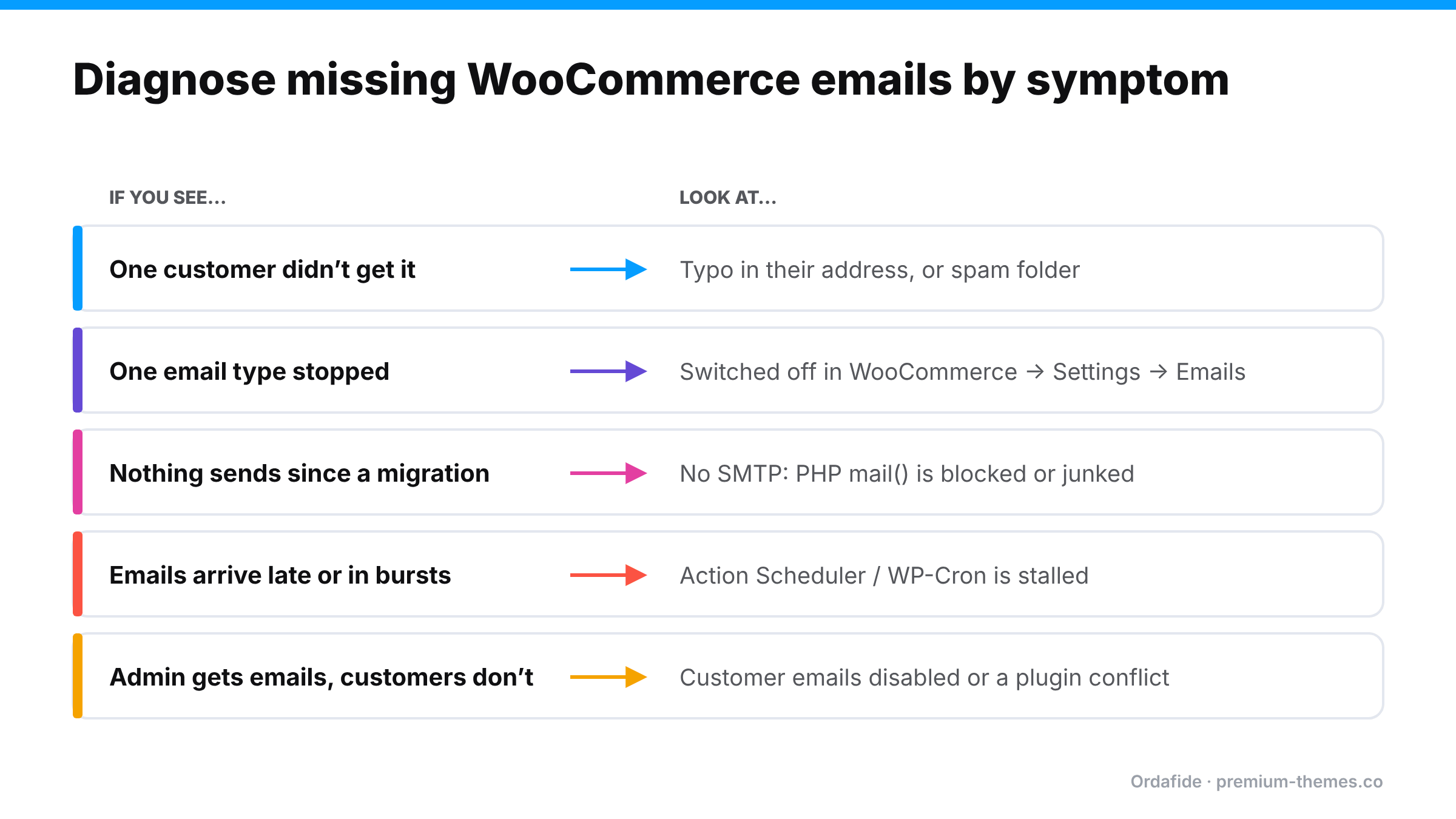
Symptom to cause guide: one customer missing an email points to a typo or spam; one email type stopped points to it being disabled in settings; nothing sending since a migration points to missing SMTP; late or burst emails point to a stalled Action Scheduler or WP-Cron; admin emails arriving but not customer emails points to disabled customer emails or a plugin conflict.

The pattern tells you where to look:

Symptom Most likely cause
One customer didn’t get their email Typo in their address, or it went to spam
One email type stopped (e.g. Completed order) That email was disabled in settings
No emails at all, from the moment you migrated Mail sending is broken (no SMTP)
Emails arrive hours late, or in bursts Background queue (Action Scheduler / WP-Cron) is stalled
Admin emails arrive but customer emails don’t Customer emails disabled, or a recipient/plugin issue

Step 1: Check the email settings

Go to WooCommerce → Settings → Emails. Every email (Processing order, Completed order, Customer invoice, New order and so on) has its own enable toggle. Plugins, staging tools and well-meaning colleagues sometimes switch these off.

While you’re there, check the “From” address. If it uses a domain your mail service isn’t authorized to send for, receiving servers may reject or junk the message.

Step 2: Check that WordPress can send email at all

By default, WordPress sends mail with PHP’s `mail()` function. Many hosts restrict it, and messages sent this way often fail SPF/DKIM checks and land in spam, or are silently discarded with no error.

The fix is to send through a proper mail provider over SMTP or an API using an SMTP plugin, and to set up SPF, DKIM and DMARC records for your sending domain. Then send a test email from the SMTP plugin.

If test emails work but order emails still don’t, keep going. The problem is upstream of the mail server.

Step 3: Check the background queue (the silent killer)

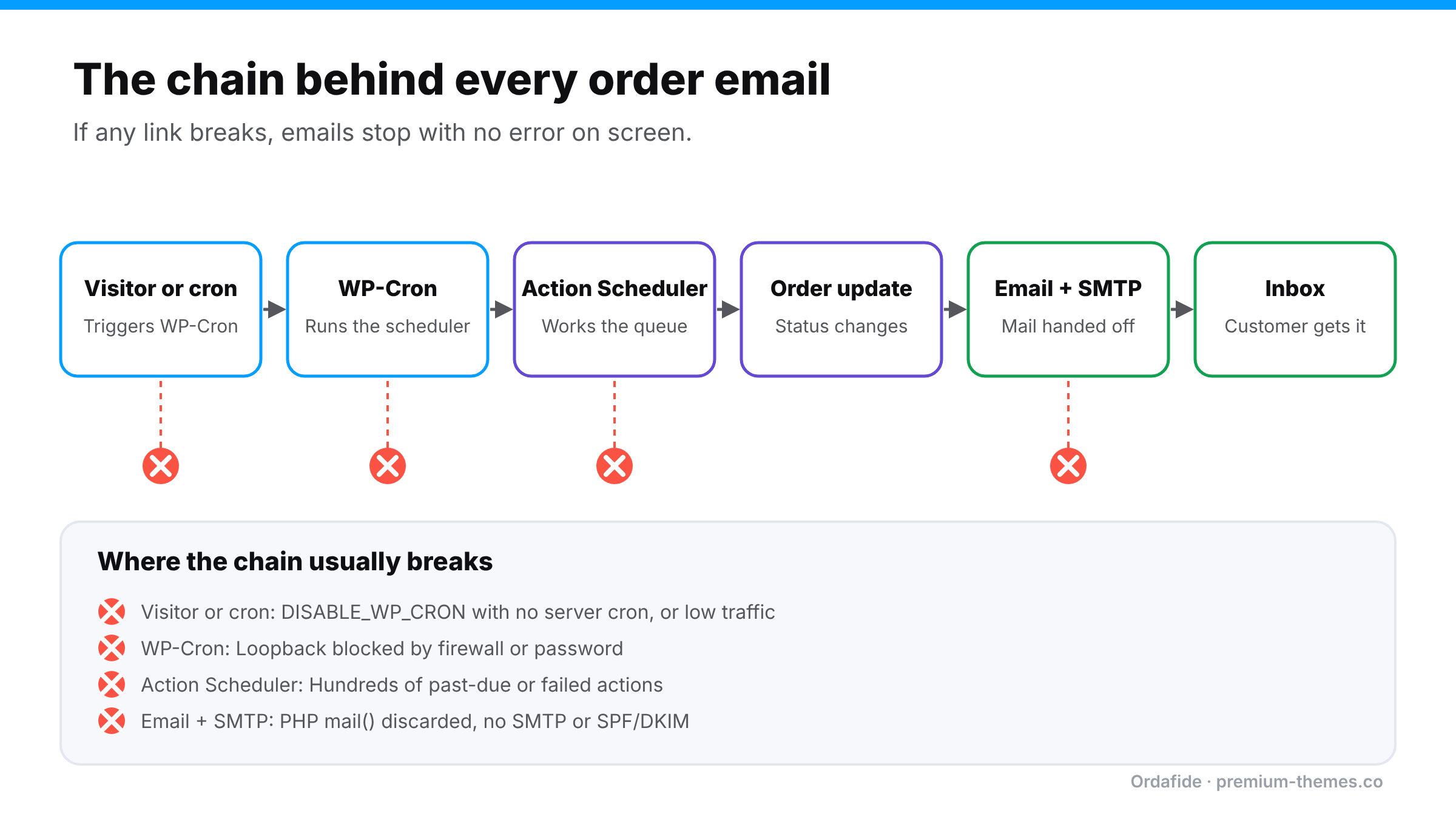
Diagram of the chain behind a WooCommerce order email: a visitor or server cron triggers WP-Cron, which runs Action Scheduler, which processes order updates, which send email through SMTP to the customer's inbox. Common break points: DISABLE_WP_CRON without a server cron, blocked loopback requests, a backlog of past-due actions, and PHP mail without SMTP.

WooCommerce relies on Action Scheduler, a background job queue, for a lot of order-related work, and some payment gateways hand parts of their payment confirmation to it. Action Scheduler is triggered by WP-Cron. And WP-Cron, by default, only runs when someone visits your site.

When this chain breaks, work queues up and doesn’t run. Order status changes that depend on queued work don’t happen, so the emails tied to those status changes don’t send either. There is no error and nothing on screen changes.

How to check

Go to WooCommerce → Status → Scheduled Actions and open the Pending tab.

  • A handful of actions scheduled in the future is normal.
  • Dozens or hundreds of actions that are past due means nothing is running the queue.
  • A large number in the Failed tab means jobs are running but crashing. Open one to see the error.

Common reasons the queue stops

  • DISABLE_WP_CRON’ is set to ‘true’ in ‘wp-config.php’, usually by a host or performance plugin, but no real server cron job was set up to replace it.
  • Loopback requests are blocked. WP-Cron works by your site making an HTTP request to itself. A firewall, basic-auth password, or DNS issue that blocks this kills the scheduler. `Tools → Site Health` reports loopback failures.
  • Low traffic. On a quiet store, if no one visits, WP-Cron doesn’t run.
  • A huge backlog. On busy stores the Action Scheduler tables can grow to hundreds of thousands of rows, and the queue can’t keep up.
  • A fatal error in one job that keeps failing and retrying.

How to fix it

1. Set up a real cron job on your server (most hosts offer this in the control panel) to run WP-Cron every few minutes, for example:
‘*/5 * * * * wget -q -O – “https://yourstore.com/wp-cron.php?doing_wp_cron” >/dev/null 2>&1’
or, with WP-CLI: ‘wp cron event run –due-now’
2. Then disable visitor-triggered cron with ‘define( ‘DISABLE_WP_CRON’, true );’ so the two don’t compete.
3. Clear the backlog by running it, not deleting it. Pending actions may include real customer emails and order updates. With WP-CLI you can run ‘wp action-scheduler run’. On very large backlogs, ask your host for help.
4. Fix loopback if Site Health reports it failing: whitelist your own server IP in the firewall, or remove basic-auth from production.
5. Investigate failed actions and fix the plugin causing them.

Step 4: Resend the emails customers missed

Once the cause is fixed, the emails that never went out won’t magically send themselves. For each affected order, open it, choose Order actions → Email invoice / order details to customer (or Resend new order notification for the admin copy), and update.

The hard part is working out which orders were affected. WooCommerce doesn’t give you an easy per-order record of whether each customer email was actually handed to your mail server.

Watching this automatically

Ordafide Order Integrity for WooCommerce is a free plugin that watches the two things that make everything else fail at once:

  • Background job queue health: how far behind Action Scheduler is, how many jobs failed, and the most likely cause in plain language, plus the WordPress scheduler’s status.
  • Order email delivery: every WooCommerce email recorded against its order, with the result the mail server returned, and a one-click resend.

Its Customer never emailed check flags paid orders where no customer email reached your mail server, or where every attempt was rejected. A loopback test checks whether your site can call itself (it only calls your own site, and only when you press the button), and an optional weekly summary email tells you when there’s something to look at.

Resending is one of only two repairs the plugin can make, and every resend is written to an activity log. Ordafide sends no data to third parties and has no account or licence key.

If you’d rather be alerted the moment the queue stalls instead of finding out in a weekly summary, Ordafide Pro adds Slack, SMS, email and webhook alerts, plus synthetic checkout monitoring every 15 minutes.

Quick checklist

  • Every needed email is enabled in WooCommerce → Settings → Emails
  • Mail goes through SMTP or an email API, with SPF/DKIM/DMARC set up
  • No pile of past-due actions in Scheduled Actions
  • A real server cron runs WP-Cron if `DISABLE_WP_CRON` is set
  • Site Health shows loopback requests working
  • Affected customers have had their emails resent