
Tag Archives: Security

Is Your Firewall Blocking Payments? Cloudflare, Wordfence and WooCommerce Payment Webhooks

Security tools are supposed to keep bad traffic out. The trouble is that, to a security tool, a payment gateway’s webhook looks a lot like bad traffic: an automated server, with no browser, no cookies and no human, sending a POST request to your site at odd hours.

So security tools block it. And when a payment webhook is blocked, the gateway knows the customer paid, but WooCommerce never finds out. The order sits on Pending payment, the Hold stock timer cancels it, and a paying customer receives nothing.

This is one of the most common root causes behind stuck orders, and one of the least obvious, because the security tool is doing exactly what it was configured to do. This guide shows how each layer of security can block webhooks, how to prove it, and how to let payment confirmations through without weakening your protection.

Why webhooks are so easy to block

Payment gateways use webhooks to tell your store what happened: payment succeeded, payment failed, refund issued, dispute opened. A webhook is:

  • an automated POST request from the gateway’s servers,
  • to a specific URL on your site (for the WooCommerce Stripe plugin, typically https://yourstore.com/?wc-api=wc_stripe),
  • with no browser, so it can’t solve a JavaScript challenge or CAPTCHA,
  • often from data-centre IP addresses,
  • signed with a secret so your store can verify it’s genuine.

Bot protection, WAF rules, rate limits and “block suspicious POST requests” settings are designed to stop exactly this shape of traffic.

The security layers that commonly block webhooks
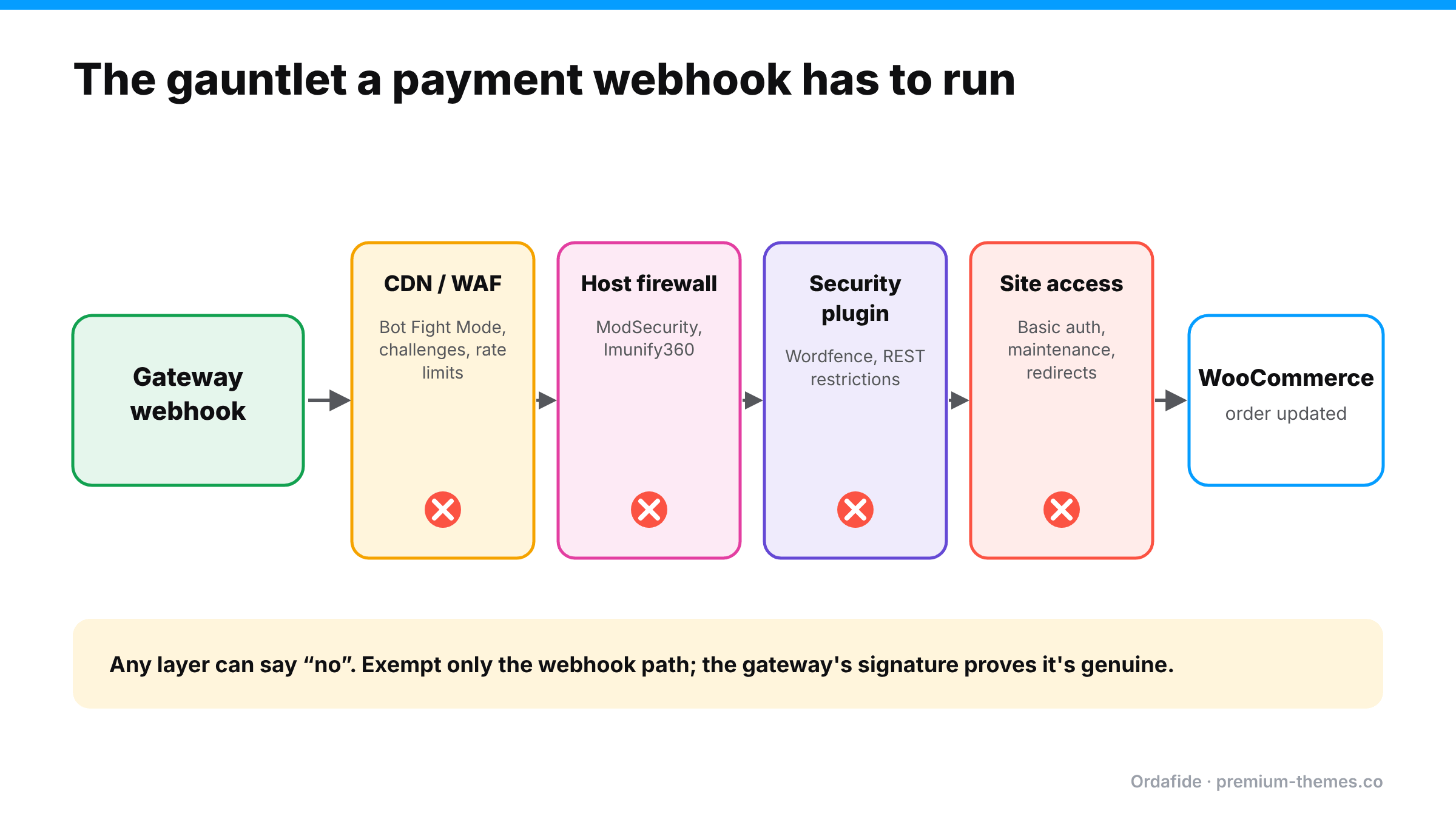
A payment webhook passes four security layers before reaching WooCommerce: CDN or WAF (bot protection, challenges, rate limits), host firewall, security plugin (Wordfence, REST restrictions), and site access controls (basic auth, maintenance, redirects). Any layer can block it. Exempt only the webhook path.

Layer 1: Cloudflare (or another CDN/WAF)

  • Bot Fight Mode. On Cloudflare’s free plan, Bot Fight Mode is a single zone-wide setting that challenges or drops automated-looking requests, with no per-path exemptions. Large senders like Stripe are usually on Cloudflare’s verified bots list and pass, but smaller gateways, regional payment providers and monitoring services are often blocked. On Pro and Business plans, Super Bot Fight Mode can be skipped for specific paths with a WAF custom rule.
  • Managed challenges and “Under Attack” mode. A webhook sender can’t solve a JavaScript challenge. If you switch on a challenge for all traffic during an attack (or for Black Friday), webhooks fail until you switch it off.
  • WAF custom rules that block by country, user agent or request method.
  • Rate limiting that catches bursts of webhook deliveries during busy periods.

Layer 2: Security plugins (Wordfence and others)

Security plugins inspect requests inside WordPress. A WordPress.org thread shows Wordfence returning 403 with “A potentially unsafe operation has been detected in your request to this site” for incoming webhooks. Wordfence support’s answer was to allowlist the exact URL or parameters under the firewall’s Allowlisted URLs setting rather than switching the firewall to Learning Mode, which carries its own risks.

Other common plugin-level blocks:

  • “Disable REST API” or “restrict REST API to logged-in users” settings (several gateways and the Store API use REST routes)
  • Country blocking that blocks the gateway’s server location
  • Brute-force or rate-limit rules applied to all POST requests

Layer 3: Host firewalls (ModSecurity, Imunify360 and similar)

Hosts run their own web application firewalls. Rules can flag webhook payloads (which contain JSON with fields that look like code or SQL to a crude rule) and return 403 or 406 without anything appearing in WordPress at all.

Layer 4: Site-level access controls

  • Password protection or HTTP basic auth (common on staging copies that were pushed live)
  • Maintenance mode (returns 503)
  • Redirects on the webhook URL (HTTP→HTTPS, www→non-www, trailing slashes), since webhooks generally don’t follow them

The signs you’re being blocked

  • Orders paid at the gateway are stuck on Pending payment or auto-cancelled an hour later
  • Your gateway emails you that webhook deliveries are failing (Stripe sends these warnings, and can eventually disable a failing endpoint)
  • Problems started after enabling a security feature, changing CDN settings, or moving host
  • It affects some orders (for example, only during busy periods when rate limits trigger)

One WordPress.org thread describes Stripe repeatedly warning a store that its webhook endpoint was failing with 403 errors. The owner recreated the endpoint and worked with their host, yet failures kept returning, and Stripe disabled the endpoint at one point. A 403 is almost always something on your side saying “no”.

How to prove where the block is
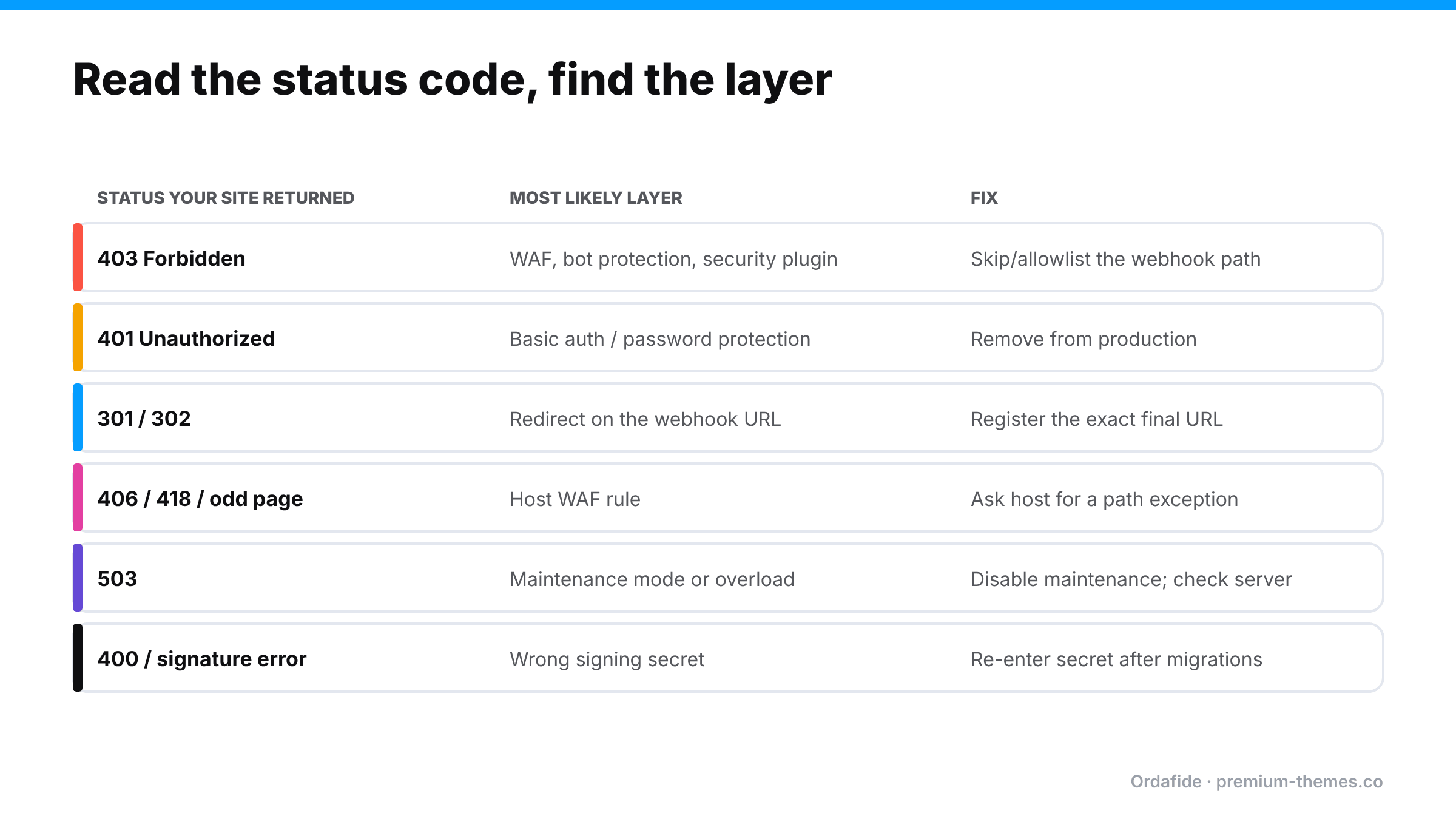
Table mapping webhook delivery status codes to causes and fixes: 403 means a firewall, bot protection or security plugin; 401 means basic auth; 301 or 302 means a redirect; 406 or unusual pages mean a host firewall rule; 503 means maintenance or overload; 400 or signature errors mean a wrong signing secret.

1. Read the gateway’s delivery log. In Stripe, open the webhook endpoint in the Dashboard (Developers / Workbench → Webhooks) and look at recent deliveries. The HTTP status your site returned tells you which layer to check. PayPal and other gateways have similar logs or notification histories.

2. Look at the response body. A Cloudflare block page, a Wordfence message, a host’s “Not Acceptable” page or a login prompt each identify themselves.

3. Check each layer’s logs:

  • Cloudflare: Security → Events, filtered by the webhook path. The Service column tells you whether Bot Fight Mode, a WAF rule or rate limiting acted.
  • Wordfence: Live Traffic and the firewall’s blocked requests.
  • Host: ask support to check WAF logs for the webhook URL and time.

4. Send a test event from the gateway and watch it arrive (or not) in each log.

Fixing it without weakening security

The principle: don’t turn protection off for the whole site. Make a narrow, specific exception for the webhook path, and rely on the gateway’s signature verification to prove requests are genuine.

  • Cloudflare (Pro/Business): allow verified bots, and add a WAF custom rule that skips Super Bot Fight Mode (and any challenge rules) for the webhook path. Optionally restrict it further to the gateway’s published IP ranges.
  • Cloudflare (Free): Bot Fight Mode can’t be exempted per path. Either turn it off and replace it with rate limiting and targeted custom rules, or serve the webhook endpoint from a hostname that bypasses the proxy and restrict it to the gateway’s IP ranges with signature verification.
  • Never put a managed challenge on machine-to-machine endpoints. Use allow, skip or block, not challenge.
  • Wordfence: allowlist the exact webhook URL/parameters in the firewall’s allowlisted URLs.
  • Other security plugins: allow REST and webhook routes for unauthenticated requests where the gateway needs them.
  • Host WAF: ask your host to add a rule exception for the webhook path.
  • Redirects: register the exact final URL (correct protocol and domain) with the gateway.
  • Re-check after every security change, including temporary “under attack” settings.

Then resend failed events from the gateway, or reconcile the stuck orders by hand. (Stuck pending orders)

A worked example: the Black Friday hardening

A week before Black Friday, a store owner reads about bot attacks on checkout and tightens security: Cloudflare’s security level goes up, a managed challenge is added for “suspicious” traffic to /?wc-api=* and /wp-json/*, and the security plugin’s rate limit is lowered.

  • Card testing attempts drop, which is good.
  • Stripe webhooks start receiving challenge pages. Stripe retries, and keeps failing.
  • Paid orders sit on Pending payment. The 60-minute Hold stock timer cancels them.
  • On Black Friday morning, 37 paid orders are in Cancelled. Stripe has emailed a warning about the failing endpoint to an address nobody checks during the sale.

Nothing was “broken” in the usual sense. Every tool did what it was told. The managed challenge was the right idea for checkout pages and exactly the wrong idea for a machine-to-machine webhook path.

The fix took five minutes: a skip rule for the webhook path, then resend failed events from Stripe and restore the cancelled orders. Detection took most of a day.

Different gateways, same problem

Gateway How it notifies Where to see failed deliveries
Stripe Webhooks, signed Dashboard → Webhooks → endpoint → deliveries
PayPal Payments Webhooks PayPal developer dashboard / plugin settings and logs
PayPal Standard (legacy) IPN PayPal IPN history
Square, Mollie, Razorpay and others Webhooks or callbacks Each gateway’s developer dashboard / plugin logs

Whatever the gateway, the principle is the same: find the delivery log, read the status code, then check the layer that returned it.

The bigger lesson: you need a detector downstream

Security settings change for good reasons: an attack, a new plugin, a host’s new rule set, a Black Friday hardening pass. Every one of those changes can break webhooks, and nothing in WooCommerce raises an error when they do. The gateway emails someone, eventually. Meanwhile paid orders pile up on Pending.

What you need isn’t a promise never to touch security settings. It’s a check that notices paid orders not progressing, whatever the cause.

How Ordafide catches the effect of a blocked webhook

Ordafide isn’t a firewall and doesn’t change your security settings. It watches for the consequences of a blocked webhook, which look the same whichever layer did the blocking.

Ordafide Order Integrity for WooCommerce (free) scans recent orders and flags:

  • Stuck payment: orders on Pending payment or Failed that carry a gateway payment reference, the classic fingerprint of a webhook that never landed.
  • Paid but cancelled: orders with a confirmed payment date that ended up Cancelled or Failed, with nothing refunded.
  • Customer never emailed: paid orders where no confirmation reached your mail server.

It also checks the background job queue and offers a loopback test (your site calling itself), useful when the same firewall rules that block webhooks also block your own site’s background processing. (Loopback request failed)

Ordafide Pro adds read-only gateway reconciliation (Stripe, PayPal, Square, Mollie, Razorpay), which shows payments the gateway collected that WooCommerce never recorded properly. It also sends real-time alerts to Slack, SMS, email or a signed webhook. Pro’s signed heartbeat endpoint lets an external uptime monitor confirm that Ordafide’s own checks are still running.

Webhook safety checklist

  • Webhook URL registered exactly (protocol, domain, no redirects)
  • Signing secret correct after every migration or clone
  • CDN bot protection allows or skips the webhook path
  • No managed challenge on webhook paths, including in “under attack” mode
  • Security plugin allowlists the webhook URL
  • Host WAF has an exception for the webhook path
  • Test event sent and confirmed after every security change
  • Automated detection of paid orders that don’t progress

Talking to your host or security provider

When you contact your host or security vendor, give them what they need to find the block quickly:

  • the exact webhook URL (for example https://yourstore.com/?wc-api=wc_stripe)
  • the time of a failed delivery and the status code your site returned
  • the gateway’s published IP ranges if available
  • a clear request: “Please make sure requests to this path from these sources aren’t challenged or blocked. The payment plugin verifies signatures.”

Ask them to tell you if their rule sets change in future. Host-level WAF updates are a common, invisible cause of new webhook failures.

WooCommerce Card Testing Attack: How to Spot It, Stop It and Clean Up Afterwards

You open WooCommerce in the morning and the orders list is unrecognizable. Hundreds of new orders arrived overnight, almost all of them Failed. They’re for the cheapest product you sell. The names look random, the email addresses are nonsense, and the billing addresses don’t match anything.

Then your payment gateway emails you about unusual activity.

This is a card testing attack, and it’s one of the most common complaints in WooCommerce communities. Threads with titles like “Spam orders, at my wits’ end” turn up regularly on r/woocommerce and the WordPress.org forums. It’s unsettling, but it’s well understood, and there’s a clear playbook for stopping it.

What card testing is (and why your store was chosen)

Criminals buy stolen card numbers in bulk. Many of those cards are already cancelled or blocked. Before they use or resell them, they need to know which ones still work. The cheapest way to find out is to attempt small purchases on real stores and see which payments go through.

Your store wasn’t chosen because of anything you sell. It was chosen because it:

  • has a cheap product (a low-value charge attracts less attention),
  • has a checkout that can be scripted (no CAPTCHA, no rate limiting),
  • uses a major gateway whose responses are easy to interpret.

WooCommerce’s developer blog has noted that attackers have targeted the WooCommerce Store API directly: the REST endpoints behind the block-based cart and checkout. This works even on stores that don’t use the Checkout block, because the endpoints exist on every modern WooCommerce install. Bots skip your checkout page entirely and talk straight to the API.

Why it matters even though the orders “failed”

It’s tempting to think failed orders are harmless. They aren’t:

  • Gateway fees. Some gateways charge per authorization attempt or for fraud screening, even when the payment fails.
  • Account risk. A flood of declines looks bad to your gateway. Stripe and others may restrict or review your account, and in serious cases pause payouts.
  • Disputes later. Some test charges succeed. When real cardholders spot them, they dispute them, and you pay a dispute fee (Stripe charges $15 per dispute in the US, win or lose) on top of refunding.
  • Polluted data. Hundreds of junk orders distort your reports, analytics and stock reservations.
  • Emails. Depending on your settings, failed-order emails can flood your admin inbox.
  • Server load. Thousands of checkout requests can slow the site for real customers.

Recognizing the signature

Illustrative bar chart of orders per hour over a day: normal low volume, then a huge overnight spike between 1 and 7 a.m., mostly failed orders with a few successful. Signature: sudden spike, mostly failed, cheapest product, random names and guest checkouts.

Card testing has a very recognizable pattern:

Signal What you’ll see
Volume A sudden spike, often overnight, far above your normal hourly order count
Status Mostly Failed, with a few Processing (the cards that worked)
Products The cheapest item, or a single low-priced product over and over
Customer details Random or mismatched names, emails and addresses; often guest checkouts
Payment notes Declines with reasons like card declined, incorrect CVC, insufficient funds
Origin Many different IPs, or bursts from data-centre ranges
Timing Requests seconds apart, at hours your real customers don’t shop

If you see most of the first four, assume it’s card testing and act now. You can confirm the details later.

What an attack looks like hour by hour

Attacks vary, but a typical overnight incident on a small store runs something like this:

  • 01:40: The first few orders arrive for a $3 product. Two fail with card declined, one succeeds. Nobody notices: it’s the middle of the night, and three orders is unremarkable.
  • 02:00–03:00: The bot speeds up once it’s confirmed the checkout can be scripted. Dozens of attempts an hour, mostly failures, from rotating IP addresses.
  • 03:00–07:00: Hundreds of attempts. The admin email inbox fills with failed-order notifications. Your gateway’s risk systems start to notice.
  • 07:30: You wake up to the inbox, the orders list, and perhaps an email from your gateway.

Every hour between 01:40 and 07:30 was another batch of stolen cards validated on your store, another set of potential disputes, and another notch against your account’s risk profile. Shortening that window is the single biggest thing you can do to reduce the damage.

Common mistakes when responding

  • Deleting the orders before refunding the successful ones. You lose the easiest list of charges to refund. Export first, refund, then clean up.
  • Refunding in the gateway dashboard only. It works for the money, but WooCommerce still shows paid orders, which distorts reports and can leave orders in Processing to be shipped. Refund from the WooCommerce order where you can.
  • Blocking by country or IP only. Attackers rotate IPs and use proxies in your own country. Use it as a supplement, not a fix.
  • Turning off the gateway entirely. It stops the attack, but it also stops real customers. CAPTCHA and rate limiting usually let you stay open.
  • Assuming it’s over because it stopped. Attackers often pause and return. Keep defences on.

Stop it: the immediate response (first hour)

Five defence layers: detect fast with order volume spike alerts; gateway fraud rules; Store API rate limiting (off by default); a CAPTCHA that covers the Store API and block checkout; and a web application firewall at the edge. No single layer is enough.

1. Put friction in front of checkout

Turn on a CAPTCHA that protects the checkout and the Store API. This matters. WooCommerce’s developer team found that some CAPTCHA plugins didn’t protect the Checkout block or Store API, so bots skipped them entirely, and worked with several plugin authors to patch them. Make sure your CAPTCHA plugin is up to date and explicitly supports block checkout and the Store API.

2. Enable Store API rate limiting

WooCommerce includes rate limiting for the Store API, but it’s off by default. Developers can enable and configure it with the `woocommerce_store_api_rate_limit_options` filter. WooCommerce 9.6 added stricter rules for the place-order endpoint that can be configured from the admin, and 9.8 added a filter for using a custom fingerprint rather than IP address. If your store sits behind a proxy or CDN, enable proxy mode so you don’t rate-limit all your real customers as one IP.

3. Tighten your gateway’s fraud rules

In Stripe, review Radar rules: block payments where the CVC or postcode check fails, and consider blocking or reviewing high-risk payments. Other gateways have equivalent risk settings. Tell your gateway’s support team you’re under attack. They see this daily.

4. Block obvious sources at the edge

If your host or CDN offers a WAF, add rules or challenges for the checkout and Store API paths, and block data-centre ranges if the attack comes from them.

5. Temporarily hide the target

If the attack hammers one cheap product, temporarily raise its price, set it to private, or require login for checkout until defences are in place.

Clean up afterwards

  1. Refund any successful test charges. Find the few Processing orders that match the attack pattern, verify them against the gateway, and refund them through the WooCommerce order (so both systems record it). Proactively refunding is cheaper than fighting the disputes that will otherwise arrive.
  2. Restore stock. Check that cancelled or failed junk orders aren’t still holding stock.
  3. Delete or trash the junk orders once refunded, so they stop polluting reports. Export a list first for your records.
  4. Check customer accounts. If the attack created accounts, remove them.
  5. Tell your gateway what you’ve done. It helps your account standing.
  6. Review your email settings so a future attack doesn’t flood your inbox.

What to tell your payment gateway

Gateways deal with card testing constantly, and a clear, early message from you helps both your account standing and their response. Include:

  • When it started and whether it’s still going
  • Roughly how many attempts and how many succeeded
  • Which product was targeted and its price
  • What you’ve done: CAPTCHA enabled, rate limiting on, fraud rules tightened, successful charges refunded
  • A request for any account-level protections they can add while things settle

Keep a copy. If your account is later reviewed because of the spike in declines, a record showing you acted quickly and responsibly is useful.

It’s also worth asking whether your gateway offers built-in card-testing protection you haven’t switched on. Several gateways and payment plugins now include specific protections against bursts of low-value attempts, and they’re often off by default or tucked away in advanced settings.

Prevent the next one

  • Keep CAPTCHA and rate limiting on permanently. Attackers return to stores that worked once.
  • Keep WooCommerce updated. Store API protections have improved release by release.
  • Watch your order volume. The earlier you notice an attack, the fewer cards get tested on your store and the smaller the clean-up.
  • Set up alerts. An attack that starts at 2 a.m. shouldn’t run until 9 a.m.

That last point is the one most stores miss. Every defence above is something you turn on after you notice. The size of the damage depends almost entirely on how long the attack runs before someone sees it.

Seeing an attack within the hour, not the morning after

Ordafide Pro includes order volume anomaly detection. Every hour, it compares the current hour’s order count with comparable past hours, using median-based statistics so that genuinely busy periods like a sale don’t distort the baseline. It flags both spikes, the typical shape of a card testing burst, and drops, which usually mean checkout is broken. Findings resolve themselves when volume returns to normal.

Combined with Pro’s alerts (Slack, SMS via Twilio, email, or a signed webhook into Discord, Microsoft Teams or PagerDuty), with severity routing and throttling, an overnight spike becomes a message on your phone while the attack is still small.

Pro’s read-only gateway reconciliation with Stripe, PayPal, Square, Mollie and Razorpay also helps afterwards. It shows any money with no order and any amount disagreements, so you can be sure you’ve found every successful test charge, including ones that never produced a clean WooCommerce order.

The free Ordafide plugin won’t detect an attack in progress (that needs volume monitoring), but its duplicate charge and refund mismatch checks help verify the clean-up: that refunds were recorded correctly, and that no refunded order is still sitting in Processing waiting to be shipped.

Ordafide is not a fraud-prevention firewall and doesn’t block requests. It’s the alarm that tells you to put the firewall up. Use it alongside CAPTCHA, rate limiting and your gateway’s fraud rules.

Card testing response checklist

Right now

  • [ ] CAPTCHA on checkout, confirmed to protect block checkout and the Store API
  • [ ] Store API rate limiting enabled (proxy mode on if behind a CDN)
  • [ ] Gateway fraud rules tightened; gateway support informed
  • [ ] WAF challenge on checkout/Store API paths

Within 24 hours

  • [ ] Successful test charges identified and refunded through WooCommerce
  • [ ] Stock checked and restored
  • [ ] Junk orders exported, then removed
  • [ ] Junk customer accounts removed

Permanently

  • [ ] WooCommerce, gateway and CAPTCHA plugins kept updated
  • [ ] Order volume monitored with alerts for spikes