Tag Archives: Payments

WooCommerce Subscription Renewals Going Wrong? Failed, Missing and Duplicate Renewals Explained

Subscriptions are the best revenue a store can have: predictable, recurring, and earned once. They’re also unforgiving when something goes wrong, because a renewal happens without the customer at the keyboard. Nobody sees an error message. Nobody clicks “try again”. If the renewal fails silently, you lose a month’s revenue. If it runs twice, a loyal customer finds two charges on their statement.

The forums show both sides. Threads on WordPress.org and elsewhere describe duplicate payments for subscription renewals, double charging on renewal, multiple payment intents on renewal even after payment succeeded, and renewals that simply never happened after an update or a change of payment plugin. WooCommerce maintains a whole troubleshooting page for common renewal issues.

This guide explains how renewals actually work, the three ways they go wrong, how to diagnose each, and how to catch them before your subscribers do.

This guide is about renewals in the official WooCommerce Subscriptions extension and similar plugins. Details vary by plugin and gateway, so check your plugin’s documentation for specifics.

How a renewal actually happens
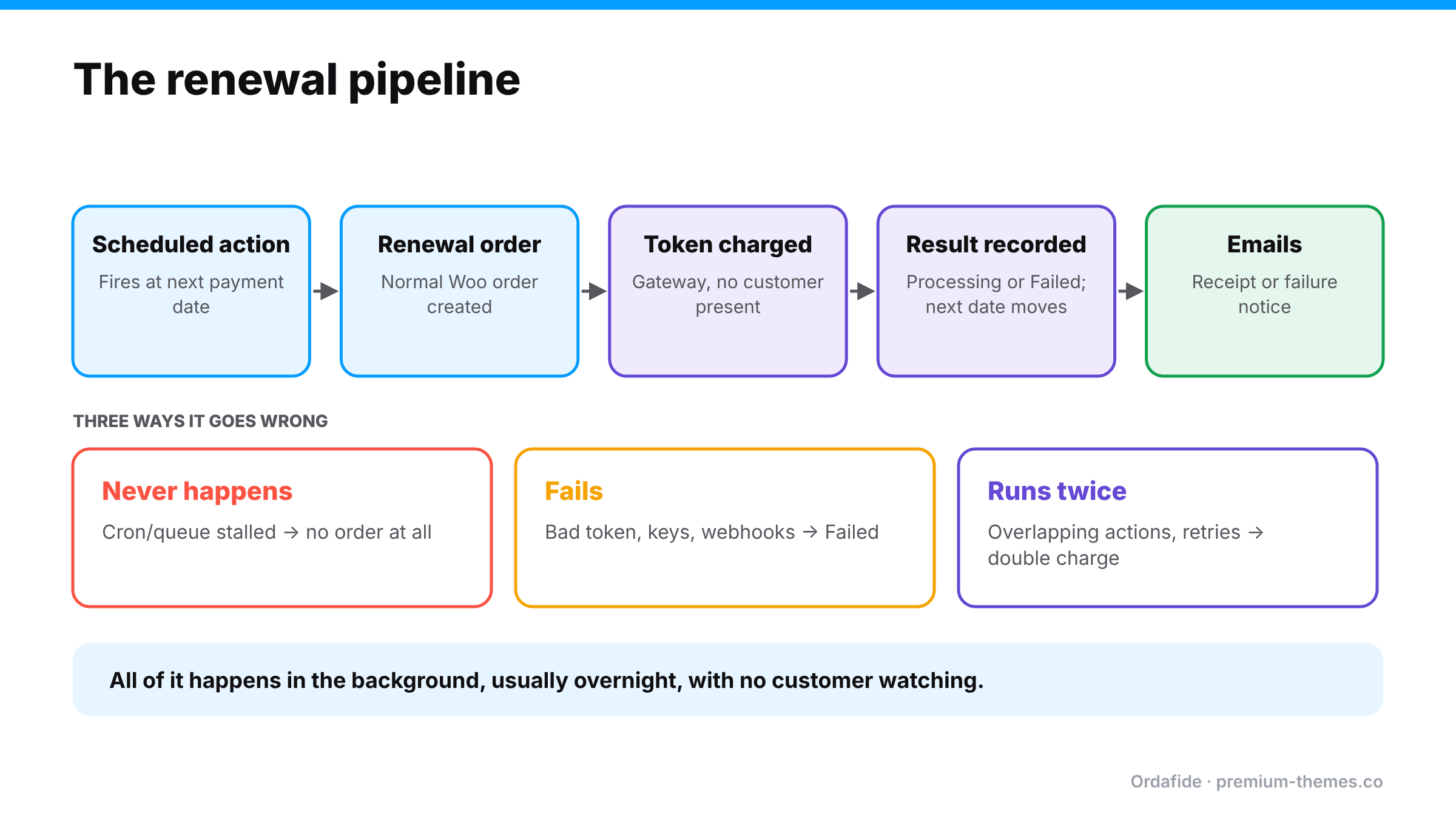
Subscription renewal pipeline: a scheduled action fires, a renewal order is created, the saved token is charged, the result is recorded and emails are sent. Three ways it fails: it never happens because cron or the queue stalled, it fails because of tokens, keys or webhooks, or it runs twice because of overlapping actions or retries.

A renewal is a chain of background events:

  1. A scheduled action fires at the next payment date. WooCommerce Subscriptions uses Action Scheduler for this (look for actions like woocommerce_scheduled_subscription_payment in WooCommerce → Status → Scheduled Actions).
  2. A renewal order is created, a normal WooCommerce order linked to the subscription.
  3. The gateway charges the saved payment method (a stored token) without the customer present.
  4. The result is recorded. The renewal order moves to Processing or Completed on success, or Failed on failure, and the subscription’s next payment date moves forward.
  5. Emails go out, and on failure, any retry rules are scheduled.

Every link in that chain can break, and because it all happens in the background, nothing alerts you by default.

Problem 1: Renewals that don’t happen at all

Symptoms: subscriptions show a next payment date in the past; no renewal order was created; revenue quietly drops; subscribers don’t notice (until they do).

Why: WooCommerce’s documentation is direct about it: renewals depend on scheduled actions, and if cron jobs aren’t running or the Action Scheduler queue fails, renewals aren’t created when expected. Common culprits:

  • WP-Cron disabled without a server cron, or loopback requests failing (guide)
  • A huge past-due backlog in Action Scheduler
  • PHP memory or time limits killing the renewal action
  • A site running in a staging / duplicate site mode, where renewal payments are deliberately not processed automatically

Diagnose: in Scheduled Actions, search for the subscription ID. Is the payment action pending and past due? Failed? Open it and read the log.

Fix: fix the scheduler, then let past-due renewals run. For individual subscriptions, WooCommerce documents creating a pending renewal order manually and processing it as a stopgap.

Problem 2: Renewals that fail

Symptoms: renewal orders in Failed status; subscriptions moved to On hold.

Why: most are ordinary: expired or declined cards, insufficient funds. But some are store-side:

  • Missing or invalid payment tokens, for example after switching payment plugins, migrating gateways, or when a staging site processed renewals against the same customer records
  • Gateway authentication errors: expired API keys, a disconnected account (guide)
  • Webhook problems leaving a successful charge recorded as failed (Failed orders guide)

Diagnose: read the renewal order’s notes and the gateway logs. Does the subscription have a saved payment token? Did the gateway actually decline, or did the store fail to ask?

Fix: genuine declines → customer updates their payment method, and a retry system recovers many. Store-side failures → fix the token, keys or webhook, then process the renewal again. Before retrying, check the gateway to make sure the “failed” renewal didn’t actually succeed. Otherwise you create the next problem.

Problem 3: Duplicate renewals (charged twice)

Symptoms: two renewal orders for the same subscription and period; two charges on the customer’s card; angry email or a “duplicate processing” chargeback.

Why: WooCommerce’s troubleshooting guide lists the usual causes:

  • Overlapping scheduled actions: more than one payment action for the same subscription and timestamp
  • Manual actions (clicking Process renewal or Create pending renewal order) on a renewal that was already in progress
  • Conflicting plugins or custom code triggering renewals
  • Retrying a “failed” renewal that had actually succeeded at the gateway
  • Gateway retries after timeouts where the first attempt went through

Diagnose: in Scheduled Actions, look for multiple payment actions with the same subscription ID and timestamp. In the gateway, count the charges for that customer and period.

Fix: refund the duplicate from the duplicate renewal order (so WooCommerce and the gateway agree), cancel duplicate actions, check the subscription’s next payment date, and remove the cause.

A worked example: the overnight double renewal

A store with 600 monthly subscribers moves to a new host. During the migration, the old and new servers both run for a few hours, and both have WP-Cron active, pointing at the same database.

  • At 02:00, the old server’s scheduler picks up 40 due renewals and starts charging them.
  • At 02:01, the new server’s scheduler picks up the same actions before they’re marked complete.
  • 31 subscribers are charged twice. The second set of renewal orders sit next to the first, with different transaction IDs and identical totals, a minute apart.
  • The first complaint arrives at 08:30. By 10:00 there are nine, and one chargeback.

The fix: refund every duplicate from the duplicate renewal order, check each subscription’s next payment date, and switch off the scheduler on the old server. The lesson is never run two copies of a store against the same database with background processing switched on, and for subscription stores, put staging and migration copies into a mode that doesn’t process renewals.

Preparing before a change that could affect renewals

Before you migrate hosts, change payment plugins, update the subscriptions extension or edit renewal-related code:

  1. Note when renewals usually run and how many are due in the next few days.
  2. Pause or schedule the change away from big renewal batches.
  3. Make sure only one environment can process renewals.
  4. Afterwards, check Scheduled Actions for past-due and duplicate payment actions.
  5. Compare the next day’s renewal orders and gateway charges.

Why renewal problems hide so well

  • They happen in the background, often overnight.
  • They’re spread out: a few subscriptions a day, not a dramatic outage.
  • Failed renewals look normal, because cards do expire.
  • Missing renewals leave no order at all. There’s nothing to look at.
  • Duplicates are noticed by customers first, on their statement.

So the realistic goal is: notice within a day that the renewal machinery has stalled, that a renewal was charged twice, or that a “failed” renewal was actually paid.

How Ordafide helps with renewals
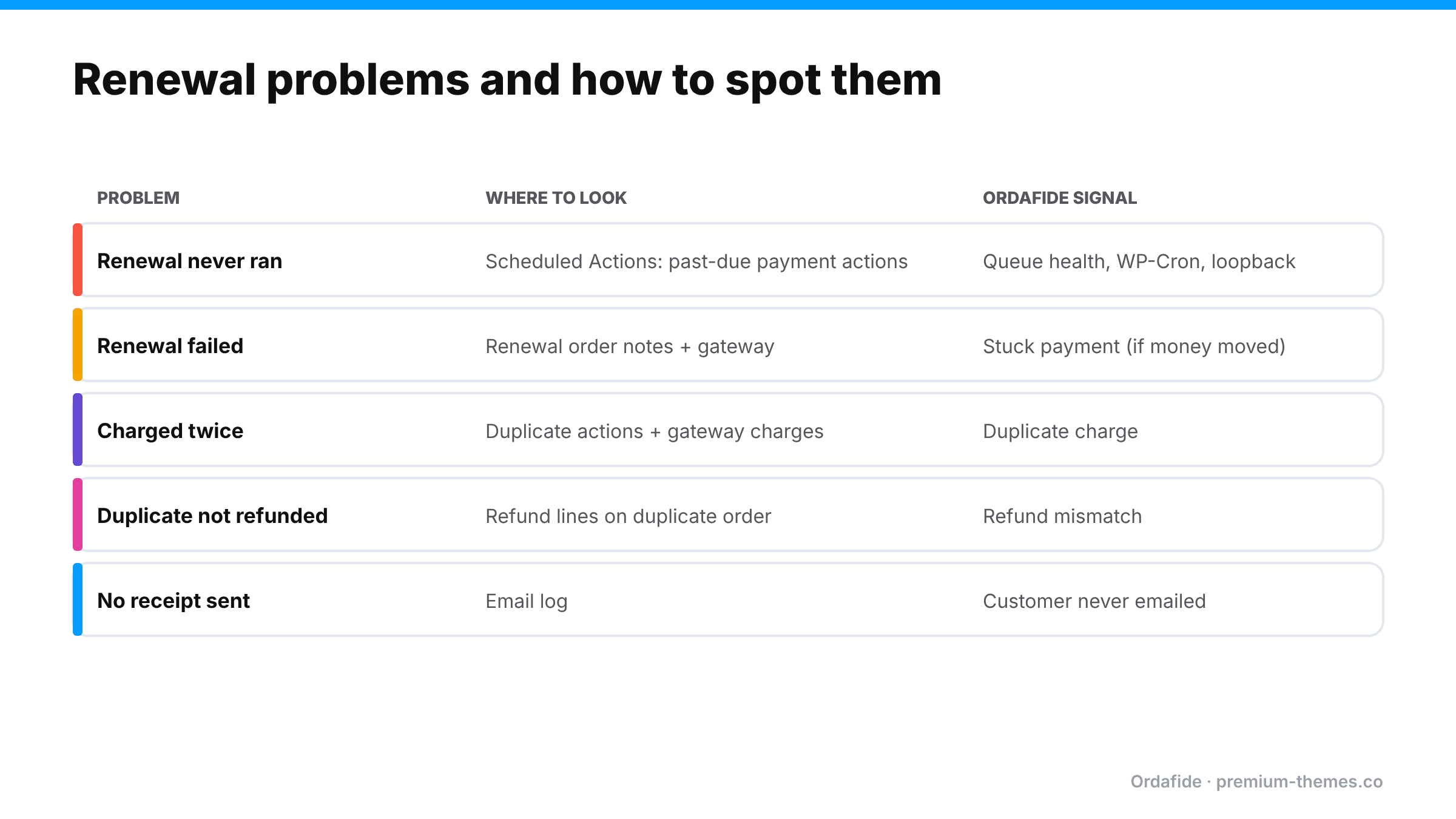
Table of renewal problems: renewal never ran (check past-due actions; Ordafide queue health), renewal failed (order notes and gateway; stuck payment check), charged twice (duplicate actions; duplicate charge check), duplicate not refunded (refund mismatch check), no receipt (email log; customer never emailed check).

Renewal orders are ordinary WooCommerce orders, so Ordafide’s checks apply to them like any other order, and its store health checks watch the scheduler that renewals depend on.

Ordafide Order Integrity for WooCommerce (free):

  • Background job queue health: how far behind Action Scheduler is, how many jobs have failed, and the most likely cause in plain language, plus WP-Cron status and a loopback test. When this goes red, renewals are at risk.
  • Duplicate charge: one gateway payment reference on two orders, or the same customer charged twice for an identical basket within minutes. That covers the classic double renewal from overlapping actions, which usually fire close together. The duplicate window is configurable if your duplicates arrive further apart.
  • Stuck payment and paid but cancelled: renewal orders left Pending or Failed even though a payment reference or confirmed payment date shows money moved.
  • Refund mismatch: for the clean-up afterwards, to make sure duplicate renewals were actually refunded and recorded.
  • Customer never emailed: paid renewals where the receipt never went out.

Ordafide Pro adds:

  • Gateway reconciliation (Stripe, PayPal, Square, Mollie, Razorpay; read-only): catches renewal charges with no matching order, orders marked paid with no payment, and amount disagreements.
  • Order volume anomaly detection: a sudden drop in orders at the hour renewals usually run is a signal that the scheduler has stalled.
  • Alerts to Slack, SMS, email or webhook, so a queue backlog or a run of duplicates reaches you the same day.

Ordafide doesn’t manage subscriptions, retry payments or change renewal dates. Those stay with your subscriptions plugin. It tells you when the orders and the money stop agreeing, and when the machinery behind renewals has stopped.

Renewal health checklist

  • Real server cron running WP-Cron; loopback test passing
  • No large past-due backlog in Scheduled Actions
  • No duplicate payment actions for the same subscription and date
  • Staging sites never process live renewals (test keys, staging mode)
  • Gateway API keys valid; webhooks delivering
  • Failed renewals checked against the gateway before retrying
  • Duplicate renewals refunded from the duplicate order
  • Monitoring and alerts on queue health and duplicate charges

Communicating with affected subscribers

Subscribers are your most loyal customers, so renewal problems deserve a personal touch:

  • Charged twice: refund immediately, email before they notice if you can, and say clearly that it was your error and the duplicate has been refunded.
  • Renewal missed: decide whether to charge now (and tell them first) or skip the period. Surprising someone with a late charge invites disputes.
  • Renewal failed because of your setup (not their card): don’t send them a “please update your card” email. Fix your side, retry, and only contact them if needed.

A weekly renewal check (10 minutes)

  1. Scheduled Actions: search for pending subscription payment actions that are past due. Any?
  2. Failed tab: any failed renewal actions this week? Read the error.
  3. Renewal orders: filter recent orders to renewals. Any Failed? Any duplicates for the same subscription and date?
  4. Gateway: do renewal charges in the gateway match renewal orders?
  5. Subscriptions: any active subscriptions with a next payment date in the past?
  6. Integrity scan: check Ordafide’s findings for duplicate charges and stuck payments.

Most weeks it’s empty. The week it isn’t, you’ll catch the problem days before subscribers do.
WooCommerce Failed Orders: What They Mean, When They’re Actually Paid, and What to Do

Every WooCommerce store has a few Failed orders. Most are harmless: a card declined, a customer gave up. So most store owners learn to ignore them.

That habit is expensive, because a small share of Failed orders aren’t failed at all. The customer was charged. The money is in your gateway. WooCommerce just recorded the wrong outcome. The WordPress.org support forums are full of threads titled things like “Customer payment says failed but it has been drawn from their bank account” and “Successful Stripe payments after failure, yet WooCommerce order failed”.

This guide explains what Failed means, how to tell a genuine decline from a paid order recorded as failed, and what to do with each.

What “Failed” means in WooCommerce

WooCommerce marks an order Failed when a payment attempt doesn’t go through. The order usually moves from Pending payment to Failed, and the gateway adds an order note explaining why.

Typical genuine causes, as WooCommerce’s own guide to failed orders lists them:

  • Declined card: insufficient funds, expired card, spending limits, wrong details
  • Authentication problems: wrong or expired API keys, a suspended gateway account
  • Duplicate-transaction protection: the gateway rejects what looks like a repeat submission
  • Site issues: outdated plugins, conflicts, server problems

By default, WooCommerce sends the admin a failed-order email but not the customer. Many customers who fail at checkout simply try again or leave.

The dangerous minority: “failed” orders that were paid

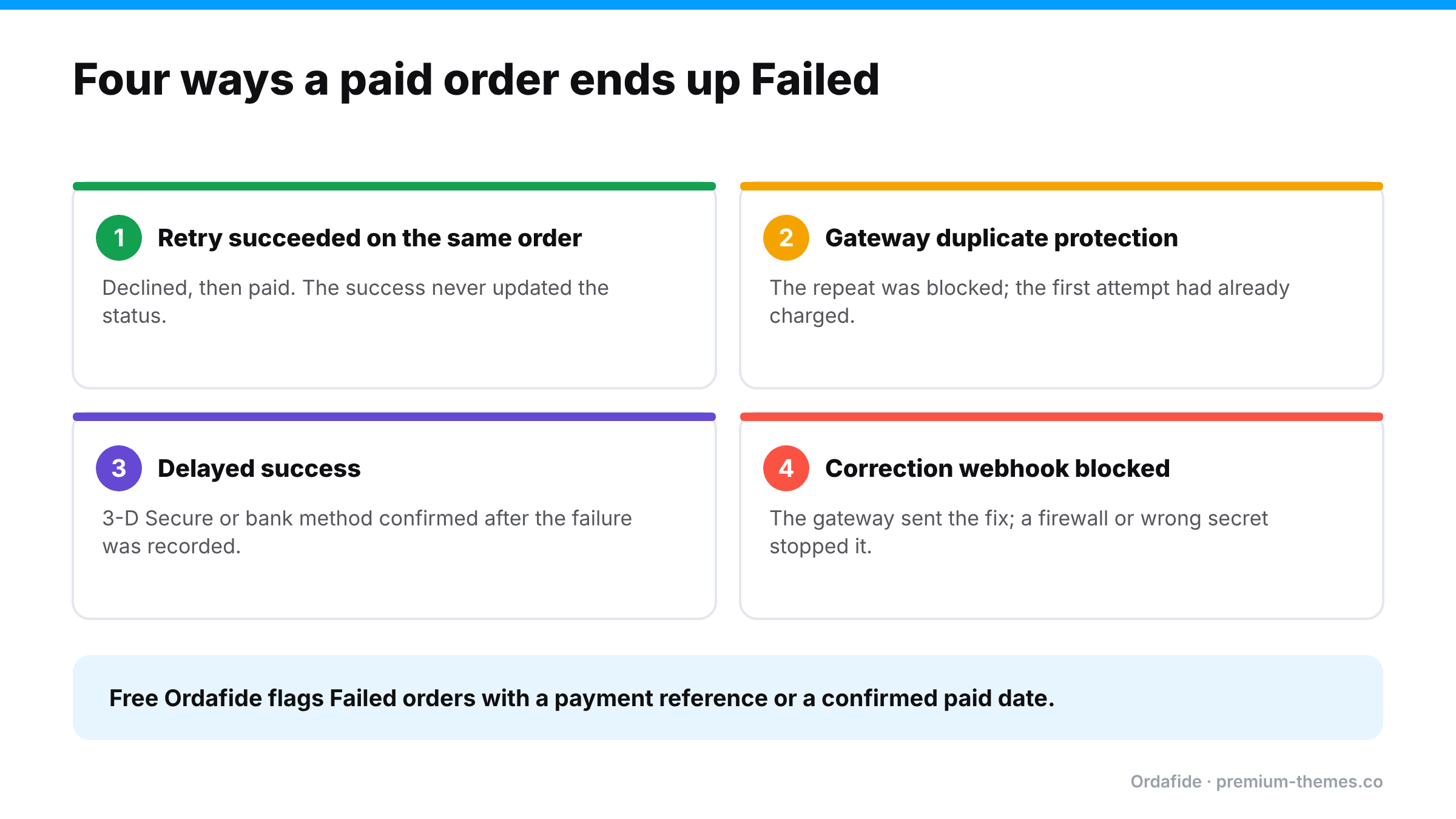
Four ways a paid WooCommerce order is recorded as Failed: a retry succeeded on the same order without updating status; gateway duplicate protection blocked a repeat after the first attempt charged; a delayed success arrived after the failure; or the correcting webhook was blocked. Ordafide flags Failed orders with a payment reference or paid date.

Here’s the problem. Failed is what WooCommerce believes happened. Sometimes the gateway disagrees.

Path 1: The customer retried and the second attempt succeeded on the same order

The first attempt is declined, so the order is marked Failed. The customer fixes their card details and pays successfully. If the success is recorded against the same order but the status update doesn’t complete (a webhook failure or plugin bug), the order stays Failed even though it now carries a successful payment.

Path 2: The gateway’s duplicate protection blocked a request that had already succeeded

A web agency documented a case where the gateway (NMI) rejected a second submission of a transaction as a duplicate. The first submission had actually succeeded. The customer saw an error, WooCommerce marked the order Failed, and the card was charged anyway. The gateway’s own log showed “Duplicate transaction”.

Path 3: A delayed success arrived after the failure

Some payment methods report a failure or timeout first and a success later (3-D Secure challenges that complete late, bank-based methods, wallets). If the later success never reaches WooCommerce, the order stays Failed.

Path 4: The webhook that would have corrected it was blocked

Even when the gateway does send the correction, a firewall, security plugin or wrong webhook secret can stop it from arriving. (See is your firewall blocking payments?.)

In every path, the customer has paid, and your store has no intention of shipping anything, because nobody works the Failed list.

How to triage a Failed order in two minutes

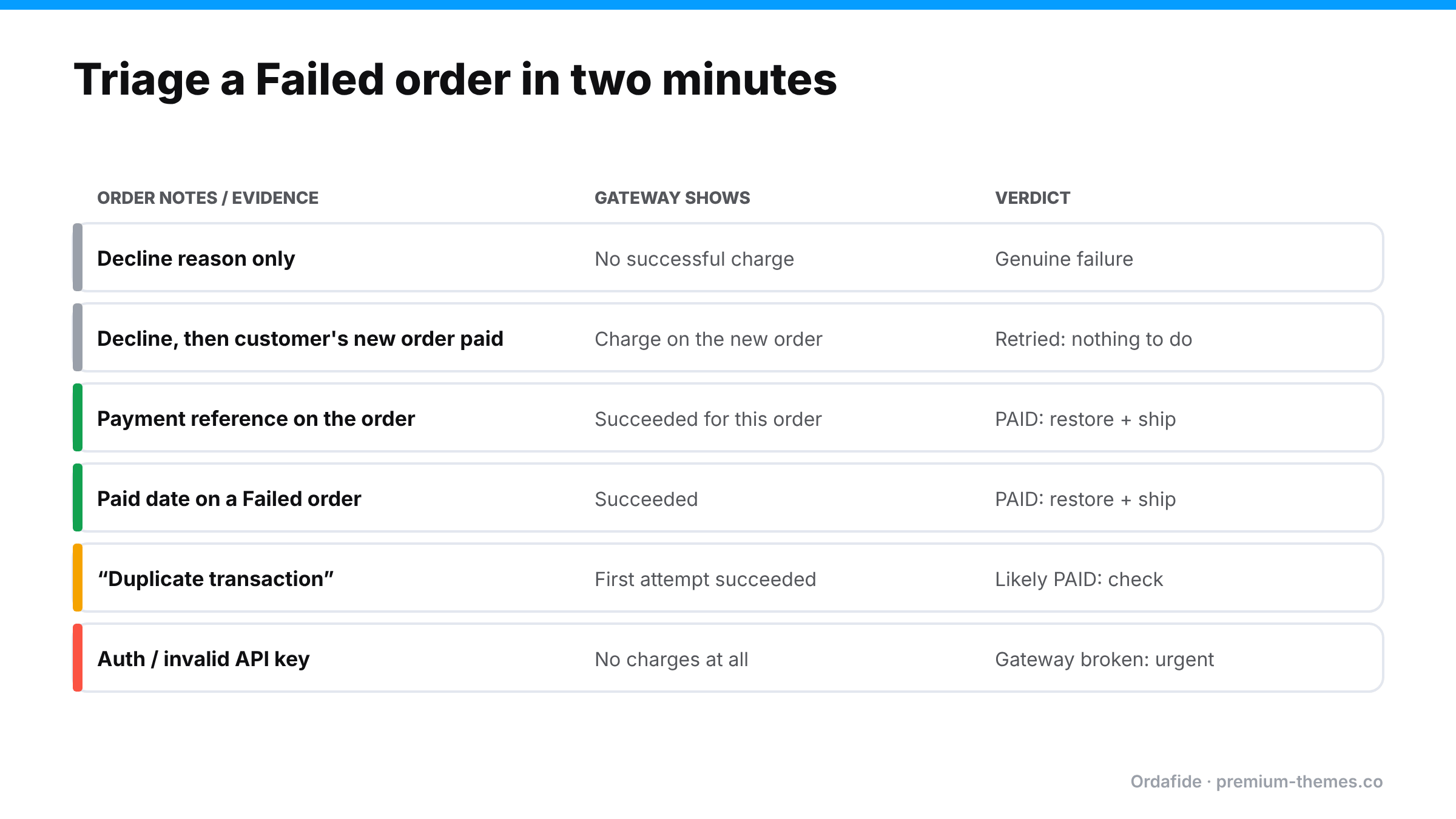
Triage table for WooCommerce Failed orders: a decline with no charge is a genuine failure; a decline followed by a paid new order needs nothing; a payment reference or paid date with a succeeded charge means the order was paid and should be restored; a duplicate transaction note likely means paid; an authentication or API key error means the gateway is broken.

Open the order and read it like evidence.

  1. Read the order notes from the bottom up. Gateways write what happened: “Card declined (insufficient funds)”, “3-D Secure authentication failed”, “Payment intent succeeded”. Pay attention to the last gateway note, not the first.
  2. Look for a transaction or payment reference. Many gateways write a reference (for example a Stripe Payment Intent ID) to the order. A reference on its own doesn’t prove payment, but it tells you exactly what to look up.
  3. Look for a paid date. If WooCommerce recorded a date paid on a Failed order, something is badly out of step: WooCommerce itself once believed the payment succeeded.
  4. Check the gateway. Search the reference or the customer’s email in your gateway dashboard. Is there a succeeded payment for this amount?
  5. Check for a second order. The customer may have given up and placed a new order that succeeded. Then the Failed order is just history, and nothing needs doing.
What you find What it means What to do
Decline note, no successful payment at the gateway Genuine failure Nothing, or a friendly “need help?” email
Decline note, but a later order from the same customer succeeded Customer retried on a new order Nothing
Gateway shows a succeeded payment for this order Paid but recorded as Failed Move to Processing, add a note, ship, apologize
Paid date recorded on a Failed order Paid but recorded as Failed Verify in gateway, then as above
“Duplicate transaction” note Gateway blocked a repeat. The first may have succeeded Check the gateway for the original charge
Authentication or API key error Your gateway connection is broken Fix now: every customer is failing (guide)

A worked example: five Failed orders on a Monday

Here’s what a typical weekend’s Failed list might contain, and how each one resolves.

#8812, $64, note: “Card declined (insufficient funds)”. No payment in the gateway. Ten minutes later the same customer placed #8815, which succeeded. Nothing to do. The customer retried on a new order.

#8820, $129, note: “3-D Secure authentication failed”, then nothing. The gateway shows a succeeded payment for the same Payment Intent four minutes later. The customer completed the bank challenge on a second attempt, but the success never reached the order. Paid but recorded as Failed. Move to Processing, ship, apologize.

#8827, $38, note: “Duplicate transaction”. The gateway shows one successful charge, from the first submission. The customer saw an error on the second. Paid. Restore and ship, and look at why checkout is slow enough for customers to resubmit.

#8831, $210, note: “Invalid API Key provided”. No charge at the gateway. Neither were there any successful orders after 02:10 on Sunday. Your gateway connection broke. This is the urgent one: every customer since 02:10 failed. (Gateway stopped working)

#8836, $19, random name, mismatched address, “card declined”. One of 40 similar orders between 03:00 and 04:00 for your cheapest product. Card testing. (Card testing guide)

Five Failed orders with five different explanations, two of which were paid. Without opening each one, all five look identical in the list.

Telling customers about genuine declines

For genuine declines, a short, friendly follow-up recovers real sales, especially for higher-value carts:

“Hi Sam, it looks like your payment for order #8812 didn’t go through. That’s usually a temporary card issue. If you’d still like your order, you can pay here: [link]. If you’ve already ordered again, please ignore this.”

Keep it helpful, not accusatory, and never send it before checking that the customer hasn’t already paid on another order.

When Failed orders spike

A handful of Failed orders a week is normal. A sudden change is a signal:

  • A spike of Failed orders on cheap products from random names: almost certainly card testing. (Card testing guide)
  • Every order failing with the same authentication error: your API keys expired, were rotated, or the account was disconnected.
  • Failed orders concentrated on one payment method or device: a compatibility problem after an update.
  • No Failed orders and no successful orders: not a payment problem at all. Checkout itself is broken. (Sales suddenly dropped?)

What happens to stock

Stock behaviour for Failed orders has changed across WooCommerce versions. WooCommerce’s troubleshooting documentation notes that from WooCommerce 11.0, moving an order to Failed returns stock only if stock had previously been reduced for that order, and an immediate decline leaves inventory unchanged. If you restore a Failed order to Processing because it was actually paid, check stock afterwards, especially on older versions or with inventory plugins.

Fixing a paid order that’s stuck on Failed

  1. Verify the payment in the gateway: status succeeded, amount and currency correct.
  2. Change the order to Processing and add a private note with the payment ID and how you verified it.
  3. Check stock for the items.
  4. Send the customer their confirmation (Order actions → Email invoice / order details to customer) and a short apology. They saw an error and were charged, so they’re worried.
  5. Look for a duplicate order in case the customer also paid a second time.
  6. Find the cause (webhook, duplicate protection, delayed method) so it doesn’t keep happening.

How Ordafide finds paid orders hiding in the Failed list

Nobody reads every Failed order, and that’s the point: the paid ones look exactly like the rest.

Ordafide Order Integrity for WooCommerce (free) scans your recent orders and flags the ones that don’t add up:

  • Stuck payment: orders on Pending payment or Failed that carry a gateway payment reference, the trace a gateway leaves when money moved.
  • Paid but cancelled: orders with a confirmed payment date sitting in Cancelled or Failed, with nothing refunded.
  • Duplicate charge: the same customer charged twice for an identical basket within minutes, common after a confusing failure.

Findings are sorted by money at risk, with the evidence laid out and what to check in your gateway before touching anything. When WooCommerce itself recorded a confirmed payment date, Ordafide can restore the order to Processing in one click. The change is logged and can be undone. Ordafide never captures, refunds or voids anything, and it sends nothing to a third party.

Ordafide Pro goes one step further with read-only gateway reconciliation (Stripe, PayPal, Square, Mollie, Razorpay). It compares what the gateway actually collected against your orders and flags money with no order, paid orders with no payment and amount disagreements, so a Failed order with a successful charge behind it can’t hide. Pro’s order volume anomaly detection also flags sudden spikes, the typical shape of a card testing attack, and its alerts reach Slack, SMS, email or a webhook.

A simple Failed-order routine

  • Daily: glance at the Failed count. Is it normal?
  • Weekly: review Ordafide’s findings (or the weekly summary email) for stuck and paid-but-failed orders.
  • On any spike: check for card testing, API key errors, or a broken payment method.
  • Optionally: email customers with genuine declines a short “having trouble paying?” note. It recovers real sales.

Reducing genuine failures

Not every Failed order is a hidden payment, and the genuine ones are worth reducing too:

  • Show clear error messages. A shopper who understands “your bank asked for extra verification” tries again. One who sees “error” leaves.
  • Offer more than one payment method. If a card fails, a wallet or PayPal often works.
  • Make checkout fast, so customers don’t resubmit and trigger duplicate protection.
  • Keep gateway and WooCommerce plugins updated. 3-D Secure and wallet handling improves over time.
  • Watch for patterns. Failures concentrated on one card brand, country or device usually have a fixable cause.

WooCommerce Orders Stuck On Hold: Authorized vs Captured Payments Explained

On hold is the most misunderstood order status in WooCommerce.

Some store owners see it and assume the payment failed. Others assume the money is safely in the bank and ship the order. Both can be wrong. And because On hold orders don’t show up in the Processing queue that most teams work from, they’re easy to forget entirely, until a customer asks where their parcel is or an accountant asks where the money went.

At the centre of most On hold confusion is one concept that WooCommerce merchants rarely get explained properly: the difference between a payment being authorized and a payment being captured.

This guide explains what On hold actually means, the five reasons orders end up there, how to tell which one you’re dealing with, and how to stop orders (and money) falling through the gap.

What “On hold” really means

WooCommerce’s own documentation describes On hold as an order awaiting payment confirmation: stock has been reduced, but you need to confirm payment before fulfilling. It’s a waiting room, not a verdict.

Compare it with the neighbouring statuses:

Status What it means Should you ship?
Pending payment Order created, no payment received yet No
On hold Awaiting payment confirmation; stock reduced Not until you’ve confirmed payment
Processing Payment received; ready to fulfil Yes
Completed Fulfilled Already done
Failed Payment failed or was declined No

The danger is in that middle row. An On hold order looks like a real sale, because stock has gone down and the order has items, an address and a total, but the money may not be yours yet. Or ever.

Authorized vs captured: the five-minute explanation

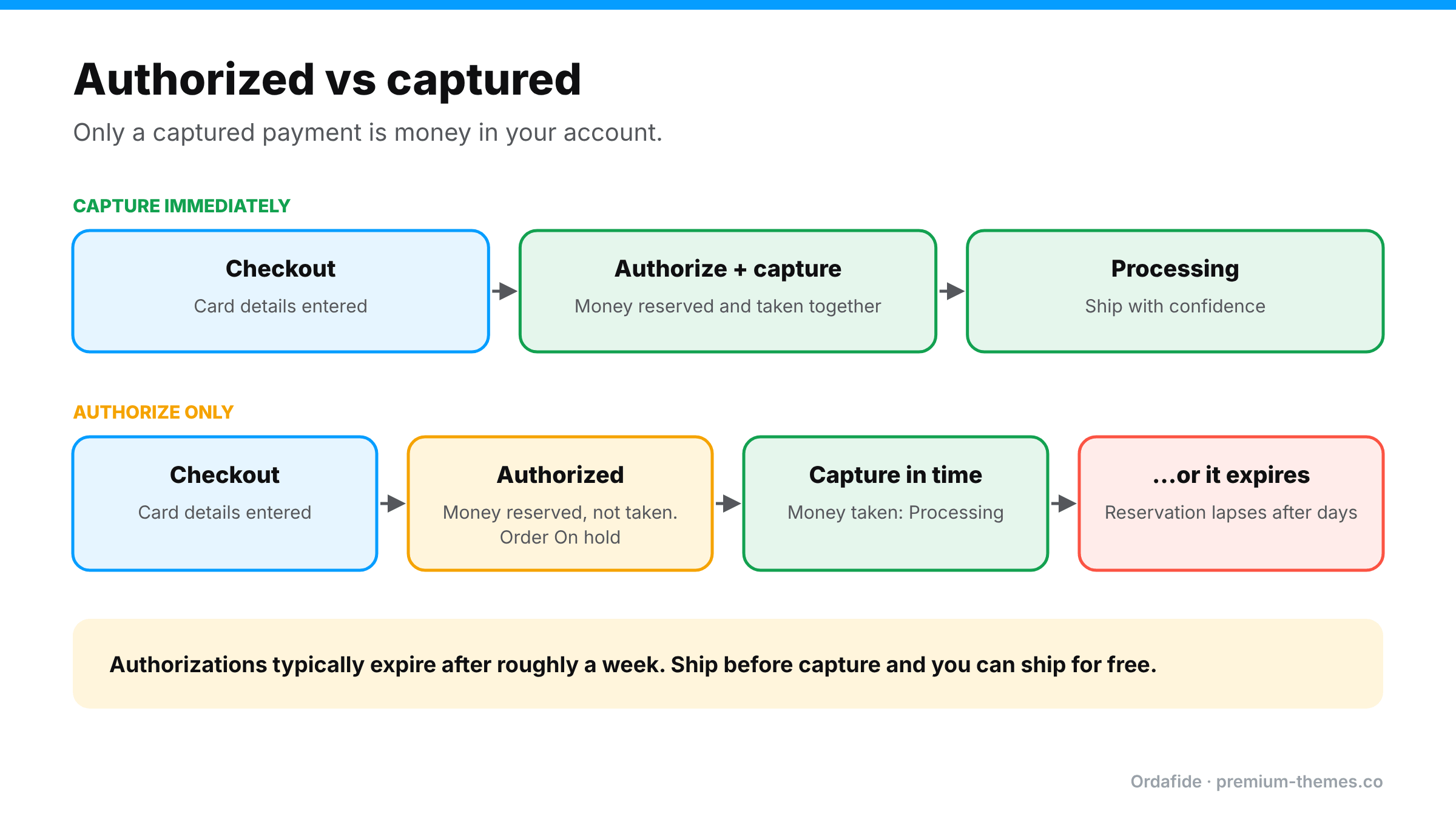
Two flows. Capture immediately: checkout, authorize and capture together, order goes to Processing. Authorize only: checkout, money reserved and order On hold, then either captured in time and moved to Processing, or the authorization expires after days. Shipping before capture risks shipping for free.

Card payments happen in two steps:

  1. Authorization. The customer’s bank confirms the card is valid and has enough funds, and reserves the amount. Nothing has moved. The customer sees a pending charge.
  2. Capture. You tell the gateway to actually take the reserved money. Now it moves toward your account.

Most stores capture immediately: both steps happen at checkout, and nobody thinks about it. But many gateways let you authorize only and capture later. That’s useful for made-to-order goods, pre-orders or stores that check stock before charging.

The catch: authorizations expire. Card networks typically hold an authorization for roughly a week (it varies by card type, network and gateway). If you don’t capture in time, the reservation lapses and the money is released back to the customer. You may already have shipped.

WooCommerce’s troubleshooting documentation calls this out directly: if your gateway only authorizes, funds aren’t transferred, and you need to either enable authorize-and-capture in the gateway settings or capture the charge manually.

The five reasons orders get stuck On hold

1. You chose authorize-only (and forgot to capture)

Many gateway plugins, including the WooCommerce Stripe and PayPal Payments plugins, offer a setting to capture charges immediately or only authorize them. With authorize-only, the order typically sits On hold until you capture, often by changing the order to Processing or Completed or using a capture action, depending on the plugin.

Symptom: order notes mention the charge was authorized rather than completed or captured.

2. An offline payment method

Direct bank transfer (BACS), cheque and cash on delivery orders go On hold by design. WooCommerce can’t know when the money arrives, so it waits for you.

Symptom: payment method is BACS or cheque. This is normal. The risk is only that nobody checks the bank.

3. A delayed-notification payment method

Some methods, such as SEPA Direct Debit and certain bank-based methods, take days to confirm. WooCommerce’s documentation notes these may sit On hold temporarily until the gateway confirms.

Symptom: payment method is SEPA or similar; order notes show the payment as initiated or processing.

4. The gateway’s confirmation didn’t match what the plugin expected

A WordPress.org support thread describes a store using PayPal Powered by Braintree where card payments were authorized and settled at Braintree but orders stayed On hold. The plugin checked for one specific settlement status, while Braintree sometimes reported a different, still-valid one for up to 24 hours. The money was fine. The store’s records weren’t.

Symptom: gateway dashboard shows the payment as settled or captured, but the order never moved.

5. A risk or review hold

Gateways and fraud tools can hold payments for review (PayPal “pending” reasons, fraud screening, unverified accounts). The order waits until the review finishes.

Symptom: order notes or the gateway show a review, pending reason or risk flag.

How to diagnose an On hold order in two minutes

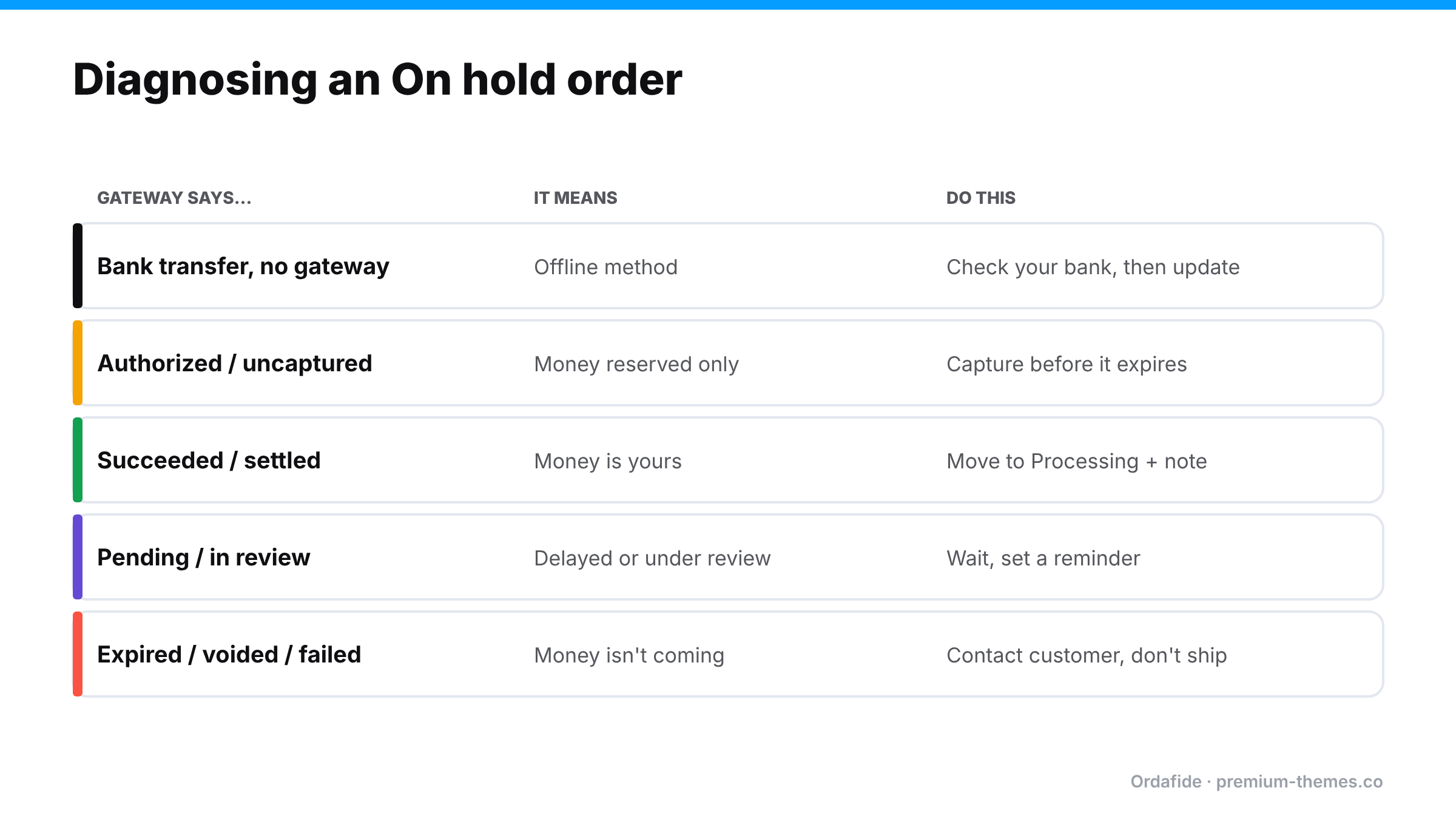
Table: bank transfer means check your bank then update; authorized or uncaptured means capture before it expires; succeeded or settled means move to Processing with a note; pending or in review means wait; expired, voided or failed means contact the customer and don't ship.

Open the order and work through this:

  1. 1. Check the payment method. BACS, cheque or COD? It’s case 2: check your bank and update manually.
  2. 2. Read the order notes. Look for the words authorized, captured, pending, review or a gateway status.
  3. 3. Find the transaction ID and open it in the gateway dashboard. What does the gateway say?
    • Authorized / uncaptured: case 1. Capture it (if you intend to fulfil) before the authorization expires.
    • Succeeded / captured / settled: case 4. Money’s in. Move the order to Processing and add a note.
    • Pending / in review: case 3 or 5. Wait, but set a reminder.
    • Expired / voided / failed: the money isn’t coming. Contact the customer before shipping anything.
  4. Check the order date. An authorization more than a few days old is at risk. Prioritize it.

The costly scenario: “paid” orders with no captured money

Here’s where it really hurts. Imagine your team moves On hold orders to Processing in bulk every morning to get them into the picking queue, perhaps because “On hold” orders always turn out fine.

If even one of those was an authorization that later expired or was never captured, you’ve shipped goods for free, and nothing in WooCommerce will ever tell you. The order says Processing, then Completed. It has a transaction ID. It looks perfect. Only the gateway knows no money was collected.

This is one of the cases where WooCommerce’s records and reality disagree silently. It’s also why “just check the order status” isn’t a reliable control.

A worked example: Monday morning’s On hold list

Here’s what a typical On hold list might look like on a small store after a weekend, and how to handle each one.

Order #4102: Direct bank transfer, $89, placed Saturday.
The customer chose bank transfer. You check the bank account: no payment yet. This is normal. Leave it On hold, and if nothing arrives within your stated payment window (say five days), send a reminder and then cancel to release the stock.

Order #4108: Card via Stripe, $240, placed Friday night, note says “authorized”.
Your Stripe plugin is set to authorize only, because you make items to order. Open the transaction in Stripe: it shows Uncaptured. If you’re starting production today, capture it now. Waiting until you ship next week risks the authorization expiring. If the item is out of stock and you won’t fulfil, cancel the authorization rather than letting it lapse, so the customer’s funds are released promptly.

Order #4111: PayPal, $56, placed Sunday, note says “pending: payment review”.
PayPal is reviewing the payment. Don’t ship. Check again later in the day. If PayPal completes it, the order should move forward on its own; if it doesn’t, compare the PayPal status and update by hand.

Order #4115: Card via another gateway, $132, placed Sunday, no useful note.
You open the gateway dashboard: the payment shows as settled. The money is yours. The plugin simply didn’t recognize the status it received. Move the order to Processing, add a note with the transaction ID, and check for a gateway plugin update.

Four orders, four different correct answers, and only one of them needed no action. That’s why On hold can’t be handled with a single rule like “promote everything each morning”.

Getting your capture settings right

Wherever your payment plugin’s settings live (usually WooCommerce → Settings → Payments → [gateway] → Manage), look for a setting along the lines of capture charge immediately, payment action: capture / authorize, or intent. Then:

– If you ship from stock: choose immediate capture. You don’t need authorize-only.
– If you make to order or sell pre-orders: authorize-only can make sense, but write down who captures, when, and what happens to authorizations older than a few days.
– If you’re not sure what’s configured: place a small real order and check the gateway. An uncaptured payment means you’re on authorize-only.

Changing this setting affects new orders only. Existing authorized orders still need capturing or cancelling individually.

Fixing On hold for good

Decide deliberately between immediate capture and authorize-only

Unless you have a real business reason to delay capture (made-to-order, stock verification, pre-orders), capture immediately. It removes an entire class of problems. If you do authorize-only, make capture part of a daily routine and make sure everyone knows authorizations expire.

Give On hold orders an owner

Add a daily check of the On hold filter in WooCommerce → Orders. Every order there should have an obvious reason (bank transfer awaiting payment, SEPA pending, authorized awaiting capture) and a next step.

Never bulk-promote On hold orders without checking the gateway

If you bulk-move orders to Processing, do it only after checking that each one’s payment is captured or confirmed. It’s tedious, which is exactly why it should be automated.

Keep gateway plugins current

Status-mapping issues like the Braintree example are typically fixed in plugin updates. Running old gateway plugins means running old bugs.

Reconcile against the gateway

The only way to catch “order says paid, gateway says no” is to compare the two. See how to reconcile WooCommerce orders with Stripe and PayPal.

How Ordafide helps

Ordafide Order Integrity for WooCommerce (free) scans your recent orders and raises plain-English findings sorted by money at risk. For the problems in this article it gives partial cover from your own database:

  • Its stuck payment and paid but cancelled checks flag orders where the gateway wrote a payment reference or WooCommerce recorded a confirmed payment date, but the status says otherwise, which helps when a valid payment never moved the order forward.
  • Its refund mismatch and order total checks catch other cases where an order’s status and its numbers disagree.

But an order that’s been promoted to Processing without the money ever being captured looks internally consistent. Only the gateway knows. That’s what Ordafide Pro adds: read-only reconciliation with Stripe, PayPal, Square, Mollie and Razorpay, which flags:

  • Paid orders with no payment: orders WooCommerce treats as paid where the gateway has no matching captured payment
  • Money with no order
  • Amount disagreements
  • Refunds missing in WooCommerce

With Pro’s alerts (Slack, SMS, email or signed webhook), a “shipped but never captured” order becomes a same-day notification rather than a hole your accountant finds next quarter. Ordafide never captures, refunds or voids anything itself; capturing stays a deliberate decision you make in the gateway or your payment plugin.

Daily On hold routine (5 minutes)

  1. Filter WooCommerce → Orders by On hold.
  2. For each BACS/cheque order: check the bank, then move to Processing or chase the customer.
  3. For each authorized order: capture if you’re ready to fulfil; flag anything older than a few days.
  4. For each delayed method order: leave it, but note how long it’s been waiting.
  5. For anything settled at the gateway but still On hold: move to Processing with a note, and look for a plugin update.
  6. Never mass-promote without checking.

Payment Received but No Order in WooCommerce? How to Find and Fix Orphaned Payments


Most WooCommerce payment problems at least leave a trace. An order sits on Pending payment, or shows up twice, or is cancelled when it shouldn’t be. You can see it, even if you don’t yet understand it.

This one leaves nothing.

A customer emails you a bank statement showing they paid. You search WooCommerce for their name, their email, the amount. Nothing. No order, no draft, no failed attempt. But when you open Stripe or PayPal, the payment is right there, marked Succeeded.

We call these orphaned payments: money that reached your gateway with no WooCommerce order attached. They’re rarer than stuck orders, but they’re among the most damaging failures a store can have. The customer has paid, nobody is going to ship anything, and nothing inside your store will ever tell you.

This guide explains how orphaned payments happen, how to find every one of them, how to resolve each case, and how to make sure you hear about the next one in hours instead of weeks.

The problem in one sentence

WooCommerce can only show you orders it created. An orphaned payment is, by definition, one it never created or never connected.

That’s why ordinary troubleshooting fails here. Every report, filter and search in WooCommerce looks at the orders table. If there’s no row, there’s nothing to find. The evidence only exists on the gateway’s side.

What merchants actually report

Searching the WordPress.org support forums and WooCommerce communities turns up the same story again and again:

  • – “Customer sent proof of payment, money is in my account, but there’s no order.” In one WordPress.org thread, a store using the Mercado Pago gateway found that two payments from the same customer had reached the gateway carrying the same WooCommerce order ID, so only one order was saved and the other payment was left without one.
  • – “Apple Pay approved but nothing happened.” An open issue in the official WooCommerce Stripe gateway’s GitHub repository describes Express Checkout (Apple Pay) sheets being approved while the order is left pending until it auto-cancels. Wallet flows add another handoff, and another place for it to break.
  • – “Orders are appearing as drafts with no customer details.” Block-based checkout creates a draft order while the shopper is on the checkout page. If something fails between the draft and the payment confirmation, you can end up with a payment and an incomplete or abandoned draft that never became a real order.

The common thread: the money moved, but the order record didn’t follow it.

The five ways an orphaned payment happens

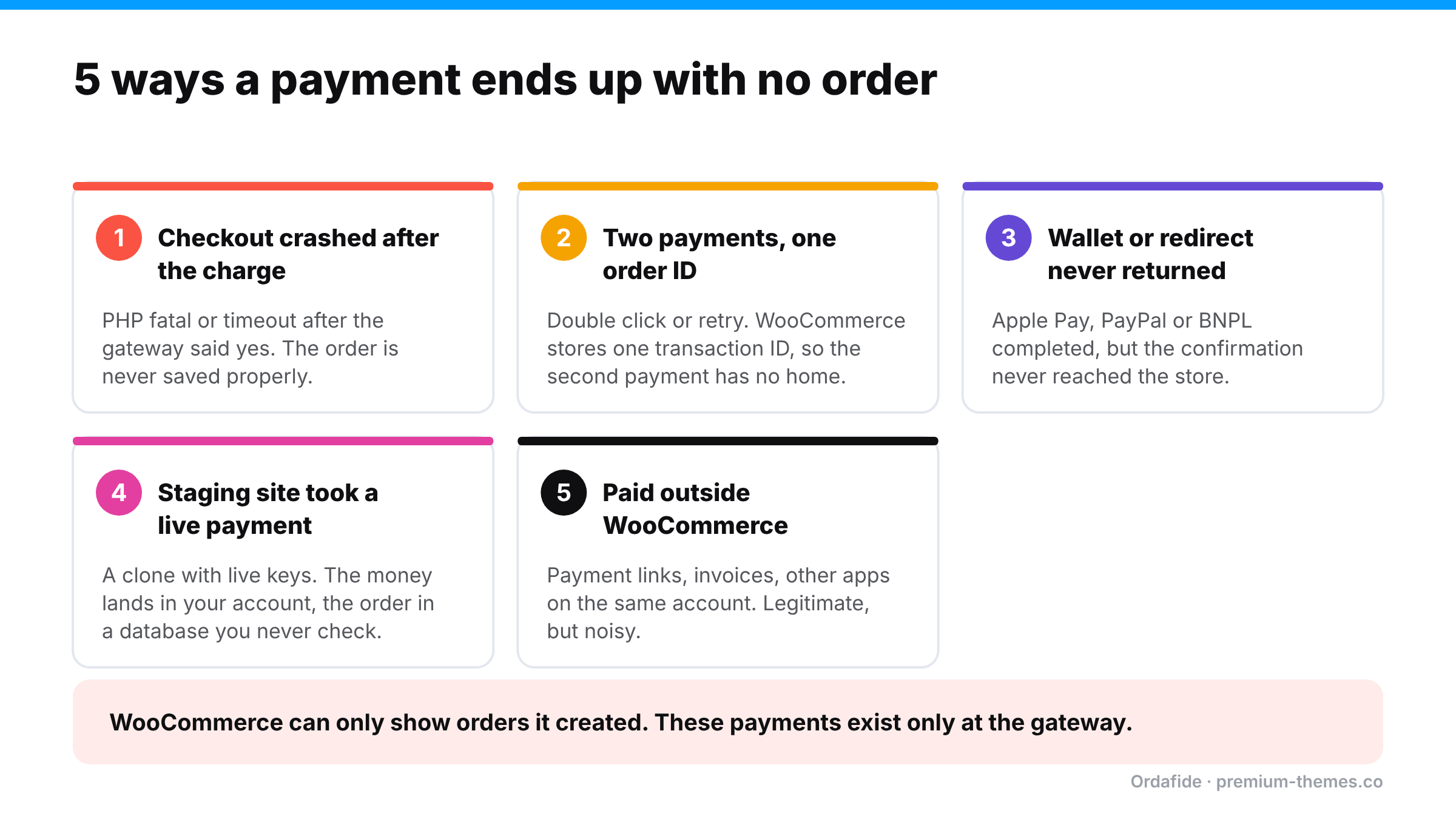
Five causes of orphaned payments in WooCommerce: checkout crashed after the charge, two payments on one order ID, wallet or redirect flow never returned, a staging site took a live payment, and payments taken outside WooCommerce. These exist only at the gateway.

1. The checkout crashed after the charge

The sequence inside checkout is: create or update the order, call the gateway, get a success response, then mark the order paid and redirect. If PHP hits a fatal error or `max_execution_time` after the gateway charged the card, the order may never be saved in a usable state. Slow checkouts (heavy plugins, external tax or shipping API calls, an overloaded server) make this more likely.

2. Two payments, one order ID

If a shopper pays twice (double click, a retry, a second tab), both payments can reference the same WooCommerce order. WooCommerce stores one transaction ID per order. The second payment is real money, but it has nowhere to live in your store.

3. A wallet or redirect flow that never came back

Apple Pay, Google Pay, PayPal, buy-now-pay-later and bank-redirect methods all involve the shopper leaving your page or a payment sheet appearing on top of it. If the return trip or the confirming webhook fails, the order can be left as a draft or auto-cancelled while the payment itself completes.

4. A staging or cloned site took the payment

This one surprises people. A staging copy of your store that still has live payment keys can take real payments from real customers (for example, if a search engine indexed it, or someone shared the wrong link). The payment lands in your live Stripe account. The order lands in the staging database, which you never look at.

The reverse also happens: a staging site registers its own webhook endpoint with your live gateway account, and events start going to the wrong place.

5. Payments taken outside WooCommerce

Payment links, invoices, manual charges in the gateway dashboard, or another app connected to the same Stripe or PayPal account all create gateway payments that WooCommerce never sees. These are usually legitimate, but they make reconciliation noisy. Unless you can tell them apart, a genuine orphan can hide among them.

How to find every orphaned payment (manual method)

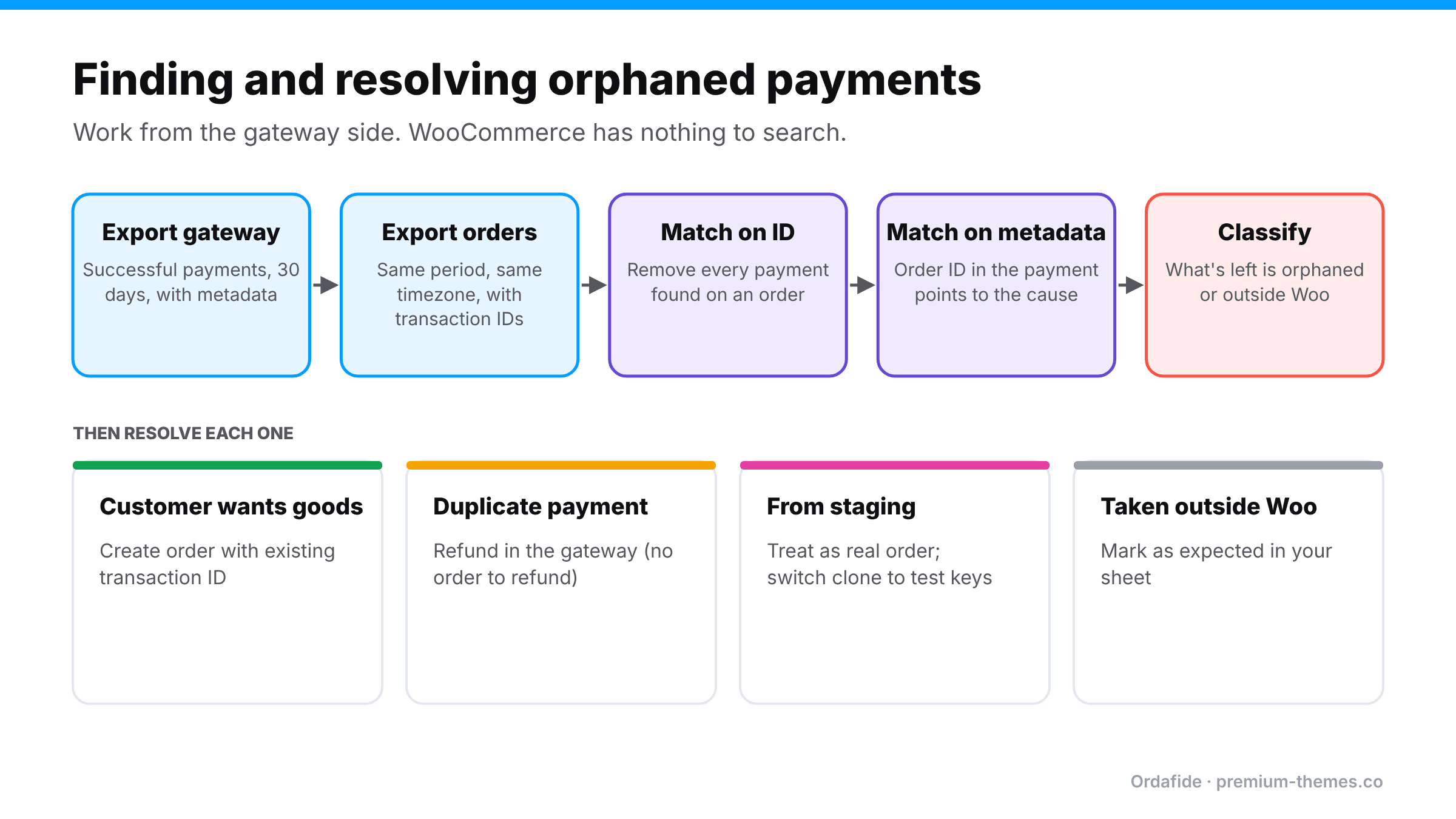
Process: export gateway payments, export WooCommerce orders, match on transaction ID, match leftovers on metadata, classify. Then resolve: create the order if the customer wants goods, refund duplicates in the gateway, treat staging payments as real orders and fix the clone, mark outside payments as expected.

You can’t search for something that doesn’t exist in WooCommerce, so you work from the gateway side.

Step 1: Export successful gateway payments for a period

From Stripe’s Payments list or PayPal’s activity reports, export successful payments for the last 30 days. Include the payment ID, amount, currency, customer email, created date and any metadata or description. The WooCommerce Stripe gateway normally writes the order ID and order number into the payment’s metadata or description, which is gold for matching.

Step 2: Export WooCommerce orders with transaction IDs

Export orders for the same period, including the transaction ID field, status, total and billing email. Make sure both exports use the same timezone.

Step 3: Match on transaction ID first

Every gateway payment whose ID appears on a WooCommerce order is accounted for. Remove those.

Step 4: Match the leftovers on metadata

For the remaining gateway payments, look at the order ID in the metadata. If it points to an existing order that has a different transaction ID, you’ve likely found two payments on one order (cause #2). If it points to an order ID that doesn’t exist in your live database, suspect a staging site (cause #4) or a crash before the order was saved (cause #1).

Step 5: Classify what’s left

Anything still unmatched is either a genuine orphan or a payment taken outside WooCommerce (cause #5). The description, payment link ID or invoice ID usually tells you which.

For a store doing a few hundred orders a month, this is an hour or two of spreadsheet work. It’s worth doing once even if you automate it later, because it shows you which causes affect your store.

Resolving each orphaned payment

Work from the most urgent: customers who paid and are waiting for something.

If the customer should receive goods:

  1. Contact them, confirm what they ordered (the gateway shows the amount, and sometimes line items in the description or metadata).
  2. Create the order manually in WooCommerce → Orders → Add order, add the items, set the customer, and set the status to Processing.
  3. Paste the gateway payment ID into the transaction ID field and add a private note explaining how you verified it. Don’t charge again.
  4. Check stock afterwards. A manually created order may need stock reduced by hand depending on how you add items.


If it’s a duplicate payment (the customer only wanted one order):

Refund it in the gateway. Since there’s no WooCommerce order to refund through, this is one of the few cases where refunding in the gateway dashboard is correct. Note it in the original order so your team knows.

If it came from a staging site:

Treat each one as a real order (as above), then fix the staging site immediately. Switch it to test keys, block it from search engines, put it behind a password, and remove any webhook endpoints it registered in your live gateway account.

If it was taken outside WooCommerce on purpose:

Mark it as expected in your reconciliation sheet so it stops showing up.

Fixing the cause

Cause Fix
Checkout crash after charge Check WooCommerce → Status → Logs for fatal errors at the payment time. Speed up checkout and remove slow external calls where possible. Raise PHP limits with your host if timeouts are frequent.
Two payments, one order See WooCommerce customer charged twice: slow checkouts, request replays and plugin retries.
Wallet / redirect flow failed Keep your gateway plugin updated, check its webhook delivery log, and test each wallet on real devices after updates.
Staging site with live keys Test keys on every non-production copy, always. Add it to your launch and clone checklist.
Payments outside WooCommerce Use a separate account, or consistent descriptions/metadata, so they’re easy to exclude.

Why this needs automation, not vigilance

Orphaned payments have three properties that make manual detection unreliable:

  1. They’re rare, so nobody builds a habit of checking for them.
  2. They’re invisible from WooCommerce, so the screens you look at every day can’t show them.
  3. They’re expensive when missed: a customer who paid and received nothing is the textbook case for a “product not received” chargeback, which costs you the sale, the goods if you ship late, and a dispute fee.

The only reliable approach is something that regularly asks the gateway “what did you collect?” and compares the answer with what WooCommerce recorded.

How Ordafide handles orphaned payments

Ordafide Order Integrity for WooCommerce comes in two parts, and this problem is a good illustration of why.

The free plugin audits what’s in your database. It catches the close relatives of orphaned payments, the ones where an order does exist:

  • Stuck payment: an order left on Pending payment or Failed even though the gateway wrote a payment reference on it.
  • Paid but cancelled: an order with a confirmed payment date sitting in Cancelled or Failed with nothing refunded.
  • Duplicate charge: one gateway payment reference attached to two orders, or the same customer charged twice for an identical basket within minutes.

What the free plugin can’t do, and doesn’t pretend to, is find an order that was never created. There’s no query for a row that doesn’t exist.

Ordafide Pro closes that gap with gateway reconciliation. It connects to Stripe, PayPal, Square, Mollie and Razorpay using read-only API keys, pulls the gateway’s own record of what was collected, and compares it with your orders. Its findings include:

  • Money with no order: exactly the orphaned payments described in this article
  • Paid orders with no payment
  • Amount disagreements between the order and the charge
  • Refunds missing in WooCommerce

Findings are sorted by money at risk and can trigger Slack, SMS, email or webhook alerts, so an orphaned payment surfaces the same day rather than when the customer’s patience runs out. Because the keys are read-only, Ordafide can’t capture, refund or void anything. It tells you what’s wrong and leaves the decision with you.

A quick prevention checklist

  • [ ] Every staging or local copy of the store uses test payment keys
  • [ ] Your live gateway account has only your production webhook endpoint registered
  • [ ] Checkout completes in a few seconds, even with all plugins active
  • [ ] Fatal errors around payment time are reviewed in WooCommerce logs
  • [ ] Wallet payments (Apple Pay, Google Pay) are tested after gateway plugin updates
  • [ ] Gateway payments are reconciled against orders, automatically or at least monthly
WooCommerce Customer Charged Twice? How to Find and Prevent Duplicate Orders and Double Charges

WooCommerce Customer Charged Twice? How to Find and Prevent Duplicate Orders and Double Charges

Few emails damage trust faster than “You charged my card twice.”

Double charges are rarely caused by one dramatic bug. They come from ordinary things: a slow checkout, an impatient click, a firewall that retries a request, a payment plugin that times out and tries again. Each one is rare. Across hundreds of orders a month, they add up, and each one that goes unnoticed becomes a refund request, a chargeback, or a one-star review.

This guide covers what causes duplicate orders in WooCommerce, how to find every one in your store, how to refund them without breaking your records, and how to prevent them.

Two different problems that look the same

It helps to separate two situations:

  1. Duplicate orders: two WooCommerce orders for the same basket. The customer may have been charged once or twice.
  2. Duplicate charges: the customer’s card was charged twice. There may be one order or two.

The worst case is a second charge with no matching order at all. WooCommerce has nothing to show you, so you only find it in your gateway dashboard, or when the customer’s bank statement arrives.

What causes double charges in WooCommerce

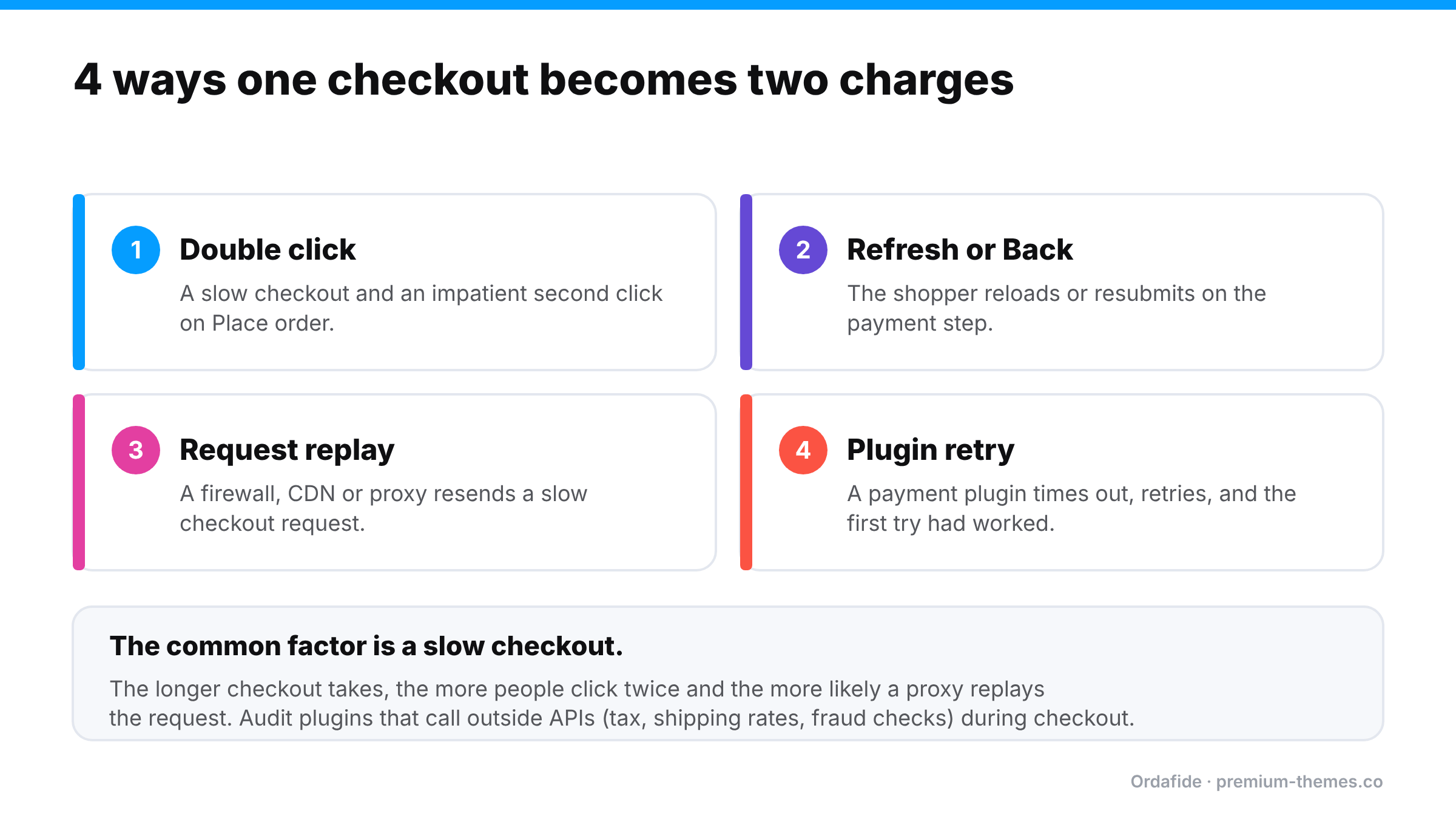
Four causes of WooCommerce double charges: a double click on Place order, a page refresh or Back on the payment step, a firewall or proxy replaying the request, and a payment plugin retrying after a timeout. All are made worse by a slow checkout.

Multiple clicks on “Place order”

On a slow checkout, shoppers click again. WooCommerce’s classic checkout blocks the form while it processes, but slow pages, custom themes, page builders and some checkout plugins can weaken that protection. A second click can create a second order and, depending on the gateway, a second payment.

The page was refreshed or the back button was used

A shopper who refreshes on the payment step, or goes back and resubmits, can create a second order with an identical basket.

Request replays by a firewall, proxy or host

Some firewalls, CDNs and reverse proxies resend a POST request when the first one is slow to respond, assuming it failed. If your checkout takes several seconds (often because of third-party API calls for tax, shipping rates or fraud checks), the replayed request can process as a brand-new checkout. Sucuri, in particular, has published guidance on configuring it for WooCommerce for this reason.

Payment plugin retries after a timeout

If the gateway responds slowly, a payment plugin may treat the request as failed and retry. If the first attempt actually succeeded, the customer is charged twice.

Subscription renewal retries

Renewal logic that retries a “failed” payment which actually went through can create two renewal orders and two charges.

One transaction ID attached to two orders

Occasionally a plugin conflict attaches the same gateway transaction to two different orders. You see two “paid” orders but only one payment. This inflates your revenue reports and can lead to shipping two parcels for one payment.

How to find every duplicate charge

Step 1: Look for near-identical orders

In WooCommerce → Orders, sort by date and look for the same customer email, same total and same items within a few minutes of each other. On a small store this is tedious. On a busy store, it isn’t realistic to do by hand every week.

Step 2: Check transaction IDs

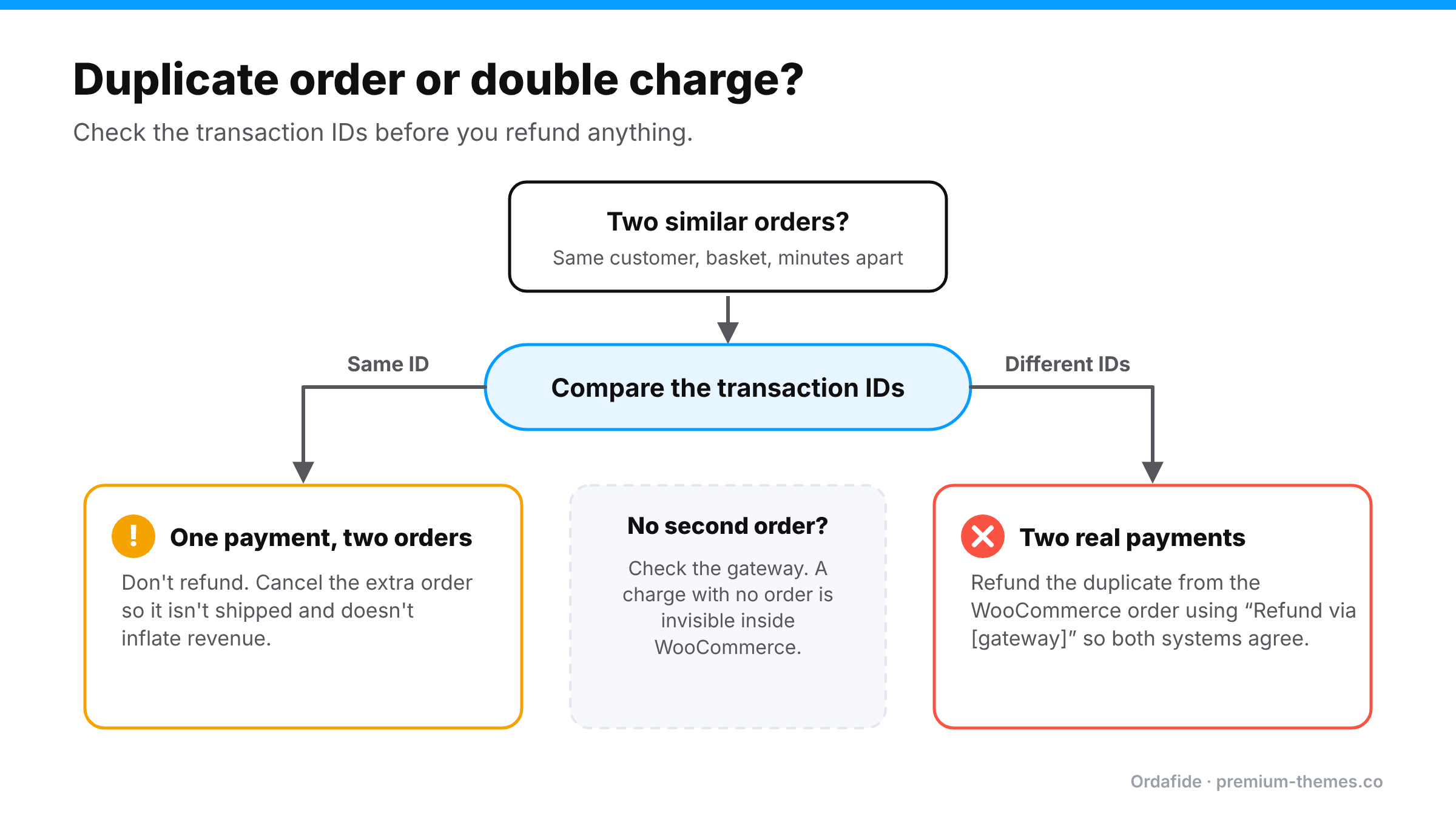
Open each suspected pair and compare the gateway transaction IDs. Two orders with the same transaction ID usually means one payment, two orders. Two orders with different transaction IDs means two real payments.

Step 3: Compare against the gateway

Search your Stripe or PayPal dashboard for the customer’s email. Count the successful payments for that basket and compare against the orders in WooCommerce. This is the only way to catch a second charge that never produced an order.

Step 4: Check your logs

‘WooCommerce → Status → Logs’ and your server access logs can show whether two checkout requests arrived close together. That tells you whether it was the shopper, a replay, or a plugin retry, and that decides the fix.

How to refund a double charge without breaking your records

Decision tree: if two similar orders share a transaction ID, it's one payment and two orders, so cancel the extra order. If they have different IDs, it's two real payments, so refund the duplicate from the WooCommerce order via the gateway. If there's no second order, check the gateway for a charge with no order.

The cleanest fix keeps WooCommerce and your gateway in agreement:

  1. Decide which order to keep. Usually the first one.
  2. Refund the duplicate from inside WooCommerce, using the Refund button on the duplicate order and choosing Refund via gateway. This sends the refund to the gateway and records it in WooCommerce, so stock, revenue and reports stay correct.
  3. Avoid refunding only in the gateway dashboard. A refund made directly in Stripe or PayPal may never be recorded in WooCommerce. The order still looks paid, your revenue is overstated, and stock may be wrong. (See how to reconcile WooCommerce with Stripe and PayPal.)
  4. Make sure the duplicate isn’t shipped. Once fully refunded, the order should move to Refunded. A fully refunded order still sitting in Processing is a classic way to ship an order you didn’t get paid for.
  5. Tell the customer. Let them know it was spotted, refunded, and how long their bank usually takes to show it.

How to prevent duplicate orders

  • Speed up checkout. The slower the checkout, the more people click twice and the more likely a proxy replays the request. Audit plugins that call external APIs during checkout.
  • Don’t break the built-in submit protection. If you’ve customized the checkout or use a page builder, test what happens when you double-click Place order on a slow connection (browser DevTools can throttle the network).
  • Review your firewall and CDN. Make sure nothing retries POST requests to checkout or payment endpoints.
  • Keep your gateway plugin updated. Retry and idempotency handling improves over time.
  • Test with block checkout and classic checkout separately if you’ve switched between them.
  • Monitor continuously. Prevention reduces duplicates. It doesn’t eliminate them.

Catch duplicates automatically

Ordafide Order Integrity for WooCommerce is a free plugin that scans your recent orders and flags problems in plain sentences, sorted by money at risk. Its Duplicate charge check looks for:

  • one gateway payment reference attached to two orders, and
  • the same customer charged twice for an identical basket within minutes.

It also runs a Refund mismatch check that catches orders marked Refunded with no refund record, refunds larger than the order total, and fully refunded orders still marked Processing, so a refunded duplicate doesn’t get shipped anyway.

The duplicate window and other thresholds are configurable, findings you’ve reviewed can be ignored, and the plugin never captures, refunds or voids a payment. Everything runs on your own server.

The one case a store-side scan can’t see is a charge with no order. Ordafide Pro covers it with read-only reconciliation against Stripe, PayPal, Square, Mollie and Razorpay, flagging money with no order, paid orders with no payment, and amount disagreements.

WooCommerce Order Stuck on Pending Payment (But the Customer Paid): Causes and Fixes

WooCommerce Order Stuck on Pending Payment (But the Customer Paid): Causes and Fixes

A customer emails you: I paid yesterday. Where’s my order?

You open WooCommerce and find their order sitting on Pending payment. Or worse, it says Cancelled, with a note that reads Unpaid order cancelled – time limit reached. Meanwhile, your Stripe or PayPal dashboard clearly shows the money arrived.

This is one of the most common, and most expensive, silent failures in WooCommerce. Nothing crashed. No error was shown. The store simply never found out that the payment succeeded.

This guide explains why it happens, how to confirm it, how to fix the orders you already have, and how to stop it from happening again.

Why WooCommerce thinks a paid order is unpaid

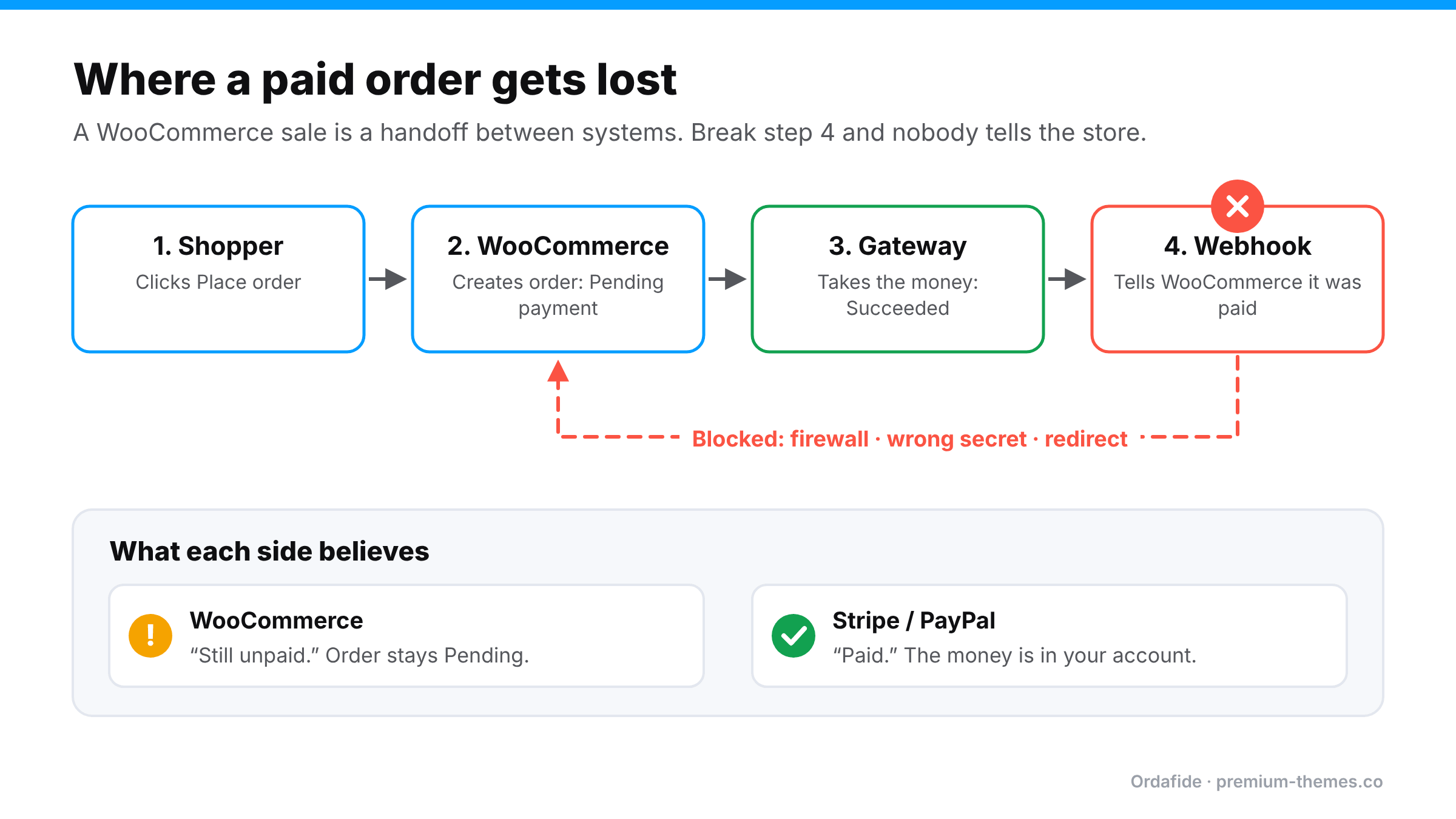
Flow diagram: shopper places order, WooCommerce creates a Pending payment order, the gateway takes the money, but the webhook back to WooCommerce is blocked, so WooCommerce still thinks the order is unpaid while the gateway shows it paid.

A WooCommerce sale isn’t one event. It’s a handoff between separate systems:

  1. The shopper’s browser submits checkout.
  2. WooCommerce creates the order in Pending payment.
  3. The payment gateway (Stripe, PayPal, Square, Mollie, Razorpay…) takes the money.
  4. The gateway tells WooCommerce the payment succeeded, either by redirecting the shopper back to your site or by sending a webhook (a server-to-server notification).
  5. WooCommerce moves the order to Processing and sends the confirmation email.

If step 4 fails, WooCommerce has no way of knowing that step 3 happened. Your store and your gateway now disagree, and WooCommerce doesn’t check.

The 6 most common causes

1. The webhook was blocked before it reached WooCommerce

This is the number-one cause. Something between the gateway and WordPress rejected the request:

  • Cloudflare Bot Fight Mode or a WAF rule challenging the gateway’s server
  • ModSecurity, Imunify360 or another host-level firewall rule
  • A security plugin that blocks or restricts the REST API or unknown POST requests
  • A redirect (HTTP to HTTPS, www to non-www) on the webhook URL. Webhooks generally don’t follow redirects
  • Maintenance mode returning a 503
  • Password protection on the site (common on staging copies that were pushed live)

2. The webhook secret is wrong

Each Stripe webhook endpoint has its own signing secret (it starts with ‘whsec_’). If you cloned the site, migrated hosts, restored a backup, or recreated the endpoint, the secret saved in WooCommerce may no longer match. The webhook arrives, the signature check fails, and the plugin rightly refuses to trust it, so the order never moves.

3. The shopper closed the tab before returning

With off-site or redirect payment methods (PayPal, iDEAL, some wallets and bank methods), the shopper pays on the gateway’s page and is then sent back to your store. If they close the tab, lose signal, or their session cookie doesn’t survive the trip, the “return” leg never happens. If the webhook is also broken, nothing else will tell WooCommerce.

4. The webhook arrived but PHP crashed while processing it

The gateway’s log shows the delivery as successful, yet the order didn’t change. A fatal error in a plugin hooked into the order status change, or a timeout, can kill the request halfway through. Check ‘WooCommerce → Status → Logs’ for fatal errors around the payment time.

5. The site URL is wrong

If the ‘home’ or ‘siteurl’ options still point at an old or staging domain, the webhook URL registered with your gateway may be pointing somewhere that no longer exists.

6. Background processing is stalled

Some gateway plugins hand part of their webhook processing to WooCommerce’s background queue, Action Scheduler, to avoid race conditions. If WP-Cron or Action Scheduler isn’t running, that queued work sits there and the order never advances. (We cover this in detail in WooCommerce order emails not sending.)

Why paid orders get cancelled: the “Hold stock” timer

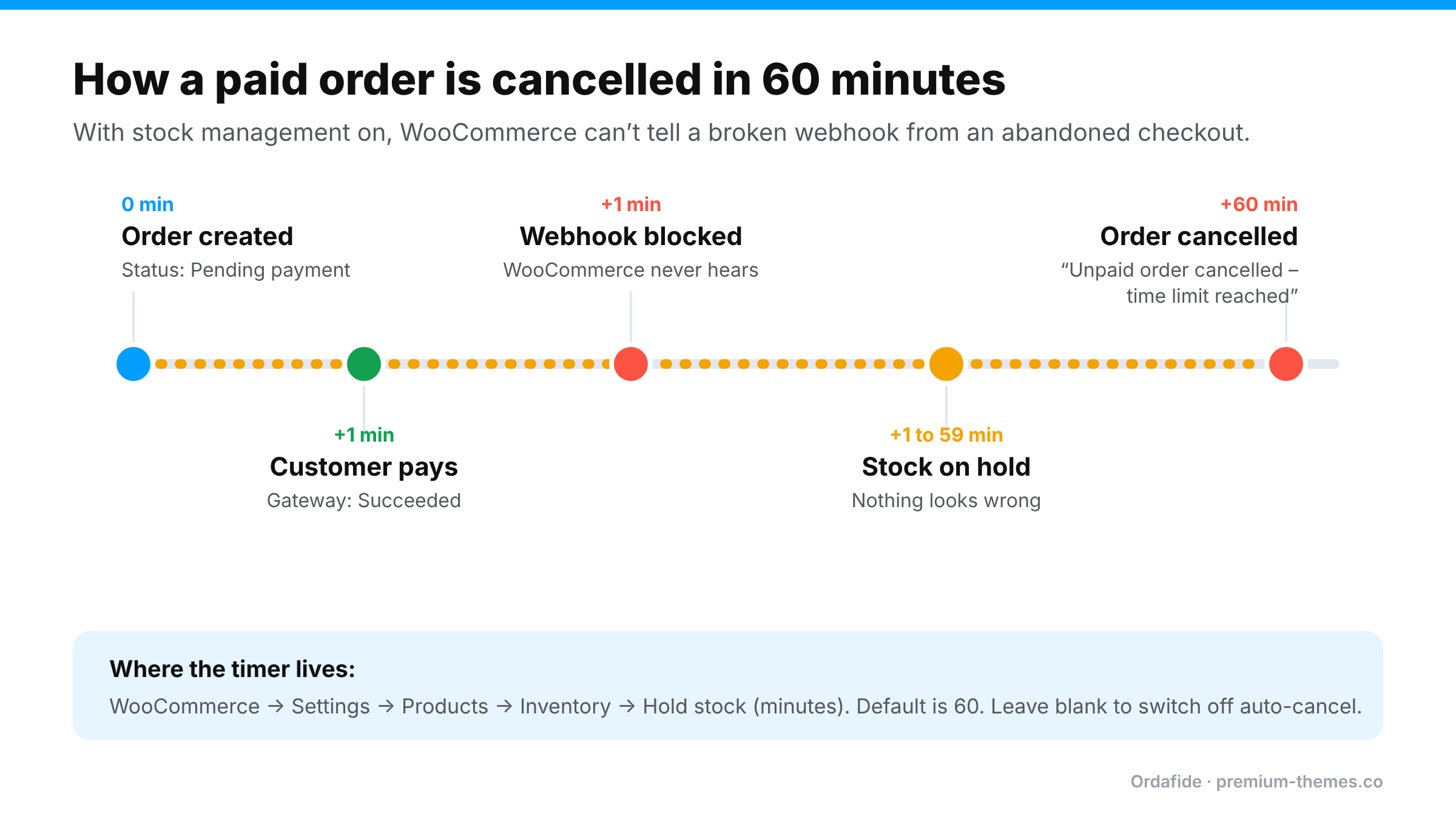
Timeline: order created at 0 minutes, customer pays at 1 minute, webhook blocked, stock held, and at 60 minutes WooCommerce cancels the order with the note 'Unpaid order cancelled - time limit reached'. The Hold stock setting is under WooCommerce, Settings, Products, Inventory.

This catches out a lot of store owners.

Go to WooCommerce → Settings → Products → Inventory and look at Hold stock (minutes). The default is 60. When stock management is turned on, WooCommerce reserves stock for unpaid orders for that many minutes. When the timer runs out, it cancels any order still on Pending payment and adds the note “Unpaid order cancelled – time limit reached.”

That’s sensible for genuinely abandoned checkouts. But when the webhook is broken, a paid order looks exactly like an abandoned one. An hour later, WooCommerce cancels it and releases the stock. The customer has paid for an order your store now considers dead, and it won’t appear in your Processing list to be shipped.

If you use slow payment methods (bank transfers, some buy-now-pay-later providers), consider raising this value. Leaving the field blank turns off automatic cancellation entirely.

How to confirm a stuck order was actually paid

Before you change anything, verify the money. Never mark an order paid based on a customer’s word alone.

  1. Open the order and look in the Order notes and custom fields for a gateway reference: a Stripe Payment Intent ID (‘pi_…’) or charge ID (‘ch_…’), a PayPal transaction ID, and so on. Many gateways write this reference to the order before the payment is confirmed.
  2. Search for that reference in your gateway dashboard. Confirm the status is Succeeded / Completed, and that the amount and currency match the order.
  3. Check the gateway’s webhook log. In Stripe, open the Webhooks section of the Dashboard (under Developers / Workbench) and inspect the endpoint’s recent deliveries. A failed delivery shows the HTTP status your site returned, which tells you where to look:
    • 403: a firewall or security plugin blocked it
    • 301 / 302: a redirect on the webhook URL
    • 400 / 401: usually a signature or secret problem
    • 500: PHP crashed; check the error logs
    • 503: maintenance mode or the server was overloaded
  4. Check WooCommerce logs under ‘WooCommerce → Status → Logs’, filtering by your gateway’s log source.

How to fix the orders you already have

Once you’ve confirmed the payment succeeded:

  • Resend the event from the gateway (Stripe lets you resend a webhook event from the event’s page). If the underlying problem is fixed, WooCommerce will process it normally and update the order itself. This is the cleanest option because the gateway plugin records everything as it would have originally.
  • Or update the order manually. Change the status to Processing and add a private note with the transaction ID and how you verified it. For a cancelled order, check stock levels afterwards, because cancelling released the stock and restoring the order may not reduce it again.
  • Send the customer their confirmation. From the order’s Order actions dropdown, choose Email invoice / order details to customer, and add a short apology. Customers who pay and hear nothing often open a dispute.

How to fix the root cause

  • Test the webhook URL. For the official WooCommerce Stripe plugin, the endpoint is shown in ‘WooCommerce → Settings → Payments → Stripe’ and usually looks like ‘https://yourstore.com/?wc-api=wc_stripe’. An unsigned test request should reach the plugin and be rejected with a 400, not blocked with a 403.
  • Allow gateway traffic through your firewall. Create Cloudflare/WAF rules that skip challenges for the webhook path, and check your security plugin’s REST API and firewall settings.
  • Re-enter the signing secret after any migration, clone or restore. For PayPal Payments, use the plugin’s option to resubscribe webhooks.
  • Make sure background jobs run. Check ‘WooCommerce → Status → Scheduled Actions’ for a pile of past-due actions.
  • Send a test event from the gateway (or the Stripe CLI) and confirm it returns a 200 and the order updates.

Catching this automatically instead of from angry emails

The painful part of this problem is not fixing it. It’s noticing. A broken webhook can quietly affect dozens of orders before a customer complains, and by then many of them have been auto-cancelled.

We built Ordafide Order Integrity for WooCommerce (free on WordPress.org) to scan your recent orders for exactly this pattern:

  • Stuck payment: orders left on Pending payment or Failed even though the gateway wrote a payment reference on them.
  • Paid but cancelled: orders with a confirmed payment date sitting in Cancelled or Failed, with nothing refunded.

Each finding is sorted by the money at risk and comes with the evidence and what to check in your gateway before you touch anything. If WooCommerce itself recorded a confirmed payment date on an order, Ordafide can restore it to Processing with one click. That change is written to an activity log and can be undone. It never captures, refunds or voids payments, and it sends no data to any third party.

For stores that need certainty rather than inference, Ordafide Pro adds read-only gateway reconciliation with Stripe, PayPal, Square, Mollie and Razorpay. It compares what your gateway actually collected against what WooCommerce recorded, including payments that never produced an order at all, and can alert you on Slack, SMS, email or webhook.

Quick checklist

  • [ ] Verify the payment in the gateway before changing any order
  • [ ] Check webhook delivery logs and note the HTTP status code
  • [ ] Fix the firewall, redirect, secret or URL that caused it
  • [ ] Confirm Action Scheduler isn’t backed up
  • [ ] Review Hold stock (minutes) for your payment methods
  • [ ] Restore affected orders and resend confirmation emails
  • [ ] Set up ongoing monitoring so you hear about it before customers do

*Have a stuck-order story we didn’t cover? Ask on the Ordafide support forum.