WooCommerce Troubleshooting
Handcrafted Beautiful Bootstrap HTML Templates for your Business Website.
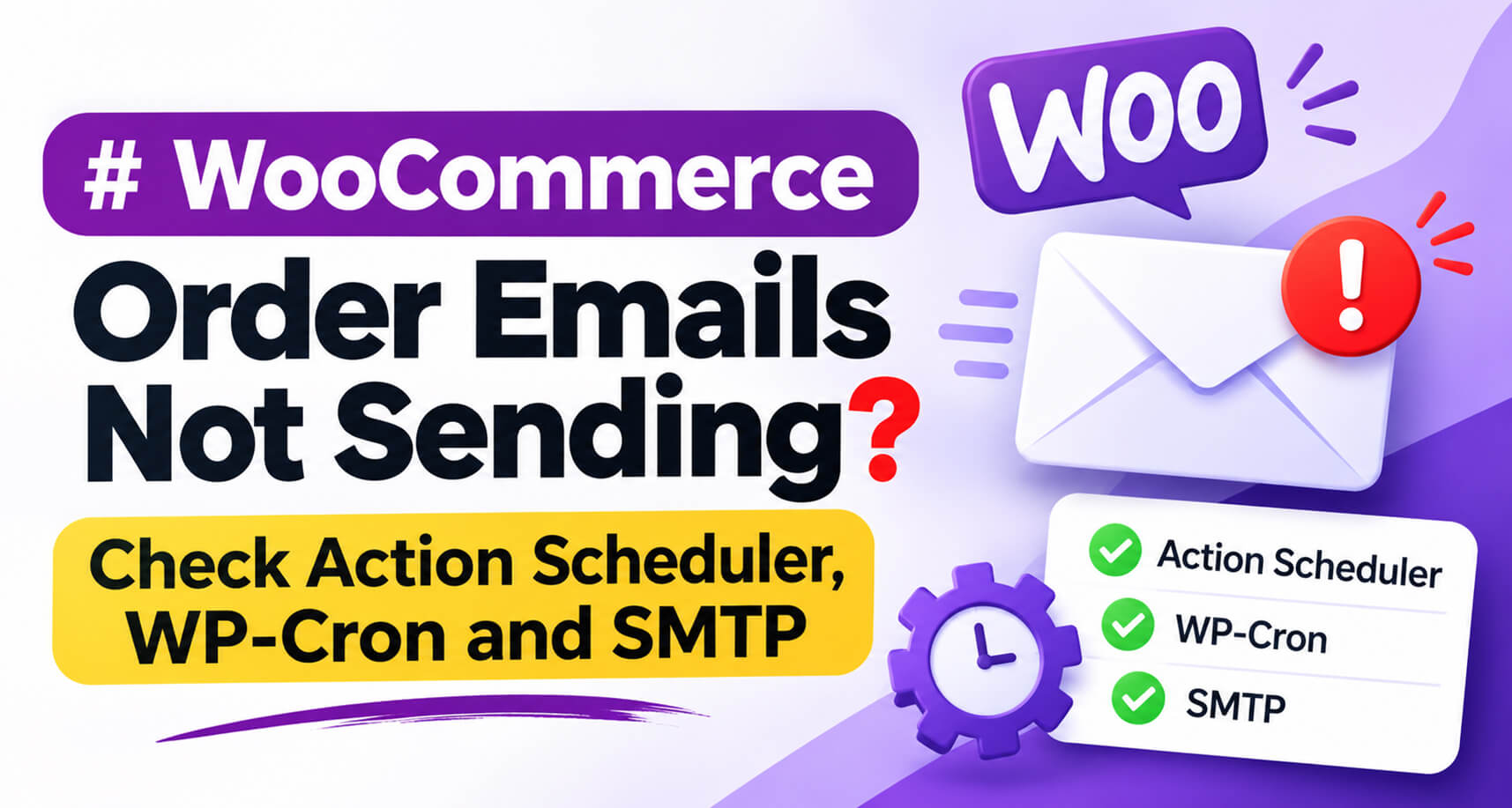
When WooCommerce order emails stop arriving, the store looks perfectly healthy. Orders come in. The dashboard loads. There’s no error message anywhere.
The only symptom is your inbox filling up with *”Did my order go through?”* messages, and sometimes chargebacks from customers who assumed they’d been scammed.
This guide walks through the causes in the order you should check them, from the quick settings mistakes to the silent background-queue failures that catch out even experienced developers.
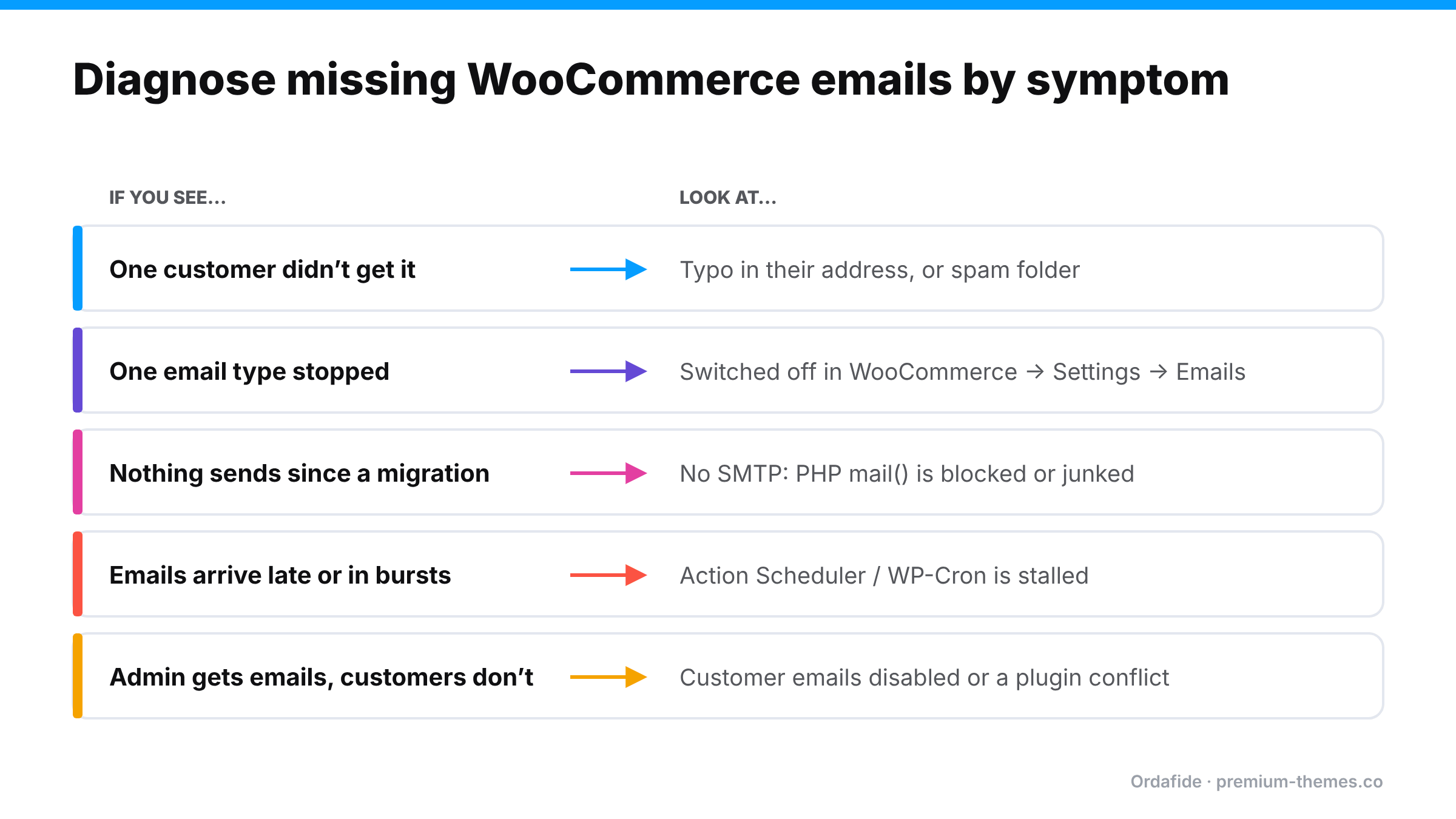
The pattern tells you where to look:
Go to WooCommerce → Settings → Emails. Every email (*Processing order*, *Completed order*, *Customer invoice*, *New order* and so on) has its own enable toggle. Plugins, staging tools and well-meaning colleagues sometimes switch these off.
While you’re there, check the “From” address. If it uses a domain your mail service isn’t authorized to send for, receiving servers may reject or junk the message.
By default, WordPress sends mail with PHP’s `mail()` function. Many hosts restrict it, and messages sent this way often fail SPF/DKIM checks and land in spam, or are silently discarded with no error.
The fix is to send through a proper mail provider over SMTP or an API using an SMTP plugin, and to set up SPF, DKIM and DMARC records for your sending domain. Then send a test email from the SMTP plugin.
If test emails work but order emails still don’t, keep going. The problem is upstream of the mail server.
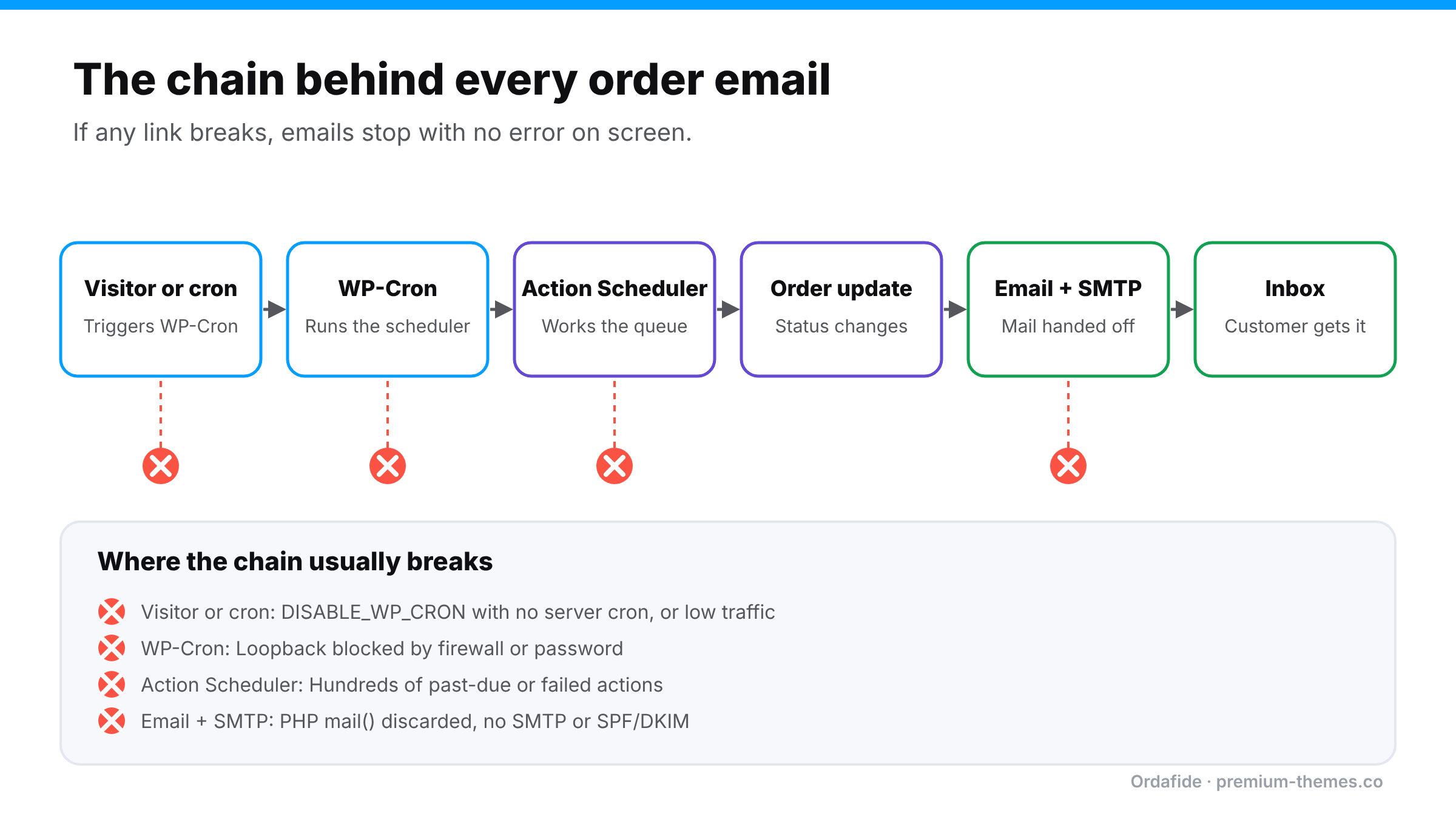
WooCommerce relies on Action Scheduler, a background job queue, for a lot of order-related work, and some payment gateways hand parts of their payment confirmation to it. Action Scheduler is triggered by WP-Cron. And WP-Cron, by default, only runs when someone visits your site.
When this chain breaks, work queues up and doesn’t run. Order status changes that depend on queued work don’t happen, so the emails tied to those status changes don’t send either. There is no error and nothing on screen changes.
Go to WooCommerce → Status → Scheduled Actions and open the Pending tab.
1. Set up a real cron job on your server (most hosts offer this in the control panel) to run WP-Cron every few minutes, for example:
‘*/5 * * * * wget -q -O – “https://yourstore.com/wp-cron.php?doing_wp_cron” >/dev/null 2>&1’
or, with WP-CLI: ‘wp cron event run –due-now’
2. Then disable visitor-triggered cron with ‘define( ‘DISABLE_WP_CRON’, true );’ so the two don’t compete.
3. Clear the backlog by running it, not deleting it. Pending actions may include real customer emails and order updates. With WP-CLI you can run ‘wp action-scheduler run’. On very large backlogs, ask your host for help.
4. Fix loopback if Site Health reports it failing: whitelist your own server IP in the firewall, or remove basic-auth from production.
5. Investigate failed actions and fix the plugin causing them.
Once the cause is fixed, the emails that never went out won’t magically send themselves. For each affected order, open it, choose Order actions → Email invoice / order details to customer (or *Resend new order notification* for the admin copy), and update.
The hard part is working out *which* orders were affected. WooCommerce doesn’t give you an easy per-order record of whether each customer email was actually handed to your mail server.
Ordafide Order Integrity for WooCommerce() is a free plugin that watches the two things that make everything else fail at once:
Its Customer never emailed check flags paid orders where no customer email reached your mail server, or where every attempt was rejected. A loopback test checks whether your site can call itself (it only calls your own site, and only when you press the button), and an optional weekly summary email tells you when there’s something to look at.
Resending is one of only two repairs the plugin can make, and every resend is written to an activity log. Ordafide sends no data to third parties and has no account or licence key.
If you’d rather be alerted the moment the queue stalls instead of finding out in a weekly summary, Ordafide Pro(https://www.premium-themes.co/ordafide-order-integrity-for-woocommerce/) adds Slack, SMS, email and webhook alerts, plus synthetic checkout monitoring every 15 minutes.
Why are my WooCommerce order emails not sending?
The most common causes are disabled email settings, WordPress using PHP ‘mail()’ without SMTP, and a stalled background queue (Action Scheduler / WP-Cron) that stops order processing from completing.
What does “past-due actions” mean in WooCommerce?
Scheduled actions that should already have run but haven’t. A large number means WP-Cron or Action Scheduler isn’t being triggered, often because ‘DISABLE_WP_CRON’ is set without a server cron, or loopback requests are blocked.
Should I delete past-due scheduled actions?
Generally no. They can include real customer emails and order updates. Fix the cause and let them run.
How do I know which customers didn’t get their confirmation email?
WooCommerce doesn’t keep an easy per-order delivery record. A plugin that logs each email against its order, such as Ordafide, shows exactly which orders were never emailed and lets you resend in one click.