WooCommerce Troubleshooting
Handcrafted Beautiful Bootstrap HTML Templates for your Business Website.

Your WooCommerce sales report says one number. Your Stripe balance says another. Your PayPal activity says a third. Your accountant wants to know which one is true.
Here’s the uncomfortable fact behind that gap: WooCommerce records what it believes happened. Your payment gateway records what actually happened. They’re two separate sources of truth, and nothing in WooCommerce continuously checks that they agree.
Most of the time they do. When they don’t, the difference is usually real money: customers who paid and never got their order, refunds your reports don’t know about, or stock that’s wrong because a refund never reached WooCommerce.
This guide gives you a practical reconciliation process you can run monthly (or weekly on busier stores), the five mismatches to look for, and how to fix each one.
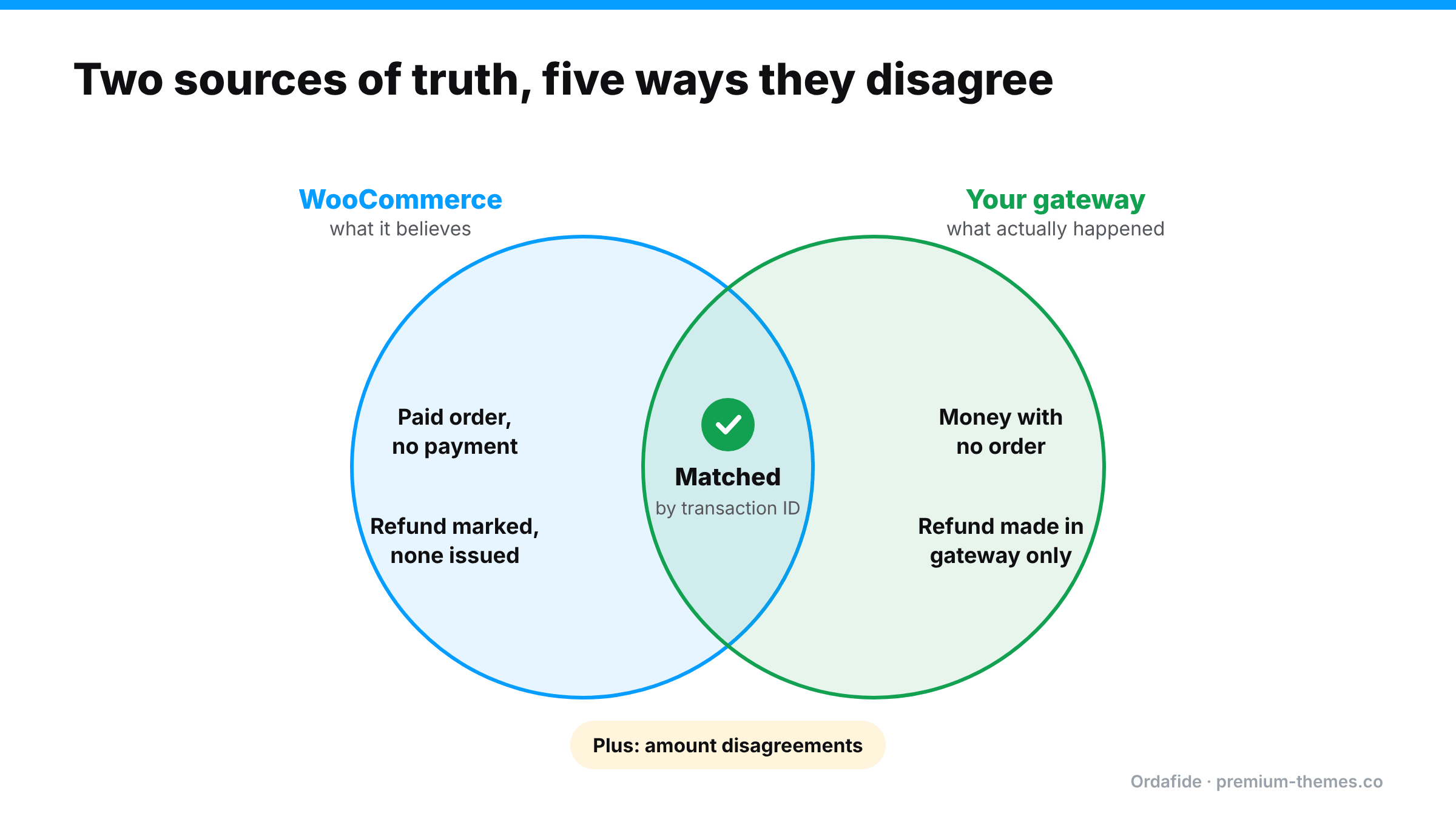
The gateway shows a successful payment, but there’s no corresponding WooCommerce order. This is the hardest to find, because WooCommerce has nothing to show you. It’s invisible by definition from inside the store. Causes include a checkout that crashed after the charge, or a duplicate charge whose order was never created.
Fix: contact the customer, then either create the order manually (so you fulfil it) or refund the payment.
WooCommerce shows an order as Processing or Completed, but there’s no matching successful payment in the gateway. Causes include an order manually set to Processing by mistake, a payment that was authorized but never captured, or one transaction attached to two orders.
Fix: stop fulfilment until you’ve confirmed payment, then contact the customer or cancel.
The order total in WooCommerce doesn’t match what the gateway collected. Small persistent differences often come from currency rounding. Bigger ones usually come from a coupon, fee or shipping plugin misfiring, or a manual order edit after payment.
Fix: decide which figure is right, then correct the order (or issue a partial refund) and add a note explaining why.
Someone refunded in Stripe or PayPal directly, and WooCommerce still shows the order as fully paid. Your revenue is overstated, stock that came back was never restocked, and the order could even be shipped again.
Fix: record the refund in WooCommerce. Use Refund manually on the order (so WooCommerce doesn’t try to send the money a second time), tick Restock refunded items if the stock came back, and add a note referencing the gateway refund ID.
These you can catch without the gateway at all: an order set to Refunded by hand with no refund actually issued (the customer never got their money), refunds larger than the order total, and fully refunded orders still sitting in Processing.
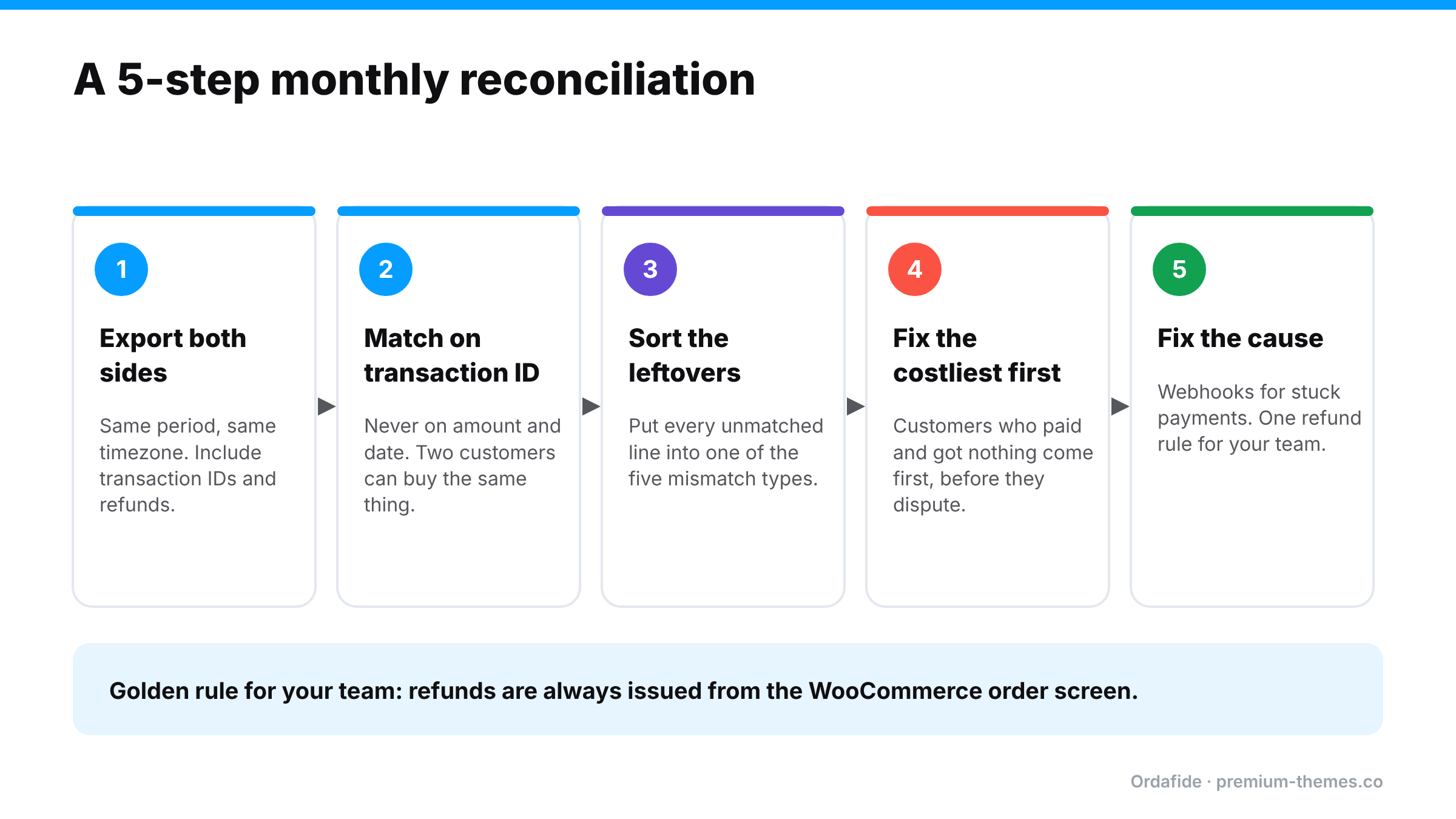
You can do this with exports and a spreadsheet. It takes time, but it works.
Use the same timezone on both sides, or orders near midnight will appear to be missing.
Match each gateway payment to a WooCommerce order using the transaction ID WooCommerce stores on the order. Matching by amount and date produces false matches whenever two customers buy the same thing.
Anything that doesn’t match cleanly belongs in one of the five categories above. Note the amount at stake for each.
Customers who paid and received nothing come first. They’re the ones about to raise a dispute.
A mismatch is a symptom. If you find several stuck payments, check your webhooks (see WooCommerce order stuck on pending payment). If you find gateway-only refunds, agree a rule with your team: refunds are always issued from the WooCommerce order screen.
Start free. Ordafide Order Integrity for WooCommerce runs the store-side checks automatically: stuck payments, paid-but-cancelled orders, duplicate charges, refund mismatches and order totals that don’t add up. Findings are sorted by money at risk, each with evidence and next steps, and the plugin sends nothing off your server.
Then reconcile against the gateway. Ordafide Pro connects to Stripe, PayPal, Square, Mollie and Razorpay with read-only API keys and continuously compares what the gateway collected against what WooCommerce recorded. It detects:
Pro also keeps a full event log with CSV/JSON audit export over any date range (with secrets removed), which is useful to hand to an accountant. Because credentials are read-only, Ordafide can’t capture, refund or void anything at the gateway. It tells you what’s wrong and links you to the order.
| Store size | Store-side checks | Gateway reconciliation |
|---|---|---|
| Under ~100 orders/month | Weekly | Monthly, manually |
| Hundreds of orders/month | Continuous (automated) | Weekly or continuous |
| Thousands/month, or multiple gateways | Continuous | Continuous, with alerts |
| Agencies managing client stores | Continuous on every store | Continuous, with per-store alerts |
Why doesn't my WooCommerce revenue match Stripe?
Common reasons are failed webhooks (payments or refunds WooCommerce never heard about), refunds issued directly in Stripe, Stripe fees (WooCommerce shows gross, Stripe payouts are net), timezone differences, and plugins that changed order totals.
If I refund in Stripe, does WooCommerce update?
Sometimes. It depends on your gateway plugin and whether its webhook is working. Refunding from the WooCommerce order screen is the reliable way to keep both in sync.
How do I find payments that have no WooCommerce order?
Only by comparing the gateway's payment list against your orders, either manually by transaction ID or with a reconciliation tool like Ordafide Pro.
Is it safe to give a plugin my Stripe API key?
Use a restricted, read-only key wherever your gateway supports it. Ordafide Pro is designed for read-only credentials and cannot move money.