Tag Archives: Refunds

How Much Should You Refund? Returns on Coupon, Discounted, BOGO and Free-Shipping Orders

Returning a full-price item from a single-item order is easy: refund what they paid.

Now try this one. A customer used a 20% off coupon on a three-item order that qualified for free shipping over $75. They return one item. The remaining two now total less than $75. How much do you refund?

Or: a buy-one-get-one-free deal, and they return the paid one. Or the free one. Or a gift-with-purchase promotion where they keep the gift and return the purchase.

These questions trip up store owners and support teams every day, and the answers you give can quietly cost you money (over-refunding) or customers (under-refunding and arguing). This guide works through the common discount scenarios, the principles behind fair refunds, and how to make the right amount the default.

This is practical guidance, not legal advice. Consumer law in some places sets rules on refund amounts, especially for faulty goods and statutory withdrawal rights. Check the rules where you sell.

The core principle: refund what was actually paid for the item

The fairest, most defensible rule is simple:

Refund the amount the customer actually paid for the returned item, after its share of any discount, plus or minus any shipping your policy says.

Not the list price. Not the order total divided by the number of items. The item’s share of what was paid.

The good news: WooCommerce already works this way for coupons. When a coupon is applied, WooCommerce spreads the discount across the eligible line items and stores each line’s subtotal (before discount) and total (after discount). The refund form pre-fills from the line total, the discounted amount actually paid for that line. As long as you refund through the line items rather than typing an amount, you start from the right number.

Scenario 1: Percentage coupon on the whole order

Order: 3 items at $40 each = $120. Coupon 20% off → $24 discount. Paid: $96.
Return: 1 item.

WooCommerce allocates the discount to each line: each item’s line total is $32.
Refund: $32 (plus that line’s tax, if any).

Common mistake: refunding $40, the shelf price. That over-refunds by $8 per item, and on a busy sale weekend that adds up.

Scenario 2: Fixed-amount coupon on the cart
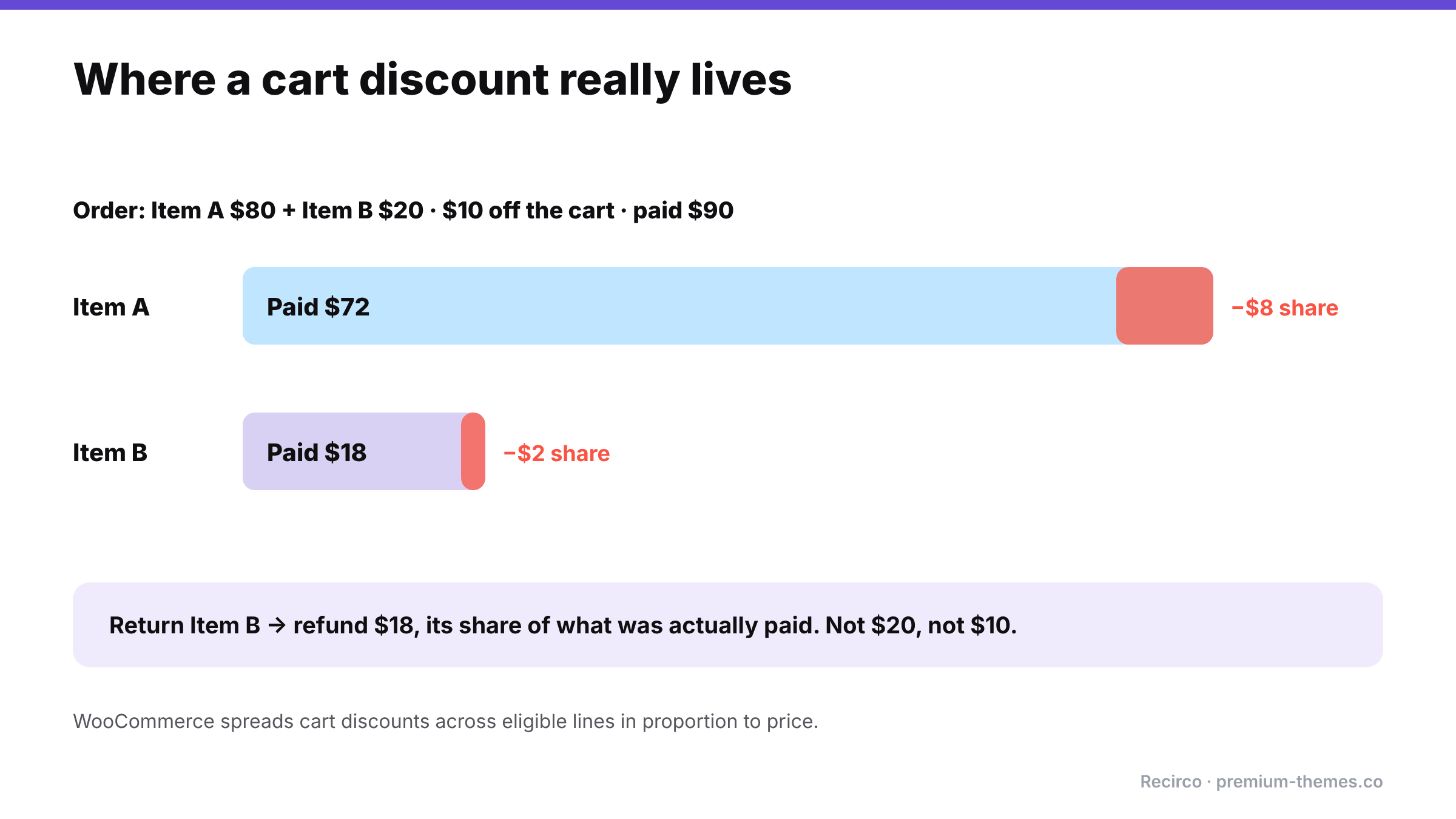
Diagram: a $10 cart discount on an $80 item and a $20 item is spread proportionally, $8 to the first and $2 to the second, so the items cost $72 and $18. Returning the $20 item refunds $18.

Order: Item A $80 + Item B $20 = $100. Coupon $10 off cart. Paid: $90.
Return: Item B.

WooCommerce spreads a fixed cart discount across the eligible items in proportion to their price: A gets $8 of the discount, B gets $2. B’s line total: $18.
Refund: $18.

Why proportional is fair: if you gave B the whole $10 discount, you’d refund only $10 and the customer would feel cheated. If you gave none, you’d refund $20 and lose the $2 they never paid.

Scenario 3: The return breaks a minimum-spend discount

Order: 3 items at $30 = $90. Coupon “$15 off orders over $75”. Paid: $75.
Return: 1 item. The remaining $60 no longer qualifies for the coupon.

Two defensible approaches:

  • Proportional (simplest, most common): refund the returned line’s discounted amount: $25. The customer keeps the full benefit on the remaining items.
  • Recalculate (strict): the customer would have paid $60 for the two items they kept, without the coupon. They paid $75. Refund $15.

The strict approach is logically defensible, but customers often see it as a penalty, and it generates complaints. Many stores choose proportional for goodwill and simplicity. Whichever you choose, put it in your return policy (“Discounts that depended on a minimum spend may be adjusted if items are returned”) so it isn’t a surprise.

Scenario 4: Buy one, get one free (BOGO)

Order: 2 items at $30, “buy one get one free”. Paid: $30.
Return: 1 item.

How the BOGO plugin recorded the discount decides the default:

  • If it put a $30 line and a $0 line, refunding the free one gives $0 and refunding the paid one gives $30. The customer effectively gets the “free” one for nothing either way.
  • If it spread the discount (two lines at $15), each item refunds at $15.

Fair approach: treat BOGO as 50% off each item. Returning one item refunds half of what was paid ($15). The customer keeps one item for $15, which is fair since they no longer meet the “buy two” condition.

Policy tip: state it plainly: “Items bought on multi-buy offers are refunded at the price paid per item under the offer.”

Scenario 5: Bundles and kits

Order: “Starter kit” bundle of 3 products for $99 (worth $130 separately).
Return: 1 product from the kit.

If the bundle is sold as a single product, you either accept only whole-kit returns, or refund a defined portion. If it’s sold as separate line items with a bundle discount, refund the returned line’s share of the discounted price, like Scenario 2.

Policy tip: many stores make bundles returnable only as complete bundles. If that’s your rule, enforce it by making individual bundle components non-returnable through your returns system rather than arguing case by case.

Scenario 6: Gift with purchase

Order: $70 serum + free travel bag (gift with purchases over $60). Paid: $70.
Return: the serum, keeping the bag.

Fair approaches: ask for the gift back too, or deduct its value from the refund, or let it go for low-value gifts. Most stores let low-value gifts go to avoid friction, and state that gifts over a certain value must be returned with the qualifying item.

Scenario 7: Free shipping threshold

Order: 2 items totalling $80 with free shipping over $75. Paid: $80.
Return: a $30 item. The kept item ($50) wouldn’t have qualified.

Options:
– Ignore it (most common): shipping was free, nothing to adjust.
– Deduct standard shipping from the refund, since the customer no longer qualifies. This is legitimate if stated in your policy, but it’s a frequent source of complaints.

Also decide whether you refund shipping paid by the customer when they return everything. In the EU, a consumer withdrawing from a distance contract is generally entitled to a refund of the standard delivery cost (not premium delivery they chose). Elsewhere it’s your policy choice.

Scenario 8: Store credit or gift card used as payment

If part of the order was paid with store credit or a gift card, refund in the same proportions by default: card portion back to card, credit portion back as credit. That stops customers converting non-refundable credit into cash through returns.

Why getting this right matters more than it looks

The difference between refunding list price and refunding the price paid seems small on one return. Across a sale season it isn’t.

Suppose you run a 25%-off Black Friday sale, sell 2,000 items averaging $40, and see a 15% return rate: 300 returned items. If each is refunded at the $40 list price instead of the $30 actually paid, you’ve given away $3,000 you never received. That money comes straight out of margin, on top of the cost of handling the returns.

The opposite mistake costs too. Under-refund (deduct discounts the customer doesn’t understand, or argue over pennies) and you buy yourself support tickets, bad reviews and occasionally a “credit not processed” chargeback, which costs a dispute fee on top of the refund you end up giving anyway.

Consistent, explainable rules avoid both.

Explaining an adjusted refund to the customer

When your policy means refunding less than the customer expects, say so before they’re surprised by their bank statement. A short note works:

“We’ve refunded $25.00 for the returned item. That’s the amount you paid for it after your 20% discount code. The other two items keep their discount. Your refund should appear within 5–10 working days.”

Customers rarely argue with a clear explanation. They argue with a number they don’t understand.

Turning rules into defaults
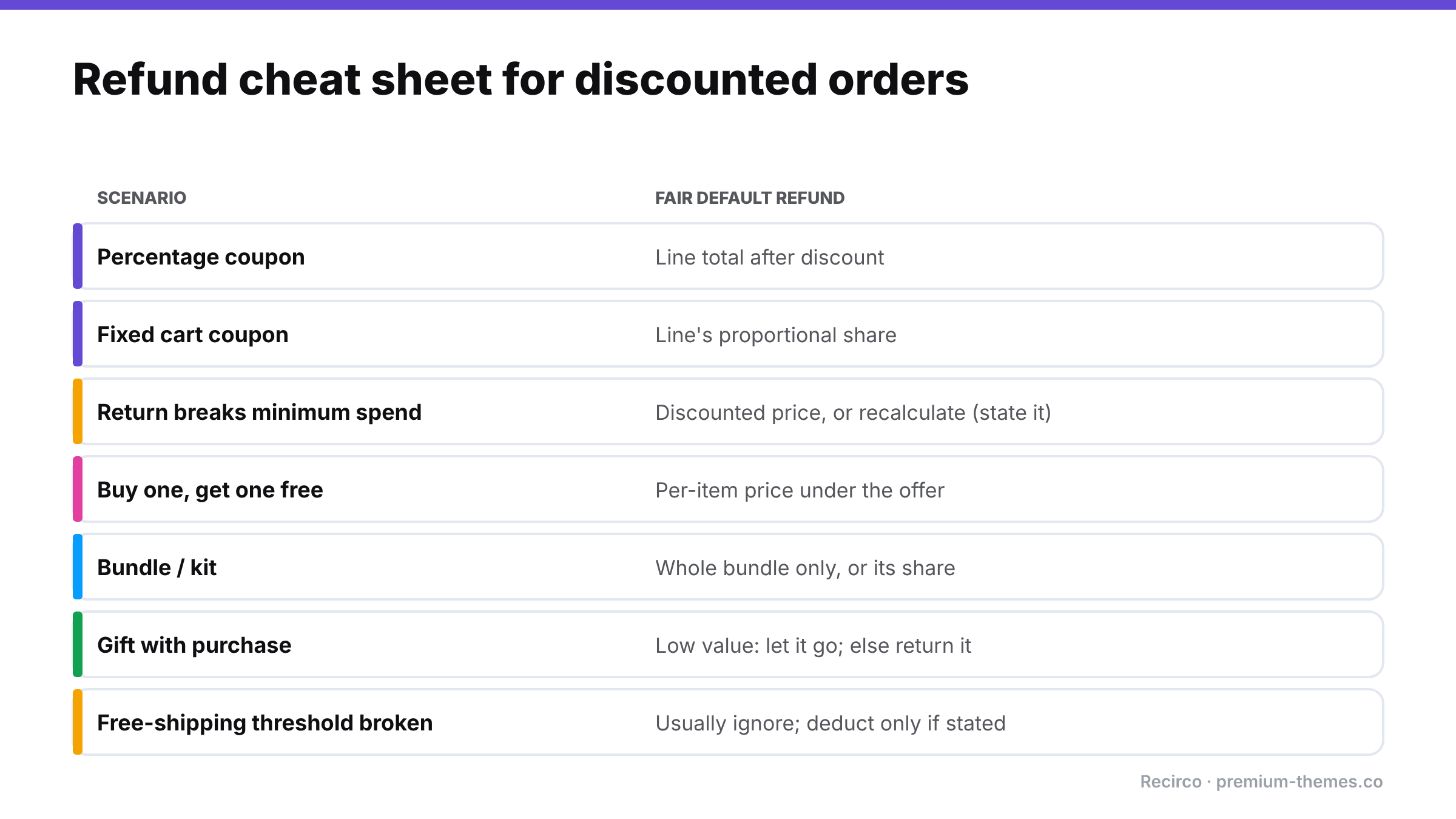
Refund cheat sheet: percentage coupon, refund the line total after discount; fixed cart coupon, the line's proportional share; broken minimum spend, the discounted price or a stated recalculation; BOGO, the per-item price under the offer; bundles, whole bundle only or its share; gifts, let low-value ones go; free-shipping threshold, usually ignore.

The scenarios above are manageable when one experienced person handles every return. They fall apart when several people handle returns, each doing their own arithmetic.

Three practices keep refunds consistent:

  1. Always refund through line items, never by typing an amount into the total. WooCommerce’s line totals already include coupon allocation, and the refund form splits net and tax.
  2. Write the edge cases into your policy: minimum-spend discounts, BOGO, bundles, gifts, free-shipping thresholds. Then support can point to it.
  3. Create refunds from the return record, so the system that knows which units came back also creates the refund for those units.

How Recirco helps

Recirco – Returns & Exchanges for WooCommerce is a free returns portal and approval queue that takes the arithmetic out of individual hands:

  • Customers return specific items and quantities, chosen from their order in My Account → Returns. Only eligible units are offered.
  • Refunds are created from the return as genuine WooCommerce refunds for the returned lines, with net and tax split from the original line, so they start from the discounted amount actually paid, not the shelf price. You can still adjust the amount before refunding when your policy says so (for example, deducting a broken minimum-spend discount). Send it through the gateway or record it manually.
  • Excluded products and categories, so bundles you only accept as complete sets, final-sale items or gifts can be made non-returnable in the portal itself.
  • Duplicate-refund prevention, so the same returned unit can’t be refunded twice.
  • Notes: internal for your team, or sent to the customer, so you can explain any adjustment in writing.
  • Policy text shown in the portal, so customers see your rules on discounts and gifts before they submit.

Recirco Pro adds exchanges (often the best answer for discounted items, since a size swap keeps the original deal intact), store credit with optional bonus, and conditional approval rules to flag returns from high-value or heavily discounted orders for a closer look.

Policy wording you can adapt

Returns on discounted and promotional orders

  • Refunds are for the amount you paid for each item after any discount.
  • If a discount depended on a minimum spend or number of items and your return takes the order below it, [we’ll still refund the full amount you paid for the returned items / the refund may be adjusted to reflect the discount you no longer qualify for].
  • Items bought on multi-buy offers (e.g. buy one, get one free) are refunded at the price paid per item under the offer.
  • Bundles can only be returned complete.
  • Free gifts worth more than [$20] must be returned with the item that qualified for them.
  • Free shipping is [not deducted / deducted at our standard rate] if a return takes your order below the free-shipping threshold.
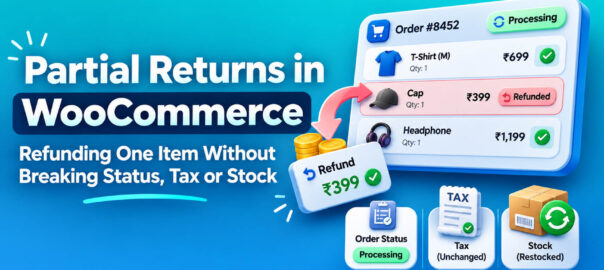
Partial Returns in WooCommerce: Refunding One Item Without Breaking Status, Tax or Stock

A worked example

Full returns are simple: everything comes back, everything is refunded, the order is closed.

Most real returns aren’t like that. A customer orders three shirts and sends one back. They order a set and return one piece. They keep the jacket but return the belt they bought with it. Partial returns are the everyday reality of returns, and they’re where WooCommerce’s refund system surprises people most.

Store owners on the WordPress.org support forums regularly run into the same confusions: a partial refund that leaves the order stuck On hold, a status change that suddenly refunds the whole order, a second refund email the customer didn’t expect, tax reports that don’t match. This guide explains how WooCommerce actually handles partial refunds, the traps to avoid, and a clean process for partial returns.

How WooCommerce handles a partial refund

On the order screen, clicking Refund opens a refund form against the order’s line items. For a partial refund you:

  1. Enter the quantity being refunded on each line (for example, 1 of 3 shirts).
  2. WooCommerce fills in the line total and tax for that quantity. You can override them.
  3. Optionally enter amounts against shipping and fee lines.
  4. Tick Restock refunded items if the goods are coming back into sellable stock.
  5. Add a reason (stored on the refund, optionally visible to the customer).
  6. Choose Refund via [gateway] to send the money, or Refund manually to only record it.

WooCommerce then creates a refund record linked to the order and to those specific line items.

What it doesn’t do for a partial refund is change the order status. That’s deliberate, and it’s the source of most confusion.

Trap 1: The status doesn’t change

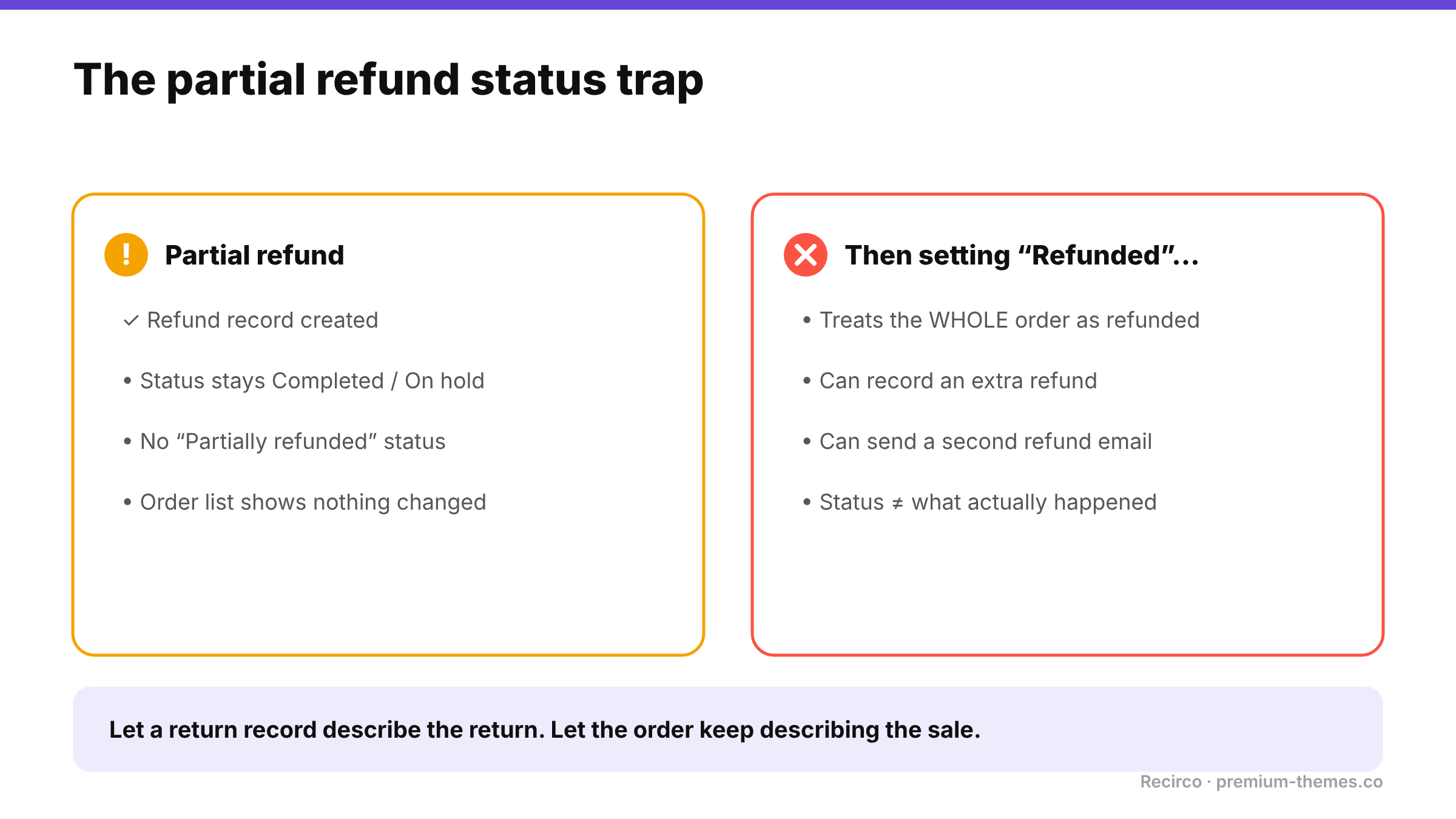
Partial refunds create a refund record but leave the order status unchanged, with no partially refunded status. Then setting the status to Refunded treats the whole order as refunded, can record an extra refund and send a second email. Use a return record to describe the return.

A partially refunded order keeps whatever status it had: Processing, Completed, or On hold. There’s no built-in “Partially refunded” status.

In one WordPress.org thread, WooCommerce support confirmed this behaviour with a bank-transfer order: after a partial refund, the order stayed On hold. The store owner expected it to move on and couldn’t make it change without refunding everything.

Why it matters: anyone scanning the orders list sees a normal Completed order and has no idea part of it was returned. Reporting by status undercounts refunds.

What to do:

  • Look at refund lines on the order (shown in red under the items), not the status, to know whether something was refunded.
  • If your team relies on statuses, consider adding a custom “Partially refunded” status with an order-status plugin, as suggested in that thread.
  • Better: track the return itself as its own record (see below), so the order doesn’t have to carry that meaning.

Trap 2: Setting “Refunded” refunds everything

The same thread uncovered a second trap. For manual refunds, changing the order status to Refunded told WooCommerce the entire order was refunded. That recorded a refund for the remaining amount and triggered another refund email to the customer.

Rule: never set Refunded on a partially returned order to “tidy it up”. Refunded means the whole order.

Trap 3: Tax that doesn’t match the item

If you type a refund amount into the total box instead of using the line-item quantities, WooCommerce can’t tell which item or how much tax you refunded. Your tax reports may then show the wrong tax refunded.

Rule: always refund through the line items, using quantities, so net and tax are split correctly. If you change an amount, change the line’s net and tax fields, not just the total.

Trap 4: Discounts spread across items

If the order had a coupon, the discount is spread across the items. Refunding one item at its full list price over-refunds the customer. WooCommerce’s line totals already reflect the discount, so using the line item’s actual paid amount (which the refund form pre-fills) is safer than typing the shelf price. More on this in how much to refund on discounted orders.

Trap 5: Shipping

When one of three items comes back, do you refund any shipping? Most stores don’t: shipping was a cost to deliver the whole order. Some refund it when the return is the store’s fault (damaged, wrong item). Whatever your policy, apply it consistently and say so in your return policy. If you do refund shipping, enter it on the shipping line rather than inflating the item refund, so your shipping revenue reports stay accurate.

Trap 6: Restocking the right thing, at the right time

Restock refunded items increases stock when the refund is recorded. If you refund before the item has actually arrived, you’ve added phantom stock. If you refund after it arrives but forget the tick, stock stays low.

Rule: decide when restocking should happen (usually when the item arrives and passes inspection) and make sure only one step does it.

Trap 7: Refunding twice from two places

Partial returns are where double refunds happen most: one person refunds the item in the Stripe dashboard, another records it in WooCommerce via gateway. The customer gets the item’s value twice.

Rule: one place to refund, always the WooCommerce order (or a returns system that creates the WooCommerce refund for you).

A worked example

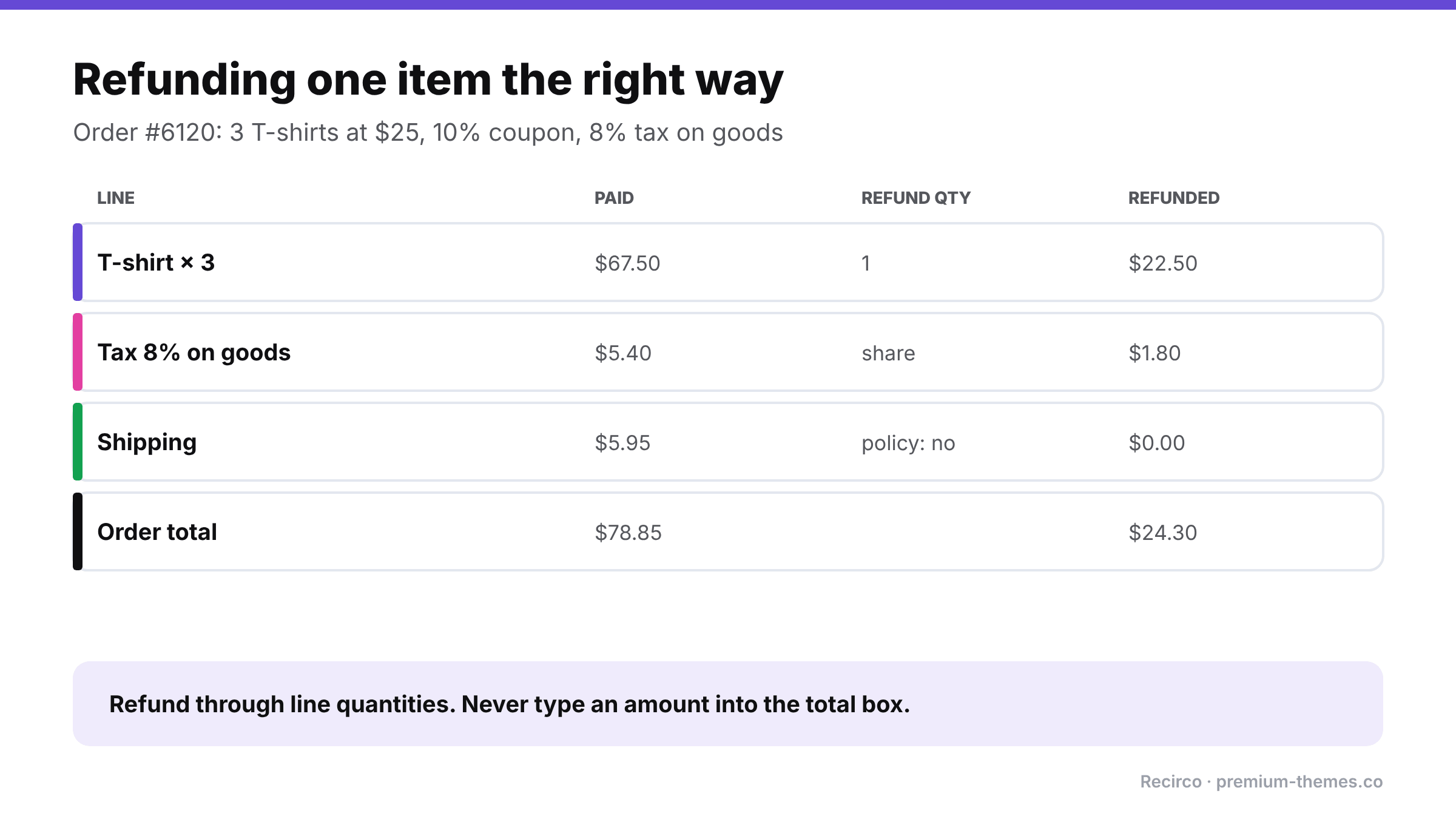
Worked partial refund: three T-shirts paid $67.50 after a coupon; refunding one gives $22.50. Tax of $5.40 gives a $1.80 refund share. Shipping of $5.95 isn't refunded by policy. Total refund $24.30 of a $78.85 order. Refund through line quantities, not the total box.

Trap 1: The status doesn’t change’ an

Order #6120: 3 × T-shirt at $25 = $75, 10% coupon (−$7.50), shipping $5.95, tax 8% on goods only ($5.40). Total paid: $78.85.

The customer returns one T-shirt because it’s too small.

Wrong way: a team member clicks Refund, types $25 in the refund amount box, ticks restock, and refunds via Stripe. Problems: the customer paid $22.50 for that shirt after the coupon, so they’re over-refunded by $2.50. No tax was refunded on the line, so your tax report still shows $5.40 collected on goods that partly came back. And the refund isn’t tied to a line item, so reporting can’t tell which product was returned.

Right way: click Refund, enter quantity 1 on the T-shirt line. WooCommerce pre-fills the line’s share: $22.50 net plus $1.80 tax. Shipping stays at 0 (your policy doesn’t refund shipping on partial returns). Restock ticked because the shirt arrived in sellable condition. Refund via Stripe: $24.30.

Result: the customer paid for what they kept, tax is accurate, the T-shirt is back in stock, and reports show one shirt returned. The order stays Completed, which is correct, because most of it was kept.

Partial returns over time

Customers sometimes return items from the same order in two or three separate batches. Each partial return should be checked against what’s already been returned, not just against the original order. Otherwise a customer can request a return for an item they’ve already sent back and been refunded for, and a busy team member approves it.

This is another reason to track returns as their own records: the system can see “2 of 3 already returned” and only offer the one remaining unit.

A clean partial-return process

  1. The customer requests a return for specific items and quantities, with a reason for each. Not “I’d like to return something from order #4102” by email.
  2. Eligibility is checked per item. Is each one inside the return window, not excluded, not already returned or refunded?
  3. The return is approved, and the customer gets a return number and address.
  4. The items arrive and are inspected. Restock now, only what came back in sellable condition.
  5. The refund is created from the return, through the line items, using paid amounts with net and tax split, sent through the gateway. One refund, in one place.
  6. The order keeps its status, but the return record shows exactly what came back, when, why and how much was refunded.
  7. The customer is told at each step, so nobody emails asking “did you get it?”

The key idea is to stop asking the order to describe the return. Orders describe sales. Let a separate return record describe returns.

How Recirco handles partial returns

Recirco – Returns & Exchanges for WooCommerce is free and built around exactly that idea:

  • Per-unit eligibility in the customer portal. In My Account → Returns, customers choose the order, then the specific items and quantities they’re returning, each with a reason. Only eligible units are offered: inside your return window, not already refunded, not on your excluded products or categories list. A customer who already returned one shirt can’t request the same unit twice.
  • A return record per request with its own RMA number, status and activity log, plus a panel on the order edit screen so you see the order and its returns together.
  • Restock timing you choose: never, on approval, on arrival, or on completion. Set it once, and the right step does the restocking.
  • Refunds created from the return. Recirco creates a real WooCommerce refund for the returned lines, with net and tax split from the original line, optionally sent through your gateway. Auto-refund on completion is available but off by default, and the plugin is designed to prevent duplicate refunds for the same return.
  • Seven statuses enforced by a guarded state machine, so a return can’t skip from “requested” to “refunded” by accident.
  • Six editable emails (received, admin alert, approved, rejected, completed, customer note) keep the customer informed at each step.

Your order statuses stay meaningful, your tax and stock stay right, and “what happened with this return?” has a single place to look.

Recirco Pro adds exchanges (so a partially returned item can be swapped for a different variant instead of refunded), store credit as a refund alternative, conditional approval rules, carrier return labels, and analytics on value returned and the products most often sent back.

Partial refund cheat sheet

Situation Do this Avoid this
One of several items returned Refund via line-item quantity Typing an amount in the total box
Order had a coupon Use the pre-filled paid line amount Refunding at list price
Shipping not refundable Leave shipping line at 0 Including shipping in the item amount
Shipping refundable (your error) Enter it on the shipping line Inflating the item refund
Item not back yet Wait, or refund without restocking Restocking before arrival
Want order to look “done” Leave status; check refund lines Setting status to Refunded
Money already returned elsewhere Refund manually to record it Refund via gateway (double refund)

Refunded Orders Still Getting Shipped: Fixing WooCommerce Refund Status Mismatches

Refunds feel like the simple part of running a store. A customer asks for their money back, you click a button, done.

Except WooCommerce stores a refund in three places that are supposed to agree: the refund record on the order, the order status, and the payment gateway. When they disagree, odd and expensive things happen:

  • An order is fully refunded but still sits in Processing, so your warehouse picks and ships it. The customer gets the goods and their money.
  • An order is marked Refunded but no refund was ever issued. The customer never gets their money, and they file a dispute.
  • A refund is made in PayPal or Stripe, but WooCommerce still shows the order as paid. Revenue, stock and reports are all wrong.

These cases come up again and again on the WordPress.org support forums. This guide explains each mismatch, why it happens, how to find the ones already in your store, and how to make refunds reliable.

How WooCommerce refunds are supposed to work

When you refund from the order screen, WooCommerce:

  1. Creates a refund record attached to the order (amount, items, reason, who did it).
  2. If you chose Refund via [gateway], it asks the gateway to send the money back. If you chose Refund manually, it only records the refund. You’re saying the money went back some other way.
  3. If the order is now fully refunded, it changes the status to Refunded and sends the customer a refund email.
  4. If you ticked Restock refunded items, it increases stock.

For a partial refund, step 3 doesn’t happen. The order keeps its existing status. That’s by design, and it confuses a lot of people.

The four mismatches

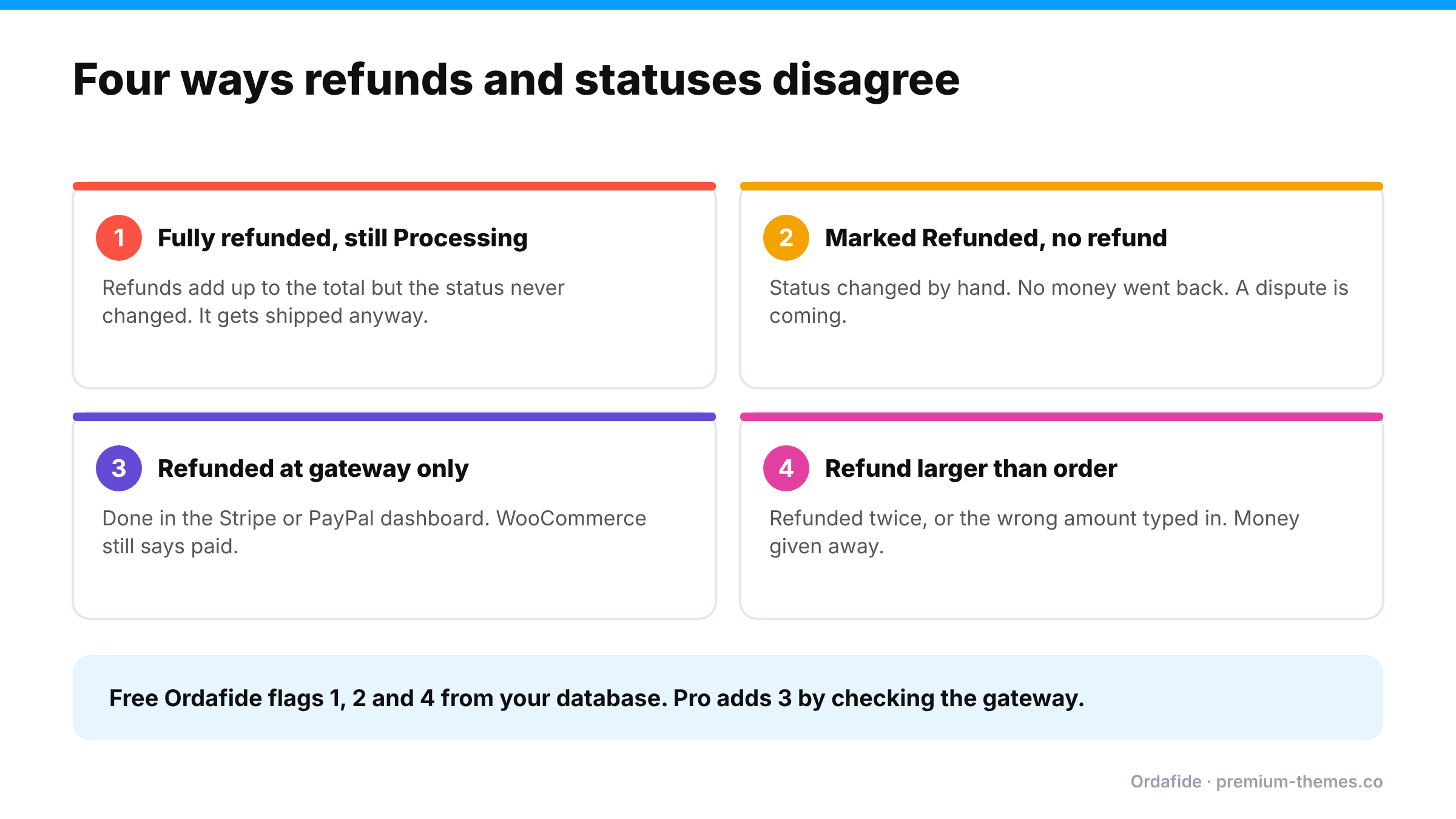
Four refund mismatches: fully refunded but still Processing, so it gets shipped; marked Refunded with no refund issued; refunded at the gateway only, so WooCommerce still shows paid; refund larger than the order. Free Ordafide flags the first, second and fourth; Pro adds gateway-only refunds.

Mismatch 1: Fully refunded, still Processing

What happens: the refund records add up to the full order total, but the status never changed. Because your team works from the Processing list, the order gets shipped.

Why:

  • The refund was recorded in several partial steps, and the final step didn’t trigger the status change.
  • A plugin conflict or customization interfered with the status update.
  • The refund was made at the gateway, the gateway plugin recorded it via webhook, but the status update failed.

One WordPress.org thread describes exactly this with the WooCommerce PayPal gateway: refunding sent the customer refund emails and reversed the charge, but the order stayed in Processing. Changing the status manually then sent a second refund email. The issue disappeared after later updates, but the owner had no way of knowing which past orders were affected.

Cost: the full value of the goods, plus shipping, plus the refund.

Mismatch 2: Marked Refunded, but no refund exists

What happens: someone changed the status to Refunded from the status dropdown, intending to refund, but never actually created a refund. Or they did it manually expecting the gateway to act.

Why: status and refund are separate actions. Changing the dropdown on its own doesn’t tell your gateway to send money (behaviour can vary by gateway plugin, so never rely on it).

Cost: a customer who believes they were refunded, or was promised one, and wasn’t. That’s a near-guaranteed chargeback and a lost customer.

Mismatch 3: Refunded at the gateway, not in WooCommerce

What happens: a team member refunds in the Stripe or PayPal dashboard because it’s quicker. WooCommerce never hears about it, or hears but fails to record it.

Why: some gateway plugins import dashboard refunds via webhooks, some don’t, and webhooks fail (see orders stuck on pending payment for why).

Cost: revenue overstated; stock that came back never restocked; reports and tax figures wrong; possibly the order still in Processing (back to mismatch 1).

Mismatch 4: Refund larger than the order

What happens: refunds on one order exceed what was paid. This can come from refunding twice (once at the gateway, once in WooCommerce), or from a manual refund entered with the wrong amount.

Cost: money you didn’t need to give away, and a messy reconciliation.

The partial refund trap

Partial refunds deserve their own warning. WooCommerce support confirmed in a WordPress.org thread that:

  • a partial refund doesn’t change the order status. A partially refunded On hold order stays On hold;
  • for manual refunds, setting the status to Refunded refunds the entire order, which can trigger a second refund email or a larger refund than intended.

The thread’s suggested workaround was a custom “Partially refunded” status via an order-status plugin. Whatever you choose, make sure your team knows that status alone doesn’t tell you whether an order has been refunded. Read the refund lines on the order.

Why it matters beyond the single order

It’s tempting to treat each mismatch as a one-off customer-service problem. But refund records feed several other parts of the business:

  • Revenue reports. WooCommerce Analytics subtracts recorded refunds. Missing ones overstate revenue; duplicated ones understate it.
  • Tax. Tax collected and tax refunded are reported from order and refund records. If a refund isn’t recorded, you may report and remit tax on a sale you reversed.
  • Stock. Restocking happens when refunds are recorded with Restock refunded items. A refund made only at the gateway never restocks, so products show out of stock when they’re on your shelf.
  • Customer history. Support teams look at an order and see “paid” or “refunded”. If that’s wrong, they give the customer wrong answers.
  • Disputes. If a customer disputes a charge, your evidence comes from the order record. A missing or wrong refund record weakens your case.

So a mismatch costs more than the one order. It quietly distorts the numbers you run the business on.

Finding mismatches already in your store

Manually

  1. Filter WooCommerce → Orders by Processing and open orders older than your usual fulfilment time. Look for refund lines (shown in red under the order items).
  2. Filter by Refunded and spot-check that each one actually has refund records totalling the order amount.
  3. Export refunds from your gateway for the last 30–90 days and check each one appears on the matching WooCommerce order.
  4. Look for orders where the refunded total exceeds the order total.

This is slow, but doable once. The trouble is it needs repeating, because mismatches keep happening as long as people, plugins and webhooks are involved.

Automatically with Ordafide

Ordafide Order Integrity for WooCommerce is free and runs a Refund mismatch check on your recent orders that flags:

– orders marked Refunded with no refund record (mismatch 2)
– refunds larger than the order (mismatch 4)
– fully refunded orders still marked Processing (mismatch 1), the ones about to be shipped

Each finding explains why it matters, shows the evidence, and tells you what to check before changing anything. Findings are sorted by money at risk, and you can ignore ones you’ve reviewed. Everything runs on your own server, and the plugin never refunds, captures or voids anything.

Mismatch 3, refunds that only exist at the gateway, can’t be seen from inside WooCommerce. Ordafide Pro reconciles with Stripe, PayPal, Square, Mollie and Razorpay using read-only keys and flags refunds missing in WooCommerce, along with money with no order, paid orders with no payment and amount disagreements.

Fixing each mismatch

Fully refunded, still Processing: stop fulfilment immediately. Confirm the refund at the gateway, then change the status to Refunded. If the refund was already completed, choose the status change carefully so you don’t trigger a second refund. Add a note.

Marked Refunded, no refund: check the gateway. If no money went back, issue the refund now from the order screen (Refund via [gateway]) and apologize to the customer. If the money did go back outside WooCommerce, record it with Refund manually so the books agree.

Refunded at gateway only: record it in WooCommerce using Refund manually (not via gateway, or you’ll refund twice), tick Restock refunded items if goods came back, and note the gateway refund ID.

Over-refund: check the gateway for what was actually returned. If the excess was real money, decide whether to recover it from the customer. If it was a recording error, adjust and note it.

A worked example: one week, three mismatches

To make this concrete, here’s how mismatches tend to appear on a real store over a single week.

Monday. A customer cancels a $78 order before it ships. A team member, in a hurry, opens Stripe and refunds it there. The Stripe plugin’s webhook is being blocked by a recently installed security plugin, so WooCommerce never records the refund. The order stays in Processing.

Wednesday. The warehouse picks the Processing list, including that $78 order, and ships it. The customer now has their money and the goods. (Mismatch 1 and 3 at once.)

Thursday. A different customer emails asking for a refund on a damaged item. A new team member changes the order status to Refunded from the dropdown, assuming that sends the money. It doesn’t with this gateway. The customer waits. (Mismatch 2.)

The following week. The second customer, hearing nothing, files a dispute with their bank. Meanwhile the first team member notices the Monday order in the Stripe dashboard, realizes it wasn’t recorded, and, to “fix it”, clicks Refund via Stripe on the WooCommerce order. Stripe rejects it because the charge is already refunded. Had the first refund been partial, the second could have gone through and pushed the total refunded past what the customer paid. (A near-miss for mismatch 4.)

Three people, three reasonable shortcuts, a shipped order, a dispute and a reconciliation mess. None of it was visible on the orders screen. All of it was findable by comparing refund records, statuses and the gateway.

A refund policy for your team

Paste this into your team handbook and adapt it:

How we refund

  1. All refunds are issued from the WooCommerce order screen using Refund via [gateway]. Never from the Stripe or PayPal dashboard.
  2. Never change an order’s status to Refunded to “do” a refund. Create the refund; the status follows.
  3. For partial refunds, select the items and quantities being refunded, and tick Restock refunded items only if the goods are back and sellable.
  4. If money was returned outside WooCommerce (bank transfer, gateway dashboard), record it with Refund manually and note the reference.
  5. Before shipping anything that’s been in Processing more than two days, check it has no refund lines.
  6. Return-related refunds go through our returns system, not ad hoc.

Making refunds reliable

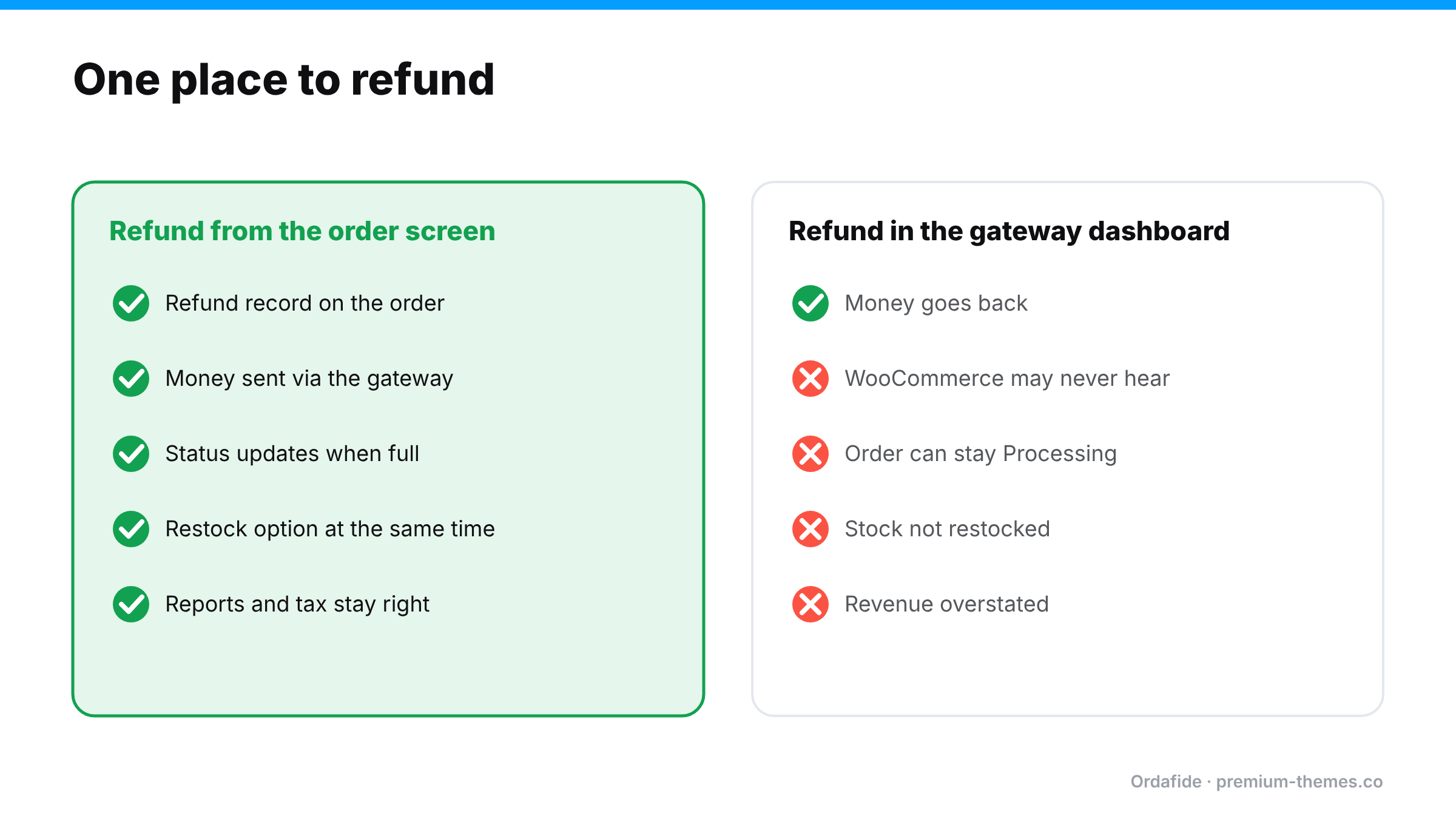
Comparison. Refunding from the WooCommerce order screen creates the refund record, sends money via the gateway, updates the status, offers restocking and keeps reports right. Refunding in the gateway dashboard returns the money, but WooCommerce may never hear, the order can stay Processing, stock isn't restocked and revenue is overstated.

  1. One place to refund. Make it a rule: refunds are issued from the WooCommerce order screen, never the gateway dashboard. The order screen talks to the gateway; the dashboard often doesn’t talk back.
  2. Never use the status dropdown to refund. Status follows refunds, not the other way round.
  3. Check refund lines before shipping. Add “no refund lines” to your packing checklist for orders that have been in Processing a while.
  4. Use a returns workflow for return-related refunds. If refunds come from product returns, a structured returns tool that creates the refund from the return record prevents double refunds. Our sister plugin Recirco does this.
  5. Scan regularly. A weekly Ordafide scan (or its weekly summary email) catches the mismatches that slip through anyway.
WooCommerce RMA Workflow: Process Returns Without Duplicate Refunds or Wrong Stock

WooCommerce RMA Workflow: Process Returns Without Duplicate Refunds or Wrong Stock

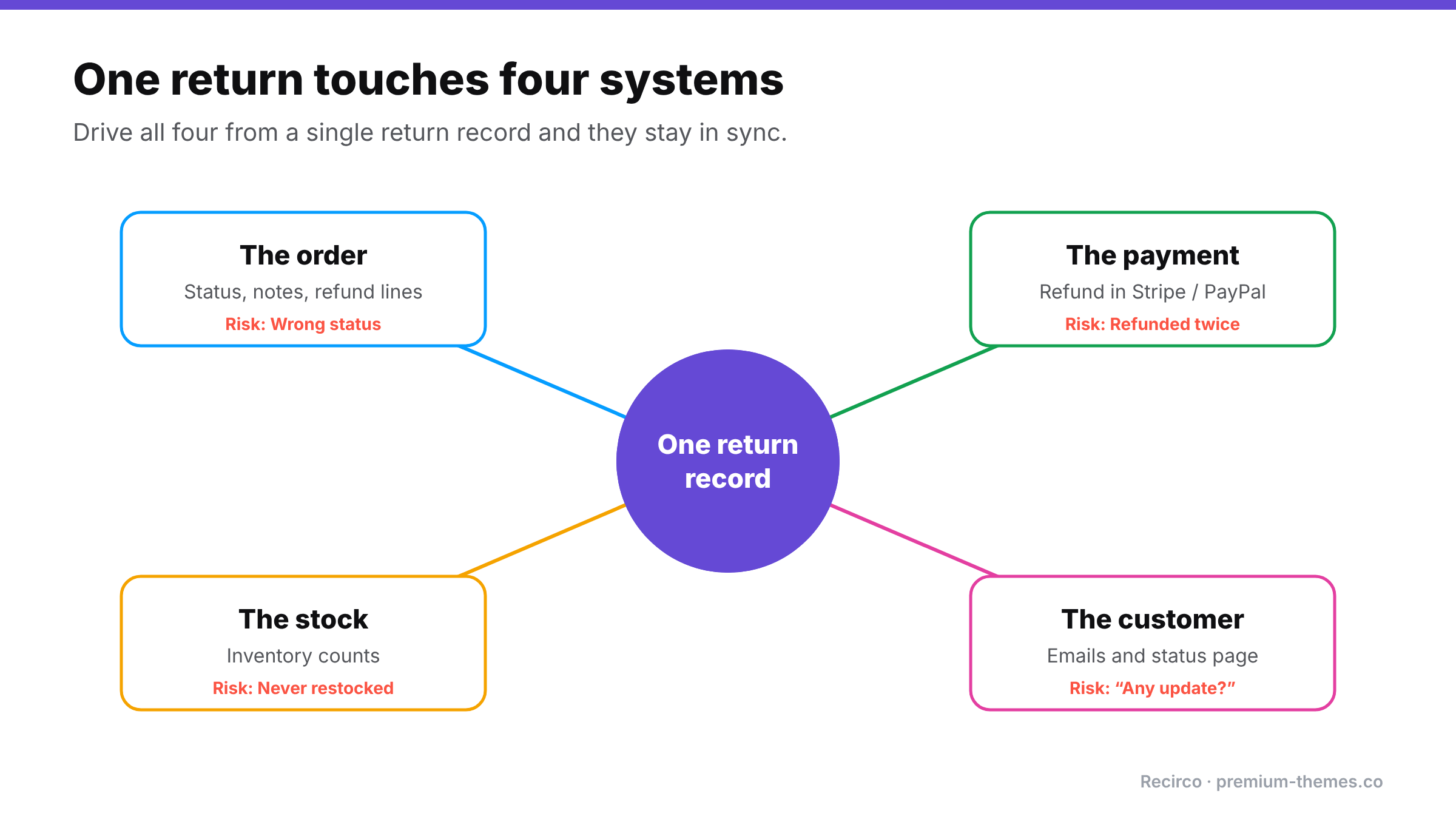
A return touches four different things at once:

1. The order in WooCommerce
2. The payment in your gateway (Stripe, PayPal, etc.)
3. The stock in your inventory
4. The customer, via email

When returns are handled by email and memory, those four drift apart. The refund goes through twice. The item comes back but nobody restocks it. The order says one thing, the gateway says another, and the customer has heard nothing for a week.

This guide sets out a clean RMA (Return Merchandise Authorization) workflow for WooCommerce, the mistakes it prevents, and how to make the store enforce it.

The five most common return-processing mistakes

Hub diagram: one return record connected to the order (risk: wrong status), the payment (risk: refunded twice), the stock (risk: never restocked) and the customer (risk: chasing updates).

1. Inventory drift

A returned item comes back, gets put on a shelf, and is never added back to stock in WooCommerce. Over time your counts drift: products show out of stock when you have them, and your reorder decisions are based on wrong numbers.

The opposite happens too: stock is restocked when the return is requested, and the item never actually comes back.

2. Duplicate refunds

There are three places to issue a refund: the gateway dashboard, the WooCommerce order, and (if you use a returns tool) the return itself. When two people use two different places, the customer gets refunded twice. Refunds made only in the gateway may also never reach WooCommerce, so your records still show the order as paid.

3. Unenforced return windows

Without a system checking dates, late returns get approved to avoid arguments.

4. No data on why items come back

Without a recorded reason on every return, you can’t see that one product’s sizing is wrong or one supplier’s quality has dropped.

5. Fragmented records

The return conversation is in email, the refund in Stripe, the stock change in a spreadsheet, and the order in WooCommerce. Answering “what happened with this return?” means checking four places.

A clean WooCommerce RMA workflow

Here’s a workflow that avoids all five. The key idea: one record per return, moving through fixed statuses, with refunds and stock changes triggered from that record.

1. Request

(Setting this up from scratch? Follow our step-by-step returns portal guide.)

The customer requests a return from My Account, choosing the order, items, quantities and a reason. The system checks eligibility: inside the window, not already refunded, not an excluded product. An RMA number is issued.

2. Review and approve (or reject)

Your team reviews the request in a queue, sees the order history and reason, and approves or rejects with a note. The customer is emailed either way. If approved, they get the return address.

3. In transit

The customer ships the item and adds a tracking number.

4. Received

The item arrives and is inspected. This is usually the right moment to restock, because you only add back stock you physically have, in sellable condition.

5. Refund (or exchange, or credit)

The refund is created from the return record, as a proper WooCommerce refund that is optionally sent to the gateway in the same step. Because it’s linked to the return, the system can prevent a second refund for the same items.

6. Completed

The return is closed, the customer is notified, and the full history stays in an activity log.

When should you restock?

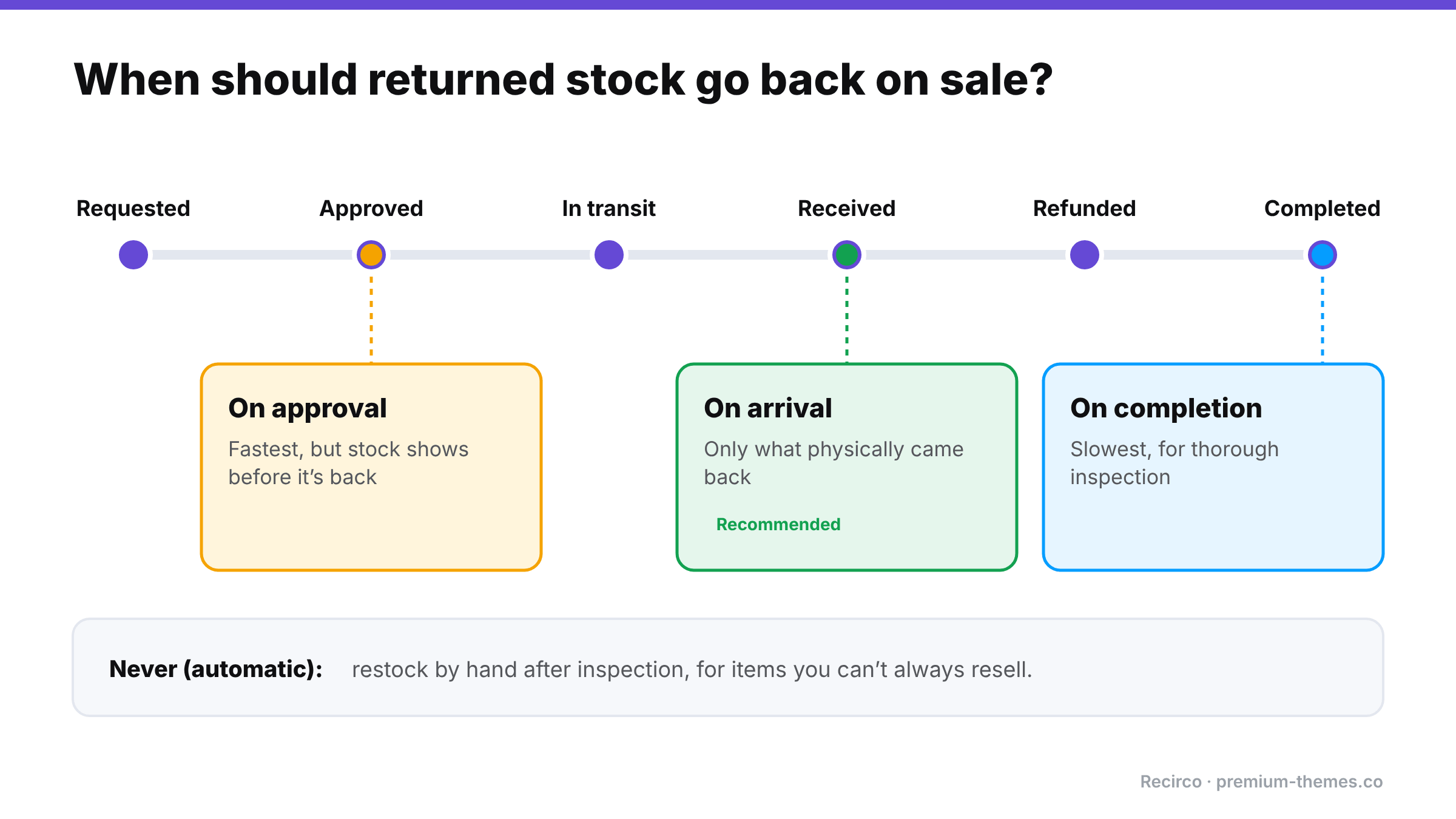
Return status timeline from requested to approved, in transit, received, refunded and completed, with four restock options: never (restock by hand), on approval (fastest but stock shows before it's back), on arrival (recommended), and on completion (slowest).

If you’re not sure, use on arrival.

Getting refunds right in WooCommerce

A few things worth knowing about how WooCommerce refunds work:

  • Refund from the order, not the gateway. On the order screen, Refund via [gateway] sends the money and records the refund in WooCommerce. A refund made only in the gateway dashboard may never be recorded in WooCommerce.
  • “Refund manually” records a refund in WooCommerce without sending money. Use it when the money was already returned another way (for example, already refunded in the gateway).
  • Partial refunds need the tax split. If you refund one line item, the refund should include the correct share of that line’s net amount and tax. Getting this wrong makes your tax reports inaccurate.
  • “Restock refunded items” on the WooCommerce refund screen adjusts stock at the moment of refund. If your returns tool already restocked on arrival, don’t restock again.
  • Fully refunded orders should move to Refunded. A fully refunded order still sitting in Processing can get shipped by mistake.

Making WooCommerce enforce the workflow

The free Recirco – Returns & Exchanges for WooCommerce plugin is built around exactly this workflow:

  • Seven statuses enforced by a guarded state machine. A return can only move to a valid next status, so steps can’t be skipped or reversed by accident.
  • Restock timing you choose: never, on approval, on arrival, or on completion.
  • Refunds from the return: creates a real WooCommerce refund, optionally sent to the gateway, with net and tax split from the original line. Auto-refund on completion is optional and off by default, and the plugin is designed to prevent duplicate refunds for the same return.
  • Admin queue with search, filters, status counts, a pending badge and bulk approve, reject, mark received and delete.
  • Activity log on every return and a panel on the order edit screen, so the order and its return are in one place.
  • Internal notes or notes emailed to the customer.
  • Six editable emails covering every step.
  • Return windows, eligible statuses, excluded products/categories and reasons.
  • HPOS compatible, data in three dedicated custom tables, and no outbound calls.
  • 26 documented actions and 29 filters for developers who want to connect returns to an ERP, warehouse or helpdesk.

It writes to your orders only when you tell it to.

Recirco Pro adds automation on top: conditional approval rules, carrier return labels via Shippo generated on approval (cheapest rate by default, with manual label upload as a fallback), exchanges, store credit, analytics, and warranty claims with serial numbers and photos.

Is your current process leaking? A quick audit

  • [ ] Can you list every open return and its status in under a minute?
  • [ ] Is there exactly one place your team issues return refunds?
  • [ ] Are returned items restocked at a consistent, defined moment?
  • [ ] Does every return have a recorded reason?
  • [ ] Can a customer see their return’s status without emailing you?
  • [ ] Are late returns rejected by the system, not by a person?

If you answered “no” to two or more, a structured RMA workflow will save you time and money.

Restock timing Good for Risk
Never (automatic) Items that can’t be resold; manual inspection You must remember to restock by hand
On approval Very fast-moving stock, trusted customers Stock shows available before it’s back
On arrival Most stores Small delay before stock is available
On completion Stores that inspect thoroughly before closing Longest delay