Tag Archives: Stripe

Your WooCommerce Payment Gateway Stopped Working: Expired Keys, Disconnected Accounts and Outages

Most WooCommerce payment problems affect some orders: a stuck webhook here, a double charge there. This one is different. When the payment gateway connection itself breaks, every customer fails at the last step. Your store keeps attracting buyers, keeps filling carts, and takes no money at all.

The forums are full of variations: “Invalid secret key, please check your entry”, “There was a problem connecting to the Stripe API endpoint”, “Error: Stripe payments API key”, and threads about gateways switching to new connection methods that left stores unable to accept payments until they reconnected. WooCommerce’s own guide to failed orders lists authentication issues and expired API keys alongside card declines as a main cause of failures.

This guide covers the ways a gateway connection breaks, how to recognize each one fast, how to recover, and how to make sure you find out within minutes rather than from a customer’s angry email.

How to recognize a gateway-level failure

A gateway-level failure has a distinctive signature:

  • Every payment attempt fails, or the payment form doesn’t appear at all
  • Failed orders share the same error in their notes (authentication, invalid key, connection error), not varied card declines
  • It started at a specific moment, often after a change
  • Successful orders drop to zero for that payment method

If you see varied decline reasons (insufficient funds, expired card, incorrect CVC), that’s normal customer behaviour. If you see the same technical error over and over, it’s you.

The common causes
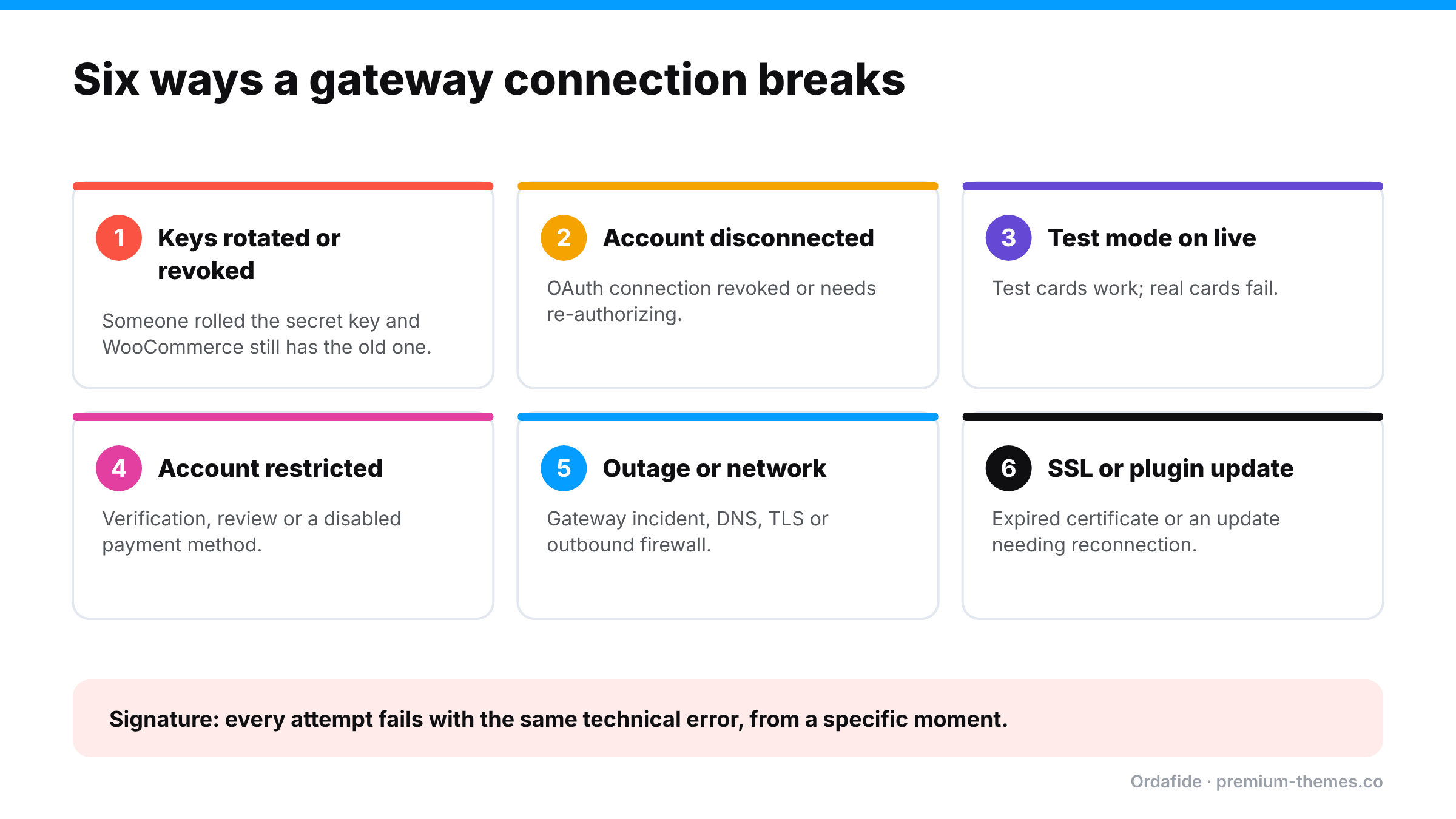
Six causes of a broken WooCommerce payment gateway: API keys rotated or revoked, account disconnected, test mode on the live site, account restricted, gateway outage or network problems, and SSL or plugin update issues. The signature is every attempt failing with the same technical error from a specific moment.

1. API keys rotated, revoked or expired

Someone regenerated the secret key in the gateway dashboard (often for security reasons, after a staff change or a suspected leak) and didn’t update WooCommerce. Or a restricted key was edited and lost a permission the plugin needs. The gateway now rejects every request.

2. The account was disconnected or needs re-authorization

Many gateway plugins now connect via OAuth (a “Connect with…” button) rather than pasted keys. Connections can be revoked, expire, or need re-authorizing when the plugin or gateway changes its integration method. Store owners discover this when payments stop.

3. Test mode on the live site (or live keys on staging)

  • Test mode left on after testing: checkout appears to work for you with a test card, but real customers’ real cards are rejected (or, worse, accepted as test transactions that never charge).
  • Live keys on a staging copy: real charges taken on a site you never check. (Payment received, no order)

4. The gateway account itself has a problem

Account under review, verification documents required, payouts paused, a payment method disabled, or the account closed for policy reasons. The gateway emails the account owner, and that email may be sitting in an inbox nobody reads.

5. A gateway or network outage

Gateways are very reliable, but not perfect. Regional outages, DNS problems, or your host’s network having trouble reaching the gateway’s API produce connection errors and timeouts.

6. SSL or server problems

  • An expired SSL certificate: browsers warn shoppers away, and gateways’ scripts may refuse to load.
  • An outdated TLS/cURL setup on the server that can’t connect to the gateway’s API.
  • A firewall blocking outgoing connections from your server to the gateway.

7. Plugin update or incompatibility

A gateway plugin update that needs new settings, requires reconnection, or conflicts with your theme or checkout type. (Update broke checkout · Block checkout errors)

The 10-minute recovery
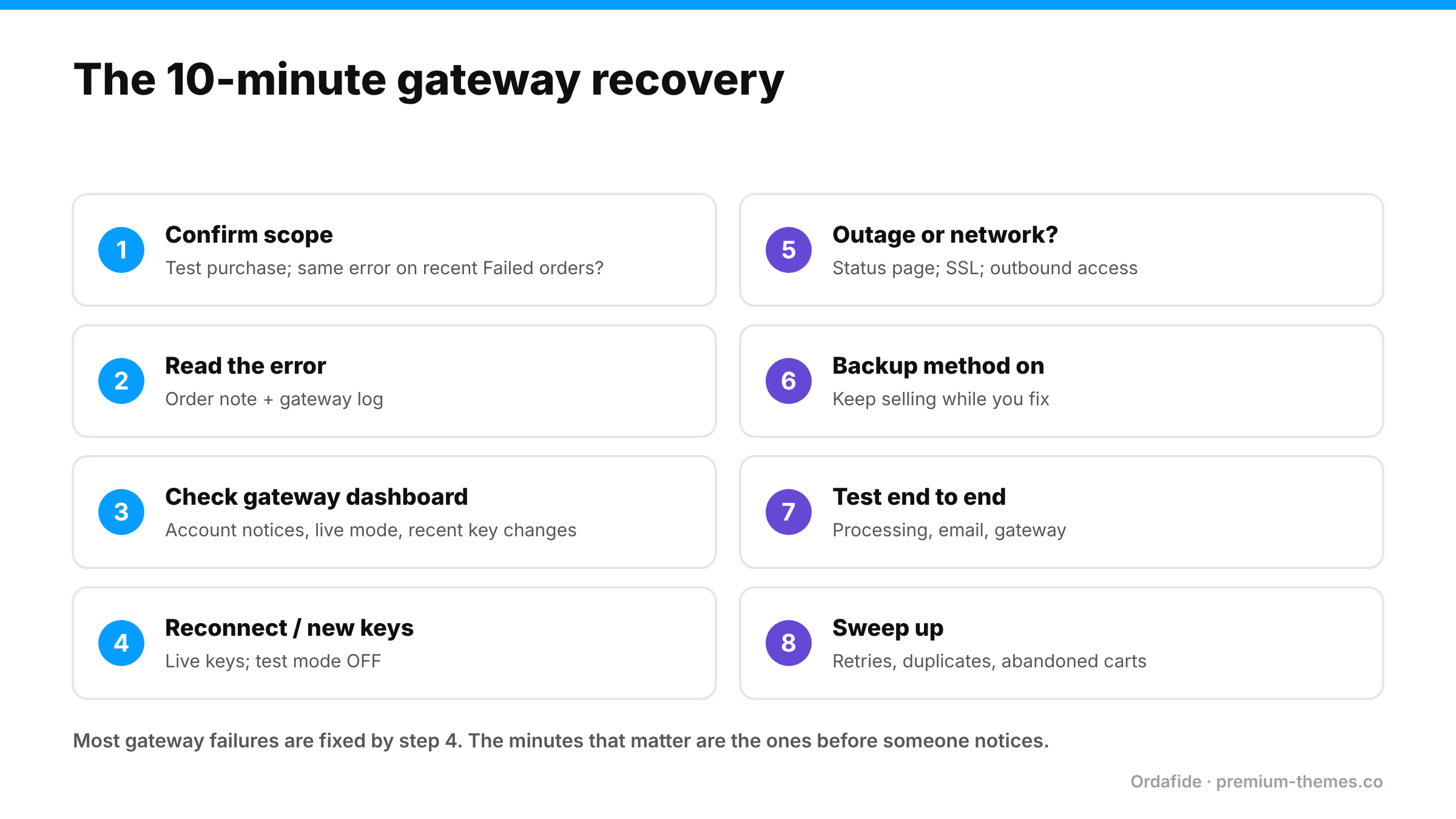
Eight recovery steps when a payment gateway stops working: confirm scope, read the error, check the gateway dashboard, reconnect or enter new live keys with test mode off, check for an outage or network issue, enable a backup method, test end to end, then sweep up retries, duplicates and abandoned carts.

1. Confirm the scope. Place a real test purchase in a private window. Check the last few Failed orders’ notes. Same error every time?

2. Read the error. The order note or the gateway plugin’s log (WooCommerce → Status → Logs, filtered by the gateway) usually names the problem: invalid key, authentication, connection, account restricted.

3. Check the gateway dashboard. Any banners about account status, verification, disabled methods? Are you looking at live mode? Were keys regenerated recently?

4. Reconnect or re-enter keys. Use the plugin’s connect flow, or paste fresh live keys. Confirm test mode is off.

5. Check the gateway’s status page for an incident if errors are connection timeouts.

6. Check SSL and outbound connectivity if the error is about connecting rather than authenticating. Ask your host to confirm the server can reach the gateway’s API.

7. Enable a backup method if needed. If the primary gateway is down and you have a second (PayPal alongside Stripe, for example), make sure it’s enabled while you fix the first.

8. Test again end to end: order arrives in Processing, email sent, payment visible in the gateway.

9. Sweep up. Find customers who failed during the outage. Abandoned-cart emails or a personal note (“we had a payment problem, it’s fixed now”) recovers a surprising share. Check for duplicates from customers who retried.

10. Write down the cause and who to call next time.

A worked example: the key rotation

On a Friday afternoon, a store’s developer follows good security practice: a former contractor had dashboard access, so they roll the Stripe secret key. Stripe gives the option to expire the old key immediately. They choose it.

They forget that the key is pasted into the WooCommerce Stripe settings.

  • From 16:40 Friday, every checkout fails with an authentication error. Customers see “There was an error processing your payment”.
  • Failed orders pile up with identical notes. Cards aren’t declined; the request never got that far.
  • The owner checks on Saturday evening, sees a quiet day, and assumes it’s the weekend.
  • Monday 09:00: a customer phones. Reconnecting takes three minutes.

Roughly 64 hours of a store with no working payments, caused by a good security decision missing one step. With order volume monitoring, the drop would have been flagged by 18:00 on Friday.

Know your gateway’s warning signs

Message or symptom Likely cause
“Invalid API key” / “authentication” Keys rotated, revoked or wrong mode
“No such customer” / “no such payment method” on renewals Switched accounts or test/live mix
“Your account cannot currently make live charges” Account verification or restriction
Connection timeout / cURL error Network, firewall, TLS or gateway outage
Payment field doesn’t appear Script blocked, SSL problem, plugin incompatibility
Test card works, real cards don’t Test mode on the live site

Prevention

  • Treat API keys like passwords with an owner. Whoever rotates keys updates WooCommerce in the same sitting. Keep a short note of where every key is used.
  • Make sure gateway account emails reach someone who reads them: verification requests, payout holds, disabled methods.
  • Never leave test mode on. After testing, place one real low-value order to confirm live mode.
  • Keep staging on test keys, always.
  • Watch the SSL expiry date (or use auto-renewing certificates).
  • Keep a second payment method available for outages.
  • Monitor checkout and order volume automatically. A gateway failure is an absence of successful orders, and absences are exactly what people miss.

How Ordafide helps

A gateway failure doesn’t create stuck or mismatched orders so much as an absence of good ones. That’s why the most useful protection here is Pro’s monitoring.

Ordafide Pro:

  • Synthetic checkout monitoring every 15 minutes: shop, product, cart, checkout and the Store API, with response times. It catches checkout pages that break or slow down, including when an expired SSL certificate or broken page stops shoppers reaching payment. It never places orders, and it waits for two consecutive failures before raising a finding.
  • Order volume anomaly detection flags drops compared with comparable past hours. When a gateway connection breaks, successful orders fall away, and that’s the signal.
  • Read-only gateway reconciliation (Stripe, PayPal, Square, Mollie, Razorpay) compares what the gateway collected with WooCommerce, which helps spot payments landing somewhere unexpected, such as live charges taken by a staging copy.
  • Alerts to Slack, SMS, email or signed webhook, with severity routing, so a gateway failure on a Saturday night reaches your phone.

The free Ordafide plugin handles the clean-up. After an outage, customers retry, give up, and retry again. Ordafide’s duplicate charge, stuck payment and paid but cancelled checks find the orders caught mid-failure, and the Customer never emailed check finds paid customers who never got a confirmation.

Ordafide doesn’t hold or manage your gateway credentials for payments. Pro’s reconciliation uses read-only keys and can’t capture, refund or void anything.

Building a simple gateway runbook

Write one page, store it somewhere everyone can find it, and include:

  • Which gateways you use, which payment methods each provides, and which is the backup.
  • Who owns each gateway account and who can log in.
  • Where the keys are used (WooCommerce, other plugins, other systems) and the steps to rotate them safely.
  • The gateway’s status page and support contact.
  • The first five checks from the recovery section above.
  • Who to tell when payments fail: team, customers, ads.

When payments stop at 11 p.m. on a Saturday, a runbook turns panic into a ten-minute fix.

After an outage: the clean-up checklist

  • Failed orders during the outage reviewed. Any actually paid?
  • Duplicate orders from customers who retried, refunded from the duplicate order
  • Abandoned carts from the outage period contacted
  • Paid orders without confirmation emails found and resent
  • Gateway dashboard checked for charges with no matching order
  • Ads reviewed: spend during the outage, and whether to adjust budgets
  • Cause documented and the runbook updated

Is Your Firewall Blocking Payments? Cloudflare, Wordfence and WooCommerce Payment Webhooks

Security tools are supposed to keep bad traffic out. The trouble is that, to a security tool, a payment gateway’s webhook looks a lot like bad traffic: an automated server, with no browser, no cookies and no human, sending a POST request to your site at odd hours.

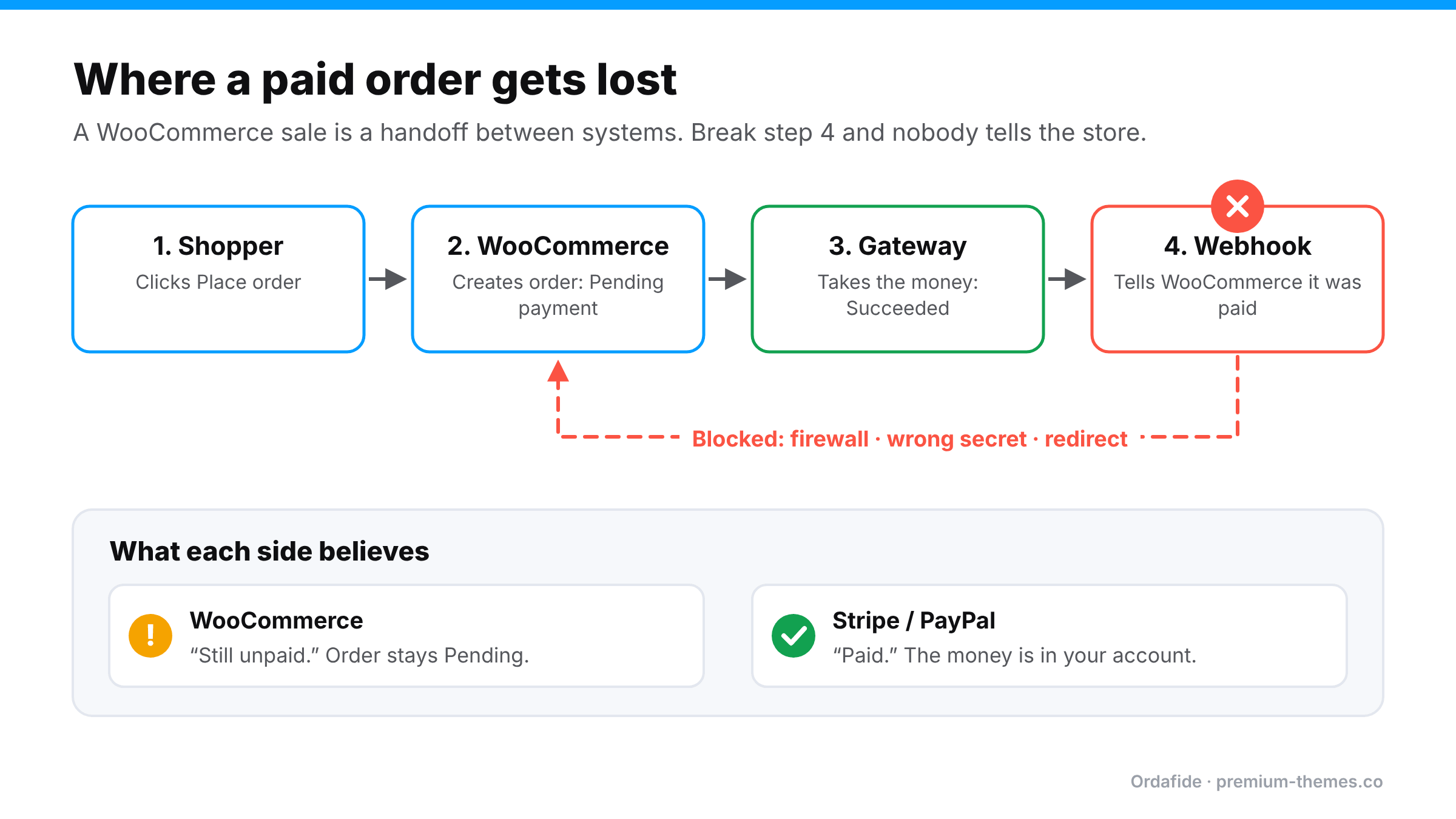
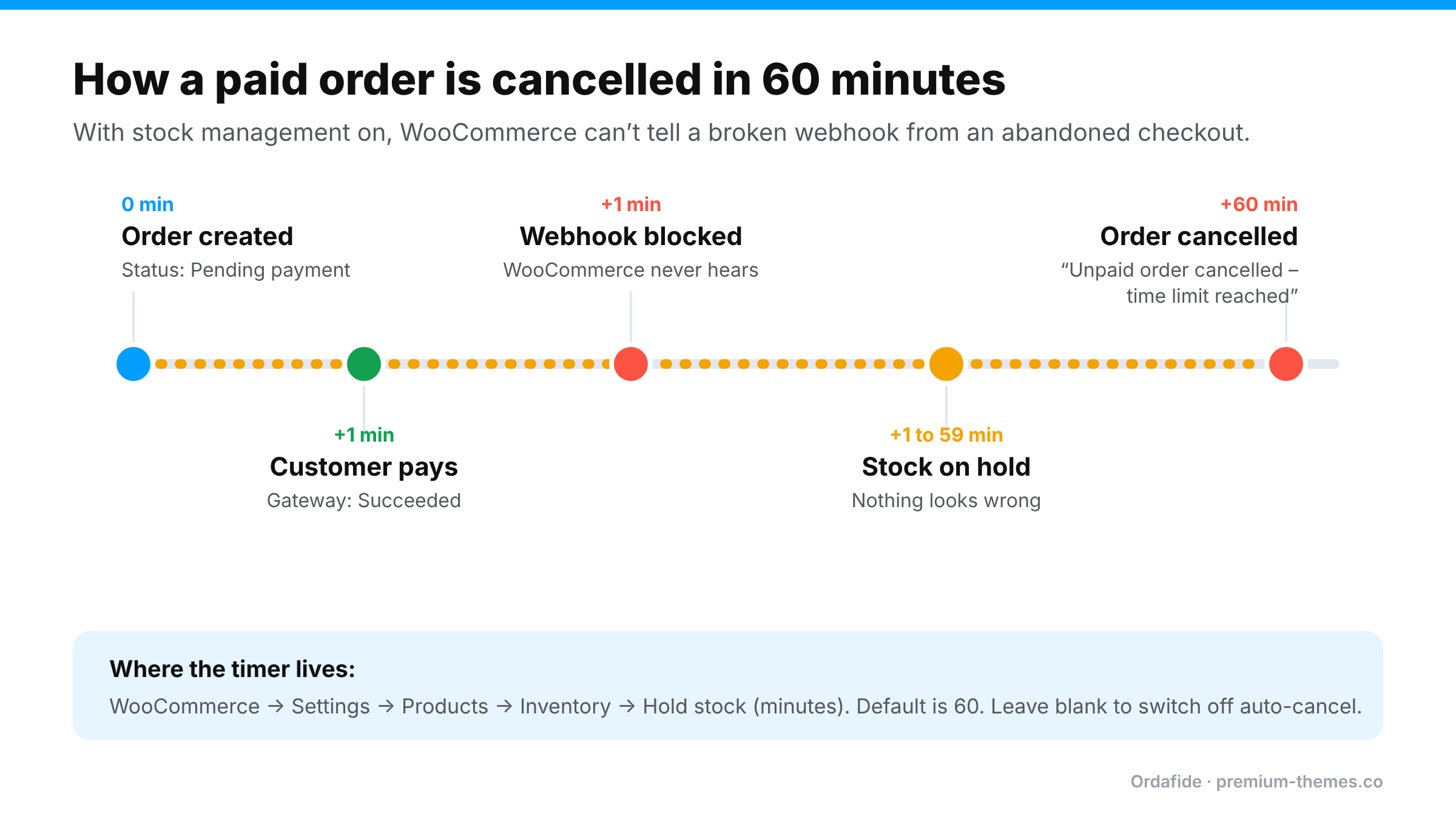
So security tools block it. And when a payment webhook is blocked, the gateway knows the customer paid, but WooCommerce never finds out. The order sits on Pending payment, the Hold stock timer cancels it, and a paying customer receives nothing.

This is one of the most common root causes behind stuck orders, and one of the least obvious, because the security tool is doing exactly what it was configured to do. This guide shows how each layer of security can block webhooks, how to prove it, and how to let payment confirmations through without weakening your protection.

Why webhooks are so easy to block

Payment gateways use webhooks to tell your store what happened: payment succeeded, payment failed, refund issued, dispute opened. A webhook is:

  • an automated POST request from the gateway’s servers,
  • to a specific URL on your site (for the WooCommerce Stripe plugin, typically https://yourstore.com/?wc-api=wc_stripe),
  • with no browser, so it can’t solve a JavaScript challenge or CAPTCHA,
  • often from data-centre IP addresses,
  • signed with a secret so your store can verify it’s genuine.

Bot protection, WAF rules, rate limits and “block suspicious POST requests” settings are designed to stop exactly this shape of traffic.

The security layers that commonly block webhooks

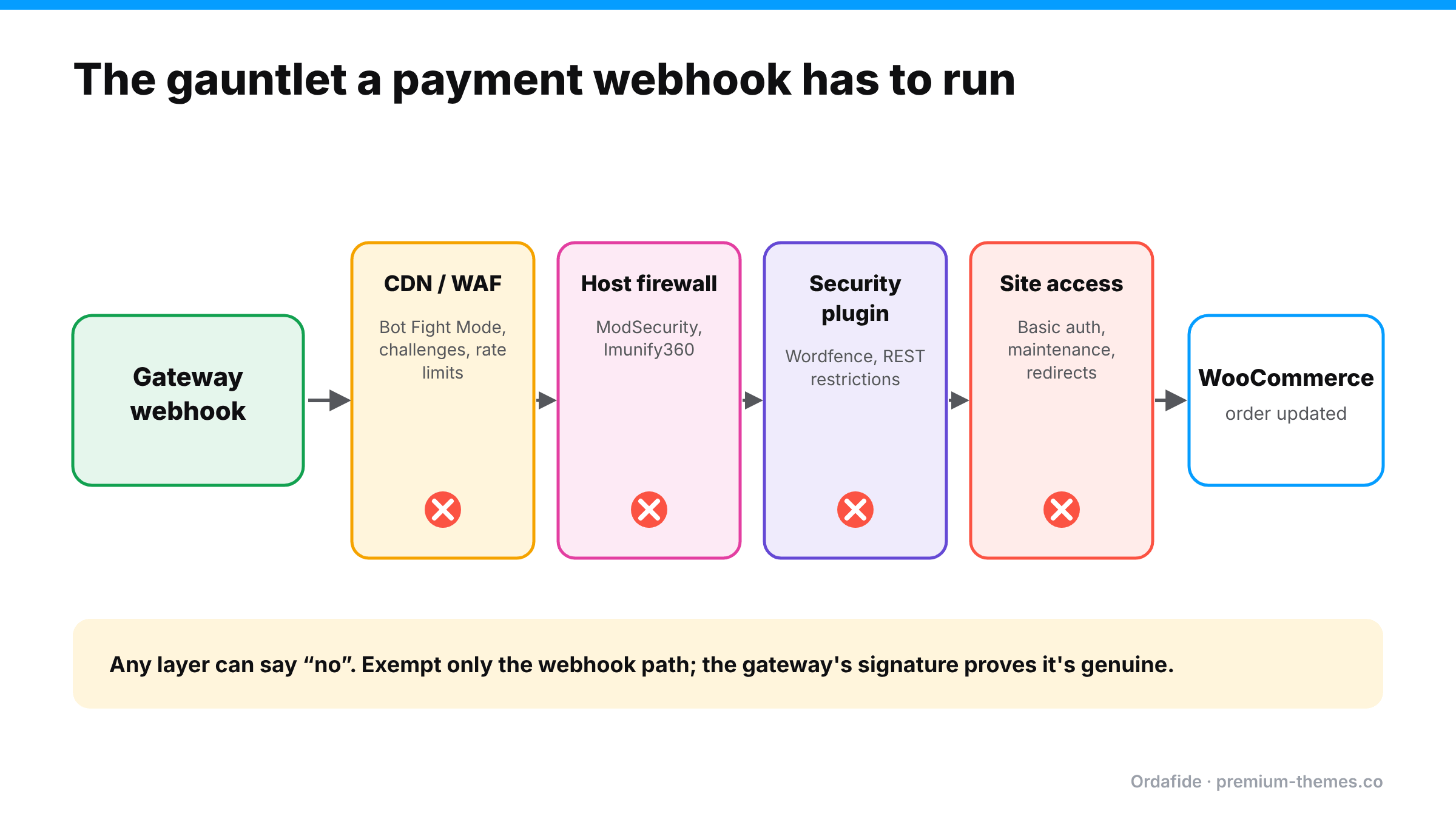
A payment webhook passes four security layers before reaching WooCommerce: CDN or WAF (bot protection, challenges, rate limits), host firewall, security plugin (Wordfence, REST restrictions), and site access controls (basic auth, maintenance, redirects). Any layer can block it. Exempt only the webhook path.

Layer 1: Cloudflare (or another CDN/WAF)

  • Bot Fight Mode. On Cloudflare’s free plan, Bot Fight Mode is a single zone-wide setting that challenges or drops automated-looking requests, with no per-path exemptions. Large senders like Stripe are usually on Cloudflare’s verified bots list and pass, but smaller gateways, regional payment providers and monitoring services are often blocked. On Pro and Business plans, Super Bot Fight Mode can be skipped for specific paths with a WAF custom rule.
  • Managed challenges and “Under Attack” mode. A webhook sender can’t solve a JavaScript challenge. If you switch on a challenge for all traffic during an attack (or for Black Friday), webhooks fail until you switch it off.
  • WAF custom rules that block by country, user agent or request method.
  • Rate limiting that catches bursts of webhook deliveries during busy periods.

Layer 2: Security plugins (Wordfence and others)

Security plugins inspect requests inside WordPress. A WordPress.org thread shows Wordfence returning 403 with “A potentially unsafe operation has been detected in your request to this site” for incoming webhooks. Wordfence support’s answer was to allowlist the exact URL or parameters under the firewall’s Allowlisted URLs setting rather than switching the firewall to Learning Mode, which carries its own risks.

Other common plugin-level blocks:

  • “Disable REST API” or “restrict REST API to logged-in users” settings (several gateways and the Store API use REST routes)
  • Country blocking that blocks the gateway’s server location
  • Brute-force or rate-limit rules applied to all POST requests

Layer 3: Host firewalls (ModSecurity, Imunify360 and similar)

Hosts run their own web application firewalls. Rules can flag webhook payloads (which contain JSON with fields that look like code or SQL to a crude rule) and return 403 or 406 without anything appearing in WordPress at all.

Layer 4: Site-level access controls

  • Password protection or HTTP basic auth (common on staging copies that were pushed live)
  • Maintenance mode (returns 503)
  • Redirects on the webhook URL (HTTP→HTTPS, www→non-www, trailing slashes), since webhooks generally don’t follow them

The signs you’re being blocked

  • Orders paid at the gateway are stuck on Pending payment or auto-cancelled an hour later
  • Your gateway emails you that webhook deliveries are failing (Stripe sends these warnings, and can eventually disable a failing endpoint)
  • Problems started after enabling a security feature, changing CDN settings, or moving host
  • It affects some orders (for example, only during busy periods when rate limits trigger)

One WordPress.org thread describes Stripe repeatedly warning a store that its webhook endpoint was failing with 403 errors. The owner recreated the endpoint and worked with their host, yet failures kept returning, and Stripe disabled the endpoint at one point. A 403 is almost always something on your side saying “no”.

How to prove where the block is

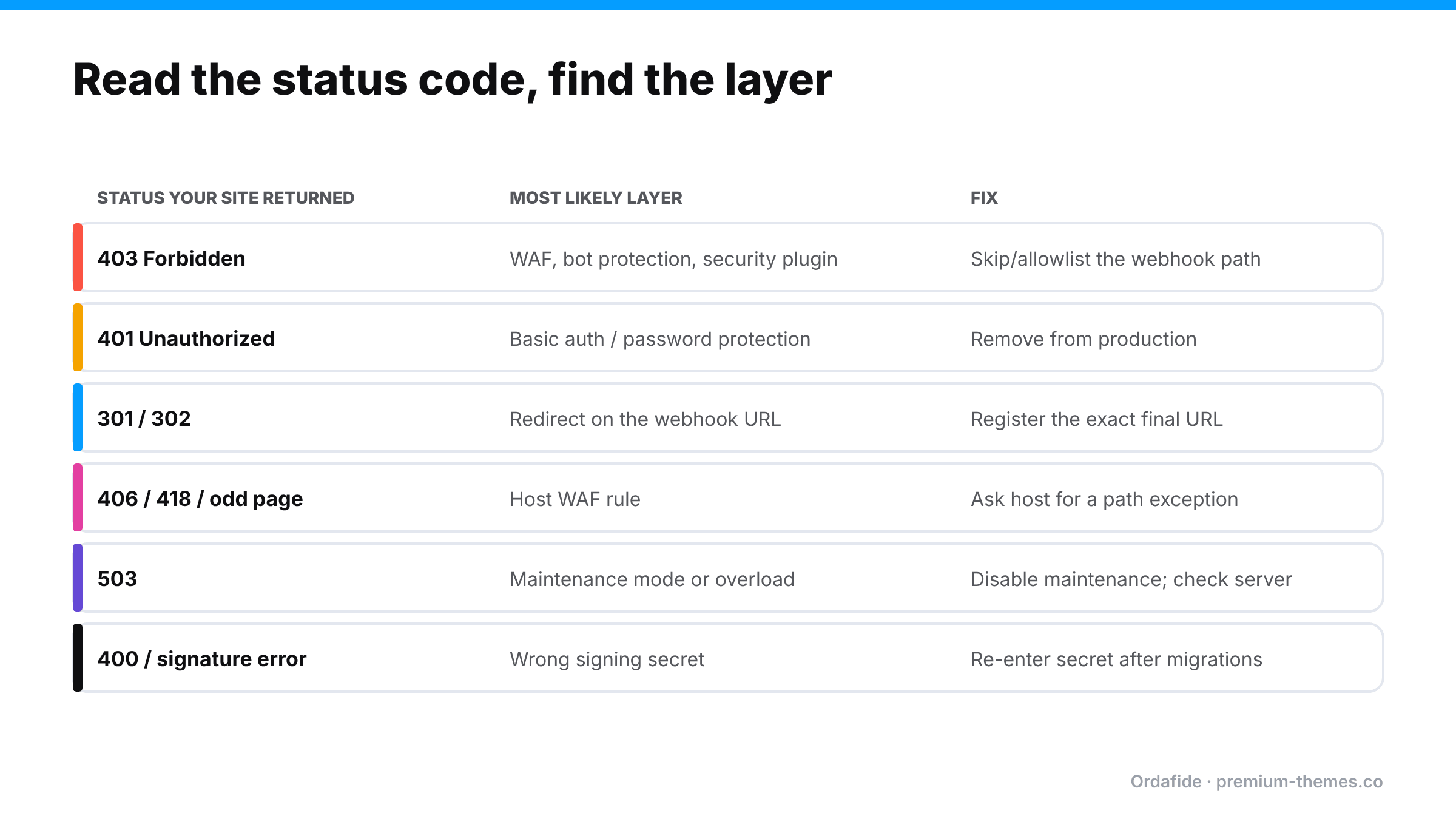
Table mapping webhook delivery status codes to causes and fixes: 403 means a firewall, bot protection or security plugin; 401 means basic auth; 301 or 302 means a redirect; 406 or unusual pages mean a host firewall rule; 503 means maintenance or overload; 400 or signature errors mean a wrong signing secret.

1. Read the gateway’s delivery log. In Stripe, open the webhook endpoint in the Dashboard (Developers / Workbench → Webhooks) and look at recent deliveries. The HTTP status your site returned tells you which layer to check. PayPal and other gateways have similar logs or notification histories.

2. Look at the response body. A Cloudflare block page, a Wordfence message, a host’s “Not Acceptable” page or a login prompt each identify themselves.

3. Check each layer’s logs:

  • Cloudflare: Security → Events, filtered by the webhook path. The Service column tells you whether Bot Fight Mode, a WAF rule or rate limiting acted.
  • Wordfence: Live Traffic and the firewall’s blocked requests.
  • Host: ask support to check WAF logs for the webhook URL and time.

4. Send a test event from the gateway and watch it arrive (or not) in each log.

Fixing it without weakening security

The principle: don’t turn protection off for the whole site. Make a narrow, specific exception for the webhook path, and rely on the gateway’s signature verification to prove requests are genuine.

  • Cloudflare (Pro/Business): allow verified bots, and add a WAF custom rule that skips Super Bot Fight Mode (and any challenge rules) for the webhook path. Optionally restrict it further to the gateway’s published IP ranges.
  • Cloudflare (Free): Bot Fight Mode can’t be exempted per path. Either turn it off and replace it with rate limiting and targeted custom rules, or serve the webhook endpoint from a hostname that bypasses the proxy and restrict it to the gateway’s IP ranges with signature verification.
  • Never put a managed challenge on machine-to-machine endpoints. Use allow, skip or block, not challenge.
  • Wordfence: allowlist the exact webhook URL/parameters in the firewall’s allowlisted URLs.
  • Other security plugins: allow REST and webhook routes for unauthenticated requests where the gateway needs them.
  • Host WAF: ask your host to add a rule exception for the webhook path.
  • Redirects: register the exact final URL (correct protocol and domain) with the gateway.
  • Re-check after every security change, including temporary “under attack” settings.

Then resend failed events from the gateway, or reconcile the stuck orders by hand. (Stuck pending orders)

A worked example: the Black Friday hardening

A week before Black Friday, a store owner reads about bot attacks on checkout and tightens security: Cloudflare’s security level goes up, a managed challenge is added for “suspicious” traffic to /?wc-api=* and /wp-json/*, and the security plugin’s rate limit is lowered.

  • Card testing attempts drop, which is good.
  • Stripe webhooks start receiving challenge pages. Stripe retries, and keeps failing.
  • Paid orders sit on Pending payment. The 60-minute Hold stock timer cancels them.
  • On Black Friday morning, 37 paid orders are in Cancelled. Stripe has emailed a warning about the failing endpoint to an address nobody checks during the sale.

Nothing was “broken” in the usual sense. Every tool did what it was told. The managed challenge was the right idea for checkout pages and exactly the wrong idea for a machine-to-machine webhook path.

The fix took five minutes: a skip rule for the webhook path, then resend failed events from Stripe and restore the cancelled orders. Detection took most of a day.

Different gateways, same problem

Gateway How it notifies Where to see failed deliveries
Stripe Webhooks, signed Dashboard → Webhooks → endpoint → deliveries
PayPal Payments Webhooks PayPal developer dashboard / plugin settings and logs
PayPal Standard (legacy) IPN PayPal IPN history
Square, Mollie, Razorpay and others Webhooks or callbacks Each gateway’s developer dashboard / plugin logs

Whatever the gateway, the principle is the same: find the delivery log, read the status code, then check the layer that returned it.

The bigger lesson: you need a detector downstream

Security settings change for good reasons: an attack, a new plugin, a host’s new rule set, a Black Friday hardening pass. Every one of those changes can break webhooks, and nothing in WooCommerce raises an error when they do. The gateway emails someone, eventually. Meanwhile paid orders pile up on Pending.

What you need isn’t a promise never to touch security settings. It’s a check that notices paid orders not progressing, whatever the cause.

How Ordafide catches the effect of a blocked webhook

Ordafide isn’t a firewall and doesn’t change your security settings. It watches for the consequences of a blocked webhook, which look the same whichever layer did the blocking.

Ordafide Order Integrity for WooCommerce (free) scans recent orders and flags:

  • Stuck payment: orders on Pending payment or Failed that carry a gateway payment reference, the classic fingerprint of a webhook that never landed.
  • Paid but cancelled: orders with a confirmed payment date that ended up Cancelled or Failed, with nothing refunded.
  • Customer never emailed: paid orders where no confirmation reached your mail server.

It also checks the background job queue and offers a loopback test (your site calling itself), useful when the same firewall rules that block webhooks also block your own site’s background processing. (Loopback request failed)

Ordafide Pro adds read-only gateway reconciliation (Stripe, PayPal, Square, Mollie, Razorpay), which shows payments the gateway collected that WooCommerce never recorded properly. It also sends real-time alerts to Slack, SMS, email or a signed webhook. Pro’s signed heartbeat endpoint lets an external uptime monitor confirm that Ordafide’s own checks are still running.

Webhook safety checklist

  • Webhook URL registered exactly (protocol, domain, no redirects)
  • Signing secret correct after every migration or clone
  • CDN bot protection allows or skips the webhook path
  • No managed challenge on webhook paths, including in “under attack” mode
  • Security plugin allowlists the webhook URL
  • Host WAF has an exception for the webhook path
  • Test event sent and confirmed after every security change
  • Automated detection of paid orders that don’t progress

Talking to your host or security provider

When you contact your host or security vendor, give them what they need to find the block quickly:

  • the exact webhook URL (for example https://yourstore.com/?wc-api=wc_stripe)
  • the time of a failed delivery and the status code your site returned
  • the gateway’s published IP ranges if available
  • a clear request: “Please make sure requests to this path from these sources aren’t challenged or blocked. The payment plugin verifies signatures.”

Ask them to tell you if their rule sets change in future. Host-level WAF updates are a common, invisible cause of new webhook failures.

The Chargebacks You Cause Yourself: Preventing ‘Not Received’ and ‘Duplicate’ Disputes in WooCommerce

When store owners think about chargebacks, they usually think about fraud: stolen cards, professional scammers, “friendly fraud” from customers who received their order and claim they didn’t.

Those are real. But a large share of disputes have a much less dramatic cause: the store got something wrong, and the customer didn’t hear about it in time.

  • They paid, but the order never moved forward, so nothing shipped.
  • They were charged twice.
  • They were promised a refund that was never issued.
  • They never received a confirmation email, panicked, and called their bank.

From the customer’s point of view, each of these is a legitimate reason to dispute. From yours, each is a dispute you could have prevented. You might even have won the customer’s loyalty instead, if you’d caught the problem first.

This guide maps the order failures that turn into chargebacks, shows how to catch each one before the customer acts, and explains what to do when a dispute arrives anyway.

What a chargeback actually costs

A chargeback isn’t just a refund. When a customer disputes a payment:

  • The disputed amount is pulled from your balance immediately, pending the outcome.
  • You pay a dispute fee. Stripe charges $15 per dispute in the US, win or lose. Other gateways charge similar or higher amounts.
  • You spend time gathering evidence and responding.
  • Your dispute rate rises. Stripe treats dispute activity above 0.75% as excessive, and card networks run their own monitoring programmes with their own thresholds. High rates can lead to reviews, reserves, higher fees or account closure.
  • You often lose the customer, even if you win.

For a small store, a handful of avoidable disputes a month is a meaningful cost, and a meaningful risk to the payment account the whole business depends on.

The four self-inflicted dispute types

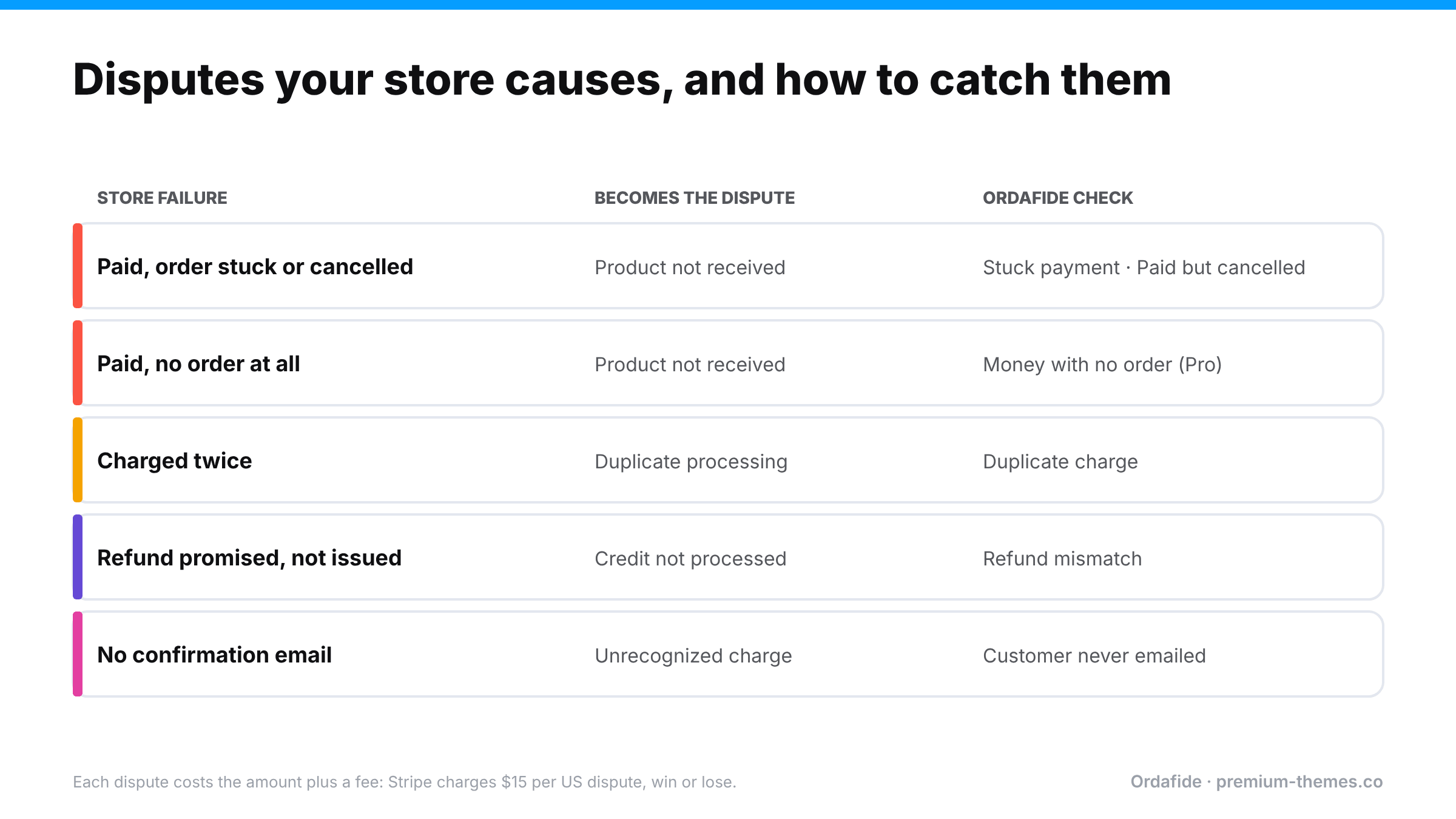
Table mapping store failures to disputes and Ordafide checks: paid orders stuck or cancelled become product-not-received disputes; paid with no order also becomes not received; charged twice becomes duplicate processing; refund promised but not issued becomes credit not processed; no confirmation email becomes an unrecognized charge.

Card networks use different codes, but customer-driven disputes usually fall into a few groups. Four of them are frequently caused by store-side order failures.

1. “Product not received” when the order was never processed

The failure: the customer paid, but the order is stuck on Pending payment, was auto-cancelled by the Hold stock timer, or never created at all. Nothing ships. The customer waits a week, then two, then disputes.

The irony: you’d happily have shipped it. You just didn’t know.

Root causes: blocked or failed webhooks; a checkout crash after payment; a wallet payment that never confirmed; a staging site with live keys. (See orders stuck on pending payment) and payment received but no order.)

2. “Duplicate processing” when the customer was charged twice

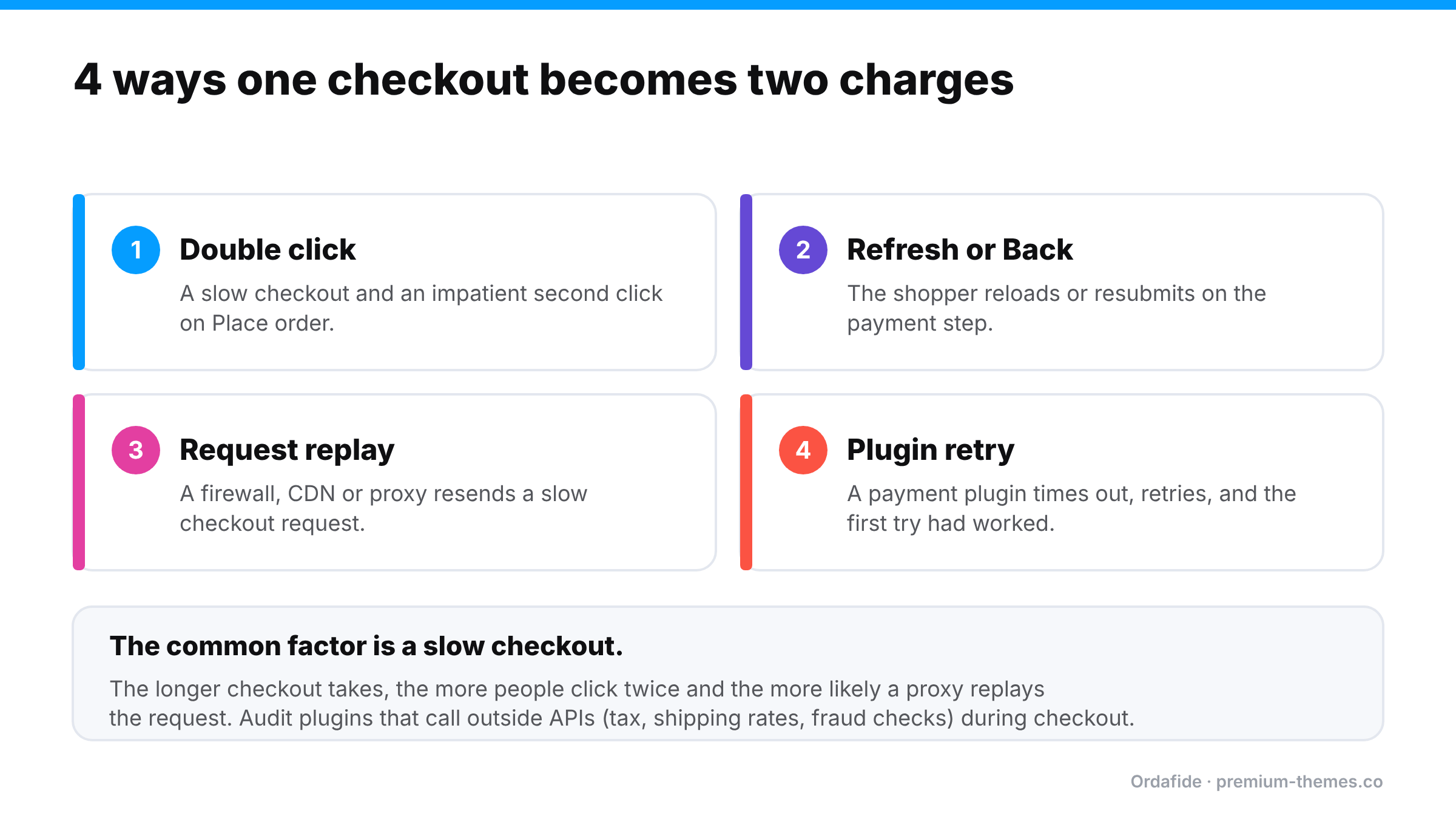
The failure: a double click, a page refresh, a request replay or a plugin retry produced two charges. The customer notices two lines on their statement and disputes one.

Why it becomes a dispute: many customers go straight to their bank instead of emailing you, especially if the second charge appears days later.

Root causes: slow checkout, firewall replays, gateway plugin retries. (See customer charged twice.)

3. “Credit not processed” when a refund was promised but not issued

The failure: someone changed the order status to Refunded without creating a refund, or a refund failed silently, or a return was approved but never refunded. The customer was told the money was coming. It isn’t.

Why it becomes a dispute: “credit not processed” is one of the easiest disputes for a customer to win when you have no record of a refund.

Root causes: refund status mismatches. (See refund status mismatches.)

4. “Unrecognized” or “did not authorize” when the customer never got a receipt

The failure: the payment worked, but the confirmation email never arrived because the background queue stalled, SMTP failed, or the email was switched off. Days later the customer sees an unfamiliar descriptor on their statement and assumes fraud.

Why it becomes a dispute: no email, plus a statement descriptor that doesn’t obviously match your store name, equals “I don’t recognize this charge”.

Root causes: stalled Action Scheduler or WP-Cron, broken mail delivery. (See order emails not sending.)

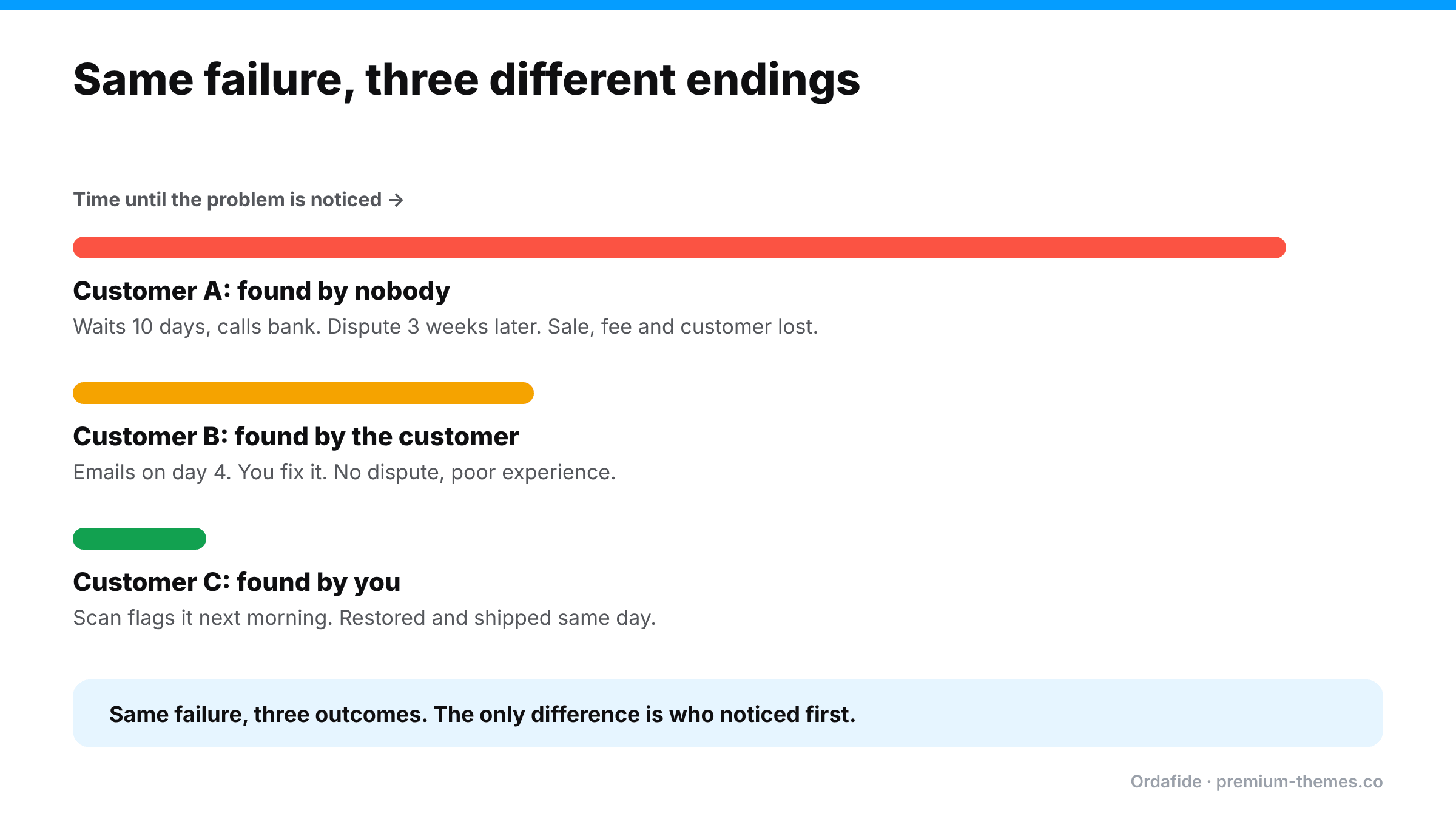
Three disputes, three different endings

Three customers with the same failed order: found by nobody leads to a dispute three weeks later; found by the customer on day four leads to a fix with a poor experience; found by the store the next morning leads to a same-day fix. Who notices first decides the outcome.

To see how much timing matters, follow three customers whose orders failed in the same way: a webhook was blocked, so each paid order sat on Pending payment and was auto-cancelled an hour later.

Customer A: found by nobody. They wait for delivery. After ten days with no parcel and no email, they search their inbox, find nothing, and call their bank. You learn about it from a dispute notification three weeks later. You lose the sale, pay the dispute fee, and the customer never returns.

Customer B: found by the customer. After four days they email you: “Where’s my order?” You investigate, find the payment in Stripe, restore the order and ship it. No dispute, but they’ve had a poor experience and you spent 30 minutes on it.

Customer C: found by you. The morning after, your integrity scan flags a paid but cancelled order. You restore it to Processing, ship it that day, and send a two-line apology. The customer probably never knew anything was wrong. Cost: five minutes.

Same failure, same customer type, wildly different outcomes. The only variable was who noticed first, and when.

The prevention principle: get there before the bank does

Every one of these disputes has a window: the time between the failure and the customer losing patience. In that window, a short email from you (“We noticed a problem with your order, here’s what we’ve done”) almost always prevents the dispute.

The window is usually days, not hours. Customers typically wait for an expected delivery date, or for their statement, before acting. That’s plenty of time if you know about the problem. Without detection, the dispute notice is the first you hear of it.

So prevention comes down to three things:

  1. Detect the order failure quickly
  2. Fix the order (ship it, refund the duplicate, issue the promised refund, resend the receipt)
  3. Tell the customer before they look at their statement

Detecting the four failures

Failure What to look for Where
Paid but not processed Orders with a payment reference or paid date sitting in Pending, Failed or Cancelled WooCommerce orders + gateway
Paid with no order Successful gateway payments with no matching order Gateway only
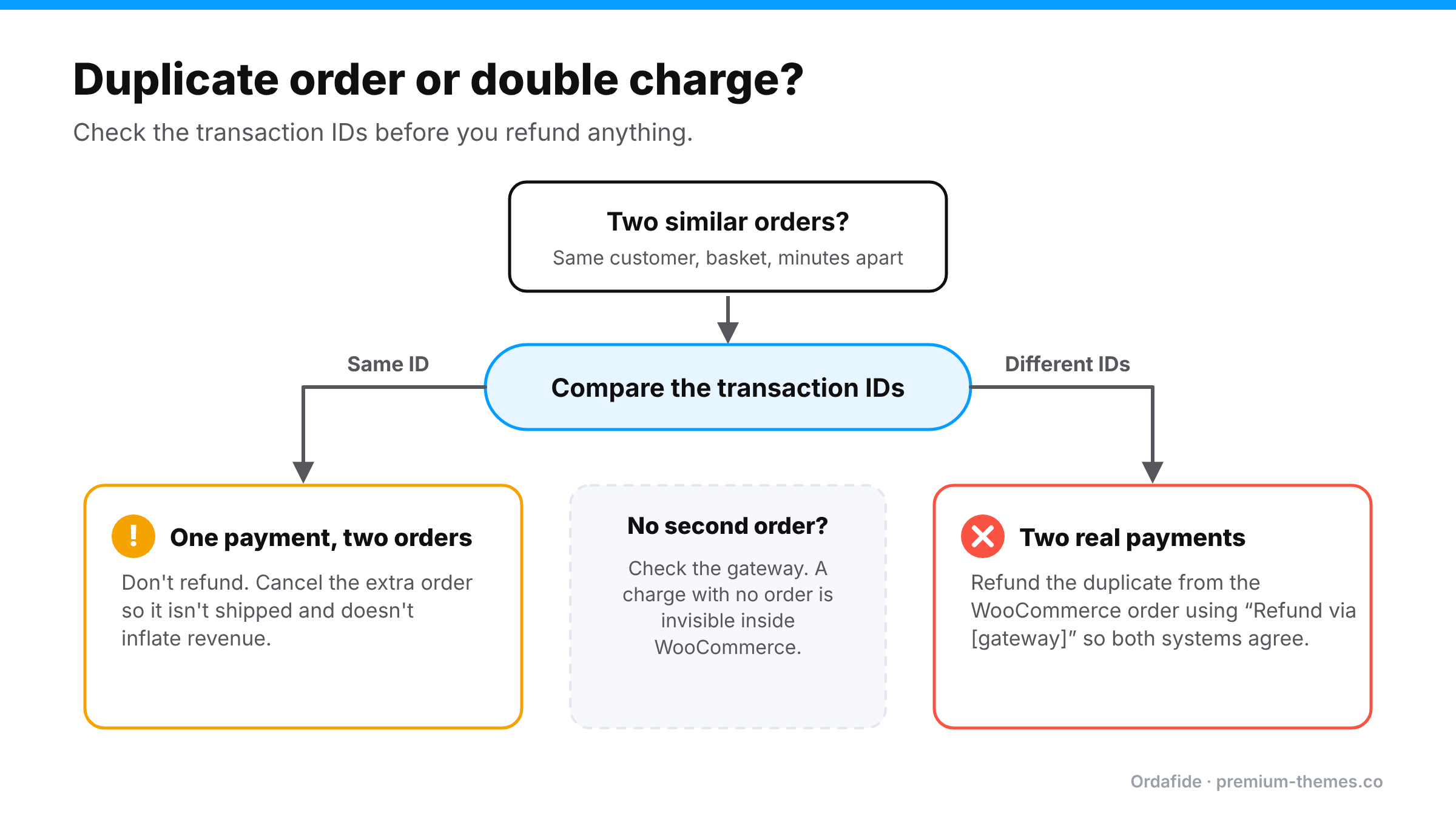
Charged twice Same customer, same basket, minutes apart; one transaction ID on two orders WooCommerce orders + gateway
Refund not processed Orders marked Refunded with no refund record; approved returns without refunds WooCommerce orders + returns system
No receipt Paid orders with no customer email sent or accepted Email log

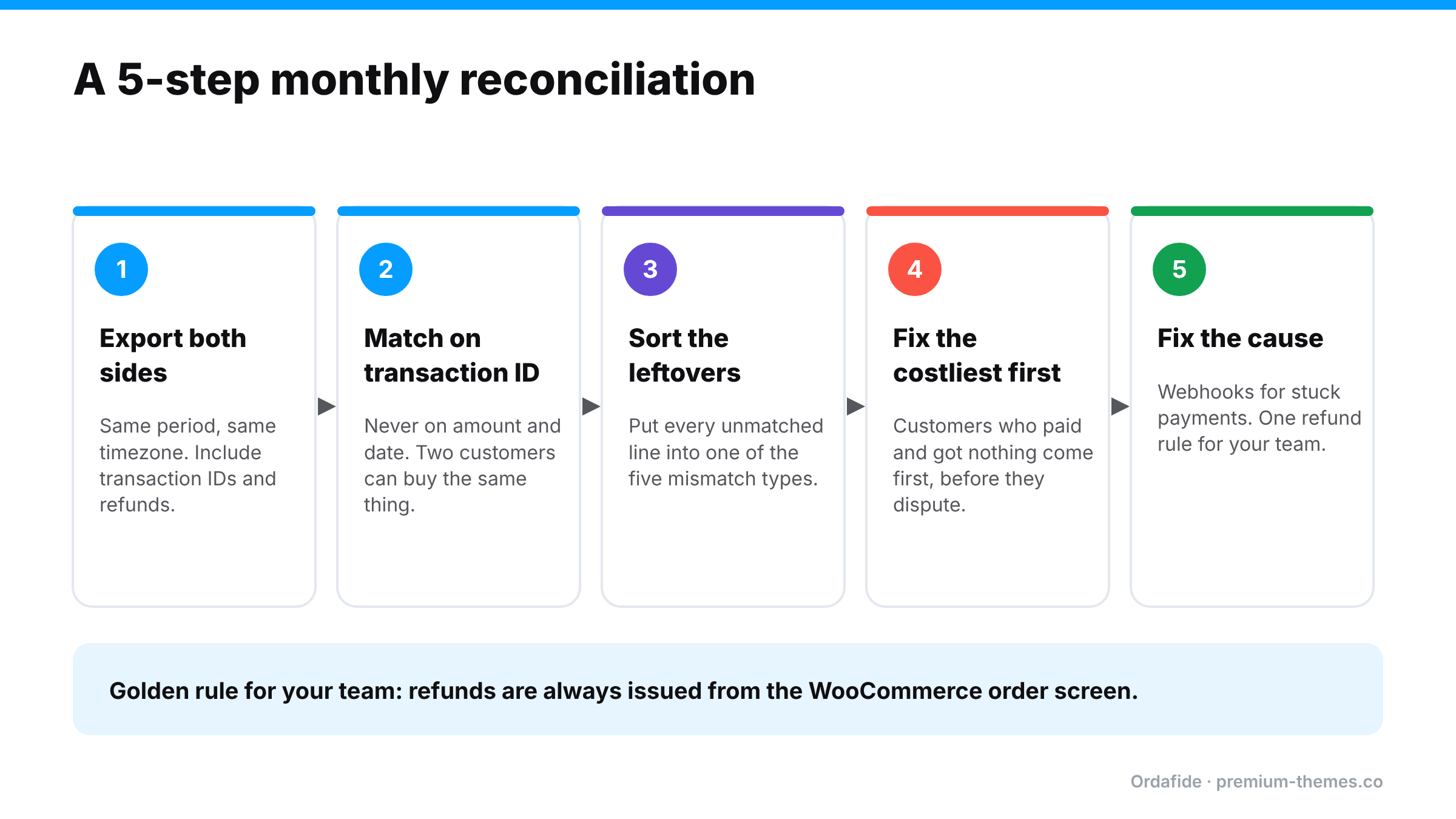
You can work through this manually with exports and spreadsheets, as described in our [reconciliation guide](/blog/reconcile-woocommerce-orders-stripe-paypal/). Or you can automate it.

Automating detection with Ordafide

Ordafide Order Integrity for WooCommerce (free) runs six checks against your recent orders that line up closely with the dispute types above:

Ordafide check Prevents
Stuck payment: pending/failed orders carrying a gateway payment reference “Not received”
Paid but cancelled: confirmed payment date, but Cancelled or Failed, nothing refunded “Not received”
Duplicate charge: one payment reference on two orders, or the same basket charged twice within minutes “Duplicate processing”
Refund mismatch: marked Refunded with no refund record; over-refunds; fully refunded but still Processing “Credit not processed” (and shipping refunded orders)
Customer never emailed: paid orders where no customer email reached your mail server “Unrecognized”
Order total does not add up “Incorrect amount” disputes

Findings are sorted by money at risk, each explains what to check in your gateway, and Ordafide can resend the customer email or restore an order to Processing when WooCommerce already recorded a confirmed payment date. Both actions are logged, and the status change can be undone. The free plugin sends nothing to any third party.

Ordafide Pro adds the gateway’s side of the story with read-only reconciliation against Stripe, PayPal, Square, Mollie and Razorpay. That’s what catches money with no order, the cleanest possible “not received” dispute, plus amount disagreements and refunds missing in WooCommerce. Pro’s alerts (Slack, SMS, email, webhook) shrink detection time from “whenever someone checks” to minutes, and its CSV/JSON audit export gives you an evidence trail if a dispute arrives anyway.

To be clear about the limits: Ordafide doesn’t see or manage disputes themselves (those live in your gateway), and it can’t prevent true fraud. It prevents the disputes caused by your store’s own order failures, which are the ones you have the most power over.

Reducing “unrecognized charge” disputes further

Two cheap fixes worth doing today:

  • Check your statement descriptor. In your gateway settings, make sure the descriptor customers see on their statement clearly matches your store or brand name. “WWW.SHOPNAME.COM” beats a legal entity name nobody recognizes.
  • Make the confirmation email unmistakable. Include the amount, the descriptor they’ll see, and how to contact you. A customer who can match the statement line to an email doesn’t dispute it.

The customer email that prevents a dispute

When you find a failure, speed and clarity matter more than polish. A template that works:

Subject: About your order #5520

Hi Sam, while checking orders today we found that your payment on 3 November went through, but a technical problem on our side stopped your order from being processed. That’s our mistake, and we’re sorry.

We’ve fixed it: your order is now being packed and will ship today. You’ll get tracking by email this afternoon. You won’t be charged again.

If you have any questions, just reply to this email.

Three things make it work: it names the order and payment the customer will see on their statement, it says what you’ve done (not what went wrong technically), and it states clearly that they won’t be charged twice. For duplicate charges, replace the middle paragraph with the refund amount and expected timing.

When a dispute arrives anyway

  1. Check the order immediately. Is this one of the four self-inflicted types? If the customer is right (they never got the goods, or were charged twice), it’s usually better to accept the dispute or refund than to fight. Contesting a valid dispute costs time and often a second fee.
  2. If you shipped and have proof, respond with tracking, delivery confirmation, order and email records, and any customer communication.
  3. Reply to the customer too. Some customers will withdraw a dispute once they see you’ve responded.
  4. Fix the root cause. Every self-inflicted dispute points at a failure that will happen again.

A monthly dispute review

Once a month, list every dispute and tag it:

  • Fraud: card stolen, true unauthorized use
  • Friendly fraud: customer received goods and disputed anyway
  • Self-inflicted: order failure on your side (stuck, duplicate, refund, no receipt)
  • Service: quality, description or delivery problems

Track the self-inflicted share over time. It should fall steadily as detection improves. If it doesn’t, the table above tells you which failure to fix next.

Refunded Orders Still Getting Shipped: Fixing WooCommerce Refund Status Mismatches

Refunds feel like the simple part of running a store. A customer asks for their money back, you click a button, done.

Except WooCommerce stores a refund in three places that are supposed to agree: the refund record on the order, the order status, and the payment gateway. When they disagree, odd and expensive things happen:

  • An order is fully refunded but still sits in Processing, so your warehouse picks and ships it. The customer gets the goods and their money.
  • An order is marked Refunded but no refund was ever issued. The customer never gets their money, and they file a dispute.
  • A refund is made in PayPal or Stripe, but WooCommerce still shows the order as paid. Revenue, stock and reports are all wrong.

These cases come up again and again on the WordPress.org support forums. This guide explains each mismatch, why it happens, how to find the ones already in your store, and how to make refunds reliable.

How WooCommerce refunds are supposed to work

When you refund from the order screen, WooCommerce:

  1. Creates a refund record attached to the order (amount, items, reason, who did it).
  2. If you chose Refund via [gateway], it asks the gateway to send the money back. If you chose Refund manually, it only records the refund. You’re saying the money went back some other way.
  3. If the order is now fully refunded, it changes the status to Refunded and sends the customer a refund email.
  4. If you ticked Restock refunded items, it increases stock.

For a partial refund, step 3 doesn’t happen. The order keeps its existing status. That’s by design, and it confuses a lot of people.

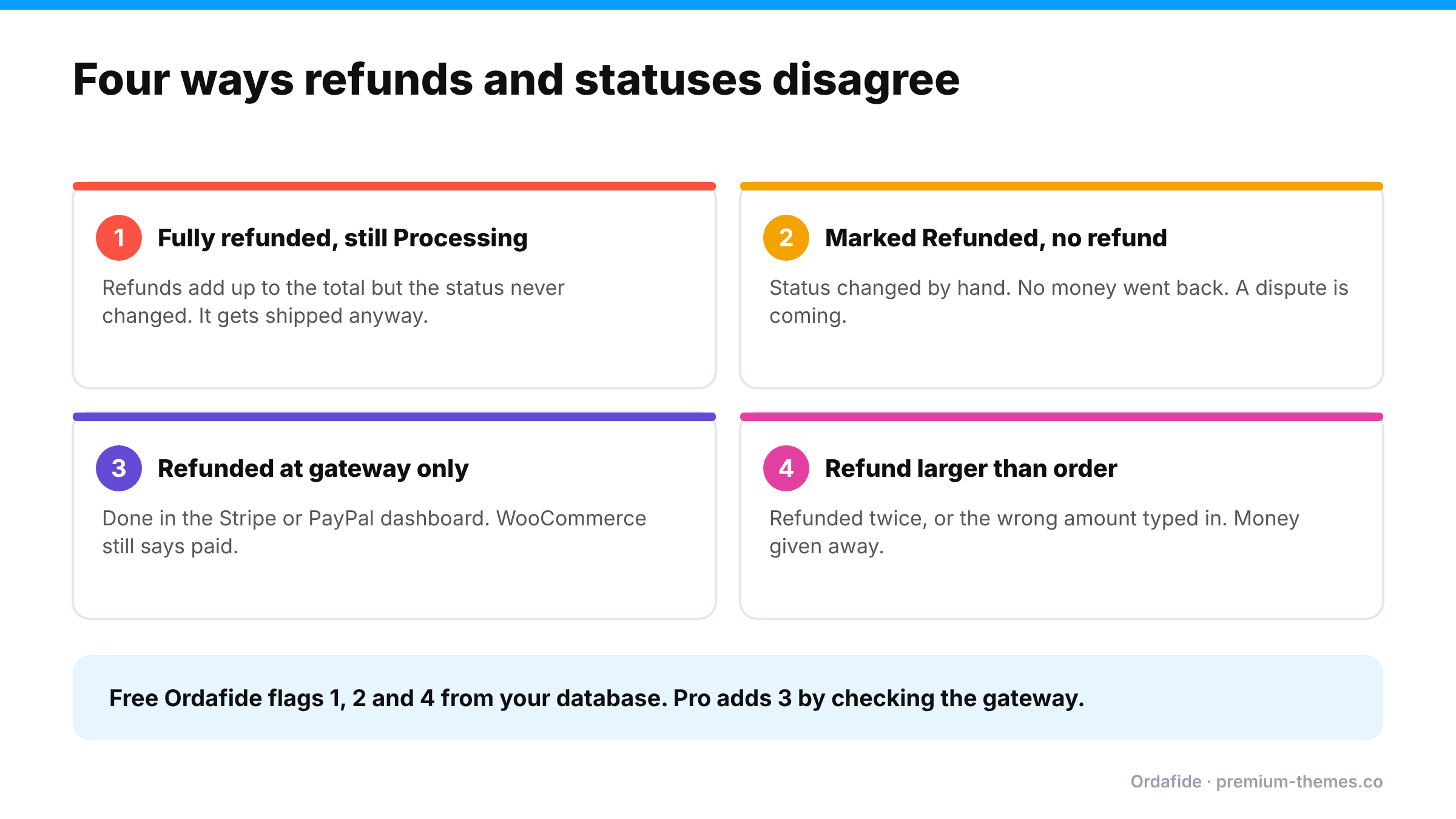
The four mismatches

Four refund mismatches: fully refunded but still Processing, so it gets shipped; marked Refunded with no refund issued; refunded at the gateway only, so WooCommerce still shows paid; refund larger than the order. Free Ordafide flags the first, second and fourth; Pro adds gateway-only refunds.

Mismatch 1: Fully refunded, still Processing

What happens: the refund records add up to the full order total, but the status never changed. Because your team works from the Processing list, the order gets shipped.

Why:

  • The refund was recorded in several partial steps, and the final step didn’t trigger the status change.
  • A plugin conflict or customization interfered with the status update.
  • The refund was made at the gateway, the gateway plugin recorded it via webhook, but the status update failed.

One WordPress.org thread describes exactly this with the WooCommerce PayPal gateway: refunding sent the customer refund emails and reversed the charge, but the order stayed in Processing. Changing the status manually then sent a second refund email. The issue disappeared after later updates, but the owner had no way of knowing which past orders were affected.

Cost: the full value of the goods, plus shipping, plus the refund.

Mismatch 2: Marked Refunded, but no refund exists

What happens: someone changed the status to Refunded from the status dropdown, intending to refund, but never actually created a refund. Or they did it manually expecting the gateway to act.

Why: status and refund are separate actions. Changing the dropdown on its own doesn’t tell your gateway to send money (behaviour can vary by gateway plugin, so never rely on it).

Cost: a customer who believes they were refunded, or was promised one, and wasn’t. That’s a near-guaranteed chargeback and a lost customer.

Mismatch 3: Refunded at the gateway, not in WooCommerce

What happens: a team member refunds in the Stripe or PayPal dashboard because it’s quicker. WooCommerce never hears about it, or hears but fails to record it.

Why: some gateway plugins import dashboard refunds via webhooks, some don’t, and webhooks fail (see orders stuck on pending payment for why).

Cost: revenue overstated; stock that came back never restocked; reports and tax figures wrong; possibly the order still in Processing (back to mismatch 1).

Mismatch 4: Refund larger than the order

What happens: refunds on one order exceed what was paid. This can come from refunding twice (once at the gateway, once in WooCommerce), or from a manual refund entered with the wrong amount.

Cost: money you didn’t need to give away, and a messy reconciliation.

The partial refund trap

Partial refunds deserve their own warning. WooCommerce support confirmed in a WordPress.org thread that:

  • a partial refund doesn’t change the order status. A partially refunded On hold order stays On hold;
  • for manual refunds, setting the status to Refunded refunds the entire order, which can trigger a second refund email or a larger refund than intended.

The thread’s suggested workaround was a custom “Partially refunded” status via an order-status plugin. Whatever you choose, make sure your team knows that status alone doesn’t tell you whether an order has been refunded. Read the refund lines on the order.

Why it matters beyond the single order

It’s tempting to treat each mismatch as a one-off customer-service problem. But refund records feed several other parts of the business:

  • Revenue reports. WooCommerce Analytics subtracts recorded refunds. Missing ones overstate revenue; duplicated ones understate it.
  • Tax. Tax collected and tax refunded are reported from order and refund records. If a refund isn’t recorded, you may report and remit tax on a sale you reversed.
  • Stock. Restocking happens when refunds are recorded with Restock refunded items. A refund made only at the gateway never restocks, so products show out of stock when they’re on your shelf.
  • Customer history. Support teams look at an order and see “paid” or “refunded”. If that’s wrong, they give the customer wrong answers.
  • Disputes. If a customer disputes a charge, your evidence comes from the order record. A missing or wrong refund record weakens your case.

So a mismatch costs more than the one order. It quietly distorts the numbers you run the business on.

Finding mismatches already in your store

Manually

  1. Filter WooCommerce → Orders by Processing and open orders older than your usual fulfilment time. Look for refund lines (shown in red under the order items).
  2. Filter by Refunded and spot-check that each one actually has refund records totalling the order amount.
  3. Export refunds from your gateway for the last 30–90 days and check each one appears on the matching WooCommerce order.
  4. Look for orders where the refunded total exceeds the order total.

This is slow, but doable once. The trouble is it needs repeating, because mismatches keep happening as long as people, plugins and webhooks are involved.

Automatically with Ordafide

Ordafide Order Integrity for WooCommerce is free and runs a Refund mismatch check on your recent orders that flags:

– orders marked Refunded with no refund record (mismatch 2)
– refunds larger than the order (mismatch 4)
– fully refunded orders still marked Processing (mismatch 1), the ones about to be shipped

Each finding explains why it matters, shows the evidence, and tells you what to check before changing anything. Findings are sorted by money at risk, and you can ignore ones you’ve reviewed. Everything runs on your own server, and the plugin never refunds, captures or voids anything.

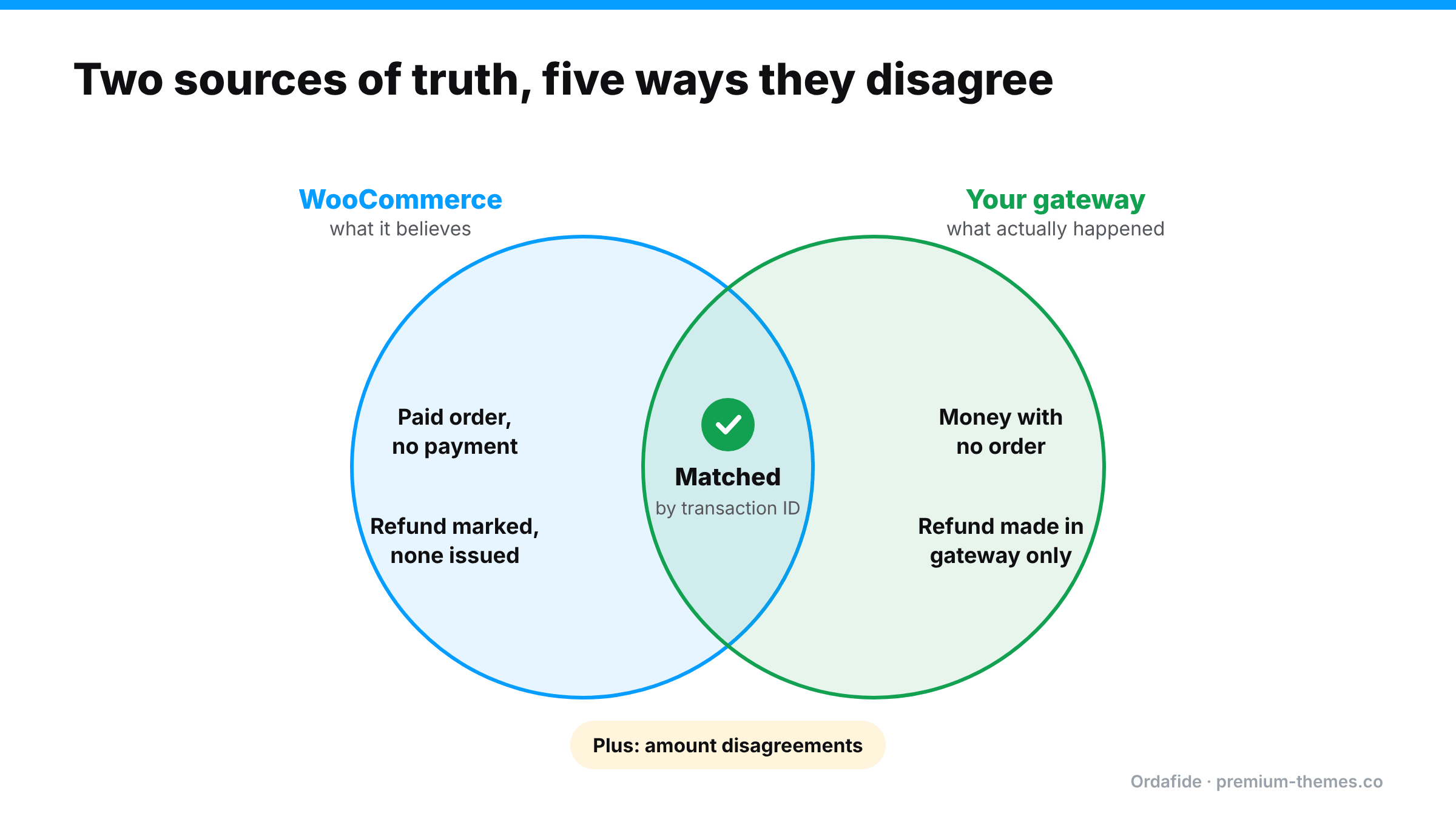
Mismatch 3, refunds that only exist at the gateway, can’t be seen from inside WooCommerce. Ordafide Pro reconciles with Stripe, PayPal, Square, Mollie and Razorpay using read-only keys and flags refunds missing in WooCommerce, along with money with no order, paid orders with no payment and amount disagreements.

Fixing each mismatch

Fully refunded, still Processing: stop fulfilment immediately. Confirm the refund at the gateway, then change the status to Refunded. If the refund was already completed, choose the status change carefully so you don’t trigger a second refund. Add a note.

Marked Refunded, no refund: check the gateway. If no money went back, issue the refund now from the order screen (Refund via [gateway]) and apologize to the customer. If the money did go back outside WooCommerce, record it with Refund manually so the books agree.

Refunded at gateway only: record it in WooCommerce using Refund manually (not via gateway, or you’ll refund twice), tick Restock refunded items if goods came back, and note the gateway refund ID.

Over-refund: check the gateway for what was actually returned. If the excess was real money, decide whether to recover it from the customer. If it was a recording error, adjust and note it.

A worked example: one week, three mismatches

To make this concrete, here’s how mismatches tend to appear on a real store over a single week.

Monday. A customer cancels a $78 order before it ships. A team member, in a hurry, opens Stripe and refunds it there. The Stripe plugin’s webhook is being blocked by a recently installed security plugin, so WooCommerce never records the refund. The order stays in Processing.

Wednesday. The warehouse picks the Processing list, including that $78 order, and ships it. The customer now has their money and the goods. (Mismatch 1 and 3 at once.)

Thursday. A different customer emails asking for a refund on a damaged item. A new team member changes the order status to Refunded from the dropdown, assuming that sends the money. It doesn’t with this gateway. The customer waits. (Mismatch 2.)

The following week. The second customer, hearing nothing, files a dispute with their bank. Meanwhile the first team member notices the Monday order in the Stripe dashboard, realizes it wasn’t recorded, and, to “fix it”, clicks Refund via Stripe on the WooCommerce order. Stripe rejects it because the charge is already refunded. Had the first refund been partial, the second could have gone through and pushed the total refunded past what the customer paid. (A near-miss for mismatch 4.)

Three people, three reasonable shortcuts, a shipped order, a dispute and a reconciliation mess. None of it was visible on the orders screen. All of it was findable by comparing refund records, statuses and the gateway.

A refund policy for your team

Paste this into your team handbook and adapt it:

How we refund

  1. All refunds are issued from the WooCommerce order screen using Refund via [gateway]. Never from the Stripe or PayPal dashboard.
  2. Never change an order’s status to Refunded to “do” a refund. Create the refund; the status follows.
  3. For partial refunds, select the items and quantities being refunded, and tick Restock refunded items only if the goods are back and sellable.
  4. If money was returned outside WooCommerce (bank transfer, gateway dashboard), record it with Refund manually and note the reference.
  5. Before shipping anything that’s been in Processing more than two days, check it has no refund lines.
  6. Return-related refunds go through our returns system, not ad hoc.

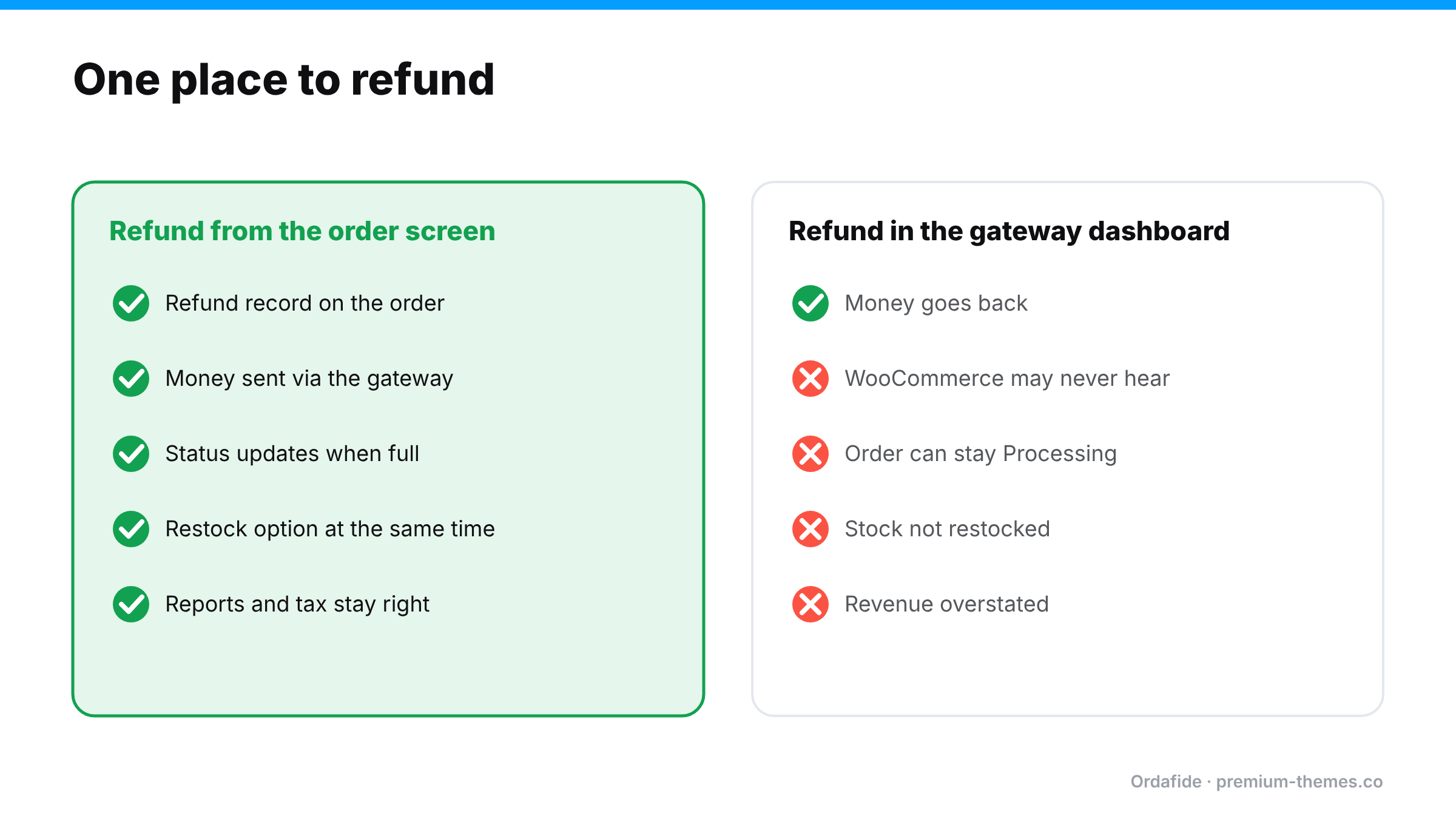
Making refunds reliable

Comparison. Refunding from the WooCommerce order screen creates the refund record, sends money via the gateway, updates the status, offers restocking and keeps reports right. Refunding in the gateway dashboard returns the money, but WooCommerce may never hear, the order can stay Processing, stock isn't restocked and revenue is overstated.

  1. One place to refund. Make it a rule: refunds are issued from the WooCommerce order screen, never the gateway dashboard. The order screen talks to the gateway; the dashboard often doesn’t talk back.
  2. Never use the status dropdown to refund. Status follows refunds, not the other way round.
  3. Check refund lines before shipping. Add “no refund lines” to your packing checklist for orders that have been in Processing a while.
  4. Use a returns workflow for return-related refunds. If refunds come from product returns, a structured returns tool that creates the refund from the return record prevents double refunds. Our sister plugin Recirco does this.
  5. Scan regularly. A weekly Ordafide scan (or its weekly summary email) catches the mismatches that slip through anyway.

WooCommerce Card Testing Attack: How to Spot It, Stop It and Clean Up Afterwards

You open WooCommerce in the morning and the orders list is unrecognizable. Hundreds of new orders arrived overnight, almost all of them Failed. They’re for the cheapest product you sell. The names look random, the email addresses are nonsense, and the billing addresses don’t match anything.

Then your payment gateway emails you about unusual activity.

This is a card testing attack, and it’s one of the most common complaints in WooCommerce communities. Threads with titles like “Spam orders, at my wits’ end” turn up regularly on r/woocommerce and the WordPress.org forums. It’s unsettling, but it’s well understood, and there’s a clear playbook for stopping it.

What card testing is (and why your store was chosen)

Criminals buy stolen card numbers in bulk. Many of those cards are already cancelled or blocked. Before they use or resell them, they need to know which ones still work. The cheapest way to find out is to attempt small purchases on real stores and see which payments go through.

Your store wasn’t chosen because of anything you sell. It was chosen because it:

  • has a cheap product (a low-value charge attracts less attention),
  • has a checkout that can be scripted (no CAPTCHA, no rate limiting),
  • uses a major gateway whose responses are easy to interpret.

WooCommerce’s developer blog has noted that attackers have targeted the WooCommerce Store API directly: the REST endpoints behind the block-based cart and checkout. This works even on stores that don’t use the Checkout block, because the endpoints exist on every modern WooCommerce install. Bots skip your checkout page entirely and talk straight to the API.

Why it matters even though the orders “failed”

It’s tempting to think failed orders are harmless. They aren’t:

  • Gateway fees. Some gateways charge per authorization attempt or for fraud screening, even when the payment fails.
  • Account risk. A flood of declines looks bad to your gateway. Stripe and others may restrict or review your account, and in serious cases pause payouts.
  • Disputes later. Some test charges succeed. When real cardholders spot them, they dispute them, and you pay a dispute fee (Stripe charges $15 per dispute in the US, win or lose) on top of refunding.
  • Polluted data. Hundreds of junk orders distort your reports, analytics and stock reservations.
  • Emails. Depending on your settings, failed-order emails can flood your admin inbox.
  • Server load. Thousands of checkout requests can slow the site for real customers.

Recognizing the signature

Illustrative bar chart of orders per hour over a day: normal low volume, then a huge overnight spike between 1 and 7 a.m., mostly failed orders with a few successful. Signature: sudden spike, mostly failed, cheapest product, random names and guest checkouts.

Card testing has a very recognizable pattern:

Signal What you’ll see
Volume A sudden spike, often overnight, far above your normal hourly order count
Status Mostly Failed, with a few Processing (the cards that worked)
Products The cheapest item, or a single low-priced product over and over
Customer details Random or mismatched names, emails and addresses; often guest checkouts
Payment notes Declines with reasons like card declined, incorrect CVC, insufficient funds
Origin Many different IPs, or bursts from data-centre ranges
Timing Requests seconds apart, at hours your real customers don’t shop

If you see most of the first four, assume it’s card testing and act now. You can confirm the details later.

What an attack looks like hour by hour

Attacks vary, but a typical overnight incident on a small store runs something like this:

  • 01:40: The first few orders arrive for a $3 product. Two fail with card declined, one succeeds. Nobody notices: it’s the middle of the night, and three orders is unremarkable.
  • 02:00–03:00: The bot speeds up once it’s confirmed the checkout can be scripted. Dozens of attempts an hour, mostly failures, from rotating IP addresses.
  • 03:00–07:00: Hundreds of attempts. The admin email inbox fills with failed-order notifications. Your gateway’s risk systems start to notice.
  • 07:30: You wake up to the inbox, the orders list, and perhaps an email from your gateway.

Every hour between 01:40 and 07:30 was another batch of stolen cards validated on your store, another set of potential disputes, and another notch against your account’s risk profile. Shortening that window is the single biggest thing you can do to reduce the damage.

Common mistakes when responding

  • Deleting the orders before refunding the successful ones. You lose the easiest list of charges to refund. Export first, refund, then clean up.
  • Refunding in the gateway dashboard only. It works for the money, but WooCommerce still shows paid orders, which distorts reports and can leave orders in Processing to be shipped. Refund from the WooCommerce order where you can.
  • Blocking by country or IP only. Attackers rotate IPs and use proxies in your own country. Use it as a supplement, not a fix.
  • Turning off the gateway entirely. It stops the attack, but it also stops real customers. CAPTCHA and rate limiting usually let you stay open.
  • Assuming it’s over because it stopped. Attackers often pause and return. Keep defences on.

Stop it: the immediate response (first hour)

Five defence layers: detect fast with order volume spike alerts; gateway fraud rules; Store API rate limiting (off by default); a CAPTCHA that covers the Store API and block checkout; and a web application firewall at the edge. No single layer is enough.

1. Put friction in front of checkout

Turn on a CAPTCHA that protects the checkout and the Store API. This matters. WooCommerce’s developer team found that some CAPTCHA plugins didn’t protect the Checkout block or Store API, so bots skipped them entirely, and worked with several plugin authors to patch them. Make sure your CAPTCHA plugin is up to date and explicitly supports block checkout and the Store API.

2. Enable Store API rate limiting

WooCommerce includes rate limiting for the Store API, but it’s off by default. Developers can enable and configure it with the `woocommerce_store_api_rate_limit_options` filter. WooCommerce 9.6 added stricter rules for the place-order endpoint that can be configured from the admin, and 9.8 added a filter for using a custom fingerprint rather than IP address. If your store sits behind a proxy or CDN, enable proxy mode so you don’t rate-limit all your real customers as one IP.

3. Tighten your gateway’s fraud rules

In Stripe, review Radar rules: block payments where the CVC or postcode check fails, and consider blocking or reviewing high-risk payments. Other gateways have equivalent risk settings. Tell your gateway’s support team you’re under attack. They see this daily.

4. Block obvious sources at the edge

If your host or CDN offers a WAF, add rules or challenges for the checkout and Store API paths, and block data-centre ranges if the attack comes from them.

5. Temporarily hide the target

If the attack hammers one cheap product, temporarily raise its price, set it to private, or require login for checkout until defences are in place.

Clean up afterwards

  1. Refund any successful test charges. Find the few Processing orders that match the attack pattern, verify them against the gateway, and refund them through the WooCommerce order (so both systems record it). Proactively refunding is cheaper than fighting the disputes that will otherwise arrive.
  2. Restore stock. Check that cancelled or failed junk orders aren’t still holding stock.
  3. Delete or trash the junk orders once refunded, so they stop polluting reports. Export a list first for your records.
  4. Check customer accounts. If the attack created accounts, remove them.
  5. Tell your gateway what you’ve done. It helps your account standing.
  6. Review your email settings so a future attack doesn’t flood your inbox.

What to tell your payment gateway

Gateways deal with card testing constantly, and a clear, early message from you helps both your account standing and their response. Include:

  • When it started and whether it’s still going
  • Roughly how many attempts and how many succeeded
  • Which product was targeted and its price
  • What you’ve done: CAPTCHA enabled, rate limiting on, fraud rules tightened, successful charges refunded
  • A request for any account-level protections they can add while things settle

Keep a copy. If your account is later reviewed because of the spike in declines, a record showing you acted quickly and responsibly is useful.

It’s also worth asking whether your gateway offers built-in card-testing protection you haven’t switched on. Several gateways and payment plugins now include specific protections against bursts of low-value attempts, and they’re often off by default or tucked away in advanced settings.

Prevent the next one

  • Keep CAPTCHA and rate limiting on permanently. Attackers return to stores that worked once.
  • Keep WooCommerce updated. Store API protections have improved release by release.
  • Watch your order volume. The earlier you notice an attack, the fewer cards get tested on your store and the smaller the clean-up.
  • Set up alerts. An attack that starts at 2 a.m. shouldn’t run until 9 a.m.

That last point is the one most stores miss. Every defence above is something you turn on after you notice. The size of the damage depends almost entirely on how long the attack runs before someone sees it.

Seeing an attack within the hour, not the morning after

Ordafide Pro includes order volume anomaly detection. Every hour, it compares the current hour’s order count with comparable past hours, using median-based statistics so that genuinely busy periods like a sale don’t distort the baseline. It flags both spikes, the typical shape of a card testing burst, and drops, which usually mean checkout is broken. Findings resolve themselves when volume returns to normal.

Combined with Pro’s alerts (Slack, SMS via Twilio, email, or a signed webhook into Discord, Microsoft Teams or PagerDuty), with severity routing and throttling, an overnight spike becomes a message on your phone while the attack is still small.

Pro’s read-only gateway reconciliation with Stripe, PayPal, Square, Mollie and Razorpay also helps afterwards. It shows any money with no order and any amount disagreements, so you can be sure you’ve found every successful test charge, including ones that never produced a clean WooCommerce order.

The free Ordafide plugin won’t detect an attack in progress (that needs volume monitoring), but its duplicate charge and refund mismatch checks help verify the clean-up: that refunds were recorded correctly, and that no refunded order is still sitting in Processing waiting to be shipped.

Ordafide is not a fraud-prevention firewall and doesn’t block requests. It’s the alarm that tells you to put the firewall up. Use it alongside CAPTCHA, rate limiting and your gateway’s fraud rules.

Card testing response checklist

Right now

  • [ ] CAPTCHA on checkout, confirmed to protect block checkout and the Store API
  • [ ] Store API rate limiting enabled (proxy mode on if behind a CDN)
  • [ ] Gateway fraud rules tightened; gateway support informed
  • [ ] WAF challenge on checkout/Store API paths

Within 24 hours

  • [ ] Successful test charges identified and refunded through WooCommerce
  • [ ] Stock checked and restored
  • [ ] Junk orders exported, then removed
  • [ ] Junk customer accounts removed

Permanently

  • [ ] WooCommerce, gateway and CAPTCHA plugins kept updated
  • [ ] Order volume monitored with alerts for spikes

WooCommerce Orders Stuck On Hold: Authorized vs Captured Payments Explained

On hold is the most misunderstood order status in WooCommerce.

Some store owners see it and assume the payment failed. Others assume the money is safely in the bank and ship the order. Both can be wrong. And because On hold orders don’t show up in the Processing queue that most teams work from, they’re easy to forget entirely, until a customer asks where their parcel is or an accountant asks where the money went.

At the centre of most On hold confusion is one concept that WooCommerce merchants rarely get explained properly: the difference between a payment being authorized and a payment being captured.

This guide explains what On hold actually means, the five reasons orders end up there, how to tell which one you’re dealing with, and how to stop orders (and money) falling through the gap.

What “On hold” really means

WooCommerce’s own documentation describes On hold as an order awaiting payment confirmation: stock has been reduced, but you need to confirm payment before fulfilling. It’s a waiting room, not a verdict.

Compare it with the neighbouring statuses:

Status What it means Should you ship?
Pending payment Order created, no payment received yet No
On hold Awaiting payment confirmation; stock reduced Not until you’ve confirmed payment
Processing Payment received; ready to fulfil Yes
Completed Fulfilled Already done
Failed Payment failed or was declined No

The danger is in that middle row. An On hold order looks like a real sale, because stock has gone down and the order has items, an address and a total, but the money may not be yours yet. Or ever.

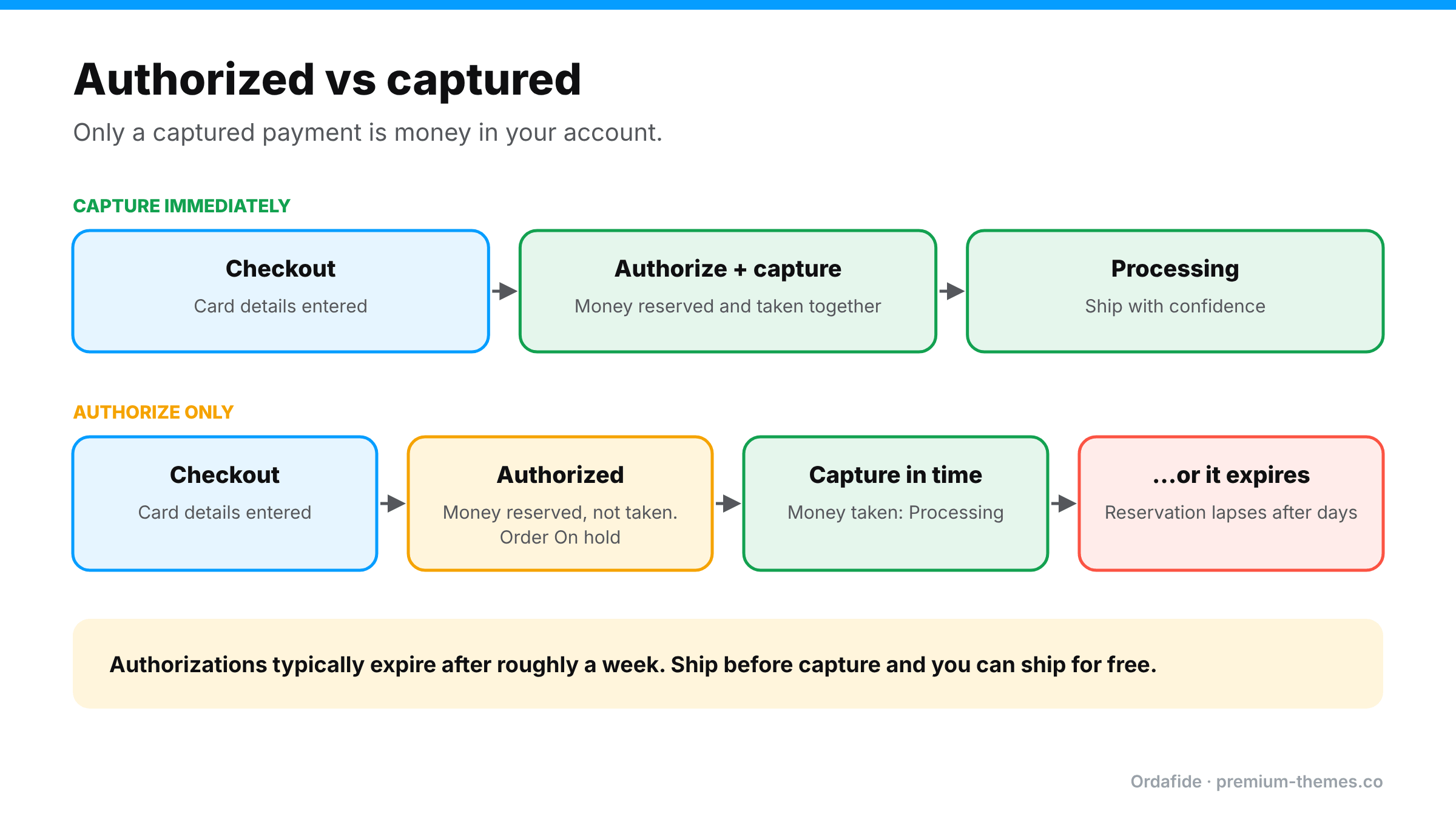
Authorized vs captured: the five-minute explanation

Two flows. Capture immediately: checkout, authorize and capture together, order goes to Processing. Authorize only: checkout, money reserved and order On hold, then either captured in time and moved to Processing, or the authorization expires after days. Shipping before capture risks shipping for free.

Card payments happen in two steps:

  1. Authorization. The customer’s bank confirms the card is valid and has enough funds, and reserves the amount. Nothing has moved. The customer sees a pending charge.
  2. Capture. You tell the gateway to actually take the reserved money. Now it moves toward your account.

Most stores capture immediately: both steps happen at checkout, and nobody thinks about it. But many gateways let you authorize only and capture later. That’s useful for made-to-order goods, pre-orders or stores that check stock before charging.

The catch: authorizations expire. Card networks typically hold an authorization for roughly a week (it varies by card type, network and gateway). If you don’t capture in time, the reservation lapses and the money is released back to the customer. You may already have shipped.

WooCommerce’s troubleshooting documentation calls this out directly: if your gateway only authorizes, funds aren’t transferred, and you need to either enable authorize-and-capture in the gateway settings or capture the charge manually.

The five reasons orders get stuck On hold

1. You chose authorize-only (and forgot to capture)

Many gateway plugins, including the WooCommerce Stripe and PayPal Payments plugins, offer a setting to capture charges immediately or only authorize them. With authorize-only, the order typically sits On hold until you capture, often by changing the order to Processing or Completed or using a capture action, depending on the plugin.

Symptom: order notes mention the charge was authorized rather than completed or captured.

2. An offline payment method

Direct bank transfer (BACS), cheque and cash on delivery orders go On hold by design. WooCommerce can’t know when the money arrives, so it waits for you.

Symptom: payment method is BACS or cheque. This is normal. The risk is only that nobody checks the bank.

3. A delayed-notification payment method

Some methods, such as SEPA Direct Debit and certain bank-based methods, take days to confirm. WooCommerce’s documentation notes these may sit On hold temporarily until the gateway confirms.

Symptom: payment method is SEPA or similar; order notes show the payment as initiated or processing.

4. The gateway’s confirmation didn’t match what the plugin expected

A WordPress.org support thread describes a store using PayPal Powered by Braintree where card payments were authorized and settled at Braintree but orders stayed On hold. The plugin checked for one specific settlement status, while Braintree sometimes reported a different, still-valid one for up to 24 hours. The money was fine. The store’s records weren’t.

Symptom: gateway dashboard shows the payment as settled or captured, but the order never moved.

5. A risk or review hold

Gateways and fraud tools can hold payments for review (PayPal “pending” reasons, fraud screening, unverified accounts). The order waits until the review finishes.

Symptom: order notes or the gateway show a review, pending reason or risk flag.

How to diagnose an On hold order in two minutes

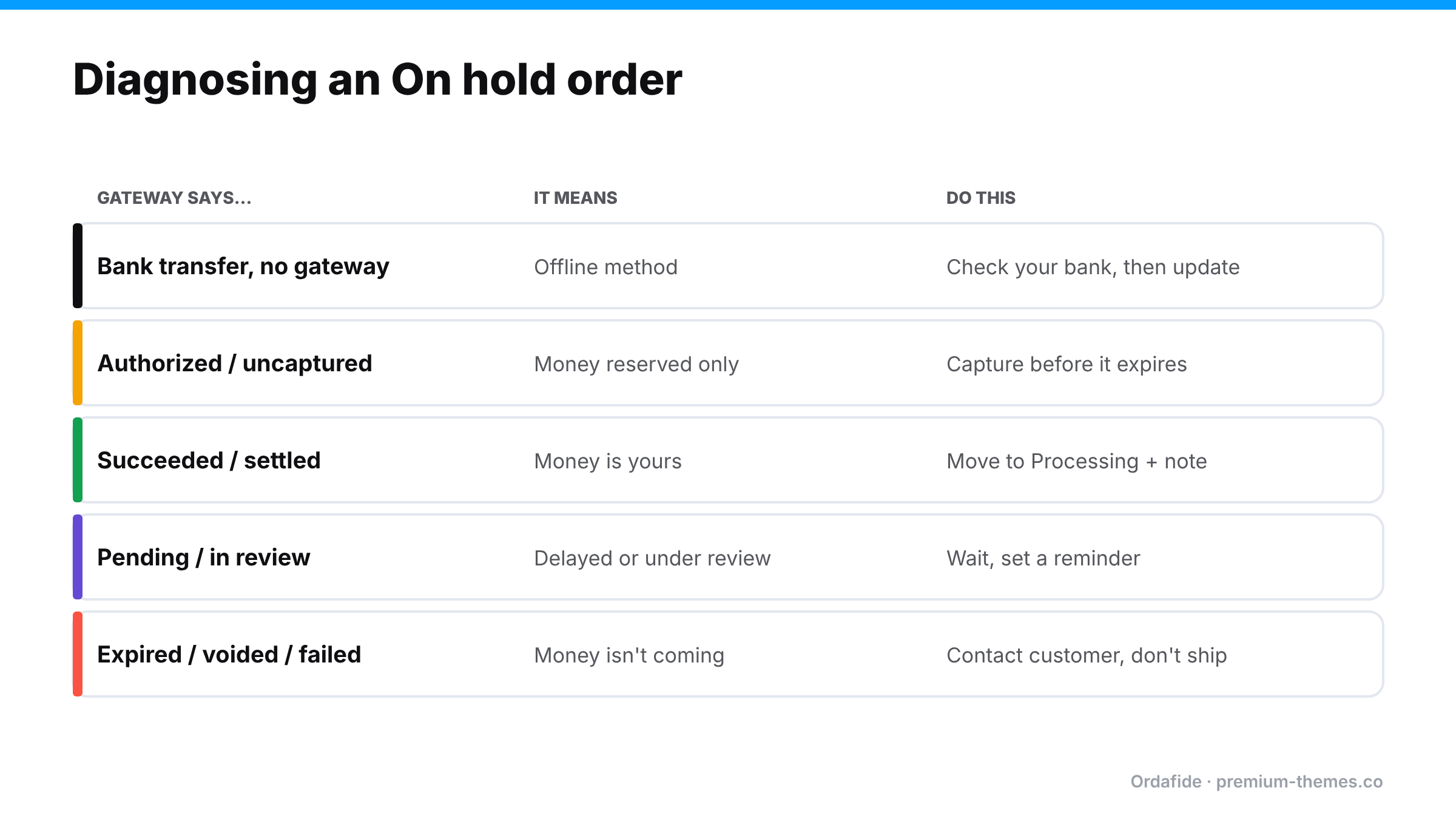
Table: bank transfer means check your bank then update; authorized or uncaptured means capture before it expires; succeeded or settled means move to Processing with a note; pending or in review means wait; expired, voided or failed means contact the customer and don't ship.

Open the order and work through this:

  1. 1. Check the payment method. BACS, cheque or COD? It’s case 2: check your bank and update manually.
  2. 2. Read the order notes. Look for the words authorized, captured, pending, review or a gateway status.
  3. 3. Find the transaction ID and open it in the gateway dashboard. What does the gateway say?
    • Authorized / uncaptured: case 1. Capture it (if you intend to fulfil) before the authorization expires.
    • Succeeded / captured / settled: case 4. Money’s in. Move the order to Processing and add a note.
    • Pending / in review: case 3 or 5. Wait, but set a reminder.
    • Expired / voided / failed: the money isn’t coming. Contact the customer before shipping anything.
  4. Check the order date. An authorization more than a few days old is at risk. Prioritize it.

The costly scenario: “paid” orders with no captured money

Here’s where it really hurts. Imagine your team moves On hold orders to Processing in bulk every morning to get them into the picking queue, perhaps because “On hold” orders always turn out fine.

If even one of those was an authorization that later expired or was never captured, you’ve shipped goods for free, and nothing in WooCommerce will ever tell you. The order says Processing, then Completed. It has a transaction ID. It looks perfect. Only the gateway knows no money was collected.

This is one of the cases where WooCommerce’s records and reality disagree silently. It’s also why “just check the order status” isn’t a reliable control.

A worked example: Monday morning’s On hold list

Here’s what a typical On hold list might look like on a small store after a weekend, and how to handle each one.

Order #4102: Direct bank transfer, $89, placed Saturday.
The customer chose bank transfer. You check the bank account: no payment yet. This is normal. Leave it On hold, and if nothing arrives within your stated payment window (say five days), send a reminder and then cancel to release the stock.

Order #4108: Card via Stripe, $240, placed Friday night, note says “authorized”.
Your Stripe plugin is set to authorize only, because you make items to order. Open the transaction in Stripe: it shows Uncaptured. If you’re starting production today, capture it now. Waiting until you ship next week risks the authorization expiring. If the item is out of stock and you won’t fulfil, cancel the authorization rather than letting it lapse, so the customer’s funds are released promptly.

Order #4111: PayPal, $56, placed Sunday, note says “pending: payment review”.
PayPal is reviewing the payment. Don’t ship. Check again later in the day. If PayPal completes it, the order should move forward on its own; if it doesn’t, compare the PayPal status and update by hand.

Order #4115: Card via another gateway, $132, placed Sunday, no useful note.
You open the gateway dashboard: the payment shows as settled. The money is yours. The plugin simply didn’t recognize the status it received. Move the order to Processing, add a note with the transaction ID, and check for a gateway plugin update.

Four orders, four different correct answers, and only one of them needed no action. That’s why On hold can’t be handled with a single rule like “promote everything each morning”.

Getting your capture settings right

Wherever your payment plugin’s settings live (usually WooCommerce → Settings → Payments → [gateway] → Manage), look for a setting along the lines of capture charge immediately, payment action: capture / authorize, or intent. Then:

– If you ship from stock: choose immediate capture. You don’t need authorize-only.
– If you make to order or sell pre-orders: authorize-only can make sense, but write down who captures, when, and what happens to authorizations older than a few days.
– If you’re not sure what’s configured: place a small real order and check the gateway. An uncaptured payment means you’re on authorize-only.

Changing this setting affects new orders only. Existing authorized orders still need capturing or cancelling individually.

Fixing On hold for good

Decide deliberately between immediate capture and authorize-only

Unless you have a real business reason to delay capture (made-to-order, stock verification, pre-orders), capture immediately. It removes an entire class of problems. If you do authorize-only, make capture part of a daily routine and make sure everyone knows authorizations expire.

Give On hold orders an owner

Add a daily check of the On hold filter in WooCommerce → Orders. Every order there should have an obvious reason (bank transfer awaiting payment, SEPA pending, authorized awaiting capture) and a next step.

Never bulk-promote On hold orders without checking the gateway

If you bulk-move orders to Processing, do it only after checking that each one’s payment is captured or confirmed. It’s tedious, which is exactly why it should be automated.

Keep gateway plugins current

Status-mapping issues like the Braintree example are typically fixed in plugin updates. Running old gateway plugins means running old bugs.

Reconcile against the gateway

The only way to catch “order says paid, gateway says no” is to compare the two. See how to reconcile WooCommerce orders with Stripe and PayPal.

How Ordafide helps

Ordafide Order Integrity for WooCommerce (free) scans your recent orders and raises plain-English findings sorted by money at risk. For the problems in this article it gives partial cover from your own database:

  • Its stuck payment and paid but cancelled checks flag orders where the gateway wrote a payment reference or WooCommerce recorded a confirmed payment date, but the status says otherwise, which helps when a valid payment never moved the order forward.
  • Its refund mismatch and order total checks catch other cases where an order’s status and its numbers disagree.

But an order that’s been promoted to Processing without the money ever being captured looks internally consistent. Only the gateway knows. That’s what Ordafide Pro adds: read-only reconciliation with Stripe, PayPal, Square, Mollie and Razorpay, which flags:

  • Paid orders with no payment: orders WooCommerce treats as paid where the gateway has no matching captured payment
  • Money with no order
  • Amount disagreements
  • Refunds missing in WooCommerce

With Pro’s alerts (Slack, SMS, email or signed webhook), a “shipped but never captured” order becomes a same-day notification rather than a hole your accountant finds next quarter. Ordafide never captures, refunds or voids anything itself; capturing stays a deliberate decision you make in the gateway or your payment plugin.

Daily On hold routine (5 minutes)

  1. Filter WooCommerce → Orders by On hold.
  2. For each BACS/cheque order: check the bank, then move to Processing or chase the customer.
  3. For each authorized order: capture if you’re ready to fulfil; flag anything older than a few days.
  4. For each delayed method order: leave it, but note how long it’s been waiting.
  5. For anything settled at the gateway but still On hold: move to Processing with a note, and look for a plugin update.
  6. Never mass-promote without checking.

Payment Received but No Order in WooCommerce? How to Find and Fix Orphaned Payments


Most WooCommerce payment problems at least leave a trace. An order sits on Pending payment, or shows up twice, or is cancelled when it shouldn’t be. You can see it, even if you don’t yet understand it.

This one leaves nothing.

A customer emails you a bank statement showing they paid. You search WooCommerce for their name, their email, the amount. Nothing. No order, no draft, no failed attempt. But when you open Stripe or PayPal, the payment is right there, marked Succeeded.

We call these orphaned payments: money that reached your gateway with no WooCommerce order attached. They’re rarer than stuck orders, but they’re among the most damaging failures a store can have. The customer has paid, nobody is going to ship anything, and nothing inside your store will ever tell you.

This guide explains how orphaned payments happen, how to find every one of them, how to resolve each case, and how to make sure you hear about the next one in hours instead of weeks.

The problem in one sentence

WooCommerce can only show you orders it created. An orphaned payment is, by definition, one it never created or never connected.

That’s why ordinary troubleshooting fails here. Every report, filter and search in WooCommerce looks at the orders table. If there’s no row, there’s nothing to find. The evidence only exists on the gateway’s side.

What merchants actually report

Searching the WordPress.org support forums and WooCommerce communities turns up the same story again and again:

  • – “Customer sent proof of payment, money is in my account, but there’s no order.” In one WordPress.org thread, a store using the Mercado Pago gateway found that two payments from the same customer had reached the gateway carrying the same WooCommerce order ID, so only one order was saved and the other payment was left without one.
  • – “Apple Pay approved but nothing happened.” An open issue in the official WooCommerce Stripe gateway’s GitHub repository describes Express Checkout (Apple Pay) sheets being approved while the order is left pending until it auto-cancels. Wallet flows add another handoff, and another place for it to break.
  • – “Orders are appearing as drafts with no customer details.” Block-based checkout creates a draft order while the shopper is on the checkout page. If something fails between the draft and the payment confirmation, you can end up with a payment and an incomplete or abandoned draft that never became a real order.

The common thread: the money moved, but the order record didn’t follow it.

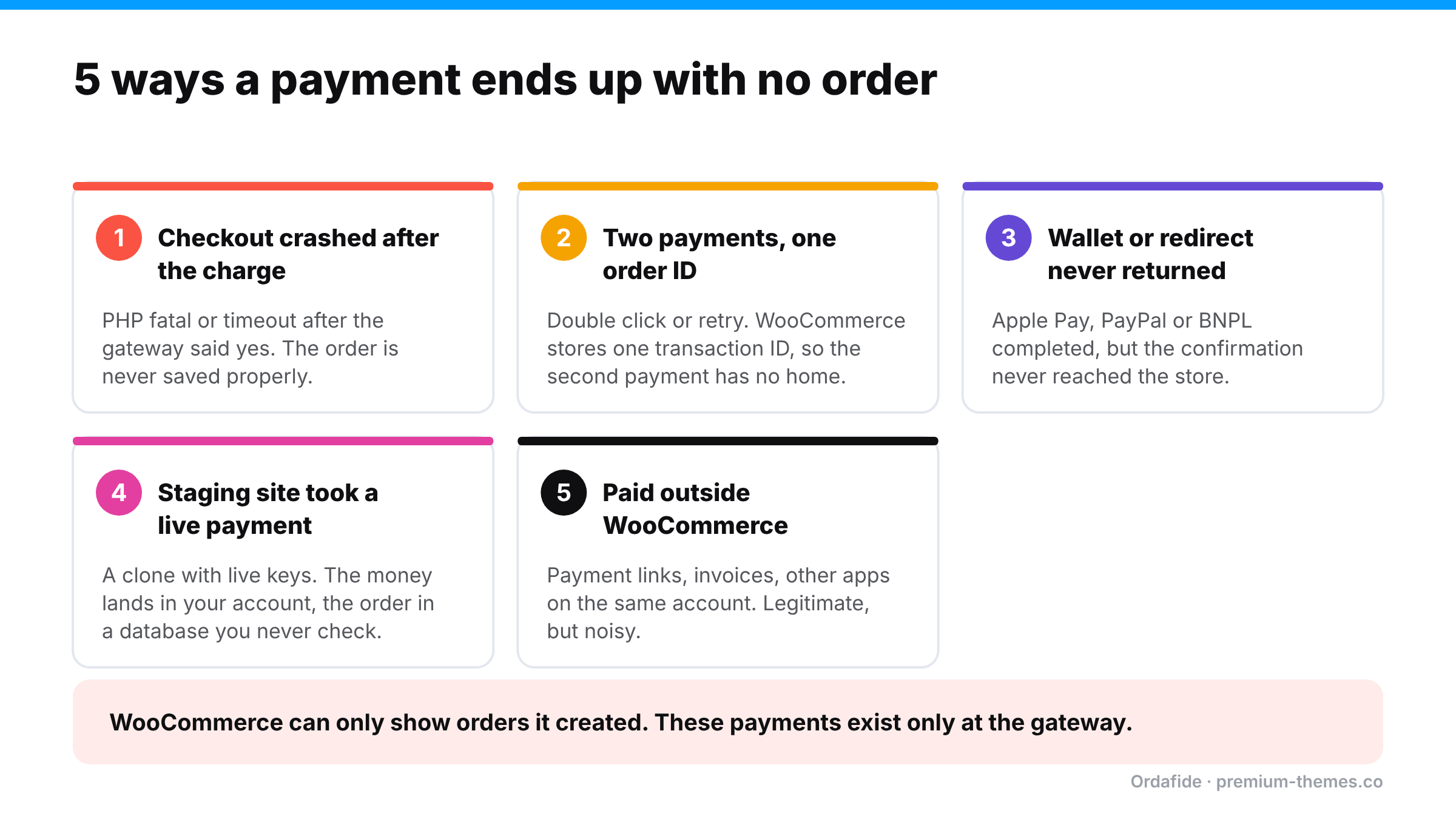
The five ways an orphaned payment happens

Five causes of orphaned payments in WooCommerce: checkout crashed after the charge, two payments on one order ID, wallet or redirect flow never returned, a staging site took a live payment, and payments taken outside WooCommerce. These exist only at the gateway.

1. The checkout crashed after the charge

The sequence inside checkout is: create or update the order, call the gateway, get a success response, then mark the order paid and redirect. If PHP hits a fatal error or `max_execution_time` after the gateway charged the card, the order may never be saved in a usable state. Slow checkouts (heavy plugins, external tax or shipping API calls, an overloaded server) make this more likely.

2. Two payments, one order ID

If a shopper pays twice (double click, a retry, a second tab), both payments can reference the same WooCommerce order. WooCommerce stores one transaction ID per order. The second payment is real money, but it has nowhere to live in your store.

3. A wallet or redirect flow that never came back

Apple Pay, Google Pay, PayPal, buy-now-pay-later and bank-redirect methods all involve the shopper leaving your page or a payment sheet appearing on top of it. If the return trip or the confirming webhook fails, the order can be left as a draft or auto-cancelled while the payment itself completes.

4. A staging or cloned site took the payment

This one surprises people. A staging copy of your store that still has live payment keys can take real payments from real customers (for example, if a search engine indexed it, or someone shared the wrong link). The payment lands in your live Stripe account. The order lands in the staging database, which you never look at.

The reverse also happens: a staging site registers its own webhook endpoint with your live gateway account, and events start going to the wrong place.

5. Payments taken outside WooCommerce

Payment links, invoices, manual charges in the gateway dashboard, or another app connected to the same Stripe or PayPal account all create gateway payments that WooCommerce never sees. These are usually legitimate, but they make reconciliation noisy. Unless you can tell them apart, a genuine orphan can hide among them.

How to find every orphaned payment (manual method)

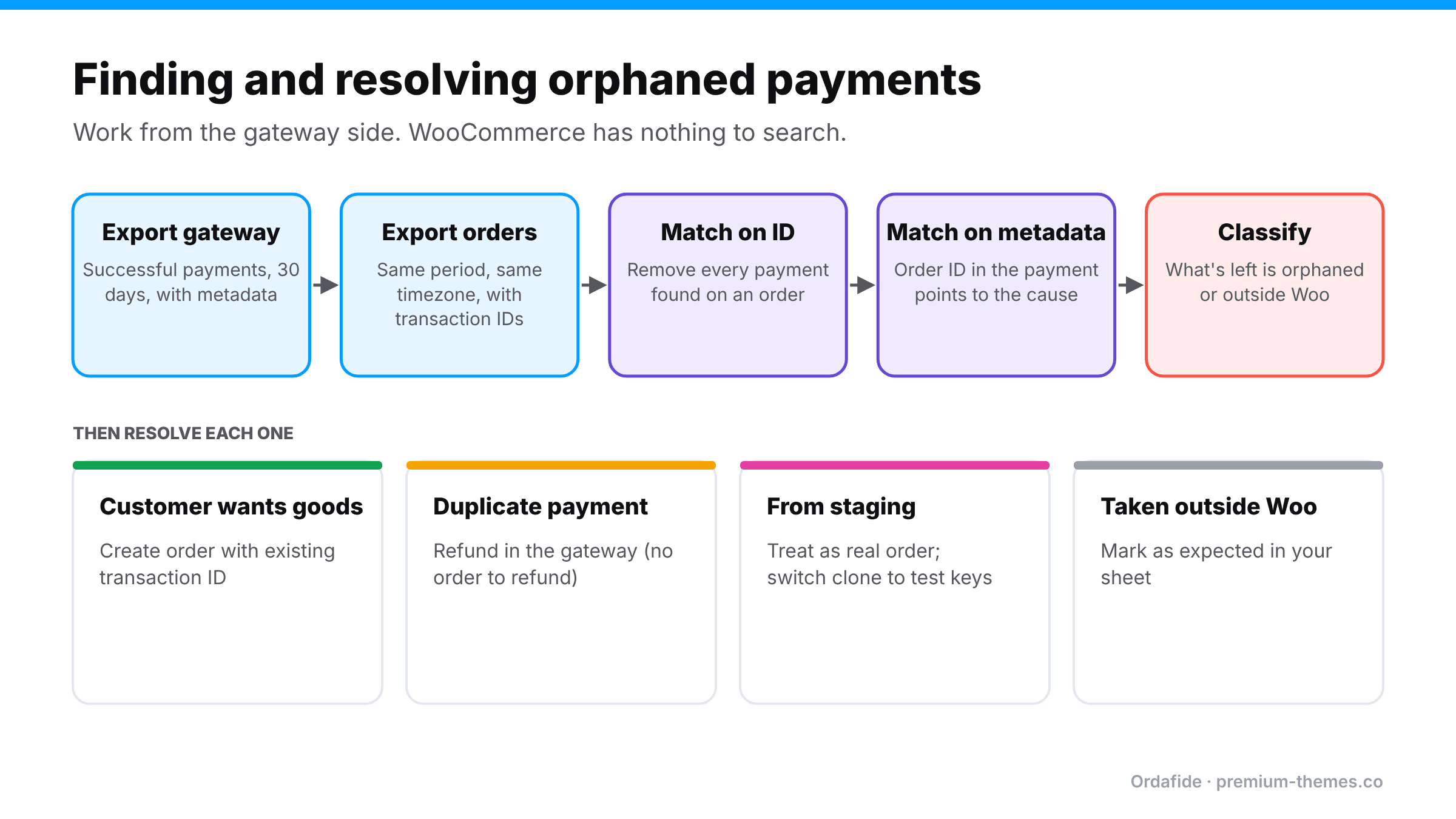
Process: export gateway payments, export WooCommerce orders, match on transaction ID, match leftovers on metadata, classify. Then resolve: create the order if the customer wants goods, refund duplicates in the gateway, treat staging payments as real orders and fix the clone, mark outside payments as expected.

You can’t search for something that doesn’t exist in WooCommerce, so you work from the gateway side.

Step 1: Export successful gateway payments for a period

From Stripe’s Payments list or PayPal’s activity reports, export successful payments for the last 30 days. Include the payment ID, amount, currency, customer email, created date and any metadata or description. The WooCommerce Stripe gateway normally writes the order ID and order number into the payment’s metadata or description, which is gold for matching.

Step 2: Export WooCommerce orders with transaction IDs

Export orders for the same period, including the transaction ID field, status, total and billing email. Make sure both exports use the same timezone.

Step 3: Match on transaction ID first

Every gateway payment whose ID appears on a WooCommerce order is accounted for. Remove those.

Step 4: Match the leftovers on metadata

For the remaining gateway payments, look at the order ID in the metadata. If it points to an existing order that has a different transaction ID, you’ve likely found two payments on one order (cause #2). If it points to an order ID that doesn’t exist in your live database, suspect a staging site (cause #4) or a crash before the order was saved (cause #1).

Step 5: Classify what’s left

Anything still unmatched is either a genuine orphan or a payment taken outside WooCommerce (cause #5). The description, payment link ID or invoice ID usually tells you which.

For a store doing a few hundred orders a month, this is an hour or two of spreadsheet work. It’s worth doing once even if you automate it later, because it shows you which causes affect your store.

Resolving each orphaned payment

Work from the most urgent: customers who paid and are waiting for something.

If the customer should receive goods:

  1. Contact them, confirm what they ordered (the gateway shows the amount, and sometimes line items in the description or metadata).
  2. Create the order manually in WooCommerce → Orders → Add order, add the items, set the customer, and set the status to Processing.
  3. Paste the gateway payment ID into the transaction ID field and add a private note explaining how you verified it. Don’t charge again.
  4. Check stock afterwards. A manually created order may need stock reduced by hand depending on how you add items.


If it’s a duplicate payment (the customer only wanted one order):

Refund it in the gateway. Since there’s no WooCommerce order to refund through, this is one of the few cases where refunding in the gateway dashboard is correct. Note it in the original order so your team knows.

If it came from a staging site:

Treat each one as a real order (as above), then fix the staging site immediately. Switch it to test keys, block it from search engines, put it behind a password, and remove any webhook endpoints it registered in your live gateway account.

If it was taken outside WooCommerce on purpose:

Mark it as expected in your reconciliation sheet so it stops showing up.

Fixing the cause

Cause Fix
Checkout crash after charge Check WooCommerce → Status → Logs for fatal errors at the payment time. Speed up checkout and remove slow external calls where possible. Raise PHP limits with your host if timeouts are frequent.
Two payments, one order See WooCommerce customer charged twice: slow checkouts, request replays and plugin retries.
Wallet / redirect flow failed Keep your gateway plugin updated, check its webhook delivery log, and test each wallet on real devices after updates.
Staging site with live keys Test keys on every non-production copy, always. Add it to your launch and clone checklist.
Payments outside WooCommerce Use a separate account, or consistent descriptions/metadata, so they’re easy to exclude.

Why this needs automation, not vigilance

Orphaned payments have three properties that make manual detection unreliable:

  1. They’re rare, so nobody builds a habit of checking for them.
  2. They’re invisible from WooCommerce, so the screens you look at every day can’t show them.
  3. They’re expensive when missed: a customer who paid and received nothing is the textbook case for a “product not received” chargeback, which costs you the sale, the goods if you ship late, and a dispute fee.

The only reliable approach is something that regularly asks the gateway “what did you collect?” and compares the answer with what WooCommerce recorded.

How Ordafide handles orphaned payments

Ordafide Order Integrity for WooCommerce comes in two parts, and this problem is a good illustration of why.

The free plugin audits what’s in your database. It catches the close relatives of orphaned payments, the ones where an order does exist:

  • Stuck payment: an order left on Pending payment or Failed even though the gateway wrote a payment reference on it.
  • Paid but cancelled: an order with a confirmed payment date sitting in Cancelled or Failed with nothing refunded.
  • Duplicate charge: one gateway payment reference attached to two orders, or the same customer charged twice for an identical basket within minutes.

What the free plugin can’t do, and doesn’t pretend to, is find an order that was never created. There’s no query for a row that doesn’t exist.

Ordafide Pro closes that gap with gateway reconciliation. It connects to Stripe, PayPal, Square, Mollie and Razorpay using read-only API keys, pulls the gateway’s own record of what was collected, and compares it with your orders. Its findings include:

  • Money with no order: exactly the orphaned payments described in this article
  • Paid orders with no payment
  • Amount disagreements between the order and the charge
  • Refunds missing in WooCommerce

Findings are sorted by money at risk and can trigger Slack, SMS, email or webhook alerts, so an orphaned payment surfaces the same day rather than when the customer’s patience runs out. Because the keys are read-only, Ordafide can’t capture, refund or void anything. It tells you what’s wrong and leaves the decision with you.

A quick prevention checklist

  • [ ] Every staging or local copy of the store uses test payment keys
  • [ ] Your live gateway account has only your production webhook endpoint registered
  • [ ] Checkout completes in a few seconds, even with all plugins active
  • [ ] Fatal errors around payment time are reviewed in WooCommerce logs
  • [ ] Wallet payments (Apple Pay, Google Pay) are tested after gateway plugin updates
  • [ ] Gateway payments are reconciled against orders, automatically or at least monthly
How to Reconcile WooCommerce Orders with Stripe and PayPal (and Find Money With No Order)

How to Reconcile WooCommerce Orders with Stripe and PayPal (and Find Money With No Order)

Your WooCommerce sales report says one number. Your Stripe balance says another. Your PayPal activity says a third. Your accountant wants to know which one is true.

Here’s the uncomfortable fact behind that gap: WooCommerce records what it believes happened. Your payment gateway records what actually happened. They’re two separate sources of truth, and nothing in WooCommerce continuously checks that they agree.

Most of the time they do. When they don’t, the difference is usually real money: customers who paid and never got their order, refunds your reports don’t know about, or stock that’s wrong because a refund never reached WooCommerce.

This guide gives you a practical reconciliation process you can run monthly (or weekly on busier stores), the five mismatches to look for, and how to fix each one.

Why WooCommerce and your gateway drift apart

  • Webhooks fail. The gateway tells WooCommerce about payments and refunds via webhooks. A firewall, a wrong secret, or a crash means WooCommerce never hears about it.
  • People work in two places. Staff issue refunds in the Stripe or PayPal dashboard because it’s faster. WooCommerce never finds out.
  • Checkouts break halfway. A payment succeeds but the order is never created or never updated.
  • Plugins modify totals. Coupons, fees, currency switchers and tax plugins can leave the stored order total different from the amount actually charged.
  • Disputes happen at the gateway. Chargebacks are raised with your gateway, not your store.

The 5 mismatches to look for

Venn diagram of WooCommerce versus the payment gateway. Orders matched by transaction ID sit in the overlap. Only in WooCommerce: paid orders with no payment and refunds marked but never issued. Only in the gateway: money with no order and refunds made in the gateway only. Plus amount disagreements between the two.

1. Money with no order

The gateway shows a successful payment, but there’s no corresponding WooCommerce order. This is the hardest to find, because WooCommerce has nothing to show you. It’s invisible by definition from inside the store. Causes include a checkout that crashed after the charge, or a duplicate charge whose order was never created.

Fix: contact the customer, then either create the order manually (so you fulfil it) or refund the payment.

2. Paid orders with no payment

WooCommerce shows an order as Processing or Completed, but there’s no matching successful payment in the gateway. Causes include an order manually set to Processing by mistake, a payment that was authorized but never captured, or one transaction attached to two orders.

Fix: stop fulfilment until you’ve confirmed payment, then contact the customer or cancel.

3. Amount disagreements

The order total in WooCommerce doesn’t match what the gateway collected. Small persistent differences often come from currency rounding. Bigger ones usually come from a coupon, fee or shipping plugin misfiring, or a manual order edit after payment.

Fix: decide which figure is right, then correct the order (or issue a partial refund) and add a note explaining why.

4. Refunds made in the gateway, missing in WooCommerce

Someone refunded in Stripe or PayPal directly, and WooCommerce still shows the order as fully paid. Your revenue is overstated, stock that came back was never restocked, and the order could even be shipped again.

Fix: record the refund in WooCommerce. Use Refund manually on the order (so WooCommerce doesn’t try to send the money a second time), tick Restock refunded items if the stock came back, and add a note referencing the gateway refund ID.

5. Refund status mismatches inside WooCommerce

These you can catch without the gateway at all: an order set to Refunded by hand with no refund actually issued (the customer never got their money), refunds larger than the order total, and fully refunded orders still sitting in Processing.

A manual reconciliation process

Five steps to reconcile WooCommerce with Stripe and PayPal: export both sides for the same period and timezone; match on transaction ID; sort unmatched lines into the five mismatch types; fix the most expensive first; then fix the cause. Rule: always refund from the WooCommerce order screen.

You can do this with exports and a spreadsheet. It takes time, but it works.

Step 1: Pick a period and export both sides

  • WooCommerce: export orders for the period with order number, date, status, total, payment method and transaction ID. Include refunds.
  • Stripe: export payments (and refunds) for the same period from the Payments section. Use the Payment Intent or charge ID.
  • PayPal: download an activity report for the period from your business account’s reports.

Use the same timezone on both sides, or orders near midnight will appear to be missing.

Step 2: Match on transaction ID, not amount

Match each gateway payment to a WooCommerce order using the transaction ID WooCommerce stores on the order. Matching by amount and date produces false matches whenever two customers buy the same thing.

Step 3: Sort the leftovers into the five buckets

Anything that doesn’t match cleanly belongs in one of the five categories above. Note the amount at stake for each.

Step 4: Fix the most expensive first

Customers who paid and received nothing come first. They’re the ones about to raise a dispute.

Step 5: Fix the cause

A mismatch is a symptom. If you find several stuck payments, check your webhooks (see WooCommerce order stuck on pending payment). If you find gateway-only refunds, agree a rule with your team: refunds are always issued from the WooCommerce order screen.

Where manual reconciliation falls down

  • It’s slow. Exports, lookups and matching easily take hours per month.
  • It’s late. A monthly check means a customer may have waited weeks.
  • It’s fragile. Partial refunds, multiple currencies, and multiple gateways make spreadsheets messy fast.
  • It doesn’t scale to agencies. Doing this across 10 or 20 client stores isn’t realistic.

Automating it

Start free. Ordafide Order Integrity for WooCommerce runs the store-side checks automatically: stuck payments, paid-but-cancelled orders, duplicate charges, refund mismatches and order totals that don’t add up. Findings are sorted by money at risk, each with evidence and next steps, and the plugin sends nothing off your server.

Then reconcile against the gateway. Ordafide Pro connects to Stripe, PayPal, Square, Mollie and Razorpay with read-only API keys and continuously compares what the gateway collected against what WooCommerce recorded. It detects:

  • money with no order
  • paid orders with no payment
  • amount disagreements
  • refunds missing in WooCommerce

Pro also keeps a full event log with CSV/JSON audit export over any date range (with secrets removed), which is useful to hand to an accountant. Because credentials are read-only, Ordafide can’t capture, refund or void anything at the gateway. It tells you what’s wrong and links you to the order.

A sensible reconciliation rhythm

Store size Store-side checks Gateway reconciliation
Under ~100 orders/month Weekly Monthly, manually
Hundreds of orders/month Continuous (automated) Weekly or continuous
Thousands/month, or multiple gateways Continuous Continuous, with alerts
Agencies managing client stores Continuous on every store Continuous, with per-store alerts
WooCommerce Customer Charged Twice? How to Find and Prevent Duplicate Orders and Double Charges

WooCommerce Customer Charged Twice? How to Find and Prevent Duplicate Orders and Double Charges

Few emails damage trust faster than “You charged my card twice.”

Double charges are rarely caused by one dramatic bug. They come from ordinary things: a slow checkout, an impatient click, a firewall that retries a request, a payment plugin that times out and tries again. Each one is rare. Across hundreds of orders a month, they add up, and each one that goes unnoticed becomes a refund request, a chargeback, or a one-star review.

This guide covers what causes duplicate orders in WooCommerce, how to find every one in your store, how to refund them without breaking your records, and how to prevent them.

Two different problems that look the same

It helps to separate two situations:

  1. Duplicate orders: two WooCommerce orders for the same basket. The customer may have been charged once or twice.
  2. Duplicate charges: the customer’s card was charged twice. There may be one order or two.

The worst case is a second charge with no matching order at all. WooCommerce has nothing to show you, so you only find it in your gateway dashboard, or when the customer’s bank statement arrives.

What causes double charges in WooCommerce

Four causes of WooCommerce double charges: a double click on Place order, a page refresh or Back on the payment step, a firewall or proxy replaying the request, and a payment plugin retrying after a timeout. All are made worse by a slow checkout.

Multiple clicks on “Place order”

On a slow checkout, shoppers click again. WooCommerce’s classic checkout blocks the form while it processes, but slow pages, custom themes, page builders and some checkout plugins can weaken that protection. A second click can create a second order and, depending on the gateway, a second payment.

The page was refreshed or the back button was used

A shopper who refreshes on the payment step, or goes back and resubmits, can create a second order with an identical basket.

Request replays by a firewall, proxy or host

Some firewalls, CDNs and reverse proxies resend a POST request when the first one is slow to respond, assuming it failed. If your checkout takes several seconds (often because of third-party API calls for tax, shipping rates or fraud checks), the replayed request can process as a brand-new checkout. Sucuri, in particular, has published guidance on configuring it for WooCommerce for this reason.

Payment plugin retries after a timeout

If the gateway responds slowly, a payment plugin may treat the request as failed and retry. If the first attempt actually succeeded, the customer is charged twice.

Subscription renewal retries

Renewal logic that retries a “failed” payment which actually went through can create two renewal orders and two charges.

One transaction ID attached to two orders

Occasionally a plugin conflict attaches the same gateway transaction to two different orders. You see two “paid” orders but only one payment. This inflates your revenue reports and can lead to shipping two parcels for one payment.

How to find every duplicate charge

Step 1: Look for near-identical orders

In WooCommerce → Orders, sort by date and look for the same customer email, same total and same items within a few minutes of each other. On a small store this is tedious. On a busy store, it isn’t realistic to do by hand every week.

Step 2: Check transaction IDs

Open each suspected pair and compare the gateway transaction IDs. Two orders with the same transaction ID usually means one payment, two orders. Two orders with different transaction IDs means two real payments.

Step 3: Compare against the gateway

Search your Stripe or PayPal dashboard for the customer’s email. Count the successful payments for that basket and compare against the orders in WooCommerce. This is the only way to catch a second charge that never produced an order.

Step 4: Check your logs

‘WooCommerce → Status → Logs’ and your server access logs can show whether two checkout requests arrived close together. That tells you whether it was the shopper, a replay, or a plugin retry, and that decides the fix.

How to refund a double charge without breaking your records

Decision tree: if two similar orders share a transaction ID, it's one payment and two orders, so cancel the extra order. If they have different IDs, it's two real payments, so refund the duplicate from the WooCommerce order via the gateway. If there's no second order, check the gateway for a charge with no order.

The cleanest fix keeps WooCommerce and your gateway in agreement:

  1. Decide which order to keep. Usually the first one.
  2. Refund the duplicate from inside WooCommerce, using the Refund button on the duplicate order and choosing Refund via gateway. This sends the refund to the gateway and records it in WooCommerce, so stock, revenue and reports stay correct.
  3. Avoid refunding only in the gateway dashboard. A refund made directly in Stripe or PayPal may never be recorded in WooCommerce. The order still looks paid, your revenue is overstated, and stock may be wrong. (See how to reconcile WooCommerce with Stripe and PayPal.)
  4. Make sure the duplicate isn’t shipped. Once fully refunded, the order should move to Refunded. A fully refunded order still sitting in Processing is a classic way to ship an order you didn’t get paid for.
  5. Tell the customer. Let them know it was spotted, refunded, and how long their bank usually takes to show it.

How to prevent duplicate orders

  • Speed up checkout. The slower the checkout, the more people click twice and the more likely a proxy replays the request. Audit plugins that call external APIs during checkout.
  • Don’t break the built-in submit protection. If you’ve customized the checkout or use a page builder, test what happens when you double-click Place order on a slow connection (browser DevTools can throttle the network).
  • Review your firewall and CDN. Make sure nothing retries POST requests to checkout or payment endpoints.
  • Keep your gateway plugin updated. Retry and idempotency handling improves over time.
  • Test with block checkout and classic checkout separately if you’ve switched between them.
  • Monitor continuously. Prevention reduces duplicates. It doesn’t eliminate them.

Catch duplicates automatically

Ordafide Order Integrity for WooCommerce is a free plugin that scans your recent orders and flags problems in plain sentences, sorted by money at risk. Its Duplicate charge check looks for:

  • one gateway payment reference attached to two orders, and
  • the same customer charged twice for an identical basket within minutes.

It also runs a Refund mismatch check that catches orders marked Refunded with no refund record, refunds larger than the order total, and fully refunded orders still marked Processing, so a refunded duplicate doesn’t get shipped anyway.

The duplicate window and other thresholds are configurable, findings you’ve reviewed can be ignored, and the plugin never captures, refunds or voids a payment. Everything runs on your own server.

The one case a store-side scan can’t see is a charge with no order. Ordafide Pro covers it with read-only reconciliation against Stripe, PayPal, Square, Mollie and Razorpay, flagging money with no order, paid orders with no payment, and amount disagreements.

WooCommerce Order Stuck on Pending Payment (But the Customer Paid): Causes and Fixes

WooCommerce Order Stuck on Pending Payment (But the Customer Paid): Causes and Fixes

A customer emails you: I paid yesterday. Where’s my order?

You open WooCommerce and find their order sitting on Pending payment. Or worse, it says Cancelled, with a note that reads Unpaid order cancelled – time limit reached. Meanwhile, your Stripe or PayPal dashboard clearly shows the money arrived.

This is one of the most common, and most expensive, silent failures in WooCommerce. Nothing crashed. No error was shown. The store simply never found out that the payment succeeded.

This guide explains why it happens, how to confirm it, how to fix the orders you already have, and how to stop it from happening again.

Why WooCommerce thinks a paid order is unpaid

Flow diagram: shopper places order, WooCommerce creates a Pending payment order, the gateway takes the money, but the webhook back to WooCommerce is blocked, so WooCommerce still thinks the order is unpaid while the gateway shows it paid.

A WooCommerce sale isn’t one event. It’s a handoff between separate systems:

  1. The shopper’s browser submits checkout.
  2. WooCommerce creates the order in Pending payment.
  3. The payment gateway (Stripe, PayPal, Square, Mollie, Razorpay…) takes the money.
  4. The gateway tells WooCommerce the payment succeeded, either by redirecting the shopper back to your site or by sending a webhook (a server-to-server notification).
  5. WooCommerce moves the order to Processing and sends the confirmation email.

If step 4 fails, WooCommerce has no way of knowing that step 3 happened. Your store and your gateway now disagree, and WooCommerce doesn’t check.

The 6 most common causes

1. The webhook was blocked before it reached WooCommerce

This is the number-one cause. Something between the gateway and WordPress rejected the request:

  • Cloudflare Bot Fight Mode or a WAF rule challenging the gateway’s server
  • ModSecurity, Imunify360 or another host-level firewall rule
  • A security plugin that blocks or restricts the REST API or unknown POST requests
  • A redirect (HTTP to HTTPS, www to non-www) on the webhook URL. Webhooks generally don’t follow redirects
  • Maintenance mode returning a 503
  • Password protection on the site (common on staging copies that were pushed live)

2. The webhook secret is wrong

Each Stripe webhook endpoint has its own signing secret (it starts with ‘whsec_’). If you cloned the site, migrated hosts, restored a backup, or recreated the endpoint, the secret saved in WooCommerce may no longer match. The webhook arrives, the signature check fails, and the plugin rightly refuses to trust it, so the order never moves.

3. The shopper closed the tab before returning

With off-site or redirect payment methods (PayPal, iDEAL, some wallets and bank methods), the shopper pays on the gateway’s page and is then sent back to your store. If they close the tab, lose signal, or their session cookie doesn’t survive the trip, the “return” leg never happens. If the webhook is also broken, nothing else will tell WooCommerce.

4. The webhook arrived but PHP crashed while processing it

The gateway’s log shows the delivery as successful, yet the order didn’t change. A fatal error in a plugin hooked into the order status change, or a timeout, can kill the request halfway through. Check ‘WooCommerce → Status → Logs’ for fatal errors around the payment time.

5. The site URL is wrong

If the ‘home’ or ‘siteurl’ options still point at an old or staging domain, the webhook URL registered with your gateway may be pointing somewhere that no longer exists.

6. Background processing is stalled

Some gateway plugins hand part of their webhook processing to WooCommerce’s background queue, Action Scheduler, to avoid race conditions. If WP-Cron or Action Scheduler isn’t running, that queued work sits there and the order never advances. (We cover this in detail in WooCommerce order emails not sending.)

Why paid orders get cancelled: the “Hold stock” timer

Timeline: order created at 0 minutes, customer pays at 1 minute, webhook blocked, stock held, and at 60 minutes WooCommerce cancels the order with the note 'Unpaid order cancelled - time limit reached'. The Hold stock setting is under WooCommerce, Settings, Products, Inventory.

This catches out a lot of store owners.

Go to WooCommerce → Settings → Products → Inventory and look at Hold stock (minutes). The default is 60. When stock management is turned on, WooCommerce reserves stock for unpaid orders for that many minutes. When the timer runs out, it cancels any order still on Pending payment and adds the note “Unpaid order cancelled – time limit reached.”

That’s sensible for genuinely abandoned checkouts. But when the webhook is broken, a paid order looks exactly like an abandoned one. An hour later, WooCommerce cancels it and releases the stock. The customer has paid for an order your store now considers dead, and it won’t appear in your Processing list to be shipped.

If you use slow payment methods (bank transfers, some buy-now-pay-later providers), consider raising this value. Leaving the field blank turns off automatic cancellation entirely.

How to confirm a stuck order was actually paid

Before you change anything, verify the money. Never mark an order paid based on a customer’s word alone.

  1. Open the order and look in the Order notes and custom fields for a gateway reference: a Stripe Payment Intent ID (‘pi_…’) or charge ID (‘ch_…’), a PayPal transaction ID, and so on. Many gateways write this reference to the order before the payment is confirmed.
  2. Search for that reference in your gateway dashboard. Confirm the status is Succeeded / Completed, and that the amount and currency match the order.
  3. Check the gateway’s webhook log. In Stripe, open the Webhooks section of the Dashboard (under Developers / Workbench) and inspect the endpoint’s recent deliveries. A failed delivery shows the HTTP status your site returned, which tells you where to look:
    • 403: a firewall or security plugin blocked it
    • 301 / 302: a redirect on the webhook URL
    • 400 / 401: usually a signature or secret problem
    • 500: PHP crashed; check the error logs
    • 503: maintenance mode or the server was overloaded
  4. Check WooCommerce logs under ‘WooCommerce → Status → Logs’, filtering by your gateway’s log source.

How to fix the orders you already have

Once you’ve confirmed the payment succeeded:

  • Resend the event from the gateway (Stripe lets you resend a webhook event from the event’s page). If the underlying problem is fixed, WooCommerce will process it normally and update the order itself. This is the cleanest option because the gateway plugin records everything as it would have originally.
  • Or update the order manually. Change the status to Processing and add a private note with the transaction ID and how you verified it. For a cancelled order, check stock levels afterwards, because cancelling released the stock and restoring the order may not reduce it again.
  • Send the customer their confirmation. From the order’s Order actions dropdown, choose Email invoice / order details to customer, and add a short apology. Customers who pay and hear nothing often open a dispute.

How to fix the root cause

  • Test the webhook URL. For the official WooCommerce Stripe plugin, the endpoint is shown in ‘WooCommerce → Settings → Payments → Stripe’ and usually looks like ‘https://yourstore.com/?wc-api=wc_stripe’. An unsigned test request should reach the plugin and be rejected with a 400, not blocked with a 403.
  • Allow gateway traffic through your firewall. Create Cloudflare/WAF rules that skip challenges for the webhook path, and check your security plugin’s REST API and firewall settings.
  • Re-enter the signing secret after any migration, clone or restore. For PayPal Payments, use the plugin’s option to resubscribe webhooks.
  • Make sure background jobs run. Check ‘WooCommerce → Status → Scheduled Actions’ for a pile of past-due actions.
  • Send a test event from the gateway (or the Stripe CLI) and confirm it returns a 200 and the order updates.

Catching this automatically instead of from angry emails

The painful part of this problem is not fixing it. It’s noticing. A broken webhook can quietly affect dozens of orders before a customer complains, and by then many of them have been auto-cancelled.

We built Ordafide Order Integrity for WooCommerce (free on WordPress.org) to scan your recent orders for exactly this pattern:

  • Stuck payment: orders left on Pending payment or Failed even though the gateway wrote a payment reference on them.
  • Paid but cancelled: orders with a confirmed payment date sitting in Cancelled or Failed, with nothing refunded.

Each finding is sorted by the money at risk and comes with the evidence and what to check in your gateway before you touch anything. If WooCommerce itself recorded a confirmed payment date on an order, Ordafide can restore it to Processing with one click. That change is written to an activity log and can be undone. It never captures, refunds or voids payments, and it sends no data to any third party.

For stores that need certainty rather than inference, Ordafide Pro adds read-only gateway reconciliation with Stripe, PayPal, Square, Mollie and Razorpay. It compares what your gateway actually collected against what WooCommerce recorded, including payments that never produced an order at all, and can alert you on Slack, SMS, email or webhook.

Quick checklist

  • [ ] Verify the payment in the gateway before changing any order
  • [ ] Check webhook delivery logs and note the HTTP status code
  • [ ] Fix the firewall, redirect, secret or URL that caused it
  • [ ] Confirm Action Scheduler isn’t backed up
  • [ ] Review Hold stock (minutes) for your payment methods
  • [ ] Restore affected orders and resend confirmation emails
  • [ ] Set up ongoing monitoring so you hear about it before customers do

*Have a stuck-order story we didn’t cover? Ask on the Ordafide support forum.