Open Tools → Site Health on many WordPress sites and you’ll find one of these:
- “The loopback request to your site failed, this means features relying on them are not currently working as expected.”
- “A scheduled event has failed” or “A scheduled event is late”
- “The REST API encountered an error”
Most site owners shrug and move on, because the site looks fine.
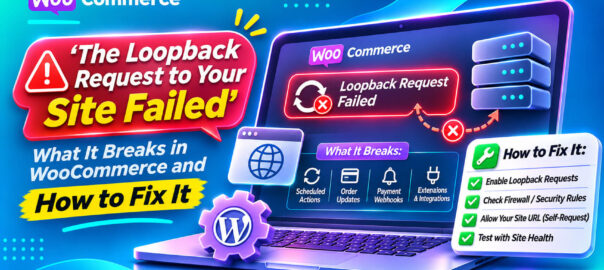
On a WooCommerce store, that’s a mistake. Loopback requests and scheduled events are how WordPress and WooCommerce run background work: order emails, subscription renewals, stock updates, analytics imports, webhook deliveries, cleanup jobs. When loopbacks fail, that work can silently stop. Your storefront keeps working while the machinery behind it stalls.
This guide explains what a loopback request is, what fails in WooCommerce when it doesn’t work, the common causes, and how to fix it properly.
What a “loopback request” is
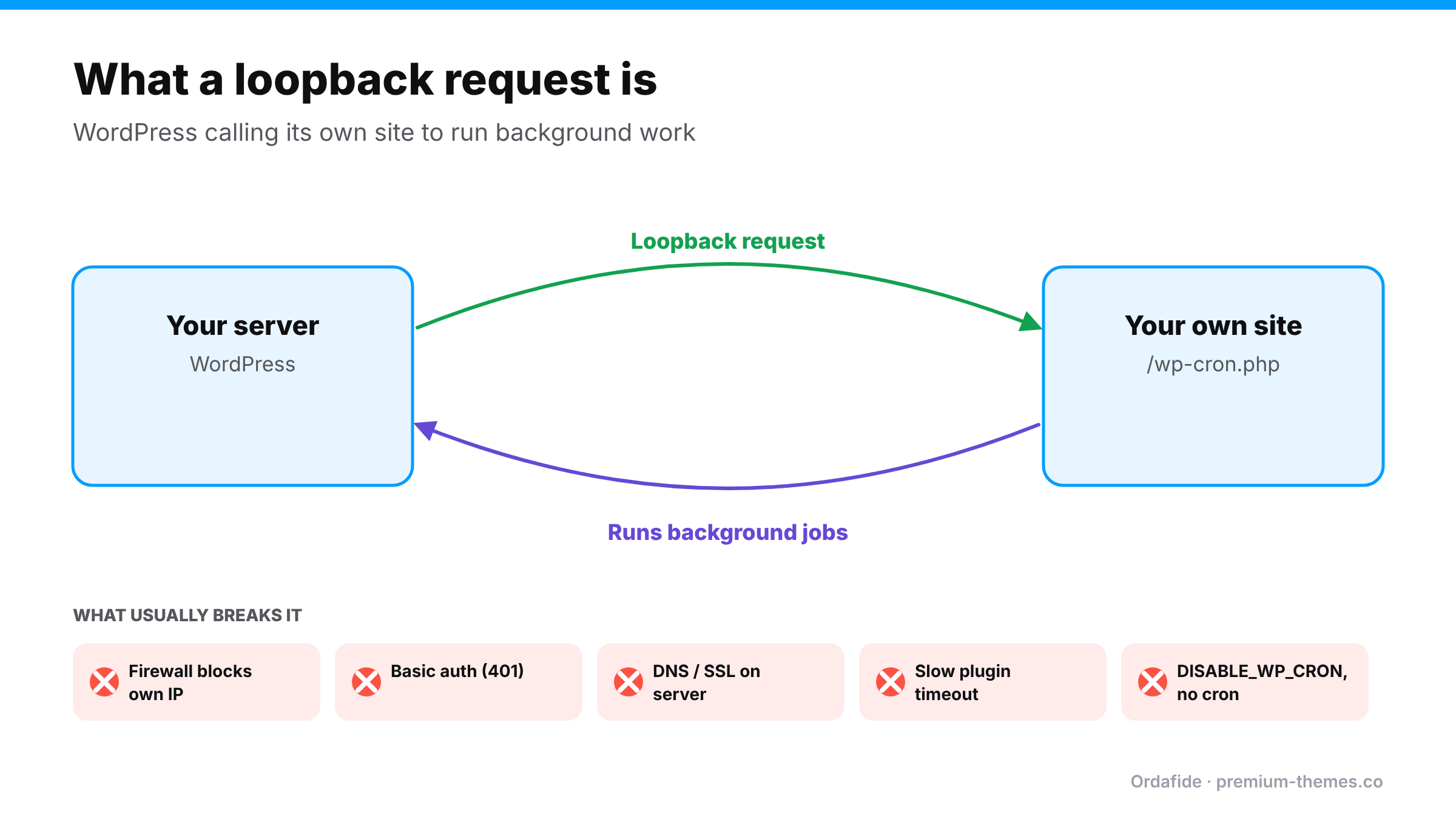
A loopback request is your website making an HTTP request to itself: WordPress on your server calling https://yourstore.com/wp-cron.php (or another URL on your own site) over the network.
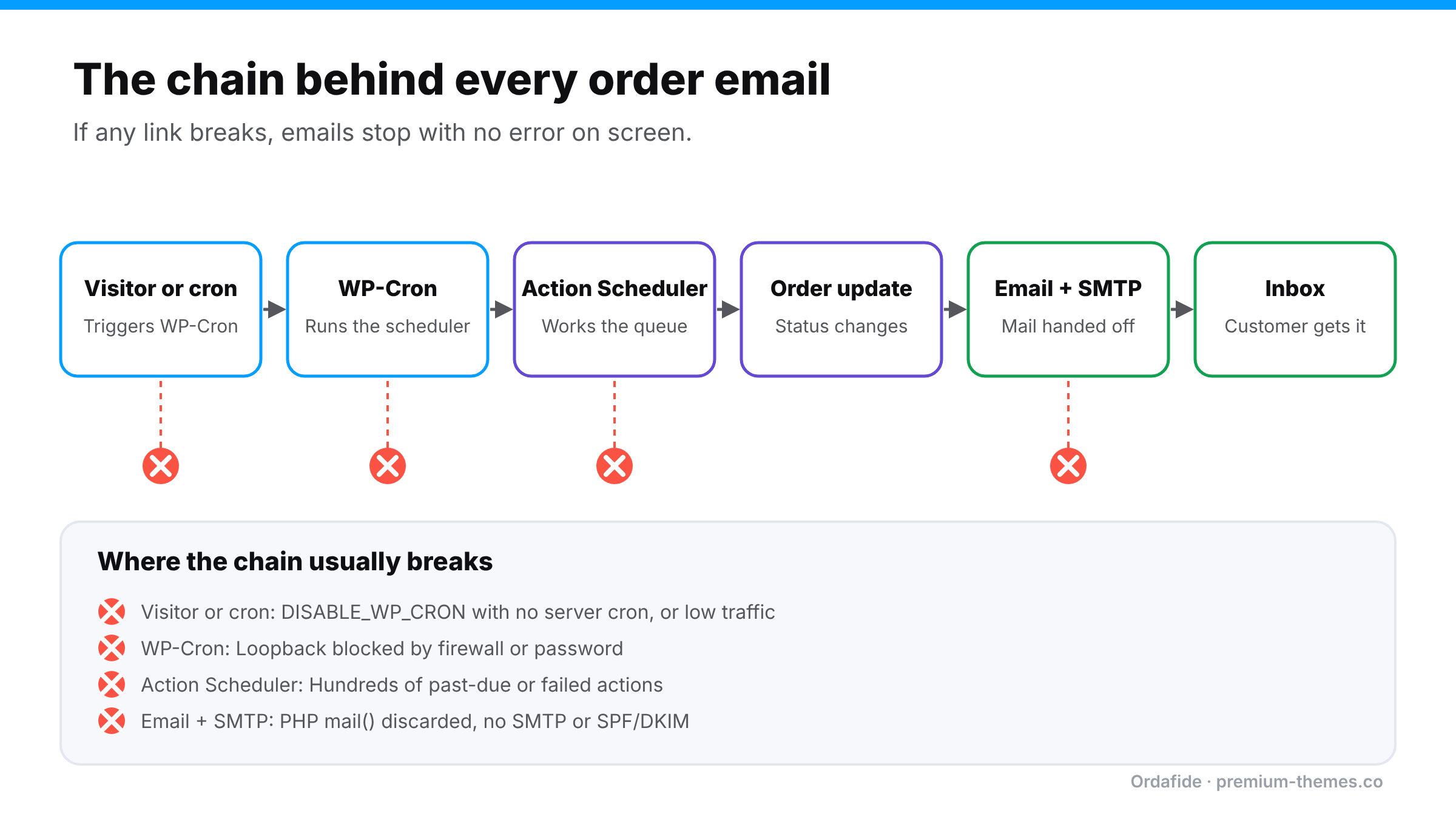
WordPress uses this to run tasks in the background, without making a visitor wait. When a page loads, WordPress checks whether any scheduled tasks are due. If they are, it fires a quick loopback request to wp-cron.php, which runs those tasks in a separate process.
WooCommerce builds on this with Action Scheduler, a queue for background jobs. Action Scheduler is triggered by WP-Cron and also uses asynchronous requests to keep the queue moving.
So if your site can’t reach itself, or WP-Cron is switched off without a replacement, background work doesn’t run.
What breaks in WooCommerce when loopbacks fail
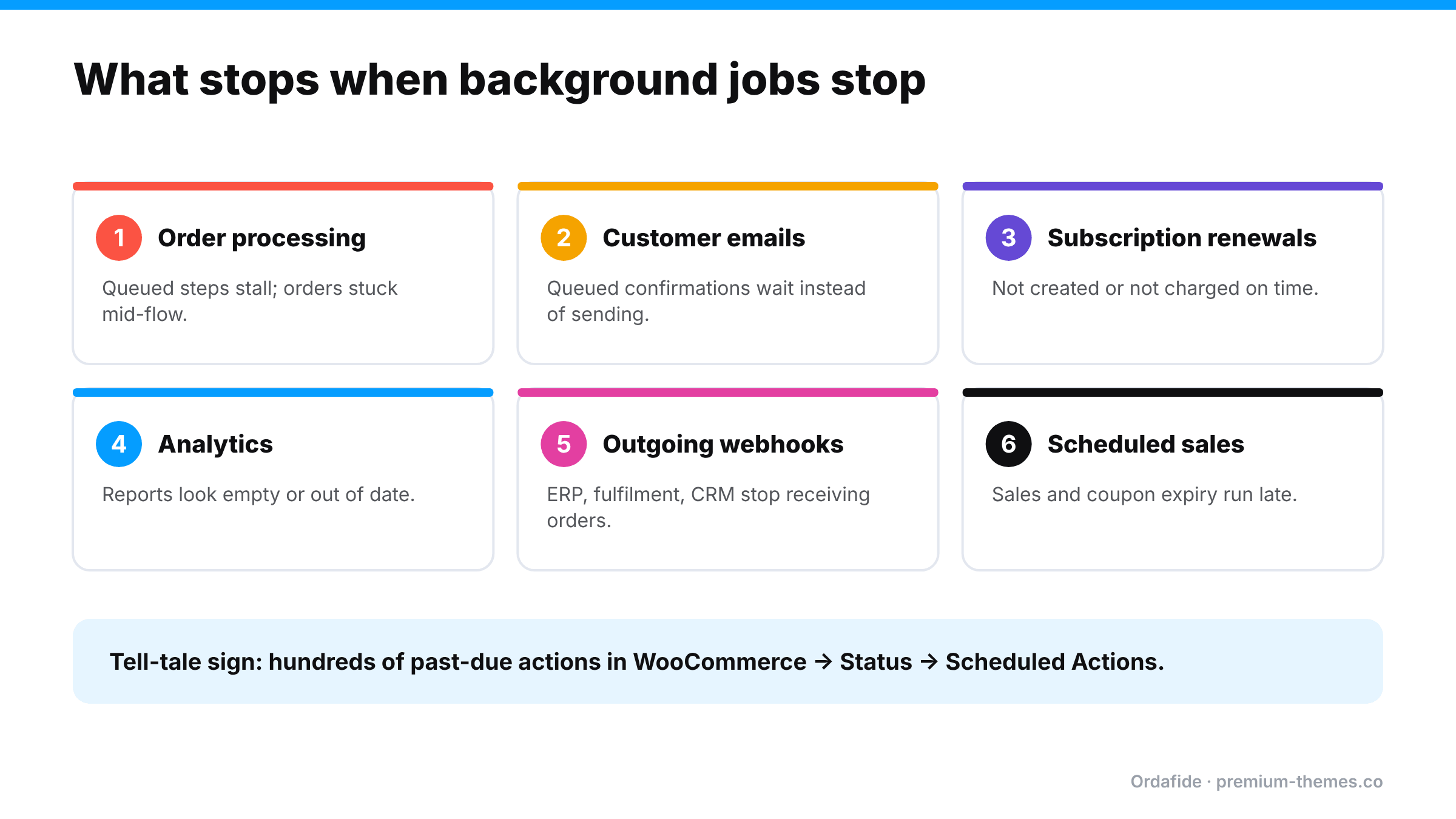
| Background job | What you notice |
|---|---|
| Deferred or queued order processing | Orders stuck mid-flow; some payment confirmations processed late |
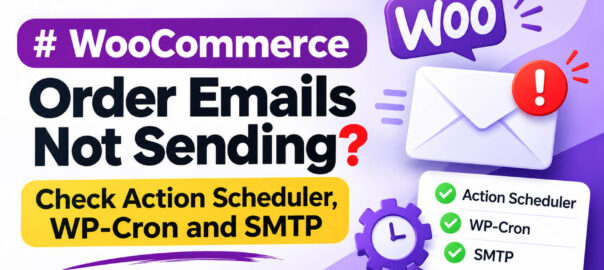
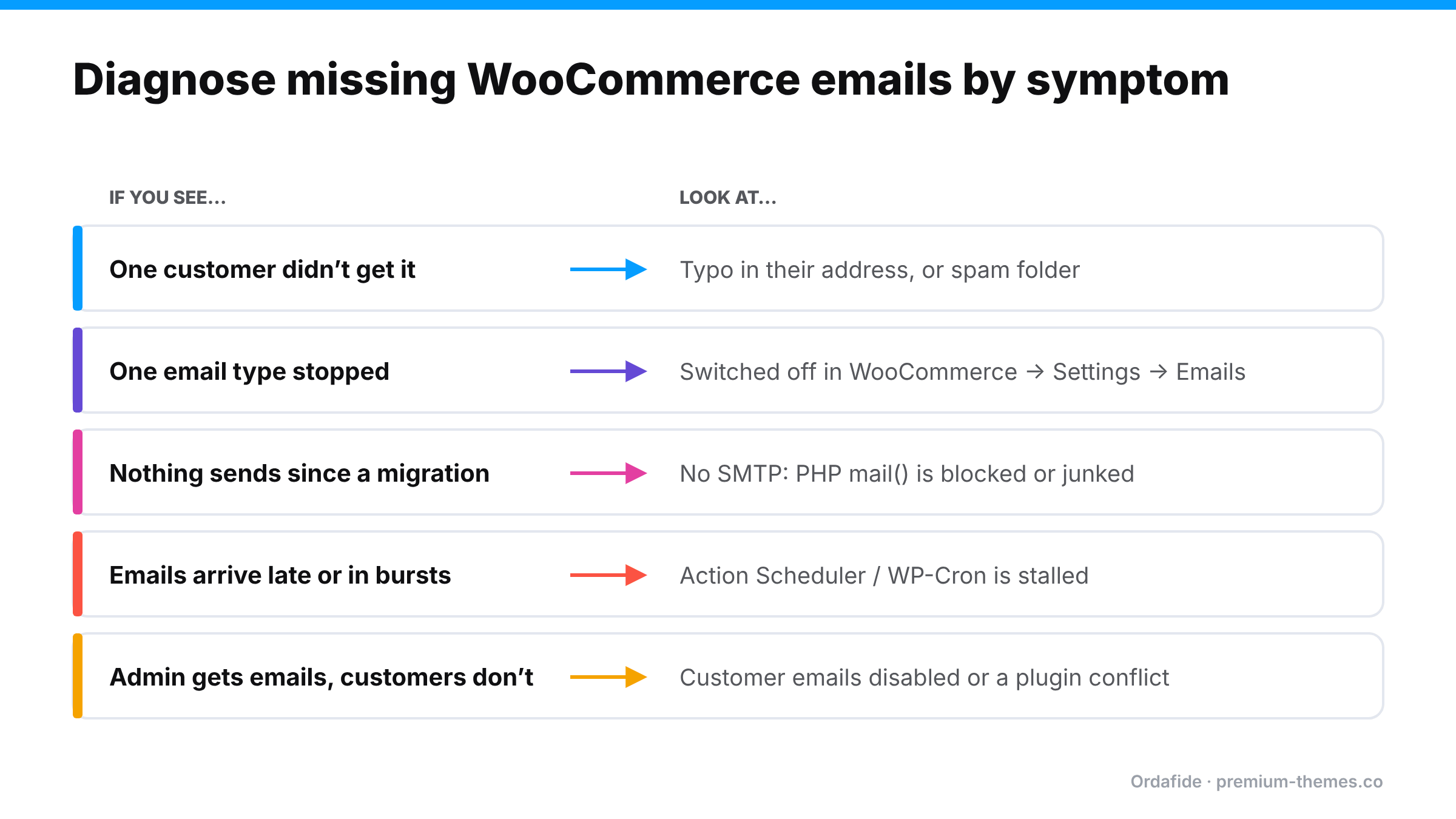
| Transactional emails that depend on queued work | Customers don’t get confirmations promptly (guide) |
| Subscription renewals | Renewals not created or not charged on time (guide) |
| Analytics imports | WooCommerce Analytics looks empty or out of date |
| Outgoing webhooks to other systems | ERP, fulfilment or CRM integrations stop receiving orders |
| Scheduled sales and coupon expiry | Sales don’t start or end on time |
| Unpaid order cancellation and cleanup | Timers don’t run on schedule |
In WooCommerce → Status → Scheduled Actions, the tell-tale sign is a Pending tab full of actions whose scheduled time has already passed: hundreds of past-due actions.
The common causes
1. Firewalls and security plugins blocking your own server
Your server calling itself can look like an attack: a request from a data-centre IP (your own) with no browser. Host firewalls, security plugins and CDN bot protection sometimes block it. Ironically, the same rules often block payment webhooks too. (Firewall blocking webhooks)
2. Password protection or basic auth
Staging sites are often protected with HTTP basic authentication. If that protection is left on a live site, or the site was pushed live from staging with it, every loopback request gets a 401.
3. DNS and SSL problems on the server
The server must resolve your domain and complete an HTTPS connection to itself. A mis-set hosts file, a domain pointing elsewhere (behind a CDN or during a migration), or an SSL certificate the server doesn’t trust produces timeouts or “cURL error 28” messages.
4. A plugin slowing every request
Site Health gives loopback requests around 10 seconds. A plugin that makes every request slow (heavy session handling, external API calls on every page) can make loopbacks time out. A WordPress.org thread traced loopback and REST API timeouts on a WooCommerce site to one plugin’s session handling. Changing its settings resolved it.
5. DISABLE_WP_CRON without a replacement
Many hosts and performance guides set define( 'DISABLE_WP_CRON', true ); in wp-config.php to stop WP-Cron running on page loads. That’s good practice, as long as a real server cron job runs WP-Cron instead. If nobody set up that server cron (common after a migration), scheduled work simply never runs, and no error appears anywhere.
6. Very low traffic
WP-Cron triggers on visits. On a quiet store, hours can pass with no visitors, so nothing runs. Not a failure as such, but it makes background work slow and unpredictable.
How to diagnose
- Site Health: Tools → Site Health → Status. Note any loopback, REST API or scheduled event errors and the exact message (401, 403, timeout, cURL error).
- Scheduled Actions: WooCommerce → Status → Scheduled Actions → Pending. How many are past due? Check the Failed tab too, and open one to see the error.
- wp-config.php: is
DISABLE_WP_CRONset to true? If so, ask your host whether a server cron job runswp-cron.php. - WP-CLI (if available):
wp cron testchecks whether WP-Cron can spawn;wp cron event listshows overdue events. - Security logs: check your security plugin, CDN and host firewall for blocked requests from your own server’s IP to
wp-cron.php.
How to fix it
Set up a real server cron (recommended for every store). In your hosting control panel, add a cron job that runs every few minutes:
*/5 * * * * wget -q -O - "https://yourstore.com/wp-cron.php?doing_wp_cron" >/dev/null 2>&1or, with WP-CLI:
*/5 * * * * cd /path/to/site && wp cron event run --due-now >/dev/null 2>&1Then set DISABLE_WP_CRON to true so visitors don’t also trigger it.
Allow your server to reach itself. Allowlist your own server IP in your security plugin and host firewall, and exempt wp-cron.php and admin-ajax.php from bot challenges.
Remove basic auth from production, or exempt your server’s own requests from it.
Fix DNS/SSL on the server with your host: the server should resolve your domain to itself and trust the certificate.
Find slow plugins with a conflict test on staging if loopbacks time out.
Let the backlog drain. Don’t delete past-due actions. They can include real customer emails and renewals. Once the cause is fixed, they’ll run. On very large backlogs, ask your host for help, or run wp action-scheduler run in batches.
Then sweep up. Check whether any customers missed confirmation emails or renewals during the stall.
A worked example: the migration nobody finished
A store moves to a faster host. The migration service copies wp-config.php, including define( 'DISABLE_WP_CRON', true );, which the old host required because it ran a server cron job. Nobody sets up a cron job on the new host.
- Day 1: everything looks great. The site is faster.
- Day 2: WooCommerce Analytics stops showing new orders. “Probably a caching thing.”
- Day 4: a subscriber emails to say their renewal didn’t charge (they’re pleased, the owner isn’t).
- Day 6: the fulfilment integration hasn’t received orders since day 1. The warehouse has been working from the admin screen.
- Day 7: someone opens Scheduled Actions: 4,800 past-due actions.
Site Health had been showing “A scheduled event is late” since day 1. Nobody looked.
The fix was a single cron job in the hosting panel. The cleanup took two days: replaying renewals carefully, checking which customers missed emails, and reconciling the fulfilment system.
Hosting-specific notes
- Managed WordPress hosts often disable WP-Cron and run their own cron. Confirm it’s running for your site, and how often.
- Shared hosting may limit cron frequency (for example, no more than every 15 minutes). That’s usually fine for WP-Cron, but tell your host if you have heavy subscription or email volume.
- Behind a CDN or proxy, your server may need to reach itself directly rather than through the CDN. Ask your host to make sure loopback requests don’t leave the server.
- Staging sites cloned from production may run scheduled tasks (emails, renewals) against real customers. Disable outgoing email and payment processing on staging.
Watching it with Ordafide
The worst thing about loopback failures is that they’re silent and slow-burning. Site Health shows a warning once, and nobody looks at Site Health. The backlog grows by the hour.
Ordafide Order Integrity for WooCommerce (free) puts this front and centre on its Store health screen:
- Background job queue health: how far behind Action Scheduler is, how many jobs failed, and the most likely cause in plain language rather than queue jargon.
- WordPress scheduler status, including whether
DISABLE_WP_CRONis set. - A loopback test you can run with one click. It asks your site to call its own
wp-cron.php, contacts no other service, and runs only when you press the button. - An order email delivery log, so you can see exactly which customers missed their emails during a stall, with one-click resend.
- The Customer never emailed check, which flags paid orders with no confirmation sent.
An optional weekly summary email tells you when there’s something to fix. For agencies, wp ordafide health reports the same from the command line.
Ordafide Pro adds real-time alerts (Slack, SMS, email, signed webhook) so a stalled queue reaches you within the hour, and a signed heartbeat endpoint an external monitor can poll to confirm the store’s own checks are still running, which matters when the scheduler itself is the thing that broke.
How often should WP-Cron run?
For most stores, every 5 minutes is a sensible default. Busier stores, or those with lots of subscriptions and integrations, often run it every minute. Very quiet stores can get away with 15 minutes, but emails and renewals will be less punctual. Whatever you choose, make sure it’s one cron job, not several competing ones, and that visitor-triggered WP-Cron is disabled so the two don’t overlap.
What not to do
- Don’t install a “WP-Cron fixer” plugin on top of a broken setup without understanding the cause. Several overlapping cron triggers can run jobs twice, and for subscriptions that means double charges.
- Don’t delete Action Scheduler tables to “clean up”. They hold real pending work.
- Don’t ignore Site Health warnings because the site “looks fine”. On a store, background work is where the problems hide.
- Don’t disable the firewall to get loopbacks working. Make a narrow exception for your own server.