WooCommerce Operations
Handcrafted Beautiful Bootstrap HTML Templates for your Business Website.

Most WooCommerce maintenance advice is about the site: update plugins, back up the database, optimize images, check uptime. That’s all sensible. But it misses the thing that actually pays the bills: are the orders right?
A store can be fast, secure, fully updated and perfectly backed up while quietly:
None of these produce error messages. They show up as customer complaints, chargebacks and reconciliation gaps weeks later.
This article gives you a 15-minute weekly routine for checking order health, explains what each step catches and why, and shows how to automate most of it so it keeps happening on the busy weeks too.
Pick a fixed slot (Monday at 10:00 works well, after the weekend’s orders) and put it in the calendar.
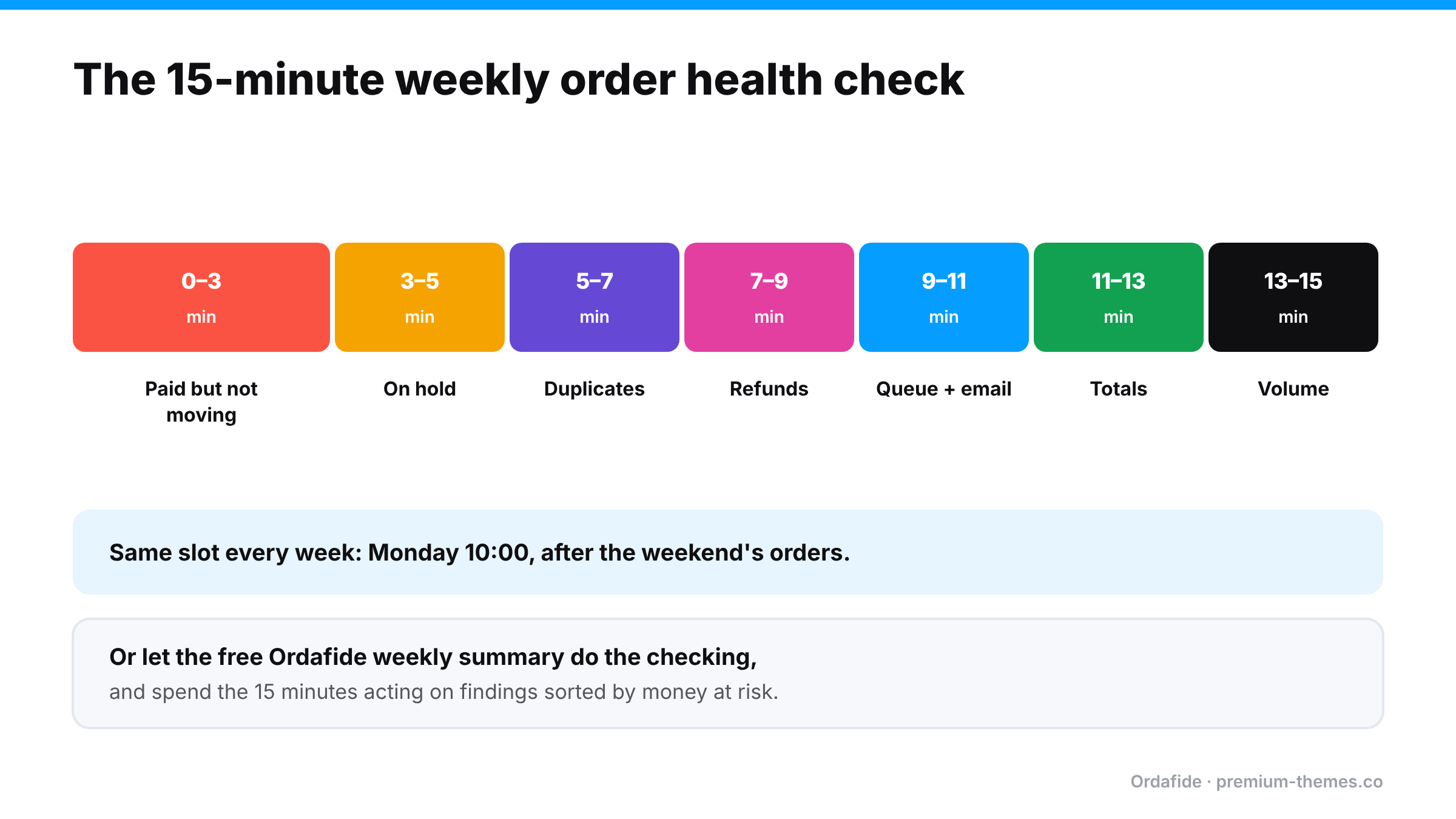
Check: filter WooCommerce → Orders by Pending payment, Failed and Cancelled for the last 7–10 days. Open any that look like real customers (real names, sensible addresses, not card-testing junk).
Look for: a gateway transaction ID, a payment note, or a paid date on an order that isn’t Processing or Completed.
Why: these are customers who paid and won’t receive anything. Webhook failures and the Hold stock auto-cancel timer are the usual causes. (Full guide)
Action: verify in the gateway, move to Processing, resend the confirmation email, apologize.
Check: filter by On hold.
Look for: bank transfers you haven’t matched, card authorizations that need capturing before they expire, payments that are actually settled at the gateway.
Why: On hold orders fall outside the Processing queue your team works from. (Full guide)
Check: sort recent orders by customer or email and scan for the same customer, same total, minutes apart.
Look for: two orders with the same transaction ID (one payment, two orders) or two different transaction IDs (charged twice).
Why: duplicate charges are a leading cause of “duplicate processing” disputes. (Full guide)
Check: filter by Refunded and spot-check a few for refund records. Then look at Processing orders older than your normal fulfilment time for red refund lines.
Look for: “Refunded” orders with no refund, fully refunded orders still in Processing, refunds larger than the order.
Why: refunded orders get shipped; promised refunds never arrive. (Full guide)
Check: WooCommerce → Status → Scheduled Actions → Pending. Are there many past-due actions? Check the Failed tab too. Then send yourself a test email from your SMTP plugin.
Why: when the queue stalls, emails, stock updates and some payment processing stop, silently. (Full guide)
Check: open three or four recent orders that used a coupon, a different currency, or an unusual shipping method. Do items − discounts + shipping + fees + tax equal the total?
Why: pricing, tax and currency plugins can leave orders that don’t add up. ([Full guide](/blog/woocommerce-order-total-wrong/))
Check: compare this week’s order count and revenue with the same week last month or last year in WooCommerce → Analytics. Look at day-by-day: is there a day with suspiciously few orders?
Why: a day with almost no orders is often a broken checkout nobody noticed. A day with hundreds of failed orders is often card testing. (Checkout guide · Card testing guide)
Here are the kinds of findings a first audit usually turns up on an established store, and how to handle each one.
“Order #5520, Cancelled, $142. Order notes show a Stripe payment ID.”
The webhook didn’t arrive within the Hold stock window, so WooCommerce cancelled a paid order. Check Stripe: payment succeeded. Restore to Processing, check stock, resend the confirmation, ship, and email an apology. Then find out why the webhook failed. One stuck order usually means others.
“Orders #5531 and #5532, same customer, $38 each, 40 seconds apart, different transaction IDs.”
A genuine double charge. Confirm with the customer that they wanted one, refund #5532 from the order screen, and look at checkout speed.
“Order #5490, Processing, $95. Refunded in full four days ago.”
Stop! Make sure it isn’t in today’s picking list. Change the status to Refunded (carefully, so you don’t trigger a second refund) and find out who refunded it and where.
“Scheduled Actions: 1,240 past-due.”
The queue isn’t running. Check `DISABLE_WP_CRON`, set up a real server cron, and let the backlog drain. Then check whether any customers missed confirmation emails during the stall.
“Order #5544: items + shipping + tax = $72.40; stored total = $67.40.”
A discount was applied without a matching line. Check which pricing plugin did it, and whether other orders are affected.
The first audit is usually the biggest. After that, weekly findings tend to be small and quick, and anything unusual stands out clearly.
Write down what you found each week: date, issue, number of orders, money involved, cause, fix. After a month or two, patterns emerge. Maybe the same gateway keeps leaving orders stuck, or duplicates cluster on mobile. The log turns firefighting into fixing.
| Week | Issue | Orders | Value | Cause | Fixed? |
|---|---|---|---|---|---|
| 3 Nov | Paid but cancelled | 2 | $118 | Webhook blocked by WAF | Yes: WAF rule |
| 10 Nov | Duplicate charge | 1 | $45 | Double click, slow checkout | Refunded; investigating speed |
| 17 Nov | None found |
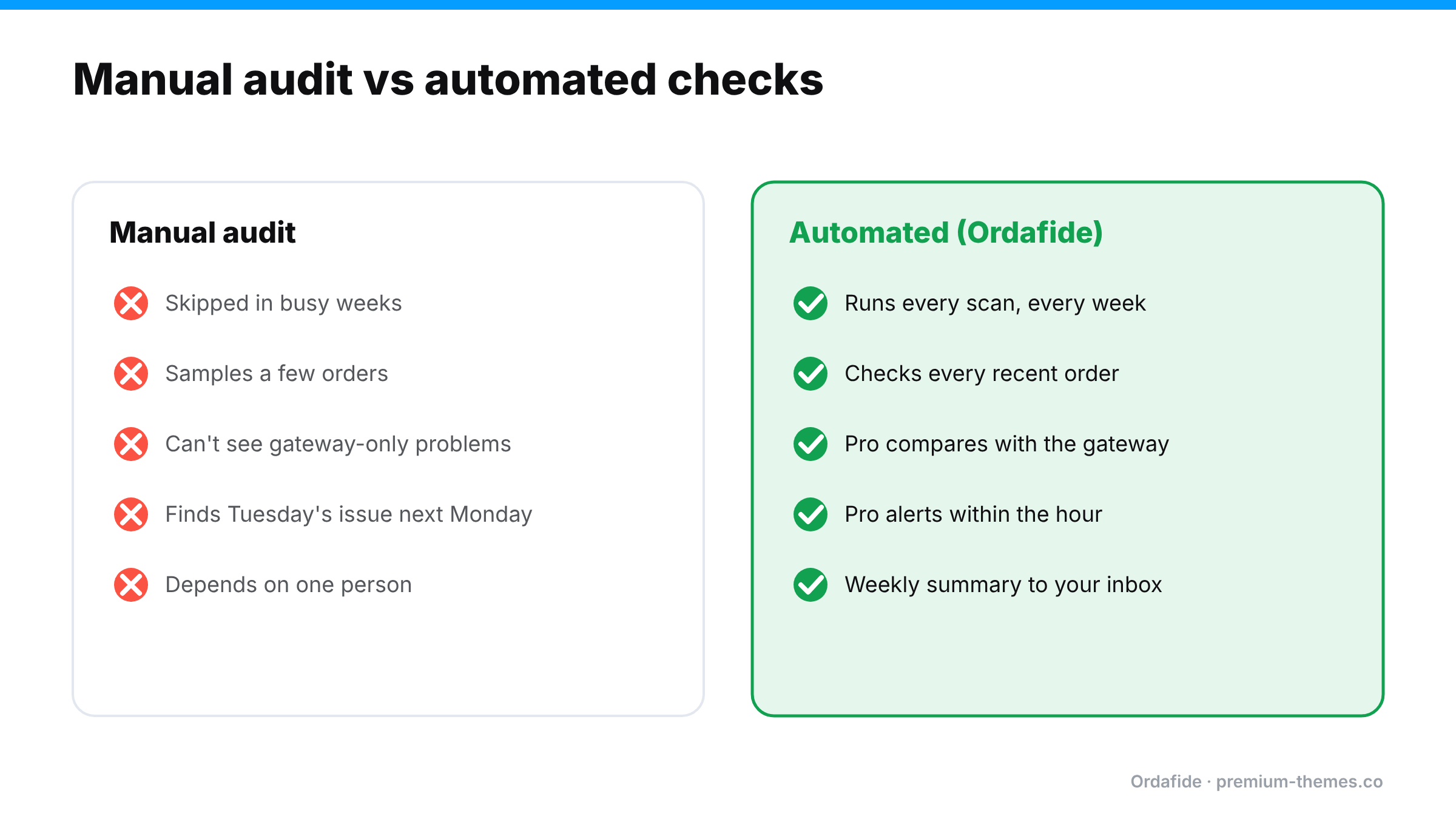
Be honest: will this routine still happen in the week before Christmas? During a product launch? When you’re ill?
Manual audits have predictable weaknesses:
The fix is to automate the checks and keep the human part for deciding and acting.
[Ordafide Order Integrity for WooCommerce](https://wordpress.org/plugins/ordafide-order-integrity-for-woocommerce/) is a free plugin that does most of the routine above automatically, across every recent order, not a sample:
| Routine step | Ordafide (free) |
|---|---|
| Paid but not moving | Stuck payment and Paid but cancelled checks |
| Duplicates | Duplicate charge check |
| Refunds | Refund mismatch check |
| Queue and email | Store health: Action Scheduler backlog and failures, WP-Cron status, loopback test, and an order email delivery log with one-click resend |
| Totals | Order total does not add up check with a rounding tolerance |
Findings appear in one inbox, sorted by money at risk, each with the evidence and what to check before touching anything. There’s an optional weekly summary email, sent only when there’s something to report, so the routine comes to you. For developers and agencies, WP-CLI commands (`wp ordafide scan`, `wp ordafide findings`, `wp ordafide health`, `wp ordafide digest`) let you script it.
Your 15 minutes becomes: open the weekly summary, work through the findings, done.
Ordafide Pro covers the remaining steps that the free plugin structurally can’t:
A routine only works if it survives busy weeks. A few things help:
The aim isn’t to spend 15 minutes a week forever. It’s to fix the causes so the weekly check becomes boring. A boring audit means a healthy store.
Weekly order health check: 15 minutes
How often should I audit WooCommerce orders?
Weekly is a practical minimum for most stores. High-volume stores benefit from daily or continuous automated checks.
What should a WooCommerce maintenance checklist include besides updates and backups?
Order integrity: stuck and cancelled paid orders, duplicates, refund mismatches, background queue health, email delivery, order totals and order volume.
Can I automate a WooCommerce order audit?
Yes. Ordafide's free plugin automates the store-side checks and can email a weekly summary. Ordafide Pro adds gateway reconciliation, volume anomalies, checkout monitoring and real-time alerts.
What's the most important check if I only have five minutes?
Paid orders that aren't moving: Pending, Failed and Cancelled orders that carry a payment reference. They're customers who paid and won't receive anything unless you act, and they're the most likely to turn into disputes.
Does the audit replace backups and updates?
No. It complements them. Backups and updates keep the site running; the order audit makes sure the site is doing its actual job of taking and processing orders correctly.
Will Ordafide change my orders during an audit?
Only if you press a button, and only in two ways: resending a customer email, or restoring an order to Processing when WooCommerce already recorded a confirmed payment date. Both are logged, and the status change can be undone.