
Every WooCommerce order should satisfy a simple equation:
Items − discounts + shipping + fees + tax = order total = amount charged
Most of the time it does. But WooCommerce lets dozens of plugins change those numbers: coupons, dynamic pricing, tax services, shipping calculators, payment fees, currency switchers, gift cards. Any one of them can leave an order where the parts don’t add up to the whole, or where the whole doesn’t match what the customer was actually charged.
Nothing alerts you when this happens. The order looks normal. You only find out when an accountant can’t reconcile a month, a tax report is off, or a customer points out they were overcharged.
This guide covers the six common causes, how to find affected orders, and how to keep totals honest.
Two different problems
It helps to separate:
- The order doesn’t add up internally. Line items, shipping, fees and tax don’t sum to the stored order total.
- The order adds up, but the charge was different. The order is internally consistent, but the gateway took a different amount.
The first can be found by inspecting your own database. The second can only be found by comparing with the gateway.
The six common causes
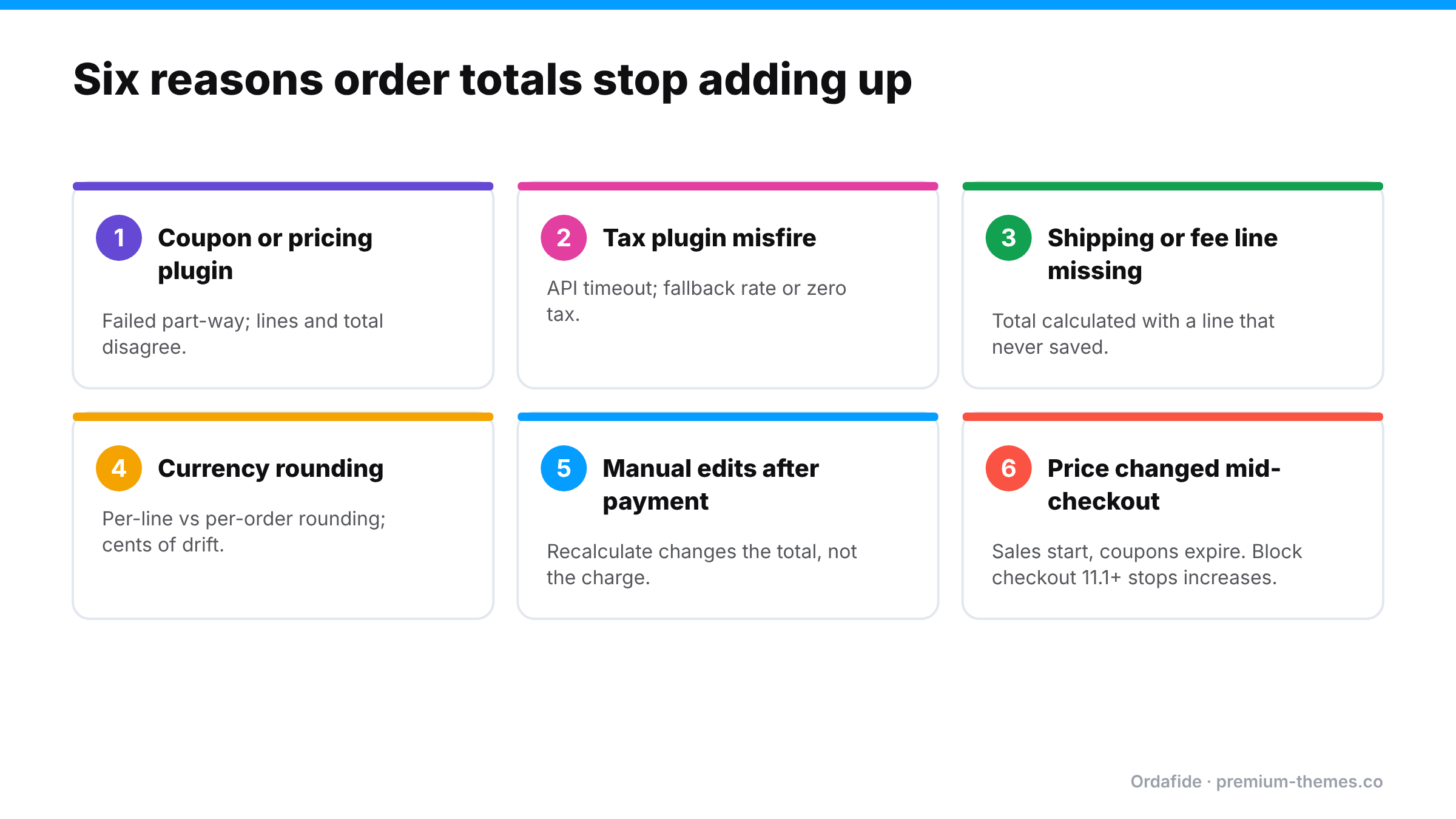
1. A coupon or discount plugin failed part-way
Advanced coupon, BOGO and dynamic pricing plugins modify cart items and totals during checkout. If one fails mid-calculation (an error, a timeout, a conflict with another pricing plugin), the stored line items and the stored total can disagree. Sometimes the customer is charged the discounted price but the items show full price, or vice versa.
2. A tax plugin misfired
External tax services calculate tax by calling an API at checkout. If the call times out or fails, some plugins fall back to WooCommerce’s built-in rates, to zero, or to a cached value. The order may then show tax that doesn’t match the address, or a total that doesn’t include the tax lines shown.
3. Shipping or fee lines didn’t apply
Shipping and payment fee plugins add lines to the order. If a line fails to save while the total was calculated with it (or the reverse), the order is out of balance. Often this means you undercharged for shipping.
4. Currency switcher rounding
Multi-currency plugins convert prices and round them. Rounding each line separately versus rounding the total can produce small, persistent differences, often a cent or two per order. Individually trivial; across thousands of orders, it’s a reconciliation headache. Worse, if the plugin and the gateway disagree about the currency or amount, the charge can differ from the order.
5. Manual order edits
Editing an order after payment (adding an item, changing a quantity, adjusting shipping) and clicking Recalculate can change the total, while the payment stays the same. Editing without recalculating can leave the total stale. Either way, the order no longer matches the charge.
6. Prices changed between page load and payment
Scheduled sales starting, coupons expiring or dynamic pricing rules changing while the shopper is on the checkout page can create mismatches. WooCommerce’s documentation notes that from WooCommerce 11.1, block-based checkout stops an order if the total increases between page load and Place order, asking the customer to refresh. Decreases still go through. That’s a welcome safeguard, but it doesn’t cover classic checkout, plugins that modify totals after the order is created, or the other causes above.
A worked example
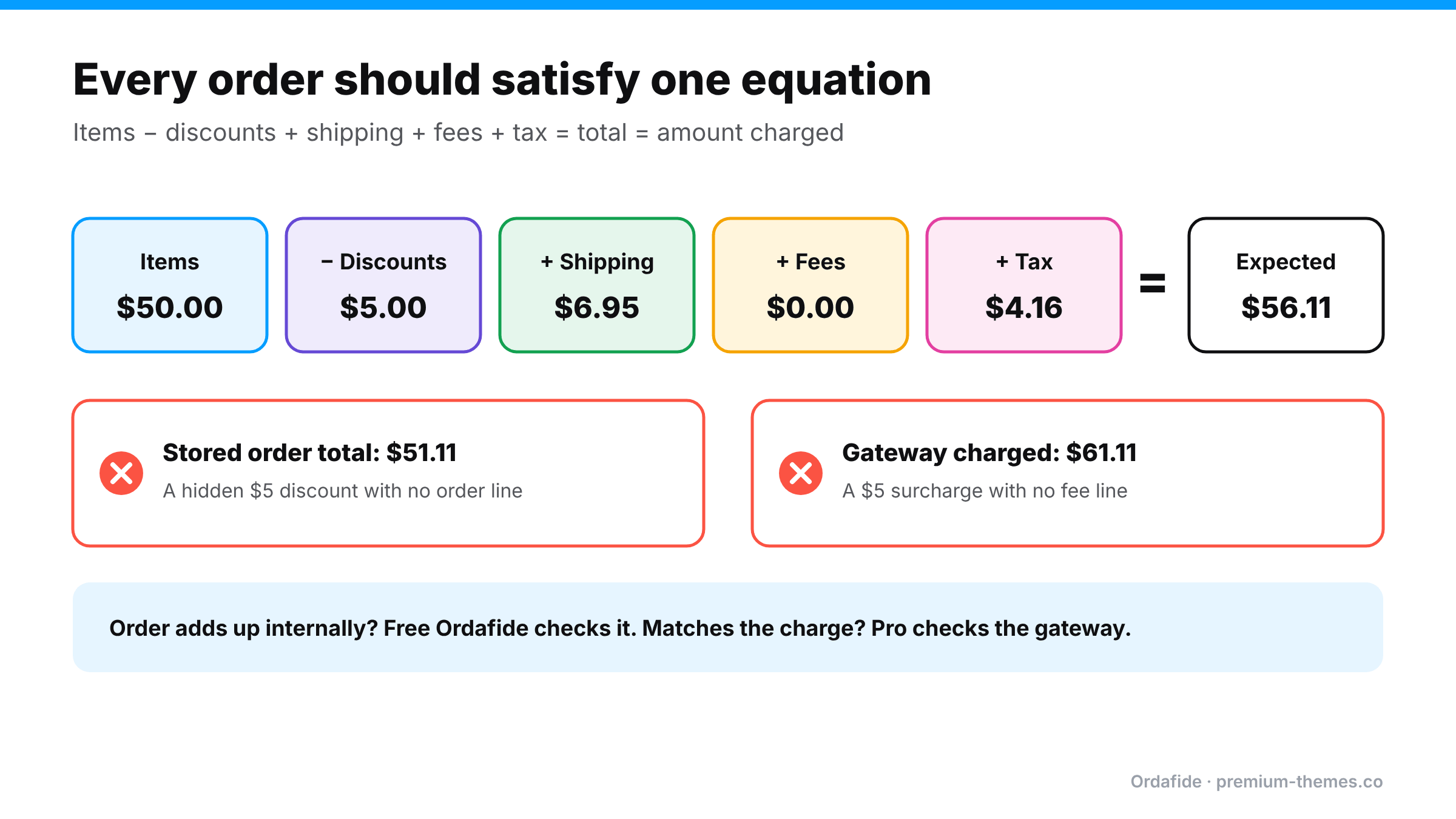
Here’s a real-looking order that doesn’t add up, to show how small the signals can be.
| Line | Amount |
|---|---|
| T-shirt × 2 @ $25.00 | $50.00 |
| Coupon SPRING10 (10%) | −$5.00 |
| Shipping: Standard | $6.95 |
| Tax (8% on items after discount + shipping) | $4.16 |
| Expected total | $56.11 |
| Stored order total | $51.11 |
The difference is exactly $5. On investigation, a second discount plugin also applied a $5 “first order” discount to the total, but didn’t add a visible line for it. The customer was charged $51.11, which is fine for them, but your sales report shows $50 of items, a $5 coupon, $6.95 of shipping and $4.16 of tax, which adds up to $56.11, so $5 of revenue that never existed. Multiply by every first-time customer for a quarter, and your books are noticeably wrong.
Now the opposite case: the order lines add up to $56.11, the stored total is $56.11, but the gateway shows $61.11. A payment fee plugin added a $5 surcharge at the gateway step without recording a fee line. The customer was overcharged by your records’ standards, and won’t be pleased if they notice.
Neither order would look strange in the orders list.
Multi-currency: why cents go missing
Currency switchers convert each price from your base currency and round it. The problem is where the rounding happens:
- Convert and round each line, then add: €22.73 + €22.73 + €6.32 = €51.78
- Add in base currency, then convert and round once: €51.77
Both are defensible. But if the plugin calculates one way and your tax report, the gateway, or a later recalculation uses the other, every order carries a cent or two of drift. Tax is particularly sensitive, because tax rounding rules (per line or per order) are set in WooCommerce → Settings → Tax and interact with the currency plugin’s own rounding.
A tolerance-based check is the practical answer: ignore differences of a cent or two, and investigate anything bigger. That’s why Ordafide’s total check has a configurable rounding tolerance rather than demanding exact matches.
Questions to ask before installing a pricing or tax plugin
- What happens to an order if your plugin errors mid-checkout? Does checkout stop, or continue with partial data?
- Do you add visible order lines for every discount or fee you apply?
- Is your plugin compatible with both block and classic checkout, and with HPOS?
- How do you handle rounding in other currencies?
- What does your plugin do when its external API is unreachable?
A vendor who answers these clearly is much less likely to leave you with mismatched totals.
Symptoms you might be seeing
- Accountant reports WooCommerce revenue ≠ gateway deposits by more than fees
- Tax reports that don’t match what was collected
- Customers saying their coupon wasn’t applied, or they were charged more than the order email shows
- Orders where shipping shows $0 but the customer chose a paid method
- A steady trickle of one-cent differences in multi-currency stores
How to find affected orders
Manual spot check
Open a sample of recent orders and add up items, minus discounts, plus shipping, fees and tax. Compare with the total. Then compare the total with the amount shown in the gateway for that transaction ID.
It works for a handful of orders. It isn’t practical for hundreds, and it’s the kind of job that never gets done in a busy month.
Automatic check with Ordafide (free)
Ordafide Order Integrity for WooCommerce includes an “Order total does not add up” check. For each recent order it compares items + shipping + fees + tax with the stored total and flags any order that’s out by more than a rounding tolerance you configure. That tolerance matters for multi-currency stores, so a cent of rounding doesn’t flood you with findings while real errors still show up.
Findings come with the numbers side by side and are sorted by money at risk, so a $40 missing shipping line ranks above a 2-cent rounding difference. The check reads only your own database, sends nothing anywhere, and never changes your orders.
Comparing with what was actually charged (Pro)
If an order adds up internally but the gateway took a different amount, only the gateway knows. Ordafide Pro reconciles orders against Stripe, PayPal, Square, Mollie and Razorpay with read-only API keys and flags amount disagreements between the order and the charge, alongside money with no order, paid orders with no payment, and refunds missing in WooCommerce. For accountants, Pro’s CSV/JSON audit export covers any date range.
Fixing affected orders
- Decide which number is right. Usually the gateway charge is the truth about money; the line items are the truth about what was sold.
- If the customer was undercharged: decide whether it’s worth recovering. For small amounts, often not. Add a note and fix the cause.
- If the customer was overcharged: issue a partial refund through the order screen (Refund via [gateway]) for the difference and apologize.
- If it’s a records-only problem (the charge was right, the order lines are wrong): correct the lines carefully and add a note explaining why. Avoid hitting Recalculate unless you understand what it will do with taxes and coupons.
- Tell your accountant about any systematic issue and when it started.
Explaining it to your accountant
When mismatches turn up, your accountant needs three things: how many orders, how much money, and since when. A clear note might read:
“Between 3 March and 18 April, a discount plugin applied an extra $5 first-order discount without recording a line. 214 orders are affected. Customers were charged correctly; our reports overstate revenue by $1,070. The plugin was removed on 18 April. Order IDs attached.”
That turns a confusing reconciliation gap into a known, bounded adjustment. It’s only possible if you can list affected orders quickly, which is exactly what an automated total check gives you. Without one, the investigation itself becomes the expensive part.
Keep a short log of pricing, tax and currency plugin changes (what changed, when, and why). When a mismatch appears, the first question is always “what changed around then?”, and the log answers it.
Preventing mismatches
- Minimize overlapping pricing plugins. Two plugins that both change prices or discounts are the most common source of trouble.
- Test checkout with every coupon type after updating coupon, pricing or tax plugins.
- Check tax plugin failure behaviour. Know what your tax plugin does when its API is unreachable, and prefer plugins that block checkout over ones that silently charge the wrong tax.
- Configure multi-currency rounding deliberately and check the gateway receives the same currency and amount as the order.
- Lock down post-payment edits. Agree a process for editing paid orders, including whether and when to recalculate, and always add a note.
- Use block checkout where it fits, to benefit from the total-increase protection in recent WooCommerce versions.
- Scan regularly. A weekly Ordafide scan or its weekly summary email shows new mismatches while they’re still easy to explain.
A note for agencies
Total mismatches often start right after a client installs “just one more” discount or upsell plugin. Ordafide’s WP-CLI commands (`wp ordafide scan`, `wp ordafide findings`) let you include an order-total check in your maintenance scripts across client sites, and Ordafide Pro’s multi-store dashboard puts every store’s findings on one screen.