Tag Archives: Orders

Switching to HPOS? A WooCommerce Order Integrity Checklist for Before and After Migration

High-Performance Order Storage (HPOS) is the biggest change to how WooCommerce stores orders in the platform’s history. Instead of keeping orders in the WordPress posts and postmeta tables, where they shared space with blog posts and pages, HPOS stores them in dedicated order tables designed for the job. New stores use it by default, and WooCommerce has been encouraging established stores to switch.

For most stores the switch is smooth. But the WordPress.org forums have a steady trickle of threads that show what can go wrong: “HPOS doesn’t complete order sync”, “HPOS sync is not working”, “Reports not working when HPOS enabled”, “HPOS disabled after sync”. Integrations that stop receiving orders after an update are another common complaint, usually from a plugin that reads orders the old way.

Your orders are your business records. This checklist is about making sure the move doesn’t quietly damage them: what to check before, how to migrate with a safety net, and how to verify afterwards that every order still adds up.

What actually changes

Legacy (posts) storage HPOS
Where orders live wp_posts + wp_postmeta Dedicated wc_orders tables (plus related tables)
How plugins should read orders WooCommerce CRUD functions (or directly from posts, which many old plugins did) Only through WooCommerce CRUD functions
Performance Slows as order and post volume grow Designed to scale
Admin order screen Posts list screen WooCommerce’s own orders screen

The key risk is in the second row. Plugins that read or write order data directly from the posts tables, instead of through WooCommerce’s order functions, won’t see orders stored in HPOS tables, or will write data WooCommerce no longer reads. That’s how integrations “stop syncing” and reports go blank.

Phase 1: Before you switch

1. Audit plugin compatibility

WooCommerce shows a compatibility notice on WooCommerce → Settings → Advanced → Features listing extensions that haven’t declared HPOS compatibility. WooCommerce’s guidance is to enable HPOS only once all the extensions you use are compatible.

Pay special attention to plugins that touch orders:

  • payment gateways
  • shipping, fulfilment and label plugins
  • accounting, ERP, CRM and marketplace integrations
  • invoicing and PDF plugins
  • subscription, booking and membership plugins
  • custom code in your theme or a site plugin (search it for direct queries on shop_order posts)

2. Take a baseline snapshot

Before changing anything, record numbers you can compare afterwards:

  • Order count by status (Processing, Completed, On hold, Refunded, Failed, Cancelled, Pending)
  • Total revenue and refunds for the last full month, from WooCommerce Analytics and your gateway
  • A handful of specific orders you know well (a complex one with coupons, a partial refund, a subscription renewal, a multi-currency order): note their totals, items, notes and statuses

3. Back up

Full database backup, tested restore. Non-negotiable.

4. Clean up first

Fix existing order problems before migration, so you don’t carry them across and then blame HPOS. Stuck payments, refund mismatches and totals that don’t add up are easier to explain before the switch than after. (The free Ordafide scan is a quick way to establish this baseline.)

5. Rehearse on staging

Run the full migration on a staging copy first, with test payment keys. Test the order flows your store actually uses.

Phase 2: Migrating with a safety net
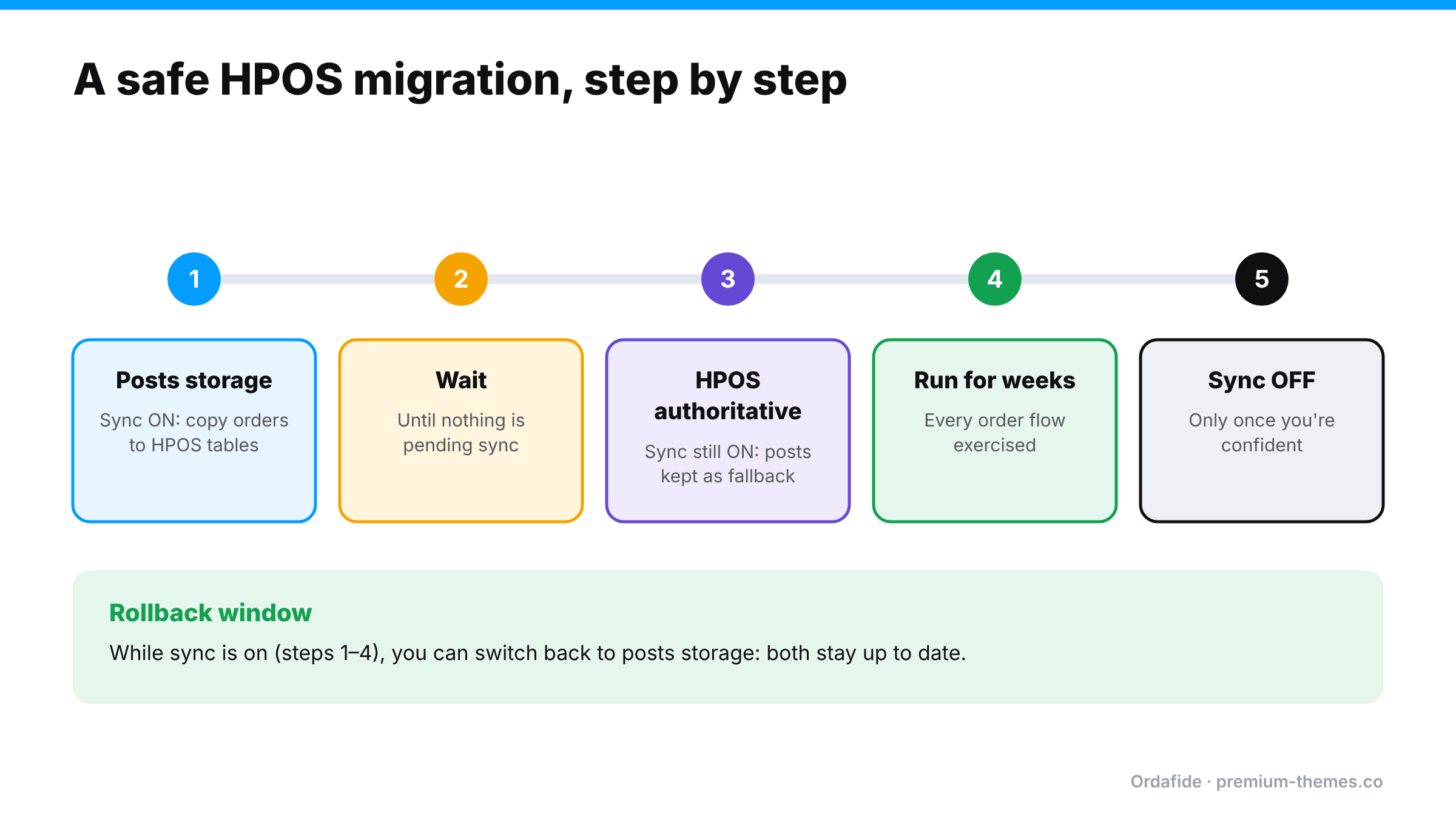
Five-step HPOS migration: enable sync while on posts storage, wait until sync completes, switch to HPOS as authoritative with sync still on, run for weeks exercising every order flow, then turn sync off once confident. While sync is on you can roll back to posts storage.

WooCommerce’s migration uses synchronization as its safety net. Under WooCommerce → Settings → Advanced → Features (custom data stores in some versions), you can keep the posts table and the new order tables in sync. WooCommerce’s developers describe sync as a temporary failsafe.

A cautious sequence:

  1. Enable sync while still using posts storage. WooCommerce copies existing orders into the HPOS tables in the background. On large stores this takes time and relies on background processing, so make sure your Action Scheduler and WP-Cron are healthy first. (Loopback / WP-Cron guide)
  2. Wait until sync is complete. The settings page tells you when orders are pending sync. Don’t switch until it’s done.
  3. Switch authoritative storage to HPOS, keeping sync on. Now HPOS is the source of truth, and the posts table is still updated as a fallback.
  4. Run for a while with sync on, long enough for every order flow to happen at least a few times: new orders, refunds, renewals, cancellations.
  5. Only then consider turning sync off, which removes the overhead of writing to both places.

If something breaks while sync is on, you can switch back to posts storage, because the data is still being written there. WooCommerce’s FAQ describes rollback in exactly these terms.

Sync isn’t free: writing every change to two places adds overhead. That’s the trade-off for safety during the transition.

Phase 3: Verifying afterwards
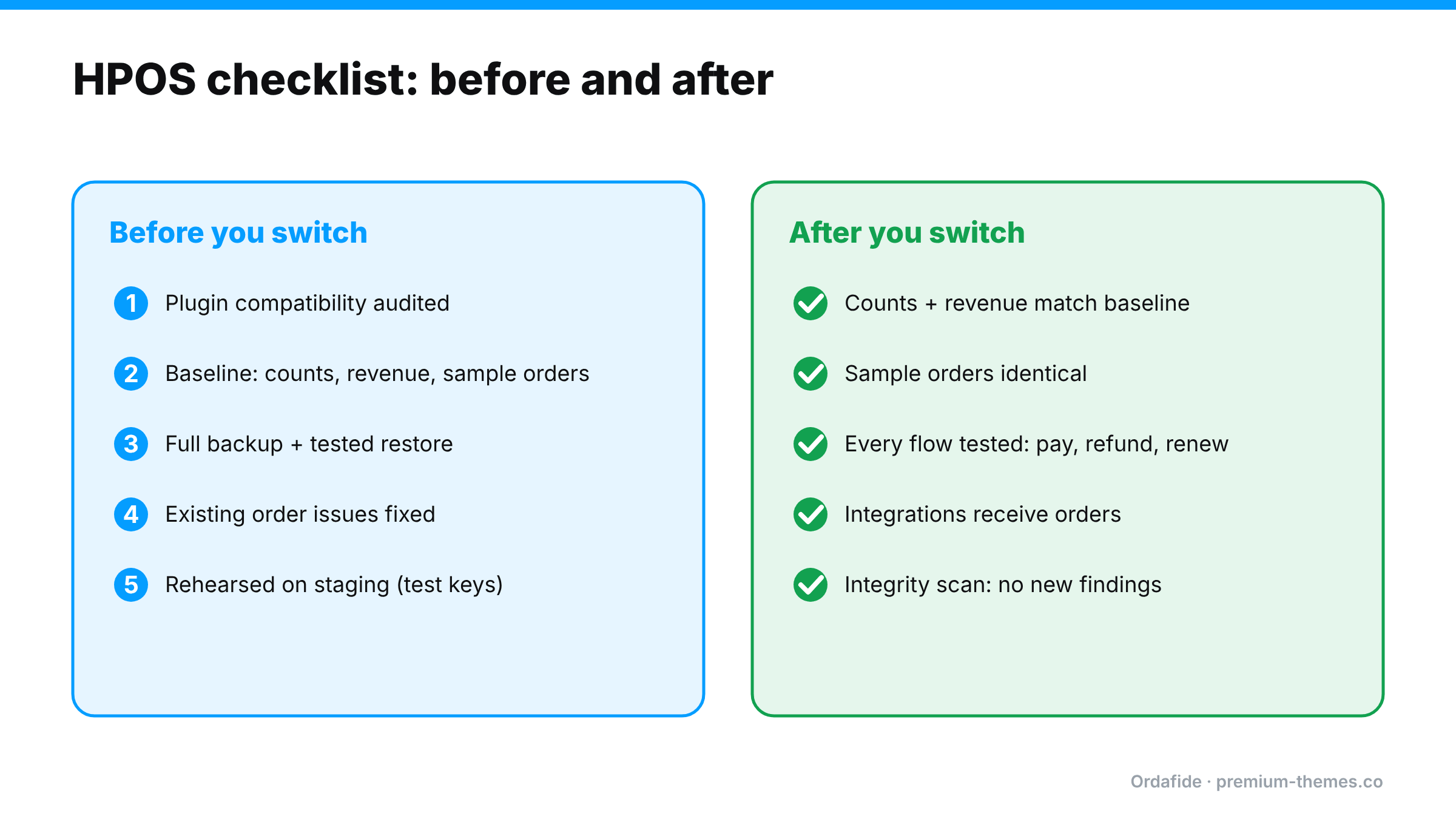
Two-column HPOS checklist. Before: audit plugin compatibility, record a baseline of counts, revenue and sample orders, back up, fix existing order issues, rehearse on staging. After: counts and revenue match, sample orders identical, every order flow tested, integrations receiving orders, and an integrity scan with no new findings.

This is the step most stores skip. “The orders page loads” is not verification.

Compare with your baseline

  • Order counts by status match
  • Revenue and refunds for the baseline month match in Analytics and the gateway
  • Your sample orders show identical totals, items, notes, customer details and statuses

Exercise every order flow

  • New order through every payment method → Processing, email sent
  • Partial and full refund from the order screen
  • Cancellation and failed payment
  • Subscription renewal (if used)
  • Order notes, custom fields and meta used by your plugins
  • Integrations: ERP, fulfilment, accounting, CRM all receive the new orders

Check order integrity across the store

  • No new stuck payments or paid-but-cancelled orders
  • No duplicate charges from integrations retrying
  • No refund mismatches
  • Order totals still add up (items + shipping + fees + tax = total)
  • Customers are still getting their emails
  • Reports: Analytics rebuilt and current

A worked example: the invoicing plugin

A store enables HPOS after its compatibility screen shows only one warning, for an older PDF invoice plugin the owner thinks is “just for printing”.

  • New orders work. Payments work. Emails work.
  • The invoice plugin, which reads order data directly from the posts table, starts producing invoices with missing line items for new orders, because the data isn’t in posts any more.
  • The plugin also writes the invoice number to post meta, so WooCommerce’s order screen no longer shows invoice numbers.
  • Three weeks later, the accountant notices invoice numbering gaps and invoices that don’t match order totals.

Because the store migrated with sync on, the fix was simple: switch authoritative storage back to posts, replace the invoice plugin with an HPOS-compatible one, then switch to HPOS again. Without sync, the store would have been untangling three weeks of mixed data.

The lesson: an “incompatible” warning on anything that touches orders deserves a fix before migration, not after.

Large stores: timing and load

  • Background sync on a store with hundreds of thousands of orders can take hours or days. Plan for it.
  • Sync relies on Action Scheduler. A healthy queue and a real server cron make it predictable.
  • Run the migration in a quiet period, not before a sale.
  • WooCommerce publishes a dedicated guide for enabling HPOS on large stores. It’s worth reading in full before you start.

How Ordafide fits an HPOS migration

Ordafide Order Integrity for WooCommerce is HPOS native. It declares HPOS compatibility and reads orders through the WooCommerce CRUD layer, so it behaves identically whether your store uses the new order tables or the legacy posts storage. That makes it useful on both sides of the switch:

  • Before: run a scan to establish a clean baseline: stuck payments, paid-but-cancelled orders, duplicate charges, refund mismatches, totals that don’t add up, customers never emailed. Fix what it finds.
  • After: run the same scan again. New findings point to something the migration or an incompatible plugin changed.
  • Scale: scans run in batches of 100 orders through Action Scheduler, with bounded queries, so even very large stores don’t time out.
  • Store health: Ordafide shows Action Scheduler backlog and failures and WP-Cron status, which is exactly what the background sync depends on.

To be clear about scope: Ordafide doesn’t compare the posts and HPOS tables row by row or perform the migration. WooCommerce’s sync does that. Ordafide checks that the orders themselves still make sense after the move.

Ordafide Pro adds gateway reconciliation (read-only, for Stripe, PayPal, Square, Mollie and Razorpay), a strong post-migration check because it compares orders against what the gateway actually collected, independently of how WooCommerce stores them. Its CSV/JSON audit export gives you a before-and-after record for your accountant.

The day-after-migration routine

For the first two weeks after switching, spend ten minutes a day on this:

  1. Check the Scheduled Actions queue for backlogs or failures.
  2. Open two or three new orders and confirm items, totals, notes and status look right.
  3. Check that integrations received yesterday’s orders.
  4. Run an integrity scan and compare with your baseline.
  5. Glance at Analytics and compare with the gateway.

If everything is quiet for two weeks, you can relax the routine, and consider whether it’s time to turn sync off.

What to tell your team

Before migrating, tell everyone who works with orders:

  • The orders screen will look different. HPOS uses WooCommerce’s own orders page rather than the posts list. Saved bookmarks and some admin URLs change.
  • Report anything odd immediately: missing fields, wrong totals, notes that don’t appear, an integration that goes quiet.
  • Don’t run bulk edits or imports during the sync window.
  • Who to contact if something looks wrong, and that you can roll back while sync is on.

Most post-migration problems are spotted first by the people who work in the orders screen every day.

The 15-Minute Weekly WooCommerce Order Health Check (Free Checklist)

Most WooCommerce maintenance advice is about the site: update plugins, back up the database, optimize images, check uptime. That’s all sensible. But it misses the thing that actually pays the bills: are the orders right?

A store can be fast, secure, fully updated and perfectly backed up while quietly:

  • leaving paid orders on Pending payment,
  • charging some customers twice,
  • shipping orders that were already refunded,
  • never emailing receipts,
  • and recording totals that don’t match the money.

None of these produce error messages. They show up as customer complaints, chargebacks and reconciliation gaps weeks later.

This article gives you a 15-minute weekly routine for checking order health, explains what each step catches and why, and shows how to automate most of it so it keeps happening on the busy weeks too.

Why weekly?

  • Daily is ideal for high-volume stores, but it’s rarely sustained by hand.
  • Monthly is too slow. Customers who paid and received nothing won’t wait a month.
  • Weekly catches most problems while customers are still patient, and it’s frequent enough to become a habit.

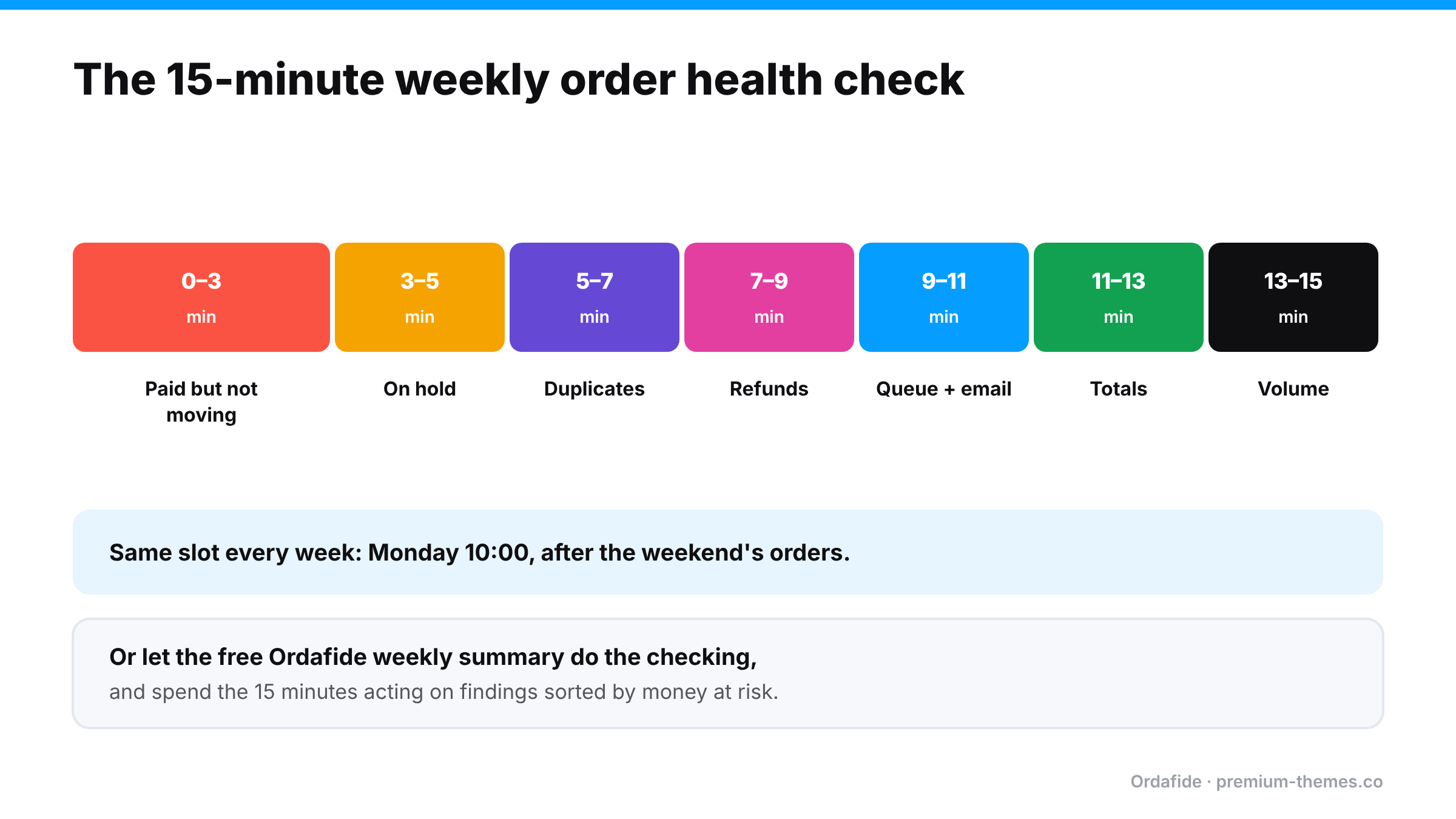
Pick a fixed slot (Monday at 10:00 works well, after the weekend’s orders) and put it in the calendar.

The 15-minute routine

Timeline of a 15-minute weekly routine: paid but not moving (3 minutes), On hold, duplicates, refunds, background queue and email, totals, and order volume (2 minutes each). Do it at the same time every week, or let the Ordafide weekly summary do the checking.

Minute 0–3: Orders that are paid but not moving

Check: filter WooCommerce → Orders by Pending payment, Failed and Cancelled for the last 7–10 days. Open any that look like real customers (real names, sensible addresses, not card-testing junk).

Look for: a gateway transaction ID, a payment note, or a paid date on an order that isn’t Processing or Completed.

Why: these are customers who paid and won’t receive anything. Webhook failures and the Hold stock auto-cancel timer are the usual causes. (Full guide)

Action: verify in the gateway, move to Processing, resend the confirmation email, apologize.

Minute 3–5: The On hold queue

Check: filter by On hold.

Look for: bank transfers you haven’t matched, card authorizations that need capturing before they expire, payments that are actually settled at the gateway.

Why: On hold orders fall outside the Processing queue your team works from. (Full guide)

Minute 5–7: Duplicates

Check: sort recent orders by customer or email and scan for the same customer, same total, minutes apart.

Look for: two orders with the same transaction ID (one payment, two orders) or two different transaction IDs (charged twice).

Why: duplicate charges are a leading cause of “duplicate processing” disputes. (Full guide)

Minute 7–9: Refunds that don’t add up

Check: filter by Refunded and spot-check a few for refund records. Then look at Processing orders older than your normal fulfilment time for red refund lines.

Look for: “Refunded” orders with no refund, fully refunded orders still in Processing, refunds larger than the order.

Why: refunded orders get shipped; promised refunds never arrive. (Full guide)

Minute 9–11: The background queue and email

Check: WooCommerce → Status → Scheduled Actions → Pending. Are there many past-due actions? Check the Failed tab too. Then send yourself a test email from your SMTP plugin.

Why: when the queue stalls, emails, stock updates and some payment processing stop, silently. (Full guide)

Minute 11–13: Totals

Check: open three or four recent orders that used a coupon, a different currency, or an unusual shipping method. Do items − discounts + shipping + fees + tax equal the total?

Why: pricing, tax and currency plugins can leave orders that don’t add up. ([Full guide](/blog/woocommerce-order-total-wrong/))

Minute 13–15: Volume sanity check

Check: compare this week’s order count and revenue with the same week last month or last year in WooCommerce → Analytics. Look at day-by-day: is there a day with suspiciously few orders?

Why: a day with almost no orders is often a broken checkout nobody noticed. A day with hundreds of failed orders is often card testing. (Checkout guide · Card testing guide)

What you’ll typically find (and what to do)

Here are the kinds of findings a first audit usually turns up on an established store, and how to handle each one.

“Order #5520, Cancelled, $142. Order notes show a Stripe payment ID.”
The webhook didn’t arrive within the Hold stock window, so WooCommerce cancelled a paid order. Check Stripe: payment succeeded. Restore to Processing, check stock, resend the confirmation, ship, and email an apology. Then find out why the webhook failed. One stuck order usually means others.

“Orders #5531 and #5532, same customer, $38 each, 40 seconds apart, different transaction IDs.”
A genuine double charge. Confirm with the customer that they wanted one, refund #5532 from the order screen, and look at checkout speed.

“Order #5490, Processing, $95. Refunded in full four days ago.”
Stop! Make sure it isn’t in today’s picking list. Change the status to Refunded (carefully, so you don’t trigger a second refund) and find out who refunded it and where.

“Scheduled Actions: 1,240 past-due.”
The queue isn’t running. Check `DISABLE_WP_CRON`, set up a real server cron, and let the backlog drain. Then check whether any customers missed confirmation emails during the stall.

“Order #5544: items + shipping + tax = $72.40; stored total = $67.40.”
A discount was applied without a matching line. Check which pricing plugin did it, and whether other orders are affected.

The first audit is usually the biggest. After that, weekly findings tend to be small and quick, and anything unusual stands out clearly.

Adapting the routine to your store size

  • Under ~20 orders a week: you can open every order. The routine takes 10 minutes. Focus on paid-but-not-moving and refunds.
  • Hundreds of orders a week: sampling stops working. Use filters, sort by customer, and lean on automated checks for full coverage.
  • Thousands of orders a week: a weekly manual check is too slow. Problems need finding in hours, not days. Automate the checks, set alerts, and keep the weekly slot for reviewing trends and fixing root causes.
  • Multiple stores: script it. Running the same check by hand across stores doesn’t last more than a few weeks.

Keep a simple log

Write down what you found each week: date, issue, number of orders, money involved, cause, fix. After a month or two, patterns emerge. Maybe the same gateway keeps leaving orders stuck, or duplicates cluster on mobile. The log turns firefighting into fixing.

Week Issue Orders Value Cause Fixed?
3 Nov Paid but cancelled 2 $118 Webhook blocked by WAF Yes: WAF rule
10 Nov Duplicate charge 1 $45 Double click, slow checkout Refunded; investigating speed
17 Nov None found

Why manual audits fail (and what to do about it)

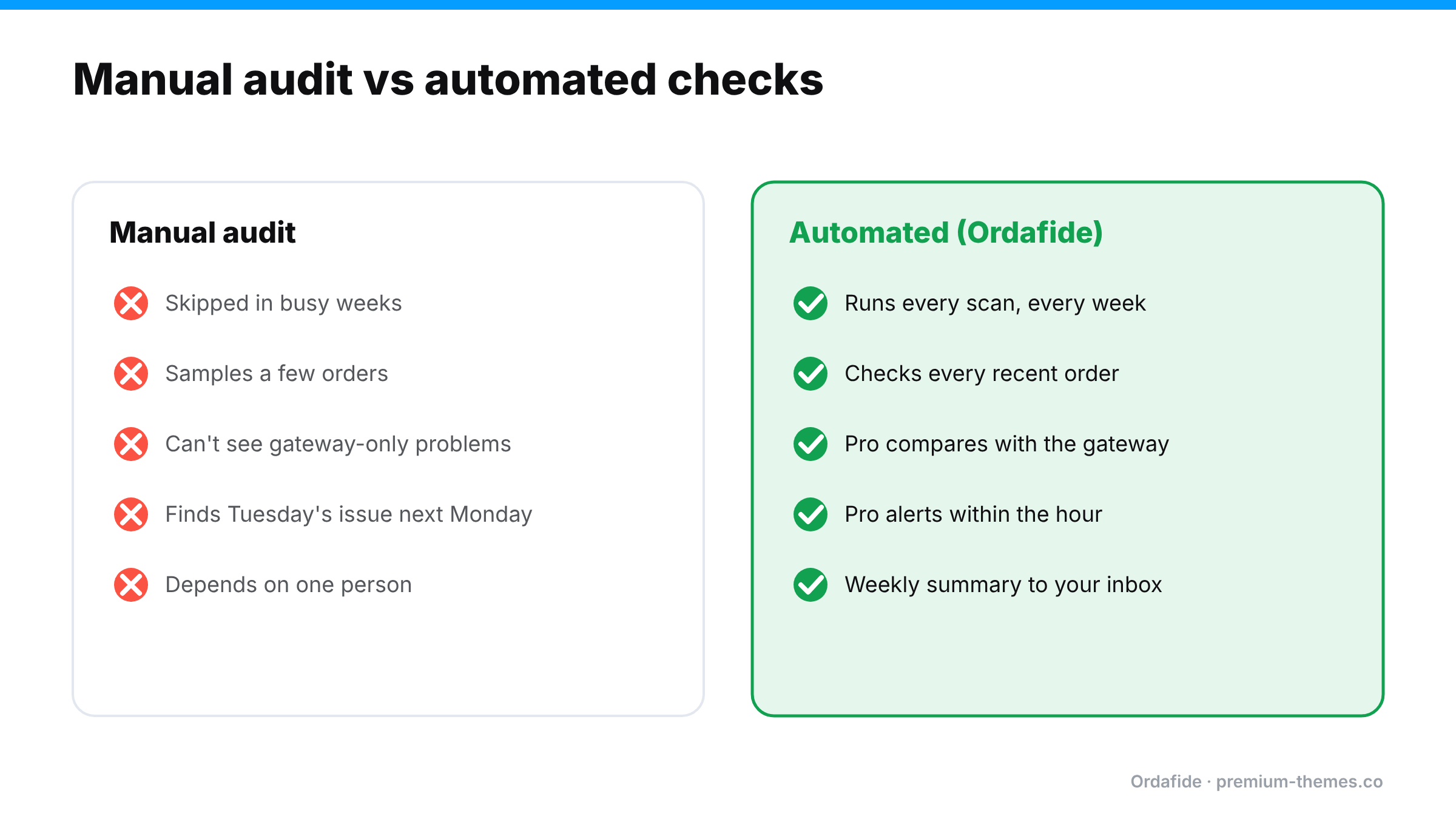
Comparison. Manual audits get skipped in busy weeks, sample a few orders, can't see gateway-only problems, find issues days late and depend on one person. Automated checks run every time, cover every recent order, compare with the gateway in Pro, alert within the hour in Pro and send a weekly summary.

Be honest: will this routine still happen in the week before Christmas? During a product launch? When you’re ill?

Manual audits have predictable weaknesses:

  • They’re skipped when you’re busy, which is exactly when problems are most likely and most expensive.
  • They’re sampled. You can’t open every order, so you check a few and hope.
  • They miss the invisible. Payments with no order, refunds only at the gateway, and charges that differ from the order can’t be seen from WooCommerce screens at all.
  • They’re slow to react. A weekly check means a problem that starts on Tuesday is found next Monday.

The fix is to automate the checks and keep the human part for deciding and acting.

Automating the routine with Ordafide

[Ordafide Order Integrity for WooCommerce](https://wordpress.org/plugins/ordafide-order-integrity-for-woocommerce/) is a free plugin that does most of the routine above automatically, across every recent order, not a sample:

Routine step Ordafide (free)
Paid but not moving Stuck payment and Paid but cancelled checks
Duplicates Duplicate charge check
Refunds Refund mismatch check
Queue and email Store health: Action Scheduler backlog and failures, WP-Cron status, loopback test, and an order email delivery log with one-click resend
Totals Order total does not add up check with a rounding tolerance

Findings appear in one inbox, sorted by money at risk, each with the evidence and what to check before touching anything. There’s an optional weekly summary email, sent only when there’s something to report, so the routine comes to you. For developers and agencies, WP-CLI commands (`wp ordafide scan`, `wp ordafide findings`, `wp ordafide health`, `wp ordafide digest`) let you script it.

Your 15 minutes becomes: open the weekly summary, work through the findings, done.

Ordafide Pro covers the remaining steps that the free plugin structurally can’t:

  • Gateway reconciliation (Stripe, PayPal, Square, Mollie, Razorpay) for the invisible cases: money with no order, paid orders with no payment, amount disagreements, refunds missing in WooCommerce.
  • Order volume anomaly detection for the “suspiciously quiet day” and “overnight spike” checks, hourly rather than weekly.
  • Synthetic checkout monitoring every 15 minutes, so a broken checkout is found in minutes.
  • Real-time alerts to Slack, SMS, email or webhook, so urgent problems don’t wait for Monday.

Making it stick

A routine only works if it survives busy weeks. A few things help:

  • Give it an owner. One named person, with a named backup for holidays.
  • Put it in the calendar as a recurring meeting with yourself. A fixed slot is far more likely to happen than “sometime on Monday”.
  • Start with the weekly summary email. If Ordafide’s weekly summary arrives and lists nothing, the routine takes two minutes. If it lists findings, you know exactly where to start.
  • Track time saved. Note how long each issue took to fix when found early, versus the customer complaints and disputes you used to handle. It keeps the habit motivated.
  • Review the log monthly. Repeated causes deserve a permanent fix, not another weekly repair.

The aim isn’t to spend 15 minutes a week forever. It’s to fix the causes so the weekly check becomes boring. A boring audit means a healthy store.

The printable checklist

Weekly order health check: 15 minutes

  • [ ] Pending / Failed / Cancelled: any with payment evidence?
  • [ ] On hold: every order has a reason and a next step?
  • [ ] Duplicates: same customer, same basket, minutes apart?
  • [ ] Refunded: every one has a refund record?
  • [ ] Processing: any with refund lines?
  • [ ] Scheduled Actions: past-due backlog or failures?
  • [ ] SMTP test email delivered?
  • [ ] Sample totals add up (coupon, currency, unusual shipping)?
  • [ ] Order volume normal day by day?
  • [ ] Log updated with anything found

WooCommerce Order Total Doesn’t Add Up? Fixing Coupon, Tax, Shipping and Currency Mismatches

Every WooCommerce order should satisfy a simple equation:

Items − discounts + shipping + fees + tax = order total = amount charged

Most of the time it does. But WooCommerce lets dozens of plugins change those numbers: coupons, dynamic pricing, tax services, shipping calculators, payment fees, currency switchers, gift cards. Any one of them can leave an order where the parts don’t add up to the whole, or where the whole doesn’t match what the customer was actually charged.

Nothing alerts you when this happens. The order looks normal. You only find out when an accountant can’t reconcile a month, a tax report is off, or a customer points out they were overcharged.

This guide covers the six common causes, how to find affected orders, and how to keep totals honest.

Two different problems

It helps to separate:

  1. The order doesn’t add up internally. Line items, shipping, fees and tax don’t sum to the stored order total.
  2. The order adds up, but the charge was different. The order is internally consistent, but the gateway took a different amount.

The first can be found by inspecting your own database. The second can only be found by comparing with the gateway.

The six common causes

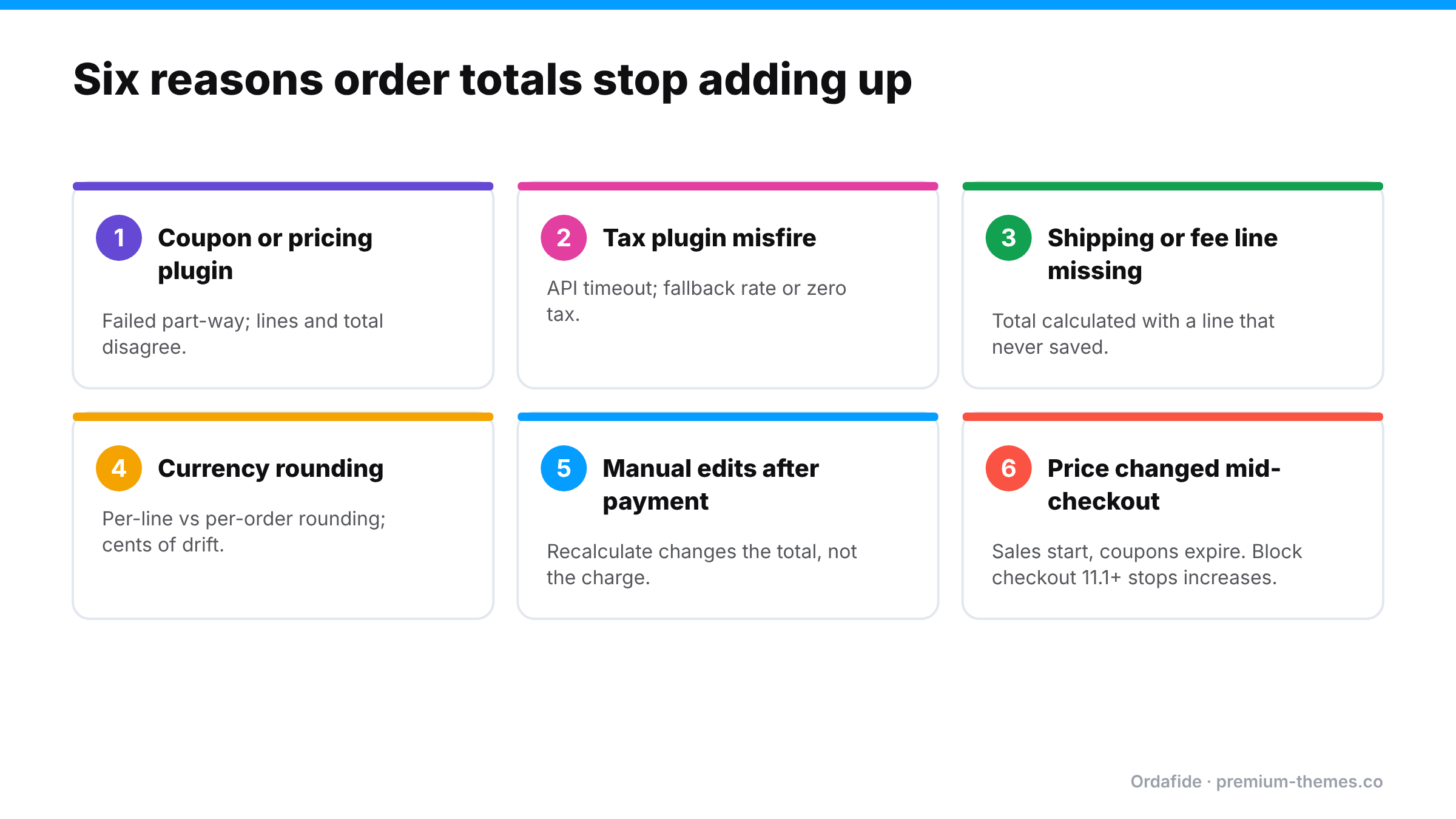
Six causes of WooCommerce total mismatches: coupon or pricing plugin failures, tax plugin misfires, missing shipping or fee lines, currency rounding, manual edits after payment, and prices changing mid-checkout.

1. A coupon or discount plugin failed part-way

Advanced coupon, BOGO and dynamic pricing plugins modify cart items and totals during checkout. If one fails mid-calculation (an error, a timeout, a conflict with another pricing plugin), the stored line items and the stored total can disagree. Sometimes the customer is charged the discounted price but the items show full price, or vice versa.

2. A tax plugin misfired

External tax services calculate tax by calling an API at checkout. If the call times out or fails, some plugins fall back to WooCommerce’s built-in rates, to zero, or to a cached value. The order may then show tax that doesn’t match the address, or a total that doesn’t include the tax lines shown.

3. Shipping or fee lines didn’t apply

Shipping and payment fee plugins add lines to the order. If a line fails to save while the total was calculated with it (or the reverse), the order is out of balance. Often this means you undercharged for shipping.

4. Currency switcher rounding

Multi-currency plugins convert prices and round them. Rounding each line separately versus rounding the total can produce small, persistent differences, often a cent or two per order. Individually trivial; across thousands of orders, it’s a reconciliation headache. Worse, if the plugin and the gateway disagree about the currency or amount, the charge can differ from the order.

5. Manual order edits

Editing an order after payment (adding an item, changing a quantity, adjusting shipping) and clicking Recalculate can change the total, while the payment stays the same. Editing without recalculating can leave the total stale. Either way, the order no longer matches the charge.

6. Prices changed between page load and payment

Scheduled sales starting, coupons expiring or dynamic pricing rules changing while the shopper is on the checkout page can create mismatches. WooCommerce’s documentation notes that from WooCommerce 11.1, block-based checkout stops an order if the total increases between page load and Place order, asking the customer to refresh. Decreases still go through. That’s a welcome safeguard, but it doesn’t cover classic checkout, plugins that modify totals after the order is created, or the other causes above.

A worked example

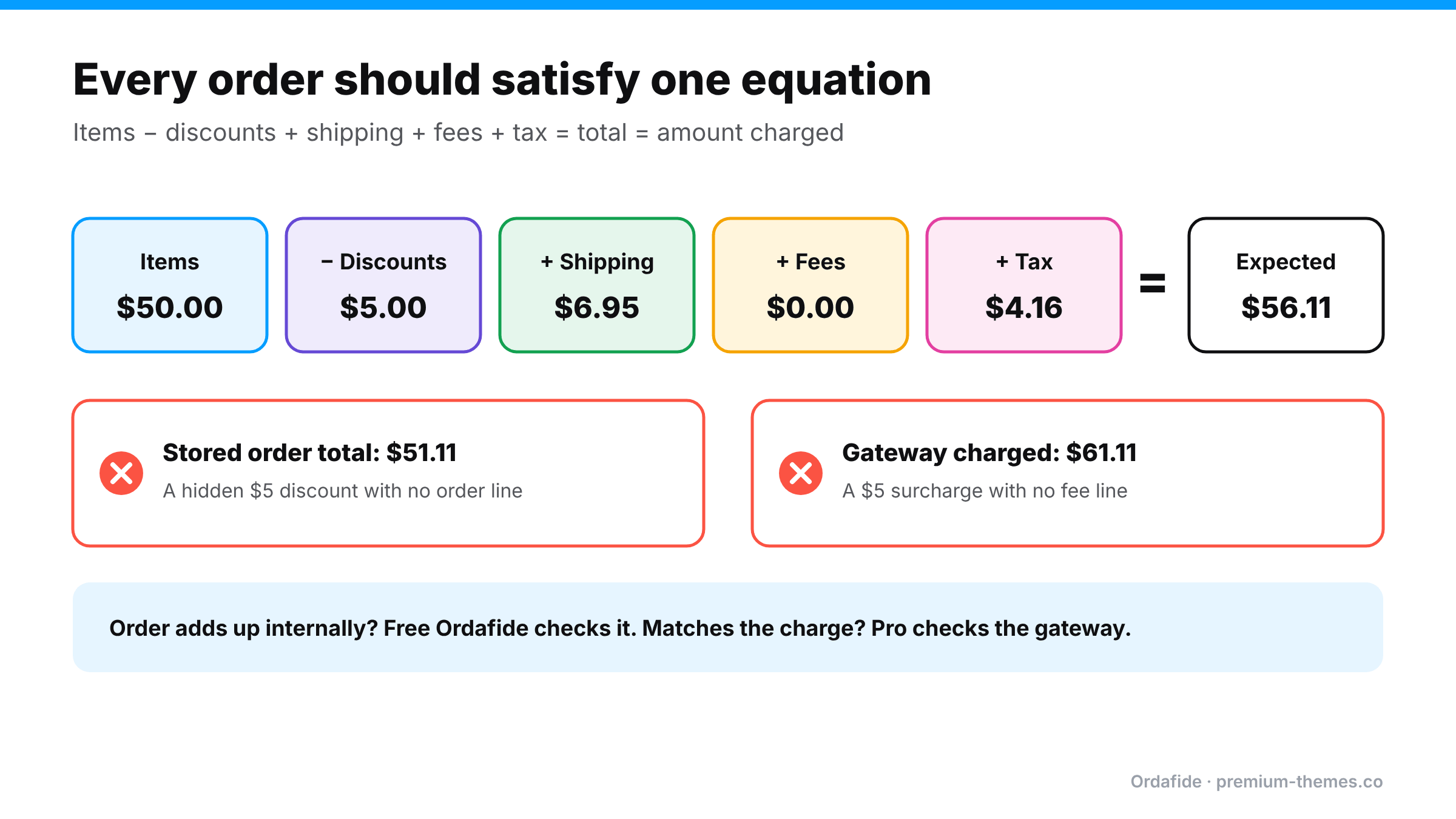
Worked example: items $50, discount $5, shipping $6.95, fees $0, tax $4.16, so the expected total is $56.11. Two mismatches: a stored total of $51.11 caused by a hidden discount, and a gateway charge of $61.11 caused by a surcharge with no fee line.

Here’s a real-looking order that doesn’t add up, to show how small the signals can be.

Line Amount
T-shirt × 2 @ $25.00 $50.00
Coupon SPRING10 (10%) −$5.00
Shipping: Standard $6.95
Tax (8% on items after discount + shipping) $4.16
Expected total $56.11
Stored order total $51.11

The difference is exactly $5. On investigation, a second discount plugin also applied a $5 “first order” discount to the total, but didn’t add a visible line for it. The customer was charged $51.11, which is fine for them, but your sales report shows $50 of items, a $5 coupon, $6.95 of shipping and $4.16 of tax, which adds up to $56.11, so $5 of revenue that never existed. Multiply by every first-time customer for a quarter, and your books are noticeably wrong.

Now the opposite case: the order lines add up to $56.11, the stored total is $56.11, but the gateway shows $61.11. A payment fee plugin added a $5 surcharge at the gateway step without recording a fee line. The customer was overcharged by your records’ standards, and won’t be pleased if they notice.

Neither order would look strange in the orders list.

Multi-currency: why cents go missing

Currency switchers convert each price from your base currency and round it. The problem is where the rounding happens:

  • Convert and round each line, then add: €22.73 + €22.73 + €6.32 = €51.78
  • Add in base currency, then convert and round once: €51.77

Both are defensible. But if the plugin calculates one way and your tax report, the gateway, or a later recalculation uses the other, every order carries a cent or two of drift. Tax is particularly sensitive, because tax rounding rules (per line or per order) are set in WooCommerce → Settings → Tax and interact with the currency plugin’s own rounding.

A tolerance-based check is the practical answer: ignore differences of a cent or two, and investigate anything bigger. That’s why Ordafide’s total check has a configurable rounding tolerance rather than demanding exact matches.

Questions to ask before installing a pricing or tax plugin

  • What happens to an order if your plugin errors mid-checkout? Does checkout stop, or continue with partial data?
  • Do you add visible order lines for every discount or fee you apply?
  • Is your plugin compatible with both block and classic checkout, and with HPOS?
  • How do you handle rounding in other currencies?
  • What does your plugin do when its external API is unreachable?

A vendor who answers these clearly is much less likely to leave you with mismatched totals.

Symptoms you might be seeing

  • Accountant reports WooCommerce revenue ≠ gateway deposits by more than fees
  • Tax reports that don’t match what was collected
  • Customers saying their coupon wasn’t applied, or they were charged more than the order email shows
  • Orders where shipping shows $0 but the customer chose a paid method
  • A steady trickle of one-cent differences in multi-currency stores

How to find affected orders

Manual spot check

Open a sample of recent orders and add up items, minus discounts, plus shipping, fees and tax. Compare with the total. Then compare the total with the amount shown in the gateway for that transaction ID.

It works for a handful of orders. It isn’t practical for hundreds, and it’s the kind of job that never gets done in a busy month.

Automatic check with Ordafide (free)

Ordafide Order Integrity for WooCommerce includes an “Order total does not add up” check. For each recent order it compares items + shipping + fees + tax with the stored total and flags any order that’s out by more than a rounding tolerance you configure. That tolerance matters for multi-currency stores, so a cent of rounding doesn’t flood you with findings while real errors still show up.

Findings come with the numbers side by side and are sorted by money at risk, so a $40 missing shipping line ranks above a 2-cent rounding difference. The check reads only your own database, sends nothing anywhere, and never changes your orders.

Comparing with what was actually charged (Pro)

If an order adds up internally but the gateway took a different amount, only the gateway knows. Ordafide Pro reconciles orders against Stripe, PayPal, Square, Mollie and Razorpay with read-only API keys and flags amount disagreements between the order and the charge, alongside money with no order, paid orders with no payment, and refunds missing in WooCommerce. For accountants, Pro’s CSV/JSON audit export covers any date range.

Fixing affected orders

  1. Decide which number is right. Usually the gateway charge is the truth about money; the line items are the truth about what was sold.
  2. If the customer was undercharged: decide whether it’s worth recovering. For small amounts, often not. Add a note and fix the cause.
  3. If the customer was overcharged: issue a partial refund through the order screen (Refund via [gateway]) for the difference and apologize.
  4. If it’s a records-only problem (the charge was right, the order lines are wrong): correct the lines carefully and add a note explaining why. Avoid hitting Recalculate unless you understand what it will do with taxes and coupons.
  5. Tell your accountant about any systematic issue and when it started.

Explaining it to your accountant

When mismatches turn up, your accountant needs three things: how many orders, how much money, and since when. A clear note might read:

“Between 3 March and 18 April, a discount plugin applied an extra $5 first-order discount without recording a line. 214 orders are affected. Customers were charged correctly; our reports overstate revenue by $1,070. The plugin was removed on 18 April. Order IDs attached.”

That turns a confusing reconciliation gap into a known, bounded adjustment. It’s only possible if you can list affected orders quickly, which is exactly what an automated total check gives you. Without one, the investigation itself becomes the expensive part.

Keep a short log of pricing, tax and currency plugin changes (what changed, when, and why). When a mismatch appears, the first question is always “what changed around then?”, and the log answers it.

Preventing mismatches

  • Minimize overlapping pricing plugins. Two plugins that both change prices or discounts are the most common source of trouble.
  • Test checkout with every coupon type after updating coupon, pricing or tax plugins.
  • Check tax plugin failure behaviour. Know what your tax plugin does when its API is unreachable, and prefer plugins that block checkout over ones that silently charge the wrong tax.
  • Configure multi-currency rounding deliberately and check the gateway receives the same currency and amount as the order.
  • Lock down post-payment edits. Agree a process for editing paid orders, including whether and when to recalculate, and always add a note.
  • Use block checkout where it fits, to benefit from the total-increase protection in recent WooCommerce versions.
  • Scan regularly. A weekly Ordafide scan or its weekly summary email shows new mismatches while they’re still easy to explain.

A note for agencies

Total mismatches often start right after a client installs “just one more” discount or upsell plugin. Ordafide’s WP-CLI commands (`wp ordafide scan`, `wp ordafide findings`) let you include an order-total check in your maintenance scripts across client sites, and Ordafide Pro’s multi-store dashboard puts every store’s findings on one screen.