Tag Archives: Coupons

How Much Should You Refund? Returns on Coupon, Discounted, BOGO and Free-Shipping Orders

Returning a full-price item from a single-item order is easy: refund what they paid.

Now try this one. A customer used a 20% off coupon on a three-item order that qualified for free shipping over $75. They return one item. The remaining two now total less than $75. How much do you refund?

Or: a buy-one-get-one-free deal, and they return the paid one. Or the free one. Or a gift-with-purchase promotion where they keep the gift and return the purchase.

These questions trip up store owners and support teams every day, and the answers you give can quietly cost you money (over-refunding) or customers (under-refunding and arguing). This guide works through the common discount scenarios, the principles behind fair refunds, and how to make the right amount the default.

This is practical guidance, not legal advice. Consumer law in some places sets rules on refund amounts, especially for faulty goods and statutory withdrawal rights. Check the rules where you sell.

The core principle: refund what was actually paid for the item

The fairest, most defensible rule is simple:

Refund the amount the customer actually paid for the returned item, after its share of any discount, plus or minus any shipping your policy says.

Not the list price. Not the order total divided by the number of items. The item’s share of what was paid.

The good news: WooCommerce already works this way for coupons. When a coupon is applied, WooCommerce spreads the discount across the eligible line items and stores each line’s subtotal (before discount) and total (after discount). The refund form pre-fills from the line total, the discounted amount actually paid for that line. As long as you refund through the line items rather than typing an amount, you start from the right number.

Scenario 1: Percentage coupon on the whole order

Order: 3 items at $40 each = $120. Coupon 20% off → $24 discount. Paid: $96.
Return: 1 item.

WooCommerce allocates the discount to each line: each item’s line total is $32.
Refund: $32 (plus that line’s tax, if any).

Common mistake: refunding $40, the shelf price. That over-refunds by $8 per item, and on a busy sale weekend that adds up.

Scenario 2: Fixed-amount coupon on the cart
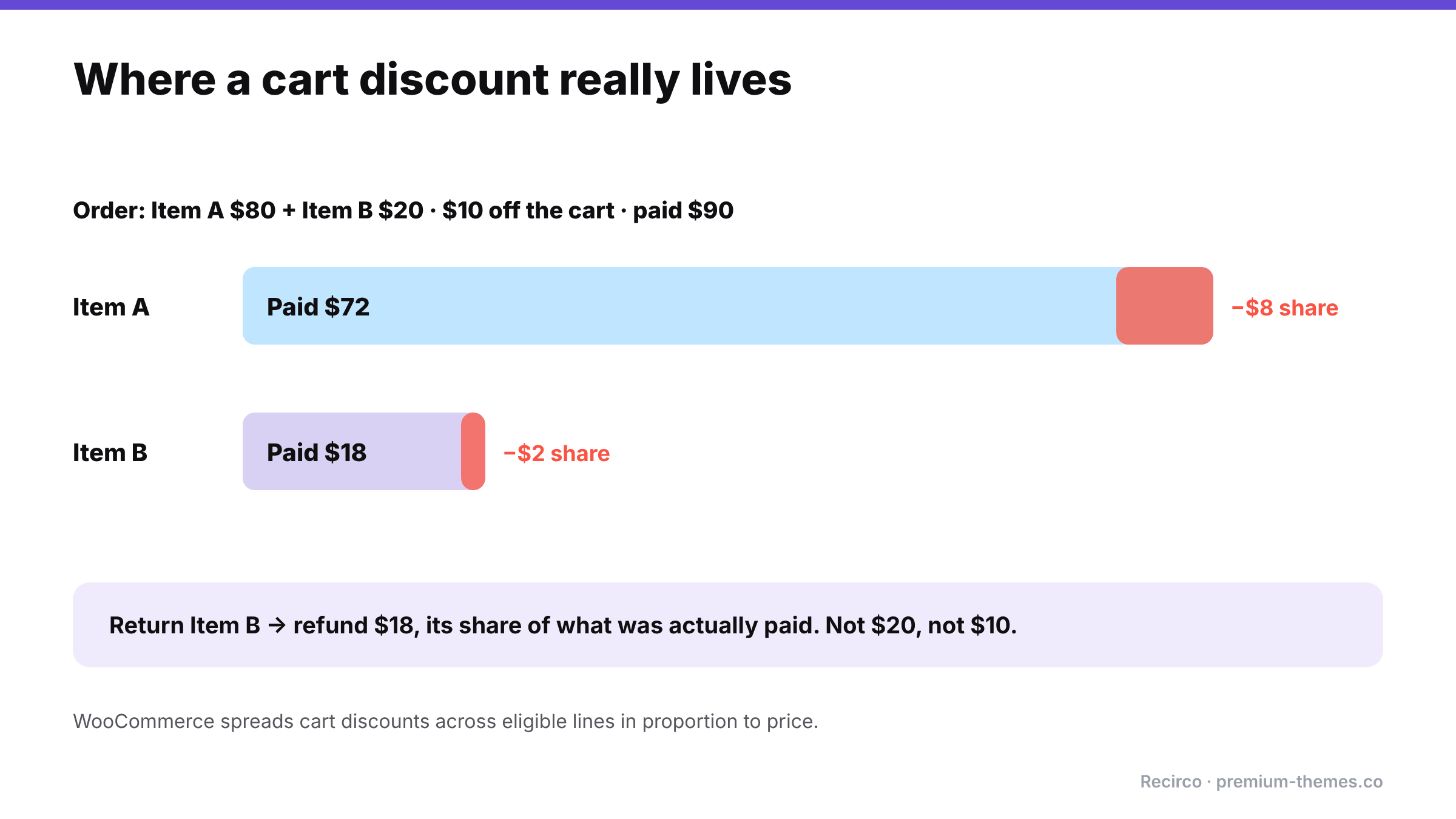
Diagram: a $10 cart discount on an $80 item and a $20 item is spread proportionally, $8 to the first and $2 to the second, so the items cost $72 and $18. Returning the $20 item refunds $18.

Order: Item A $80 + Item B $20 = $100. Coupon $10 off cart. Paid: $90.
Return: Item B.

WooCommerce spreads a fixed cart discount across the eligible items in proportion to their price: A gets $8 of the discount, B gets $2. B’s line total: $18.
Refund: $18.

Why proportional is fair: if you gave B the whole $10 discount, you’d refund only $10 and the customer would feel cheated. If you gave none, you’d refund $20 and lose the $2 they never paid.

Scenario 3: The return breaks a minimum-spend discount

Order: 3 items at $30 = $90. Coupon “$15 off orders over $75”. Paid: $75.
Return: 1 item. The remaining $60 no longer qualifies for the coupon.

Two defensible approaches:

  • Proportional (simplest, most common): refund the returned line’s discounted amount: $25. The customer keeps the full benefit on the remaining items.
  • Recalculate (strict): the customer would have paid $60 for the two items they kept, without the coupon. They paid $75. Refund $15.

The strict approach is logically defensible, but customers often see it as a penalty, and it generates complaints. Many stores choose proportional for goodwill and simplicity. Whichever you choose, put it in your return policy (“Discounts that depended on a minimum spend may be adjusted if items are returned”) so it isn’t a surprise.

Scenario 4: Buy one, get one free (BOGO)

Order: 2 items at $30, “buy one get one free”. Paid: $30.
Return: 1 item.

How the BOGO plugin recorded the discount decides the default:

  • If it put a $30 line and a $0 line, refunding the free one gives $0 and refunding the paid one gives $30. The customer effectively gets the “free” one for nothing either way.
  • If it spread the discount (two lines at $15), each item refunds at $15.

Fair approach: treat BOGO as 50% off each item. Returning one item refunds half of what was paid ($15). The customer keeps one item for $15, which is fair since they no longer meet the “buy two” condition.

Policy tip: state it plainly: “Items bought on multi-buy offers are refunded at the price paid per item under the offer.”

Scenario 5: Bundles and kits

Order: “Starter kit” bundle of 3 products for $99 (worth $130 separately).
Return: 1 product from the kit.

If the bundle is sold as a single product, you either accept only whole-kit returns, or refund a defined portion. If it’s sold as separate line items with a bundle discount, refund the returned line’s share of the discounted price, like Scenario 2.

Policy tip: many stores make bundles returnable only as complete bundles. If that’s your rule, enforce it by making individual bundle components non-returnable through your returns system rather than arguing case by case.

Scenario 6: Gift with purchase

Order: $70 serum + free travel bag (gift with purchases over $60). Paid: $70.
Return: the serum, keeping the bag.

Fair approaches: ask for the gift back too, or deduct its value from the refund, or let it go for low-value gifts. Most stores let low-value gifts go to avoid friction, and state that gifts over a certain value must be returned with the qualifying item.

Scenario 7: Free shipping threshold

Order: 2 items totalling $80 with free shipping over $75. Paid: $80.
Return: a $30 item. The kept item ($50) wouldn’t have qualified.

Options:
– Ignore it (most common): shipping was free, nothing to adjust.
– Deduct standard shipping from the refund, since the customer no longer qualifies. This is legitimate if stated in your policy, but it’s a frequent source of complaints.

Also decide whether you refund shipping paid by the customer when they return everything. In the EU, a consumer withdrawing from a distance contract is generally entitled to a refund of the standard delivery cost (not premium delivery they chose). Elsewhere it’s your policy choice.

Scenario 8: Store credit or gift card used as payment

If part of the order was paid with store credit or a gift card, refund in the same proportions by default: card portion back to card, credit portion back as credit. That stops customers converting non-refundable credit into cash through returns.

Why getting this right matters more than it looks

The difference between refunding list price and refunding the price paid seems small on one return. Across a sale season it isn’t.

Suppose you run a 25%-off Black Friday sale, sell 2,000 items averaging $40, and see a 15% return rate: 300 returned items. If each is refunded at the $40 list price instead of the $30 actually paid, you’ve given away $3,000 you never received. That money comes straight out of margin, on top of the cost of handling the returns.

The opposite mistake costs too. Under-refund (deduct discounts the customer doesn’t understand, or argue over pennies) and you buy yourself support tickets, bad reviews and occasionally a “credit not processed” chargeback, which costs a dispute fee on top of the refund you end up giving anyway.

Consistent, explainable rules avoid both.

Explaining an adjusted refund to the customer

When your policy means refunding less than the customer expects, say so before they’re surprised by their bank statement. A short note works:

“We’ve refunded $25.00 for the returned item. That’s the amount you paid for it after your 20% discount code. The other two items keep their discount. Your refund should appear within 5–10 working days.”

Customers rarely argue with a clear explanation. They argue with a number they don’t understand.

Turning rules into defaults
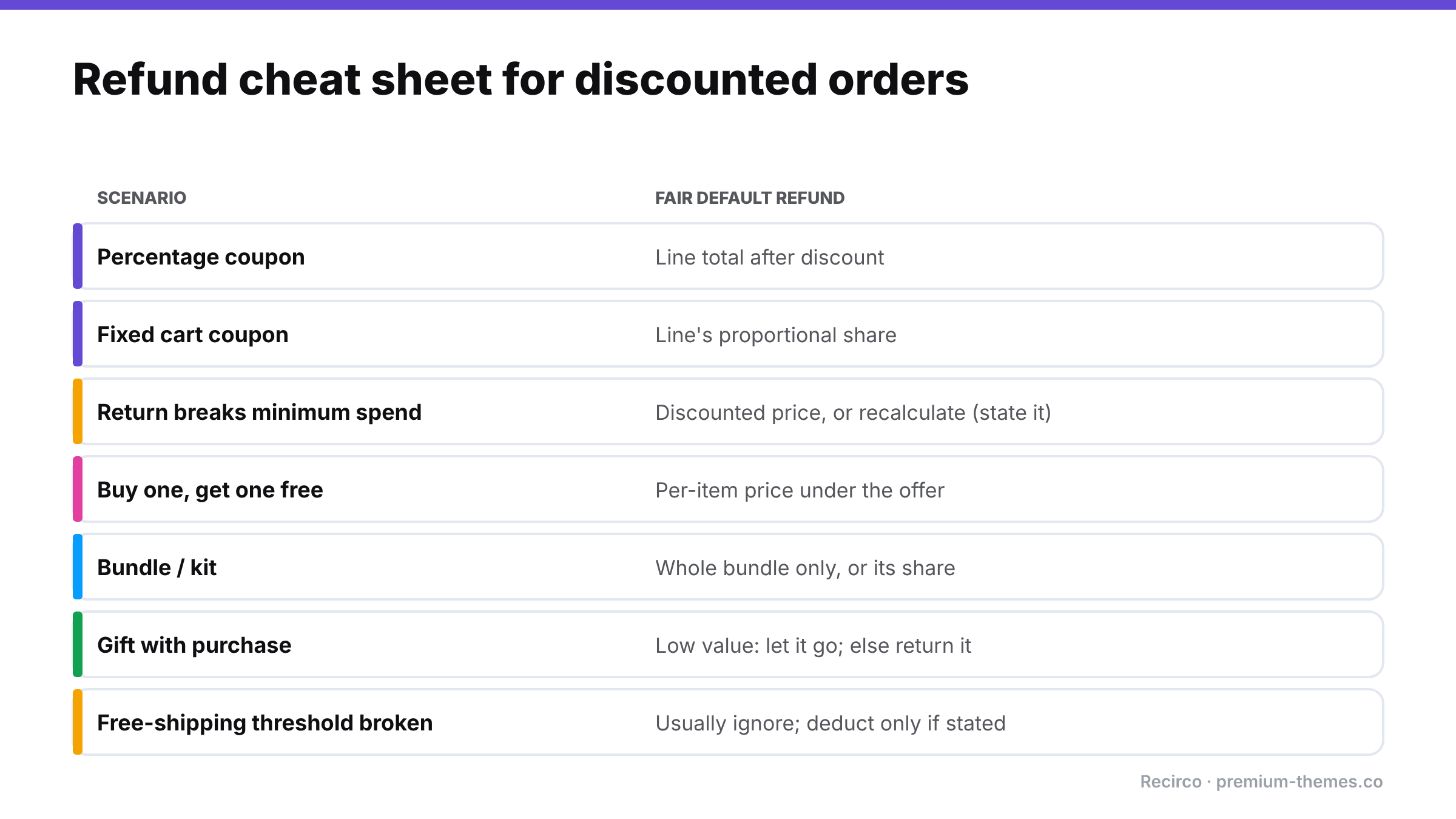
Refund cheat sheet: percentage coupon, refund the line total after discount; fixed cart coupon, the line's proportional share; broken minimum spend, the discounted price or a stated recalculation; BOGO, the per-item price under the offer; bundles, whole bundle only or its share; gifts, let low-value ones go; free-shipping threshold, usually ignore.

The scenarios above are manageable when one experienced person handles every return. They fall apart when several people handle returns, each doing their own arithmetic.

Three practices keep refunds consistent:

  1. Always refund through line items, never by typing an amount into the total. WooCommerce’s line totals already include coupon allocation, and the refund form splits net and tax.
  2. Write the edge cases into your policy: minimum-spend discounts, BOGO, bundles, gifts, free-shipping thresholds. Then support can point to it.
  3. Create refunds from the return record, so the system that knows which units came back also creates the refund for those units.

How Recirco helps

Recirco – Returns & Exchanges for WooCommerce is a free returns portal and approval queue that takes the arithmetic out of individual hands:

  • Customers return specific items and quantities, chosen from their order in My Account → Returns. Only eligible units are offered.
  • Refunds are created from the return as genuine WooCommerce refunds for the returned lines, with net and tax split from the original line, so they start from the discounted amount actually paid, not the shelf price. You can still adjust the amount before refunding when your policy says so (for example, deducting a broken minimum-spend discount). Send it through the gateway or record it manually.
  • Excluded products and categories, so bundles you only accept as complete sets, final-sale items or gifts can be made non-returnable in the portal itself.
  • Duplicate-refund prevention, so the same returned unit can’t be refunded twice.
  • Notes: internal for your team, or sent to the customer, so you can explain any adjustment in writing.
  • Policy text shown in the portal, so customers see your rules on discounts and gifts before they submit.

Recirco Pro adds exchanges (often the best answer for discounted items, since a size swap keeps the original deal intact), store credit with optional bonus, and conditional approval rules to flag returns from high-value or heavily discounted orders for a closer look.

Policy wording you can adapt

Returns on discounted and promotional orders

  • Refunds are for the amount you paid for each item after any discount.
  • If a discount depended on a minimum spend or number of items and your return takes the order below it, [we’ll still refund the full amount you paid for the returned items / the refund may be adjusted to reflect the discount you no longer qualify for].
  • Items bought on multi-buy offers (e.g. buy one, get one free) are refunded at the price paid per item under the offer.
  • Bundles can only be returned complete.
  • Free gifts worth more than [$20] must be returned with the item that qualified for them.
  • Free shipping is [not deducted / deducted at our standard rate] if a return takes your order below the free-shipping threshold.
WooCommerce Order Total Doesn’t Add Up? Fixing Coupon, Tax, Shipping and Currency Mismatches

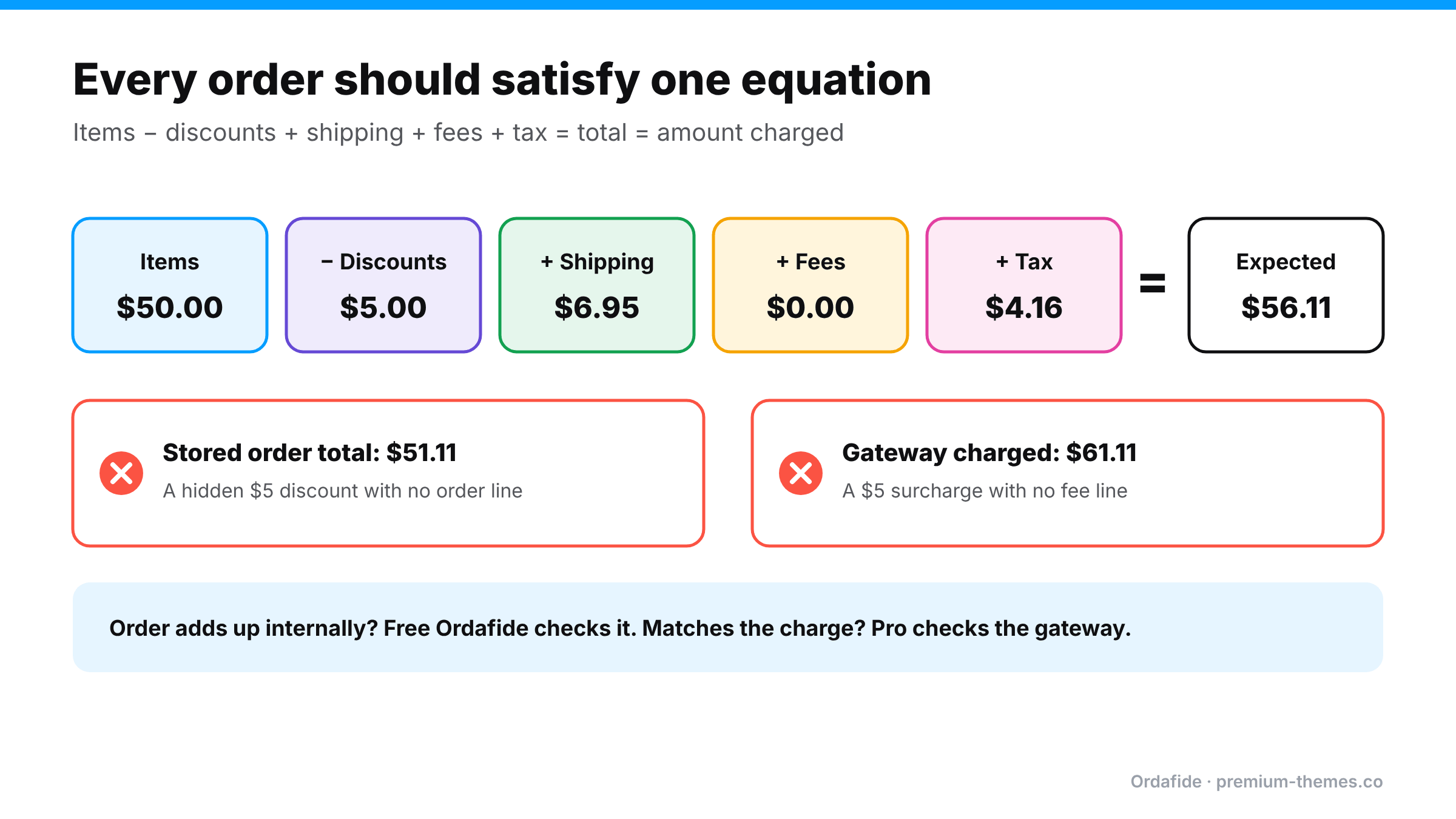
Every WooCommerce order should satisfy a simple equation:

Items − discounts + shipping + fees + tax = order total = amount charged

Most of the time it does. But WooCommerce lets dozens of plugins change those numbers: coupons, dynamic pricing, tax services, shipping calculators, payment fees, currency switchers, gift cards. Any one of them can leave an order where the parts don’t add up to the whole, or where the whole doesn’t match what the customer was actually charged.

Nothing alerts you when this happens. The order looks normal. You only find out when an accountant can’t reconcile a month, a tax report is off, or a customer points out they were overcharged.

This guide covers the six common causes, how to find affected orders, and how to keep totals honest.

Two different problems

It helps to separate:

  1. The order doesn’t add up internally. Line items, shipping, fees and tax don’t sum to the stored order total.
  2. The order adds up, but the charge was different. The order is internally consistent, but the gateway took a different amount.

The first can be found by inspecting your own database. The second can only be found by comparing with the gateway.

The six common causes

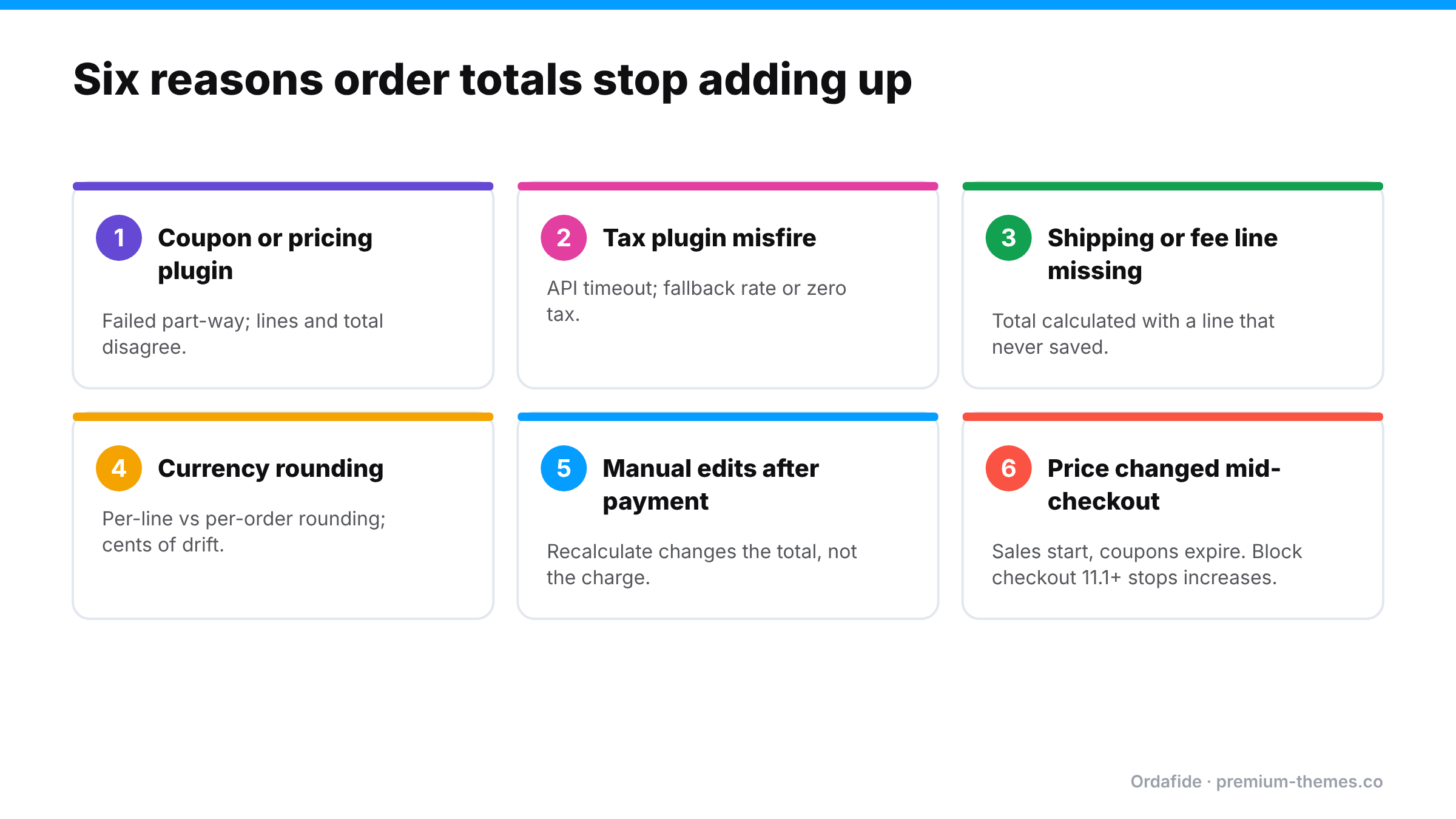
Six causes of WooCommerce total mismatches: coupon or pricing plugin failures, tax plugin misfires, missing shipping or fee lines, currency rounding, manual edits after payment, and prices changing mid-checkout.

1. A coupon or discount plugin failed part-way

Advanced coupon, BOGO and dynamic pricing plugins modify cart items and totals during checkout. If one fails mid-calculation (an error, a timeout, a conflict with another pricing plugin), the stored line items and the stored total can disagree. Sometimes the customer is charged the discounted price but the items show full price, or vice versa.

2. A tax plugin misfired

External tax services calculate tax by calling an API at checkout. If the call times out or fails, some plugins fall back to WooCommerce’s built-in rates, to zero, or to a cached value. The order may then show tax that doesn’t match the address, or a total that doesn’t include the tax lines shown.

3. Shipping or fee lines didn’t apply

Shipping and payment fee plugins add lines to the order. If a line fails to save while the total was calculated with it (or the reverse), the order is out of balance. Often this means you undercharged for shipping.

4. Currency switcher rounding

Multi-currency plugins convert prices and round them. Rounding each line separately versus rounding the total can produce small, persistent differences, often a cent or two per order. Individually trivial; across thousands of orders, it’s a reconciliation headache. Worse, if the plugin and the gateway disagree about the currency or amount, the charge can differ from the order.

5. Manual order edits

Editing an order after payment (adding an item, changing a quantity, adjusting shipping) and clicking Recalculate can change the total, while the payment stays the same. Editing without recalculating can leave the total stale. Either way, the order no longer matches the charge.

6. Prices changed between page load and payment

Scheduled sales starting, coupons expiring or dynamic pricing rules changing while the shopper is on the checkout page can create mismatches. WooCommerce’s documentation notes that from WooCommerce 11.1, block-based checkout stops an order if the total increases between page load and Place order, asking the customer to refresh. Decreases still go through. That’s a welcome safeguard, but it doesn’t cover classic checkout, plugins that modify totals after the order is created, or the other causes above.

A worked example

Worked example: items $50, discount $5, shipping $6.95, fees $0, tax $4.16, so the expected total is $56.11. Two mismatches: a stored total of $51.11 caused by a hidden discount, and a gateway charge of $61.11 caused by a surcharge with no fee line.

Here’s a real-looking order that doesn’t add up, to show how small the signals can be.

Line Amount
T-shirt × 2 @ $25.00 $50.00
Coupon SPRING10 (10%) −$5.00
Shipping: Standard $6.95
Tax (8% on items after discount + shipping) $4.16
Expected total $56.11
Stored order total $51.11

The difference is exactly $5. On investigation, a second discount plugin also applied a $5 “first order” discount to the total, but didn’t add a visible line for it. The customer was charged $51.11, which is fine for them, but your sales report shows $50 of items, a $5 coupon, $6.95 of shipping and $4.16 of tax, which adds up to $56.11, so $5 of revenue that never existed. Multiply by every first-time customer for a quarter, and your books are noticeably wrong.

Now the opposite case: the order lines add up to $56.11, the stored total is $56.11, but the gateway shows $61.11. A payment fee plugin added a $5 surcharge at the gateway step without recording a fee line. The customer was overcharged by your records’ standards, and won’t be pleased if they notice.

Neither order would look strange in the orders list.

Multi-currency: why cents go missing

Currency switchers convert each price from your base currency and round it. The problem is where the rounding happens:

  • Convert and round each line, then add: €22.73 + €22.73 + €6.32 = €51.78
  • Add in base currency, then convert and round once: €51.77

Both are defensible. But if the plugin calculates one way and your tax report, the gateway, or a later recalculation uses the other, every order carries a cent or two of drift. Tax is particularly sensitive, because tax rounding rules (per line or per order) are set in WooCommerce → Settings → Tax and interact with the currency plugin’s own rounding.

A tolerance-based check is the practical answer: ignore differences of a cent or two, and investigate anything bigger. That’s why Ordafide’s total check has a configurable rounding tolerance rather than demanding exact matches.

Questions to ask before installing a pricing or tax plugin

  • What happens to an order if your plugin errors mid-checkout? Does checkout stop, or continue with partial data?
  • Do you add visible order lines for every discount or fee you apply?
  • Is your plugin compatible with both block and classic checkout, and with HPOS?
  • How do you handle rounding in other currencies?
  • What does your plugin do when its external API is unreachable?

A vendor who answers these clearly is much less likely to leave you with mismatched totals.

Symptoms you might be seeing

  • Accountant reports WooCommerce revenue ≠ gateway deposits by more than fees
  • Tax reports that don’t match what was collected
  • Customers saying their coupon wasn’t applied, or they were charged more than the order email shows
  • Orders where shipping shows $0 but the customer chose a paid method
  • A steady trickle of one-cent differences in multi-currency stores

How to find affected orders

Manual spot check

Open a sample of recent orders and add up items, minus discounts, plus shipping, fees and tax. Compare with the total. Then compare the total with the amount shown in the gateway for that transaction ID.

It works for a handful of orders. It isn’t practical for hundreds, and it’s the kind of job that never gets done in a busy month.

Automatic check with Ordafide (free)

Ordafide Order Integrity for WooCommerce includes an “Order total does not add up” check. For each recent order it compares items + shipping + fees + tax with the stored total and flags any order that’s out by more than a rounding tolerance you configure. That tolerance matters for multi-currency stores, so a cent of rounding doesn’t flood you with findings while real errors still show up.

Findings come with the numbers side by side and are sorted by money at risk, so a $40 missing shipping line ranks above a 2-cent rounding difference. The check reads only your own database, sends nothing anywhere, and never changes your orders.

Comparing with what was actually charged (Pro)

If an order adds up internally but the gateway took a different amount, only the gateway knows. Ordafide Pro reconciles orders against Stripe, PayPal, Square, Mollie and Razorpay with read-only API keys and flags amount disagreements between the order and the charge, alongside money with no order, paid orders with no payment, and refunds missing in WooCommerce. For accountants, Pro’s CSV/JSON audit export covers any date range.

Fixing affected orders

  1. Decide which number is right. Usually the gateway charge is the truth about money; the line items are the truth about what was sold.
  2. If the customer was undercharged: decide whether it’s worth recovering. For small amounts, often not. Add a note and fix the cause.
  3. If the customer was overcharged: issue a partial refund through the order screen (Refund via [gateway]) for the difference and apologize.
  4. If it’s a records-only problem (the charge was right, the order lines are wrong): correct the lines carefully and add a note explaining why. Avoid hitting Recalculate unless you understand what it will do with taxes and coupons.
  5. Tell your accountant about any systematic issue and when it started.

Explaining it to your accountant

When mismatches turn up, your accountant needs three things: how many orders, how much money, and since when. A clear note might read:

“Between 3 March and 18 April, a discount plugin applied an extra $5 first-order discount without recording a line. 214 orders are affected. Customers were charged correctly; our reports overstate revenue by $1,070. The plugin was removed on 18 April. Order IDs attached.”

That turns a confusing reconciliation gap into a known, bounded adjustment. It’s only possible if you can list affected orders quickly, which is exactly what an automated total check gives you. Without one, the investigation itself becomes the expensive part.

Keep a short log of pricing, tax and currency plugin changes (what changed, when, and why). When a mismatch appears, the first question is always “what changed around then?”, and the log answers it.

Preventing mismatches

  • Minimize overlapping pricing plugins. Two plugins that both change prices or discounts are the most common source of trouble.
  • Test checkout with every coupon type after updating coupon, pricing or tax plugins.
  • Check tax plugin failure behaviour. Know what your tax plugin does when its API is unreachable, and prefer plugins that block checkout over ones that silently charge the wrong tax.
  • Configure multi-currency rounding deliberately and check the gateway receives the same currency and amount as the order.
  • Lock down post-payment edits. Agree a process for editing paid orders, including whether and when to recalculate, and always add a note.
  • Use block checkout where it fits, to benefit from the total-increase protection in recent WooCommerce versions.
  • Scan regularly. A weekly Ordafide scan or its weekly summary email shows new mismatches while they’re still easy to explain.

A note for agencies

Total mismatches often start right after a client installs “just one more” discount or upsell plugin. Ordafide’s WP-CLI commands (`wp ordafide scan`, `wp ordafide findings`) let you include an order-total check in your maintenance scripts across client sites, and Ordafide Pro’s multi-store dashboard puts every store’s findings on one screen.