A worked example
Full returns are simple: everything comes back, everything is refunded, the order is closed.
Most real returns aren’t like that. A customer orders three shirts and sends one back. They order a set and return one piece. They keep the jacket but return the belt they bought with it. Partial returns are the everyday reality of returns, and they’re where WooCommerce’s refund system surprises people most.
Store owners on the WordPress.org support forums regularly run into the same confusions: a partial refund that leaves the order stuck On hold, a status change that suddenly refunds the whole order, a second refund email the customer didn’t expect, tax reports that don’t match. This guide explains how WooCommerce actually handles partial refunds, the traps to avoid, and a clean process for partial returns.
How WooCommerce handles a partial refund
On the order screen, clicking Refund opens a refund form against the order’s line items. For a partial refund you:
- Enter the quantity being refunded on each line (for example, 1 of 3 shirts).
- WooCommerce fills in the line total and tax for that quantity. You can override them.
- Optionally enter amounts against shipping and fee lines.
- Tick Restock refunded items if the goods are coming back into sellable stock.
- Add a reason (stored on the refund, optionally visible to the customer).
- Choose Refund via [gateway] to send the money, or Refund manually to only record it.
WooCommerce then creates a refund record linked to the order and to those specific line items.
What it doesn’t do for a partial refund is change the order status. That’s deliberate, and it’s the source of most confusion.
Trap 1: The status doesn’t change
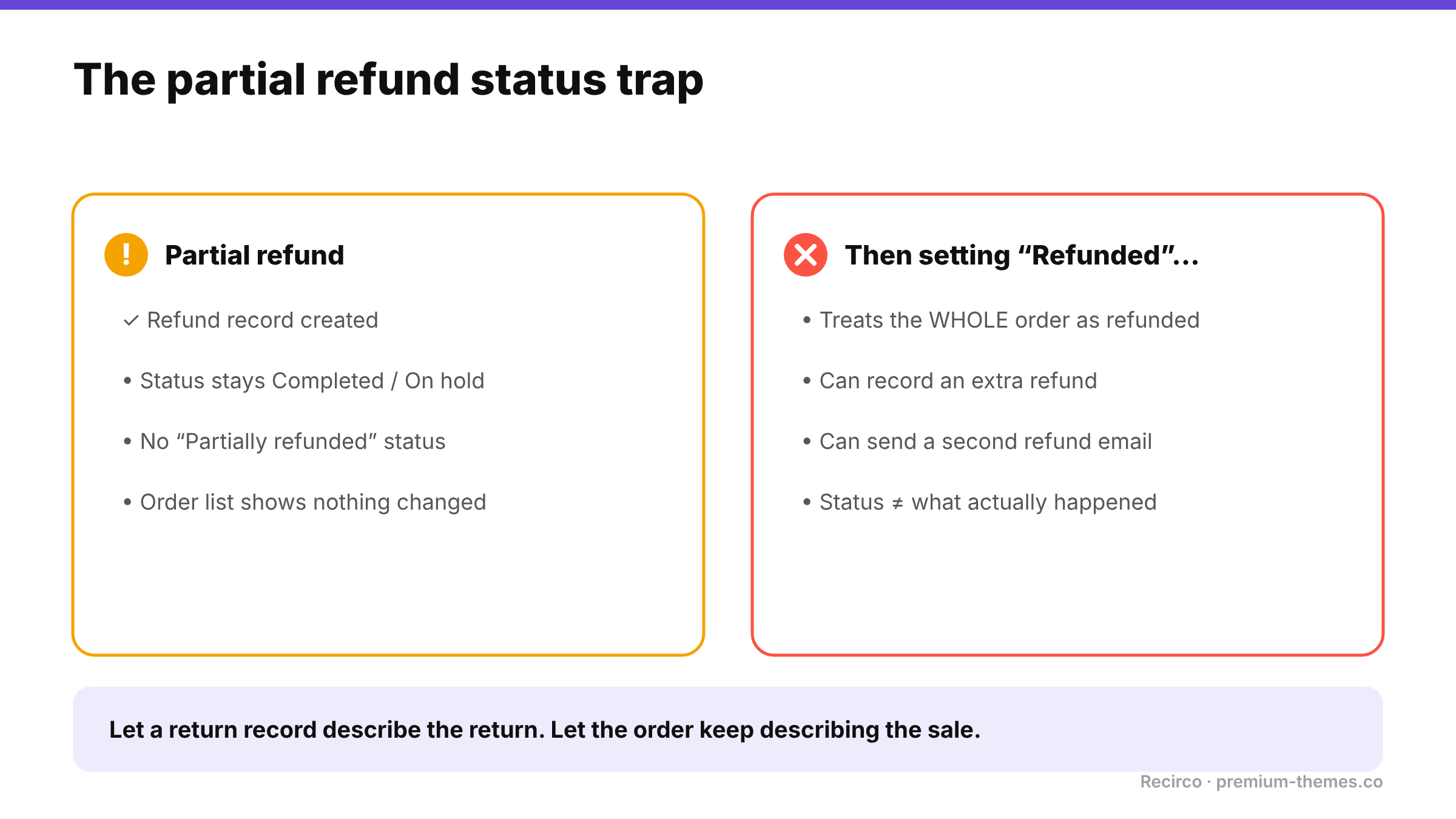
A partially refunded order keeps whatever status it had: Processing, Completed, or On hold. There’s no built-in “Partially refunded” status.
In one WordPress.org thread, WooCommerce support confirmed this behaviour with a bank-transfer order: after a partial refund, the order stayed On hold. The store owner expected it to move on and couldn’t make it change without refunding everything.
Why it matters: anyone scanning the orders list sees a normal Completed order and has no idea part of it was returned. Reporting by status undercounts refunds.
What to do:
- Look at refund lines on the order (shown in red under the items), not the status, to know whether something was refunded.
- If your team relies on statuses, consider adding a custom “Partially refunded” status with an order-status plugin, as suggested in that thread.
- Better: track the return itself as its own record (see below), so the order doesn’t have to carry that meaning.
Trap 2: Setting “Refunded” refunds everything
The same thread uncovered a second trap. For manual refunds, changing the order status to Refunded told WooCommerce the entire order was refunded. That recorded a refund for the remaining amount and triggered another refund email to the customer.
Rule: never set Refunded on a partially returned order to “tidy it up”. Refunded means the whole order.
Trap 3: Tax that doesn’t match the item
If you type a refund amount into the total box instead of using the line-item quantities, WooCommerce can’t tell which item or how much tax you refunded. Your tax reports may then show the wrong tax refunded.
Rule: always refund through the line items, using quantities, so net and tax are split correctly. If you change an amount, change the line’s net and tax fields, not just the total.
Trap 4: Discounts spread across items
If the order had a coupon, the discount is spread across the items. Refunding one item at its full list price over-refunds the customer. WooCommerce’s line totals already reflect the discount, so using the line item’s actual paid amount (which the refund form pre-fills) is safer than typing the shelf price. More on this in how much to refund on discounted orders.
Trap 5: Shipping
When one of three items comes back, do you refund any shipping? Most stores don’t: shipping was a cost to deliver the whole order. Some refund it when the return is the store’s fault (damaged, wrong item). Whatever your policy, apply it consistently and say so in your return policy. If you do refund shipping, enter it on the shipping line rather than inflating the item refund, so your shipping revenue reports stay accurate.
Trap 6: Restocking the right thing, at the right time
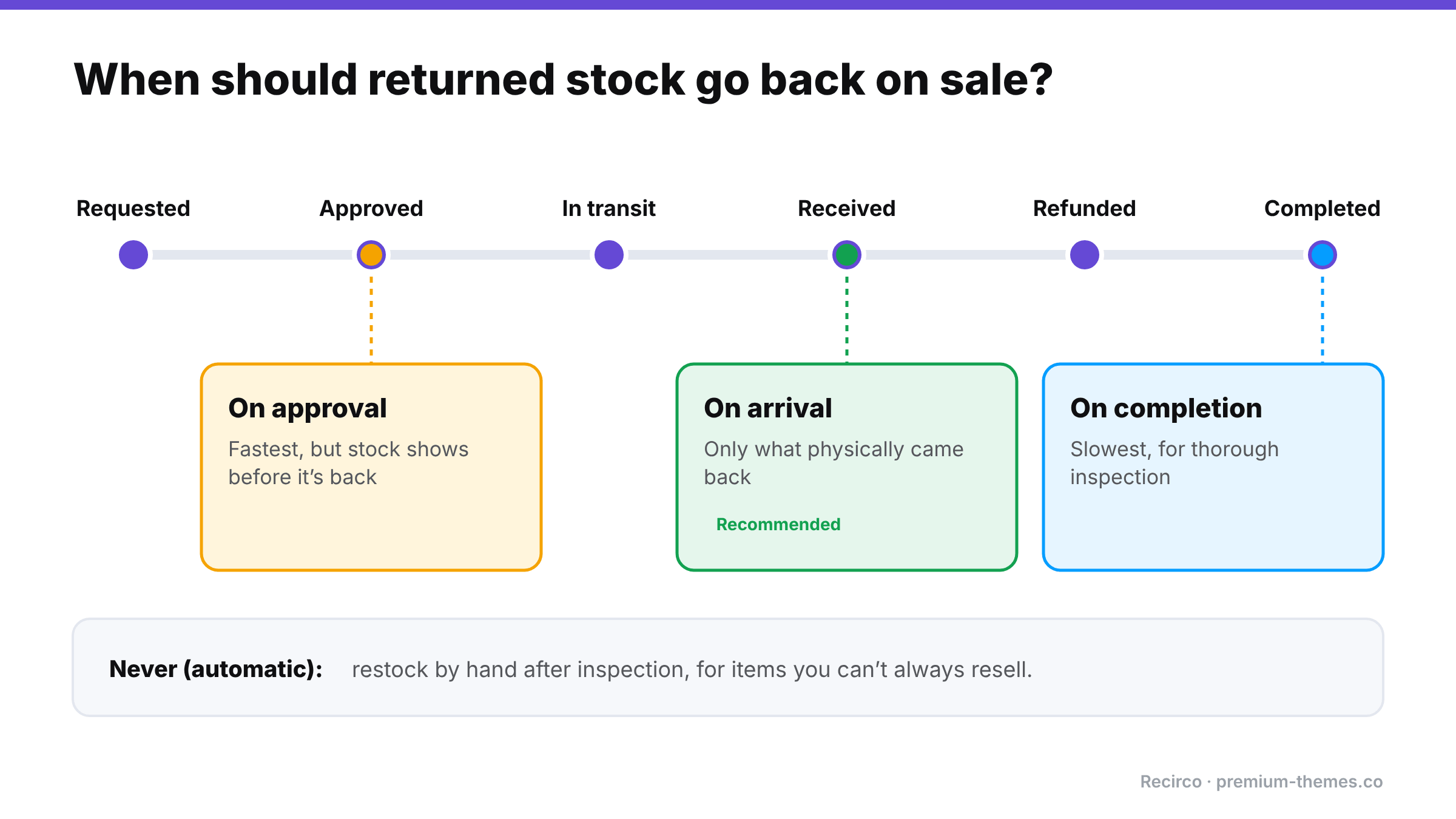
Restock refunded items increases stock when the refund is recorded. If you refund before the item has actually arrived, you’ve added phantom stock. If you refund after it arrives but forget the tick, stock stays low.
Rule: decide when restocking should happen (usually when the item arrives and passes inspection) and make sure only one step does it.
Trap 7: Refunding twice from two places
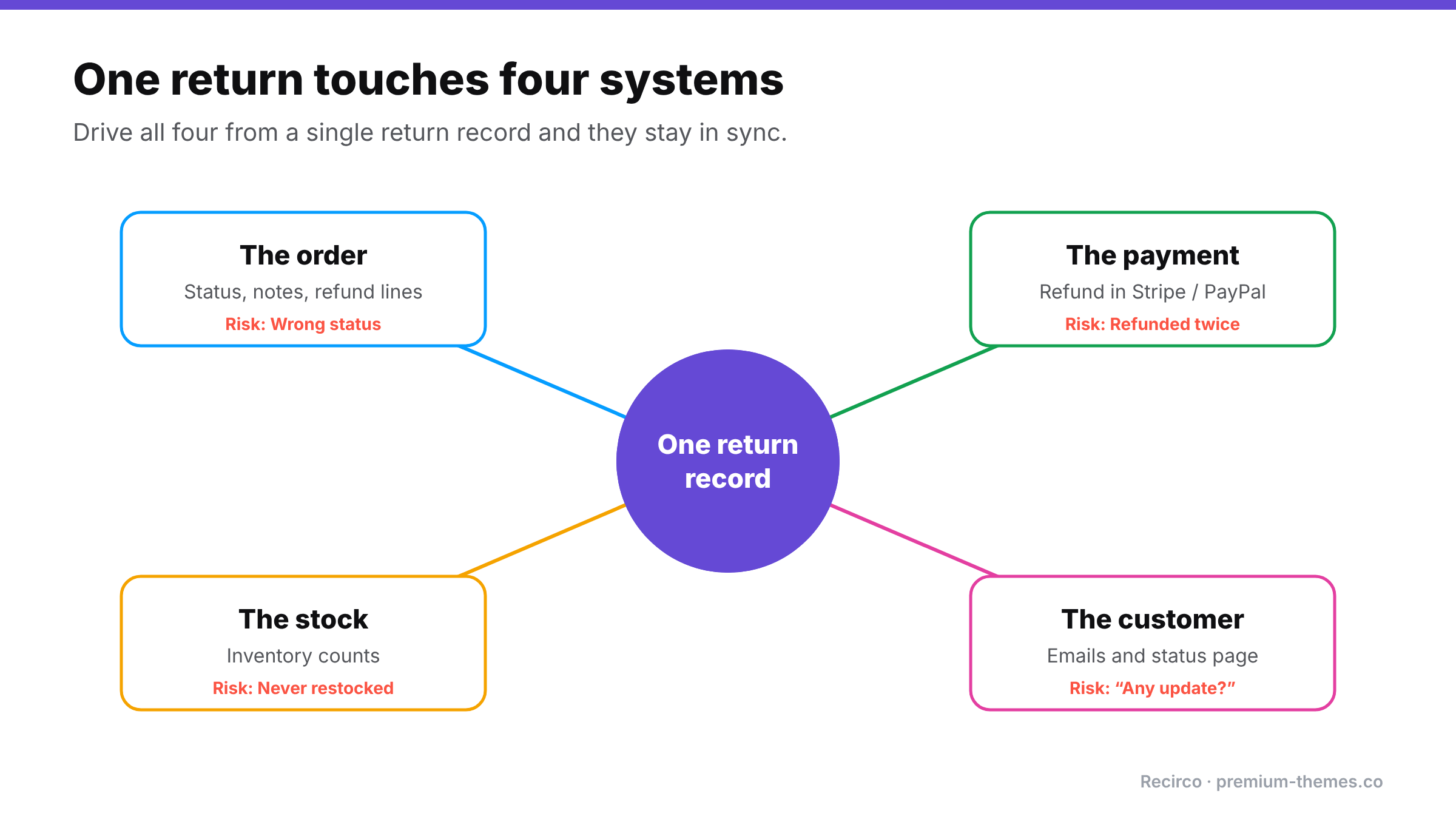
Partial returns are where double refunds happen most: one person refunds the item in the Stripe dashboard, another records it in WooCommerce via gateway. The customer gets the item’s value twice.
Rule: one place to refund, always the WooCommerce order (or a returns system that creates the WooCommerce refund for you).
A worked example
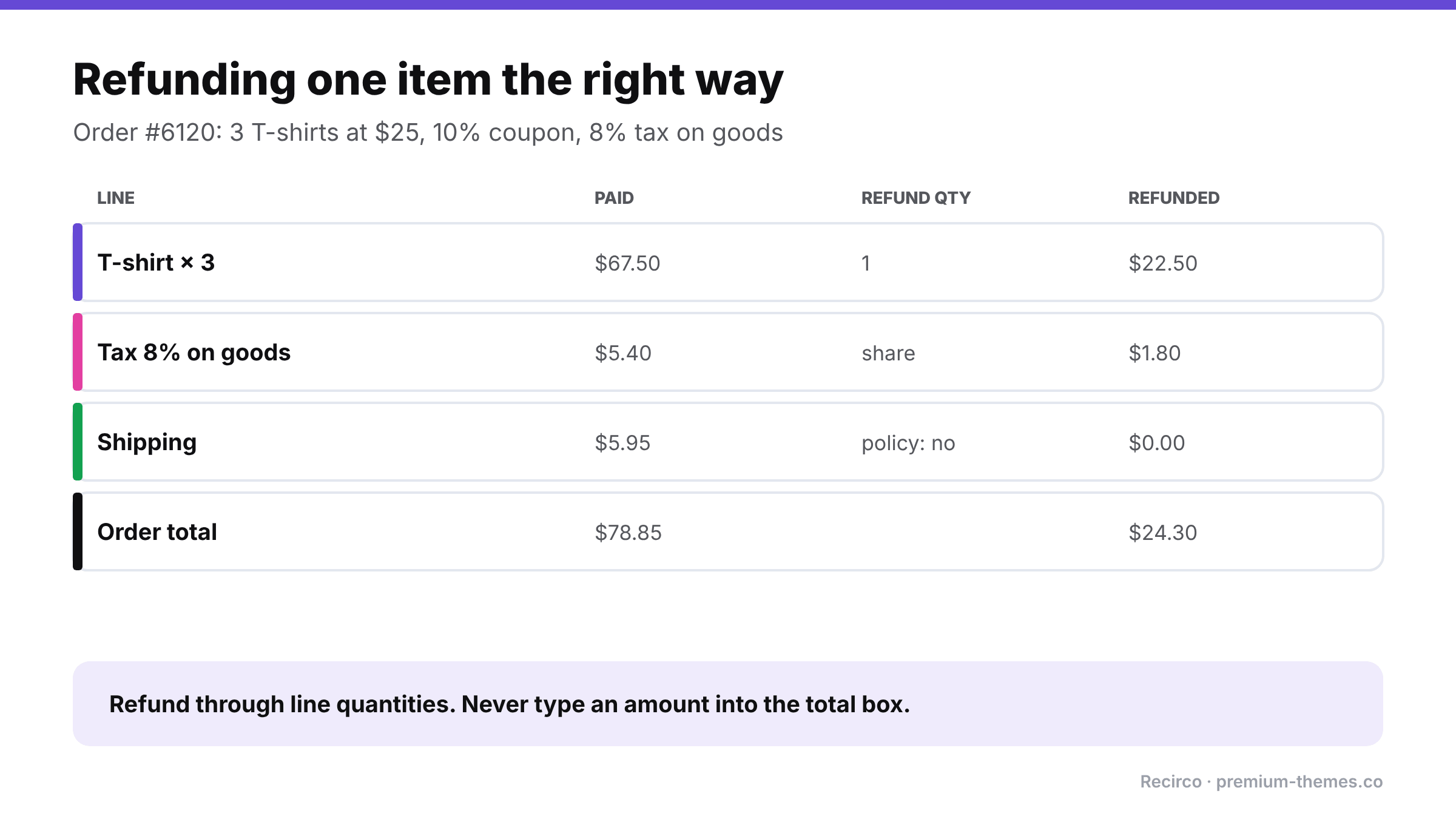
Order #6120: 3 × T-shirt at $25 = $75, 10% coupon (−$7.50), shipping $5.95, tax 8% on goods only ($5.40). Total paid: $78.85.
The customer returns one T-shirt because it’s too small.
Wrong way: a team member clicks Refund, types $25 in the refund amount box, ticks restock, and refunds via Stripe. Problems: the customer paid $22.50 for that shirt after the coupon, so they’re over-refunded by $2.50. No tax was refunded on the line, so your tax report still shows $5.40 collected on goods that partly came back. And the refund isn’t tied to a line item, so reporting can’t tell which product was returned.
Right way: click Refund, enter quantity 1 on the T-shirt line. WooCommerce pre-fills the line’s share: $22.50 net plus $1.80 tax. Shipping stays at 0 (your policy doesn’t refund shipping on partial returns). Restock ticked because the shirt arrived in sellable condition. Refund via Stripe: $24.30.
Result: the customer paid for what they kept, tax is accurate, the T-shirt is back in stock, and reports show one shirt returned. The order stays Completed, which is correct, because most of it was kept.
Partial returns over time
Customers sometimes return items from the same order in two or three separate batches. Each partial return should be checked against what’s already been returned, not just against the original order. Otherwise a customer can request a return for an item they’ve already sent back and been refunded for, and a busy team member approves it.
This is another reason to track returns as their own records: the system can see “2 of 3 already returned” and only offer the one remaining unit.
A clean partial-return process
- The customer requests a return for specific items and quantities, with a reason for each. Not “I’d like to return something from order #4102” by email.
- Eligibility is checked per item. Is each one inside the return window, not excluded, not already returned or refunded?
- The return is approved, and the customer gets a return number and address.
- The items arrive and are inspected. Restock now, only what came back in sellable condition.
- The refund is created from the return, through the line items, using paid amounts with net and tax split, sent through the gateway. One refund, in one place.
- The order keeps its status, but the return record shows exactly what came back, when, why and how much was refunded.
- The customer is told at each step, so nobody emails asking “did you get it?”
The key idea is to stop asking the order to describe the return. Orders describe sales. Let a separate return record describe returns.
How Recirco handles partial returns
Recirco – Returns & Exchanges for WooCommerce is free and built around exactly that idea:
- Per-unit eligibility in the customer portal. In My Account → Returns, customers choose the order, then the specific items and quantities they’re returning, each with a reason. Only eligible units are offered: inside your return window, not already refunded, not on your excluded products or categories list. A customer who already returned one shirt can’t request the same unit twice.
- A return record per request with its own RMA number, status and activity log, plus a panel on the order edit screen so you see the order and its returns together.
- Restock timing you choose: never, on approval, on arrival, or on completion. Set it once, and the right step does the restocking.
- Refunds created from the return. Recirco creates a real WooCommerce refund for the returned lines, with net and tax split from the original line, optionally sent through your gateway. Auto-refund on completion is available but off by default, and the plugin is designed to prevent duplicate refunds for the same return.
- Seven statuses enforced by a guarded state machine, so a return can’t skip from “requested” to “refunded” by accident.
- Six editable emails (received, admin alert, approved, rejected, completed, customer note) keep the customer informed at each step.
Your order statuses stay meaningful, your tax and stock stay right, and “what happened with this return?” has a single place to look.
Recirco Pro adds exchanges (so a partially returned item can be swapped for a different variant instead of refunded), store credit as a refund alternative, conditional approval rules, carrier return labels, and analytics on value returned and the products most often sent back.
Partial refund cheat sheet
| Situation | Do this | Avoid this |
|---|---|---|
| One of several items returned | Refund via line-item quantity | Typing an amount in the total box |
| Order had a coupon | Use the pre-filled paid line amount | Refunding at list price |
| Shipping not refundable | Leave shipping line at 0 | Including shipping in the item amount |
| Shipping refundable (your error) | Enter it on the shipping line | Inflating the item refund |
| Item not back yet | Wait, or refund without restocking | Restocking before arrival |
| Want order to look “done” | Leave status; check refund lines | Setting status to Refunded |
| Money already returned elsewhere | Refund manually to record it | Refund via gateway (double refund) |