Tag Archives: Webhooks

PayPal Says Paid, WooCommerce Says Pending: Fixing PayPal Order Status Problems

PayPal is one of the most popular ways to pay on WooCommerce stores, and one of the most common sources of “it says pending but I paid” support tickets.

Search the WordPress.org forums and the titles tell the story: “Payments succeed in PayPal but WooCommerce doesn’t update status”, “PayPal payments stay on pending”, “PayPal IPN notifications do not arrive”, “Webhook resubscription fails”, “PayPal: order paid but on failed status”. Some of these threads are a decade old. Others are from this year. The integration has changed several times, but the shape of the problem hasn’t.

This guide explains how PayPal tells WooCommerce about a payment, why that message gets lost, how to diagnose which part failed, and how to stop paid PayPal orders from being missed.

How PayPal confirms a payment to WooCommerce
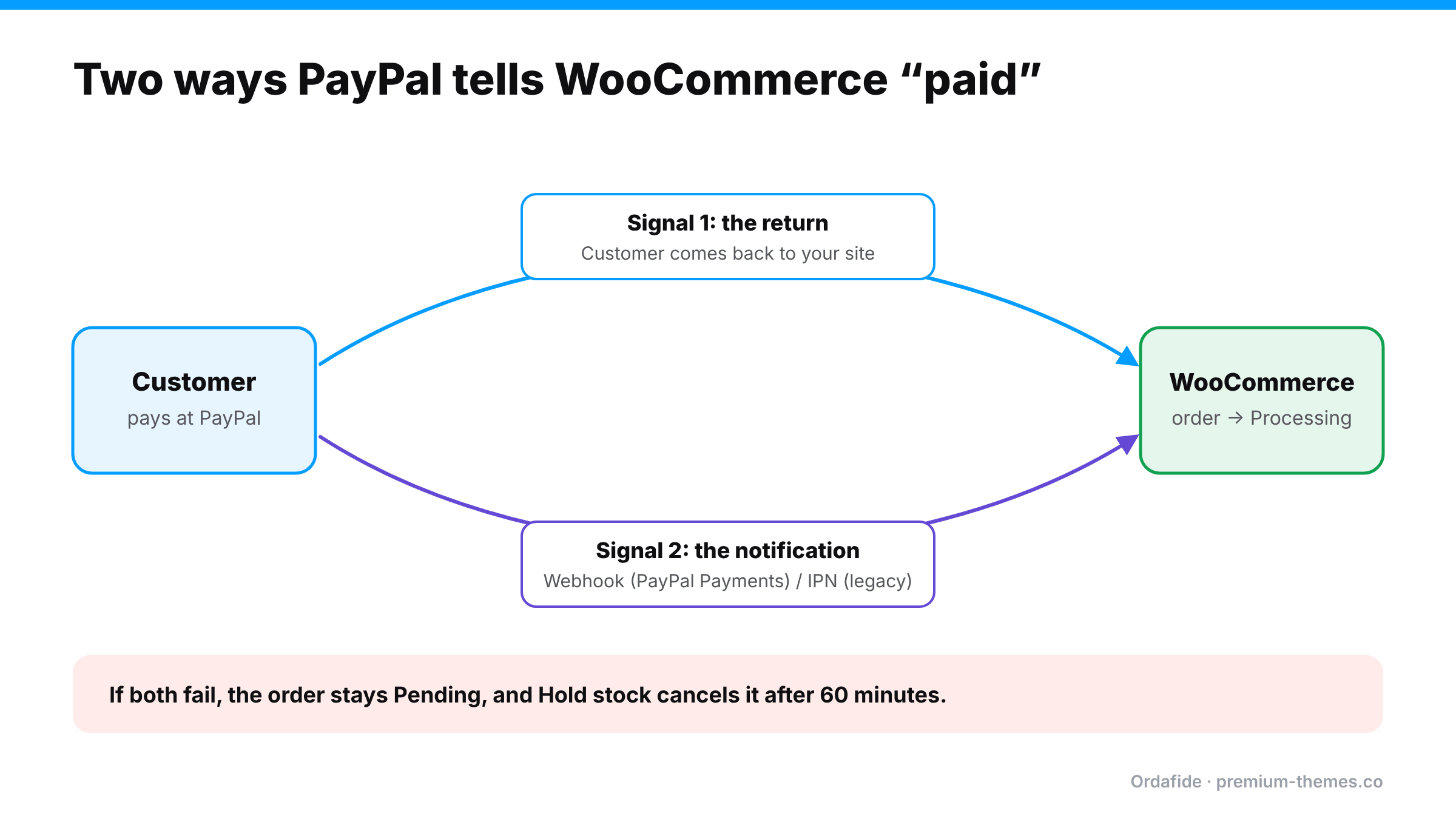
Diagram: after a customer pays at PayPal, WooCommerce learns about it either when the customer returns to the site, or through a server notification (webhooks for PayPal Payments, IPN for legacy PayPal Standard). If both fail, the order stays Pending and the Hold stock timer cancels it after 60 minutes.

PayPal checkout involves the customer leaving your page (or a PayPal popup appearing over it), so WooCommerce relies on two signals:

  1. The return. After paying, the customer is sent back to your site. The plugin can confirm the payment at that moment.
  2. The notification. PayPal’s servers send a message directly to your site: webhooks for the current WooCommerce PayPal Payments plugin, and IPN (Instant Payment Notification) for the legacy PayPal Standard.

If both signals fail, the order never moves. The customer closed the popup or tab before returning, and the notification was blocked or rejected. If the order also uses the Hold stock timer, WooCommerce auto-cancels it an hour later.

Which PayPal integration are you using?

This matters because the fixes differ.

Integration How notifications work Status
WooCommerce PayPal Payments Webhooks registered automatically with your PayPal account Current, recommended
PayPal Standard (built into older WooCommerce) IPN to a notify URL Legacy. WooCommerce has deprecated it
Third-party PayPal plugins Varies Check the plugin’s documentation

If you’re still on PayPal Standard, migrating to PayPal Payments is worth doing for many reasons, and this is one of them.

Why PayPal orders get stuck

1. Webhooks not registered, or registered to the wrong URL

PayPal Payments subscribes to webhooks for your site’s URL when you connect your account. If you changed domain, moved from staging to live, switched HTTP to HTTPS, or restored a backup, the webhook may point to the wrong place. The plugin’s settings include an option to resubscribe webhooks. Forum threads show this fixing many cases, and occasionally failing because something else (usually a firewall) blocks the subscription check.

2. A firewall or security plugin is blocking PayPal

Exactly like Stripe webhooks, PayPal’s notifications are automated POST requests that bot protection, WAFs and security plugins love to block. (Firewall blocking webhooks)

3. Sandbox and live mixed up

Connecting a live store to a sandbox account (or the reverse), or switching modes without reconnecting, leaves notifications going to the wrong environment.

4. The customer didn’t return to your site

Closing the PayPal window, a lost connection, or an in-app browser that doesn’t hand control back. That’s normal and expected, which is why notifications exist. It becomes a problem only when notifications fail too.

5. eChecks and payment review

Some PayPal payments are genuinely pending at PayPal: eChecks that take days to clear, payments held for review, unverified addresses, currency conversion acceptance. Those orders should wait. The fix is patience, not intervention. Always check PayPal’s actual status before acting.

6. Authorize instead of capture

If the plugin is set to authorize rather than capture, orders may sit On hold until you capture. (Authorized vs captured)

7. Background processing stalled

Parts of order processing can depend on WordPress’s background queue. If WP-Cron or Action Scheduler isn’t running, follow-on work stalls. (Loopback request failed)

Diagnosing a stuck PayPal order
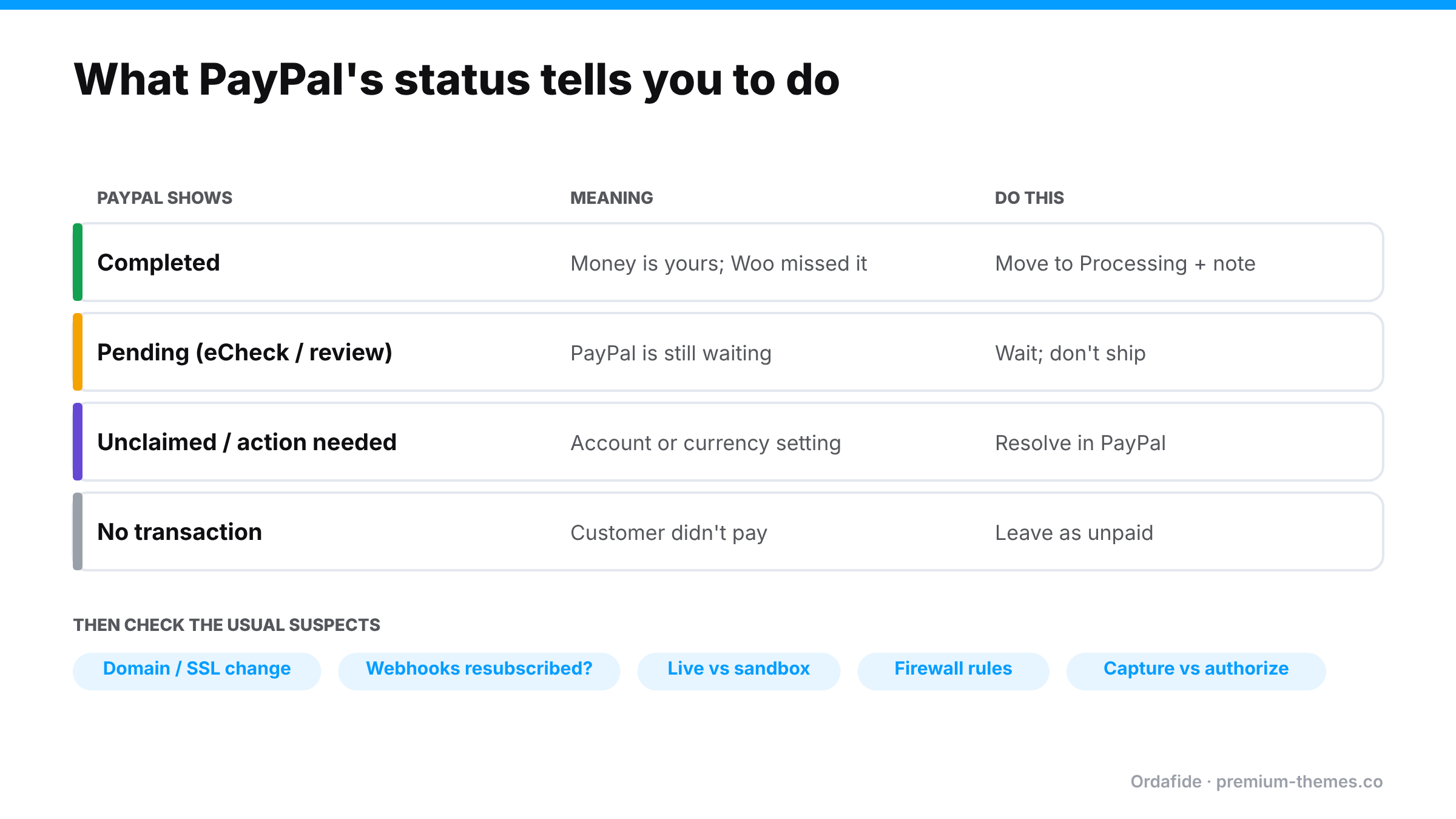
PayPal Completed means move the order to Processing; Pending for eCheck or review means wait; Unclaimed means resolve in PayPal; no transaction means the customer didn't pay. Then check domain or SSL changes, webhook subscription, live versus sandbox, firewall rules, and capture versus authorize.

1. Find the transaction. Open the order notes for a PayPal order or transaction ID. Search it in your PayPal account’s activity.

2. Read PayPal’s status.

  • Completed: the money is yours. WooCommerce missed the message.
  • Pending (with a reason): PayPal is waiting (eCheck, review, unclaimed). Don’t ship yet.
  • Unclaimed / requires action on your side: often currency or account settings. Resolve it in PayPal.
  • No transaction found: the customer didn’t pay; the order is genuinely unpaid.

3. Check the plugin’s connection and webhook status in WooCommerce → Settings → Payments → PayPal. Is it connected to the right environment (live vs sandbox)? Are webhooks subscribed? Try resubscribing.

4. Enable logging in the plugin’s settings, place a small test payment, and read the log for errors on the notification.

5. Check security layers (CDN, security plugin, host WAF) for blocked requests from PayPal around the payment time.

A worked example: the domain change

A store moves from shop.example.com to example.com and sets up a redirect. Everything looks fine: the site loads on the new domain, PayPal checkout works, customers return to the new domain after paying.

But PayPal Payments’ webhooks are still subscribed to the old domain. Notifications go to shop.example.com, hit a 301 redirect, and webhooks don’t follow redirects. Every notification fails.

  • Customers who return to the site after paying are fine, because the return confirms the payment.
  • Customers who close the PayPal window early, or whose phone drops the connection, are left on Pending payment. After an hour, the Hold stock timer cancels their orders.

Roughly one PayPal order in eight ends up cancelled despite being paid. Nobody connects it to the domain change made two weeks earlier.

Fix: resubscribe webhooks in the PayPal Payments settings so they point at the new domain, then reconcile the cancelled orders against PayPal.

Questions to ask whenever PayPal orders misbehave

  1. Has the domain, SSL or hosting changed recently?
  2. Is the plugin connected to live or sandbox?
  3. When were webhooks last resubscribed?
  4. Has anything changed in the CDN, firewall or security plugin?
  5. Is the plugin set to capture or authorize?
  6. Does PayPal itself show the payment as Completed, or Pending with a reason?

Most cases are solved by question 1, 3 or 4.

Fixing the orders you already have

For each order PayPal shows as Completed:

  1. Move the WooCommerce order to Processing.
  2. Add a note: PayPal transaction ID, amount, “verified in PayPal on [date]”.
  3. If it was auto-cancelled, check stock.
  4. Send the confirmation email and a short apology.

For orders PayPal shows as Pending, leave them and set a reminder. For no transaction, the order is genuinely unpaid.

Preventing it

  • Use WooCommerce PayPal Payments, kept up to date.
  • Resubscribe webhooks after any domain, SSL, migration or staging change.
  • Keep sandbox and live strictly separate, and make sure staging sites never connect to your live PayPal account.
  • Allow PayPal’s notifications through your CDN, security plugin and host firewall.
  • Use capture, not authorize, unless you have a reason.
  • Keep background processing healthy.
  • Watch for paid orders that don’t move, automatically.

Why PayPal problems come in clusters

Stripe problems often affect one order at a time. PayPal problems tend to affect all PayPal orders from a certain moment, because the most common causes are configuration changes: a domain change, a webhook subscription that lapsed, a new firewall rule, a sandbox/live mix-up. That has two consequences:

  1. The damage grows fast. Every PayPal order after the change is at risk, not just one.
  2. The fix is usually one setting, applied once, followed by reconciling the affected orders.

So the most valuable thing is noticing the first stuck PayPal order quickly. Once you see one paid PayPal order sitting on Pending, check the others from the same period, then check what changed around that time.

Testing PayPal properly after changes

After any change to domain, hosting, security or the PayPal plugin, do a real end-to-end test:

  1. Pay with PayPal and close the PayPal window immediately after approving, without returning to the store.
  2. Wait a few minutes and check whether the order moves to Processing anyway.

If it does, notifications are working. If it only updates when you return to the site, the notification path is broken and customers who don’t return will be left on Pending.

How Ordafide catches stuck PayPal orders

Because PayPal involves a redirect or popup and a notification, it’s one of the most failure-prone payment flows. Stuck PayPal orders tend to come in clusters, when something changes and every notification starts failing.

Ordafide Order Integrity for WooCommerce (free) flags:

  • Stuck payment: orders on Pending payment or Failed that carry a gateway payment reference
  • Paid but cancelled: orders with a confirmed payment date sitting in Cancelled or Failed with nothing refunded
  • Customer never emailed: paid orders that never got a confirmation
  • Background queue health, with a loopback test

Each finding explains what to check in PayPal before you change anything. If WooCommerce itself recorded a confirmed payment date, Ordafide can restore the order to Processing with one logged, reversible click.

Ordafide Pro connects to PayPal (as well as Stripe, Square, Mollie and Razorpay) with read-only credentials and reconciles what PayPal actually collected against WooCommerce. That catches the cases the free plugin can’t see, where no payment reference ever reached the order, or no order exists at all. It flags money with no order, paid orders with no payment, amount disagreements and refunds made in PayPal but missing in WooCommerce, with alerts to Slack, SMS, email or webhook. Because the credentials are read-only, Ordafide can’t capture, refund or move money.

A note on PayPal and refunds

The same notification problems that leave payments stuck can also leave refunds unrecorded. If you refund a PayPal payment from the PayPal dashboard and the notification doesn’t arrive, WooCommerce still shows the order as paid, stock isn’t restored and your revenue is overstated. Refund from the WooCommerce order screen wherever possible, so the plugin records the refund itself. (Refund status mismatches)
Is Your Firewall Blocking Payments? Cloudflare, Wordfence and WooCommerce Payment Webhooks

Security tools are supposed to keep bad traffic out. The trouble is that, to a security tool, a payment gateway’s webhook looks a lot like bad traffic: an automated server, with no browser, no cookies and no human, sending a POST request to your site at odd hours.

So security tools block it. And when a payment webhook is blocked, the gateway knows the customer paid, but WooCommerce never finds out. The order sits on Pending payment, the Hold stock timer cancels it, and a paying customer receives nothing.

This is one of the most common root causes behind stuck orders, and one of the least obvious, because the security tool is doing exactly what it was configured to do. This guide shows how each layer of security can block webhooks, how to prove it, and how to let payment confirmations through without weakening your protection.

Why webhooks are so easy to block

Payment gateways use webhooks to tell your store what happened: payment succeeded, payment failed, refund issued, dispute opened. A webhook is:

  • an automated POST request from the gateway’s servers,
  • to a specific URL on your site (for the WooCommerce Stripe plugin, typically https://yourstore.com/?wc-api=wc_stripe),
  • with no browser, so it can’t solve a JavaScript challenge or CAPTCHA,
  • often from data-centre IP addresses,
  • signed with a secret so your store can verify it’s genuine.

Bot protection, WAF rules, rate limits and “block suspicious POST requests” settings are designed to stop exactly this shape of traffic.

The security layers that commonly block webhooks

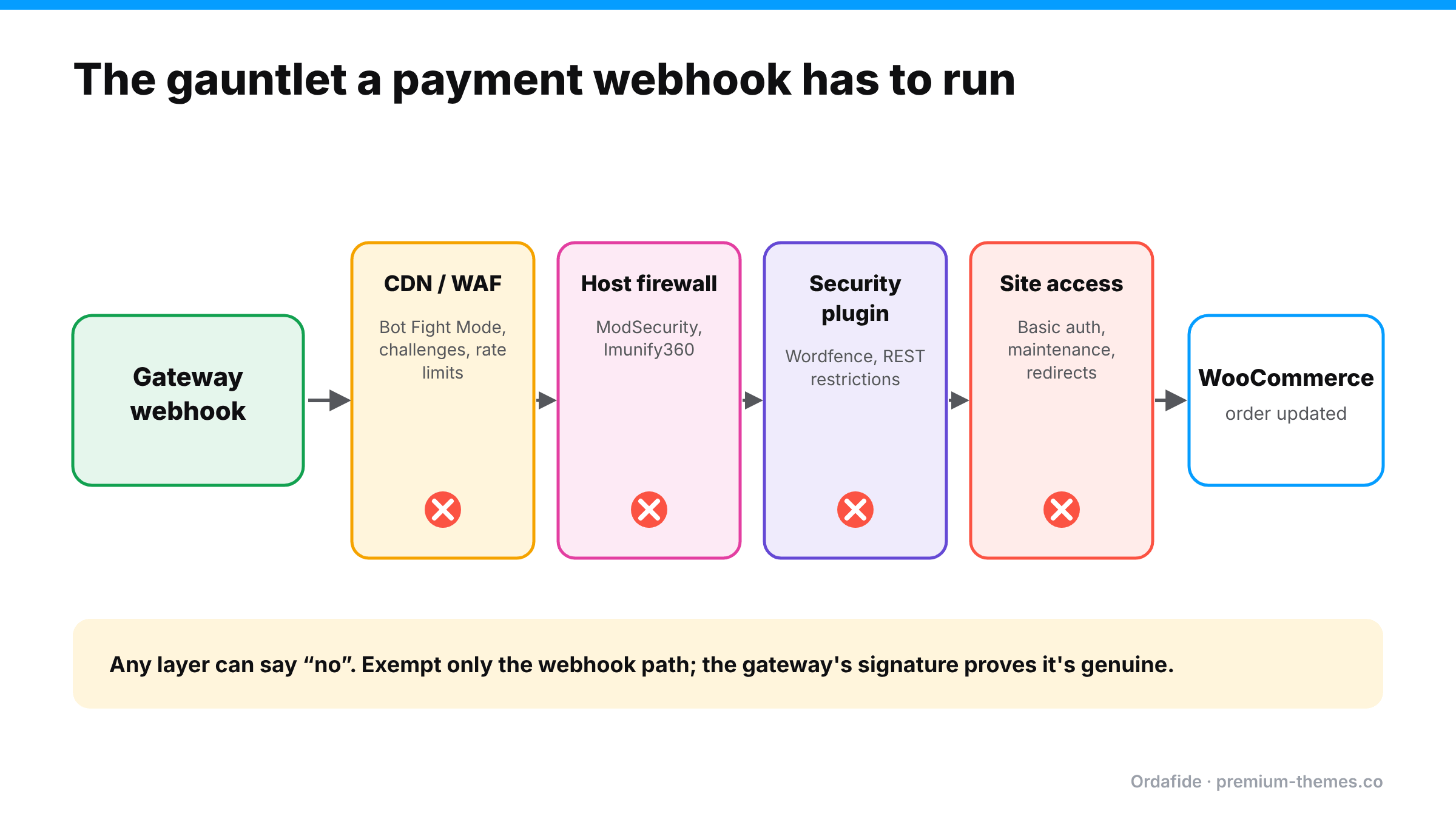
A payment webhook passes four security layers before reaching WooCommerce: CDN or WAF (bot protection, challenges, rate limits), host firewall, security plugin (Wordfence, REST restrictions), and site access controls (basic auth, maintenance, redirects). Any layer can block it. Exempt only the webhook path.

Layer 1: Cloudflare (or another CDN/WAF)

  • Bot Fight Mode. On Cloudflare’s free plan, Bot Fight Mode is a single zone-wide setting that challenges or drops automated-looking requests, with no per-path exemptions. Large senders like Stripe are usually on Cloudflare’s verified bots list and pass, but smaller gateways, regional payment providers and monitoring services are often blocked. On Pro and Business plans, Super Bot Fight Mode can be skipped for specific paths with a WAF custom rule.
  • Managed challenges and “Under Attack” mode. A webhook sender can’t solve a JavaScript challenge. If you switch on a challenge for all traffic during an attack (or for Black Friday), webhooks fail until you switch it off.
  • WAF custom rules that block by country, user agent or request method.
  • Rate limiting that catches bursts of webhook deliveries during busy periods.

Layer 2: Security plugins (Wordfence and others)

Security plugins inspect requests inside WordPress. A WordPress.org thread shows Wordfence returning 403 with “A potentially unsafe operation has been detected in your request to this site” for incoming webhooks. Wordfence support’s answer was to allowlist the exact URL or parameters under the firewall’s Allowlisted URLs setting rather than switching the firewall to Learning Mode, which carries its own risks.

Other common plugin-level blocks:

  • “Disable REST API” or “restrict REST API to logged-in users” settings (several gateways and the Store API use REST routes)
  • Country blocking that blocks the gateway’s server location
  • Brute-force or rate-limit rules applied to all POST requests

Layer 3: Host firewalls (ModSecurity, Imunify360 and similar)

Hosts run their own web application firewalls. Rules can flag webhook payloads (which contain JSON with fields that look like code or SQL to a crude rule) and return 403 or 406 without anything appearing in WordPress at all.

Layer 4: Site-level access controls

  • Password protection or HTTP basic auth (common on staging copies that were pushed live)
  • Maintenance mode (returns 503)
  • Redirects on the webhook URL (HTTP→HTTPS, www→non-www, trailing slashes), since webhooks generally don’t follow them

The signs you’re being blocked

  • Orders paid at the gateway are stuck on Pending payment or auto-cancelled an hour later
  • Your gateway emails you that webhook deliveries are failing (Stripe sends these warnings, and can eventually disable a failing endpoint)
  • Problems started after enabling a security feature, changing CDN settings, or moving host
  • It affects some orders (for example, only during busy periods when rate limits trigger)

One WordPress.org thread describes Stripe repeatedly warning a store that its webhook endpoint was failing with 403 errors. The owner recreated the endpoint and worked with their host, yet failures kept returning, and Stripe disabled the endpoint at one point. A 403 is almost always something on your side saying “no”.

How to prove where the block is

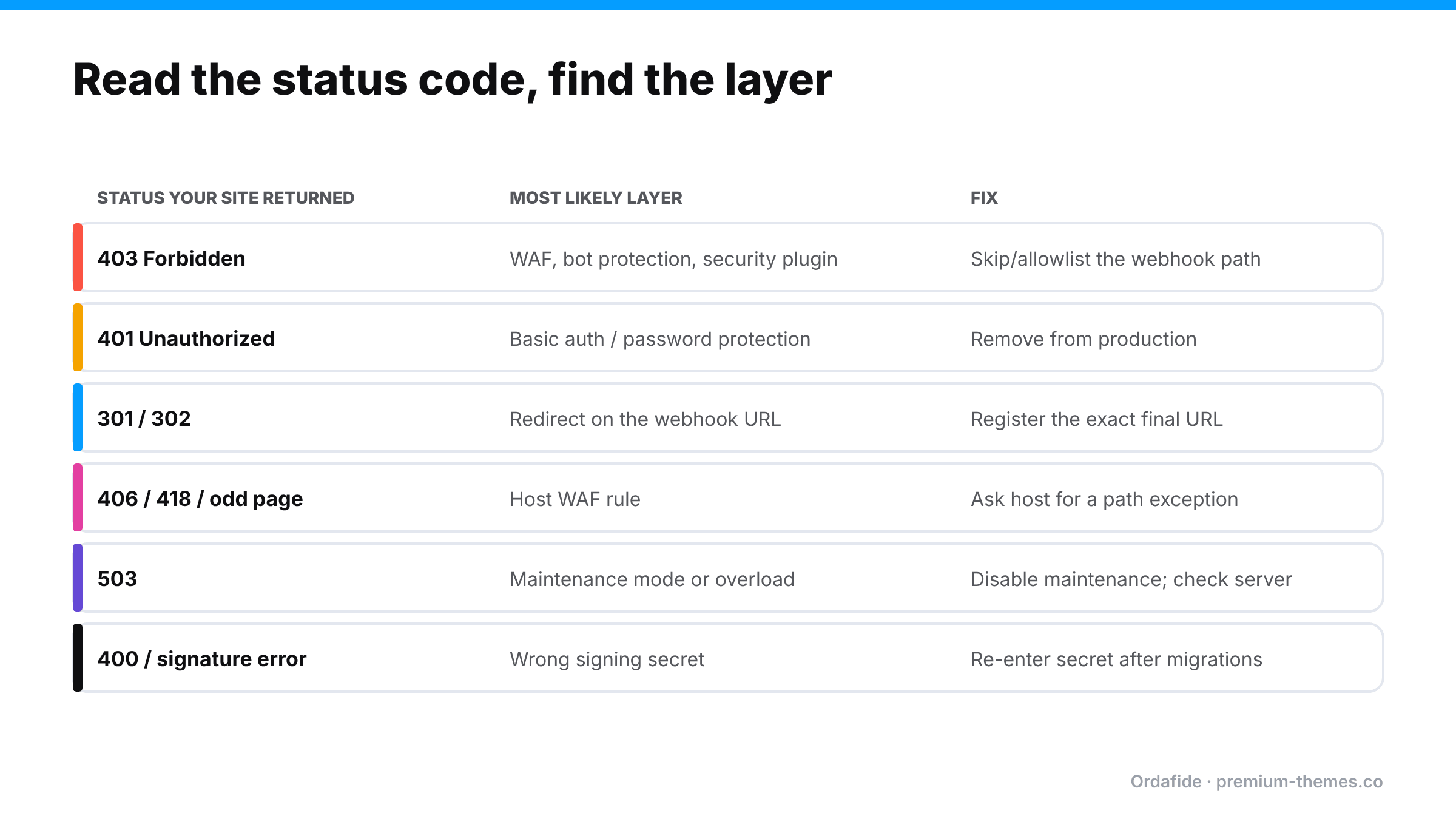
Table mapping webhook delivery status codes to causes and fixes: 403 means a firewall, bot protection or security plugin; 401 means basic auth; 301 or 302 means a redirect; 406 or unusual pages mean a host firewall rule; 503 means maintenance or overload; 400 or signature errors mean a wrong signing secret.

1. Read the gateway’s delivery log. In Stripe, open the webhook endpoint in the Dashboard (Developers / Workbench → Webhooks) and look at recent deliveries. The HTTP status your site returned tells you which layer to check. PayPal and other gateways have similar logs or notification histories.

2. Look at the response body. A Cloudflare block page, a Wordfence message, a host’s “Not Acceptable” page or a login prompt each identify themselves.

3. Check each layer’s logs:

  • Cloudflare: Security → Events, filtered by the webhook path. The Service column tells you whether Bot Fight Mode, a WAF rule or rate limiting acted.
  • Wordfence: Live Traffic and the firewall’s blocked requests.
  • Host: ask support to check WAF logs for the webhook URL and time.

4. Send a test event from the gateway and watch it arrive (or not) in each log.

Fixing it without weakening security

The principle: don’t turn protection off for the whole site. Make a narrow, specific exception for the webhook path, and rely on the gateway’s signature verification to prove requests are genuine.

  • Cloudflare (Pro/Business): allow verified bots, and add a WAF custom rule that skips Super Bot Fight Mode (and any challenge rules) for the webhook path. Optionally restrict it further to the gateway’s published IP ranges.
  • Cloudflare (Free): Bot Fight Mode can’t be exempted per path. Either turn it off and replace it with rate limiting and targeted custom rules, or serve the webhook endpoint from a hostname that bypasses the proxy and restrict it to the gateway’s IP ranges with signature verification.
  • Never put a managed challenge on machine-to-machine endpoints. Use allow, skip or block, not challenge.
  • Wordfence: allowlist the exact webhook URL/parameters in the firewall’s allowlisted URLs.
  • Other security plugins: allow REST and webhook routes for unauthenticated requests where the gateway needs them.
  • Host WAF: ask your host to add a rule exception for the webhook path.
  • Redirects: register the exact final URL (correct protocol and domain) with the gateway.
  • Re-check after every security change, including temporary “under attack” settings.

Then resend failed events from the gateway, or reconcile the stuck orders by hand. (Stuck pending orders)

A worked example: the Black Friday hardening

A week before Black Friday, a store owner reads about bot attacks on checkout and tightens security: Cloudflare’s security level goes up, a managed challenge is added for “suspicious” traffic to /?wc-api=* and /wp-json/*, and the security plugin’s rate limit is lowered.

  • Card testing attempts drop, which is good.
  • Stripe webhooks start receiving challenge pages. Stripe retries, and keeps failing.
  • Paid orders sit on Pending payment. The 60-minute Hold stock timer cancels them.
  • On Black Friday morning, 37 paid orders are in Cancelled. Stripe has emailed a warning about the failing endpoint to an address nobody checks during the sale.

Nothing was “broken” in the usual sense. Every tool did what it was told. The managed challenge was the right idea for checkout pages and exactly the wrong idea for a machine-to-machine webhook path.

The fix took five minutes: a skip rule for the webhook path, then resend failed events from Stripe and restore the cancelled orders. Detection took most of a day.

Different gateways, same problem

Gateway How it notifies Where to see failed deliveries
Stripe Webhooks, signed Dashboard → Webhooks → endpoint → deliveries
PayPal Payments Webhooks PayPal developer dashboard / plugin settings and logs
PayPal Standard (legacy) IPN PayPal IPN history
Square, Mollie, Razorpay and others Webhooks or callbacks Each gateway’s developer dashboard / plugin logs

Whatever the gateway, the principle is the same: find the delivery log, read the status code, then check the layer that returned it.

The bigger lesson: you need a detector downstream

Security settings change for good reasons: an attack, a new plugin, a host’s new rule set, a Black Friday hardening pass. Every one of those changes can break webhooks, and nothing in WooCommerce raises an error when they do. The gateway emails someone, eventually. Meanwhile paid orders pile up on Pending.

What you need isn’t a promise never to touch security settings. It’s a check that notices paid orders not progressing, whatever the cause.

How Ordafide catches the effect of a blocked webhook

Ordafide isn’t a firewall and doesn’t change your security settings. It watches for the consequences of a blocked webhook, which look the same whichever layer did the blocking.

Ordafide Order Integrity for WooCommerce (free) scans recent orders and flags:

  • Stuck payment: orders on Pending payment or Failed that carry a gateway payment reference, the classic fingerprint of a webhook that never landed.
  • Paid but cancelled: orders with a confirmed payment date that ended up Cancelled or Failed, with nothing refunded.
  • Customer never emailed: paid orders where no confirmation reached your mail server.

It also checks the background job queue and offers a loopback test (your site calling itself), useful when the same firewall rules that block webhooks also block your own site’s background processing. (Loopback request failed)

Ordafide Pro adds read-only gateway reconciliation (Stripe, PayPal, Square, Mollie, Razorpay), which shows payments the gateway collected that WooCommerce never recorded properly. It also sends real-time alerts to Slack, SMS, email or a signed webhook. Pro’s signed heartbeat endpoint lets an external uptime monitor confirm that Ordafide’s own checks are still running.

Webhook safety checklist

  • Webhook URL registered exactly (protocol, domain, no redirects)
  • Signing secret correct after every migration or clone
  • CDN bot protection allows or skips the webhook path
  • No managed challenge on webhook paths, including in “under attack” mode
  • Security plugin allowlists the webhook URL
  • Host WAF has an exception for the webhook path
  • Test event sent and confirmed after every security change
  • Automated detection of paid orders that don’t progress

Talking to your host or security provider

When you contact your host or security vendor, give them what they need to find the block quickly:

  • the exact webhook URL (for example https://yourstore.com/?wc-api=wc_stripe)
  • the time of a failed delivery and the status code your site returned
  • the gateway’s published IP ranges if available
  • a clear request: “Please make sure requests to this path from these sources aren’t challenged or blocked. The payment plugin verifies signatures.”

Ask them to tell you if their rule sets change in future. Host-level WAF updates are a common, invisible cause of new webhook failures.

WooCommerce Order Stuck on Pending Payment (But the Customer Paid): Causes and Fixes

WooCommerce Order Stuck on Pending Payment (But the Customer Paid): Causes and Fixes

A customer emails you: I paid yesterday. Where’s my order?

You open WooCommerce and find their order sitting on Pending payment. Or worse, it says Cancelled, with a note that reads Unpaid order cancelled – time limit reached. Meanwhile, your Stripe or PayPal dashboard clearly shows the money arrived.

This is one of the most common, and most expensive, silent failures in WooCommerce. Nothing crashed. No error was shown. The store simply never found out that the payment succeeded.

This guide explains why it happens, how to confirm it, how to fix the orders you already have, and how to stop it from happening again.

Why WooCommerce thinks a paid order is unpaid

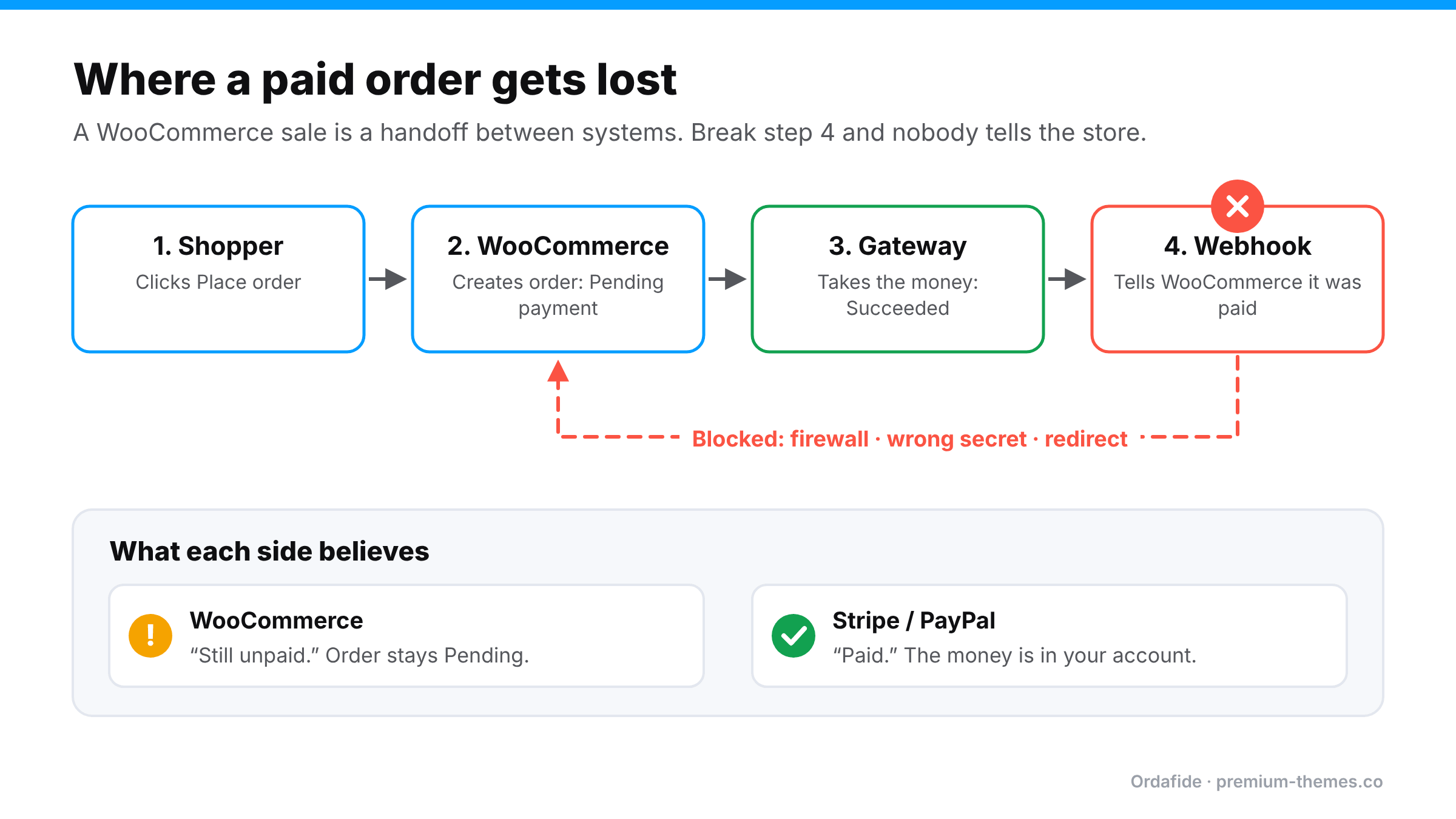
Flow diagram: shopper places order, WooCommerce creates a Pending payment order, the gateway takes the money, but the webhook back to WooCommerce is blocked, so WooCommerce still thinks the order is unpaid while the gateway shows it paid.

A WooCommerce sale isn’t one event. It’s a handoff between separate systems:

  1. The shopper’s browser submits checkout.
  2. WooCommerce creates the order in Pending payment.
  3. The payment gateway (Stripe, PayPal, Square, Mollie, Razorpay…) takes the money.
  4. The gateway tells WooCommerce the payment succeeded, either by redirecting the shopper back to your site or by sending a webhook (a server-to-server notification).
  5. WooCommerce moves the order to Processing and sends the confirmation email.

If step 4 fails, WooCommerce has no way of knowing that step 3 happened. Your store and your gateway now disagree, and WooCommerce doesn’t check.

The 6 most common causes

1. The webhook was blocked before it reached WooCommerce

This is the number-one cause. Something between the gateway and WordPress rejected the request:

  • Cloudflare Bot Fight Mode or a WAF rule challenging the gateway’s server
  • ModSecurity, Imunify360 or another host-level firewall rule
  • A security plugin that blocks or restricts the REST API or unknown POST requests
  • A redirect (HTTP to HTTPS, www to non-www) on the webhook URL. Webhooks generally don’t follow redirects
  • Maintenance mode returning a 503
  • Password protection on the site (common on staging copies that were pushed live)

2. The webhook secret is wrong

Each Stripe webhook endpoint has its own signing secret (it starts with ‘whsec_’). If you cloned the site, migrated hosts, restored a backup, or recreated the endpoint, the secret saved in WooCommerce may no longer match. The webhook arrives, the signature check fails, and the plugin rightly refuses to trust it, so the order never moves.

3. The shopper closed the tab before returning

With off-site or redirect payment methods (PayPal, iDEAL, some wallets and bank methods), the shopper pays on the gateway’s page and is then sent back to your store. If they close the tab, lose signal, or their session cookie doesn’t survive the trip, the “return” leg never happens. If the webhook is also broken, nothing else will tell WooCommerce.

4. The webhook arrived but PHP crashed while processing it

The gateway’s log shows the delivery as successful, yet the order didn’t change. A fatal error in a plugin hooked into the order status change, or a timeout, can kill the request halfway through. Check ‘WooCommerce → Status → Logs’ for fatal errors around the payment time.

5. The site URL is wrong

If the ‘home’ or ‘siteurl’ options still point at an old or staging domain, the webhook URL registered with your gateway may be pointing somewhere that no longer exists.

6. Background processing is stalled

Some gateway plugins hand part of their webhook processing to WooCommerce’s background queue, Action Scheduler, to avoid race conditions. If WP-Cron or Action Scheduler isn’t running, that queued work sits there and the order never advances. (We cover this in detail in WooCommerce order emails not sending.)

Why paid orders get cancelled: the “Hold stock” timer

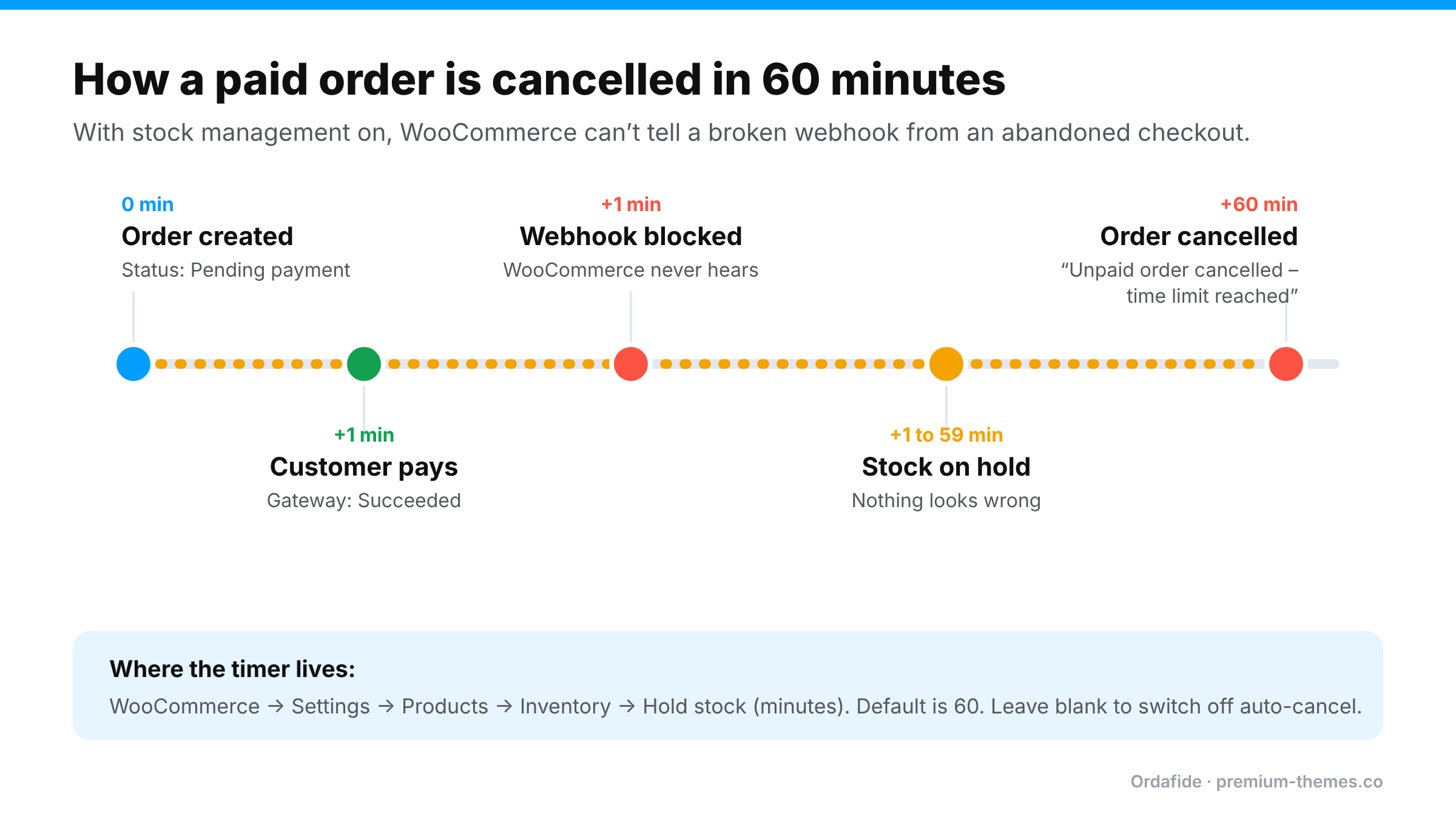
Timeline: order created at 0 minutes, customer pays at 1 minute, webhook blocked, stock held, and at 60 minutes WooCommerce cancels the order with the note 'Unpaid order cancelled - time limit reached'. The Hold stock setting is under WooCommerce, Settings, Products, Inventory.

This catches out a lot of store owners.

Go to WooCommerce → Settings → Products → Inventory and look at Hold stock (minutes). The default is 60. When stock management is turned on, WooCommerce reserves stock for unpaid orders for that many minutes. When the timer runs out, it cancels any order still on Pending payment and adds the note “Unpaid order cancelled – time limit reached.”

That’s sensible for genuinely abandoned checkouts. But when the webhook is broken, a paid order looks exactly like an abandoned one. An hour later, WooCommerce cancels it and releases the stock. The customer has paid for an order your store now considers dead, and it won’t appear in your Processing list to be shipped.

If you use slow payment methods (bank transfers, some buy-now-pay-later providers), consider raising this value. Leaving the field blank turns off automatic cancellation entirely.

How to confirm a stuck order was actually paid

Before you change anything, verify the money. Never mark an order paid based on a customer’s word alone.

  1. Open the order and look in the Order notes and custom fields for a gateway reference: a Stripe Payment Intent ID (‘pi_…’) or charge ID (‘ch_…’), a PayPal transaction ID, and so on. Many gateways write this reference to the order before the payment is confirmed.
  2. Search for that reference in your gateway dashboard. Confirm the status is Succeeded / Completed, and that the amount and currency match the order.
  3. Check the gateway’s webhook log. In Stripe, open the Webhooks section of the Dashboard (under Developers / Workbench) and inspect the endpoint’s recent deliveries. A failed delivery shows the HTTP status your site returned, which tells you where to look:
    • 403: a firewall or security plugin blocked it
    • 301 / 302: a redirect on the webhook URL
    • 400 / 401: usually a signature or secret problem
    • 500: PHP crashed; check the error logs
    • 503: maintenance mode or the server was overloaded
  4. Check WooCommerce logs under ‘WooCommerce → Status → Logs’, filtering by your gateway’s log source.

How to fix the orders you already have

Once you’ve confirmed the payment succeeded:

  • Resend the event from the gateway (Stripe lets you resend a webhook event from the event’s page). If the underlying problem is fixed, WooCommerce will process it normally and update the order itself. This is the cleanest option because the gateway plugin records everything as it would have originally.
  • Or update the order manually. Change the status to Processing and add a private note with the transaction ID and how you verified it. For a cancelled order, check stock levels afterwards, because cancelling released the stock and restoring the order may not reduce it again.
  • Send the customer their confirmation. From the order’s Order actions dropdown, choose Email invoice / order details to customer, and add a short apology. Customers who pay and hear nothing often open a dispute.

How to fix the root cause

  • Test the webhook URL. For the official WooCommerce Stripe plugin, the endpoint is shown in ‘WooCommerce → Settings → Payments → Stripe’ and usually looks like ‘https://yourstore.com/?wc-api=wc_stripe’. An unsigned test request should reach the plugin and be rejected with a 400, not blocked with a 403.
  • Allow gateway traffic through your firewall. Create Cloudflare/WAF rules that skip challenges for the webhook path, and check your security plugin’s REST API and firewall settings.
  • Re-enter the signing secret after any migration, clone or restore. For PayPal Payments, use the plugin’s option to resubscribe webhooks.
  • Make sure background jobs run. Check ‘WooCommerce → Status → Scheduled Actions’ for a pile of past-due actions.
  • Send a test event from the gateway (or the Stripe CLI) and confirm it returns a 200 and the order updates.

Catching this automatically instead of from angry emails

The painful part of this problem is not fixing it. It’s noticing. A broken webhook can quietly affect dozens of orders before a customer complains, and by then many of them have been auto-cancelled.

We built Ordafide Order Integrity for WooCommerce (free on WordPress.org) to scan your recent orders for exactly this pattern:

  • Stuck payment: orders left on Pending payment or Failed even though the gateway wrote a payment reference on them.
  • Paid but cancelled: orders with a confirmed payment date sitting in Cancelled or Failed, with nothing refunded.

Each finding is sorted by the money at risk and comes with the evidence and what to check in your gateway before you touch anything. If WooCommerce itself recorded a confirmed payment date on an order, Ordafide can restore it to Processing with one click. That change is written to an activity log and can be undone. It never captures, refunds or voids payments, and it sends no data to any third party.

For stores that need certainty rather than inference, Ordafide Pro adds read-only gateway reconciliation with Stripe, PayPal, Square, Mollie and Razorpay. It compares what your gateway actually collected against what WooCommerce recorded, including payments that never produced an order at all, and can alert you on Slack, SMS, email or webhook.

Quick checklist

  • [ ] Verify the payment in the gateway before changing any order
  • [ ] Check webhook delivery logs and note the HTTP status code
  • [ ] Fix the firewall, redirect, secret or URL that caused it
  • [ ] Confirm Action Scheduler isn’t backed up
  • [ ] Review Hold stock (minutes) for your payment methods
  • [ ] Restore affected orders and resend confirmation emails
  • [ ] Set up ongoing monitoring so you hear about it before customers do

*Have a stuck-order story we didn’t cover? Ask on the Ordafide support forum.