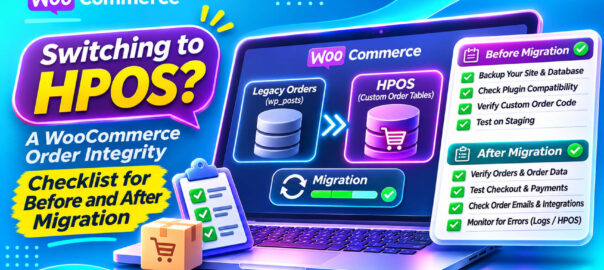
High-Performance Order Storage (HPOS) is the biggest change to how WooCommerce stores orders in the platform’s history. Instead of keeping orders in the WordPress posts and postmeta tables, where they shared space with blog posts and pages, HPOS stores them in dedicated order tables designed for the job. New stores use it by default, and WooCommerce has been encouraging established stores to switch.
For most stores the switch is smooth. But the WordPress.org forums have a steady trickle of threads that show what can go wrong: “HPOS doesn’t complete order sync”, “HPOS sync is not working”, “Reports not working when HPOS enabled”, “HPOS disabled after sync”. Integrations that stop receiving orders after an update are another common complaint, usually from a plugin that reads orders the old way.
Your orders are your business records. This checklist is about making sure the move doesn’t quietly damage them: what to check before, how to migrate with a safety net, and how to verify afterwards that every order still adds up.
What actually changes
| Legacy (posts) storage | HPOS | |
|---|---|---|
| Where orders live | wp_posts + wp_postmeta |
Dedicated wc_orders tables (plus related tables) |
| How plugins should read orders | WooCommerce CRUD functions (or directly from posts, which many old plugins did) | Only through WooCommerce CRUD functions |
| Performance | Slows as order and post volume grow | Designed to scale |
| Admin order screen | Posts list screen | WooCommerce’s own orders screen |
The key risk is in the second row. Plugins that read or write order data directly from the posts tables, instead of through WooCommerce’s order functions, won’t see orders stored in HPOS tables, or will write data WooCommerce no longer reads. That’s how integrations “stop syncing” and reports go blank.
Phase 1: Before you switch
1. Audit plugin compatibility
WooCommerce shows a compatibility notice on WooCommerce → Settings → Advanced → Features listing extensions that haven’t declared HPOS compatibility. WooCommerce’s guidance is to enable HPOS only once all the extensions you use are compatible.
Pay special attention to plugins that touch orders:
- payment gateways
- shipping, fulfilment and label plugins
- accounting, ERP, CRM and marketplace integrations
- invoicing and PDF plugins
- subscription, booking and membership plugins
- custom code in your theme or a site plugin (search it for direct queries on
shop_orderposts)
2. Take a baseline snapshot
Before changing anything, record numbers you can compare afterwards:
- Order count by status (Processing, Completed, On hold, Refunded, Failed, Cancelled, Pending)
- Total revenue and refunds for the last full month, from WooCommerce Analytics and your gateway
- A handful of specific orders you know well (a complex one with coupons, a partial refund, a subscription renewal, a multi-currency order): note their totals, items, notes and statuses
3. Back up
Full database backup, tested restore. Non-negotiable.
4. Clean up first
Fix existing order problems before migration, so you don’t carry them across and then blame HPOS. Stuck payments, refund mismatches and totals that don’t add up are easier to explain before the switch than after. (The free Ordafide scan is a quick way to establish this baseline.)
5. Rehearse on staging
Run the full migration on a staging copy first, with test payment keys. Test the order flows your store actually uses.
Phase 2: Migrating with a safety net
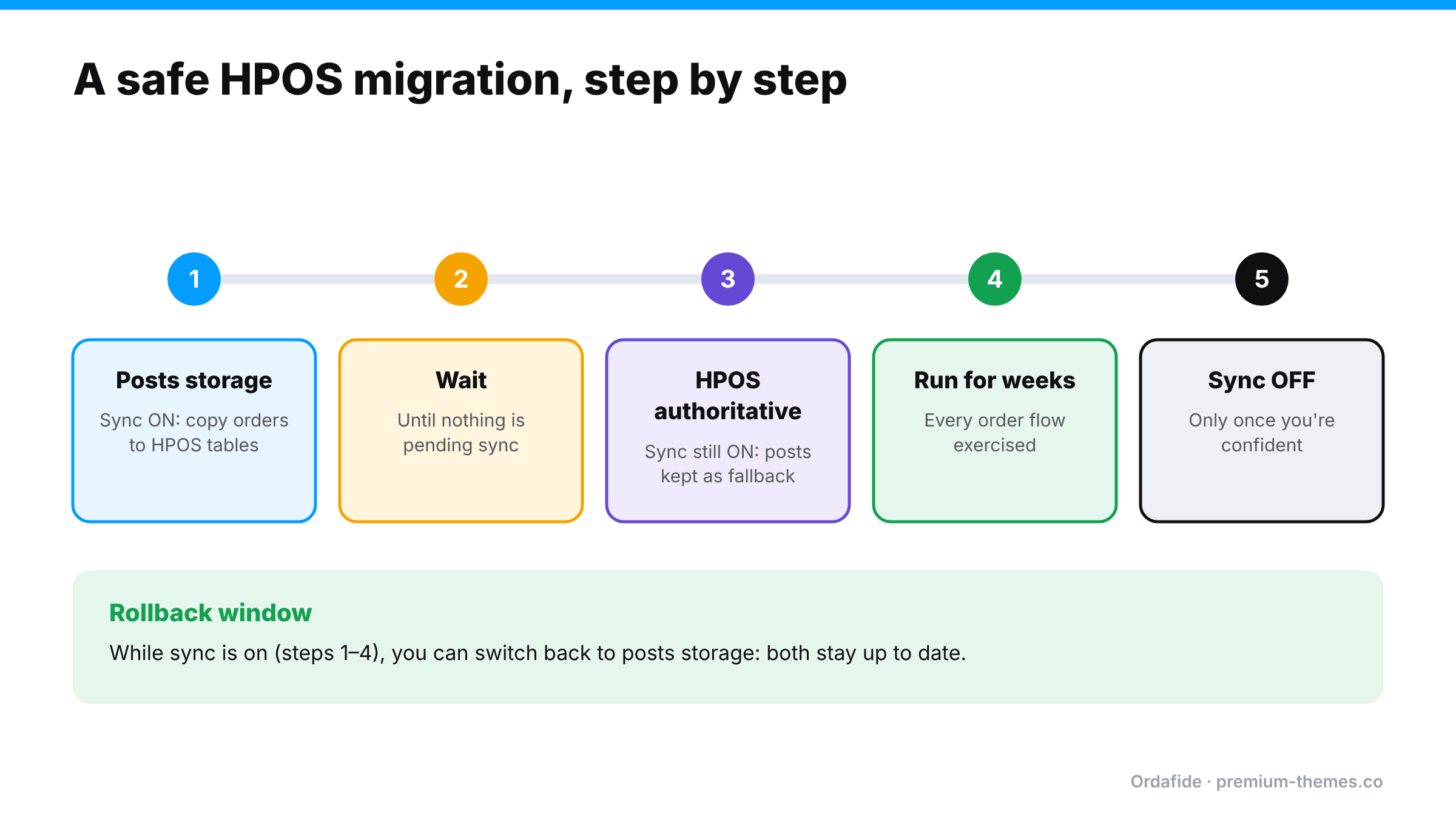
WooCommerce’s migration uses synchronization as its safety net. Under WooCommerce → Settings → Advanced → Features (custom data stores in some versions), you can keep the posts table and the new order tables in sync. WooCommerce’s developers describe sync as a temporary failsafe.
A cautious sequence:
- Enable sync while still using posts storage. WooCommerce copies existing orders into the HPOS tables in the background. On large stores this takes time and relies on background processing, so make sure your Action Scheduler and WP-Cron are healthy first. (Loopback / WP-Cron guide)
- Wait until sync is complete. The settings page tells you when orders are pending sync. Don’t switch until it’s done.
- Switch authoritative storage to HPOS, keeping sync on. Now HPOS is the source of truth, and the posts table is still updated as a fallback.
- Run for a while with sync on, long enough for every order flow to happen at least a few times: new orders, refunds, renewals, cancellations.
- Only then consider turning sync off, which removes the overhead of writing to both places.
If something breaks while sync is on, you can switch back to posts storage, because the data is still being written there. WooCommerce’s FAQ describes rollback in exactly these terms.
Sync isn’t free: writing every change to two places adds overhead. That’s the trade-off for safety during the transition.
Phase 3: Verifying afterwards
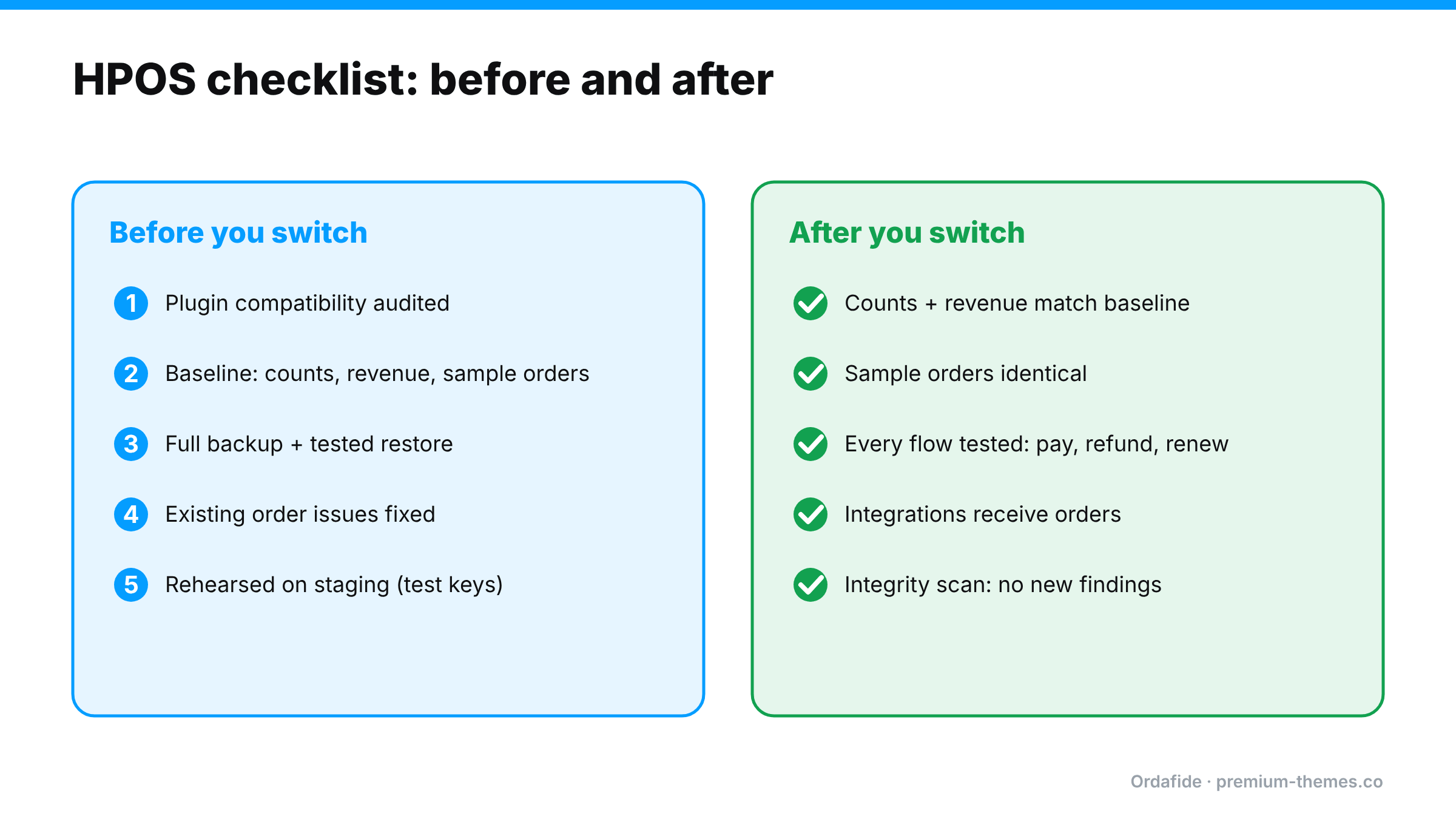
This is the step most stores skip. “The orders page loads” is not verification.
Compare with your baseline
- Order counts by status match
- Revenue and refunds for the baseline month match in Analytics and the gateway
- Your sample orders show identical totals, items, notes, customer details and statuses
Exercise every order flow
- New order through every payment method → Processing, email sent
- Partial and full refund from the order screen
- Cancellation and failed payment
- Subscription renewal (if used)
- Order notes, custom fields and meta used by your plugins
- Integrations: ERP, fulfilment, accounting, CRM all receive the new orders
Check order integrity across the store
- No new stuck payments or paid-but-cancelled orders
- No duplicate charges from integrations retrying
- No refund mismatches
- Order totals still add up (items + shipping + fees + tax = total)
- Customers are still getting their emails
- Reports: Analytics rebuilt and current
A worked example: the invoicing plugin
A store enables HPOS after its compatibility screen shows only one warning, for an older PDF invoice plugin the owner thinks is “just for printing”.
- New orders work. Payments work. Emails work.
- The invoice plugin, which reads order data directly from the posts table, starts producing invoices with missing line items for new orders, because the data isn’t in posts any more.
- The plugin also writes the invoice number to post meta, so WooCommerce’s order screen no longer shows invoice numbers.
- Three weeks later, the accountant notices invoice numbering gaps and invoices that don’t match order totals.
Because the store migrated with sync on, the fix was simple: switch authoritative storage back to posts, replace the invoice plugin with an HPOS-compatible one, then switch to HPOS again. Without sync, the store would have been untangling three weeks of mixed data.
The lesson: an “incompatible” warning on anything that touches orders deserves a fix before migration, not after.
Large stores: timing and load
- Background sync on a store with hundreds of thousands of orders can take hours or days. Plan for it.
- Sync relies on Action Scheduler. A healthy queue and a real server cron make it predictable.
- Run the migration in a quiet period, not before a sale.
- WooCommerce publishes a dedicated guide for enabling HPOS on large stores. It’s worth reading in full before you start.
How Ordafide fits an HPOS migration
Ordafide Order Integrity for WooCommerce is HPOS native. It declares HPOS compatibility and reads orders through the WooCommerce CRUD layer, so it behaves identically whether your store uses the new order tables or the legacy posts storage. That makes it useful on both sides of the switch:
- Before: run a scan to establish a clean baseline: stuck payments, paid-but-cancelled orders, duplicate charges, refund mismatches, totals that don’t add up, customers never emailed. Fix what it finds.
- After: run the same scan again. New findings point to something the migration or an incompatible plugin changed.
- Scale: scans run in batches of 100 orders through Action Scheduler, with bounded queries, so even very large stores don’t time out.
- Store health: Ordafide shows Action Scheduler backlog and failures and WP-Cron status, which is exactly what the background sync depends on.
To be clear about scope: Ordafide doesn’t compare the posts and HPOS tables row by row or perform the migration. WooCommerce’s sync does that. Ordafide checks that the orders themselves still make sense after the move.
Ordafide Pro adds gateway reconciliation (read-only, for Stripe, PayPal, Square, Mollie and Razorpay), a strong post-migration check because it compares orders against what the gateway actually collected, independently of how WooCommerce stores them. Its CSV/JSON audit export gives you a before-and-after record for your accountant.
The day-after-migration routine
For the first two weeks after switching, spend ten minutes a day on this:
- Check the Scheduled Actions queue for backlogs or failures.
- Open two or three new orders and confirm items, totals, notes and status look right.
- Check that integrations received yesterday’s orders.
- Run an integrity scan and compare with your baseline.
- Glance at Analytics and compare with the gateway.
If everything is quiet for two weeks, you can relax the routine, and consider whether it’s time to turn sync off.
What to tell your team
Before migrating, tell everyone who works with orders:
- The orders screen will look different. HPOS uses WooCommerce’s own orders page rather than the posts list. Saved bookmarks and some admin URLs change.
- Report anything odd immediately: missing fields, wrong totals, notes that don’t appear, an integration that goes quiet.
- Don’t run bulk edits or imports during the sync window.
- Who to contact if something looks wrong, and that you can roll back while sync is on.
Most post-migration problems are spotted first by the people who work in the orders screen every day.