Every WooCommerce store has a few Failed orders. Most are harmless: a card declined, a customer gave up. So most store owners learn to ignore them.
That habit is expensive, because a small share of Failed orders aren’t failed at all. The customer was charged. The money is in your gateway. WooCommerce just recorded the wrong outcome. The WordPress.org support forums are full of threads titled things like “Customer payment says failed but it has been drawn from their bank account” and “Successful Stripe payments after failure, yet WooCommerce order failed”.
This guide explains what Failed means, how to tell a genuine decline from a paid order recorded as failed, and what to do with each.
What “Failed” means in WooCommerce
WooCommerce marks an order Failed when a payment attempt doesn’t go through. The order usually moves from Pending payment to Failed, and the gateway adds an order note explaining why.
Typical genuine causes, as WooCommerce’s own guide to failed orders lists them:
- Declined card: insufficient funds, expired card, spending limits, wrong details
- Authentication problems: wrong or expired API keys, a suspended gateway account
- Duplicate-transaction protection: the gateway rejects what looks like a repeat submission
- Site issues: outdated plugins, conflicts, server problems
By default, WooCommerce sends the admin a failed-order email but not the customer. Many customers who fail at checkout simply try again or leave.
The dangerous minority: “failed” orders that were paid
Here’s the problem. Failed is what WooCommerce believes happened. Sometimes the gateway disagrees.
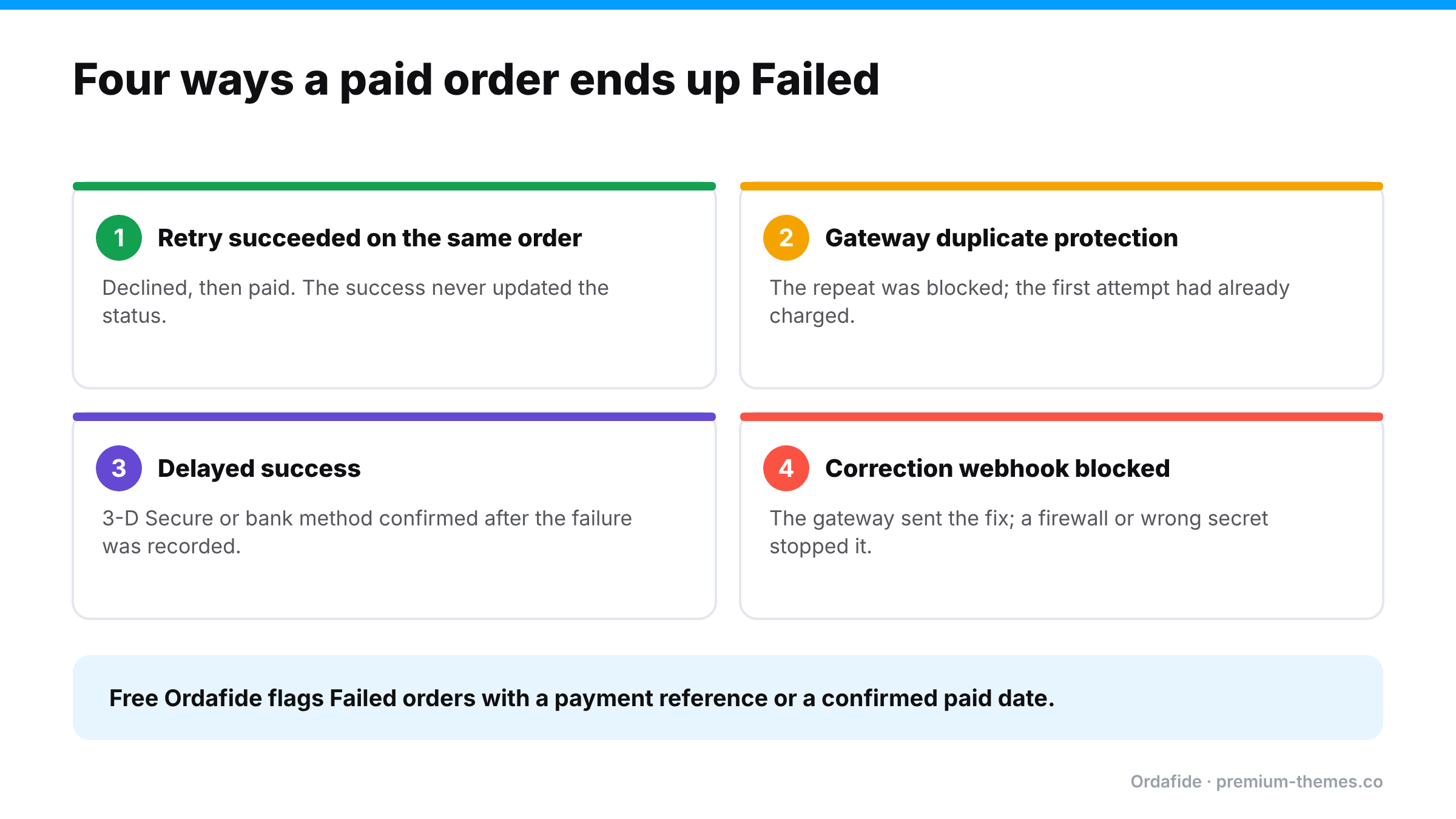
Path 1: The customer retried and the second attempt succeeded on the same order
The first attempt is declined, so the order is marked Failed. The customer fixes their card details and pays successfully. If the success is recorded against the same order but the status update doesn’t complete (a webhook failure or plugin bug), the order stays Failed even though it now carries a successful payment.
Path 2: The gateway’s duplicate protection blocked a request that had already succeeded
A web agency documented a case where the gateway (NMI) rejected a second submission of a transaction as a duplicate. The first submission had actually succeeded. The customer saw an error, WooCommerce marked the order Failed, and the card was charged anyway. The gateway’s own log showed “Duplicate transaction”.
Path 3: A delayed success arrived after the failure
Some payment methods report a failure or timeout first and a success later (3-D Secure challenges that complete late, bank-based methods, wallets). If the later success never reaches WooCommerce, the order stays Failed.
Path 4: The webhook that would have corrected it was blocked
Even when the gateway does send the correction, a firewall, security plugin or wrong webhook secret can stop it from arriving. (See is your firewall blocking payments?.)
In every path, the customer has paid, and your store has no intention of shipping anything, because nobody works the Failed list.
How to triage a Failed order in two minutes
Open the order and read it like evidence.
- Read the order notes from the bottom up. Gateways write what happened: “Card declined (insufficient funds)”, “3-D Secure authentication failed”, “Payment intent succeeded”. Pay attention to the last gateway note, not the first.
- Look for a transaction or payment reference. Many gateways write a reference (for example a Stripe Payment Intent ID) to the order. A reference on its own doesn’t prove payment, but it tells you exactly what to look up.
- Look for a paid date. If WooCommerce recorded a date paid on a Failed order, something is badly out of step: WooCommerce itself once believed the payment succeeded.
- Check the gateway. Search the reference or the customer’s email in your gateway dashboard. Is there a succeeded payment for this amount?
- Check for a second order. The customer may have given up and placed a new order that succeeded. Then the Failed order is just history, and nothing needs doing.
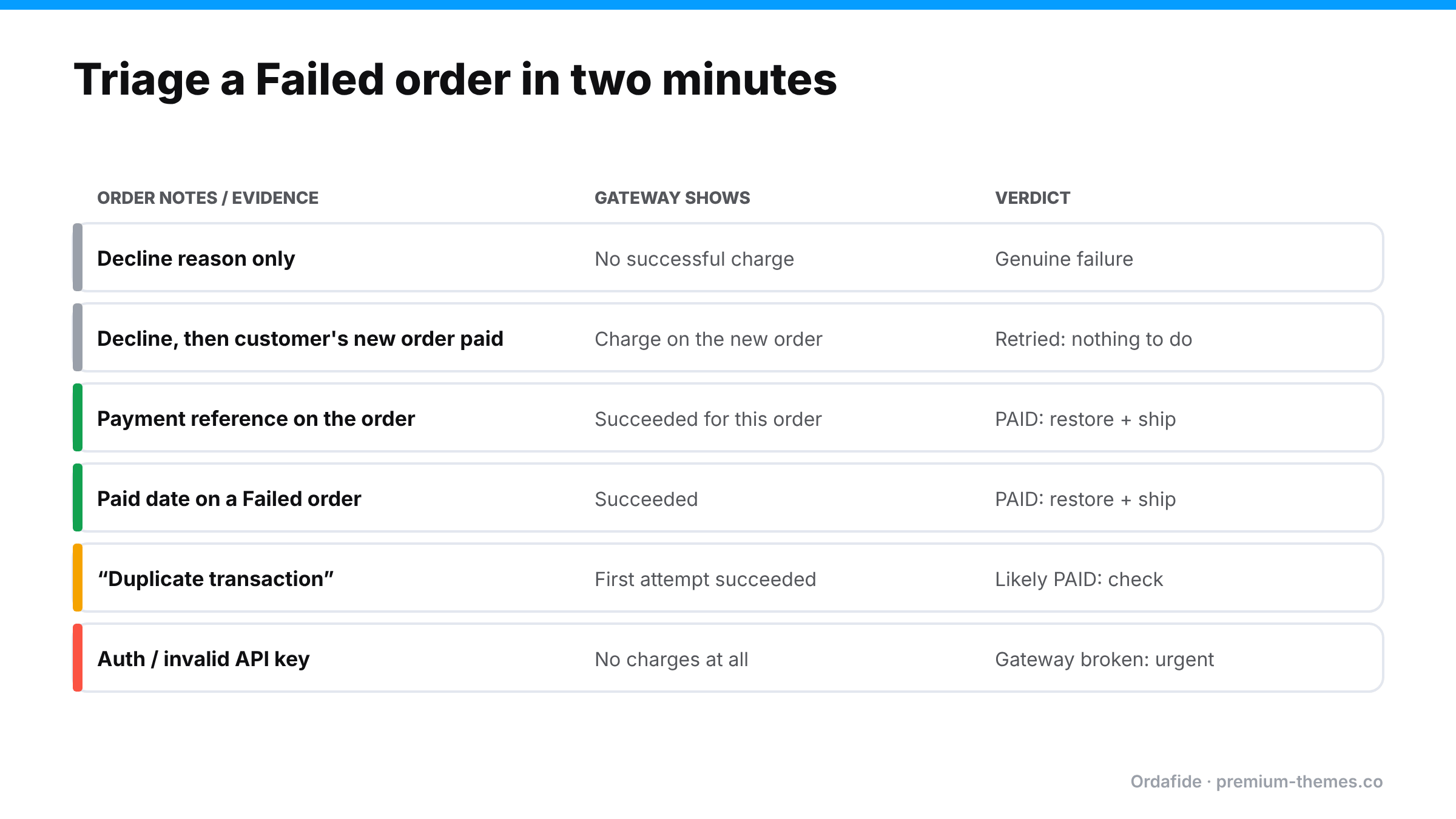
| What you find | What it means | What to do |
|---|---|---|
| Decline note, no successful payment at the gateway | Genuine failure | Nothing, or a friendly “need help?” email |
| Decline note, but a later order from the same customer succeeded | Customer retried on a new order | Nothing |
| Gateway shows a succeeded payment for this order | Paid but recorded as Failed | Move to Processing, add a note, ship, apologize |
| Paid date recorded on a Failed order | Paid but recorded as Failed | Verify in gateway, then as above |
| “Duplicate transaction” note | Gateway blocked a repeat. The first may have succeeded | Check the gateway for the original charge |
| Authentication or API key error | Your gateway connection is broken | Fix now: every customer is failing (guide) |
A worked example: five Failed orders on a Monday
Here’s what a typical weekend’s Failed list might contain, and how each one resolves.
#8812, $64, note: “Card declined (insufficient funds)”. No payment in the gateway. Ten minutes later the same customer placed #8815, which succeeded. Nothing to do. The customer retried on a new order.
#8820, $129, note: “3-D Secure authentication failed”, then nothing. The gateway shows a succeeded payment for the same Payment Intent four minutes later. The customer completed the bank challenge on a second attempt, but the success never reached the order. Paid but recorded as Failed. Move to Processing, ship, apologize.
#8827, $38, note: “Duplicate transaction”. The gateway shows one successful charge, from the first submission. The customer saw an error on the second. Paid. Restore and ship, and look at why checkout is slow enough for customers to resubmit.
#8831, $210, note: “Invalid API Key provided”. No charge at the gateway. Neither were there any successful orders after 02:10 on Sunday. Your gateway connection broke. This is the urgent one: every customer since 02:10 failed. (Gateway stopped working)
#8836, $19, random name, mismatched address, “card declined”. One of 40 similar orders between 03:00 and 04:00 for your cheapest product. Card testing. (Card testing guide)
Five Failed orders with five different explanations, two of which were paid. Without opening each one, all five look identical in the list.
Telling customers about genuine declines
For genuine declines, a short, friendly follow-up recovers real sales, especially for higher-value carts:
“Hi Sam, it looks like your payment for order #8812 didn’t go through. That’s usually a temporary card issue. If you’d still like your order, you can pay here: [link]. If you’ve already ordered again, please ignore this.”
Keep it helpful, not accusatory, and never send it before checking that the customer hasn’t already paid on another order.
When Failed orders spike
A handful of Failed orders a week is normal. A sudden change is a signal:
- A spike of Failed orders on cheap products from random names: almost certainly card testing. (Card testing guide)
- Every order failing with the same authentication error: your API keys expired, were rotated, or the account was disconnected.
- Failed orders concentrated on one payment method or device: a compatibility problem after an update.
- No Failed orders and no successful orders: not a payment problem at all. Checkout itself is broken. (Sales suddenly dropped?)
What happens to stock
Stock behaviour for Failed orders has changed across WooCommerce versions. WooCommerce’s troubleshooting documentation notes that from WooCommerce 11.0, moving an order to Failed returns stock only if stock had previously been reduced for that order, and an immediate decline leaves inventory unchanged. If you restore a Failed order to Processing because it was actually paid, check stock afterwards, especially on older versions or with inventory plugins.
Fixing a paid order that’s stuck on Failed
- Verify the payment in the gateway: status succeeded, amount and currency correct.
- Change the order to Processing and add a private note with the payment ID and how you verified it.
- Check stock for the items.
- Send the customer their confirmation (Order actions → Email invoice / order details to customer) and a short apology. They saw an error and were charged, so they’re worried.
- Look for a duplicate order in case the customer also paid a second time.
- Find the cause (webhook, duplicate protection, delayed method) so it doesn’t keep happening.
How Ordafide finds paid orders hiding in the Failed list
Nobody reads every Failed order, and that’s the point: the paid ones look exactly like the rest.
Ordafide Order Integrity for WooCommerce (free) scans your recent orders and flags the ones that don’t add up:
- Stuck payment: orders on Pending payment or Failed that carry a gateway payment reference, the trace a gateway leaves when money moved.
- Paid but cancelled: orders with a confirmed payment date sitting in Cancelled or Failed, with nothing refunded.
- Duplicate charge: the same customer charged twice for an identical basket within minutes, common after a confusing failure.
Findings are sorted by money at risk, with the evidence laid out and what to check in your gateway before touching anything. When WooCommerce itself recorded a confirmed payment date, Ordafide can restore the order to Processing in one click. The change is logged and can be undone. Ordafide never captures, refunds or voids anything, and it sends nothing to a third party.
Ordafide Pro goes one step further with read-only gateway reconciliation (Stripe, PayPal, Square, Mollie, Razorpay). It compares what the gateway actually collected against your orders and flags money with no order, paid orders with no payment and amount disagreements, so a Failed order with a successful charge behind it can’t hide. Pro’s order volume anomaly detection also flags sudden spikes, the typical shape of a card testing attack, and its alerts reach Slack, SMS, email or a webhook.
A simple Failed-order routine
- Daily: glance at the Failed count. Is it normal?
- Weekly: review Ordafide’s findings (or the weekly summary email) for stuck and paid-but-failed orders.
- On any spike: check for card testing, API key errors, or a broken payment method.
- Optionally: email customers with genuine declines a short “having trouble paying?” note. It recovers real sales.
Reducing genuine failures
Not every Failed order is a hidden payment, and the genuine ones are worth reducing too:
- Show clear error messages. A shopper who understands “your bank asked for extra verification” tries again. One who sees “error” leaves.
- Offer more than one payment method. If a card fails, a wallet or PayPal often works.
- Make checkout fast, so customers don’t resubmit and trigger duplicate protection.
- Keep gateway and WooCommerce plugins updated. 3-D Secure and wallet handling improves over time.
- Watch for patterns. Failures concentrated on one card brand, country or device usually have a fixable cause.