“I placed an order three days ago and never got a confirmation. Did it go through?”
Every store gets this email. Usually the answer is simple: check the spam folder. But sometimes the email really never left your site, and sometimes it’s been failing for every customer for a week.
The trouble is that WooCommerce, out of the box, doesn’t give you an easy way to answer the question “was this specific email actually sent?” You can see the order. You can resend the email. But you can’t easily see whether the original made it to the mail server, or what happened to it there.
This guide walks through how to work out where an order email went missing, how to tell a one-customer problem from a store-wide one, and how to have the evidence ready next time.
The journey of an order email
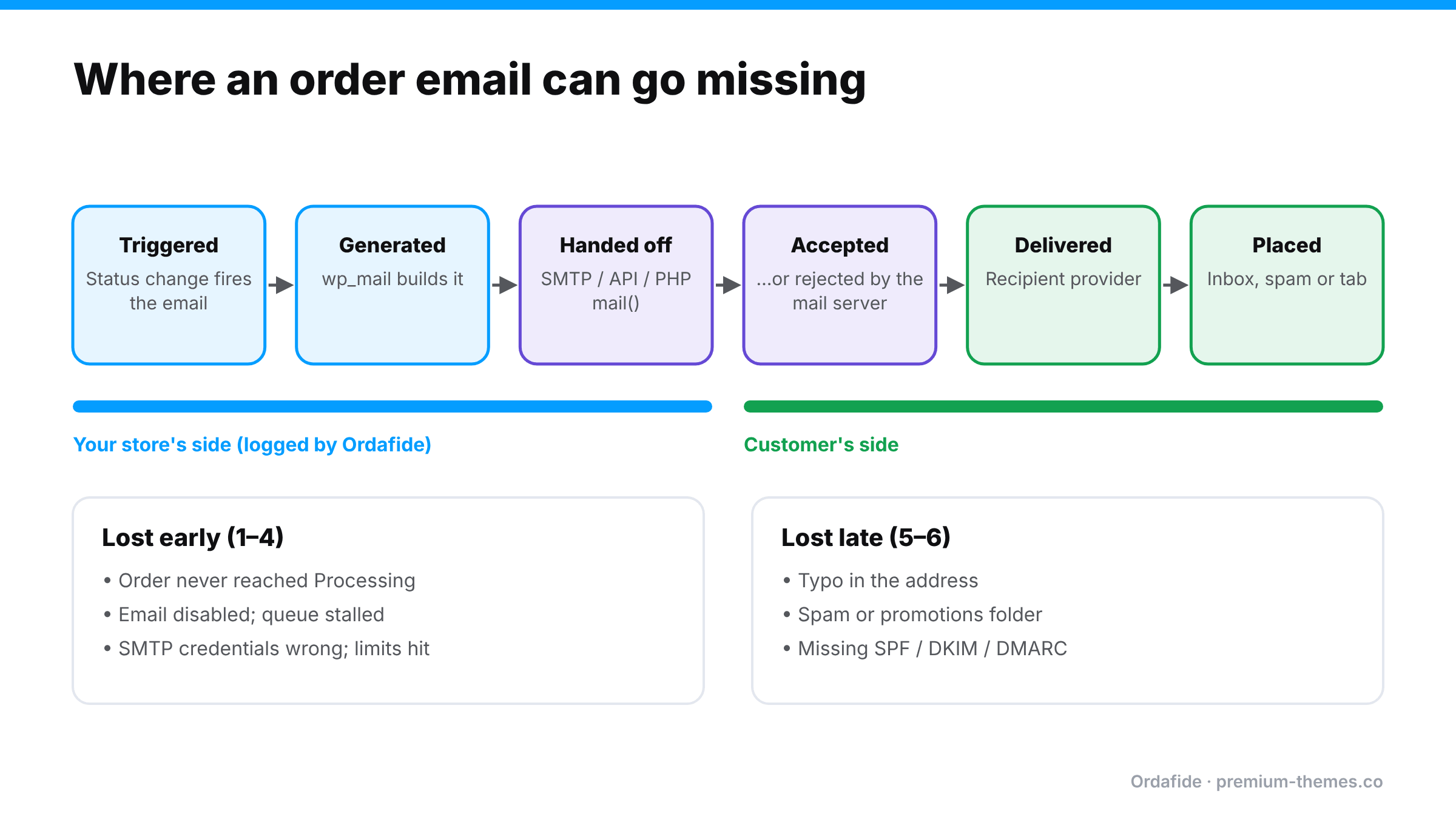
An order confirmation passes through several stages, and it can be lost at any of them:
- Triggered. WooCommerce decides to send it when the order status changes (for example, to Processing).
- Generated. WordPress builds the email and hands it to its mailer (
wp_mail). - Handed off. The mailer passes it to a mail server: your host’s PHP
mail(), or an SMTP or email API service. - Accepted. The mail server accepts it for delivery, or rejects it (bad address, authentication failure, sending limits).
- Delivered. The recipient’s provider accepts it.
- Placed. It lands in the inbox, the spam folder, or a promotions tab.
WooCommerce’s job ends around stage 2. Everything after that is your mail setup and the customer’s provider.
Step 1: Was the email ever triggered?
- Check the order status. Confirmation emails are tied to status changes. If the order is stuck on Pending payment or On hold, the “processing” confirmation was never triggered. That’s a payment problem, not an email problem. (Stuck pending orders)
- Check the email is enabled. WooCommerce → Settings → Emails. Is Processing order enabled for customers?
- Check the order notes. Some setups and plugins add notes when emails are sent.
- Check the background queue. If emails depend on queued work and the queue is stalled, they’re waiting, not sent. (Loopback / WP-Cron)
Step 2: Was it handed to a mail server, and accepted?
This is where most stores have no evidence. Options:
- An email log. Many SMTP plugins can log outgoing emails. A dedicated log shows the time, recipient, subject and whether sending succeeded.
- Your email provider’s dashboard. If you send through an SMTP or API service, its activity log shows accepted, delivered, bounced and blocked messages, often searchable by recipient.
- Your host’s mail logs. If you use PHP
mail(), ask your host. Often there’s little to see, which is itself a reason to switch to a proper provider.
What you’re looking for:
- No record at all: the email was never handed off (step 1 problem, or the mailer failed silently).
- Rejected / failed: the mail server refused it. Look at the error (authentication, sending limit, invalid recipient).
- Accepted / delivered: it left your systems successfully. The issue is on the recipient’s side.
Step 3: Was it delivered but filtered?
If your provider shows the email as delivered:
- Ask the customer to check spam, promotions and any filters, and to search for your store name or order number.
- Check the email address on the order for typos (
gmial.com, missing letters). This is surprisingly common. - Check your domain authentication: SPF, DKIM and DMARC records for your sending domain. Missing or broken authentication sends order emails to spam.
- Check the “From” address. It should be on a domain you’ve authenticated with your mail provider.
Step 4: Resend, and tell the customer what you found
From the order screen, use Order actions → Email invoice / order details to customer to resend. If the address was wrong, correct it on the order first. Then reply to the customer with what you found. “Our email was caught by your spam filter” or “we had a sending problem on our side, now fixed” is reassuring either way.
One customer or everyone?
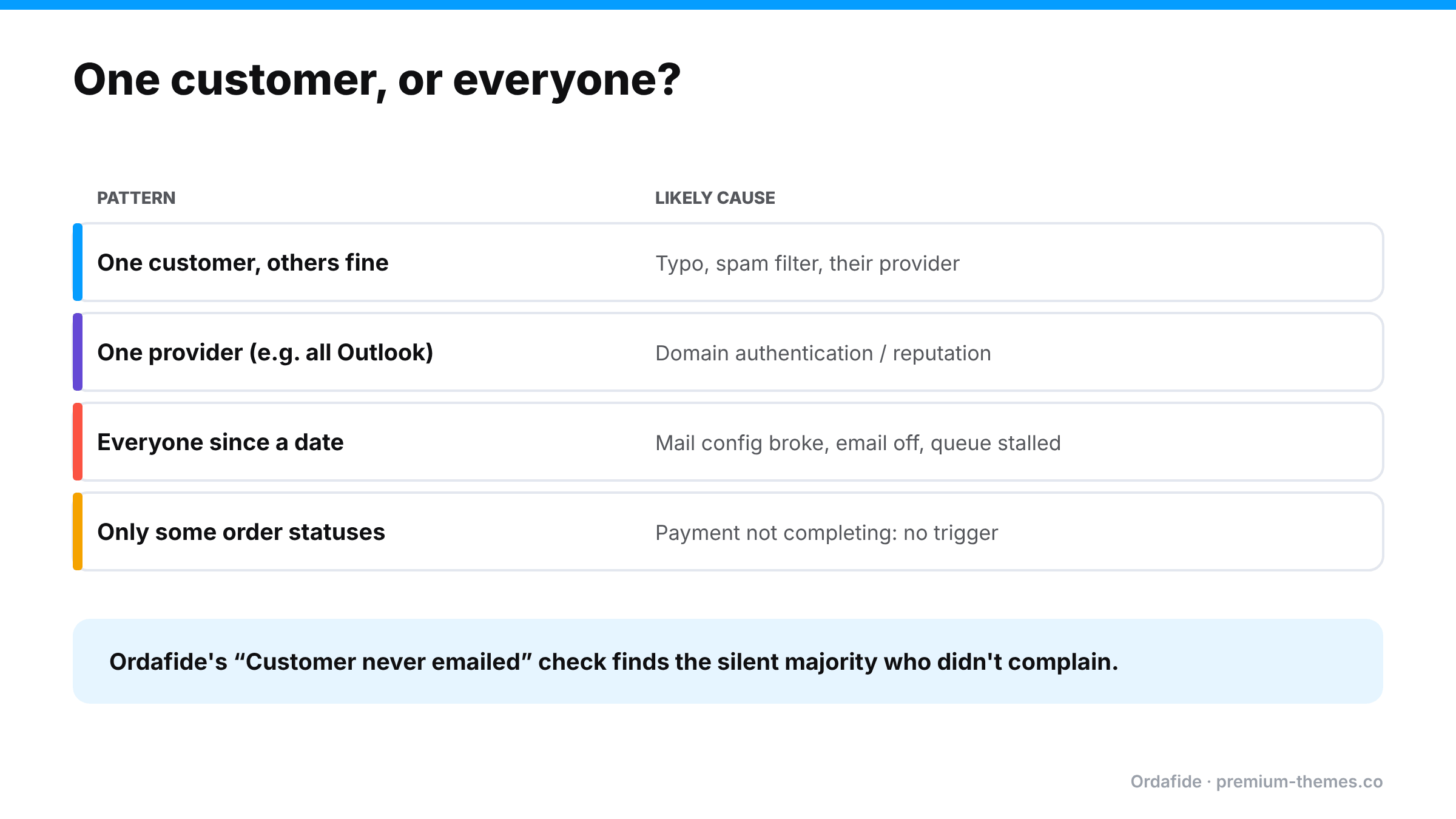
This is the most important question, and the one most stores never ask.
| Pattern | Likely cause |
|---|---|
| One customer, others fine | Typo, spam filtering, their provider |
| One provider (e.g. all Outlook addresses) | Domain authentication or reputation with that provider |
| Everyone since a date | Mail configuration broke (migration, expired SMTP credentials, plan limit), email disabled, or queue stalled |
| Orders in certain statuses only | Payment not completing, so the confirmation is never triggered |
If it’s everyone, every customer since that date is a potential “did my order go through?” email, and some are potential chargebacks. (Self-inflicted chargebacks)
A worked example: the expired SMTP password
A store sends email through an SMTP service. In October, the store owner changes the password on that email account for security, but doesn’t update the SMTP plugin.
- From that moment, every WooCommerce email fails authentication. The SMTP plugin falls back to PHP
mail()on some setups, or simply fails on others. - The storefront, checkout and payments all work. Orders arrive. Nothing visibly errors.
- Over the next nine days, about 120 customers don’t receive confirmations. A dozen email to ask “did my order go through?” Two open disputes for “unrecognized charge”.
- The owner finally notices because their own admin new-order emails stopped too.
With a per-order email log, the first failed order would have shown “rejected: authentication failed” on day one, and a check for paid orders with no successful email would have flagged it by the next morning.
Good practice for order email deliverability
- Send through a proper provider (SMTP or an email API), not PHP
mail(). - Authenticate your domain with SPF, DKIM and DMARC.
- Use a From address on that domain, and a monitored Reply-To.
- Keep transactional and marketing email separate where you can, so a marketing complaint doesn’t hurt order confirmations.
- Check your provider’s sending limits before peak season.
- Test after any change to passwords, DNS, plugins or hosting.
Having the evidence before you need it
The real problem is that you only go looking for email evidence after a customer complains, and by then you need to know about the other customers who didn’t complain.
What you want is:
- a record of every order email, attached to its order,
- the result the mail server returned,
- a way to see paid orders that never got a confirmation,
- and a one-click resend.
How Ordafide handles order email delivery
Ordafide Order Integrity for WooCommerce (free) includes an order email delivery log: every WooCommerce email is recorded against its order, together with the result your mail server returned. When a customer asks “did you send it?”, the answer is on the order.
On top of the log, the Customer never emailed check flags paid orders where no customer email reached your mail server, or where every attempt was rejected. That’s the store-wide problem surfaced before customers start writing in. From the finding, you can resend the email in one click. Resends are written to Ordafide’s activity log. (An email can’t be unsent, so that action can’t be undone.)
Ordafide also reports background queue and WordPress scheduler health, because a stalled queue is one of the most common reasons confirmations stop. An optional weekly summary email tells you when there’s something to look at.
A few honest limits:
- The email log starts when you activate the plugin. Earlier orders can’t be judged and are skipped.
- Ordafide records what your mail server said. It can’t see inside the customer’s inbox, so an email accepted by your server but filtered to spam later will look delivered.
- It doesn’t replace a proper mail setup. You still need SMTP or an email API and SPF/DKIM/DMARC.
Ordafide Pro adds alerts (Slack, SMS, email, signed webhook), so a sudden run of un-emailed paid orders reaches you the same day, and CSV/JSON audit export if you need records for a dispute.
Quick checklist for “I never got my email”
- Is the order actually paid and in Processing?
- Is the customer email enabled in WooCommerce → Settings → Emails?
- Is the email address on the order correct?
- Does your email log or provider show it sent and accepted?
- If accepted: spam, promotions, filters, SPF/DKIM/DMARC.
- If not: mail configuration, credentials, limits, background queue.
- Resend, reply to the customer, and check whether other customers are affected.
Replying to the customer
Whatever you find, the customer mostly wants reassurance. A good reply:
“Thanks for checking. Your order #4102 is confirmed and paid, and it’s being packed now. It looks like our confirmation email [was caught by your spam filter / didn’t send because of a problem on our side, which we’ve fixed]. I’ve resent it just now. You’ll get tracking by email when it ships.”
Confirm the order, explain briefly, resend, and set the next expectation. If the problem was on your side, check whether other customers were affected before closing the ticket.
Common mistakes when investigating
- Trusting a single test. Your test email arriving doesn’t prove customer emails arrive. Different providers filter differently.
- Only checking admin emails. Admin new-order emails and customer confirmations are separate settings and can fail separately.
- Resending without fixing. If the mail setup is broken, the resend fails too.
- Forgetting the silent majority. For every customer who asks, several didn’t. Find them before they become disputes.
- Ignoring order status. No confirmation for an order stuck on Pending is a payment problem, not an email one.