WooCommerce Troubleshooting
Handcrafted Beautiful Bootstrap HTML Templates for your Business Website.
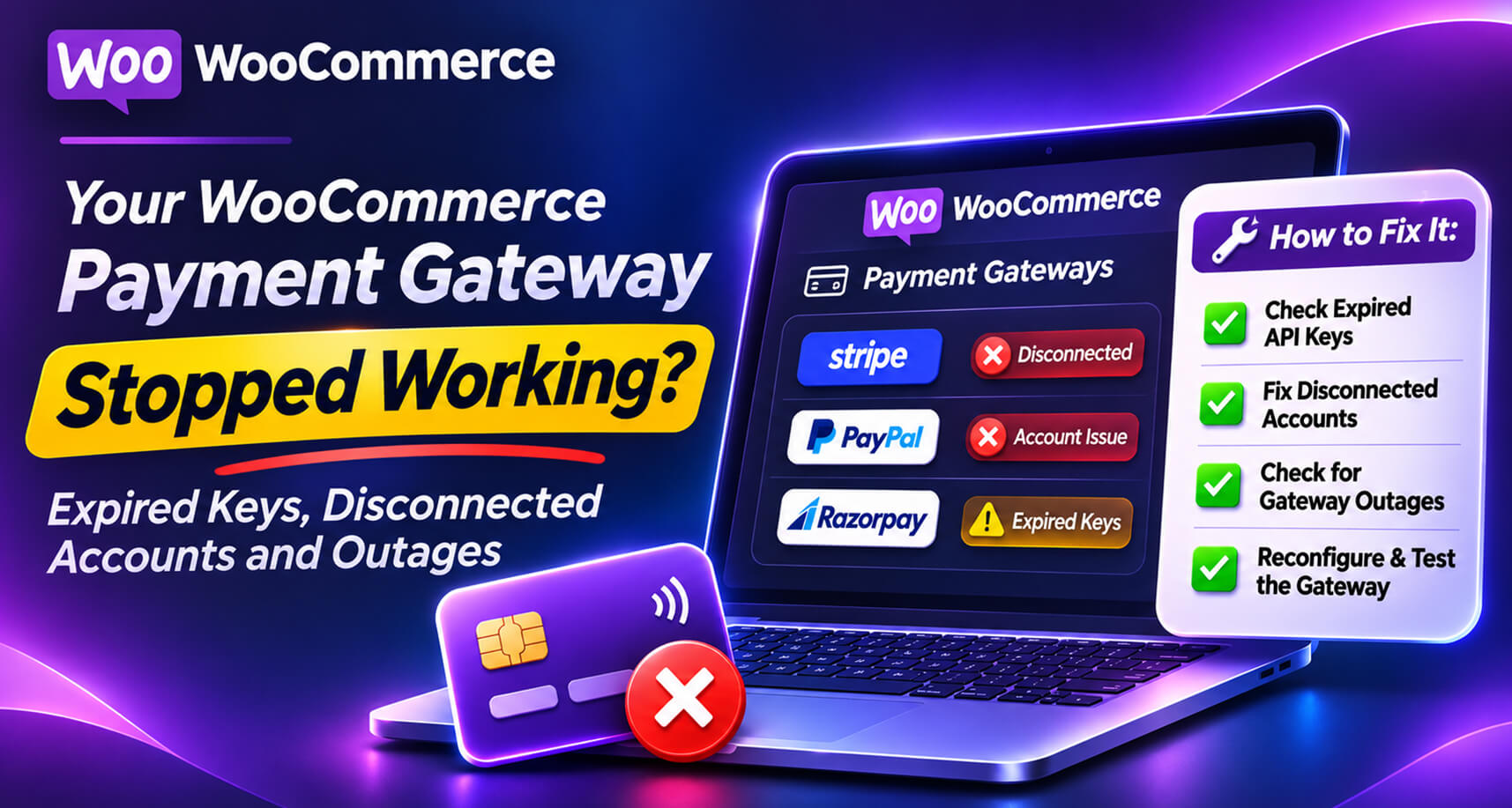
Most WooCommerce payment problems affect some orders: a stuck webhook here, a double charge there. This one is different. When the payment gateway connection itself breaks, every customer fails at the last step. Your store keeps attracting buyers, keeps filling carts, and takes no money at all.
The forums are full of variations: “Invalid secret key, please check your entry”, “There was a problem connecting to the Stripe API endpoint”, “Error: Stripe payments API key”, and threads about gateways switching to new connection methods that left stores unable to accept payments until they reconnected. WooCommerce’s own guide to failed orders lists authentication issues and expired API keys alongside card declines as a main cause of failures.
This guide covers the ways a gateway connection breaks, how to recognize each one fast, how to recover, and how to make sure you find out within minutes rather than from a customer’s angry email.
A gateway-level failure has a distinctive signature:
If you see varied decline reasons (insufficient funds, expired card, incorrect CVC), that’s normal customer behaviour. If you see the same technical error over and over, it’s you.
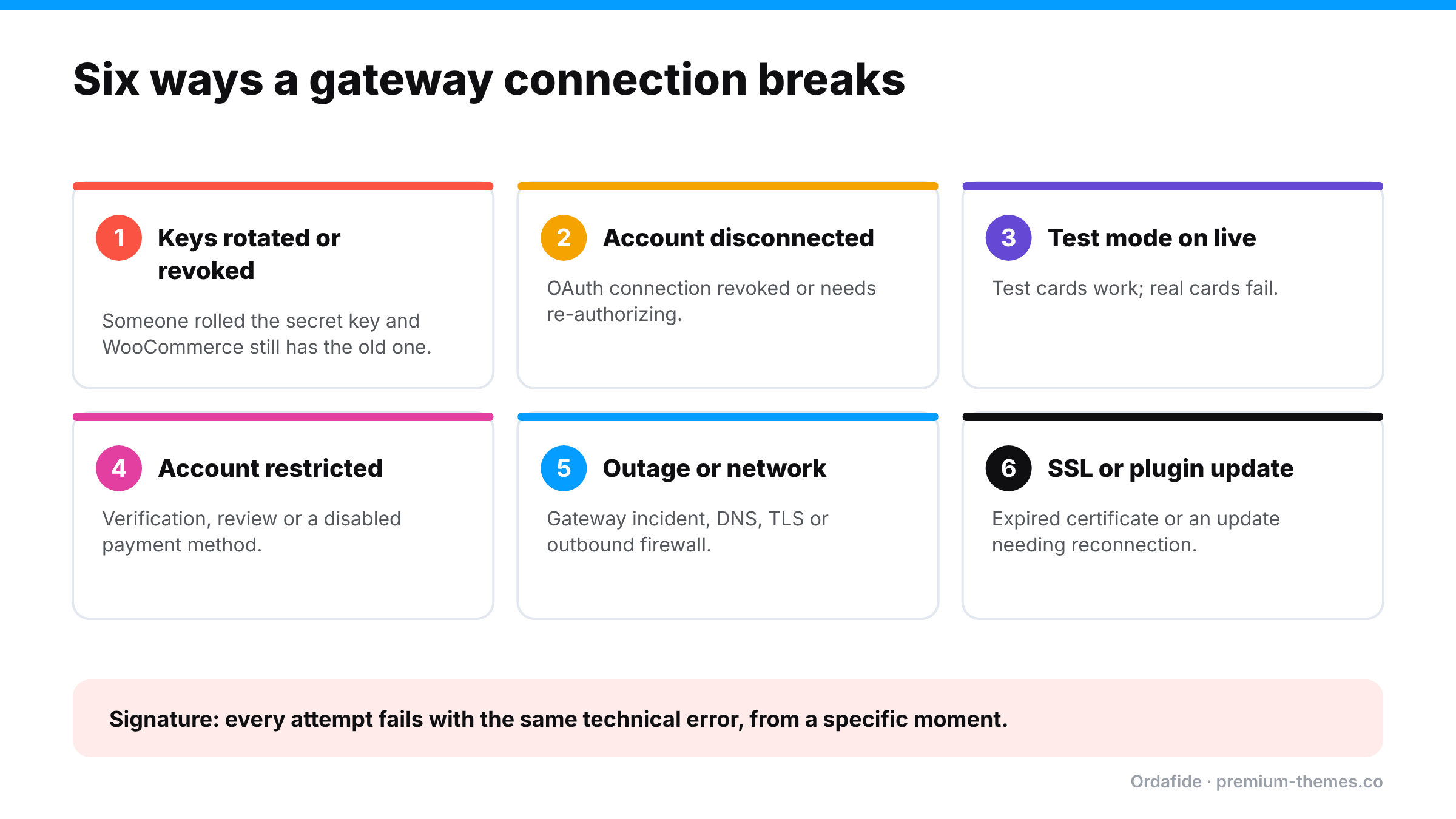
Someone regenerated the secret key in the gateway dashboard (often for security reasons, after a staff change or a suspected leak) and didn’t update WooCommerce. Or a restricted key was edited and lost a permission the plugin needs. The gateway now rejects every request.
Many gateway plugins now connect via OAuth (a “Connect with…” button) rather than pasted keys. Connections can be revoked, expire, or need re-authorizing when the plugin or gateway changes its integration method. Store owners discover this when payments stop.
Account under review, verification documents required, payouts paused, a payment method disabled, or the account closed for policy reasons. The gateway emails the account owner, and that email may be sitting in an inbox nobody reads.
Gateways are very reliable, but not perfect. Regional outages, DNS problems, or your host’s network having trouble reaching the gateway’s API produce connection errors and timeouts.
A gateway plugin update that needs new settings, requires reconnection, or conflicts with your theme or checkout type. (Update broke checkout · Block checkout errors)
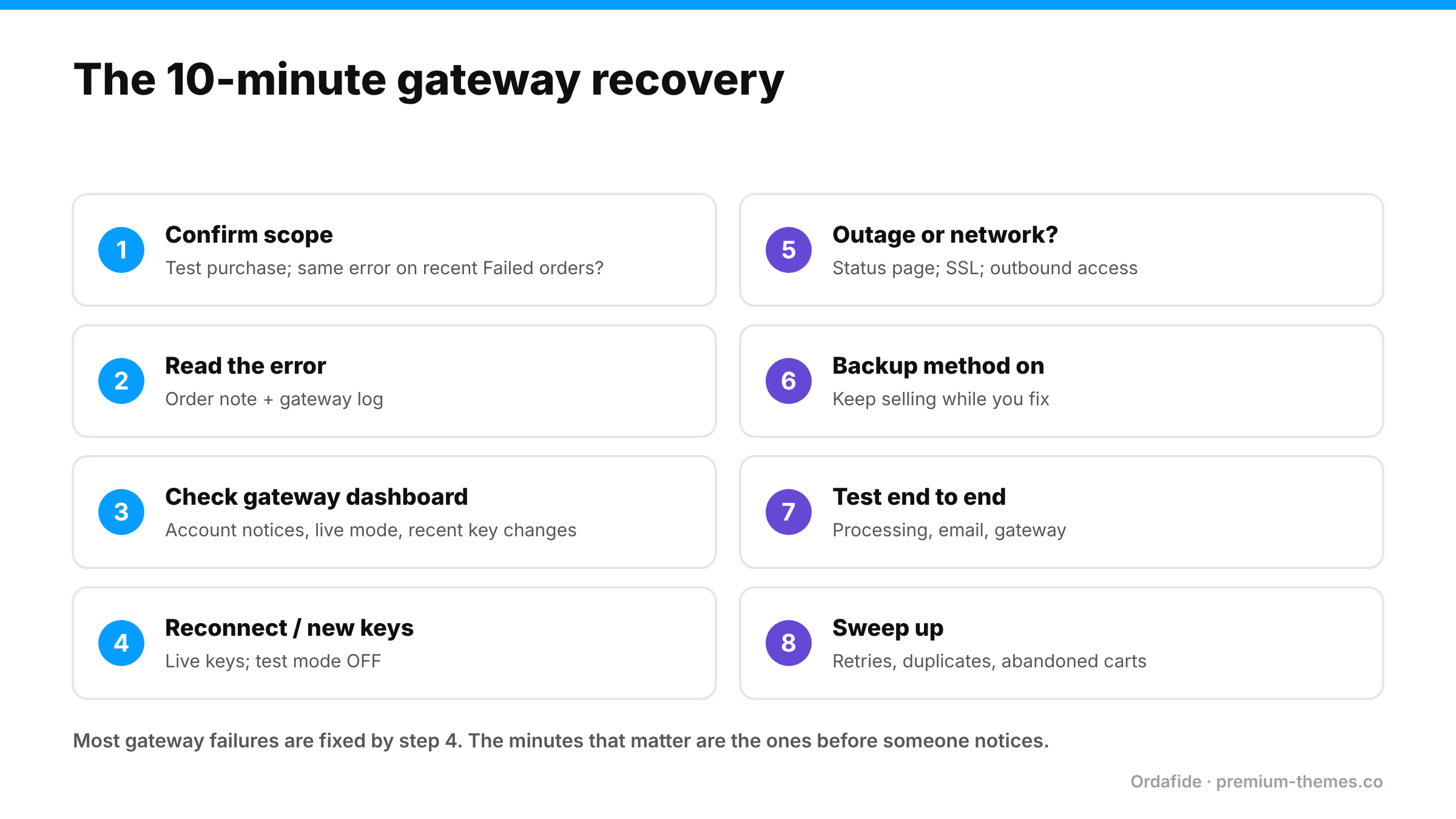
1. Confirm the scope. Place a real test purchase in a private window. Check the last few Failed orders’ notes. Same error every time?
2. Read the error. The order note or the gateway plugin’s log (WooCommerce → Status → Logs, filtered by the gateway) usually names the problem: invalid key, authentication, connection, account restricted.
3. Check the gateway dashboard. Any banners about account status, verification, disabled methods? Are you looking at live mode? Were keys regenerated recently?
4. Reconnect or re-enter keys. Use the plugin’s connect flow, or paste fresh live keys. Confirm test mode is off.
5. Check the gateway’s status page for an incident if errors are connection timeouts.
6. Check SSL and outbound connectivity if the error is about connecting rather than authenticating. Ask your host to confirm the server can reach the gateway’s API.
7. Enable a backup method if needed. If the primary gateway is down and you have a second (PayPal alongside Stripe, for example), make sure it’s enabled while you fix the first.
8. Test again end to end: order arrives in Processing, email sent, payment visible in the gateway.
9. Sweep up. Find customers who failed during the outage. Abandoned-cart emails or a personal note (“we had a payment problem, it’s fixed now”) recovers a surprising share. Check for duplicates from customers who retried.
10. Write down the cause and who to call next time.
On a Friday afternoon, a store’s developer follows good security practice: a former contractor had dashboard access, so they roll the Stripe secret key. Stripe gives the option to expire the old key immediately. They choose it.
They forget that the key is pasted into the WooCommerce Stripe settings.
Roughly 64 hours of a store with no working payments, caused by a good security decision missing one step. With order volume monitoring, the drop would have been flagged by 18:00 on Friday.
| Message or symptom | Likely cause |
|---|---|
| “Invalid API key” / “authentication” | Keys rotated, revoked or wrong mode |
| “No such customer” / “no such payment method” on renewals | Switched accounts or test/live mix |
| “Your account cannot currently make live charges” | Account verification or restriction |
| Connection timeout / cURL error | Network, firewall, TLS or gateway outage |
| Payment field doesn’t appear | Script blocked, SSL problem, plugin incompatibility |
| Test card works, real cards don’t | Test mode on the live site |
A gateway failure doesn’t create stuck or mismatched orders so much as an absence of good ones. That’s why the most useful protection here is Pro’s monitoring.
The free Ordafide plugin handles the clean-up. After an outage, customers retry, give up, and retry again. Ordafide’s duplicate charge, stuck payment and paid but cancelled checks find the orders caught mid-failure, and the Customer never emailed check finds paid customers who never got a confirmation.
Ordafide doesn’t hold or manage your gateway credentials for payments. Pro’s reconciliation uses read-only keys and can’t capture, refund or void anything.
Write one page, store it somewhere everyone can find it, and include:
When payments stop at 11 p.m. on a Saturday, a runbook turns panic into a ten-minute fix.
Why did all my WooCommerce payments suddenly start failing?
When every payment fails with the same technical error, the usual causes are rotated or invalid API keys, a disconnected gateway account, test mode left on, an account restriction, or a connectivity or SSL problem.
How do I fix "invalid API key" in WooCommerce Stripe?
Reconnect the account through the plugin, or paste the current live keys from your Stripe dashboard, and confirm test mode is off. Then place a real test purchase.
What should I do during a payment gateway outage?
Check the gateway's status page, enable a backup payment method if you have one, and tell customers. Afterwards, follow up with customers who failed and check for duplicate orders.
How can I find out quickly if my gateway stops working?
Monitor checkout and order volume automatically. Ordafide Pro checks checkout every 15 minutes and alerts on unusual drops in orders.
Is it safe to roll my Stripe API keys?
Yes, and it's good practice after staff changes. Update every place the key is used, WooCommerce included, before expiring the old key. Then place a test order.
How do I know if test mode is on?
Your gateway plugin's settings show it, and many add a notice in the admin. A test card succeeding while real cards fail is the classic sign. Check the payment in the gateway dashboard's live view.
What if my gateway account has been restricted?
Check the gateway dashboard for notices and contact their support. Enable a backup payment method in the meantime so you can keep selling.
Should I keep a second payment gateway?
For most stores, yes. A second method (for example PayPal alongside cards) keeps you selling during an outage or account review.