WooCommerce Troubleshooting
Handcrafted Beautiful Bootstrap HTML Templates for your Business Website.
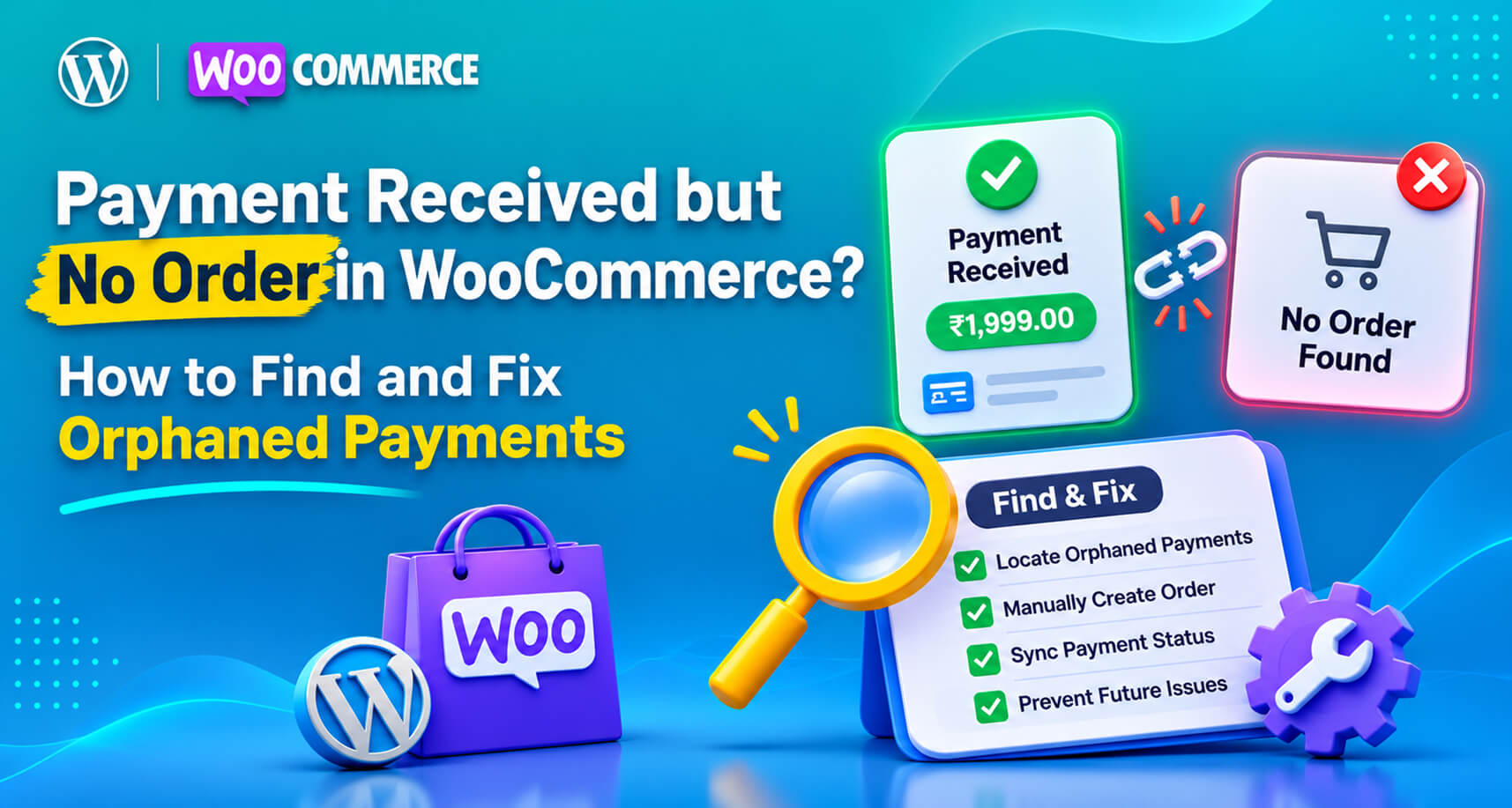
Most WooCommerce payment problems at least leave a trace. An order sits on Pending payment, or shows up twice, or is cancelled when it shouldn’t be. You can see it, even if you don’t yet understand it.
This one leaves nothing.
A customer emails you a bank statement showing they paid. You search WooCommerce for their name, their email, the amount. Nothing. No order, no draft, no failed attempt. But when you open Stripe or PayPal, the payment is right there, marked Succeeded.
We call these orphaned payments: money that reached your gateway with no WooCommerce order attached. They’re rarer than stuck orders, but they’re among the most damaging failures a store can have. The customer has paid, nobody is going to ship anything, and nothing inside your store will ever tell you.
This guide explains how orphaned payments happen, how to find every one of them, how to resolve each case, and how to make sure you hear about the next one in hours instead of weeks.
WooCommerce can only show you orders it created. An orphaned payment is, by definition, one it never created or never connected.
That’s why ordinary troubleshooting fails here. Every report, filter and search in WooCommerce looks at the orders table. If there’s no row, there’s nothing to find. The evidence only exists on the gateway’s side.
Searching the WordPress.org support forums and WooCommerce communities turns up the same story again and again:
The common thread: the money moved, but the order record didn’t follow it.
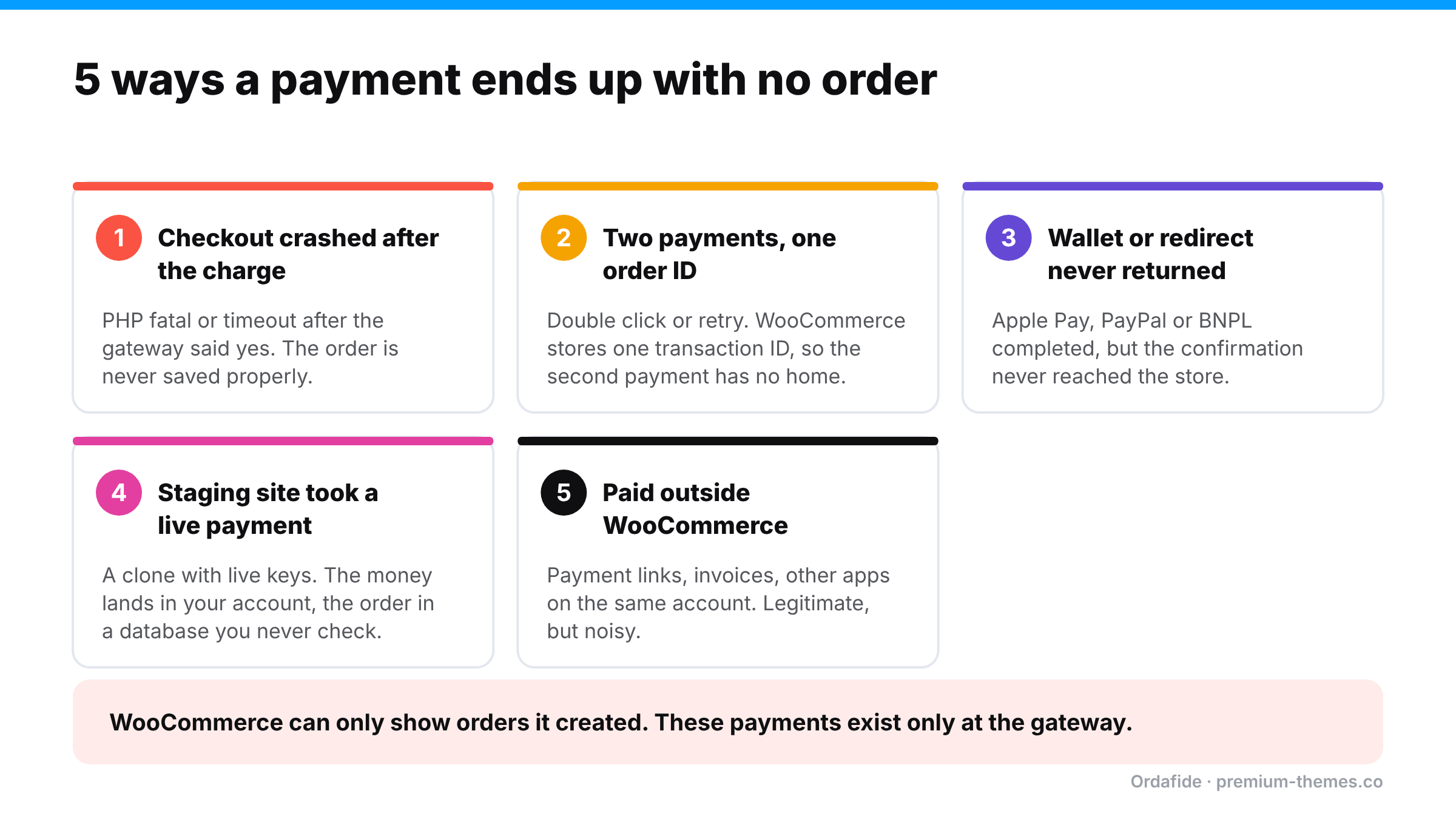
The sequence inside checkout is: create or update the order, call the gateway, get a success response, then mark the order paid and redirect. If PHP hits a fatal error or `max_execution_time` after the gateway charged the card, the order may never be saved in a usable state. Slow checkouts (heavy plugins, external tax or shipping API calls, an overloaded server) make this more likely.
If a shopper pays twice (double click, a retry, a second tab), both payments can reference the same WooCommerce order. WooCommerce stores one transaction ID per order. The second payment is real money, but it has nowhere to live in your store.
Apple Pay, Google Pay, PayPal, buy-now-pay-later and bank-redirect methods all involve the shopper leaving your page or a payment sheet appearing on top of it. If the return trip or the confirming webhook fails, the order can be left as a draft or auto-cancelled while the payment itself completes.
This one surprises people. A staging copy of your store that still has live payment keys can take real payments from real customers (for example, if a search engine indexed it, or someone shared the wrong link). The payment lands in your live Stripe account. The order lands in the staging database, which you never look at.
The reverse also happens: a staging site registers its own webhook endpoint with your live gateway account, and events start going to the wrong place.
Payment links, invoices, manual charges in the gateway dashboard, or another app connected to the same Stripe or PayPal account all create gateway payments that WooCommerce never sees. These are usually legitimate, but they make reconciliation noisy. Unless you can tell them apart, a genuine orphan can hide among them.
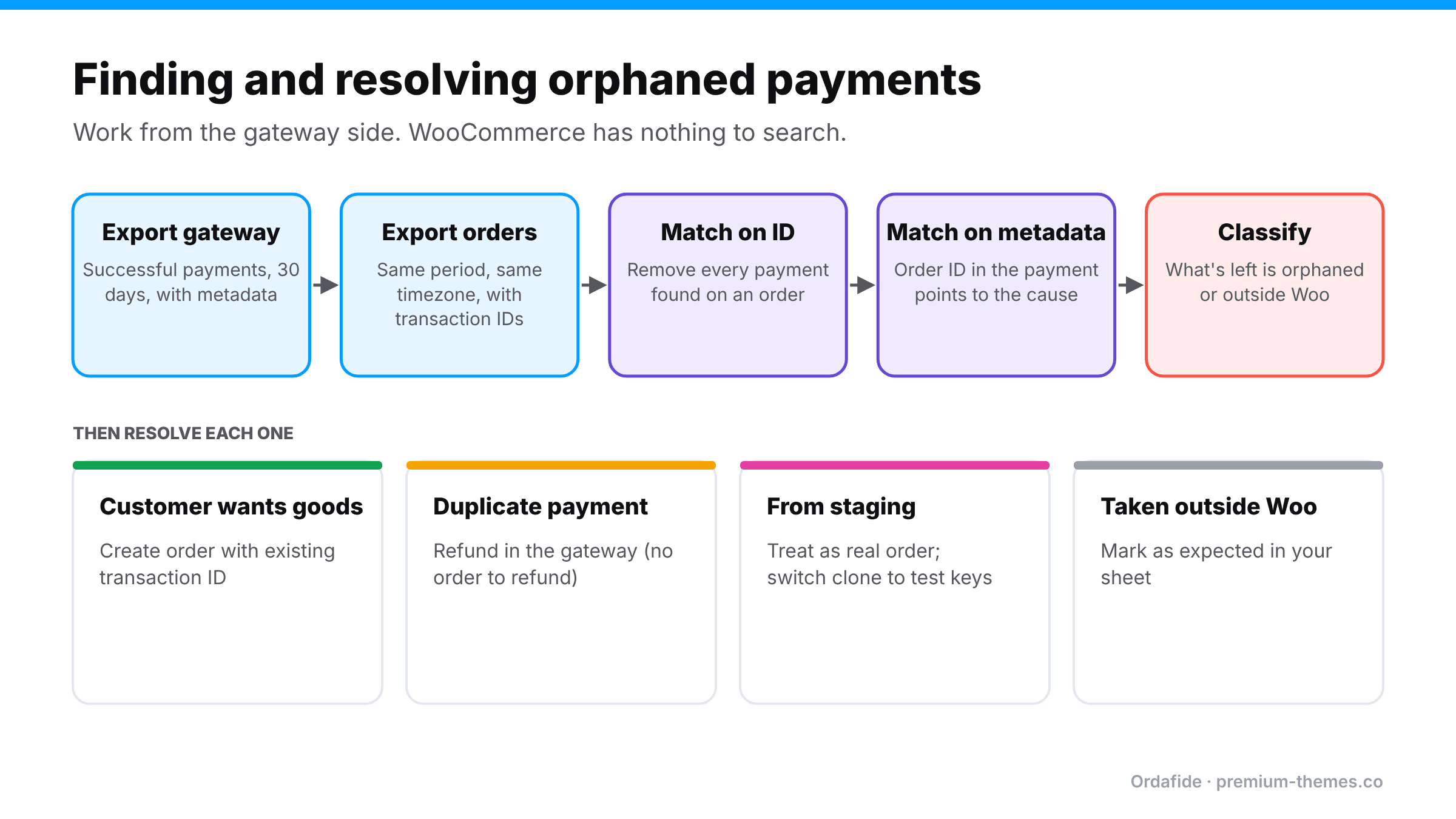
You can’t search for something that doesn’t exist in WooCommerce, so you work from the gateway side.
From Stripe’s Payments list or PayPal’s activity reports, export successful payments for the last 30 days. Include the payment ID, amount, currency, customer email, created date and any metadata or description. The WooCommerce Stripe gateway normally writes the order ID and order number into the payment’s metadata or description, which is gold for matching.
Export orders for the same period, including the transaction ID field, status, total and billing email. Make sure both exports use the same timezone.
Every gateway payment whose ID appears on a WooCommerce order is accounted for. Remove those.
For the remaining gateway payments, look at the order ID in the metadata. If it points to an existing order that has a different transaction ID, you’ve likely found two payments on one order (cause #2). If it points to an order ID that doesn’t exist in your live database, suspect a staging site (cause #4) or a crash before the order was saved (cause #1).
Anything still unmatched is either a genuine orphan or a payment taken outside WooCommerce (cause #5). The description, payment link ID or invoice ID usually tells you which.
For a store doing a few hundred orders a month, this is an hour or two of spreadsheet work. It’s worth doing once even if you automate it later, because it shows you which causes affect your store.
Work from the most urgent: customers who paid and are waiting for something.
If the customer should receive goods:
If it’s a duplicate payment (the customer only wanted one order):
Refund it in the gateway. Since there’s no WooCommerce order to refund through, this is one of the few cases where refunding in the gateway dashboard is correct. Note it in the original order so your team knows.
If it came from a staging site:
Treat each one as a real order (as above), then fix the staging site immediately. Switch it to test keys, block it from search engines, put it behind a password, and remove any webhook endpoints it registered in your live gateway account.
If it was taken outside WooCommerce on purpose:
Mark it as expected in your reconciliation sheet so it stops showing up.
| Cause | Fix |
|---|---|
| Checkout crash after charge | Check WooCommerce → Status → Logs for fatal errors at the payment time. Speed up checkout and remove slow external calls where possible. Raise PHP limits with your host if timeouts are frequent. |
| Two payments, one order | See WooCommerce customer charged twice: slow checkouts, request replays and plugin retries. |
| Wallet / redirect flow failed | Keep your gateway plugin updated, check its webhook delivery log, and test each wallet on real devices after updates. |
| Staging site with live keys | Test keys on every non-production copy, always. Add it to your launch and clone checklist. |
| Payments outside WooCommerce | Use a separate account, or consistent descriptions/metadata, so they’re easy to exclude. |
Orphaned payments have three properties that make manual detection unreliable:
The only reliable approach is something that regularly asks the gateway “what did you collect?” and compares the answer with what WooCommerce recorded.
Ordafide Order Integrity for WooCommerce comes in two parts, and this problem is a good illustration of why.
The free plugin audits what’s in your database. It catches the close relatives of orphaned payments, the ones where an order does exist:
What the free plugin can’t do, and doesn’t pretend to, is find an order that was never created. There’s no query for a row that doesn’t exist.
Ordafide Pro closes that gap with gateway reconciliation. It connects to Stripe, PayPal, Square, Mollie and Razorpay using read-only API keys, pulls the gateway’s own record of what was collected, and compares it with your orders. Its findings include:
Findings are sorted by money at risk and can trigger Slack, SMS, email or webhook alerts, so an orphaned payment surfaces the same day rather than when the customer’s patience runs out. Because the keys are read-only, Ordafide can’t capture, refund or void anything. It tells you what’s wrong and leaves the decision with you.
Why would a customer be charged with no WooCommerce order?
Usually because checkout failed after the gateway charged the card, a second payment attached itself to an existing order, a wallet or redirect flow didn't complete, or a staging copy of the site took a live payment.
How do I find payments that have no order?
Export successful payments from your gateway and compare them with your WooCommerce orders by transaction ID, then use the gateway's metadata (which usually includes the order ID) to classify the leftovers. Ordafide Pro does this comparison automatically.
Should I refund an orphaned payment or create the order?
Ask the customer. If they want the goods, create the order manually with the existing transaction ID so you don't charge them again. If it was a duplicate, refund it in the gateway.
Can the free Ordafide plugin find orphaned payments?
It finds the related cases where an order exists (stuck, paid-but-cancelled and duplicate charges). Payments with no order at all need the gateway comparison in Ordafide Pro.
Can a staging site really take real payments?
Yes, if it was cloned with live API keys and a real customer reaches it. Always switch clones to test keys and keep them private.