On this page
- Why updates break checkout in particular
- What merchants report
- The silent part
- Already broken? Recover in this order
- 1. Confirm and capture the error (5 minutes)
- 2. Restore sales first, diagnose second
- 3. Confirm with a real purchase
- 4. Measure the damage
- 5. Tell affected customers
- What a silent outage really costs
- A five-step test purchase script
- The safe update playbook
- Rule 1: Don't let checkout-critical plugins auto-update unattended
- Rule 2: Stage first when you can
- Rule 3: Update one group at a time
- Rule 4: Back up immediately before updating
- Rule 5: Run the same test purchase after every update
- Rule 6: Watch the next 24 hours
- Rule 7: Have monitoring that notices for you
- Automating the "notice" part with Ordafide Pro
- Your update-day checklist
It’s Monday morning. Weekend sales look oddly quiet. You try a test purchase and the checkout spins forever, or shows a blank error, or the Place order button does nothing at all.
You check the plugin list. Three plugins auto-updated on Friday night.
This is one of the most common and most expensive things that happens to WooCommerce stores, and it’s rarely discussed honestly. The update itself usually takes a few minutes to fix. The real cost is the hours or days between the break and someone noticing. During that time your ads keep running, your emails keep sending people to a dead checkout, and every visitor who tries to buy leaves.
This guide covers two things: how to recover quickly when an update has already broken checkout, and how to update in a way that makes it almost impossible to lose a weekend again.
Why updates break checkout in particular
Checkout is the most fragile page on a WooCommerce store because it’s where everything meets:
- your theme (templates, scripts, styles)
- WooCommerce itself (classic shortcode or block-based checkout)
- the payment gateway plugin and its JavaScript
- shipping, tax, coupon and fee plugins that change totals
- checkout field editors, address validators and upsell plugins
- caching and optimization plugins that combine, defer or delay scripts
- security plugins and CAPTCHAs that intercept requests
An update to any one of them can break the interaction with another. A few patterns cause most incidents:
- JavaScript errors. One plugin’s updated script throws an error, and everything after it stops running, including the payment form.
- Optimization plugins delaying or combining a gateway’s script so the card field never loads.
- Template overrides. Your theme overrides a WooCommerce template that changed, leaving the checkout using an outdated version.
- Block vs classic mismatches. An extension supports one checkout type but not the other.
- PHP fatal errors on the checkout or the Store API endpoint after a PHP or plugin version jump.
- Payment gateway changes that require new settings, new webhooks or reconnection.
What merchants report
Browse r/woocommerce or the WordPress.org support forums and the same stories repeat:
- “Checkout spinner never stops after update.” Usually a JavaScript error in one plugin stopping the payment script.
- “Card field disappeared.” Frequently an optimization plugin delaying or combining the gateway’s script.
- “Customers can pay but no order is created.” A fatal error after payment, or a webhook endpoint broken by a security plugin update.
- “Block checkout broke but the classic shortcode works.” An extension that doesn’t yet support the Store API that block checkout relies on.
- “It only fails for logged-in customers” (or only on mobile, or only for one payment method). That’s the hardest kind to spot, because the owner’s own quick test passes.
The common thread is that the store owner discovered the problem from customers or from falling sales, not from any tool. That’s the gap worth closing.
The silent part
Here’s why these incidents last so long. When checkout breaks, almost nothing looks broken:
- The home page loads, so your uptime monitor stays green.
- Product pages load, so casual checks look fine.
- Traffic continues, so analytics looks normal at a glance.
- No orders means no failed orders, so WooCommerce shows nothing unusual. It just shows… less.
The only signal is an absence: fewer orders than usual. Absences are hard for humans to notice, especially at weekends.
Already broken? Recover in this order
1. Confirm and capture the error (5 minutes)
- Try checkout in a private window as a guest and as a logged-in customer.
- Open your browser’s developer tools Console tab and note any red errors, especially ones naming a plugin.
- Check WooCommerce → Status → Logs for fatal errors since the update.
- Note which plugins, theme or WooCommerce version changed, and when (your host’s logs or the plugin list will show recent updates).
2. Restore sales first, diagnose second
Your priority is taking money again, not finding the perfect fix.
- If you know which update caused it, roll that plugin back to the previous version (many hosts keep backups; some plugins offer rollback; you can also reinstall a previous version from the plugin’s WordPress.org page under Advanced View).
- If you don’t know, restore the most recent pre-update backup of files and database if no orders have arrived since, or roll back the updated plugins one at a time.
- If an optimization plugin is involved, exclude checkout and cart pages from script delay/combine features, or temporarily disable it.
3. Confirm with a real purchase
Place a real order with a real card (then refund it), or use a 100% coupon if your gateway supports zero-value orders. Confirm the order arrives as Processing, the confirmation email arrives, and the gateway shows the payment.
4. Measure the damage
Compare orders per day with the same days in previous weeks to estimate lost sales. Check for orders that did come through during the outage but are incomplete: stuck on Pending payment, missing emails, or duplicated by frustrated customers who tried several times. (See WooCommerce order stuck on pending payment.)
5. Tell affected customers
If abandoned-cart emails captured anyone, a short “sorry, our checkout had a problem, it’s fixed now” with a small discount often recovers a surprising number of sales.
What a silent outage really costs
It’s worth putting a number on this, because it changes how seriously teams treat updates.
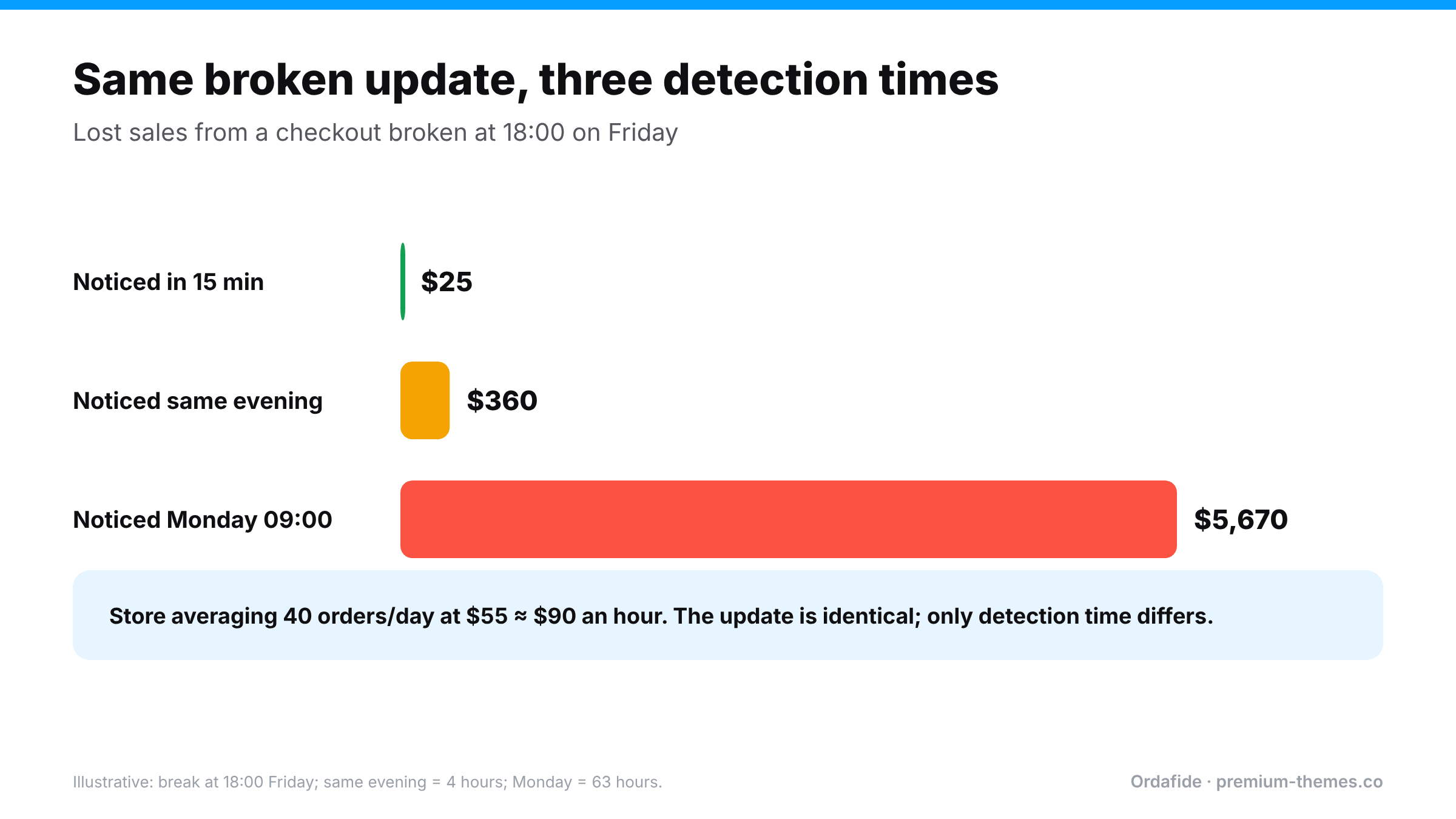
Suppose your store averages 40 orders a day at $55 each: about $2,200 a day, or roughly $90 an hour. A plugin auto-updates at 18:00 on Friday and breaks the payment form. Nobody checks until 09:00 Monday. That’s 63 hours. At normal weekend volume you’ve lost something like $5,000–$6,000 in sales, plus the ad spend that sent people to a dead checkout, plus the customers who tried, failed, and won’t come back.
The same break noticed in 15 minutes costs about $25.
The update was identical in both cases. The only difference was detection time. That’s why the playbook below spends as much effort on noticing as on preventing.
A five-step test purchase script
Write this down and keep it where whoever updates the store can find it. Adapt the products and methods to your store.
- Product page: open your best-selling product in a private window. Choose a variation if it has one. Click Add to cart. Confirm the cart count changes.
- Cart: open the cart. Apply a coupon you keep for testing. Confirm the total updates and shipping options load for a typical address.
- Checkout: go to checkout. Confirm the payment form (card field, PayPal button, wallets) appears without console errors.
- Pay: complete payment with your normal method (refund afterwards), or with your test coupon set to 100% if your gateway supports zero-value orders.
- After: confirm the order is Processing, the customer email arrives, the admin email arrives, and the gateway shows the payment.
If you sell to logged-in customers or use several payment methods, repeat steps 3–5 for the most-used variations. The whole thing takes five minutes, and it’s the cheapest insurance a store can buy.
The safe update playbook
The goal isn’t to stop updating. Outdated plugins are a security risk and accumulate bugs. The goal is to find breakage in minutes, on your schedule, not days later by accident.
Rule 1: Don’t let checkout-critical plugins auto-update unattended
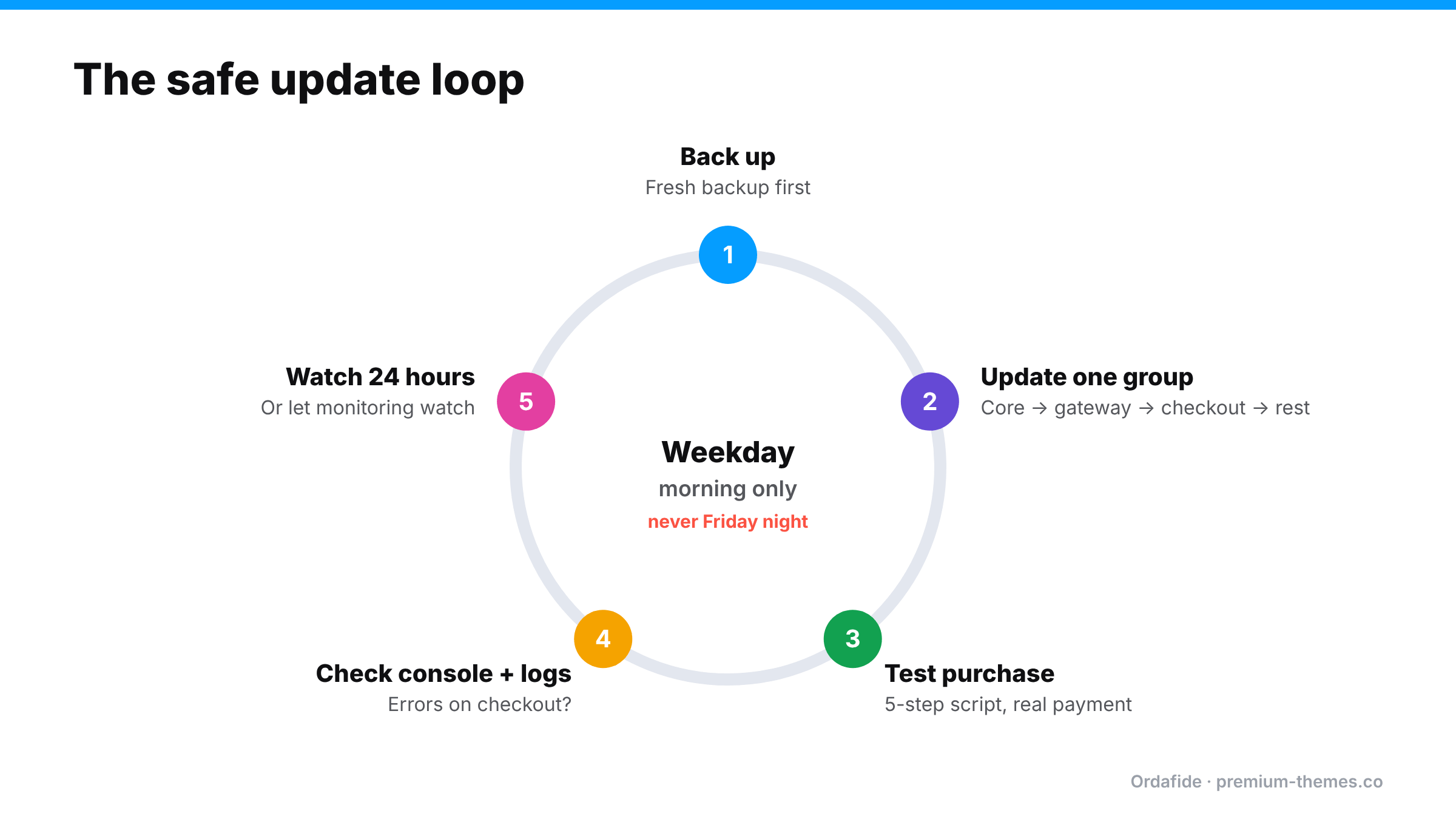
Auto-updates are great for low-risk plugins. For WooCommerce itself, your theme, payment gateways, and anything that touches cart or checkout, update manually, on a weekday morning, when someone can test immediately. Never on Friday afternoon.
Rule 2: Stage first when you can
If your host offers one-click staging, update there first and run through the purchase flow. Use test payment keys on staging, never live ones.
Rule 3: Update one group at a time
Update WooCommerce core, then test. Then the gateway, then test. Then everything else. If something breaks, you know exactly which change caused it.
Rule 4: Back up immediately before updating
A fresh backup turns a disaster into a five-minute restore.
Rule 5: Run the same test purchase after every update
Write down a five-step test: add product → cart → checkout → pay → confirm order and email. Run it every time. Takes three minutes.
Rule 6: Watch the next 24 hours
Some breaks only affect certain browsers, payment methods, products or customer types. Keep an eye on orders and errors for a day after significant updates.
Rule 7: Have monitoring that notices for you
Rules 1–6 depend on people remembering. The last line of defence should be automatic: something that checks checkout on a schedule and notices when orders stop.
Automating the “notice” part with Ordafide Pro
Ordafide Pro is built for exactly the failure in this article: the store is up, but it has stopped taking money.
- Synthetic checkout monitoring runs every 15 minutes, checking your shop, product, cart and checkout pages and the Store API used by block checkout, with response-time tracking. An optional deep mode adds a test product to a cart. It never places an order, so your data stays clean. A finding is raised only after two consecutive failures, so a single blip doesn’t wake anyone.
- Order volume anomaly detection compares each hour’s orders with comparable past hours using median-based statistics and flags drops. That’s the absence-of-orders signal humans miss, and it catches breaks that a page check can’t see, such as a payment method failing silently for some customers.
- Alerts go to Slack, SMS, email or a signed webhook (Discord, Teams, PagerDuty and others), with severity routing and throttling.
- A signed heartbeat endpoint lets an external monitor confirm Ordafide’s own checks are still running, so you’d know if a broken update took the monitoring down too.
The free Ordafide plugin covers the aftermath. After any update, a scan finds the orders that slipped through badly: stuck payments, paid-but-cancelled orders, duplicate charges from frustrated customers retrying, order totals that no longer add up (common when a coupon, tax or fee plugin misbehaves), and paid customers who never got a confirmation email. It also reports the health of the background job queue, which some updates quietly break.
Your update-day checklist
Before
- [ ] It’s a weekday morning, and someone is available for a few hours
- [ ] Fresh backup taken
- [ ] Changelogs skimmed for WooCommerce, gateway and checkout plugins
- [ ] Staging updated and tested first (if available)
During
- [ ] Update in groups: core → gateway → checkout-related → the rest
- [ ] Test purchase after each group
- [ ] Browser console checked for errors on checkout
After
- [ ] Real or zero-value order placed, email received, gateway checked
- [ ] Ordafide scan run for stuck, duplicate or mis-totalled orders
- [ ] Orders watched for 24 hours (or monitoring/alerts confirmed active)
Frequently asked questions
Why did my WooCommerce checkout stop working after an update?
Most commonly a JavaScript conflict, an optimization plugin delaying payment scripts, an outdated theme template override, a block/classic checkout compatibility issue, or a PHP fatal error.
Should I turn off WooCommerce auto-updates?
For WooCommerce core, your theme, payment gateways and checkout-related plugins, it's safer to update manually at a time when you can test. Low-risk plugins can usually auto-update.
How do I roll back a WordPress plugin?
Restore from your host's backup, or download the previous version from the plugin's WordPress.org page (Advanced View) and reinstall it.
How long should I watch the store after an update?
At least 24 hours for significant updates (WooCommerce core, gateways, checkout plugins), because some breaks only affect particular browsers, payment methods or customer types that a single test purchase won't exercise.
How can I tell if my checkout is broken without checking manually?
Use synthetic monitoring that tests cart and checkout on a schedule, plus order-volume monitoring that alerts on unusual drops. Ordafide Pro does both without placing test orders.

WooCommerce Security